

This month, we’re introducing new tools to make your workflows more efficient and transparent.
Highlights include PDF report downloads, clearer visibility of Preferred Suppliers, improved Stocktake controls, and new Quick Panels for Requisitions and Purchase Orders. We’ve also expanded Advanced Search filters and added key updates to the Supplier Portal for smoother collaboration.
These updates help your procurement operations happen faster, stay organised, and teams to collaborate more effectively. Read on to learn about the new features that you can use in PurchasePlus.

Back to All Product Updates
October 2025 Monthly Wrap-Up
Product Update
Published November 4th, 2025

Welcome
Jump To
Download Reports as PDF
You can now download Report results in PDF format. This will only be useful where the Report doesn't have too many columns.
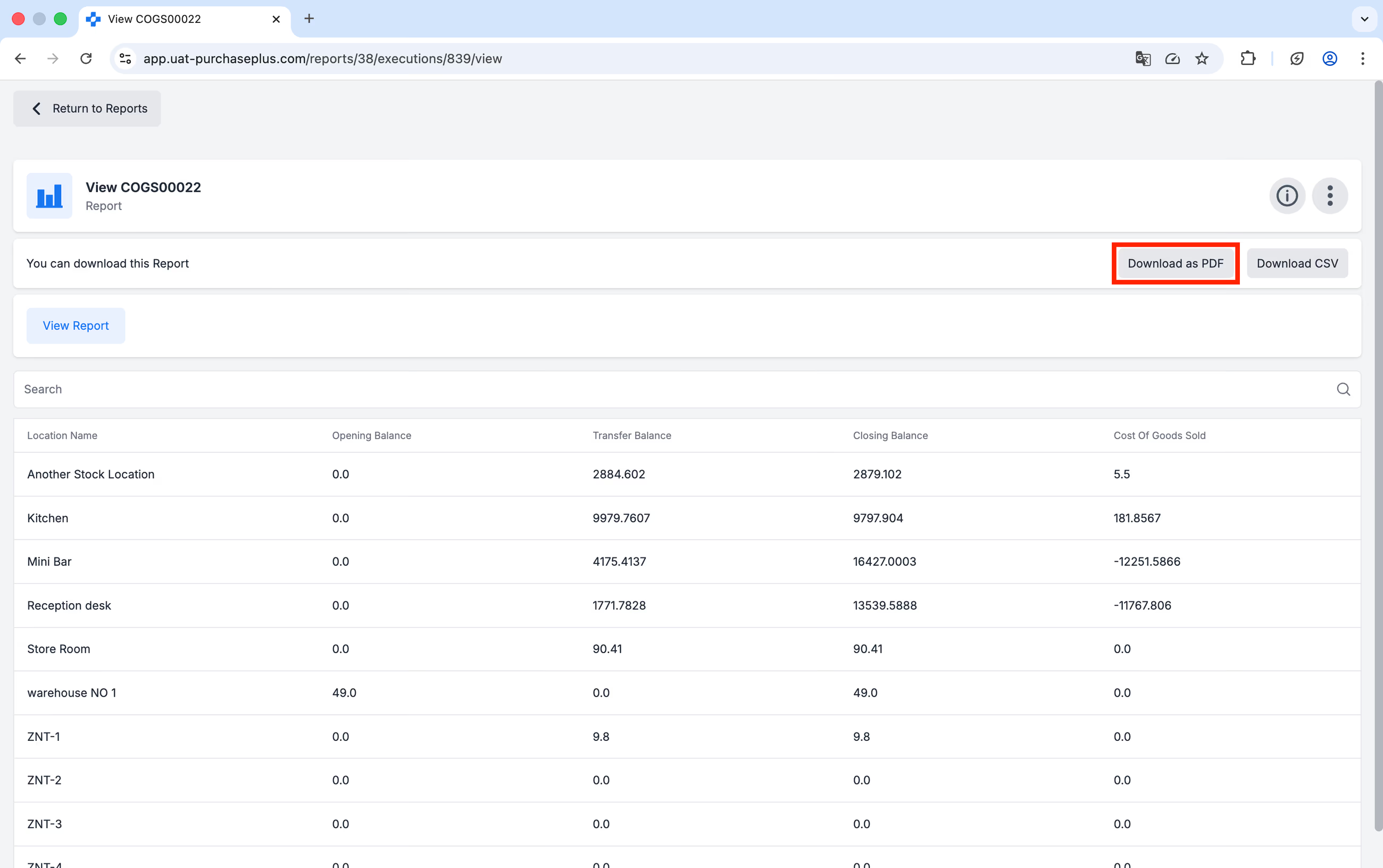
Above: Reports can be downloaded as PDF after clicking the Report Number in the list of Reports.
Increased Visibility of Preferred Suppliers
There is now a Preferred badge displayed beside the name of a Preferred Supplier in many more places for Purchaser users - for example, in the Quotes window when creating a Requisition:
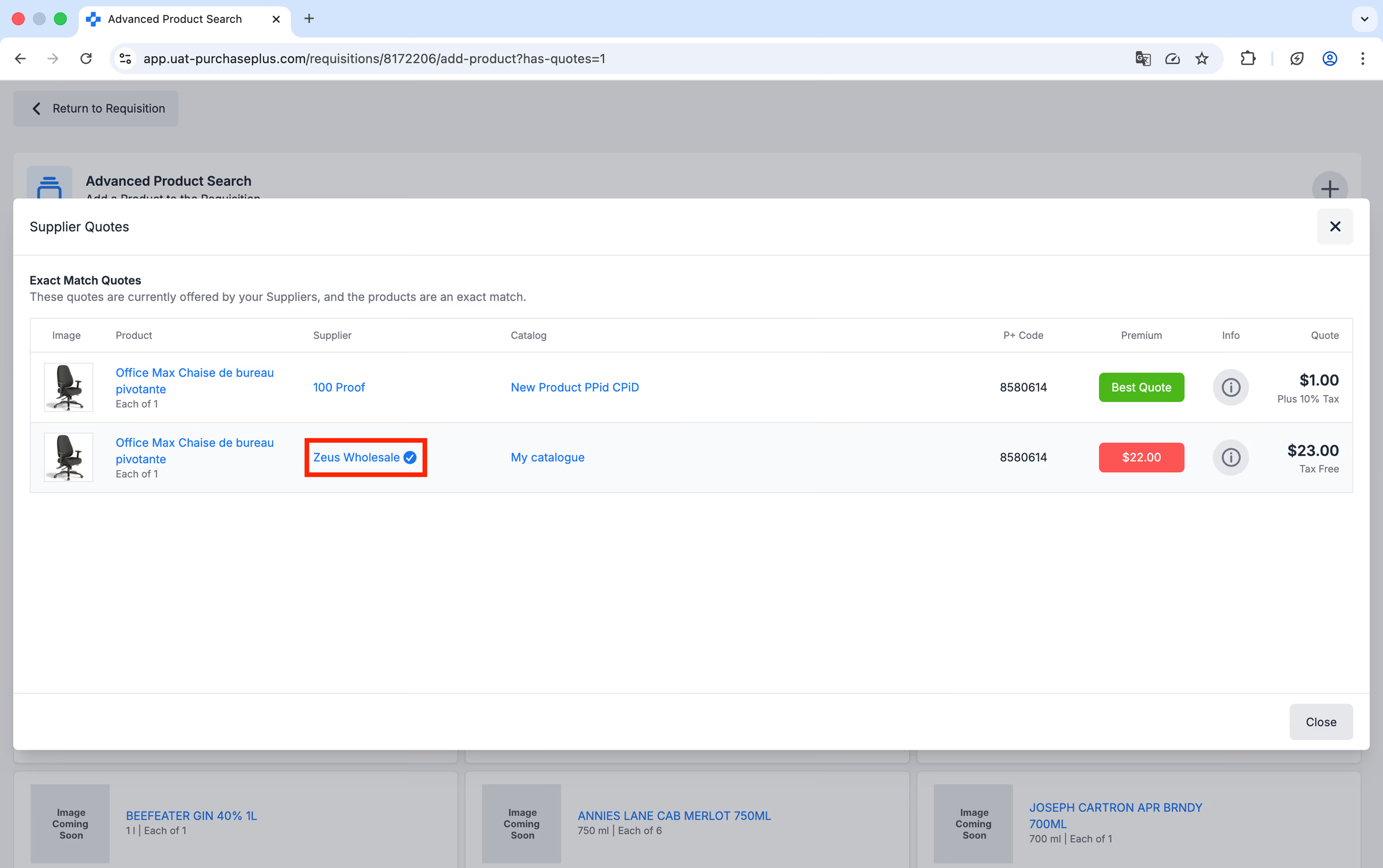
Above: The Preferred Supplier badge in a Requisition context.
Stocktake Enhancements
- Our system will now prevent the creation of a new Stocktake if there is an open Stocktake at the specific Location, for any period.
- An In-Progress Stocktake now has Up and Down Quantity Steppers, similar to those found in a Basic Shopping Mode Requisition. Users can click the Up or Down buttons to increment or decrement the Count of the item during a Stocktake, instead of previously having to delete the number and input the new Count manually:
- An In-Progress Stocktake now has Up and Down Quantity Steppers, similar to those found in a Basic Shopping Mode Requisition. Users can click the Up or Down buttons to increment or decrement the Count of the item during a Stocktake, instead of previously having to delete the number and input the new Count manually:
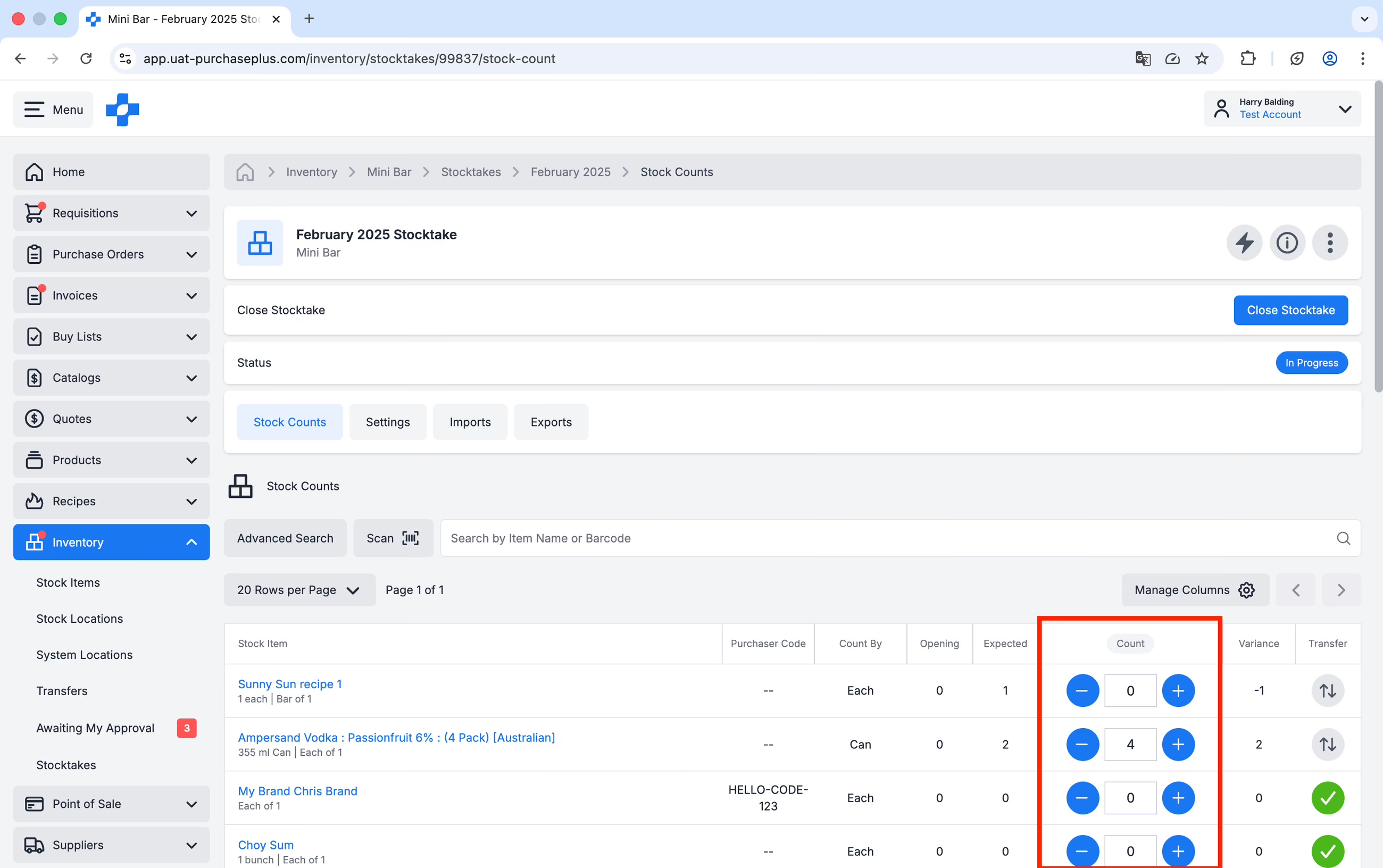
Above: The Up/Down Steppers in an In Progress Stocktake.
Quick Panels for Requisitions and Purchase Orders
We've added "Quick Panels" to a Requisition and a Purchase Order, that are available on the right hand side when viewing an Requisition or Purchase Order on a large screen:
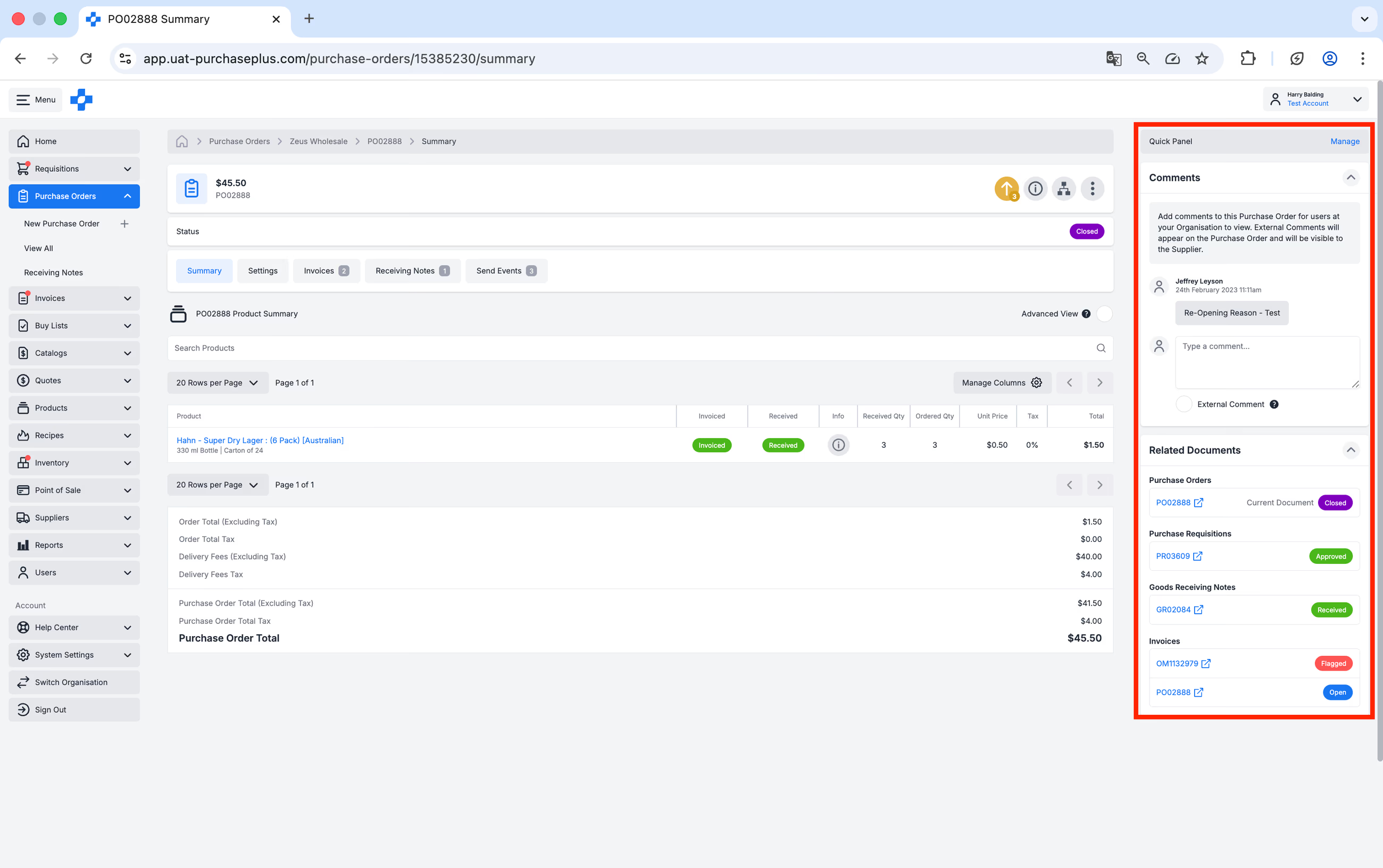
Above: The Quick Panel when enabled for a Purchase Order.
The Quick Panel can be configured to display:
- Any comments left on the document by another user at your Organisation, or
- Links to Related Documents, e.g. the Invoices matched to the Purchase Order.
You can use the [Manage] button in the top-right hand corner of the Quick Panel to configure what your panels will display. Please note, the Quick Panel will not be displayed if your monitor is not large enough to fit everything else on the screen.
- Any comments left on the document by another user at your Organisation, or
- Links to Related Documents, e.g. the Invoices matched to the Purchase Order.
You can use the [Manage] button in the top-right hand corner of the Quick Panel to configure what your panels will display. Please note, the Quick Panel will not be displayed if your monitor is not large enough to fit everything else on the screen.
Additional Advanced Search Filters
We have added a number of new Advanced Search filters in different areas of the application. You can now:
- Advanced Search the Supplier Directory by Connected and Not Connected status,
- Advanced search All Stock Items by Quotes (i.e. the Stock Item has Quotes from Suppliers, or it has no Quotes),
- Advanced search All Stock Items by Recipe (i.e. the Stock Item is a Recipe, or it is not a Recipe),
- Advanced search AI Scanning Tasks by FROM Email Address:
- Advanced Search the Supplier Directory by Connected and Not Connected status,
- Advanced search All Stock Items by Quotes (i.e. the Stock Item has Quotes from Suppliers, or it has no Quotes),
- Advanced search All Stock Items by Recipe (i.e. the Stock Item is a Recipe, or it is not a Recipe),
- Advanced search AI Scanning Tasks by FROM Email Address:
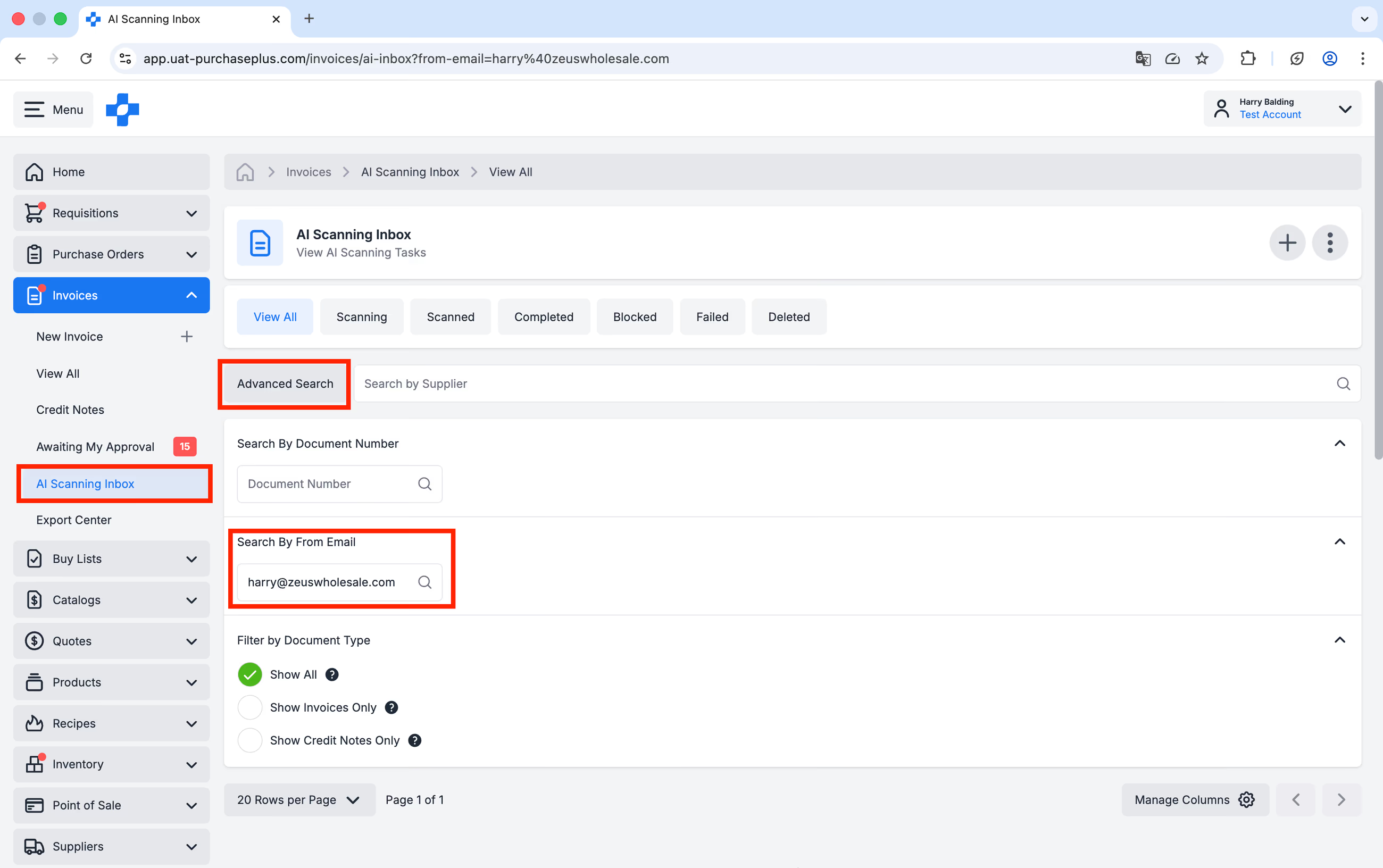
Above: Searching the AI Scanning Inbox by 'FROM' Address.
Other Enhancements
- You can now set a Department and Account Code on Stock Locations, Stock Items, Stock Level, POS Outlet, and POS Item for Reporting purposes,
- Inventory Users can now Delete a Stock or System Location,
- There is a new Invoice Type column on the All Invoices page that tells us the method by which the Invoice was created (e.g. manual, AI Scanner, API):
- Inventory Users can now Delete a Stock or System Location,
- There is a new Invoice Type column on the All Invoices page that tells us the method by which the Invoice was created (e.g. manual, AI Scanner, API):
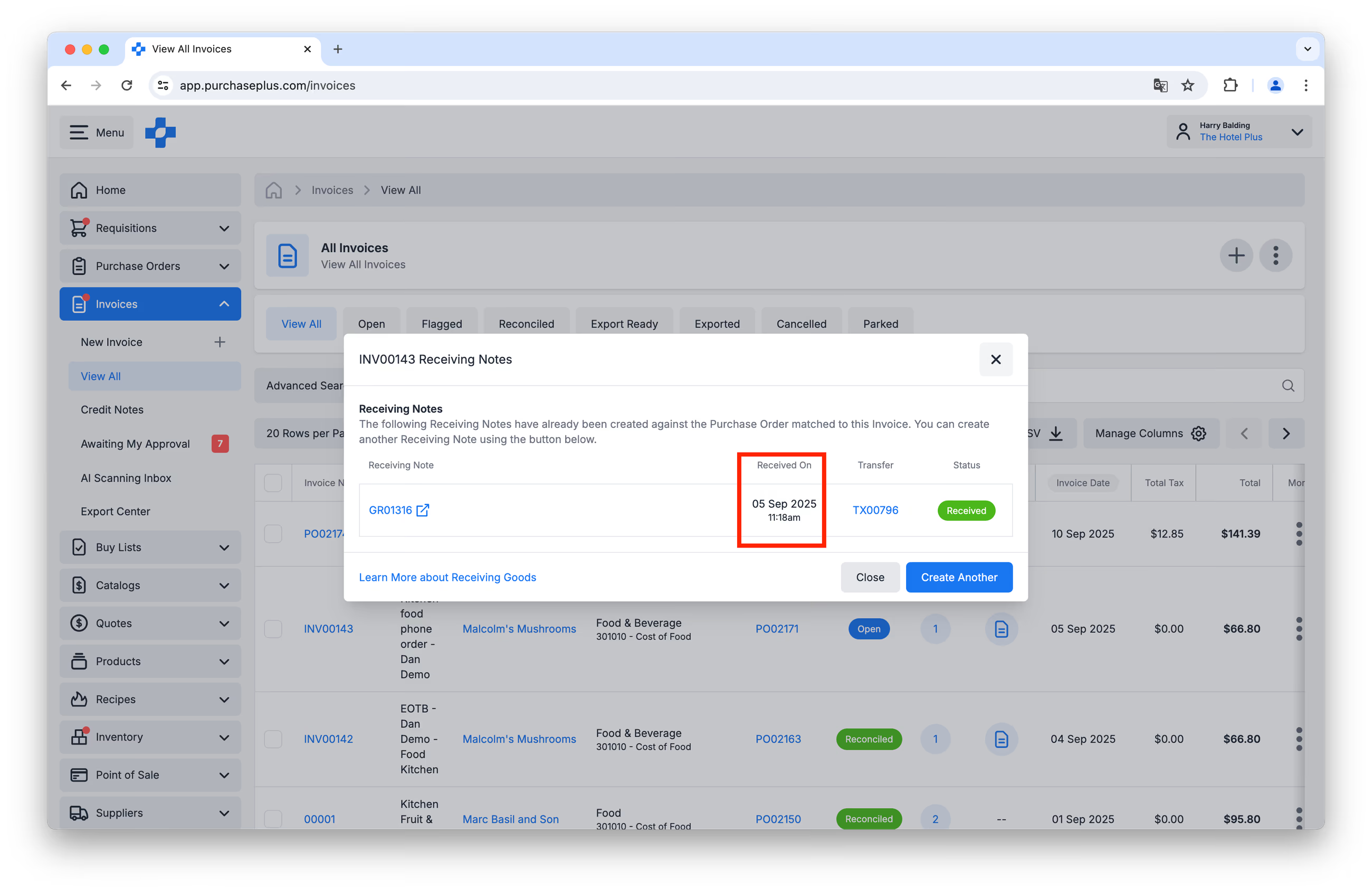
Above: The Invoice Type column on the All Invoices table.
Supplier Portal Enhancements
- There is now a Print option available in the Header Menu on both Purchase Orders and Invoices for a Supplier:
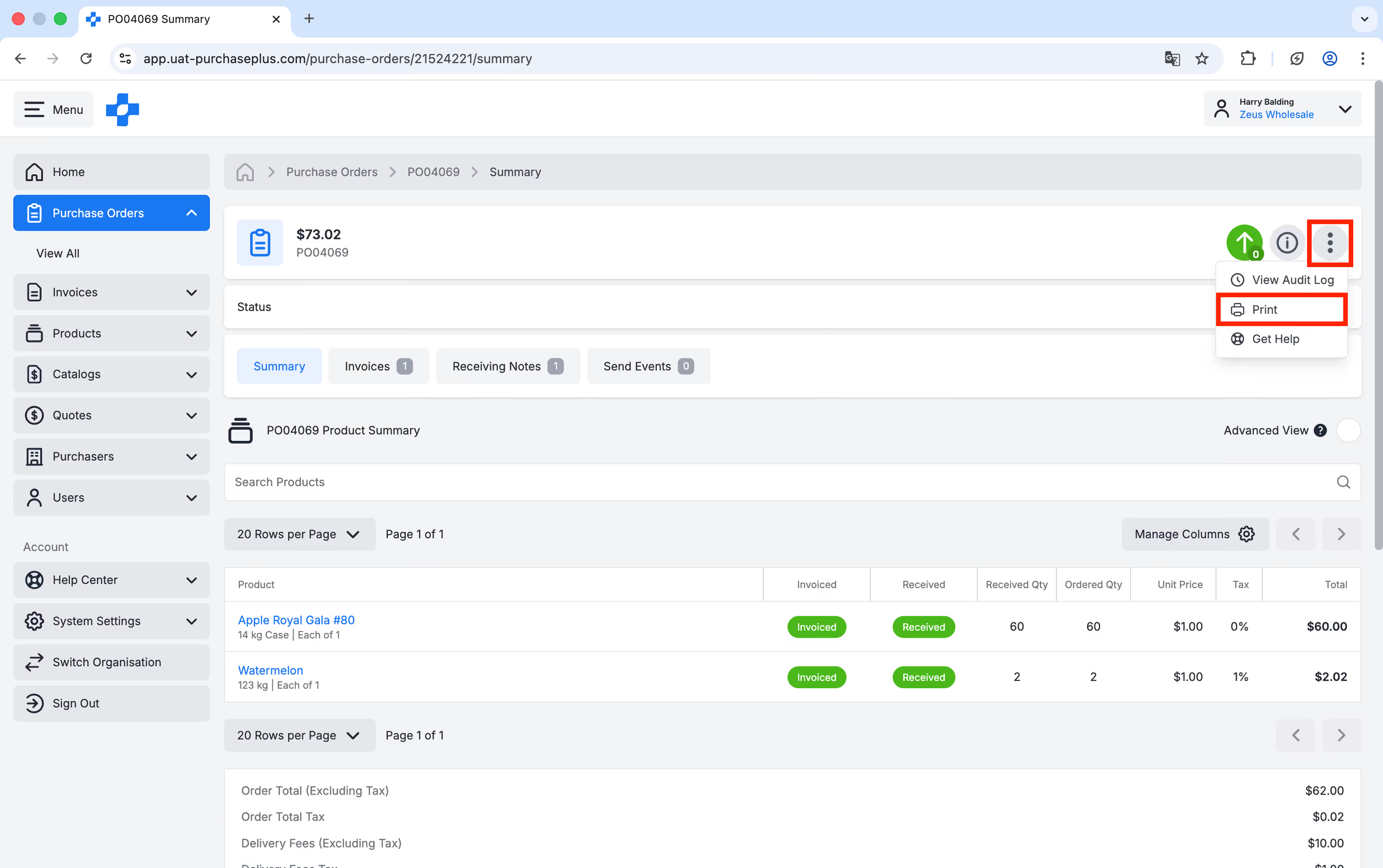
Above: Suppliers can now print Purchase Orders and Invoices in PurchasePlus.
For any questions, please contact us via email on help@purchaseplus.com or phone us on +61 2 8215 7133.