

This month, we’re thrilled to introduce Supplier Tags, a powerful new way to classify and search your supply chain, from diversity tracking to risk management. For those working late, our experimental Dark Mode has officially arrived, alongside significant efficiency gains like bulk exporting for Credit Notes and custom drag-and-drop sorting for Inventory Locations. We’ve also expanded our reporting suite with new Purchaser and Supplier insights, added currency visibility, and refined our Paperless Email search.
Read on to learn about the new features that you can use in PurchasePlus.

Back to All Product Updates
April 2026 Monthly Wrap-Up
Product Update
Published May 1st, 2026

Welcome
Jump To
Supplier Tags
Purchasers can now create Supplier Tags and Tag Suppliers.
Supplier Tags are simply a visual, searchable representation of the ways that you classify your Suppliers. There is no limit to the number of Supplier Tags you can create, or assign to any individual Supplier:
Supplier Tags are simply a visual, searchable representation of the ways that you classify your Suppliers. There is no limit to the number of Supplier Tags you can create, or assign to any individual Supplier:
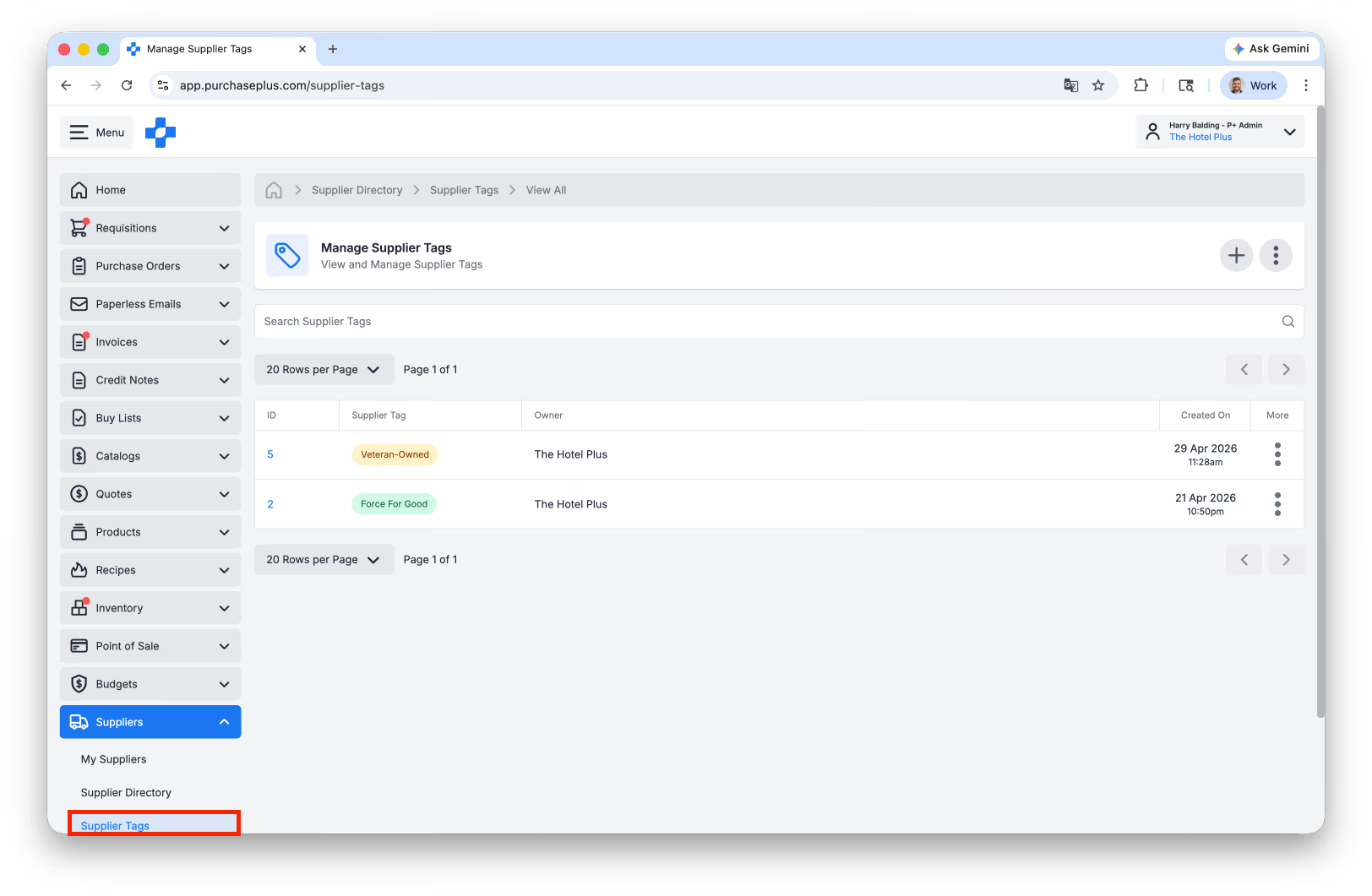
Above: Viewing the List of Supplier Tags in your Organisation.
Examples of Supplier Tags may include:
- Indigenous/First Nations-Owned,
- Women-Owned,
- Veteran-Owned,
- Disability-Owned,
- Environmental (Carbon-neutral, Sustainably-sourced etc),
- Governance (Anti-bribery, Board Diversity, Policy Compliant etc),
- Risk-based (Low/Med/High),
- Strategic/Critical Supplier,
- Performance ratings (Gold/Silver/Bronze),
- Regionality (e.g. Local/National),
- Certifications (ISO, Industry-specific, etc).
To create a Supplier Tag, navigate to [Suppliers]→ [Supplier Tags] and click the [Create a New Supplier Tag] button:
- Indigenous/First Nations-Owned,
- Women-Owned,
- Veteran-Owned,
- Disability-Owned,
- Environmental (Carbon-neutral, Sustainably-sourced etc),
- Governance (Anti-bribery, Board Diversity, Policy Compliant etc),
- Risk-based (Low/Med/High),
- Strategic/Critical Supplier,
- Performance ratings (Gold/Silver/Bronze),
- Regionality (e.g. Local/National),
- Certifications (ISO, Industry-specific, etc).
To create a Supplier Tag, navigate to [Suppliers]→ [Supplier Tags] and click the [Create a New Supplier Tag] button:
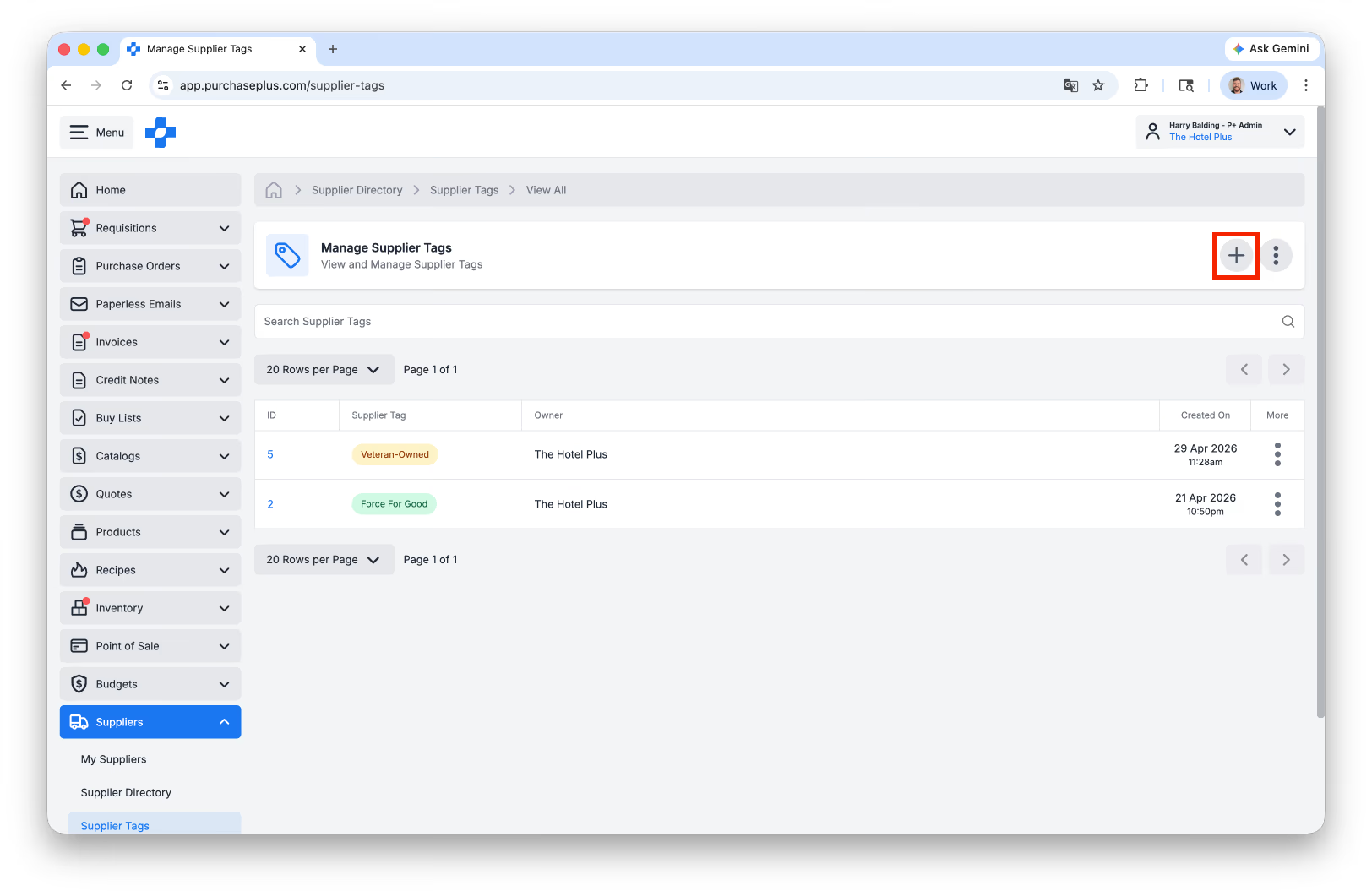
Above: Creating a New Supplier Tag.
To assign a Supplier Tag to a Supplier, navigate to the Supplier's Profile, and select [Supplier Tags], then [Manage Supplier Tags]:
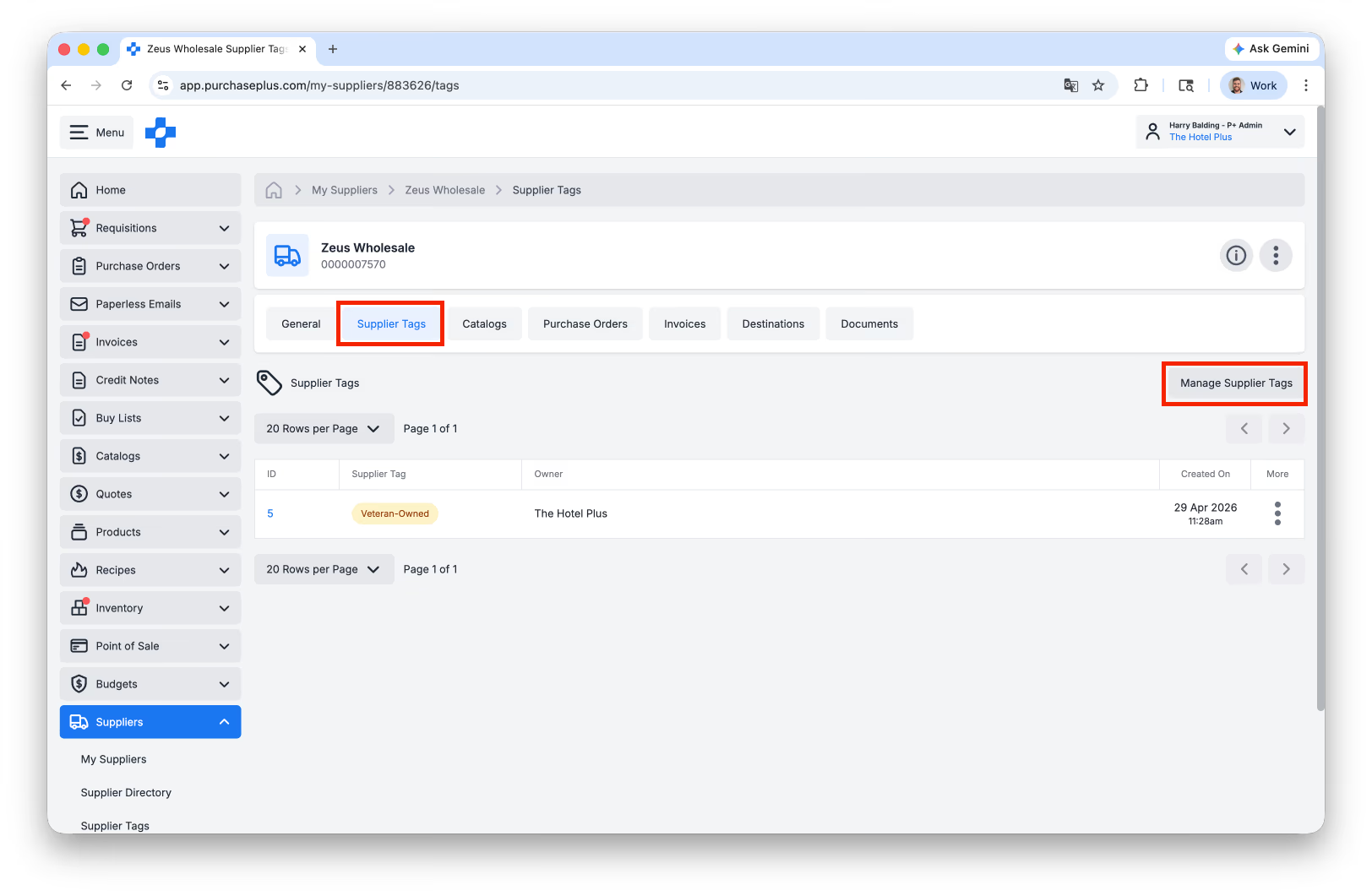
Above: Managing the Tags assigned to a Supplier Organisation.
You can [Advanced Search] both the Supplier Directory and My Suppliers by Supplier Tag:
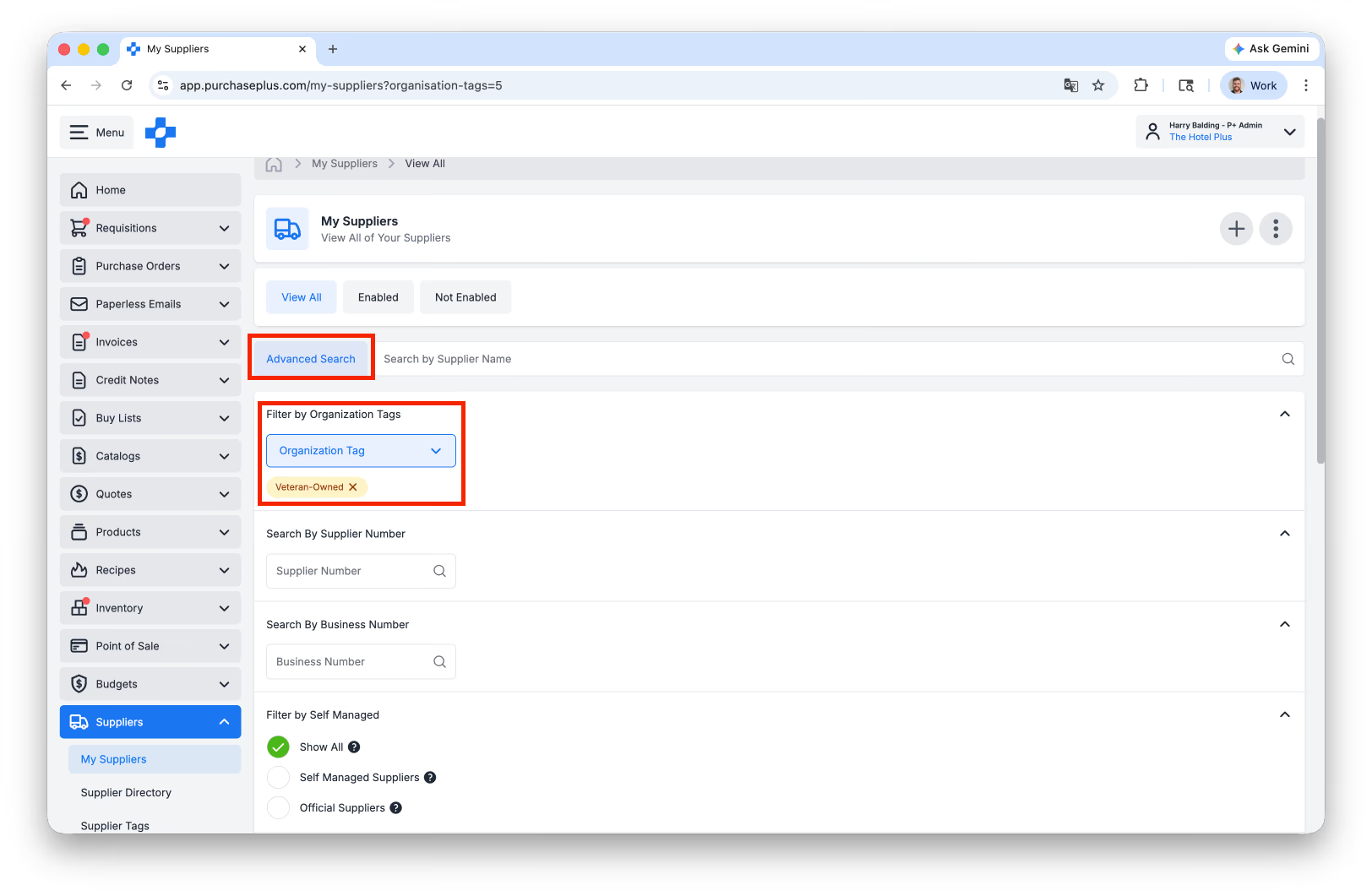
Above: Using the Advanced Search filter to search by Supplier Tags.
In addition to Supplier Tags being useful in the UI and via Advanced Search, our advanced Data Analytics team can work closely with you to leverage Supplier Tags for deeper business insight. Get in touch.
Dark Mode
There is an experimental ‘Dark Mode’ available in the upper-right menu:
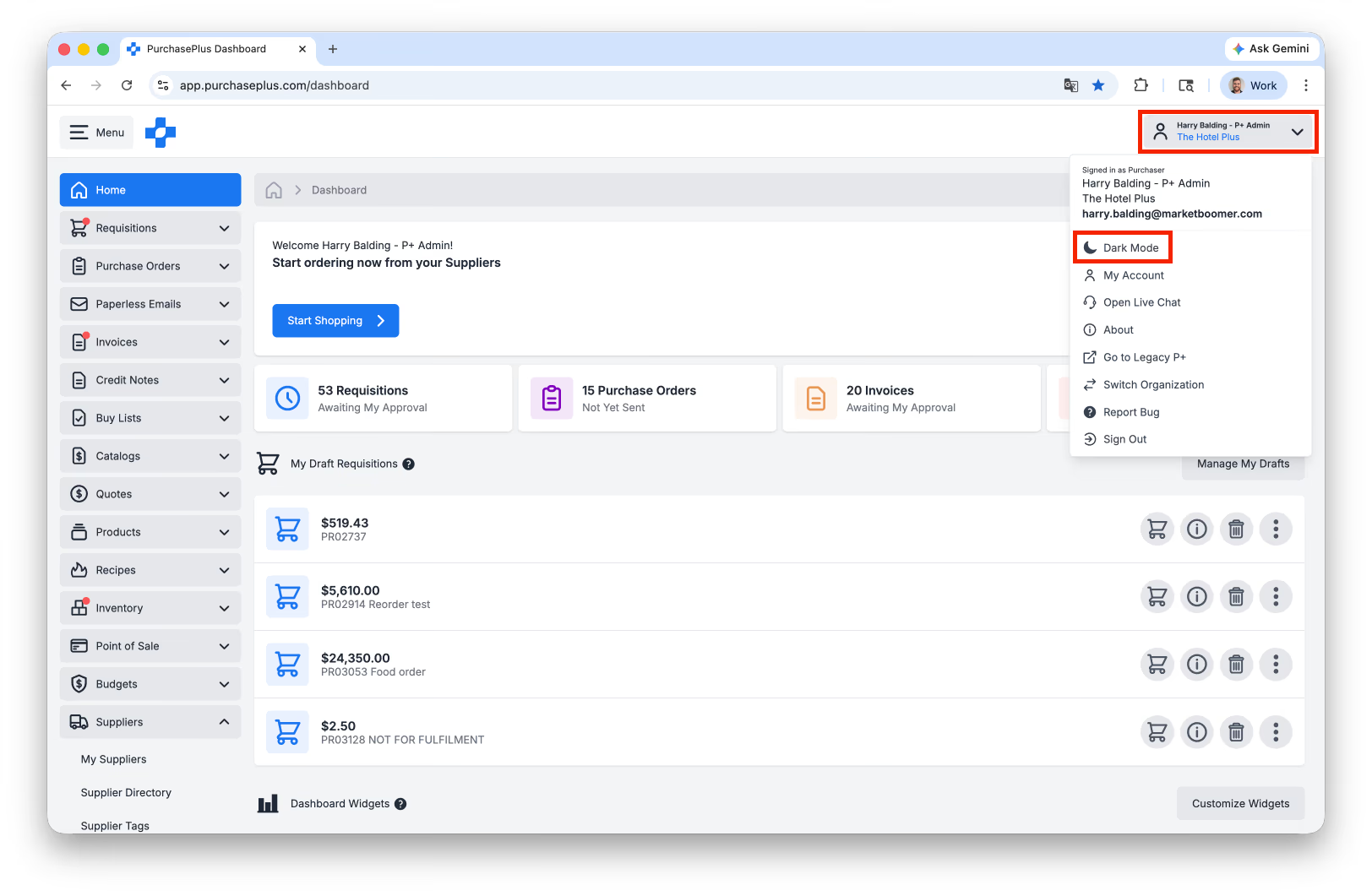
Above: Enabling Dark Mode.
Enabling Dark Mode will alter your UI to be predominantly black instead of white:
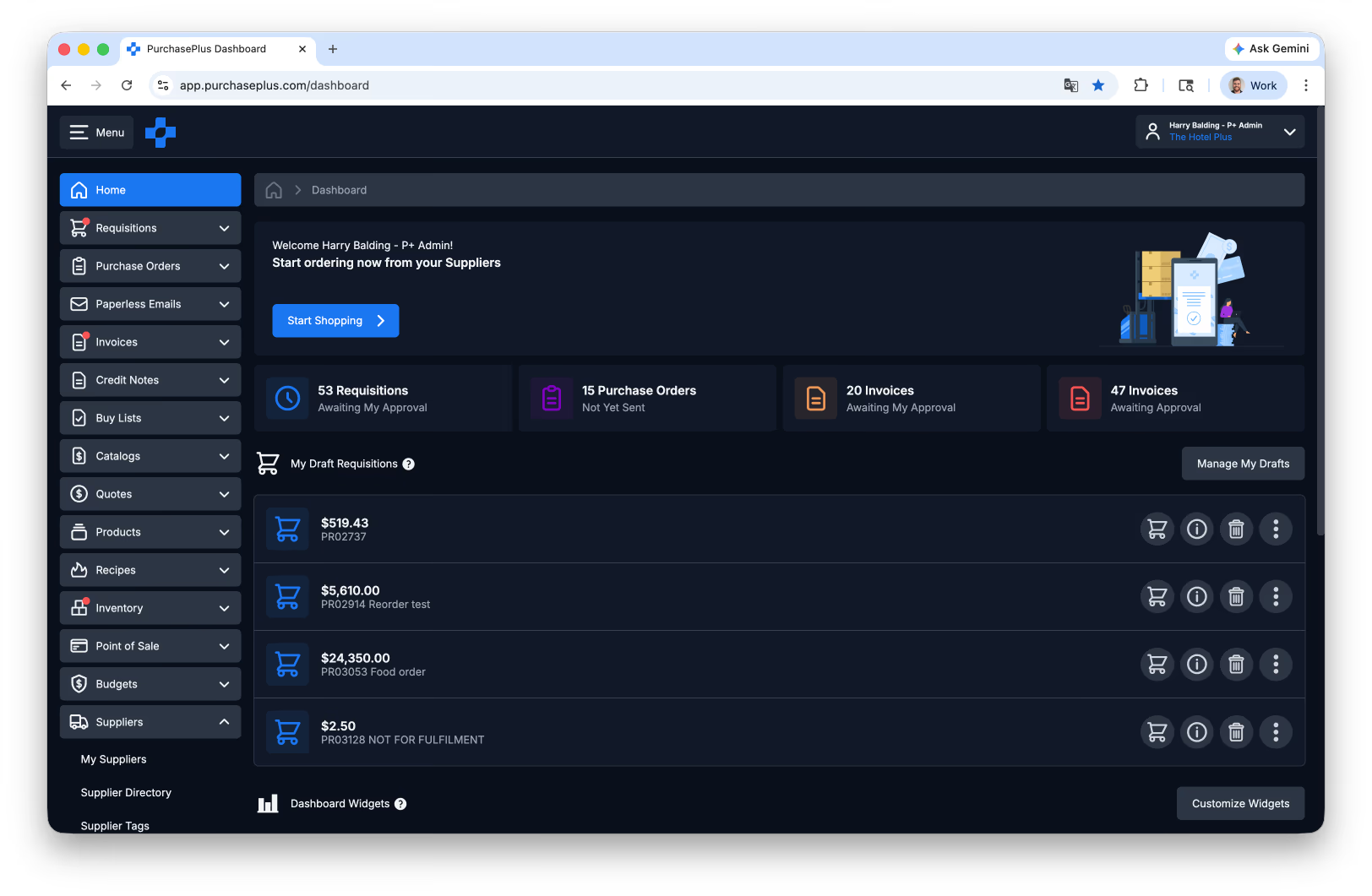
Above: Dark Mode Enabled.
Mark Credit Notes as Export Ready in Bulk
For AP Systems configured as Type B, you can now multi-select and mark many Reconciled Credit Notes as Export Ready:
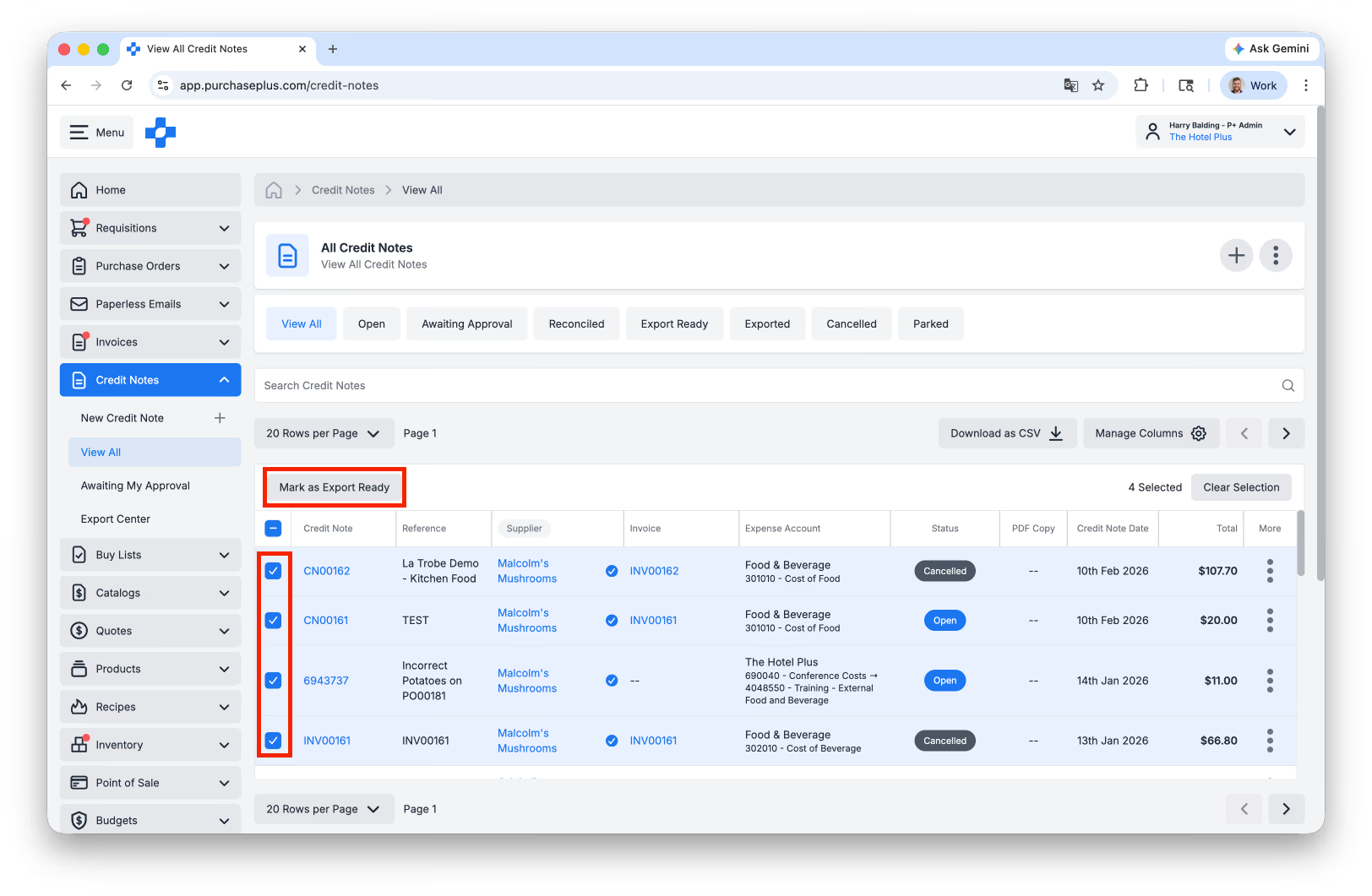
Above: Selecting multiple Credit Notes to Mark as Export Ready.
New Reports (for both Purchasers and Suppliers)
For Purchasers:
- My Suppliers Report,
- My Products Report,
- Added a Currency Column to: Purchase Orders Report, Purchase Order Lines Report, Invoice and Credit Notes Report, Invoice and Credit Note Lines Report, and Invoice and Credit Note Sub-Lines Report.
For Suppliers:
- Invoice and Credit Notes Report,
- Products Purchased Report,
- My Products Report.
- My Suppliers Report,
- My Products Report,
- Added a Currency Column to: Purchase Orders Report, Purchase Order Lines Report, Invoice and Credit Notes Report, Invoice and Credit Note Lines Report, and Invoice and Credit Note Sub-Lines Report.
For Suppliers:
- Invoice and Credit Notes Report,
- Products Purchased Report,
- My Products Report.
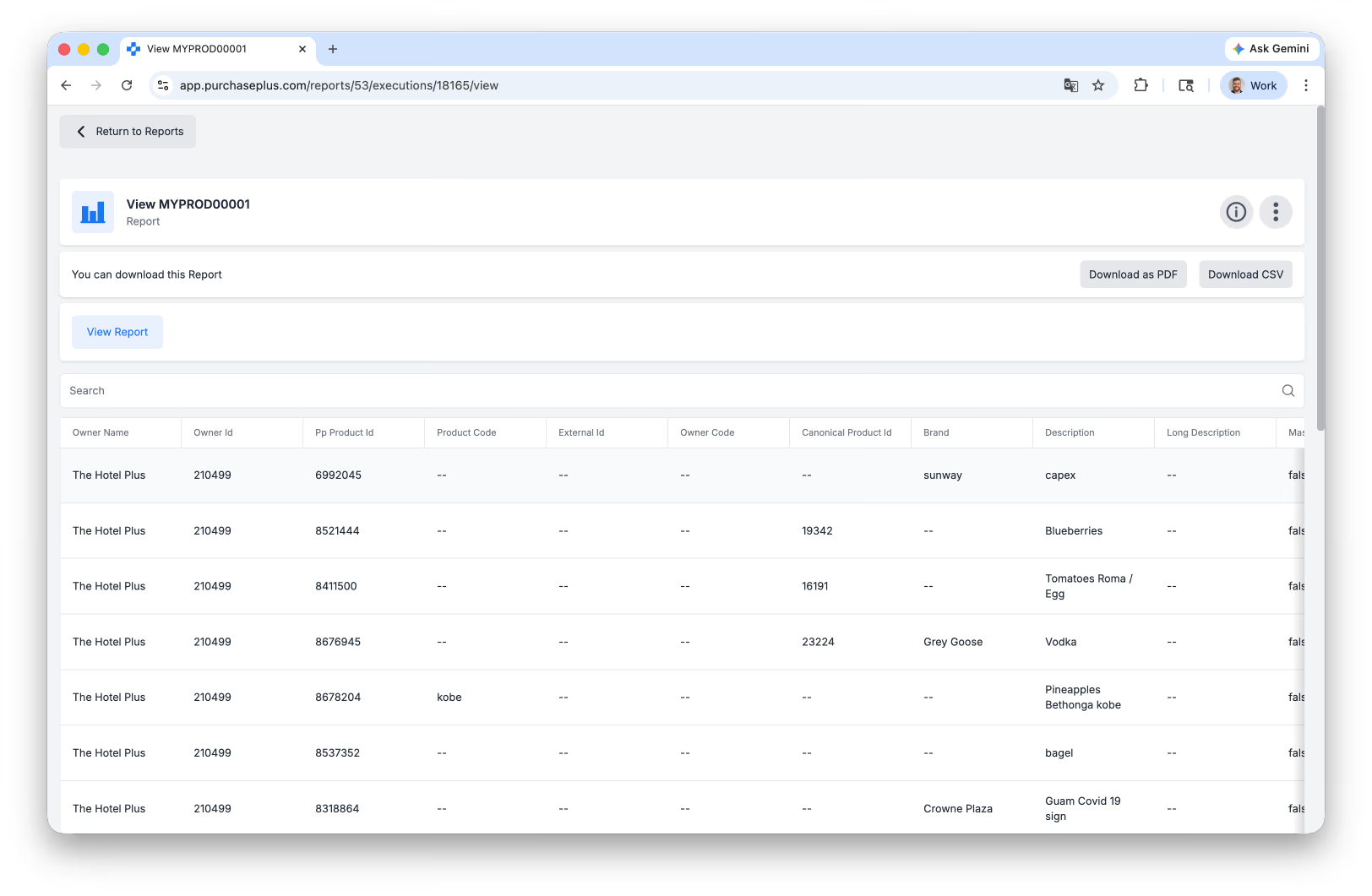
Above: The My Products Report is a download-friendly view of all the Products owned by your Organisation.
Custom Sorting for Stock Items in a Stock Location
Inventory Users Only
You can now Custom Sort a Stock Location in New Inventory by dragging and dropping to reorder the Stock Items in that Location:
You can now Custom Sort a Stock Location in New Inventory by dragging and dropping to reorder the Stock Items in that Location:
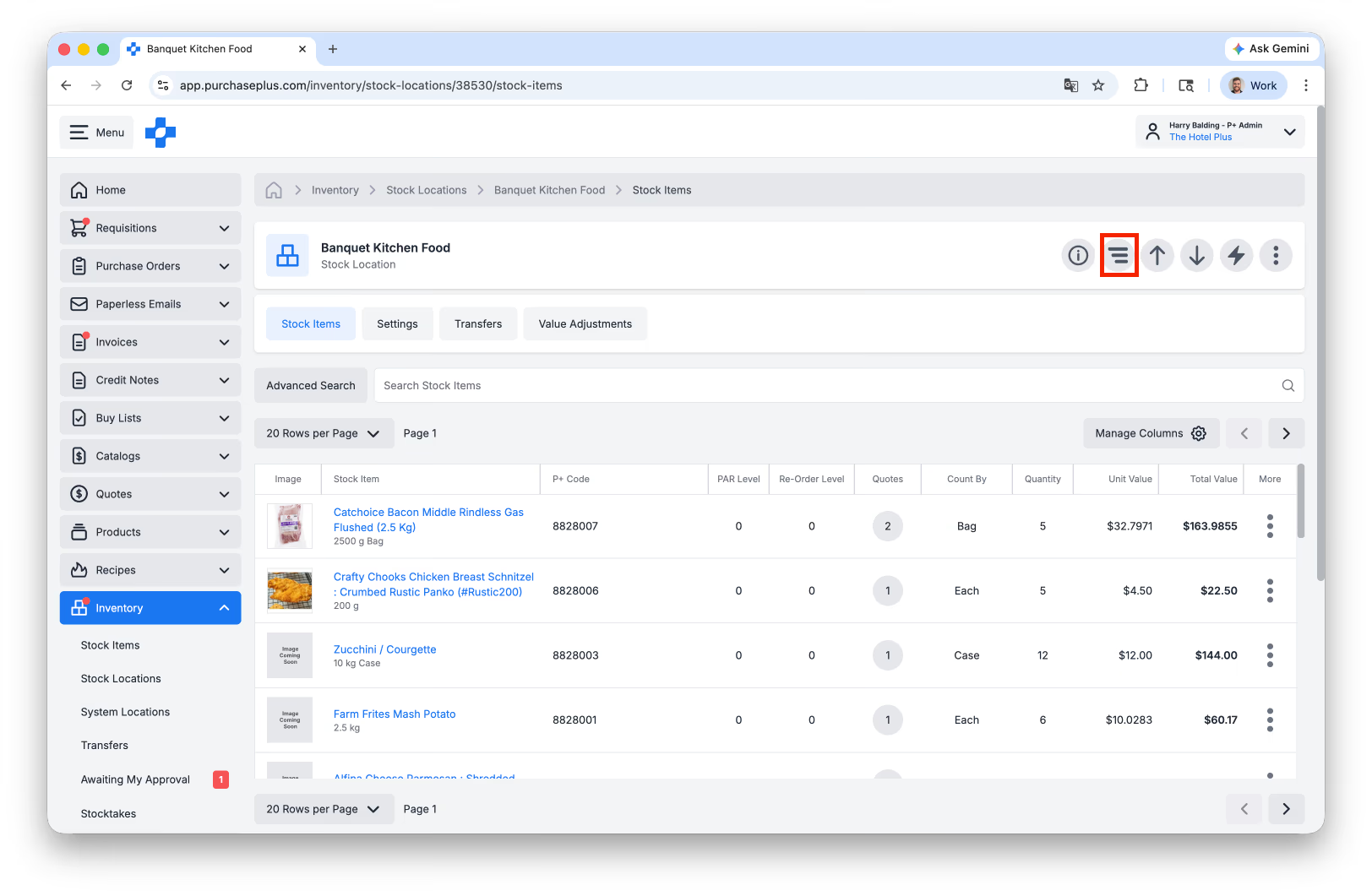
Above: Managing the Sorting Preferences in a Stock Location.
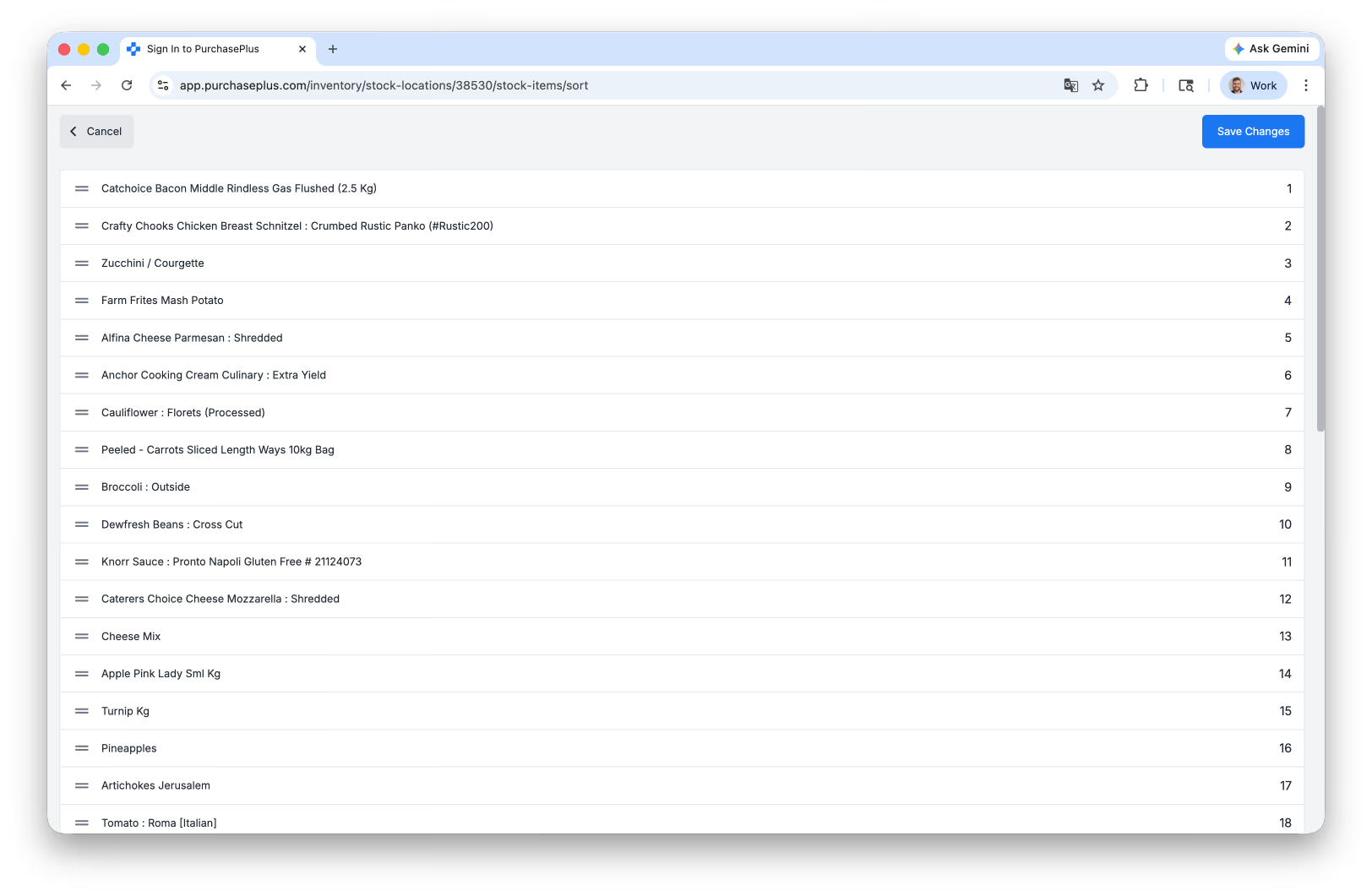
Above: Drag and Drop the Stock items into your preferred Sorting display.
To enable this feature at a Stock Location, visit the Settings tab for the Stock Location and select [Enable Custom Sorting]:
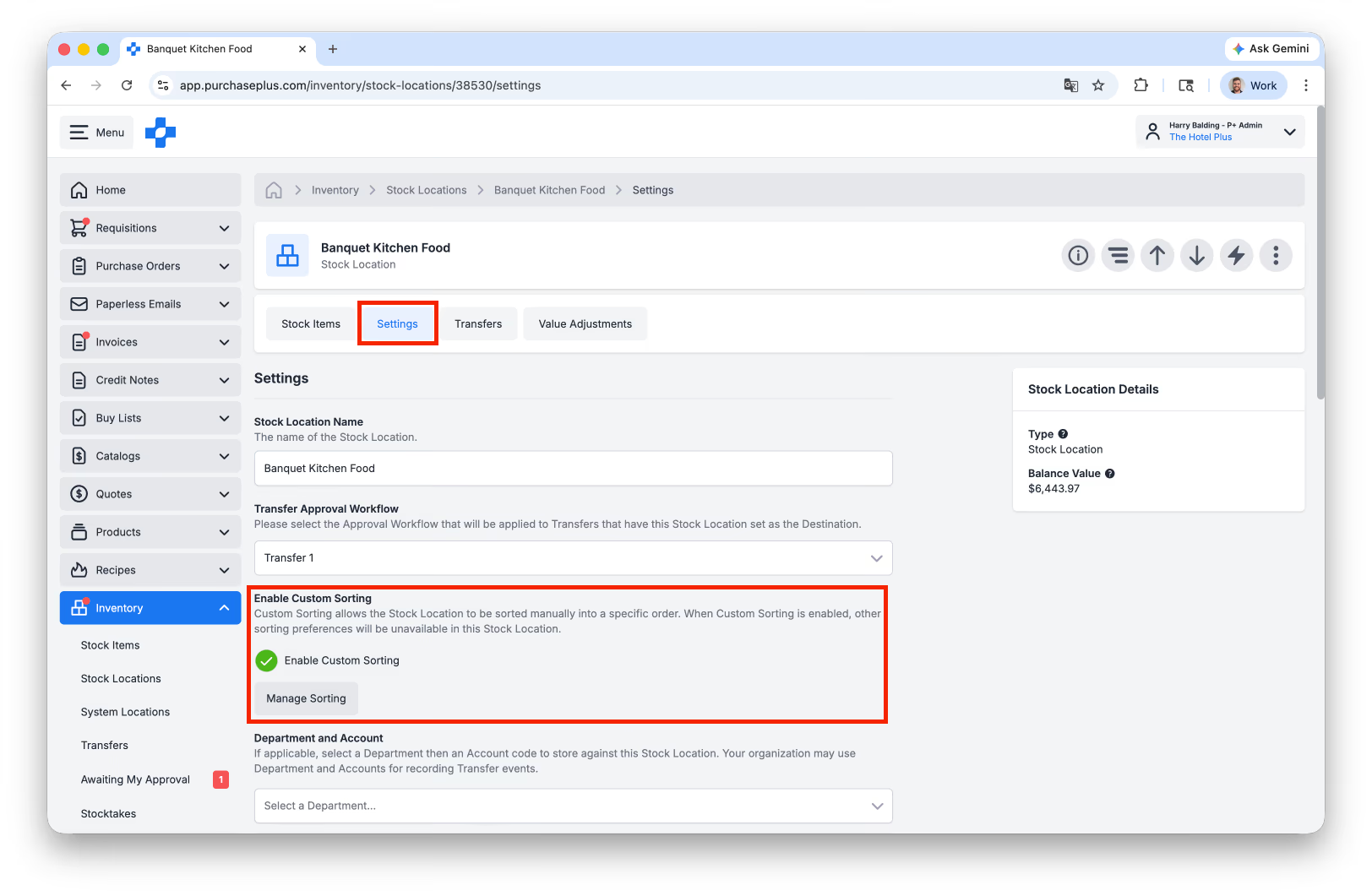
Above: Enabling Custom Sorting in a Stock Location.
Search a Stocktake by P+ Code
Inventory Users Only
There is now a "Search by P+ Code" Advanced Search option within a Stocktake, to help quickly find the right Stock Item to count:
There is now a "Search by P+ Code" Advanced Search option within a Stocktake, to help quickly find the right Stock Item to count:
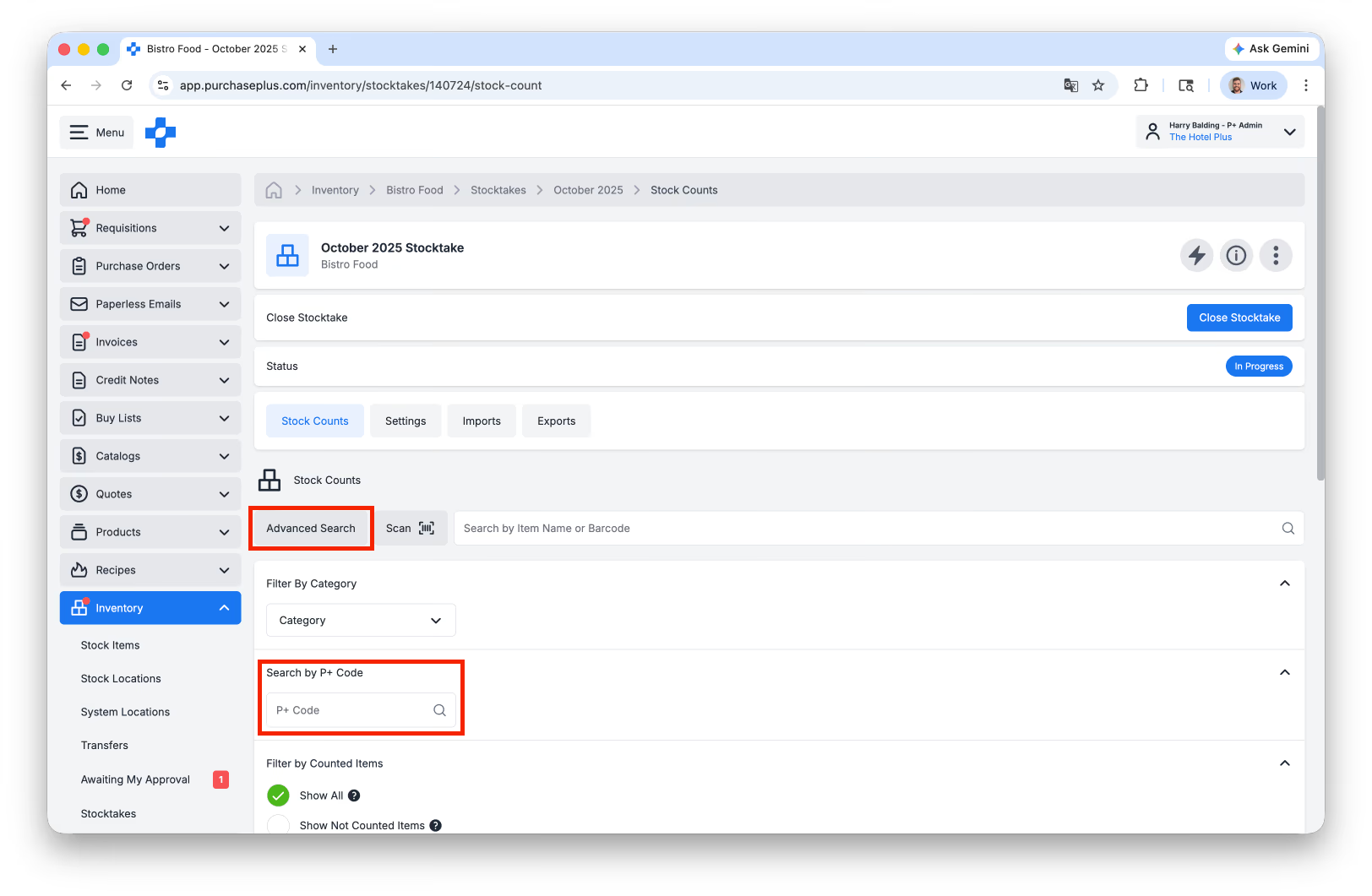
Above: Enabling the 'Search by P+ Code' Advanced Search filter in a Stocktake.
Paperless Email Search Enhancements
Paperless Email Users Only
You can now Advanced Search Paperless Emails by:
- AI Scanning Job ID,
- Created On (From Date and To Date):
You can now Advanced Search Paperless Emails by:
- AI Scanning Job ID,
- Created On (From Date and To Date):
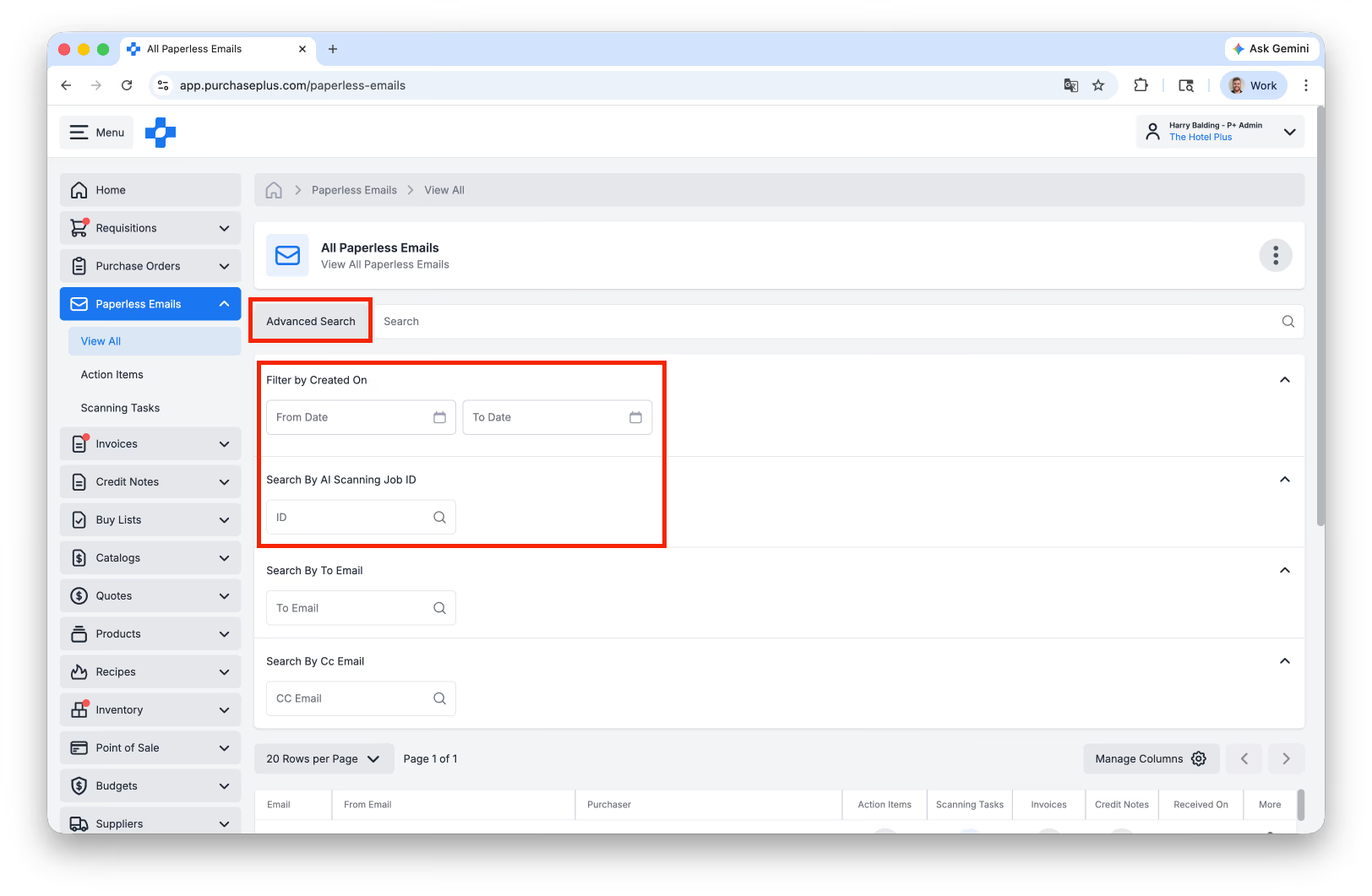
Above: New Advanced Search Filters for Paperless Emails.
Other Enhancements
- We now conditionally show up to 4 decimal places on Quantity and Price values when editing an Invoice or Credit Note,
- There are now more columns available in the All Organisations table view via [Manage Columns],
- You can now edit a POS Batch Sale when it is in the invalid state,
- There are now Sorting Preferences available in the [Manage Columns] area of All Transfers:
- There are now more columns available in the All Organisations table view via [Manage Columns],
- You can now edit a POS Batch Sale when it is in the invalid state,
- There are now Sorting Preferences available in the [Manage Columns] area of All Transfers:
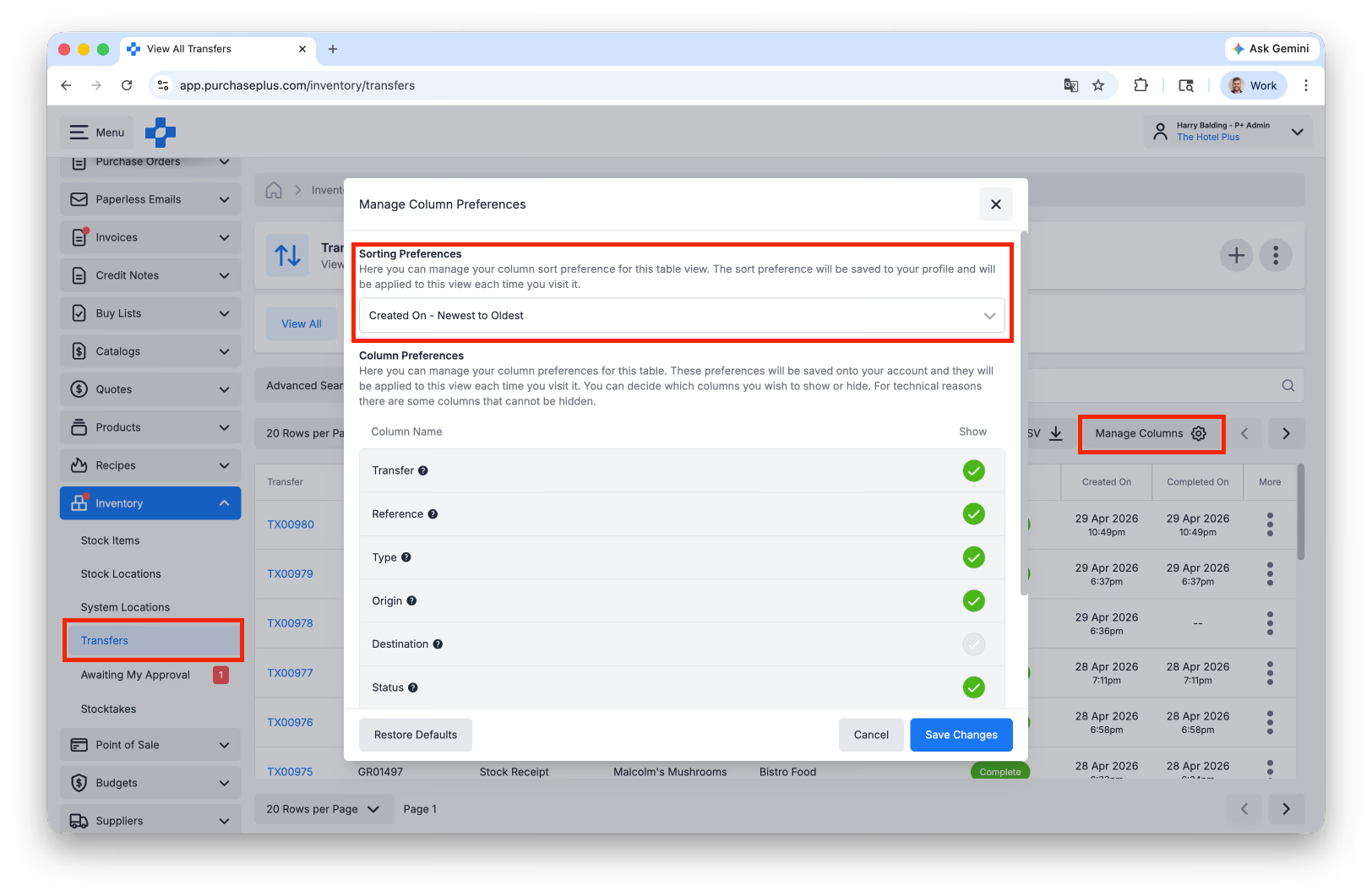
Above: Sorting Preferences are now available in the All Transfers view.
For any questions, please contact us via email on help@purchaseplus.com or phone us on +61 2 8215 7133.