

Enable or Disable a Supplier
Enable or Disable a Supplier
Definitions
'Enabled' means your Organization, and you can place orders with the Supplier. The Supplier can assign Catalogs, Products and prices to your Organization, and quotes will be available from the Supplier when creating a Requisition.
'Not Enabled' means users at your Organization will no longer be able to purchase products from the Supplier. You can re-enable the Supplier at any time in the future. Your Organization is still able to Export Invoices from a Not Enabled Supplier.
See our help articles View and Manage Suppliers, and Connect to a Registered Supplier to learn more about Supplier Management.
Disable a Supplier
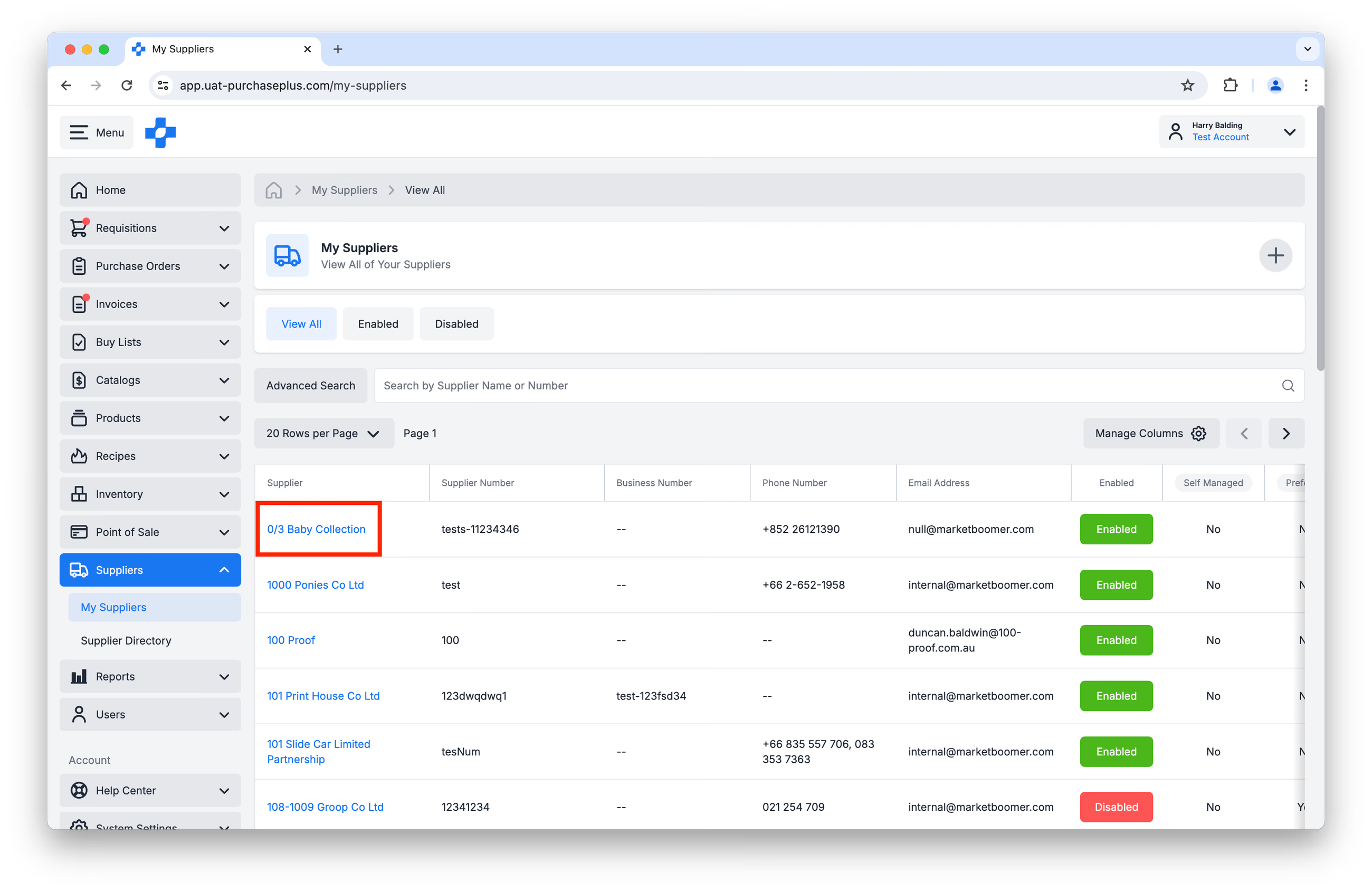
1. To mark a Supplier as Not Enabled, navigate to [Suppliers]→[My Suppliers], browse or search for the Supplier, and click [Supplier Name]:
 2. Click [Enabled by Purchaser] to un-check the box, then [Save Changes] to confirm.
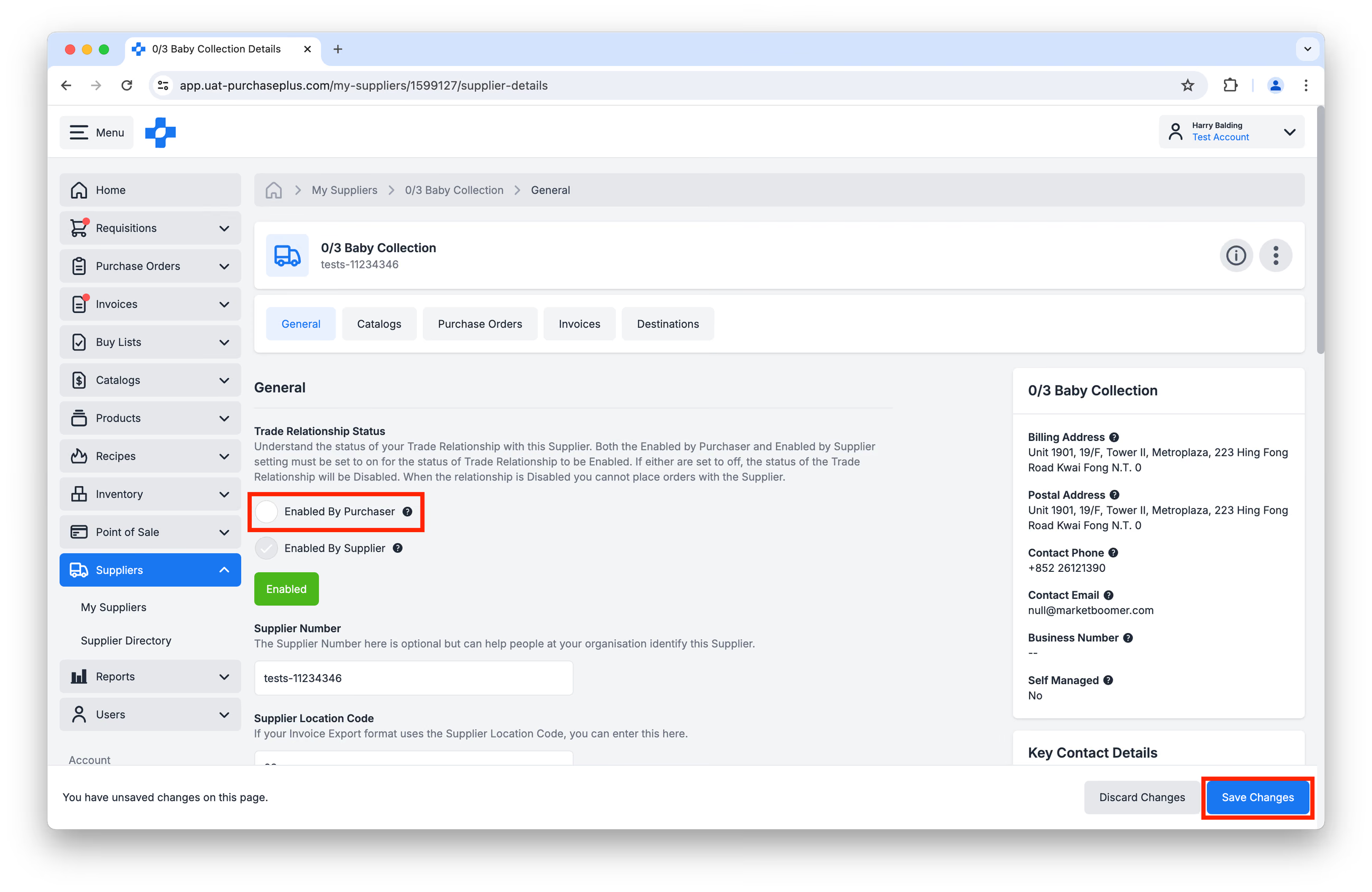 3. The Trade Relationship Status will be updated to Not Enabled, and your Organisation can no longer trade with this Supplier. However, the Supplier can be re-enabled in the future.
Enable (or Re-enable) a Supplier
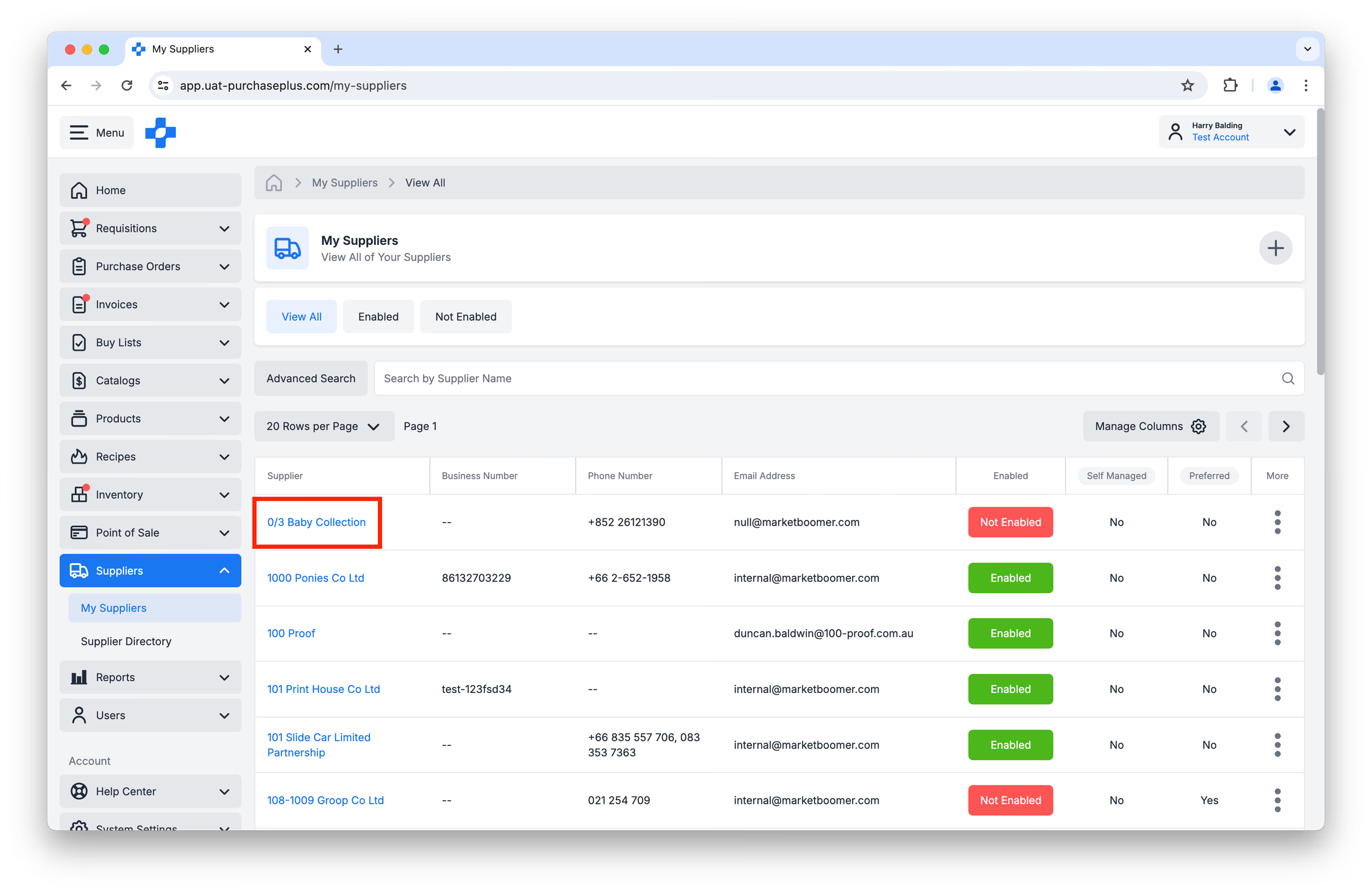
1. Navigate to [Suppliers]→[My Suppliers], browse or search for the Supplier, and click [Supplier Name].
2. Click [Enabled by Purchaser], then [Save Changes] to confirm.
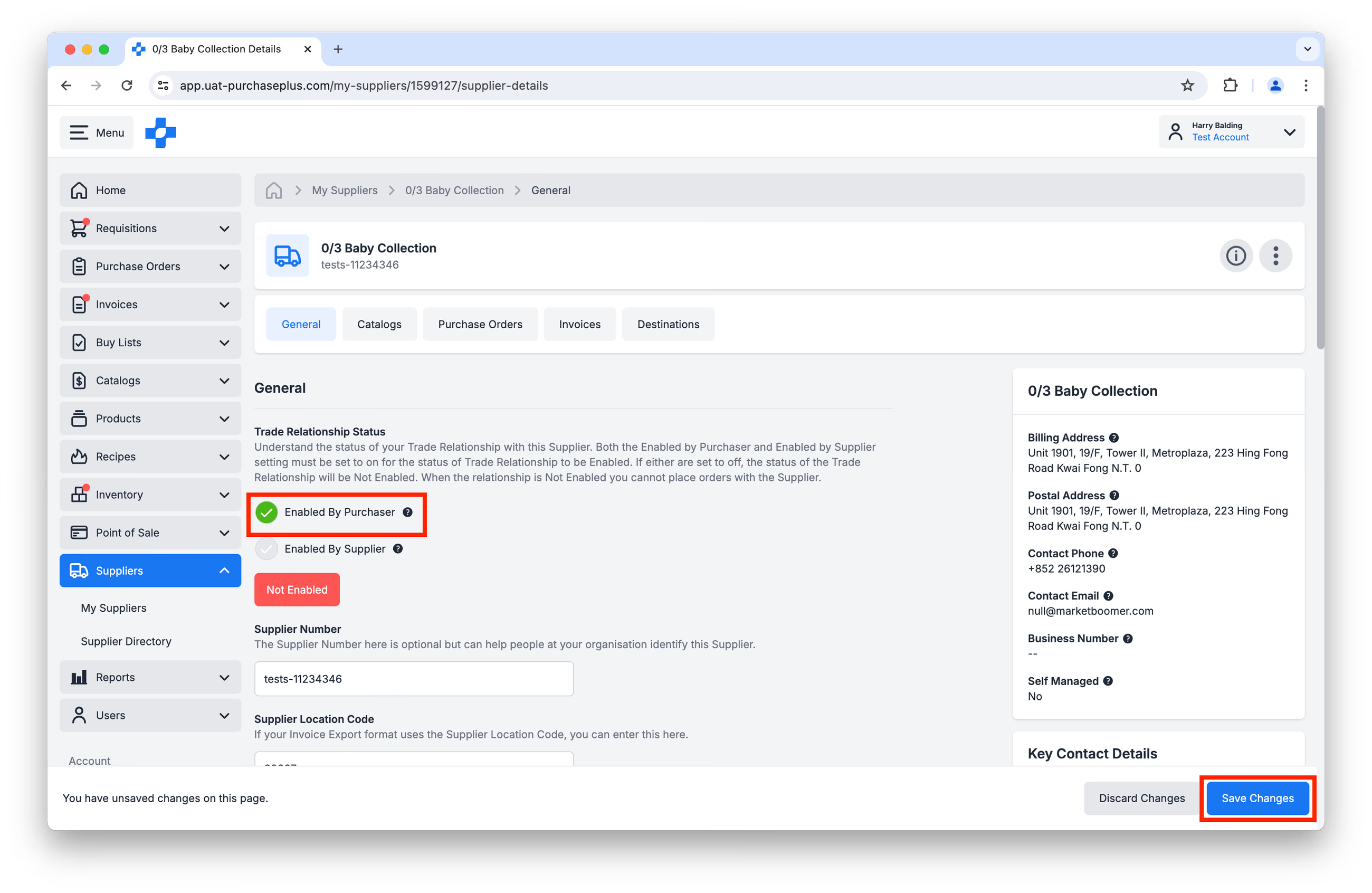 3. The Trade Relationship Status will be updated to Enabled, and your Organisation can now trade with this Supplier.