

Overview
Overview
Overview
Recipes is an optional inclusion in your PurchasePlus system, and it is a great way to leverage even more value from our software in addition to our best-in-class Procure-to-Pay offering.
Our Recipes module enables Purchasers to:
- Centralise and standardise your Food and Beverage teams’ Intellectual Property,
- Achieve close control over the cost of your Recipes and Ingredients, and ultimately,
- Maximise Recipe and Menu profitability.
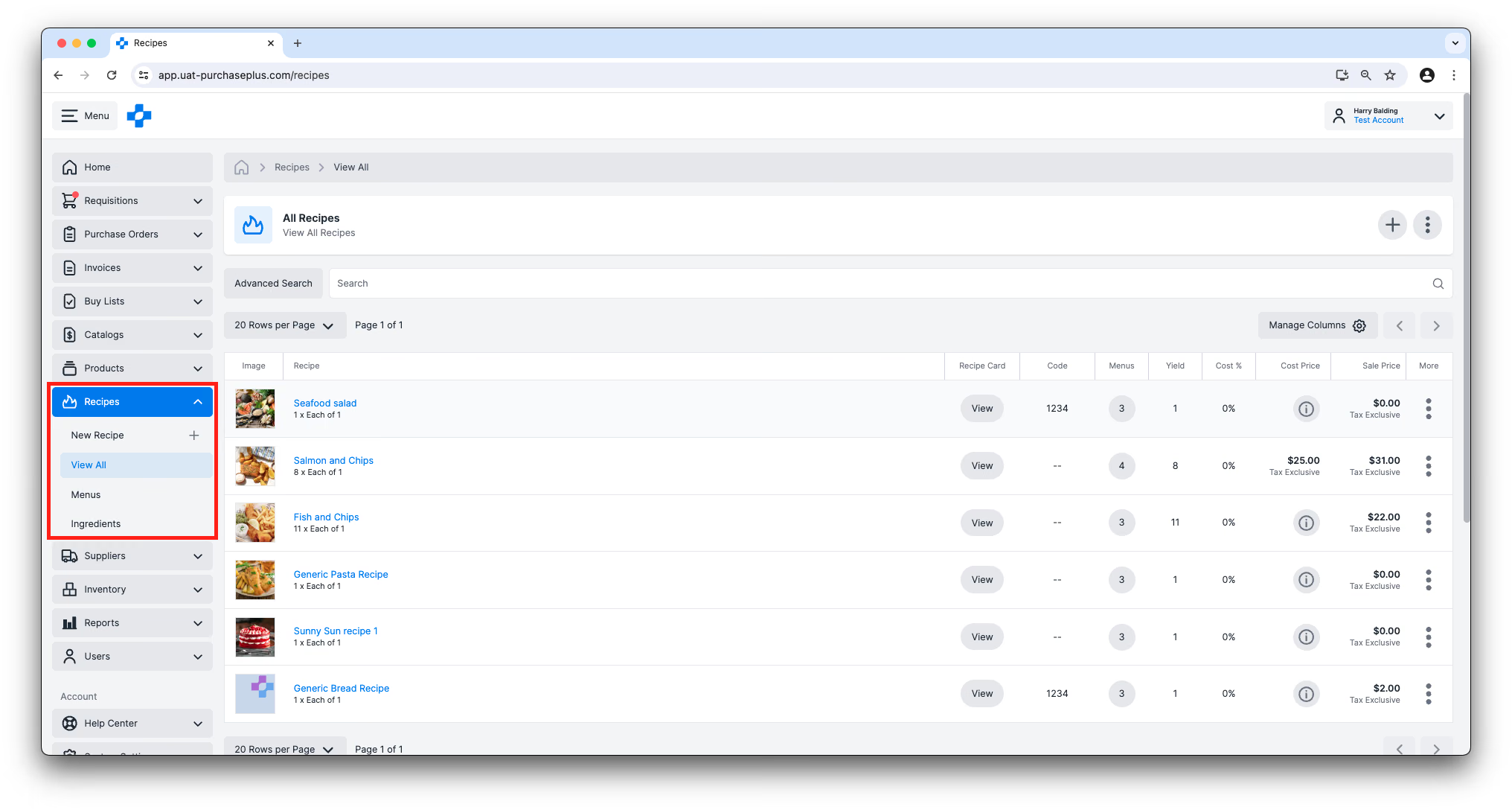
If your Organization has enabled Recipes, then the [Recipes] area will be available in the side navigation bar:
What is a Recipe?
In PurchasePlus terminology, a Recipe is a list of Ingredients, in specific Portions, that can be Prepared and Presented by your Food and Beverage teams, according to the procedures saved against the Recipe.
Each Ingredient in a Recipe is mapped to one or more Products that can be purchased from your Suppliers on PurchasePlus. A Recipe can also contain another Recipe as an Ingredient too, and these special Ingredients are called ‘Recipe Items’. For example, you may have one Recipe for making your own pasta in-house, and the pasta 'Recipe Item' can be included as an Ingredient in your Spaghetti Bolognese Recipe.
Recipes in turn can be added to one or more Menus, giving us a hierarchy like so:
- Your Organization can have one or more
- Menus, which can have one or more
- Recipes, which can have one or more
- Ingredients, which can have one or more
- Substitutes,
- Barcodes,
- And coming soon, Stock Locations, to keep track of the Inventory level of an Ingredient kept as a Stock Item.
- Allergens
- Allergens
- Ingredients, which can have one or more
- Recipes, which can have one or more
- Menus, which can have one or more
Inventory vs. Non-Inventory Recipes
Many of the Purchasers using our Recipes module also use our Inventory module. If the Inventory module is enabled at your Organisation, then any Recipe can be an 'Inventory' Recipe.
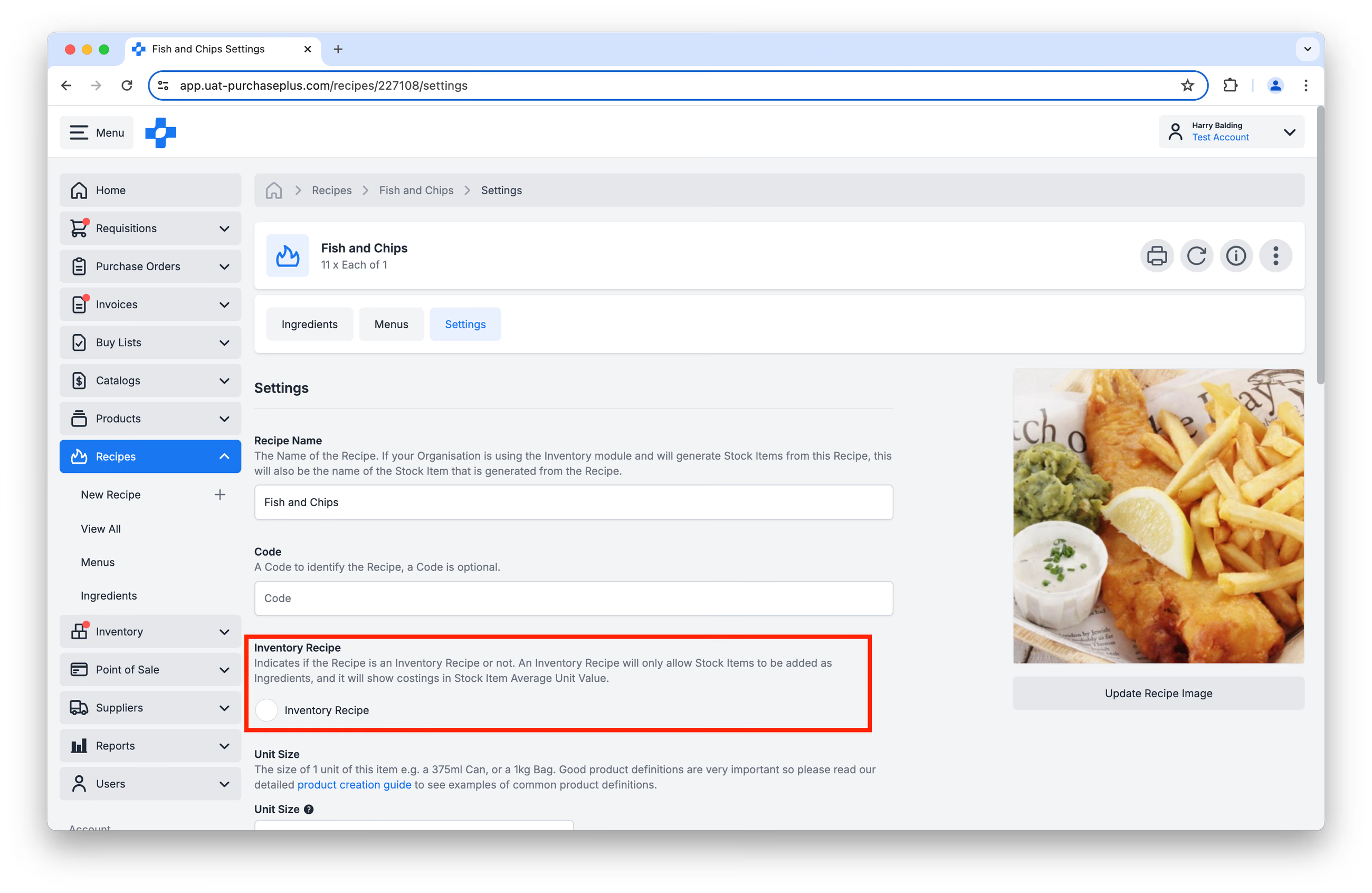
An Inventory Recipe will only allow Stock Items to be added as Ingredients. Recipe header costings stay on Stock Item Average Unit Value. Ingredient Cost Price on the Ingredients table uses the live lowest Catalog quote. See our 'Ingredients' article to learn more.
Conversely, Non\-Inventory Recipes can contain any Product as an Ingredient. By default, a Recipe will be a Non-Inventory Recipe.
A Recipe can be made an Inventory Recipe upon first being created: 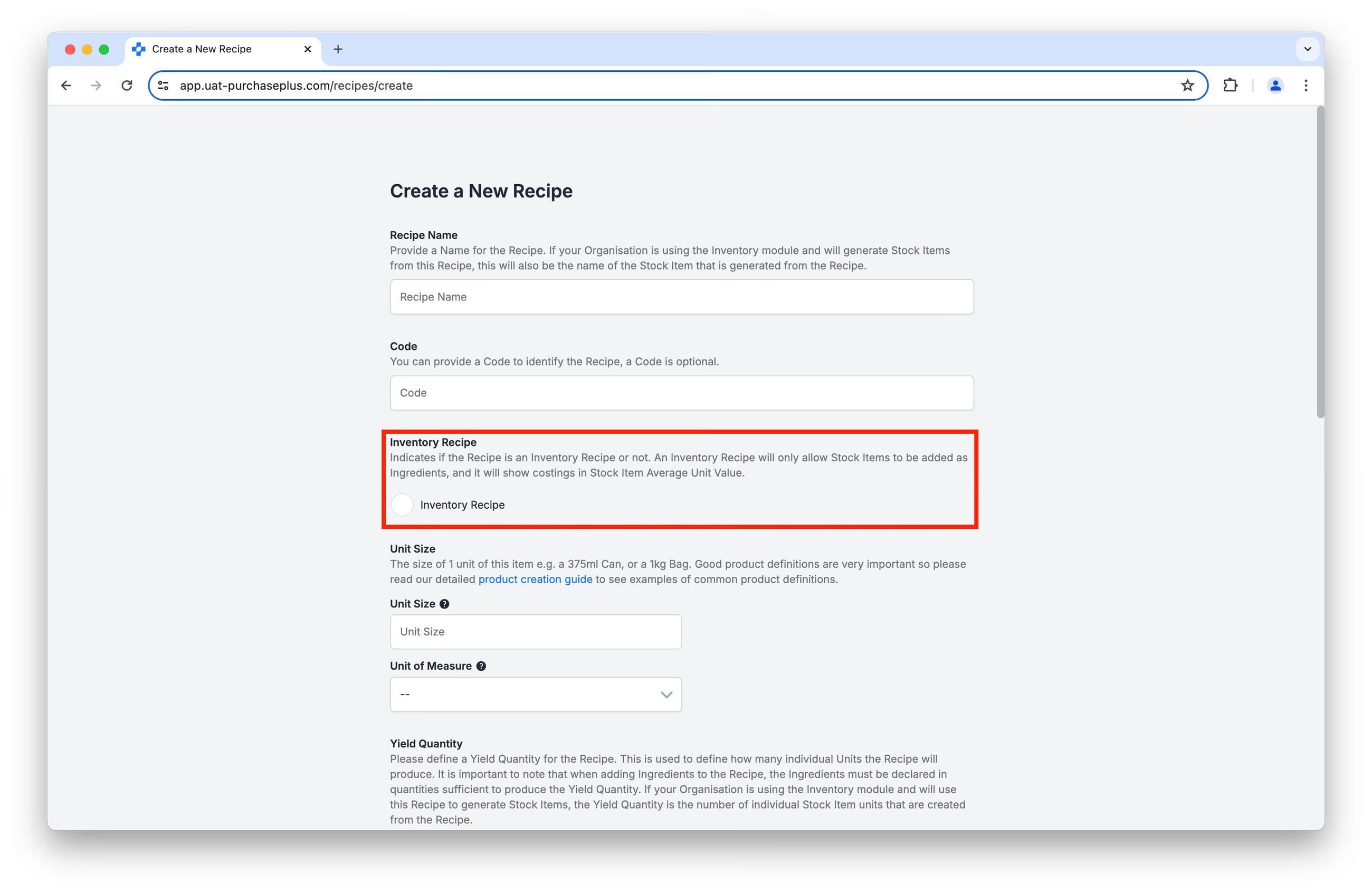
..or in the Settings tab of the Recipe, after it's been created:
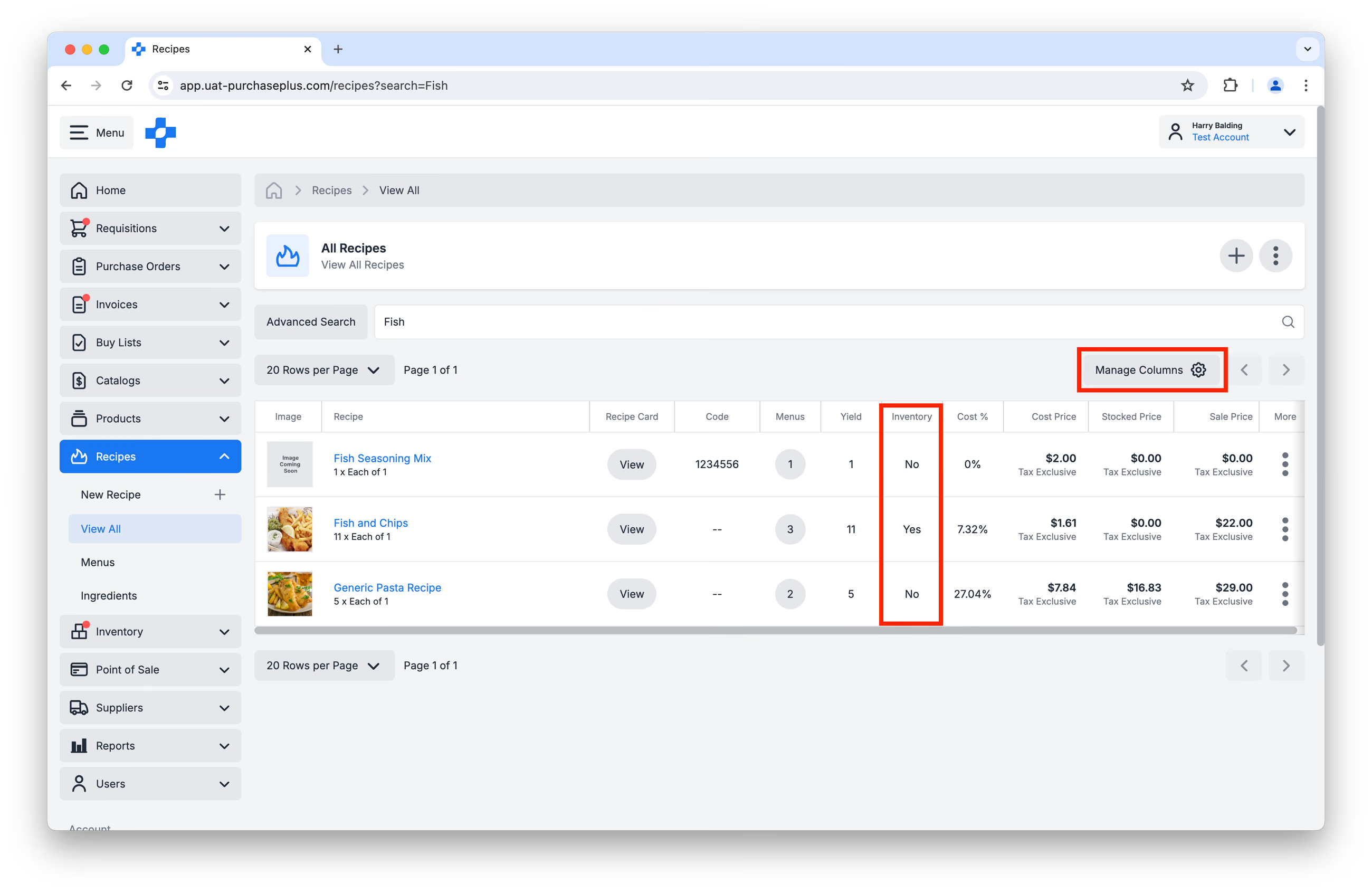
By enabling the Inventory column in the [Manage Columns] window, you will be able to quickly see which of your Recipes are Inventory Recipes:
Recipe Permissions
A user’s ability to Manage Recipes (i.e. create, update, delete a Recipe) is controlled by the Permission: ‘Manage Recipes.’ Please contact a PurchasePlus administrator at your Organization if you wish to have this permission enabled for your user profile.
Viewing and Managing Your Recipes
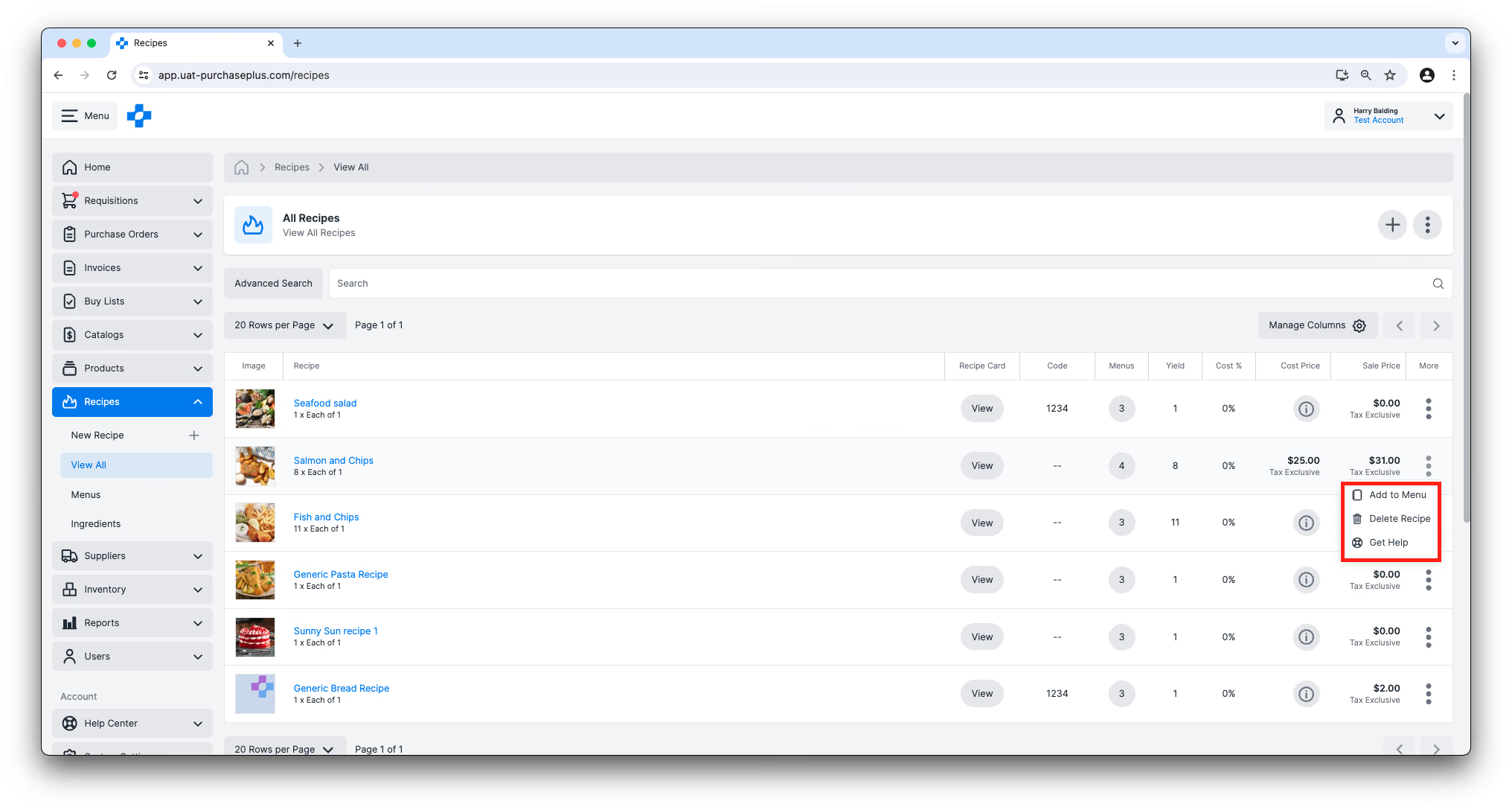
You can find the list of Recipes that are available to your Organization in the Side Navigation bar by clicking [Recipes] → [View All]. Purchaser All Recipes groups Recipes by Recipe Section, shows Food Cost and other metrics, and lets you filter by Owner, Product Tags, Section and Allergen. See All Recipes for the full list behaviour. You can customize the table using the ‘Manage Columns’ button, or dragging the column width borders to suit your preference.
From this view, you can also Add a Recipe to a Menu and Delete a Recipe, using the More menu on the right hand side of the table.
Recipe Ingredients View & Settings
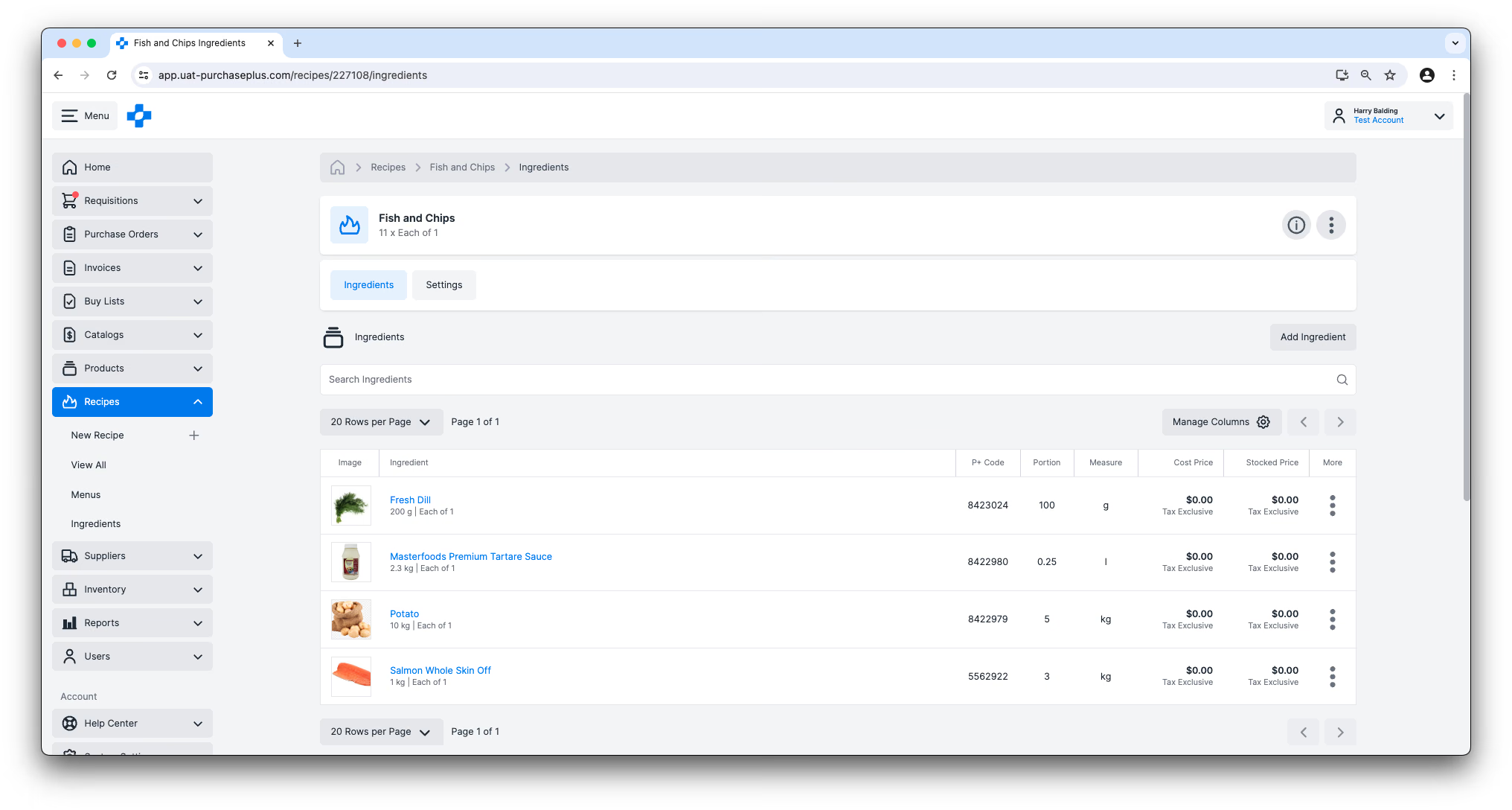
Clicking on any Recipe Name from the table view will take you inside the Recipe. From this view, users with the 'Manage Recipes' permission can Add, Edit or Remove the Recipe's Ingredients (including the portions thereof), and update the Settings of the Recipe - for example, change the Recipe name, or change the Sell Price of the Recipe.
The Recipe header shows a Draft, Active, or Archived control. Click it to change the state. [New Requisition] and [Prepare Recipe] stay disabled until the Recipe is Active.
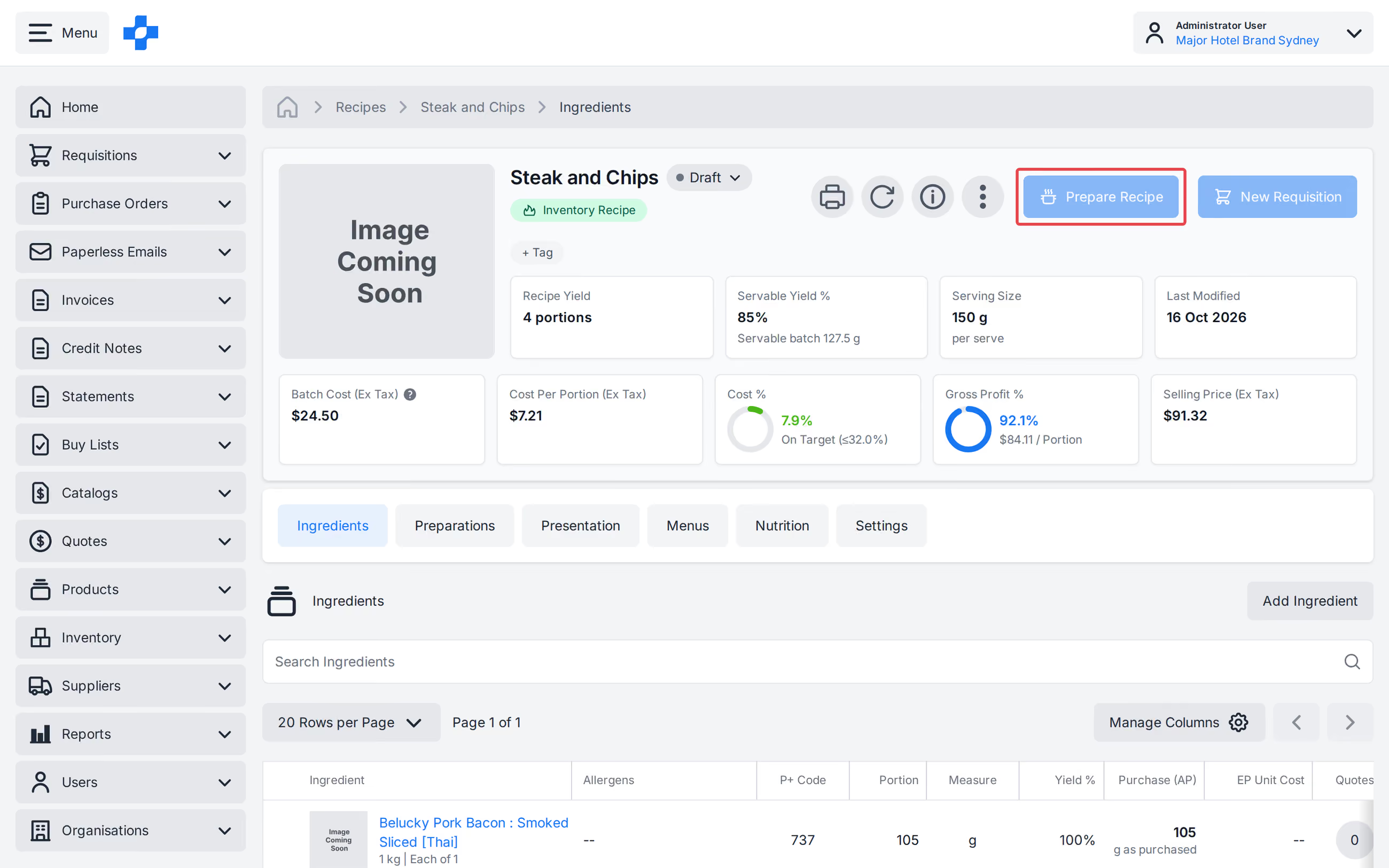
Note - You can only create a Requisition or prepare a Recipe that is Active. On a Draft or Archived Recipe, [Prepare Recipe] is greyed out with "Recipe not active. You can only prepare an active recipe." Speak to an Administrator at your Organisation if you need the Recipe set to Active.
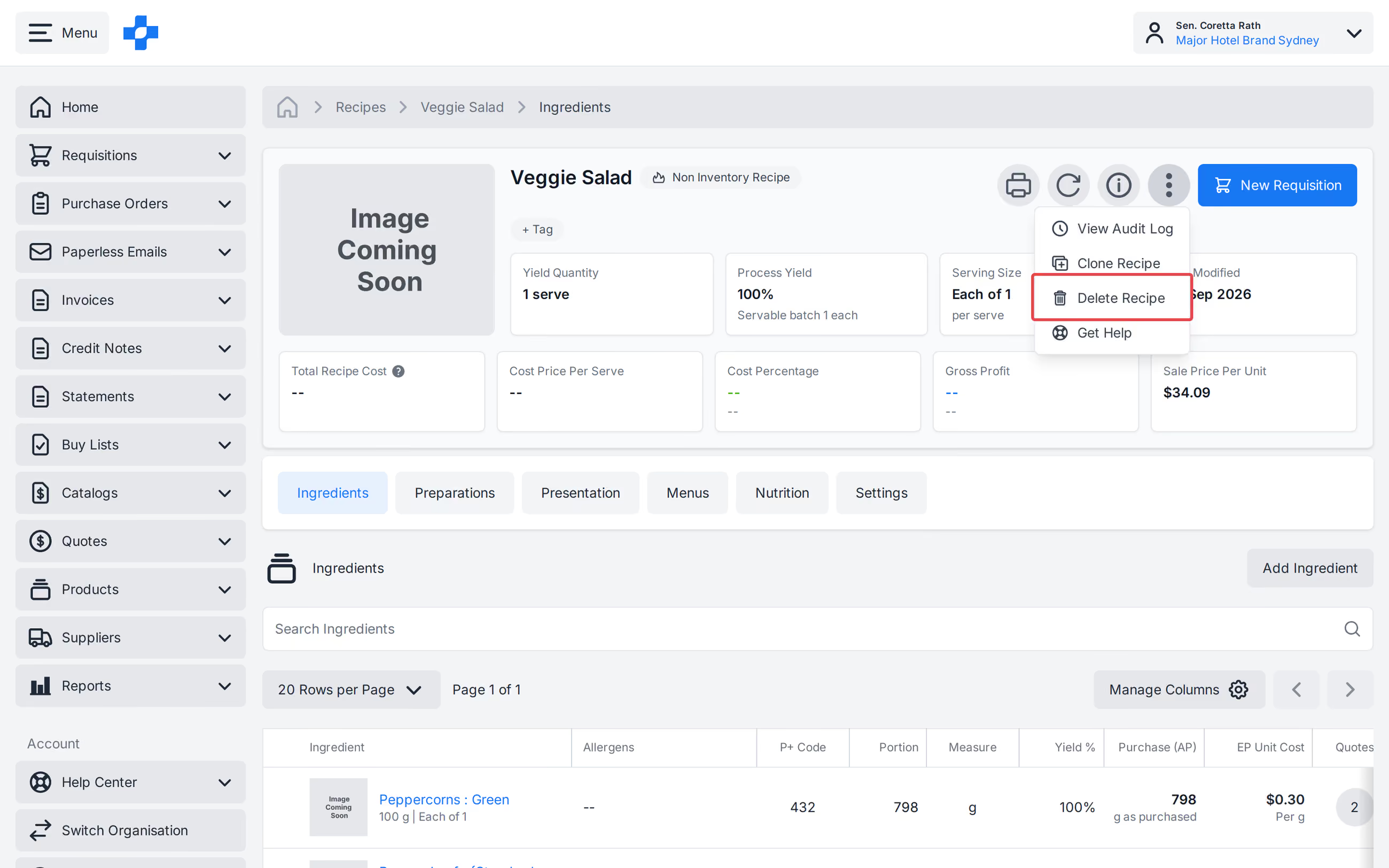
From the Recipe detail [More] menu, select [Delete Recipe] when you have permission to delete (the same visibility as Delete on [All Recipes]). Confirm the delete; you return to the Recipes list.
In the Recipe header of an Active Inventory Recipe, click [Prepare Recipe] (requires the 'Manage Transfers' permission). Preview shows the finished product and the Ingredients that will be deducted. See our 'Transfers' article to learn more.
Recipe Card View
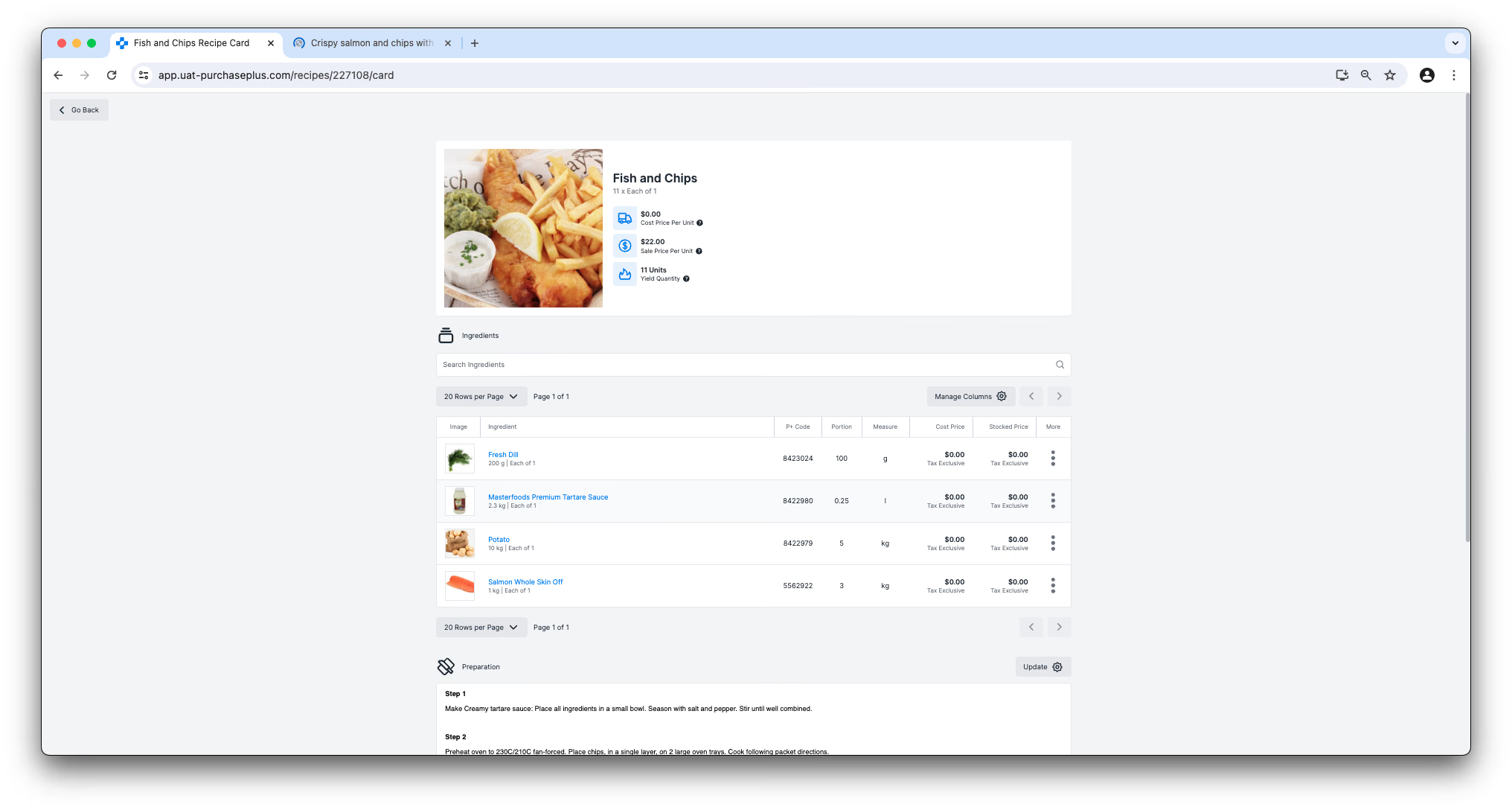
Clicking on the [View] button in the Recipe Card column of the table will take the user to a full screen, mobile device and printer-friendly version of the Recipe. You cannot add, edit or remove Ingredients from the Recipe in this view, but you can write and save Preparation and Presentation notes against the Recipe that other users in your Organisation can refer to when cooking this Recipe. The Recipe Card (screen and print) uses the same labels as the Recipe header.
Printing a Recipe
There is a [Print] button in the header of both the Recipe Ingredients view and the Recipe Card view:
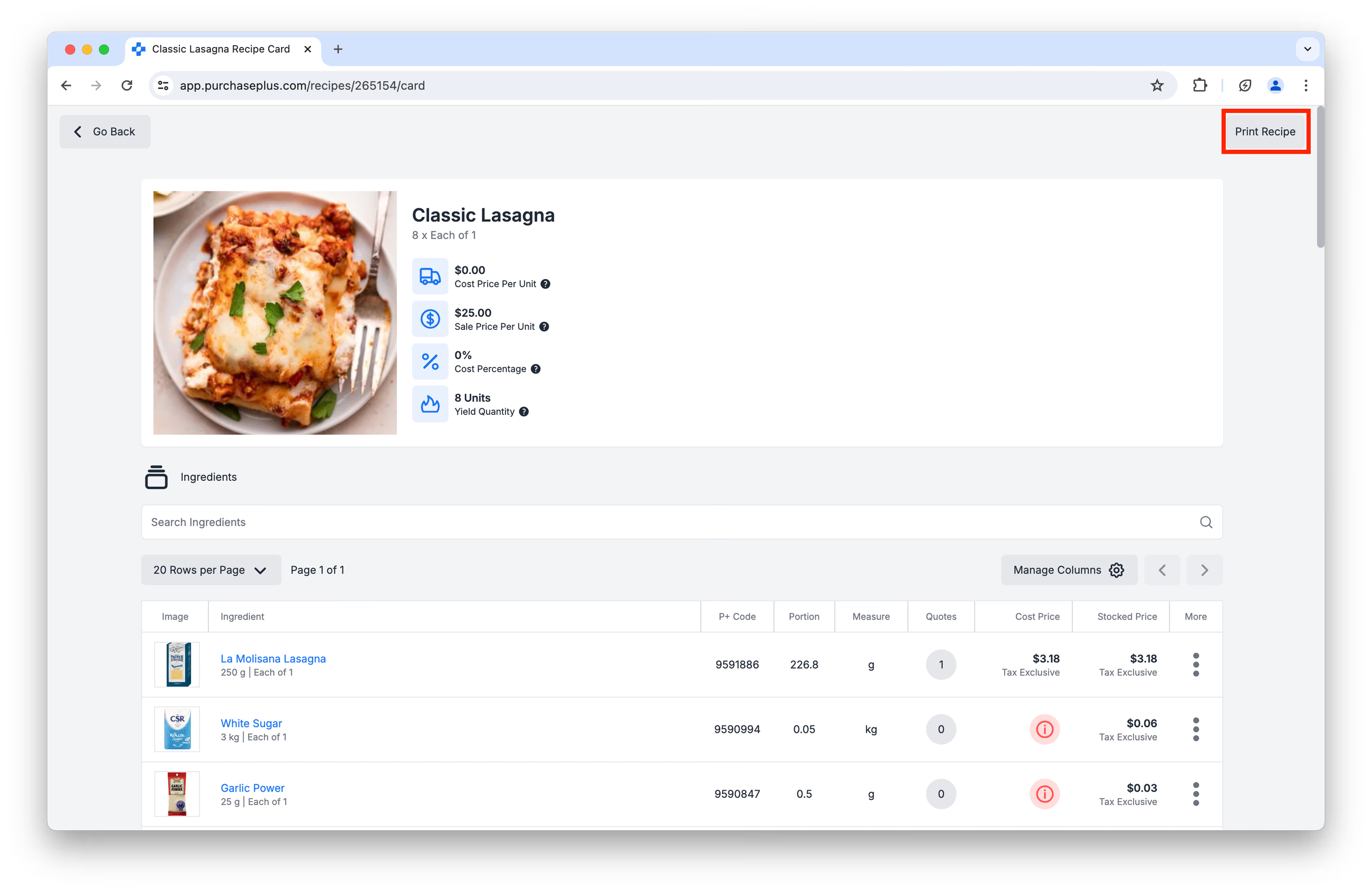
Clicking the Print Recipe button will generate a print-friendly version of the page, including Ingredients, Portions, Preparation and Presentation instructions:
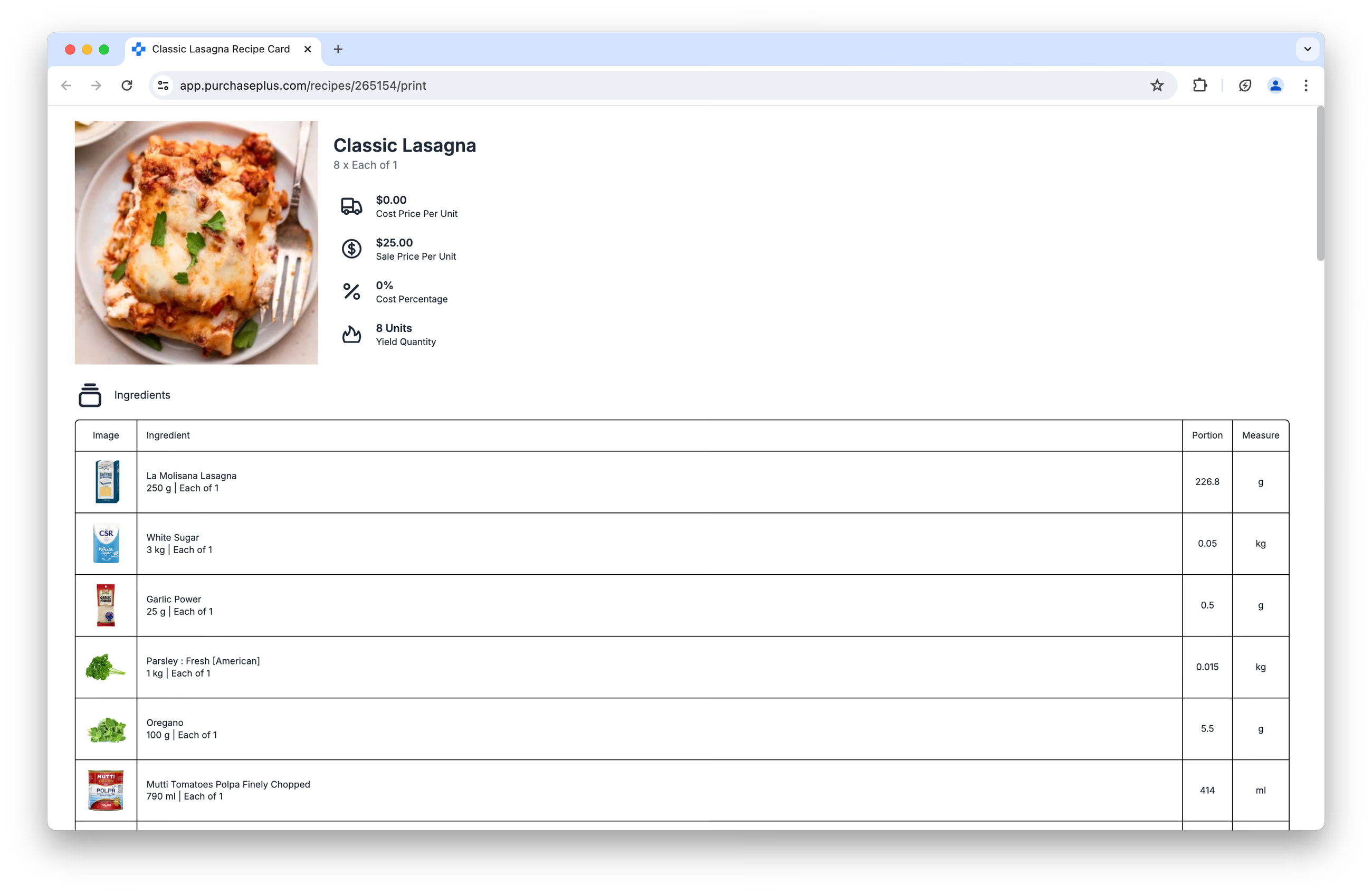
A print dialog box will appear and you will be able to send the page to the printer.
Creating New Recipes
You can create a Recipe by clicking the [Create New Recipe] button on the [Recipes] → [View All] page or by clicking [Recipes] → [New Recipe].
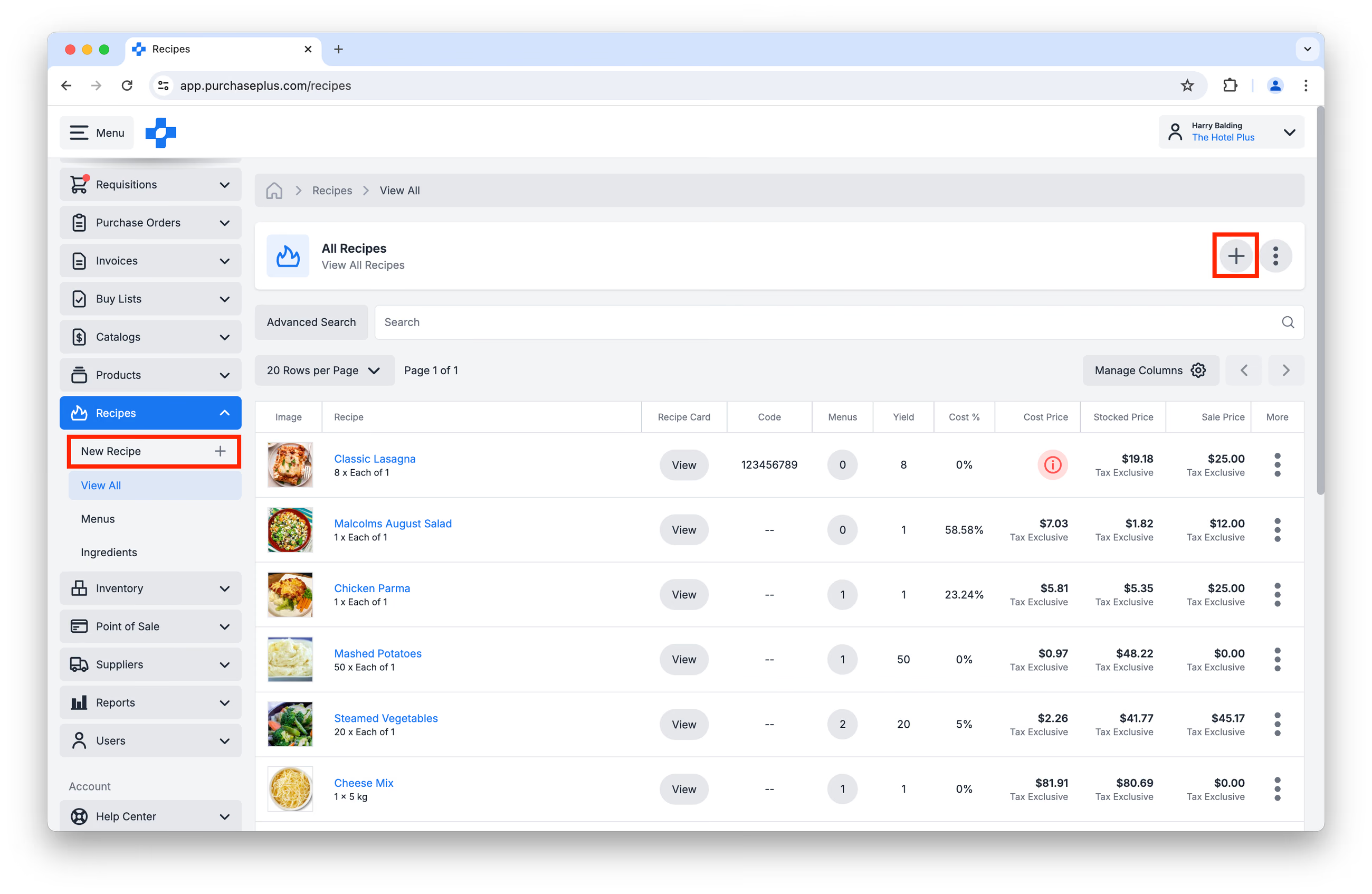
You will first be prompted to provide some information about the Recipe, before clicking [Create Recipe] at the bottom of the page:
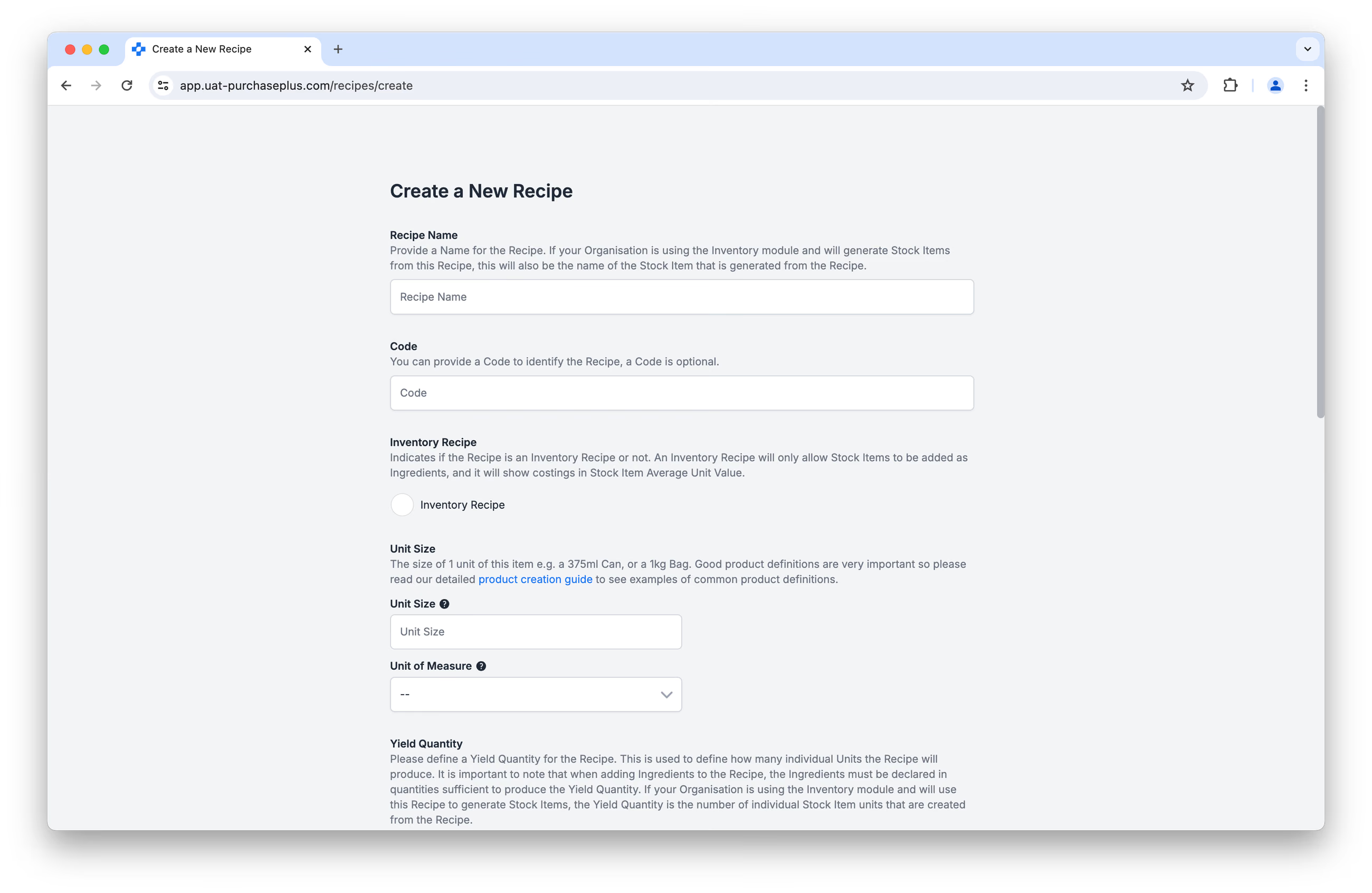
After clicking [Create Recipe], the next screen will be the Recipe Ingredients view, where you can begin adding Ingredients to the Recipe.
Adding Ingredients to a Recipe
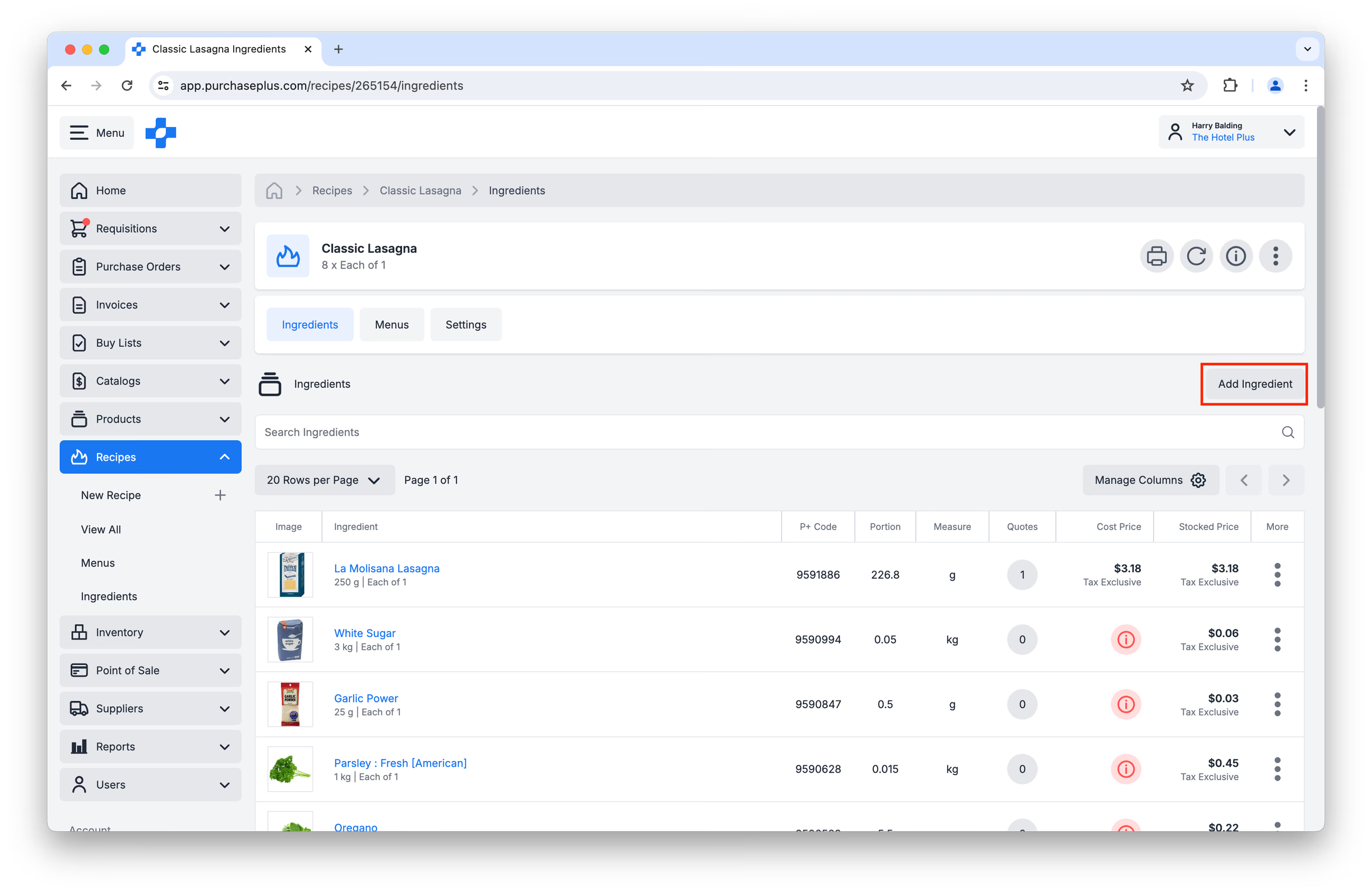
On the Recipe Ingredients screen, you can click [Add Ingredients]:
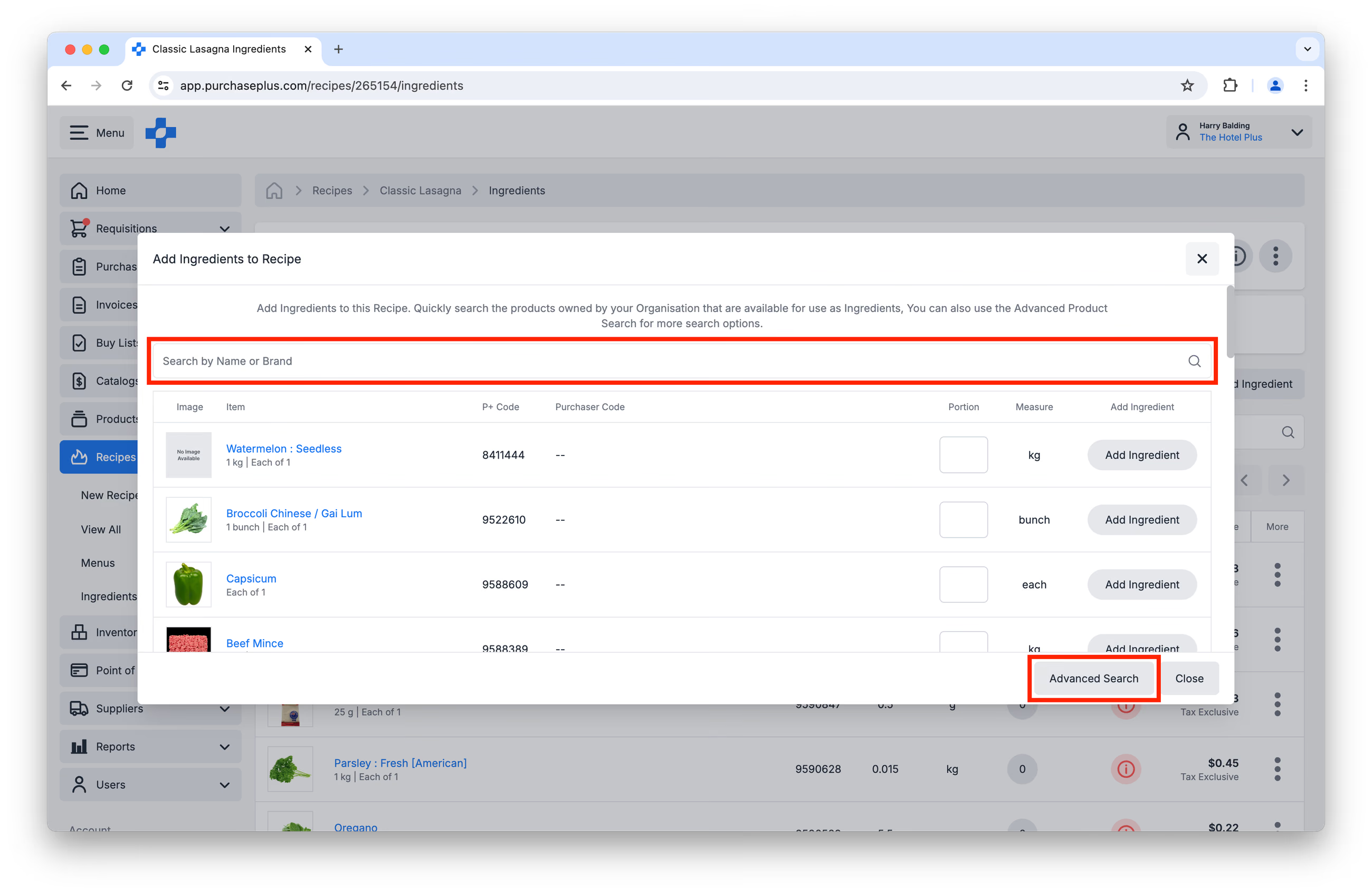
This will display a window where you can search for Ingredients to add to the Recipe. You can also use [Advanced Search], if you would like to search by Product Code, Filter by Category, and more options. Please note, the possible Ingredients that you can add to the Recipe will be shaped by whether the Recipe is an Inventory or Non-Inventory Recipe.
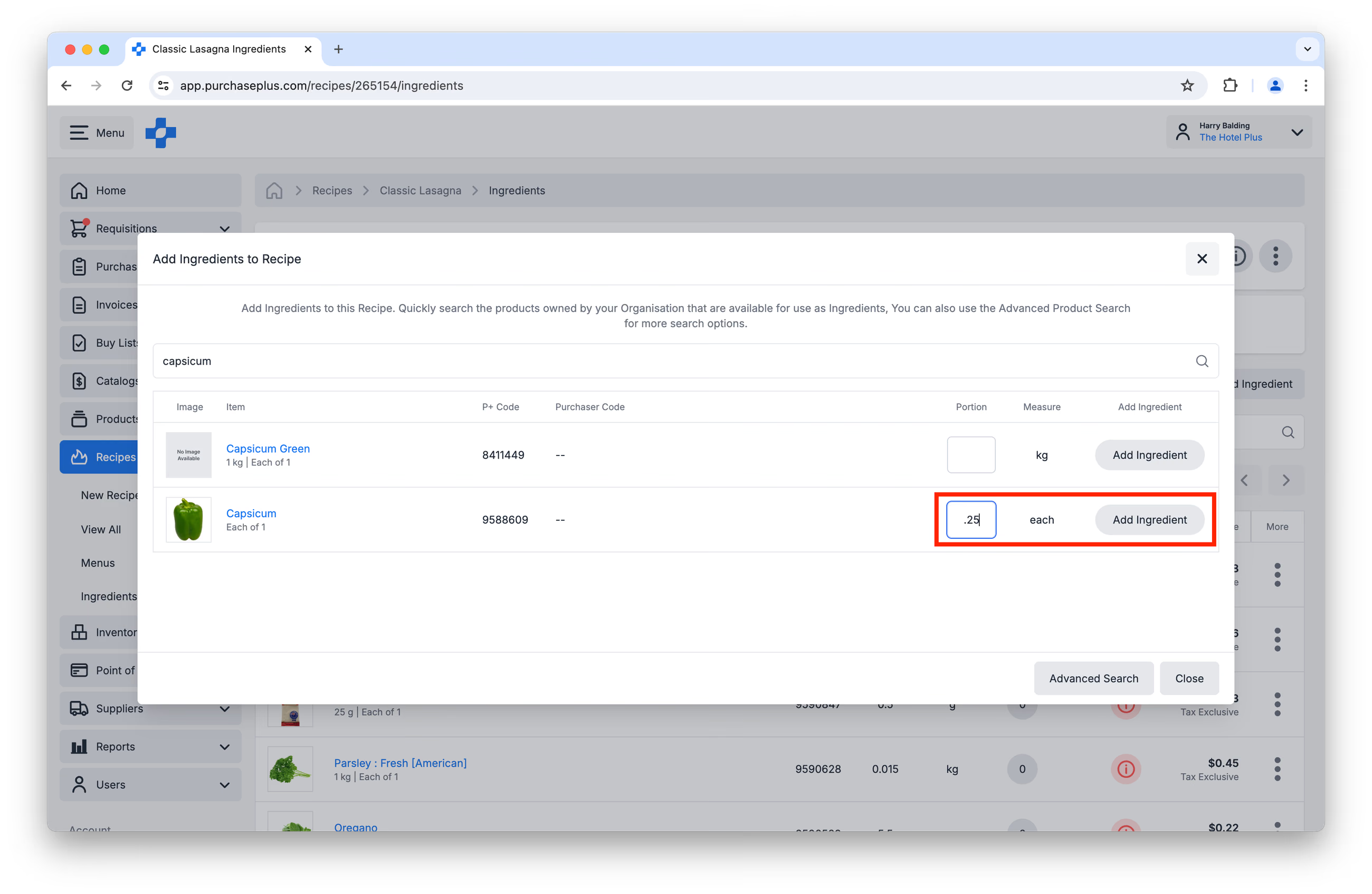
Once you have found your desired Ingredient, you can specify the Portion required for the Recipe. The Unit of Measure is taken directly from the Ingredient that your organisation purchases from Suppliers. The Portion that you enter in this field can be a whole number (e.g. 2kg) or a fraction (e.g. 0.25 of a Capsicum, as in the image below).
Once you have defined the Portion of the Ingredient to add to the Recipe, click [Add Ingredient]:
Because Recipes produce a product, a Recipe can technically be added to a different Recipe as an Ingredient. We recommend against doing this, as costing will not be available for this Ingredient (and therefore not available for the Recipe).
Updating a Recipe Ingredient's Portion or Unit of Measure
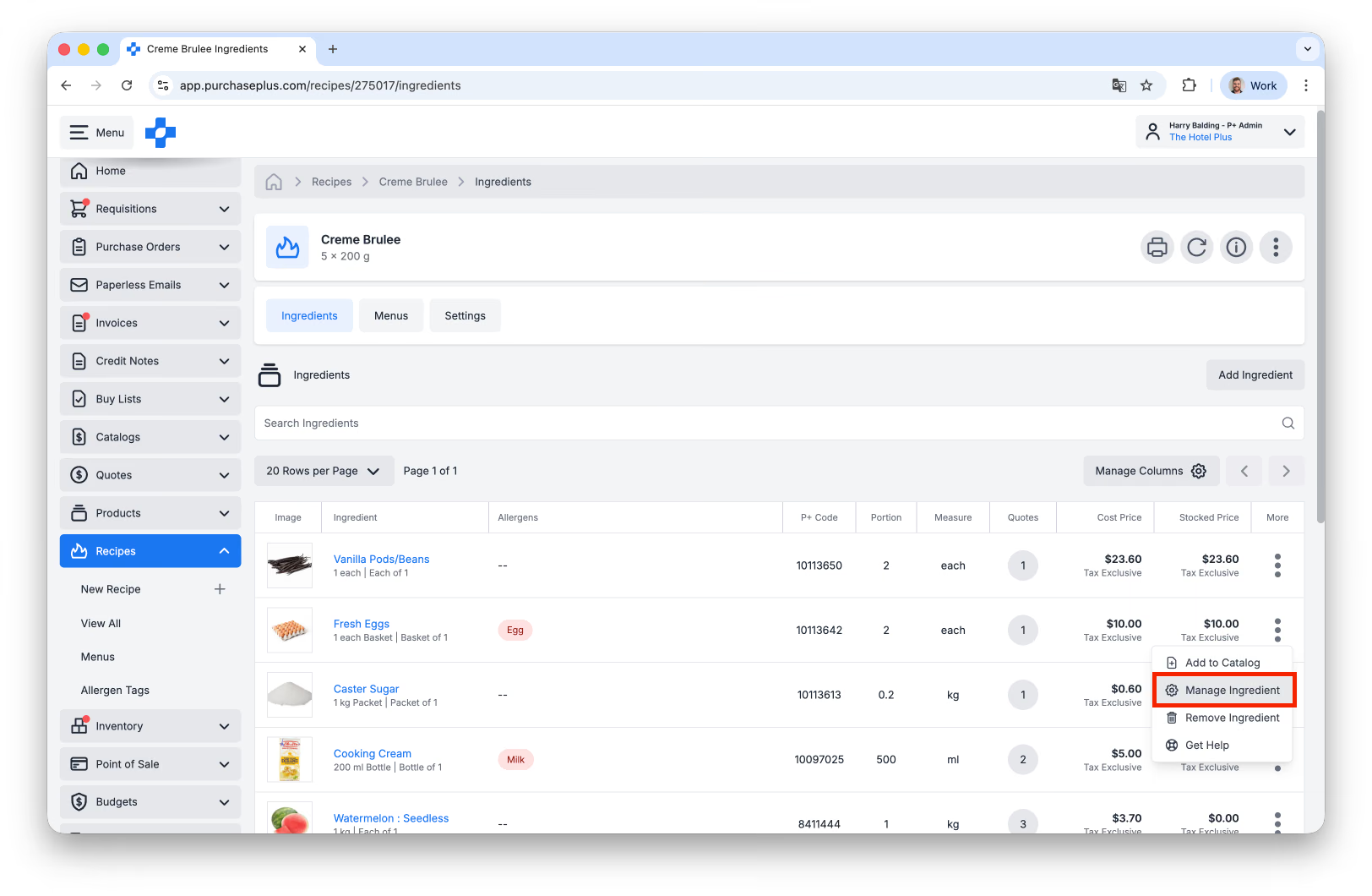
If you need to update an Ingredient's Unit of Measure and/or Portion once it has been added to the Recipe, you can do so by clicking [Manage Ingredient] in the [More] menu:
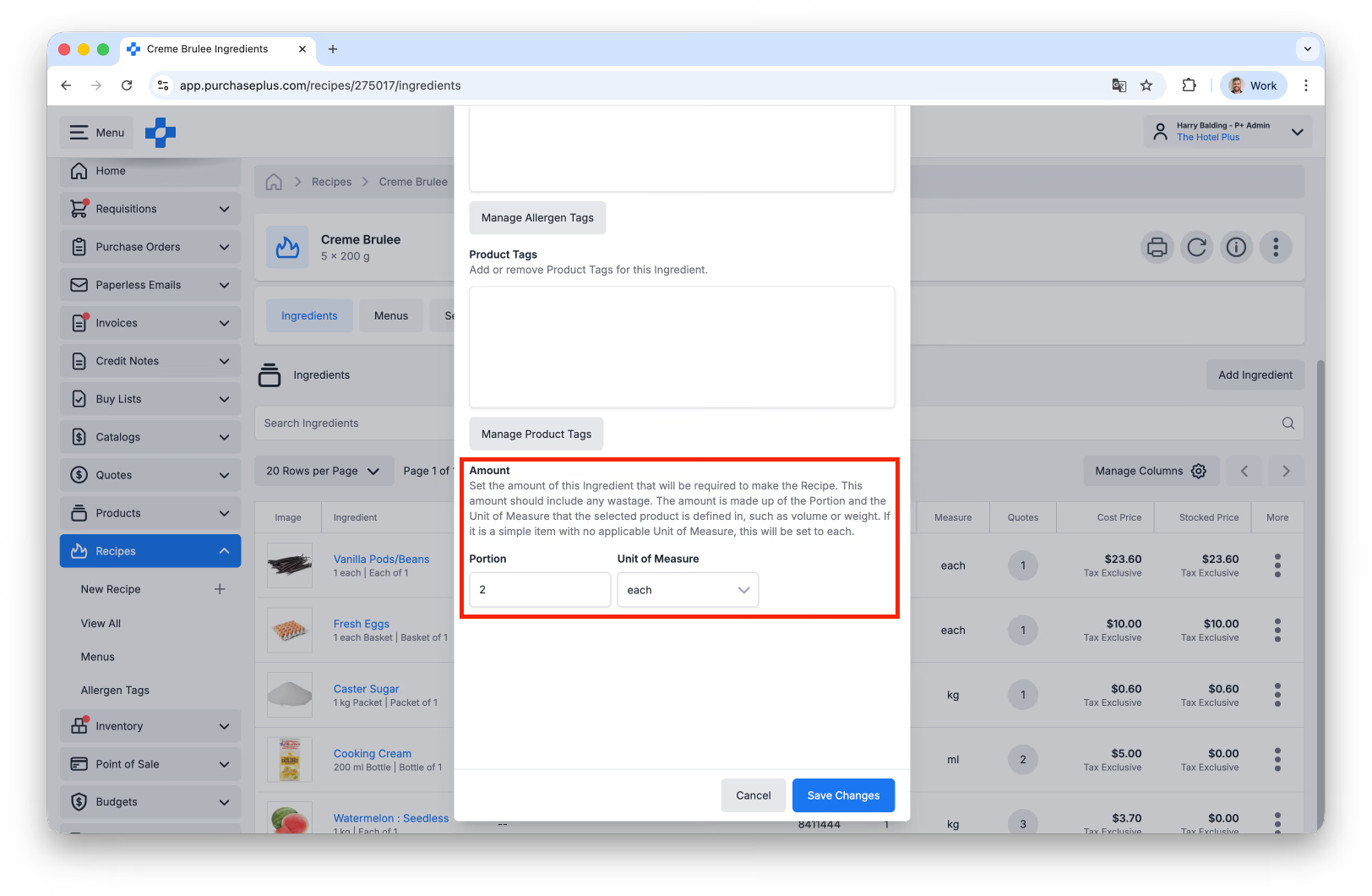
Scroll to the bottom of the resulting window, and make the required changes before clicking [Save Changes]:
Troubleshooting: I can't find the Ingredient I am looking for.
If your Organisation uses Inventory Recipes, you may need to create a new Stock Item first.
If your Organisation does not use Inventory Recipes, please ensure that the Product you are trying to add to the Recipe is either included in a Supplier Catalog or a Self-Managed Catalog.
Troubleshooting: My Ingredients don't have cost values.
If your Organisation uses Inventory Recipes, you need to ensure that the Stock Item that is the Ingredient has a Unit Value.
If your Organisation does not use Inventory Recipes (and therefore relies on Supplier Quotes for its Ingredient costings), you can take one of the following actions:
- For Self-Managed Products: Add the Ingredient to a Self-Managed Catalog that is assigned to one of your Suppliers and ensure that it has a Unit Price and Tax % specified.
- You can also ask our Catalogs Team to match a Self-Managed Product to a Master Product, and then get quotes from your Suppliers on that Master Product. Get in touch with our Catalogs Team.
- For Supplier-Managed Products, confirm that the Product you are trying to add to the Recipe is included in a Supplier Catalog.
Costing a Recipe
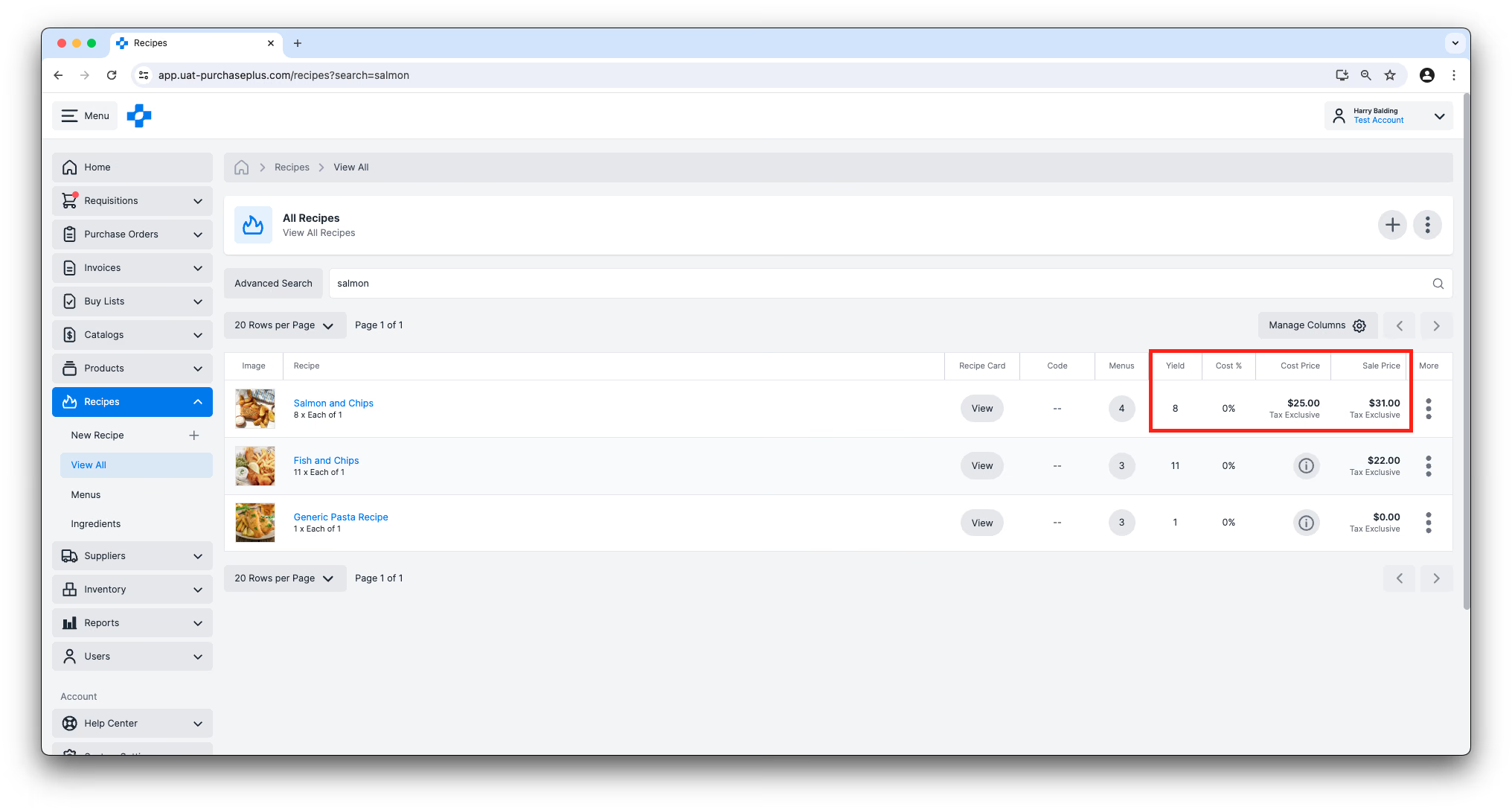
You can understand important financial details about your Recipes in either the Table view or the Information panel of a Recipe, such as:
- Yield: The number of servings ('units') that are produced by the Recipe.
- Cost Price: The cost price per unit of the Recipe, based on either:
- For Inventory Recipes: Each Ingredient's (i.e. Stock Item's) Average Unit Value.
- For Non-Inventory Recipes: the Best Price from your Suppliers on each Ingredient (if available), and multiplied by the Portion of each Ingredient. See our 'Ingredients' article to learn more.
- Stocked Price: The Average Unit Value of the Stock Item multiplied by the Portion. This field is only available if your Organisation has enabled the Inventory module, and the Stock Item has had a Unit Value added to it.
- Sale Price: The price that a unit is sold for.
- Cost %: The percentage of the Cost Price of the Recipe, relative to the Sale Price.
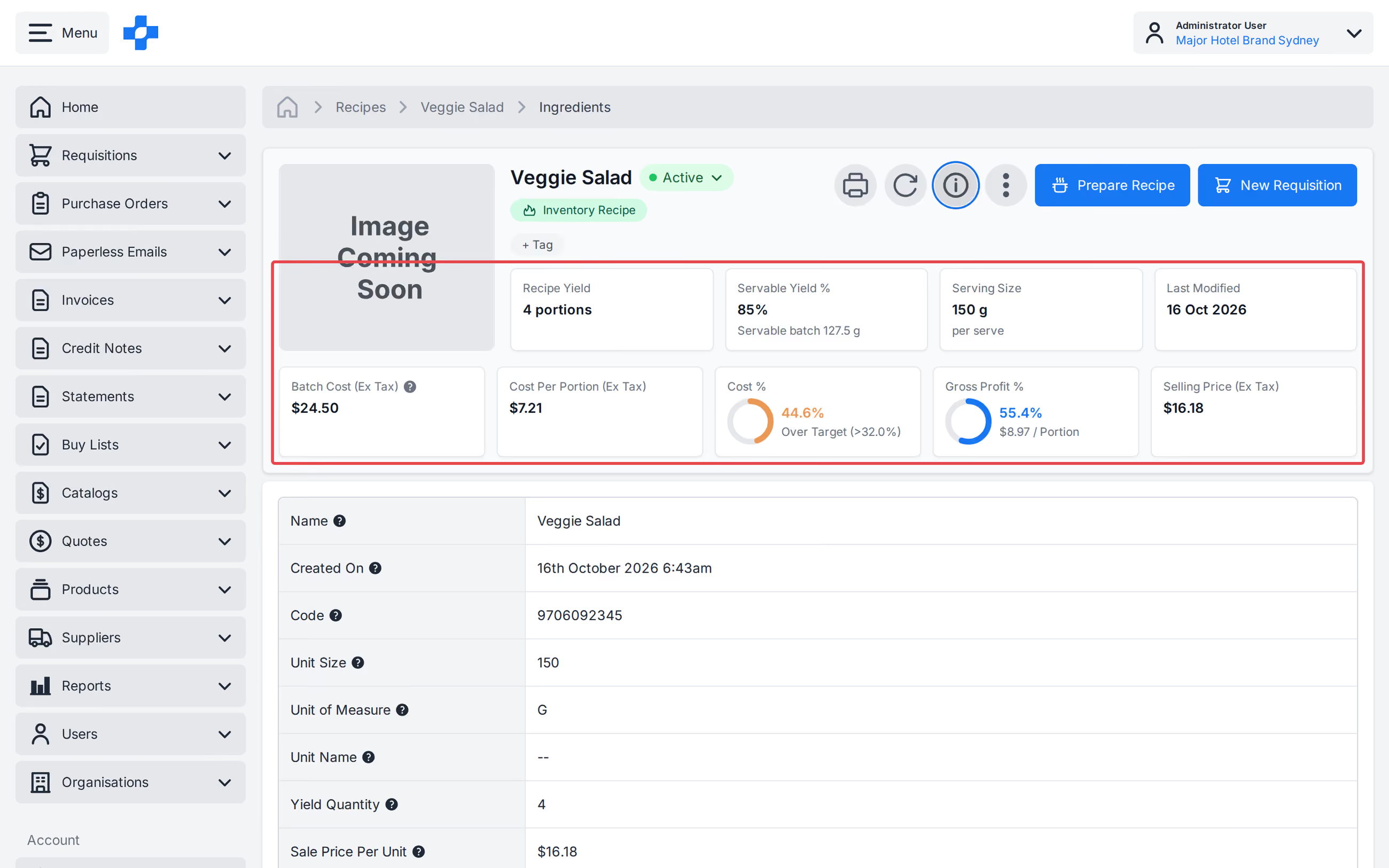
In the Recipe header and on the Recipe Card, the labels are:
- Recipe Yield: The number of portions that the Recipe produces.
- Servable Yield %: The percentage of the Recipe Yield that is servable.
- Batch Cost (Ex Tax): The total cost of the Recipe batch, excluding tax.
- Cost Per Portion (Ex Tax): The cost of one portion, excluding tax.
- Cost %: The percentage of cost relative to the Selling Price (Ex Tax).
- Gross Profit % / Portion: The gross profit percentage per portion.
- Selling Price (Ex Tax): The price that a portion is sold for, excluding tax.
Re-calculating Recipe Costs
PurchasePlus is the platform of choice for many organisations who wish to manage their Recipes in the same platform as their Purchasing and Inventory management needs. To maintain high system performance, we do not update Recipe costs in real-time, as to do so for every Recipe in our system would affect performance.
If you have made a change to a Recipe and you are expecting:
- Ingredient Costs to change,
- Additional Supplier Quotes to appear on an Ingredient,
You can click [Recalculate Recipe Costs] in the Recipe Header to forcefully re-source quotes and re-calculate the costs for the Recipe you are viewing:
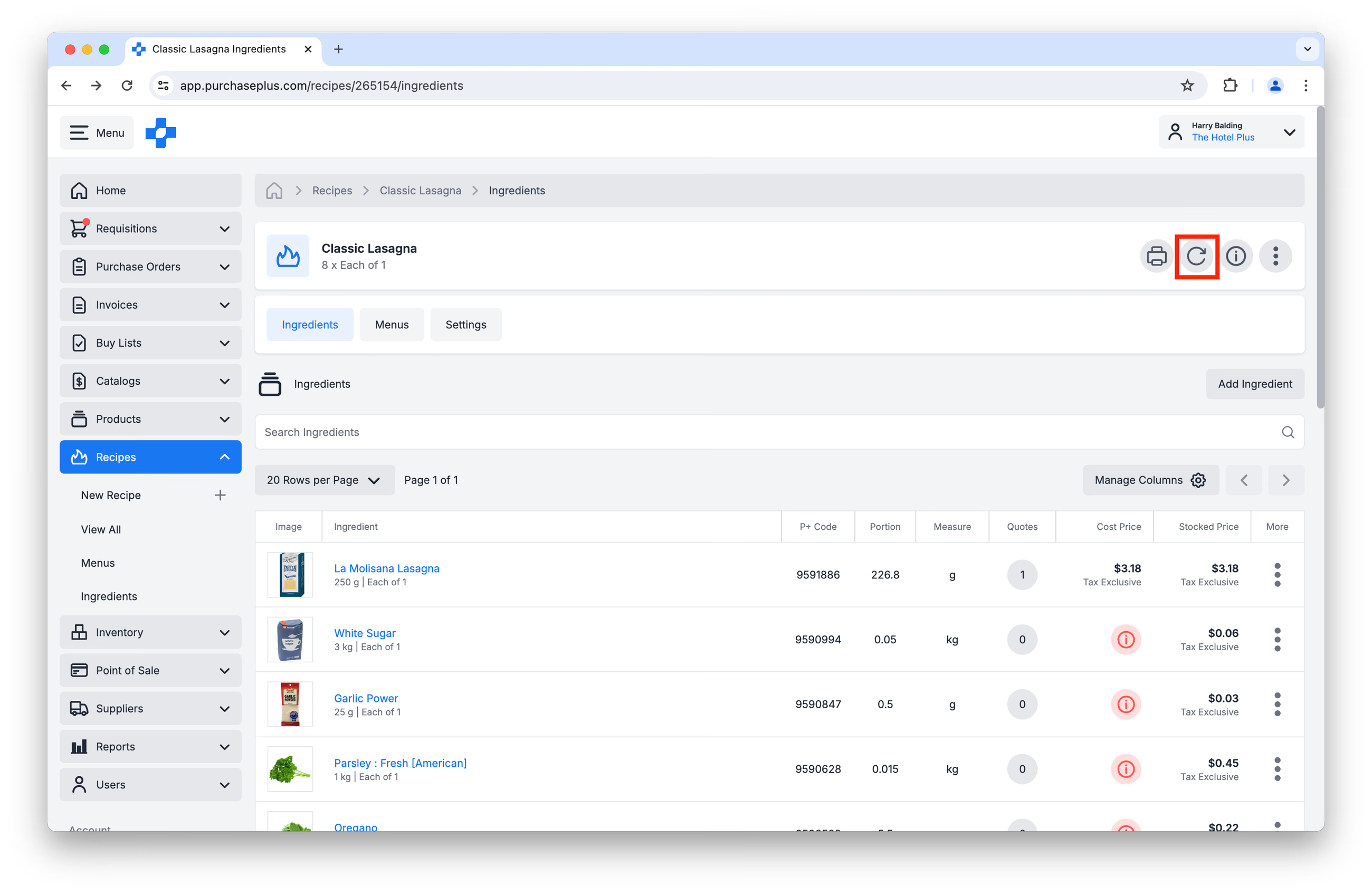
Alternatively, our software automatically Recalculates the costs for every Recipe once per night (during periods of low system activity). This may be helpful in the event that re-calculating every Recipe's cost manually is not suitable for your needs.
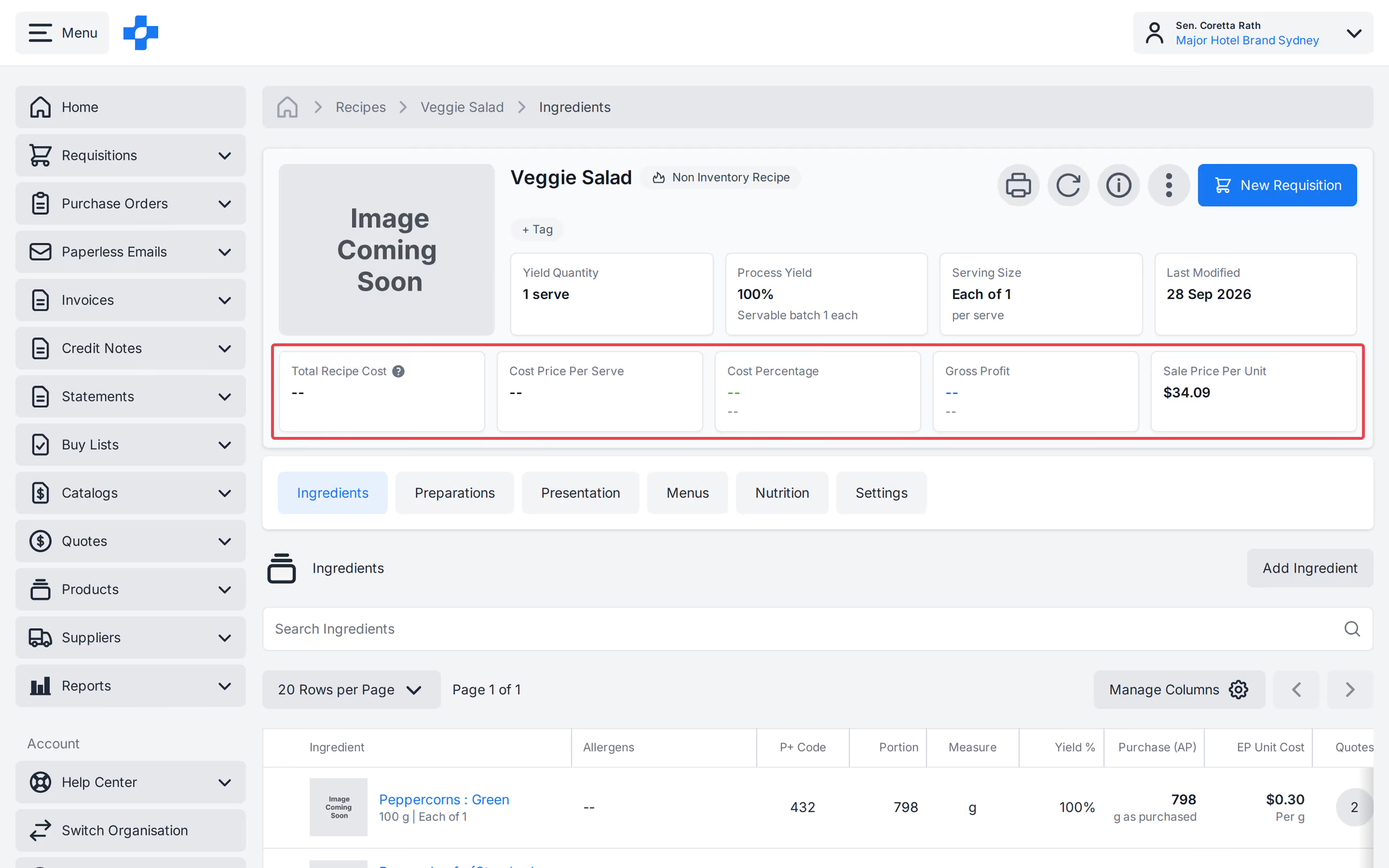
Troubleshooting: My Recipe does not have a Cost.
Recipe Costs are calculated by adding all of the Ingredient Costs together.
Therefore, for a Recipe to have a Cost, all of its Ingredients must have a Cost. Learn more about Ingredient Costs.
If an Ingredient cannot resolve a cost, PurchasePlus does not treat the Recipe total as $0.00. Total Recipe Cost and Cost Price Total show -- until every line can be costed.
How POS updates recipes
Point of Sale (POS) is an optional module that allows you to deduct Stock Items (or Recipes containing Stock Items) from a Stock Location when you make a sale in your restaurant, bar or cafe. Additionally, it allows you to keep a record of the Sale Data in PurchasePlus, allowing you to cross-reference Stock movements, sale prices, and more.
To implement the POS Module, your Organisation first needs to implement our Inventory and Recipes modules.
Learn more about the PurchasePlus POS Module.
This is Part 1 of our Introduction to Recipes series.
- Read Introduction to Recipes, Part 2: Menus
- Read Introduction to Recipes, Part 3: Ingredients
- Read Introduction to Recipes, Part 4: Allergens
How do I start using the Recipes Module?
If your Organization would like to begin using the PurchasePlus Recipes module, please contact your Account Manager or our friendly Customer Success Team for assistance with enabling the module, and to organize training for your users (if required).
Note for Purchasers using Legacy PurchasePlus
The Recipes module in PurchasePlus has been redesigned and reengineered, and it is materially different to the Legacy PurchasePlus Recipes Module. Purchasers migrating from Legacy PurchasePlus to PurchasePlus will need additional migration support to begin using Recipes, as Recipe, Menu and Ingredient data in Legacy PurchasePlus is not automatically available in PurchasePlus.