

Invoices
Invoices
Invoice
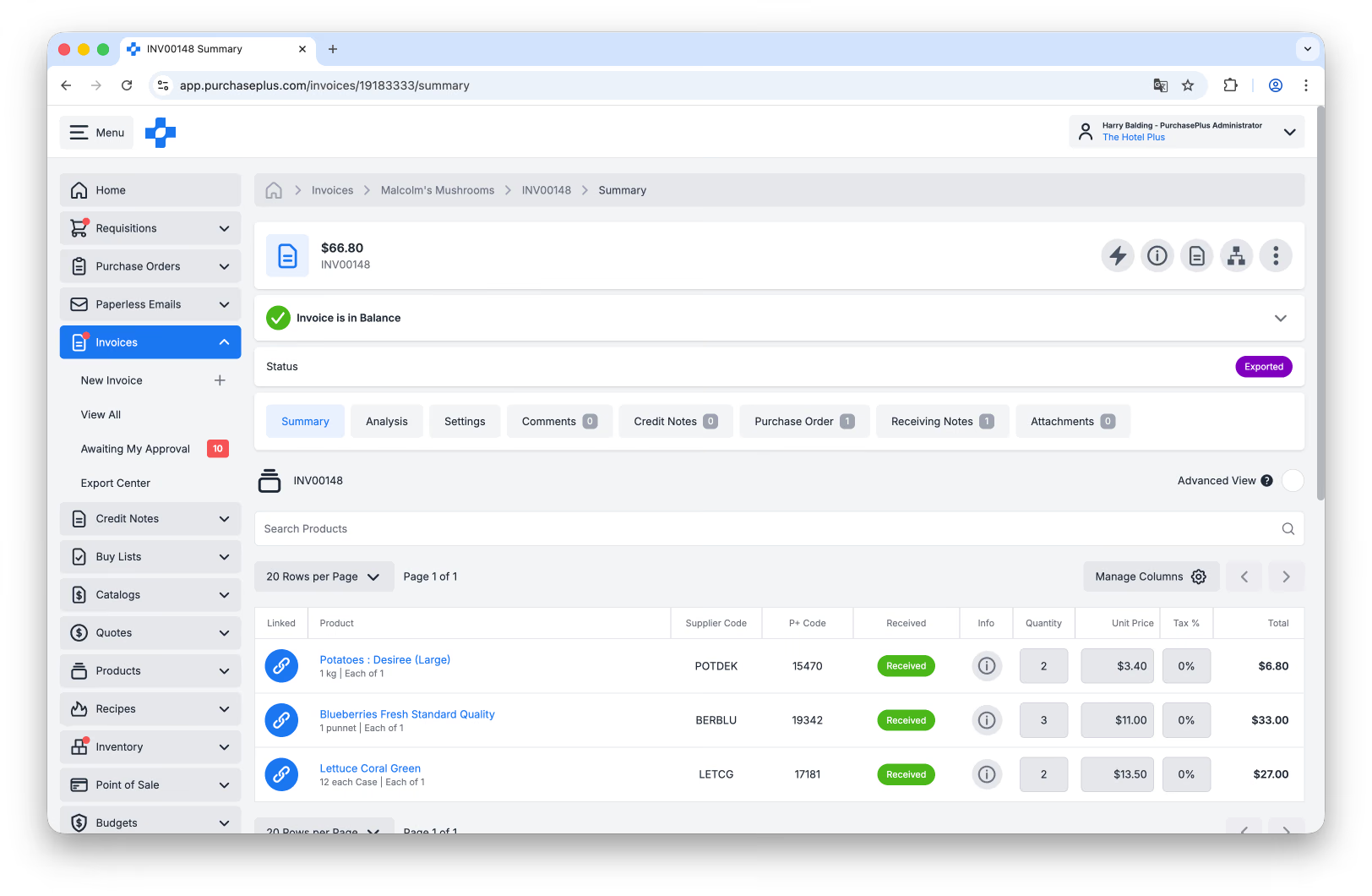
An Invoice is a document that a Supplier sends to a Purchaser, stating the Products and Quantities that the Supplier has delivered to the Purchaser, and would like to be paid for.
An Invoice includes details about the goods delivered to the Purchaser - for example, the Unit Values of each Product, multiplied by the Quantity of each Product delivered, and includes the Taxation Values and Total Values that the Supplier is expecting to be paid.
Invoices may also include information about the Supplier (e.g. Contact Details, ABN, Payment Terms, Bank Account Details) that make it easy for the Purchaser to confidently make a payment to the Supplier.
Managing Invoices
As an end-to-end Procure-to-Pay system, Invoices are a very important part of PurchasePlus and there is lots of functionality in our software that helps Purchasers to manage their spending on their Suppliers' Invoices.
In essence, our Invoice management functionality helps verify that what the Supplier has invoiced your Organization for is (a) what you ordered, (b) has actually been delivered, and (c) has been approved to be paid by all the necessary users in your Organization.
Paperless Invoicing
An especially powerful part of the PurchasePlus offering is our Paperless Invoicing module, which is an optional inclusion in your PurchasePlus system.
Organizations using the Paperless Invoicing module are assigned a Paperless Invoicing Email Address, which:
- Users at your Organization (i.e. internal employees) can send a Supplier’s PDF Invoice to, and it will be automatically scanned and created as a new Invoice, available in PurchasePlus.
- Can be shared with Suppliers so that they can send their Invoices to this email address, which will then be be automatically created in your PurchasePlus account.
Paperless Invoicing leverages Optical Character Recognition (OCR) scanning, Artificial Intelligence (AI), Machine Learning (ML), and our unique Human-In-The-Loop service to:
- Digitally ‘read’ the PDF invoices that you or your Suppliers send to the Paperless Invoicing Email Address,
- Automatically create the Invoice in PurchasePlus,
- Attempts to ‘match’ the Invoice to a Purchase Order, and
- Process the line items one-by-one to respect any Invoice Flag thresholds set by your Organization.
Emails (including their PDF attachments) that have been received into the Paperless Invoicing Email Address are available for viewing and management in the [Paperless Emails] area in the Side Navigation bar:
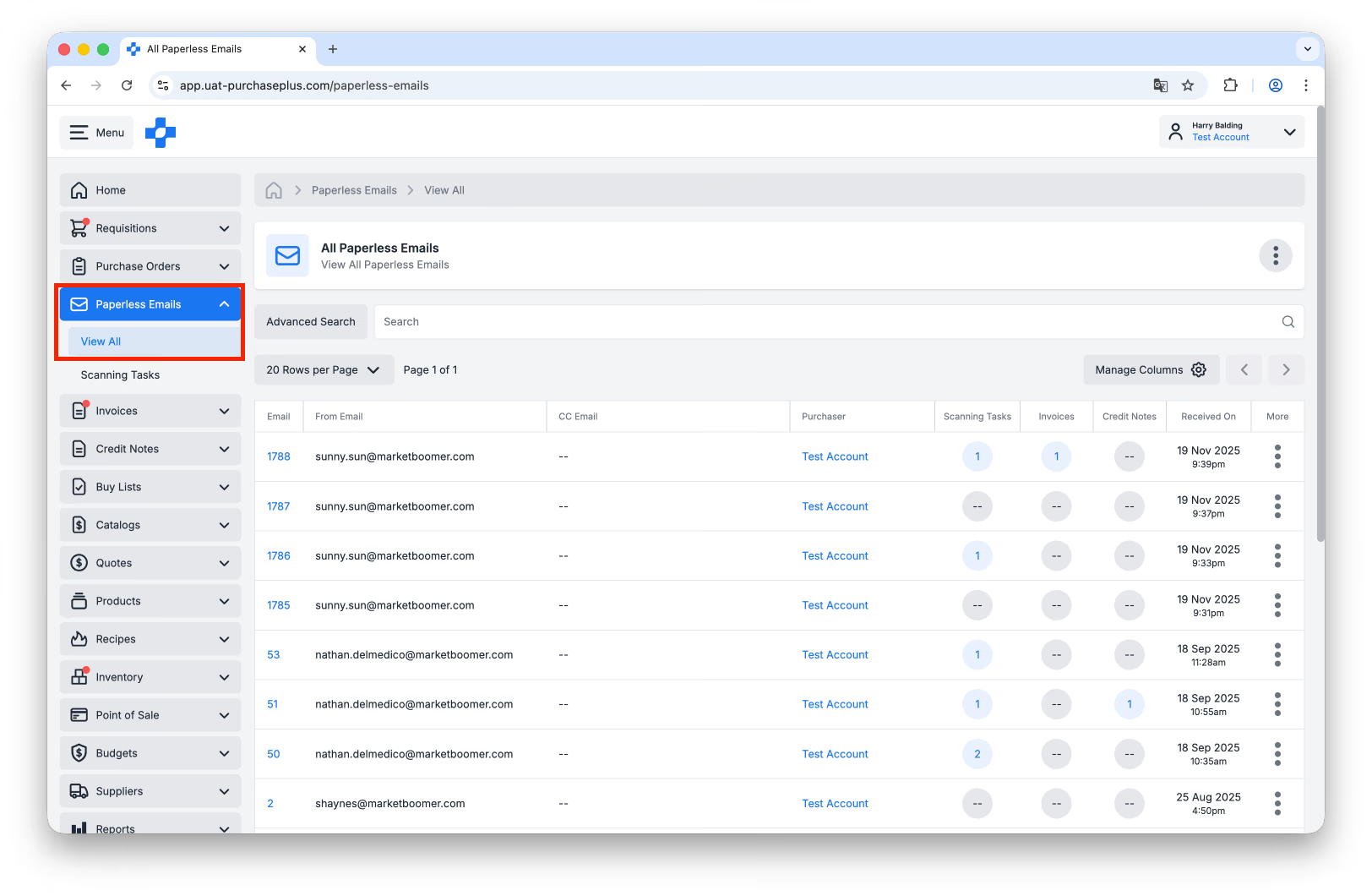 Learn more about Paperless Emails.
Creating Invoices
Users with the ‘Manage Invoices and Credit Notes’ permission can manually create an Invoice in PurchasePlus, by clicking the [Invoices] → [New Invoice] option in the Side Navigation menu.
Read our article about Creating a New Invoice for more information
Invoice Statuses
Invoices can be in one of many states:
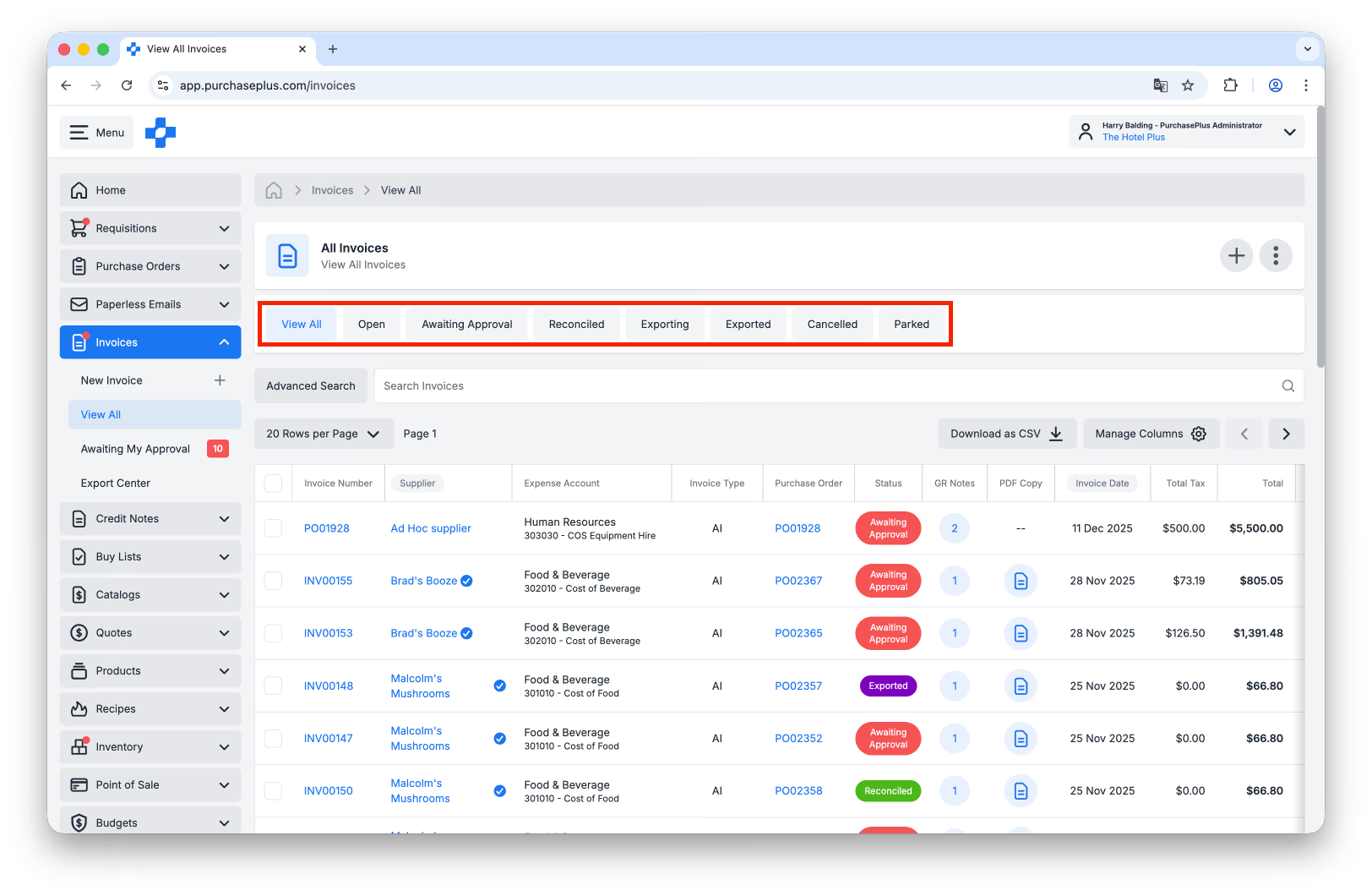
- Open: An Open Invoice has been created, but is yet to be Reconciled. Depending on your Organization's preferences, an Open Invoice may need to be matched to a Purchase Order, or have Goods Receiving Notes created against the Matched Purchase Order. You can continue editing an Open Invoice, to resolve any raised Flags. If there are Flags raised on the Invoice, you can mark it as Awaiting Approval, and the relevant Approvers will be notified. If there are no Flags raised on the Invoice, you can mark it as Reconciled. An Open Invoice can also be Parked or Cancelled.
- Awaiting Approval: An Awaiting Approval Invoice has one or more Invoice Flags raised against it, and approval is now required by one or more Approvers at your Organization. Once approvals have been granted, the Invoice will be progressed to a Reconciled state. If every Flag later clears and no Approver still needs to approve, the Invoice moves to Reconciled on its own. See our 'Invoice Flags' article to learn more.
- Reconciled: A Reconciled Invoice has passed all checks required by your Organization and is now suitable for exporting to your Organization's external accounting platform. You cannot make changes to an Invoice while it is in a Reconciled state. If you wish to make changes, you can Re-Open the Invoice.
- Please Note: Users with the 'Can Super Approve Invoices and Credit Notes' permission are able to update certain fields on a Reconciled Invoice. Learn more.
- Parked: A Parked Invoice has been parked by a user at your Organization as it may require further consideration or discussion. Changes cannot be made to an Invoice while in a Parked state. If you need to, you can Re-Open the Invoice to continue making changes to it.
- Cancelled: A Cancelled Invoice has been Cancelled by a user and is no longer in use at your Organization. You cannot make changes to an Invoice in a Cancelled state. If you wish to reinstate the Invoice and make changes to it, you can Re-Open the Invoice.
- Export Ready: An Export Ready Invoice is now available in your [Invoices] → [Export Centre] for inclusion in an upcoming Export File. Once the Invoice has been successfully exported to your Organization's external accounting platform, the status of the Invoice will be updated to Exported. Changes cannot be made to the Invoice while it is in an Export Ready state. If you need to, you can Revert the Invoice to a Reconciled state, then Re-Open the Invoice to make changes to it.
- Please Note: This Status is only available for Type B Organizations.
- Exporting: An Exporting Invoice is currently in the process of being exported to your Organization's external accounting platform. This process usually takes a few minutes. Once the export is successful, the status of the Invoice will be updated to Exported. Changes cannot be made to the Invoice while it is in an Exporting state. If you need to, you can Revert the Invoice to a Reconciled state, to Export it again, or Re-Open the Invoice to make changes to it.
- Please Note: This Status is only available for Type A Organizations.
- Exported: An Exported Invoice has been included in one or more Export files and has been exported to your Organization's external accounting platform. Changes cannot be made to the Invoice while it is in an Exported state. If you need to, you can Revert the Invoice to a Reconciled state, then Re-Open the Invoice to make changes to it.
Match POs and receiving notes
When a Supplier sends a Purchaser an Invoice, it is good practice to make sure that the Invoice is Reconciled before approving it to be paid.
PurchasePlus helps our Purchasers to reconcile the Invoices in two ways, depending on how their Finance department likes to work.
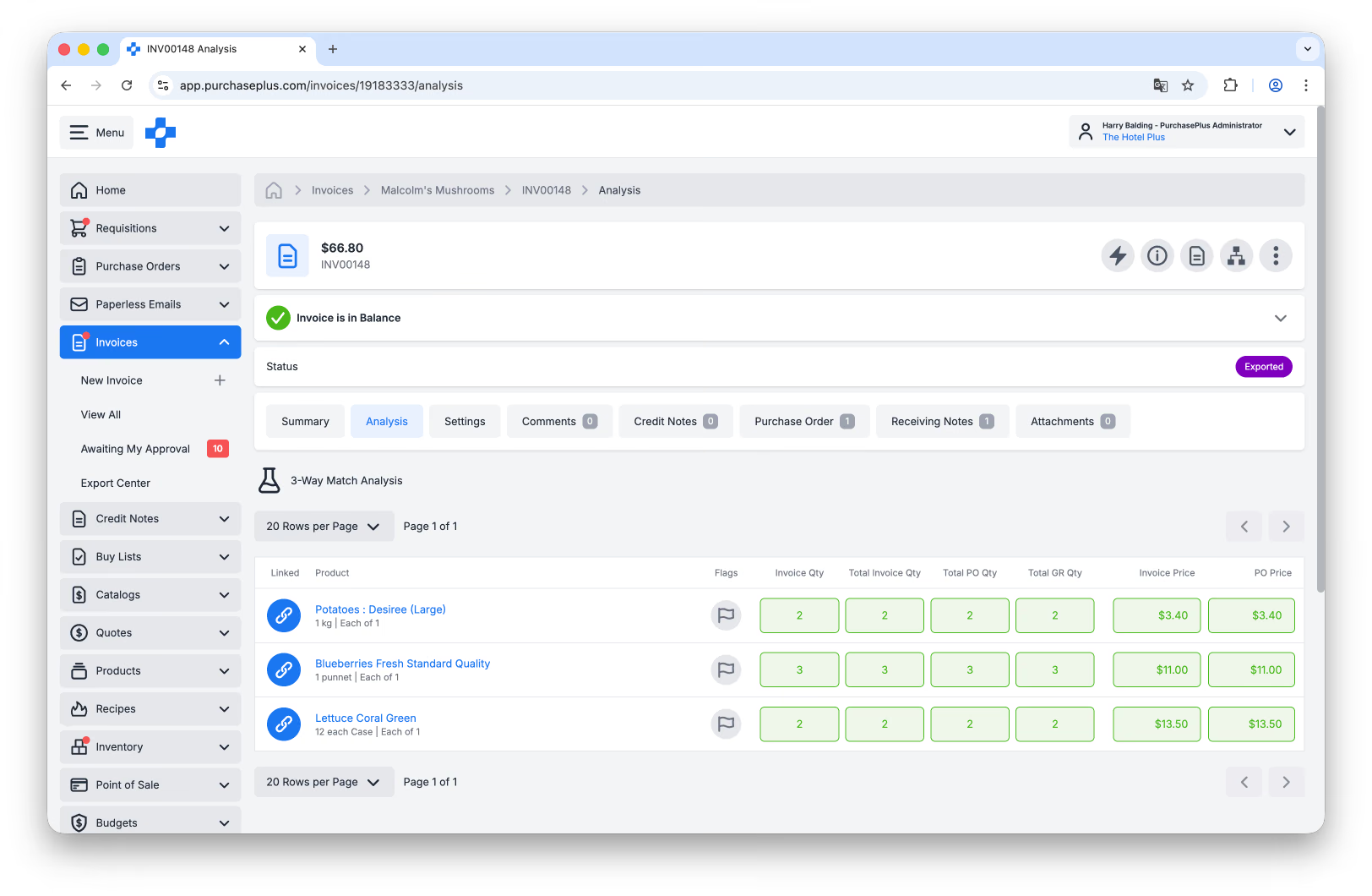
- By matching a Purchase Order to an Invoice, to make sure that what the Supplier has Invoiced the Purchaser for actually matches what the Purchaser Ordered. This is sometimes referred to as ‘2-Way AP Matching’.
- By matching a Purchase Order and its Receiving Notes to an Invoice, to make sure that what the Supplier has Invoiced the Purchaser for actually matches what the Purchaser Ordered and received. This is sometimes referred to as ‘3-Way AP Matching’:
Linking Invoice Lines to Purchase Order Lines
Depending on settings applied to your Organization In PurchasePlus, when an Invoice is matched to a Purchase Order, all of the Lines on the Invoice are compared with all of the Lines on the Purchase Order, and where two Lines are the same, they are Linked to each other. For more information, please read Link or Unlink Invoice Lines and Purchase Order Lines.
Invoice Flags and Thresholds
When a Purchase Order is matched to an Invoice, PurchasePlus compares the Line-level detail of the Invoice Line against the Line-level detail of the Linked Purchase Order Line, to help you decide if there are any discrepancies that should be of concern. If there are discrepancies, then our system will raise an Invoice Flag, which will prevent the Invoice from being automatically Reconciled (and Exported) until the Flag is resolved.
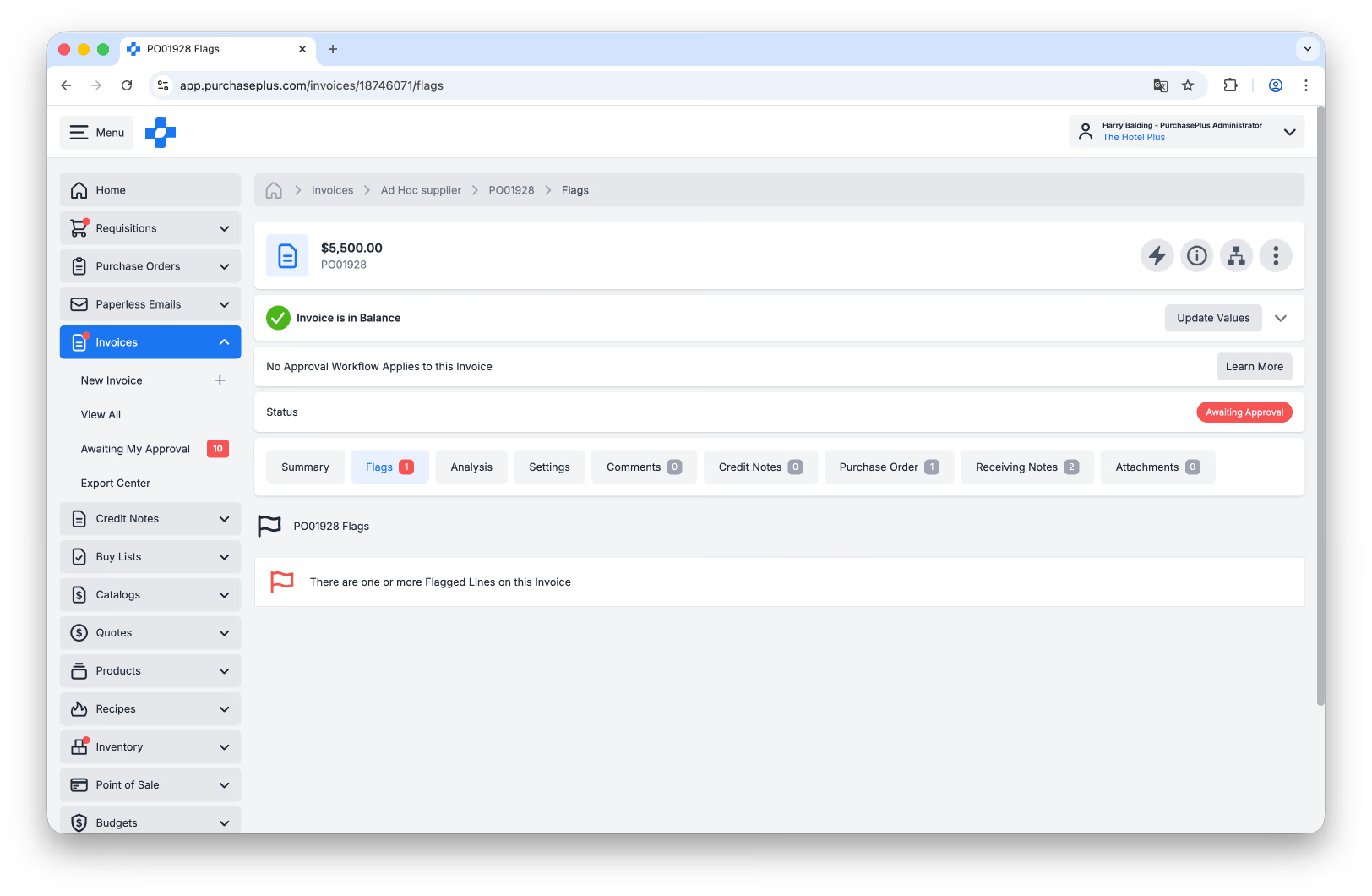
Some Flags are able to be finely-controlled by setting an Invoice Flag Threshold, which tells our system exactly how much variation between a Purchase Order and an Invoice is acceptable to your Organization, and in which scenarios you would like a Flag to be raised.
Advanced Mode for Invoice Management
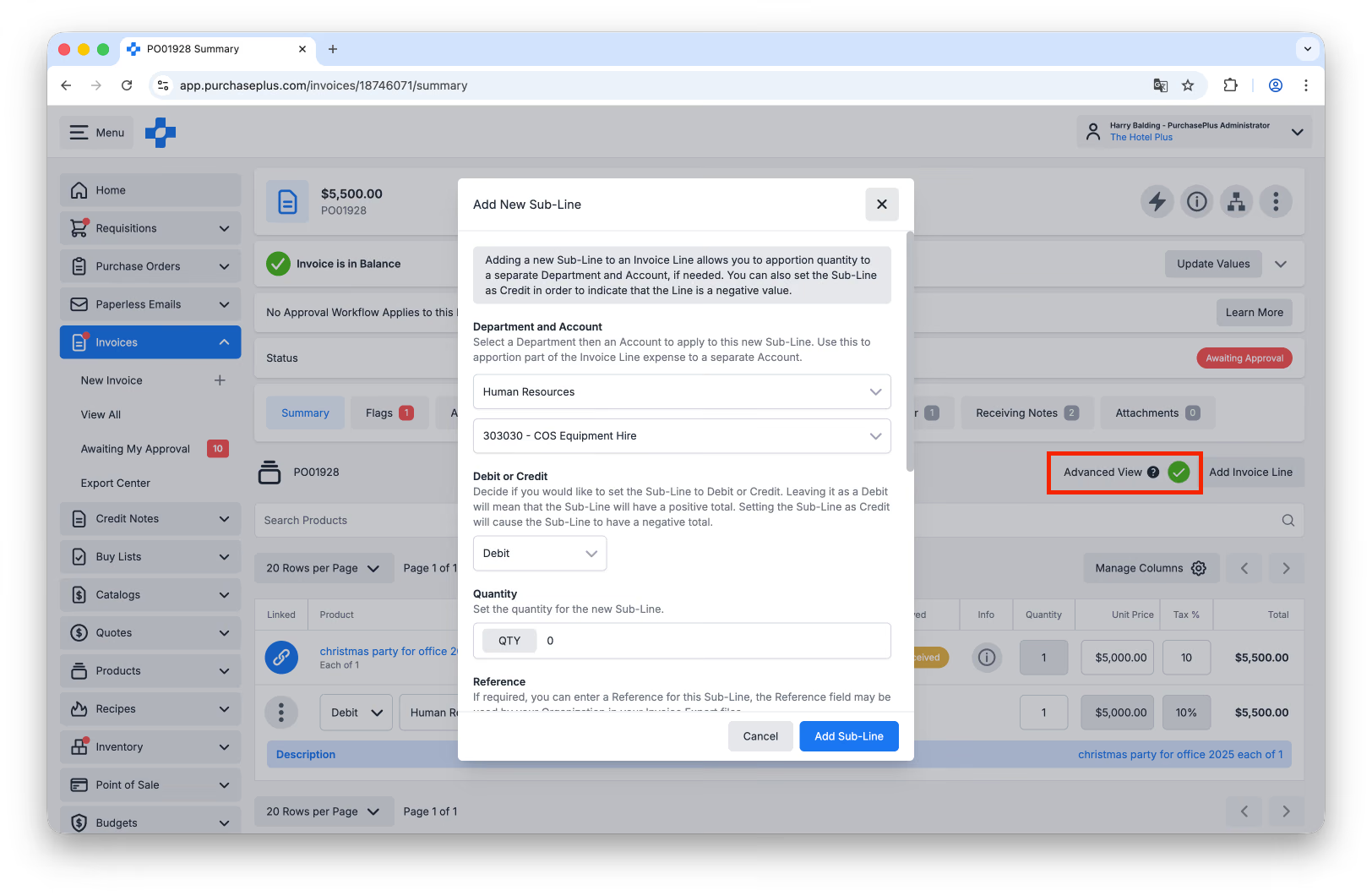
Sophisticated users of PurchasePlus can use the Invoice Advanced Mode to add important details to an Invoice, its Lines or Sub-lines, for accounting and exporting purposes. Read our article about Updating Invoice Lines using Advanced Mode for more information.
Quick View Panels on Wide Monitors
Advanced Users who use PurchasePlus on a large monitor may also benefit from the Invoice Quick View Panels that appear on the right-hand side of the Invoice:
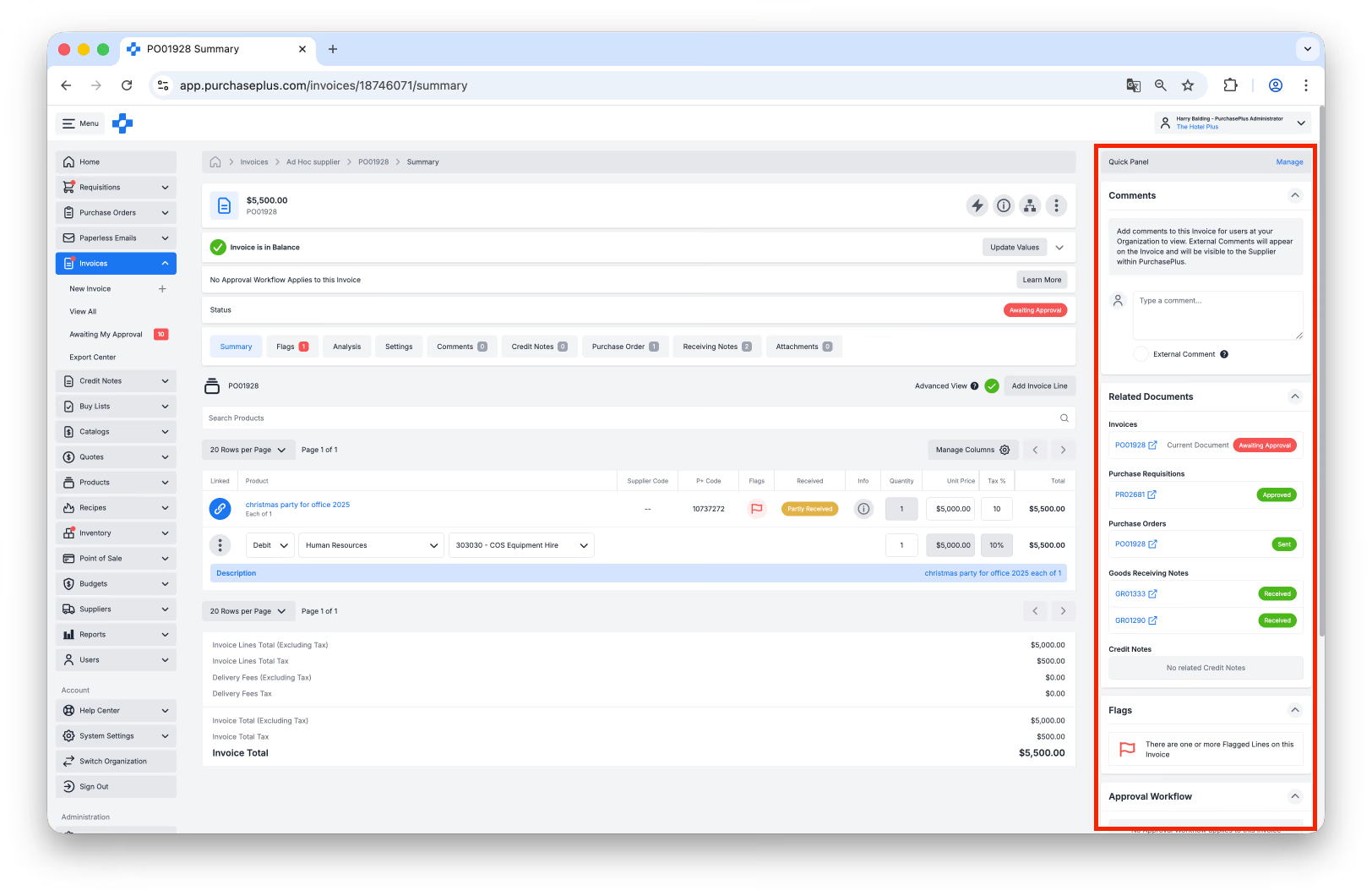
The Invoice Quick View Panel can be configured to display:
- Any comments left on the Invoice by another user at your Organisation, or by the Supplier themselves if they use PurchasePlus,
- The links to Related Documents - e.g. the Purchase Order that has been matched to the Invoice or any Goods Receiving Notes related to that Purchase Order,
- The outstanding Flags on the Invoice (if any), and
- Information regarding the Approval Workflow that this Invoice has been placed in.
You can use the [Manage] button in the top-right hand corner of the Quick View Panel to configure what your panels will display.
The Quick View Panel will not be displayed if your monitor is not large enough to fit everything else on the screen.
Approving an Invoice
If an Invoice does not automatically pass all the checks our system performs (i.e., one or more Invoice Flags are Raised), then an Invoice must be Approved by one or more users before it is able to progress to the Reconciled State and be Exported to your Accounting System.
The user(s) that can Approve Invoices are defined in Invoice Approval Workflows, which are configured by Administrators at your Organisation, in conjunction with PurchasePlus platform experts. Read our article about Approving Invoices for more information.
Exporting Invoices
Invoices can be Exported from PurchasePlus to your Accounting System in one of two ways, depending on your Organization Type.
Type A vs Type B Organizations
- Type A Organizations manually export Invoices (and Credit Notes) individually. This can happen at any point after an invoice has been progressed to the Reconciled state.
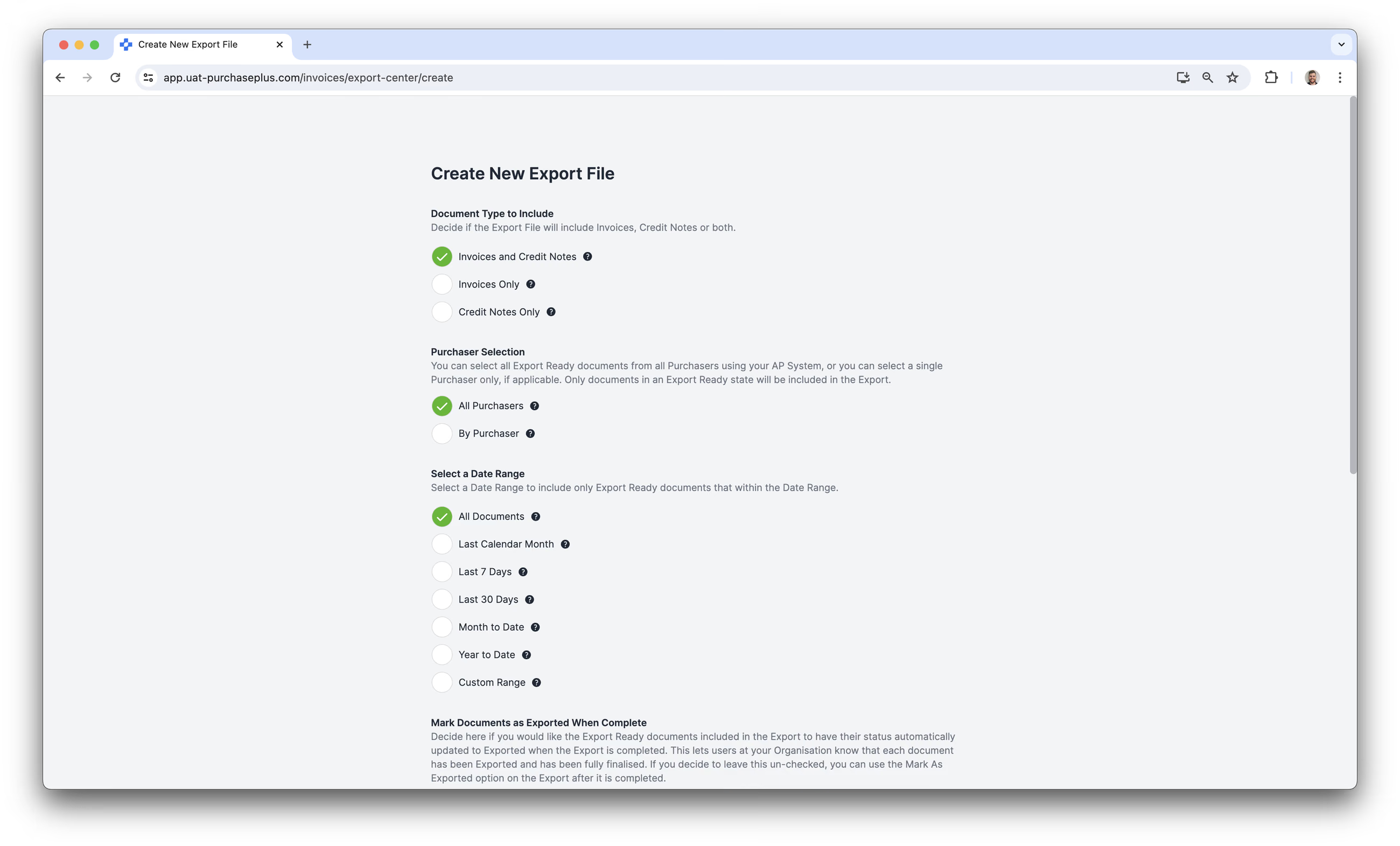
- Type B Organizations first Mark an Invoice (or Credit Note) as Export Ready, and then create and send a Batch Export File that includes all of the Invoices and Credit Notes that have been Marked as Export ready since your last Export.
AP System Destinations and Export Formats
The exact Electronic Destination and Format of the Export Files for both Type A and Type B Organizations is configured during the Implementation of your PurchasePlus system, but it can be modified post-implementation in close consultation with the PurchasePlus team if required. Please contact our friendly Customer Success Team for more information.