

Create or Update a Catalog
Create or Update a Catalog
Create or Update a Catalog
Catalogs can be managed directly by registered Suppliers (Supplier Managed Catalogs) or internally by your Purchasing Organization (Self Managed Catalogs). Self Managed Catalogs give your organization tight, direct control over products and pricing, which is why some organizations choose to self-manage their internal procurement.
Note - While it is technically possible to create a Self Managed Catalog on behalf of a Registered Supplier (provided an Enabled Trade Relationship exists), this is generally not recommended. Doing so can disrupt existing integrations, break automated Purchase Order flows, and create data conflicts. This method should only be used as a temporary measure if a supplier is still busy generating a specific catalog for your organisation. Reach out to our help desk if a registered supplier catalog is needed or needs updating.
Catalog Visibility in an Organisation Hierarchy
Self-Managed Catalogs that are set up at the Parent level in an Organisation Hierarchy will 'cascade' - i.e. be visible and usable - by Organisations under them.
Create a Self Managed Catalog
- Ensure that the Supplier is set up in your [Suppliers] → [My Suppliers] section. They may be a Self Managed Supplier, or a Registered Supplier with an Enabled Trade Relationship.
- Select [Catalogs] → [New Catalog] from the side navigation bar.
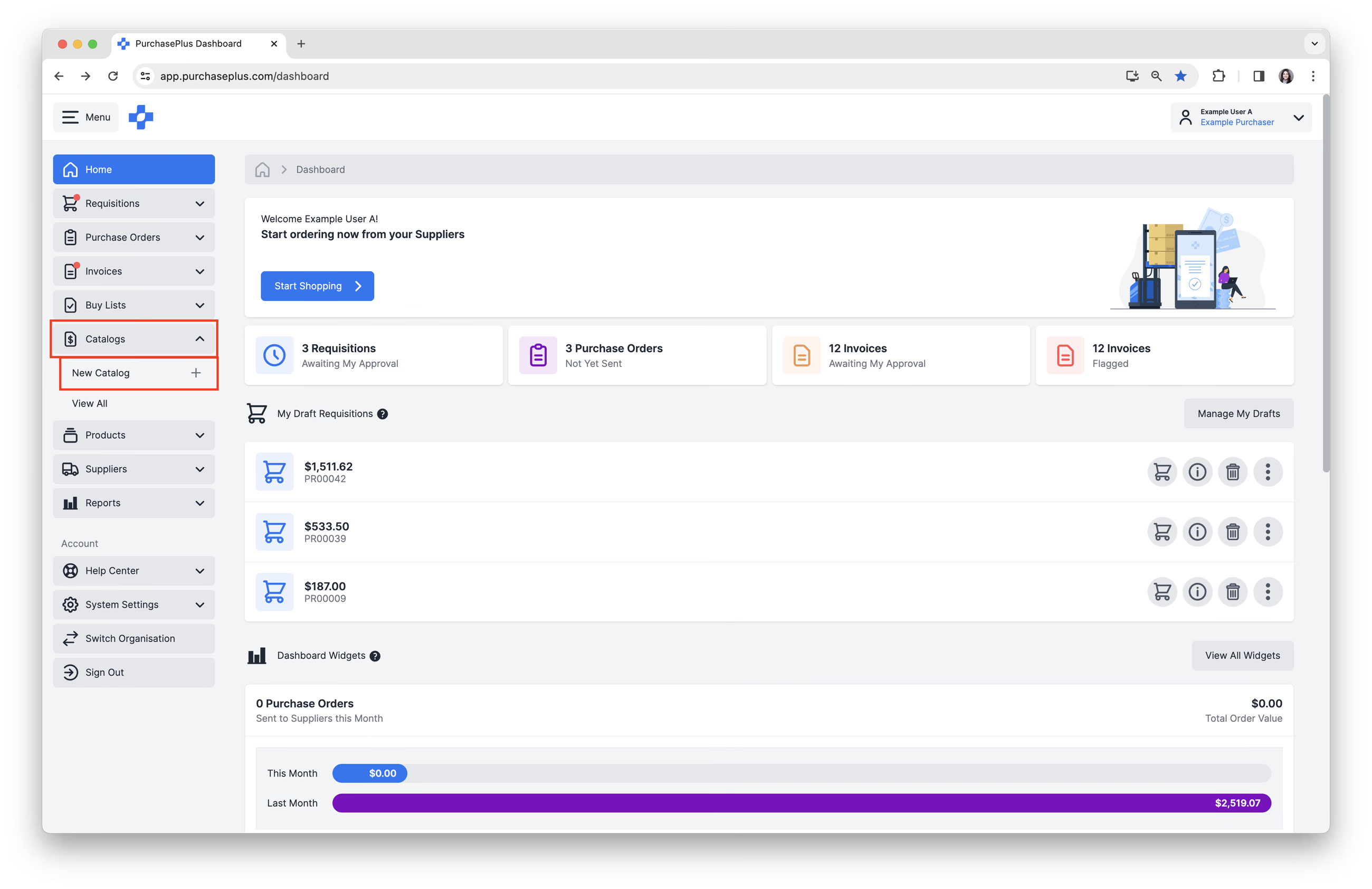
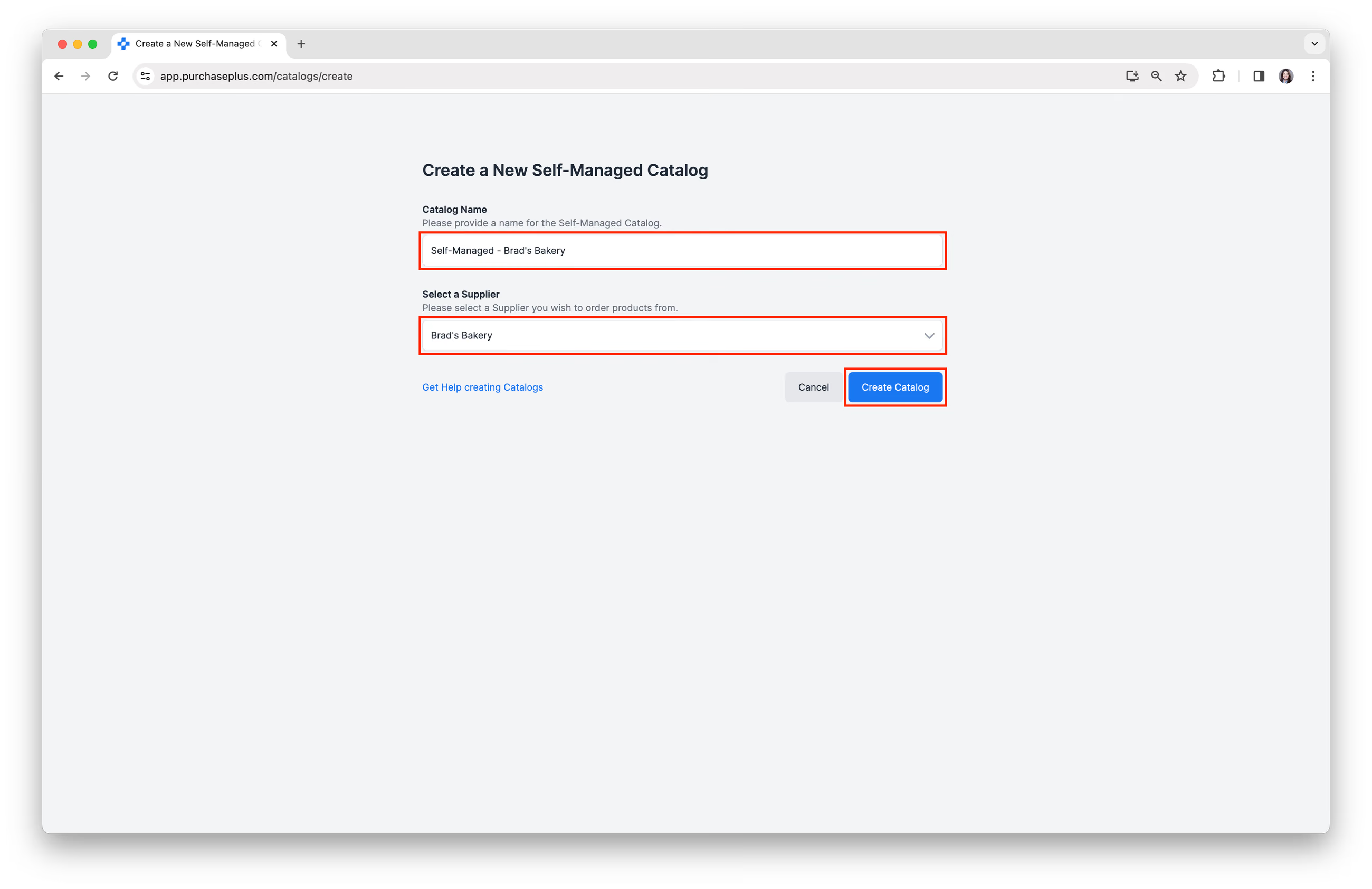
- Enter a [Catalog Name]. Example: 'Self-Managed - Brad's Bakery'
- [Select] a Supplier from the dropdown menu. Then click [Create Catalog].
Add products
You can add Products to a Self Managed Catalog in three different ways:
- By Importing a CSV (Recommended),
- Manually adding Products to the Self-Managed Catalog, and
- Via the Import Invoice Lines process.
Read on to learn more about each of these three methods.
Importing or Updating a Catalog's Products via CSV Upload
Using the Import functionality, you are able to update the prices of existing Products in the Catalog, as well as add extra products to the Catalog, given that you have the P+ Product Code for the extra product you wish to add.
Learn more about adding Products to a Self-Managed Catalog via CSV Upload.
IMPORTANT: You are not able to create entirely new Products in PurchasePlus via this import process. See our Create a New Product article for help creating a new Product.
Manually Adding Products to a Self Managed Catalog
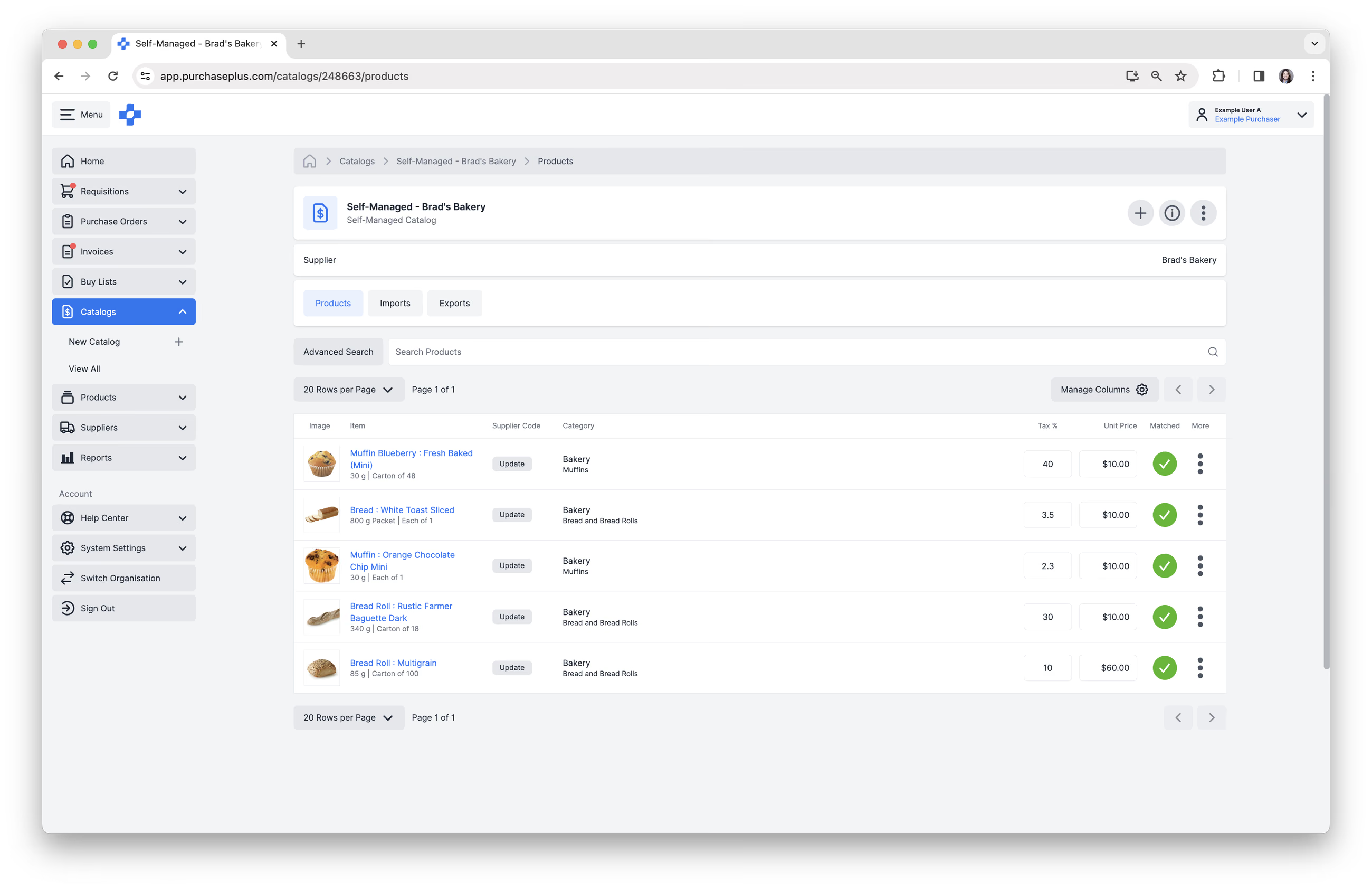
1. Click [+] to begin adding Products to your Catalog.
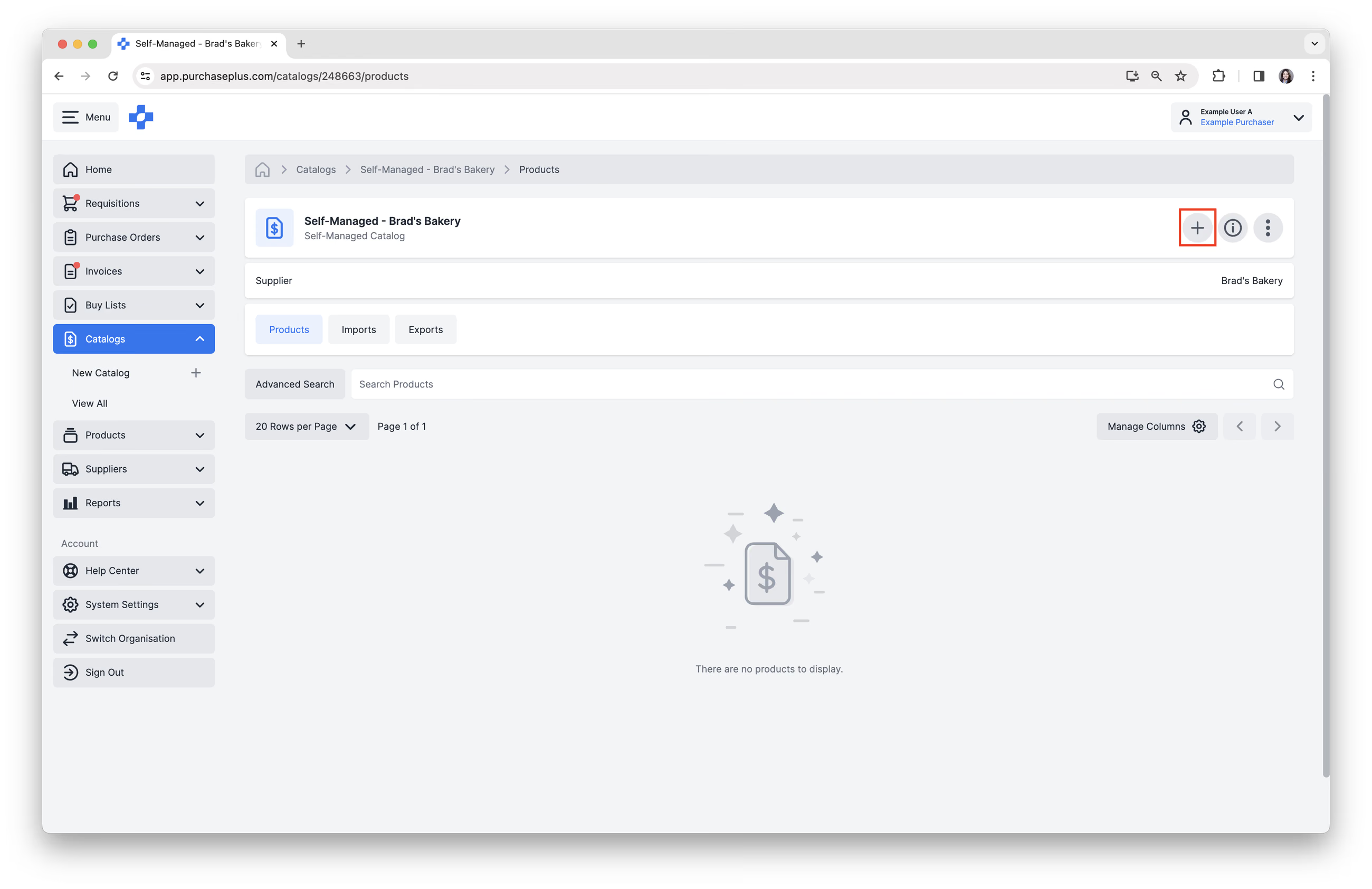
2. [Search] for the Product you would like to add to the catalog.
3. Enter [Unit Price] and set Tax Treatment: [Taxable], [Tax Free], or a Tax %. The percentage field is hidden while [Taxable] or [Tax Free] is selected. Then click [Add Item].
4. Alternatively, you can [Create a New Product] or use [Advanced Search]. You can visit our Create a New Product and Advanced Product Search articles for additional assistance.
5. You have now added Products to your Self-Managed Catalog.
Import Invoice Lines Process
This option works by converting Invoice Line Items into Products in a Self Managed Catalog, and it is specifically useful for Self-Managed Suppliers.
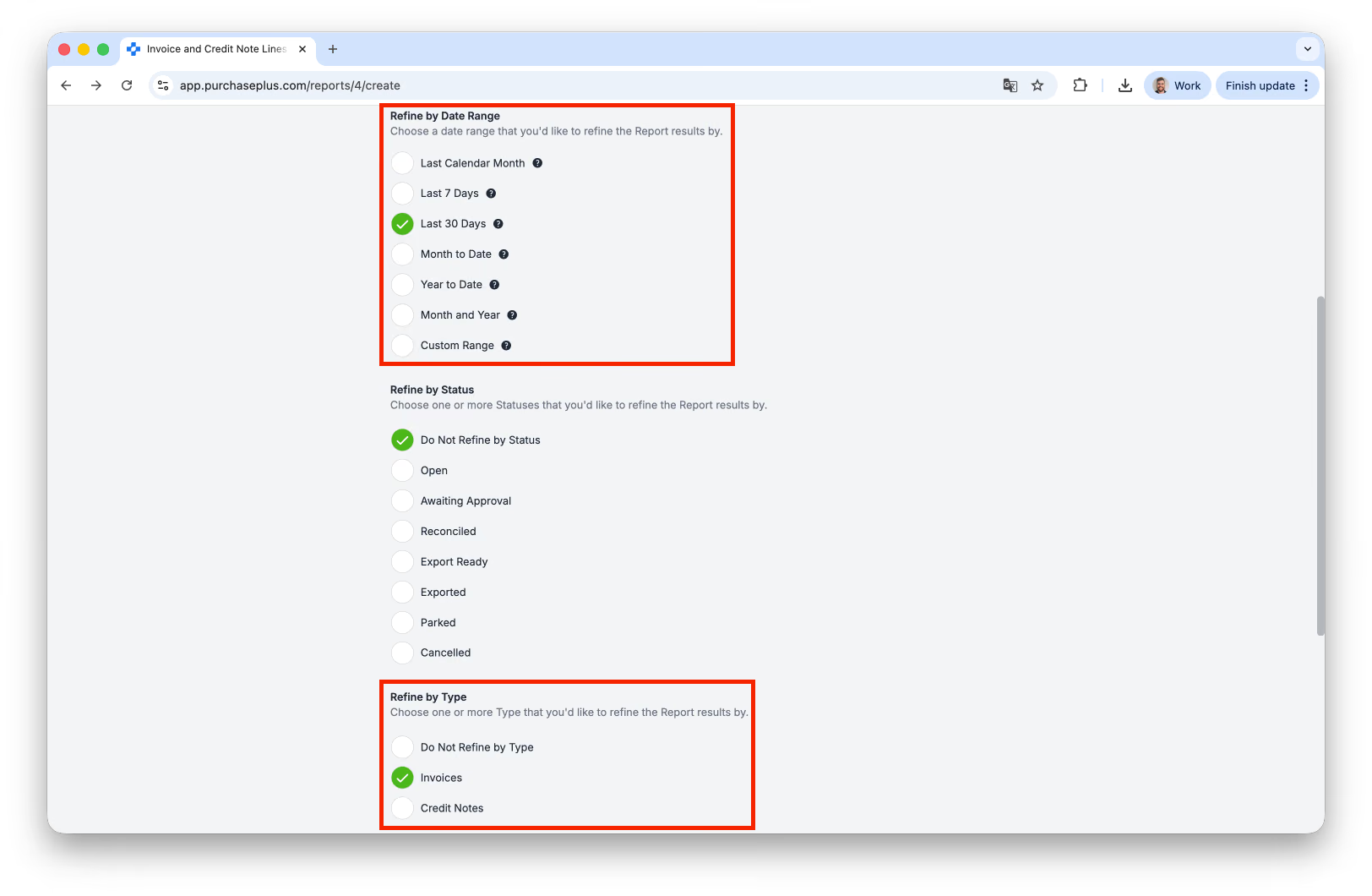
- Run the Invoice and Credit Note Lines Report, paying close attention to the 'Refine by Date Range' and 'Refine by Type' filters:
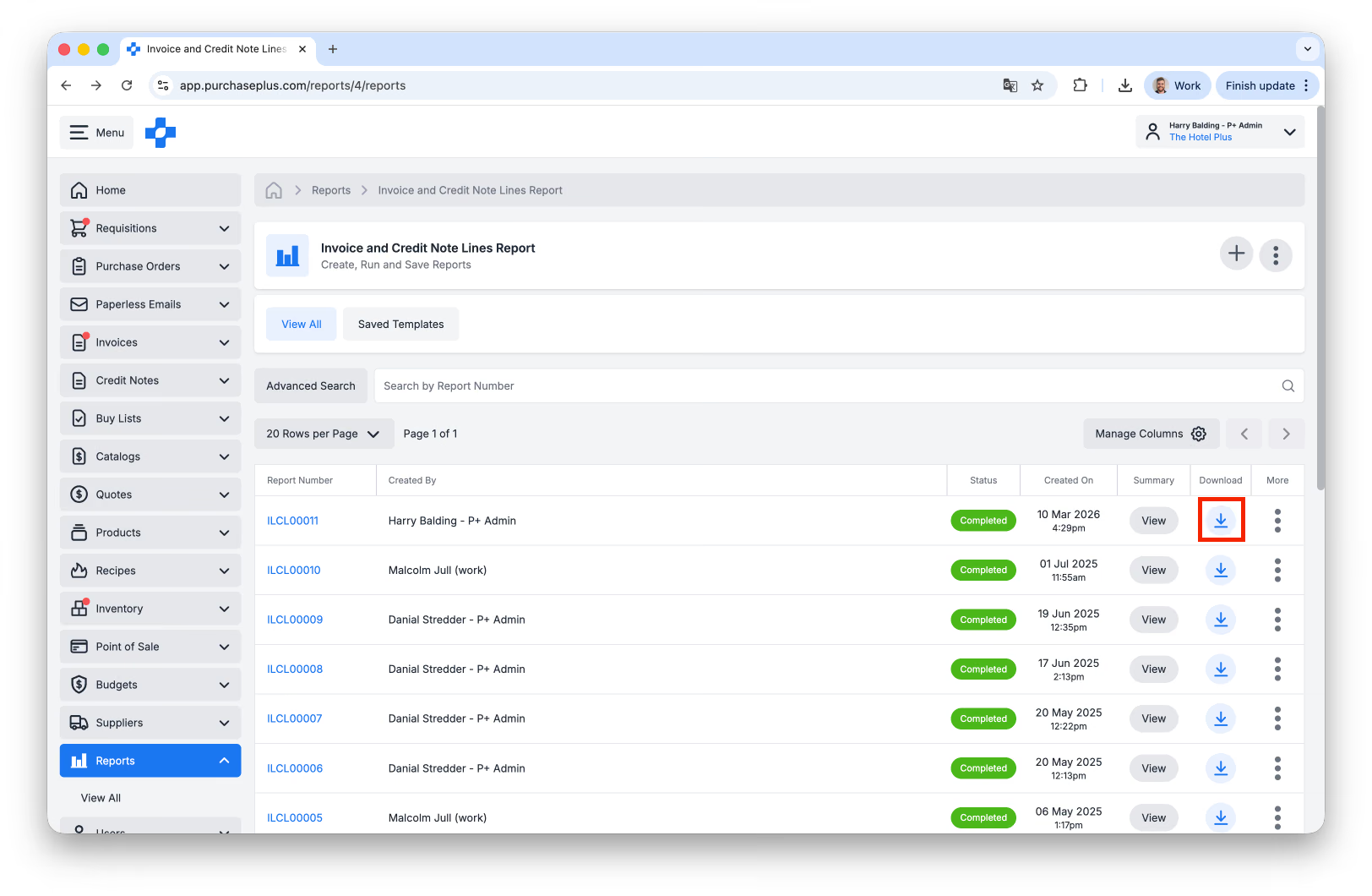
- Download the Report as CSV:
- Open the downloaded CSV. Locate the rows pertaining to the Supplier(s) for whom you are creating the Self-Managed Catalog, and delete the other rows.
- Download the Catalog Import Template. If this download link doesn't work, you can export an existing Self Managed Catalog to obtain the template too.
- Copy the following fields from the remaining rows in the Invoice and Credit Note Lines Report over to the corresponding cell in the Catalog Import Template:
| Invoice and Credit Note Lines Report (ICNLR) | Catalog Import Template | Notes |
|---|---|---|
| product.id | ppproductid | |
| brand | brand | |
| itemDescription | description | |
| itemPack | unit_size | ICNLR 'itemPack' needs to be separated |
| itemPack | unit_measure | ICNLR 'itemPack' needs to be separated |
| itemPack | unit_name | ICNLR 'itemPack' needs to be separated |
| sellUnit | pack_quantity | ICNLR 'sellUnit' needs to be separated |
| sellUnit | pack_name | ICNLR 'sellUnit' needs to be separated |
| lineTotalExTax | packpriceex_tax | |
| tax_percentage | Input tax percentage (if available), or 0 | |
| category.name | category | Put 'unknown' if none |
| category.parent.name | subcategory | Put 'unknown' if none |
6. Update any Fields required and remove any Products (i.e. Lines) you don't wish to import.
7. Ensure that you're using the correct/latest price from the Catalog (this is easy if you're using the exported version of the Catalog).
8. Save the file, and import it as you would do a normal Catalog Import task.
Update manually
In addition to the Import CSV functionality for updating Catalogs, users with the 'Manage Self Managed Catalogs' permission can manually update the Unit Price and Tax % for Products within a Self Managed Catalog by following these steps:
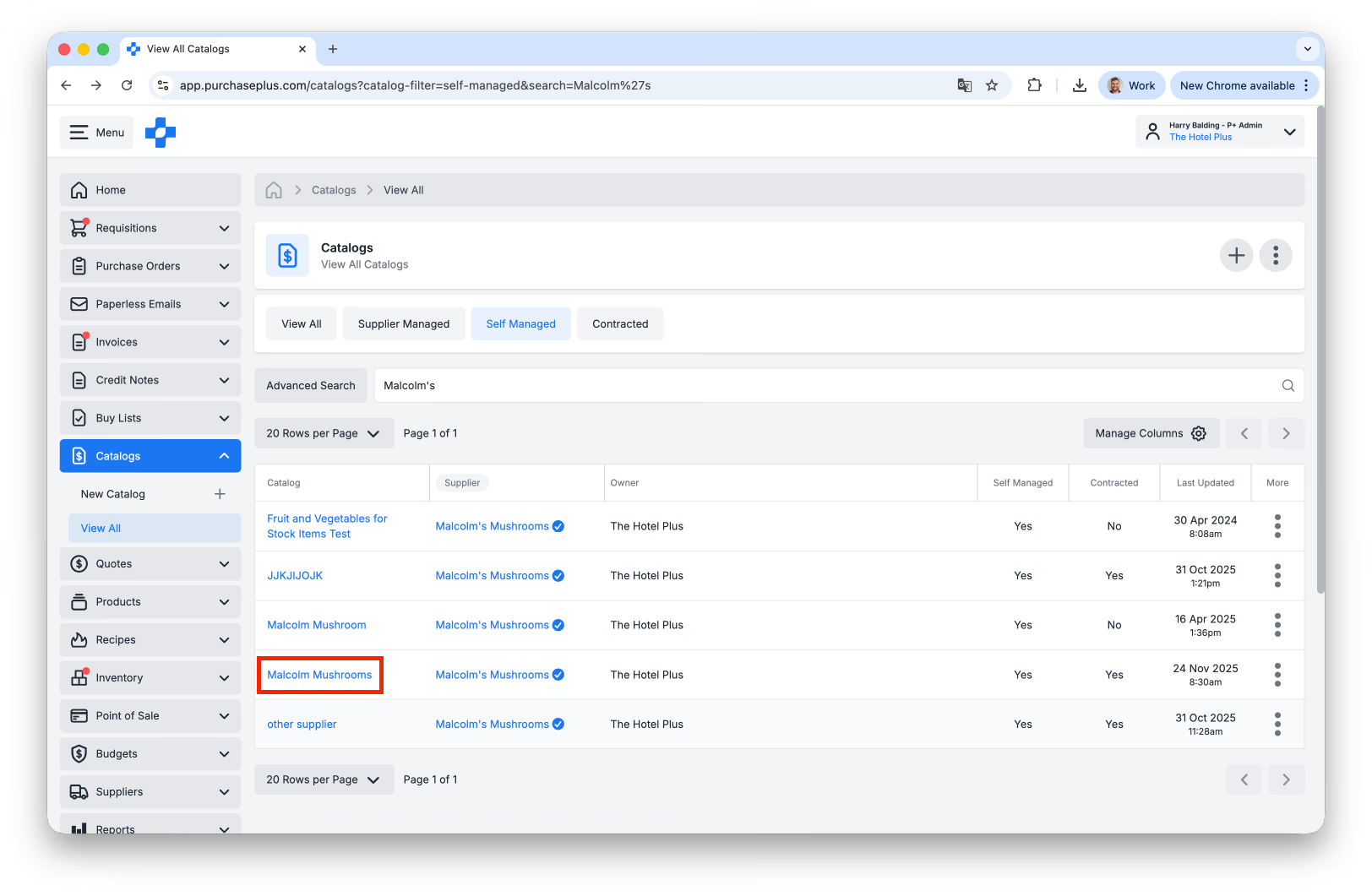
- In the side navigation bar, go to [Catalogs] → [View All], then select [Self Managed] to filter catalogs managed by your Organisation.
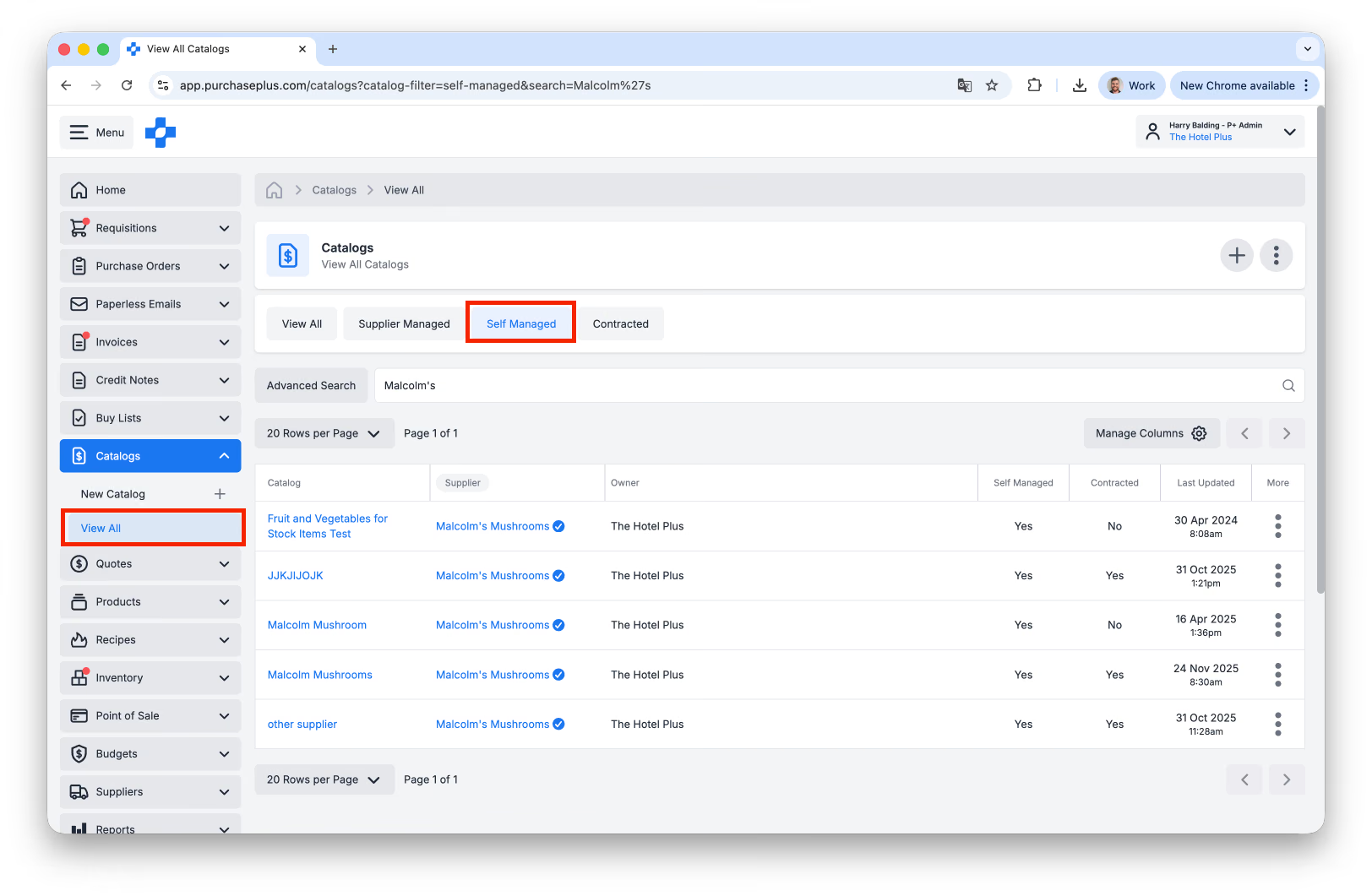
- Search for the Catalog using the Catalog Name or Supplier Name
- Click on the **[Catalog Name]:
**
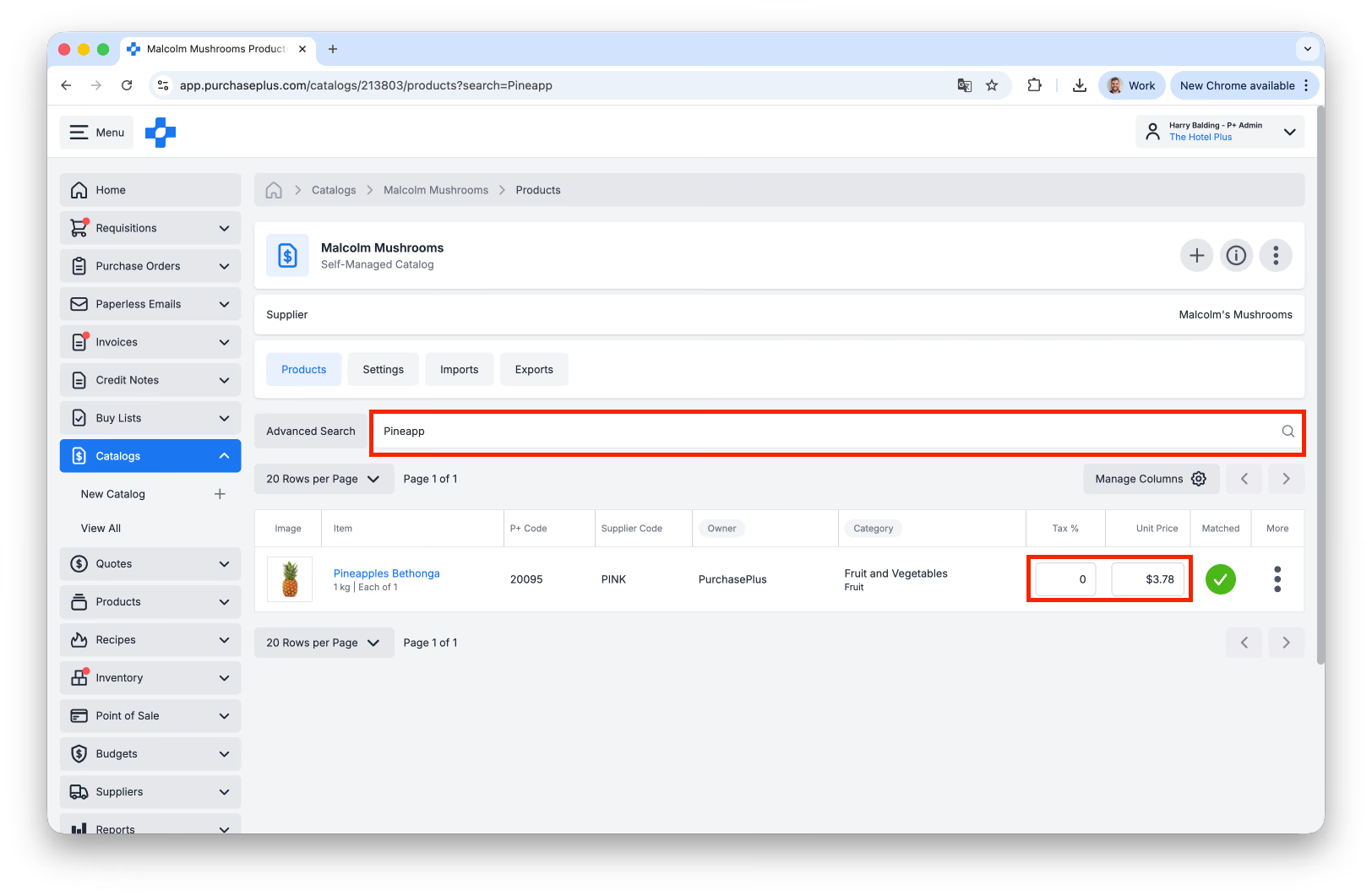
- Locate the desired Product by:
- Scrolling through the list, or
- Searching by Product Description, or
- Using Advanced Search if specific details are known
- Once the item is found:
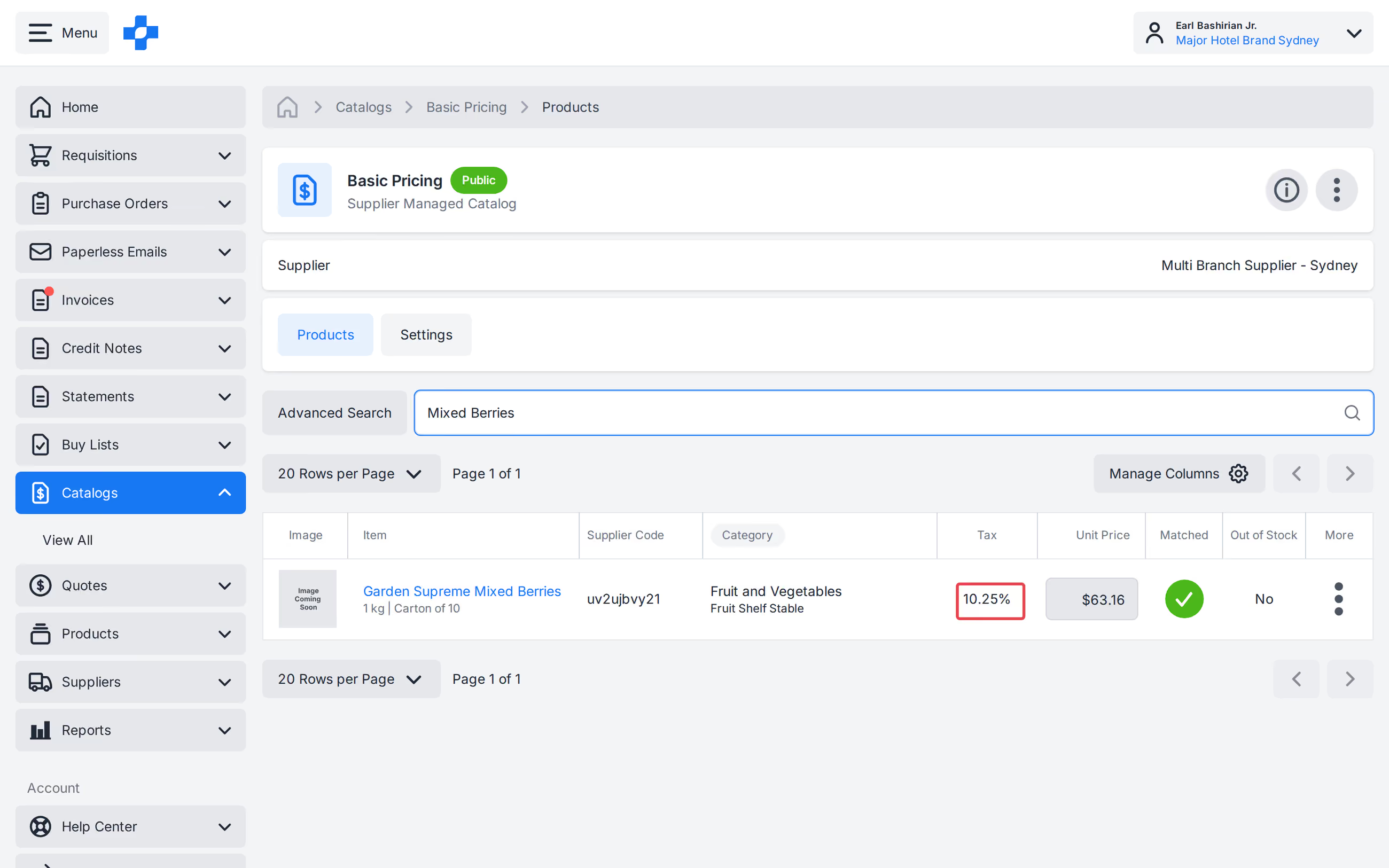
- Enter the Unit Price, and set Tax Treatment to [Taxable], [Tax Free], or a Tax %.
- Or open [Update Unit Price and Tax].
- Press 'Enter' or click anywhere in the system to apply the changes. The product table updates without a page reload. A $0.00 Unit Price is accepted in the modal, matching the table.
On a Self-Managed Catalog, Taxable lines use the Purchaser Default rate (for example 8.875%). Table, tile, and preview show Taxable with that rate. Shop and Quotes show Plus the Default rate. When there is no saved Default, or the Default is 0%, shop and Quotes show the Tax Free copy instead of Plus. See our 'Quotes' article to learn more.
Best Practice Tips
- If you are making regular purchases from a Self Managed Supplier, it's a good idea to set up a Self-Managed Catalog to avoid creating a Custom (i.e. Ad-hoc) Requisition each time you order from them. Creating a Self Managed Catalog will enable you to create a Requisition from a Buy List, or from [My Suppliers].
- We recommend that Self-Managed Catalogs be created at the highest-appropriate level in your Organizational Hierarchy (e.g. at the Hotel-level, rather than Department-level), so other Users at that Org-level and below can also benefit from the Self Managed Catalog.
- We recommend being consistent with the naming structure of your Self-Managed Catalogs, to ensure quick identification of the correct Catalog when running pricing reports. We recommend the following format: "Self-Managed - Supplier Trading Name".
Learn more about Catalogs below:
If you require further assistance with creating a Self Managed Catalog, please contact our friendly Customer Support Team at PurchasePlus.