View Purchase Orders
View Purchase Orders
PurchasePlus enables Purchasers in our network to create a Requisition (i.e. an 'order') that includes their Suppliers' products, submit these Requisitions for internal approval, and then automatically generate Purchase Orders and send them to their Suppliers once approved.
These Purchase Orders will then automatically be sent to your specified electronic Destination (usually an email inbox) or via an EDI integration, and you can also view these Purchase Orders in our system.
All purchase orders
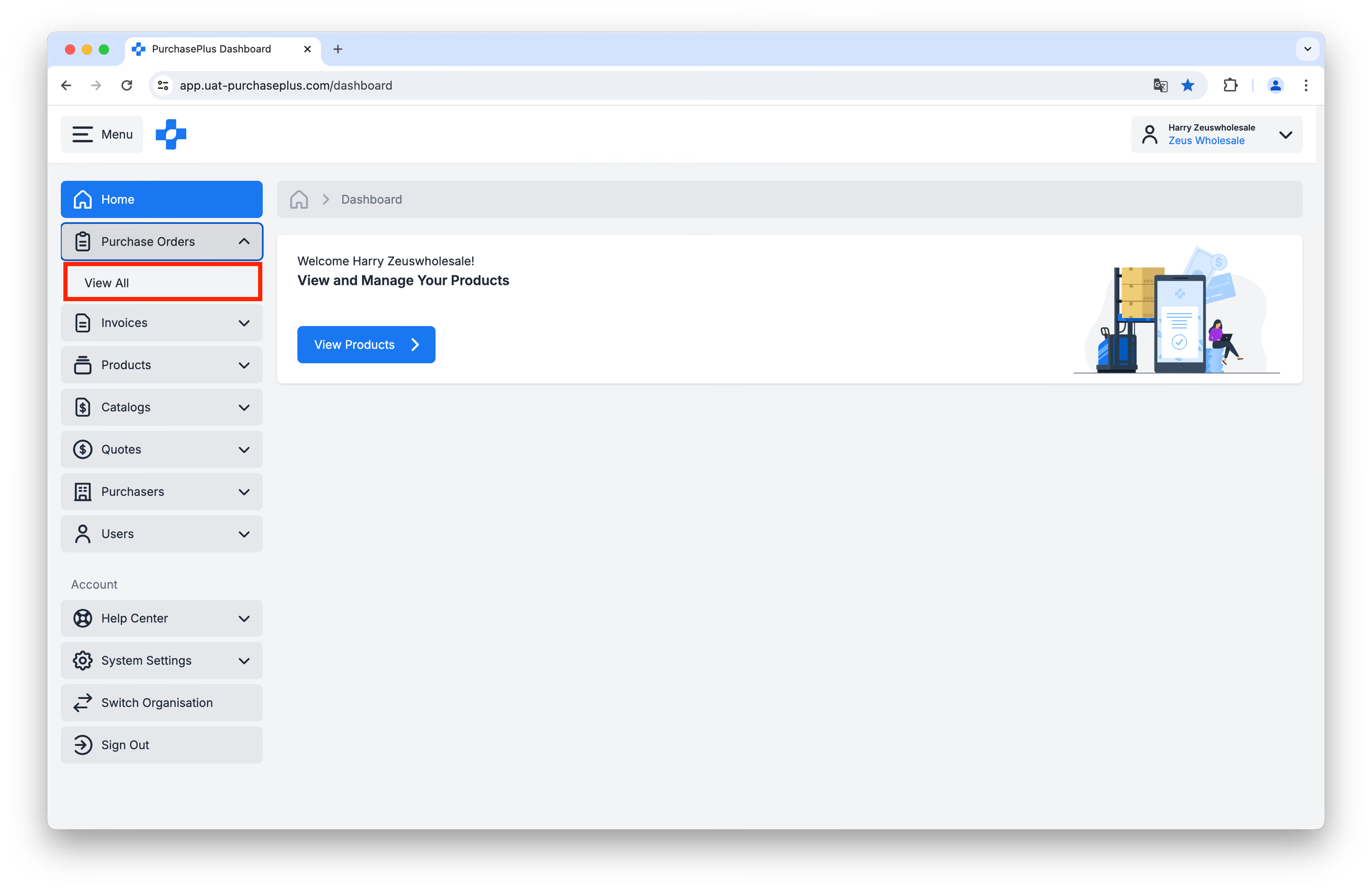
Click on [Purchase Orders] → [View All] in the side navigation bar:
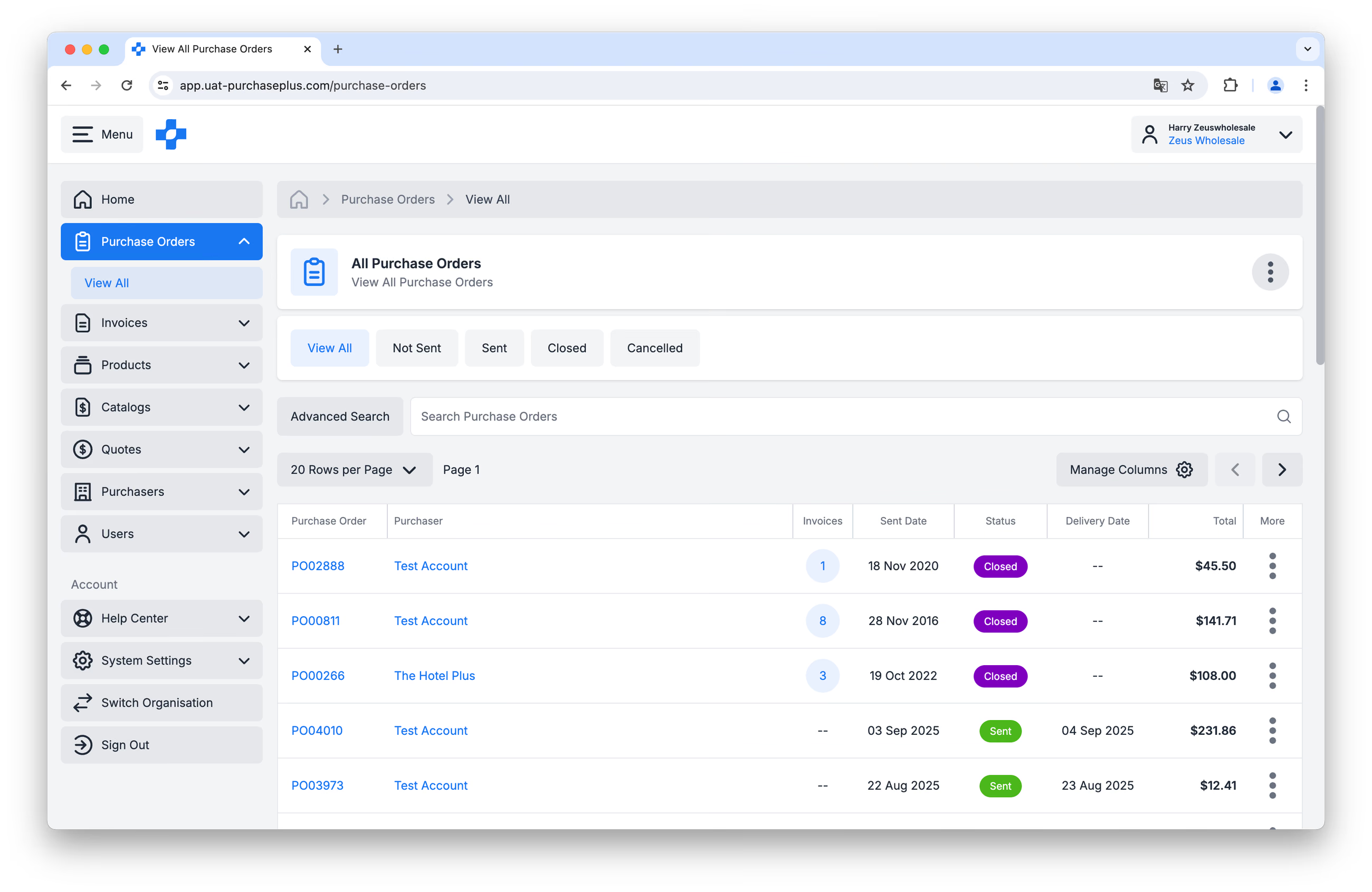
 You will arrive at a page displaying a table of all of the Purchase Orders sent to you by your Purchasers that use PurchasePlus. As a reminder, it is very likely that you will have already received these Purchase Orders to your specified electronic Destination (or via phone), and this table does not represent additional Purchase Orders for fulfillment:
The column headers tell us important information about the Purchase Orders at a glance:
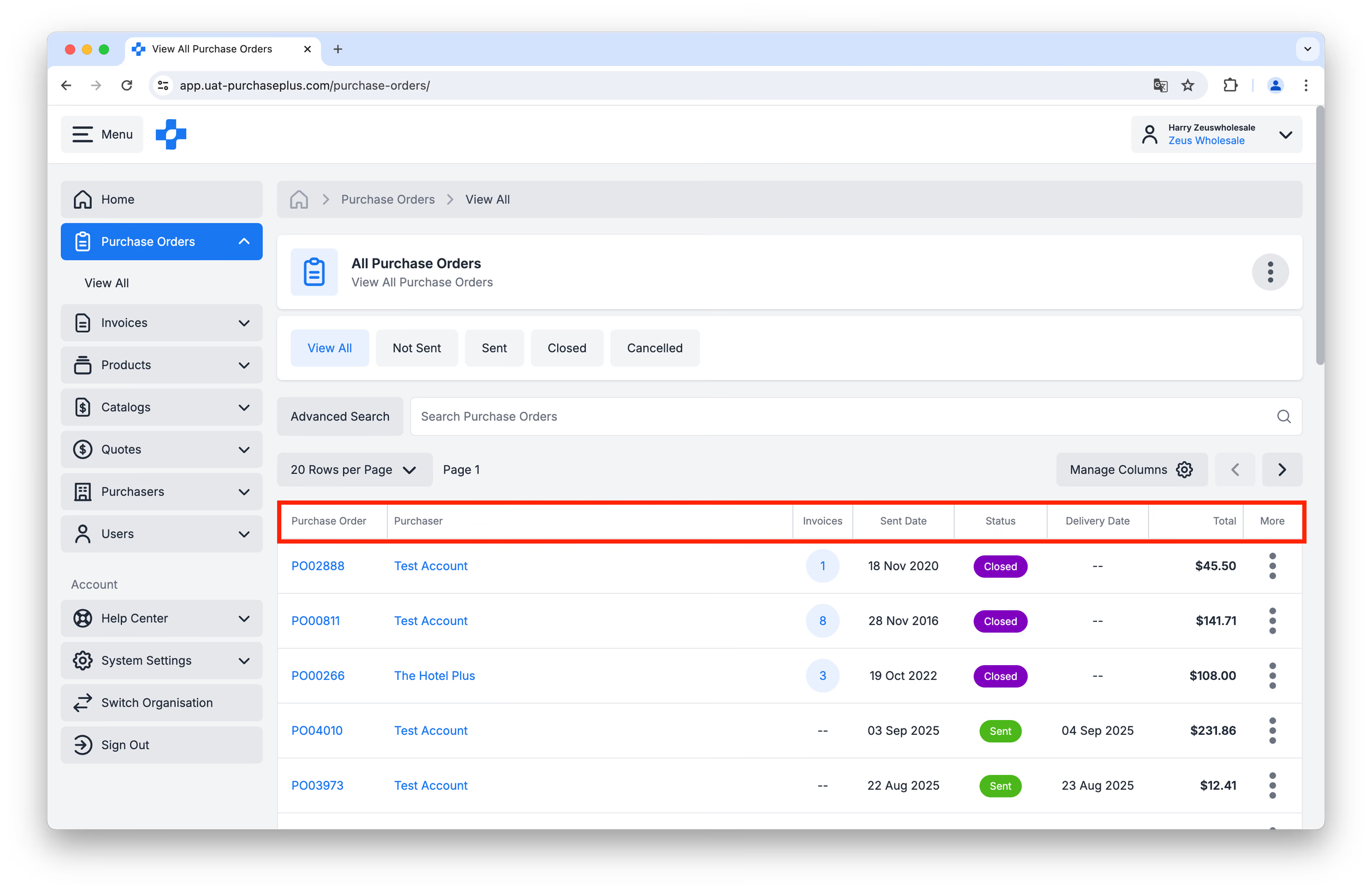
- Purchase Order: The Purchaser-specific Purchase Order number. Click this value to view the Purchase Order in more detail.
- Purchaser: The customer that sent your business the Purchase Order.
- Invoices: The number of Invoices that have already been 'matched' to this Purchase Order (if any). Purchasers can 'match' Invoices to a Purchase Order (and our system also does this automatically for them), so that they can analyse the two documents together and be confident that the Invoice is correct - i.e. the products and prices match what they ordered - and the Invoice is ok to be paid.
- Sent Date: The date upon which the Purchaser sent the Purchase Order to your Organisation.
- Status: Purchase Orders can appear in this view in one of three statuses:
- Sent: A Sent Purchase Order has been marked as Sent by the Purchaser, and they are ready to receive the goods and/or services from you.
- Closed: The Purchase Order has been fully Received and Invoiced.
- Cancelled: A Purchase Order can be cancelled before it has been fully processed. Cancelled is the status indicating that the Purchase Order will not proceed to completion. When a Purchaser Cancels a Purchase Order, our system prompts them to electronically notify you (via the same electronic Destination that you received the Purchase Order), and encourages them to call your business to confirm the cancellation.
- Delivery Date: The date upon which the Purchaser is expecting delivery of the goods.
- Total: The total value of the Purchase Order, including tax.
Additionally, there are a number of features on this page that make it easy to navigate through the table of Purchase Orders:
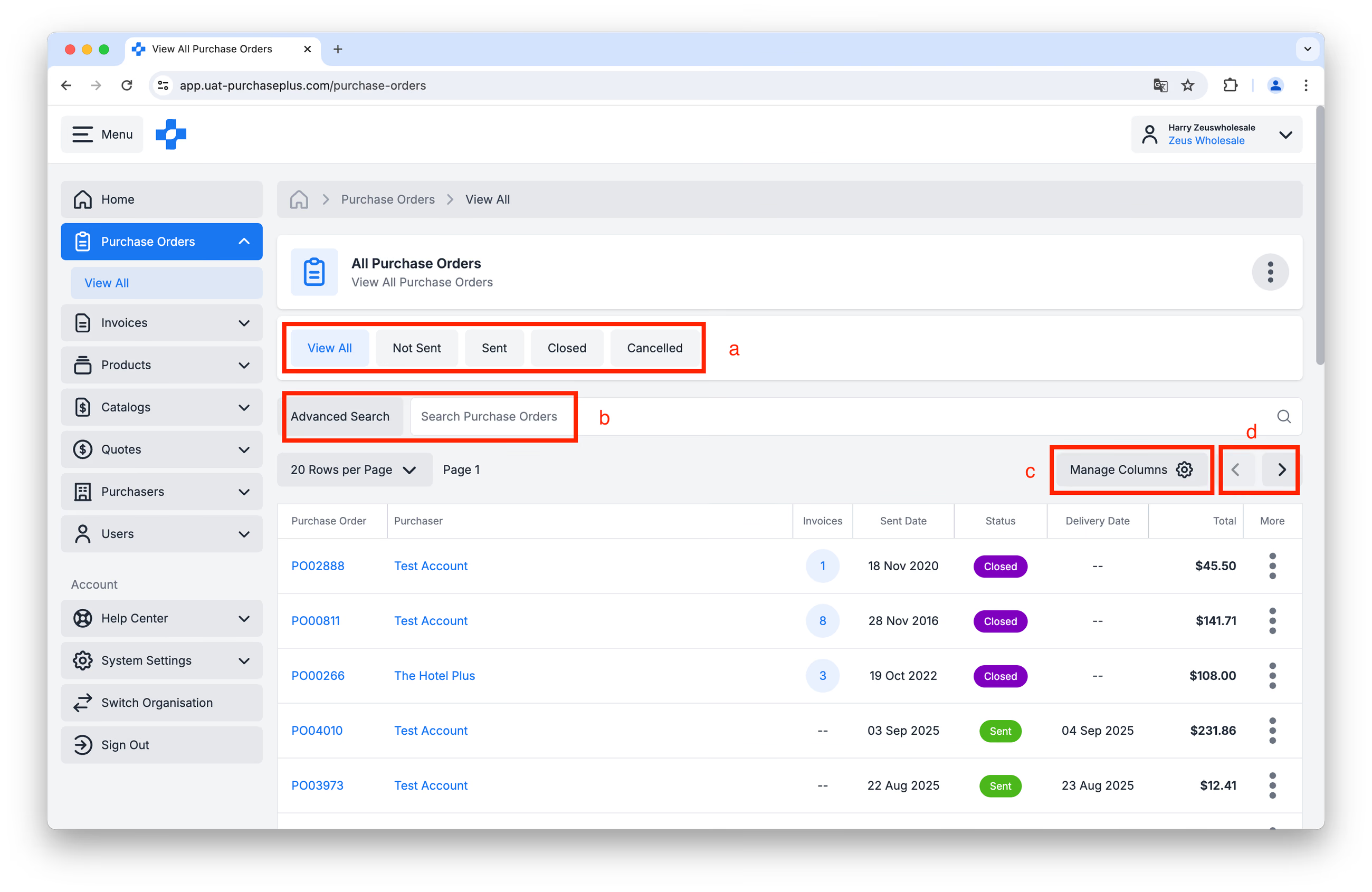
a: Filter the Purchase Orders by Status.
b: Search for a specific Purchase Order (and use Advanced Search filters if required).
c: Manage your Sorting and Column preferences with the [Manage Columns] feature.
d: Go to the Next or Previous page in the table.
A single purchase order
Clicking on the value (i.e. the Purchase Order number) in the [Purchase Order] column on the View All Purchase Orders page will open the specified Purchase Order, and display more details about it:
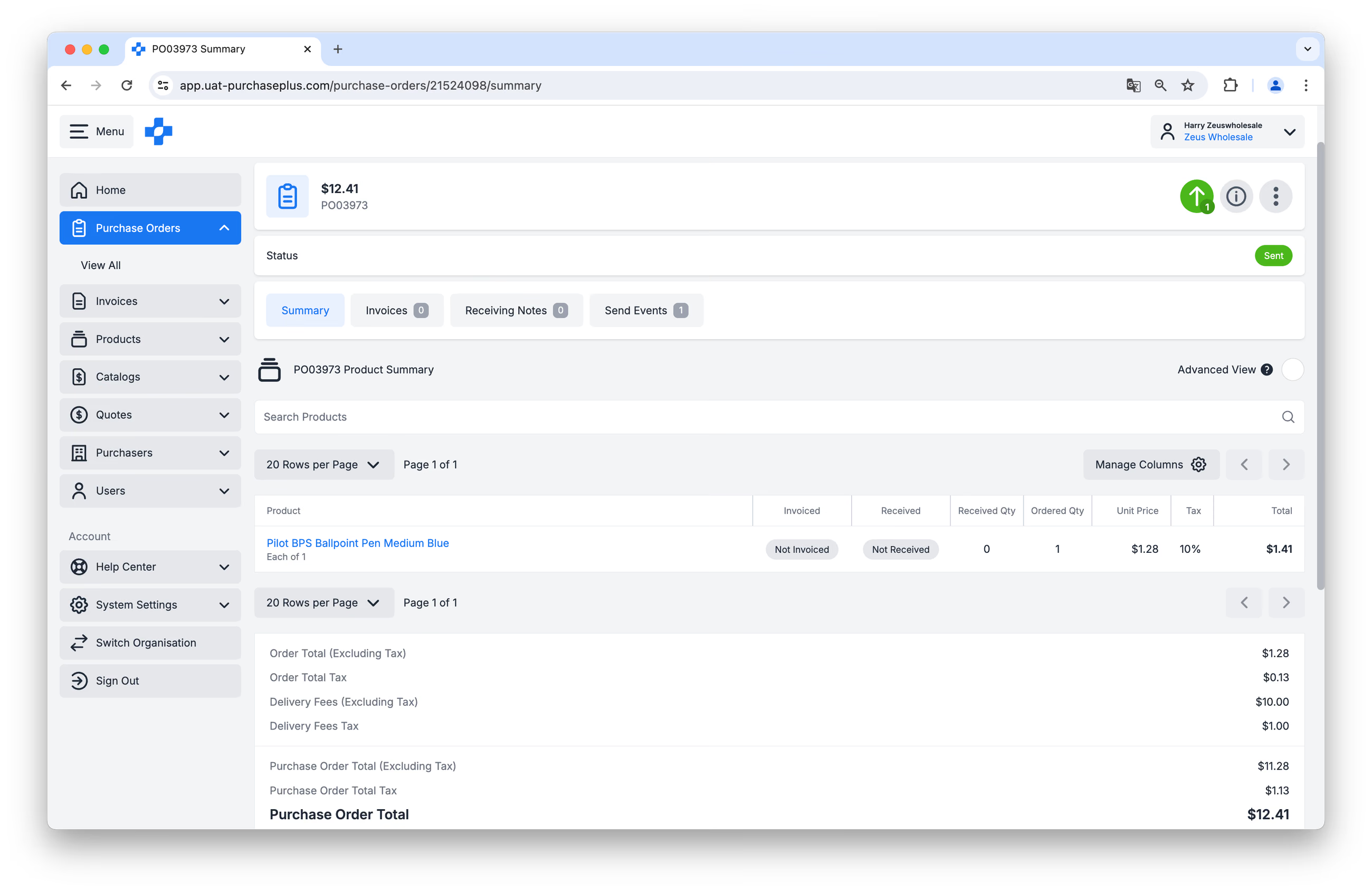
The is lots of information and functionality available in this view. To better understand the Single Purchase Order view, please read the marked-up image and commentary below:
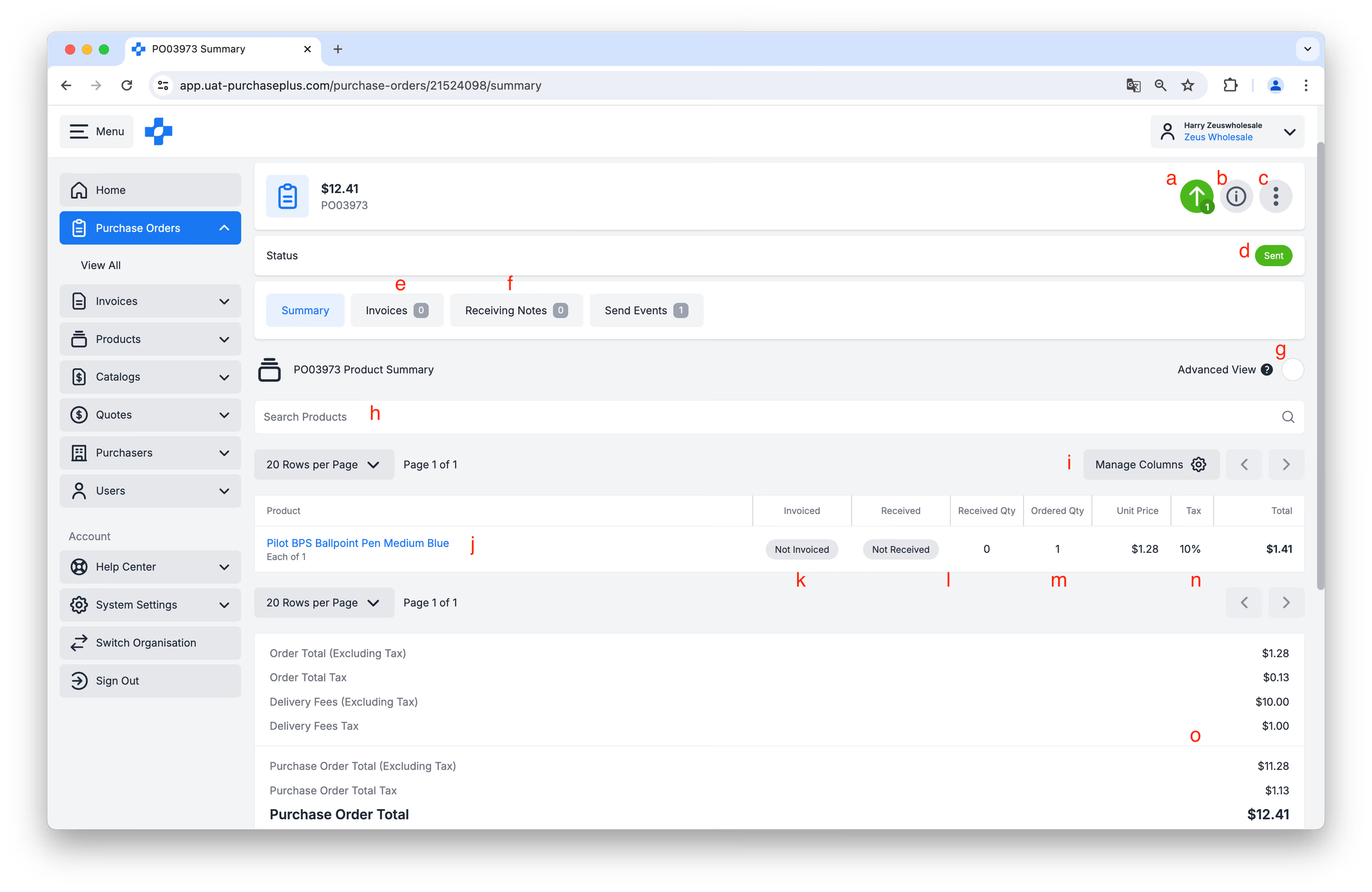
a: Send Events. The Purchase Order has been Marked as Sent by the Purchaser. It has either been automatically sent to your defined electronic Destination (i.e. inbox), or phoned through by the Purchaser and manually Marked as Sent by them.
- More Information. Clicking the [i] button in the Purchase Order header will reveal a great deal more information about the Purchase Order - for example, the Department and Account Code the Purchaser is coding the order to, the delivery address, and more.
- More Options. Here you can find the [Print] option, or view the Audit Log for this Purchase Order.
- The Status of the Purchase Order.
- View any Invoices that have been matched to the Purchase Order, either automatically by our system, or manually by the Purchaser.
- View any Receiving Notes created by the Purchaser when they have noted the goods being received at their premises.
- View the Purchase Order in Advanced Mode, which reveals line-level information like the department and account code that the items are being coded to.
- Search for a particular product in the Purchase Order.
- Manage the Columns available in this view of the Purchase Order.
- The Product that has been ordered.
- Information about whether or not that Product has been partially, fully, or not Invoiced.
- Information about whether or not that Product has been partially, fully, or not Received.
- The Quantity that was ordered.
- The Unit Price, Tax % and Total Price for the Line.
- The Total Values for the Purchase Order (e.g. the Products, Taxes, Delivery Fees, etc).
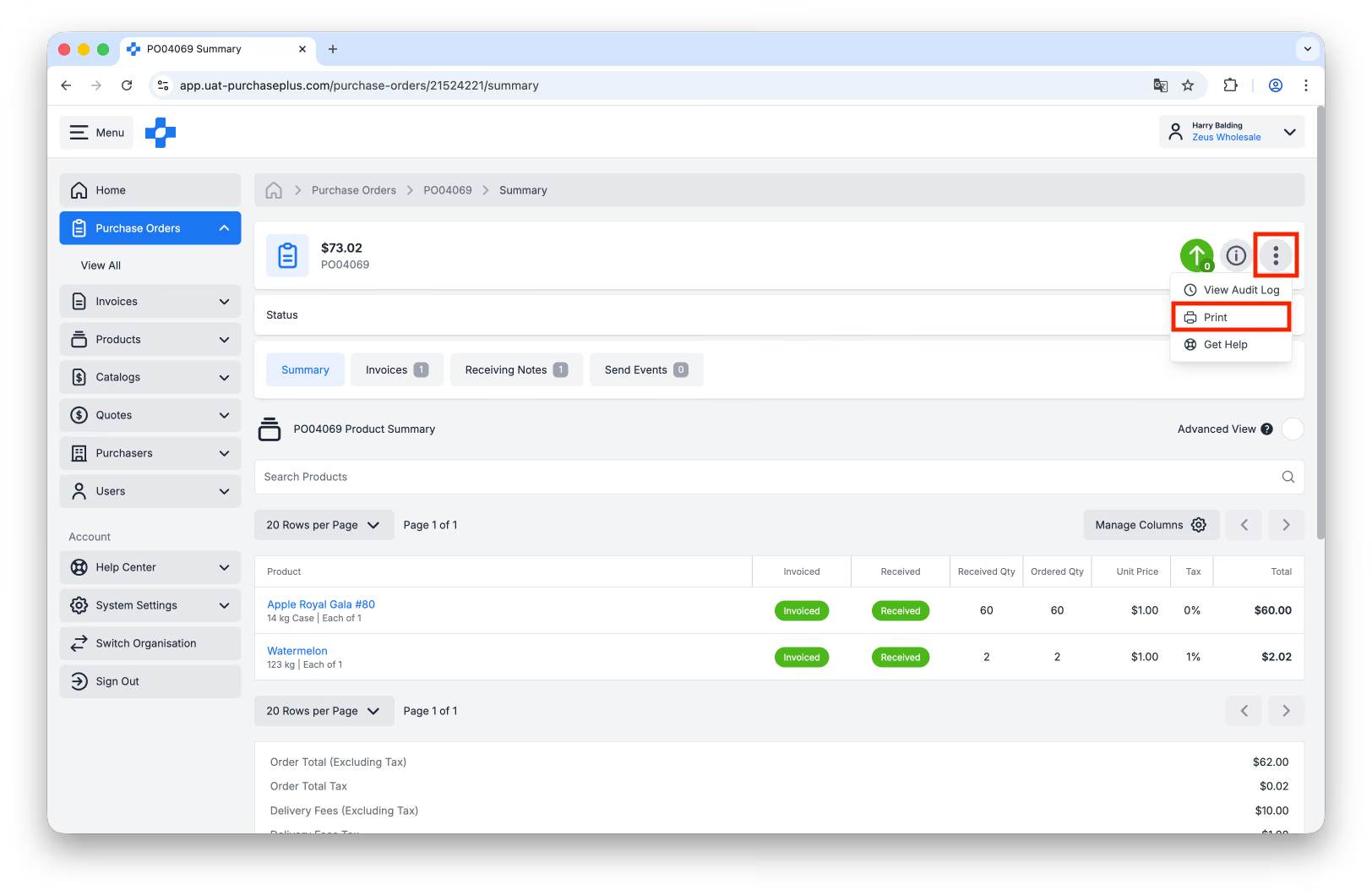
Print a Purchase Order
To Print a Purchase Order, click the [More] menu in the Header of the Purchase Order, then click [Print]: