

Mark as Exported
Mark as Exported
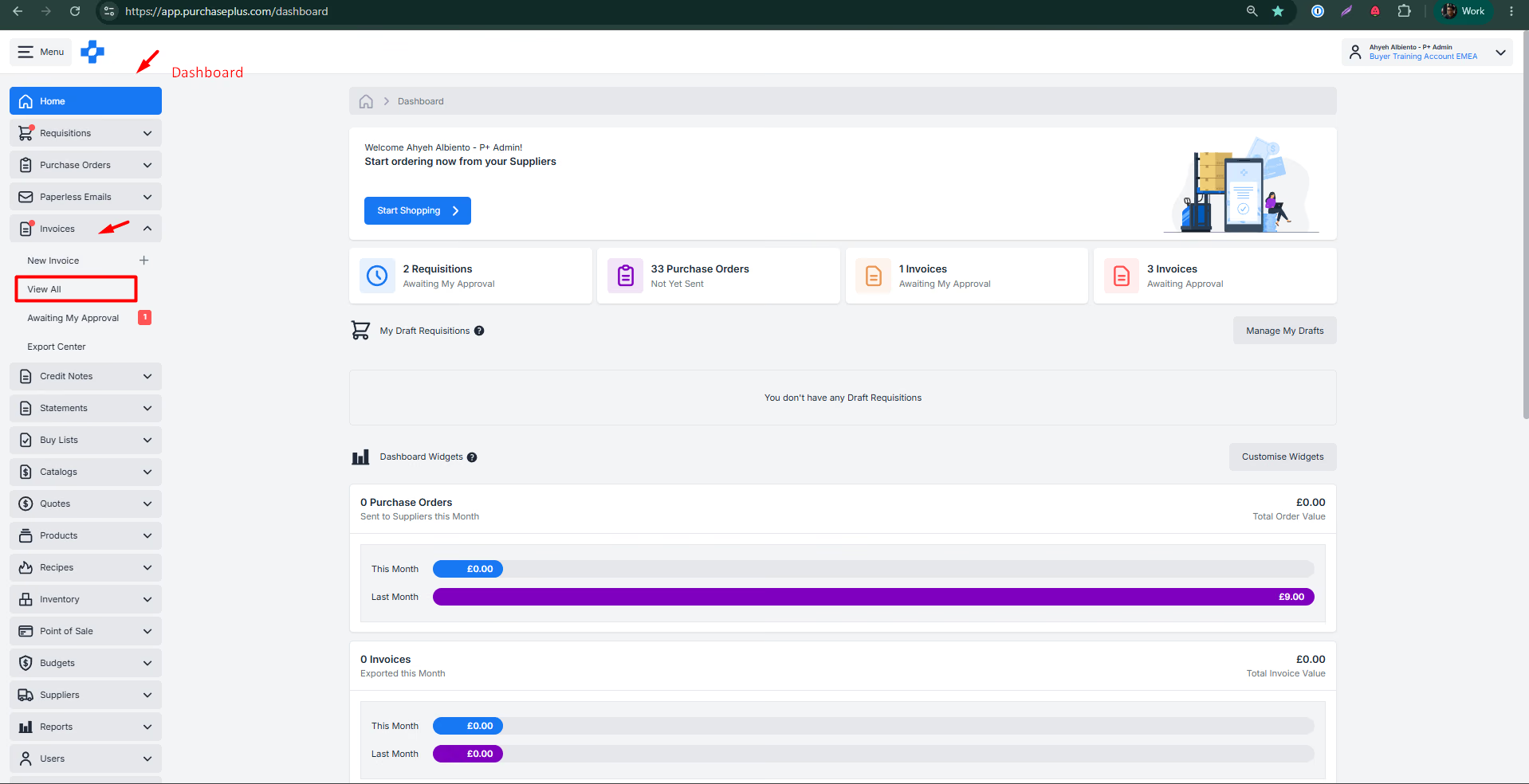
1. Navigate to the Dashboard, click Invoices, and then choose View All.
Dashboard → Invoices → View All
2. Search for the relevant invoice, then click to select it for updating. 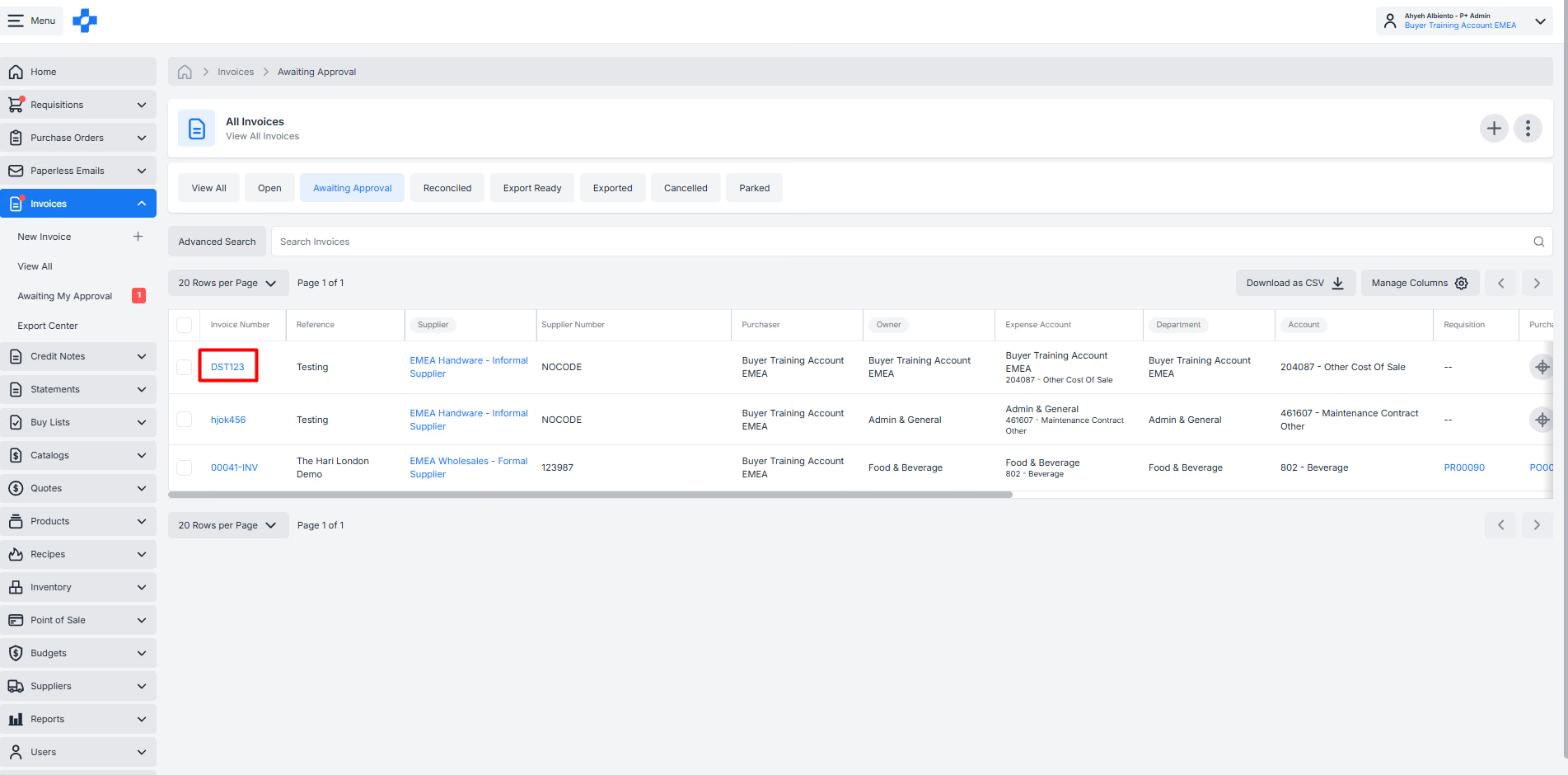
3. Click the ⋮ (3 Dots) icon in the top right to view actions. 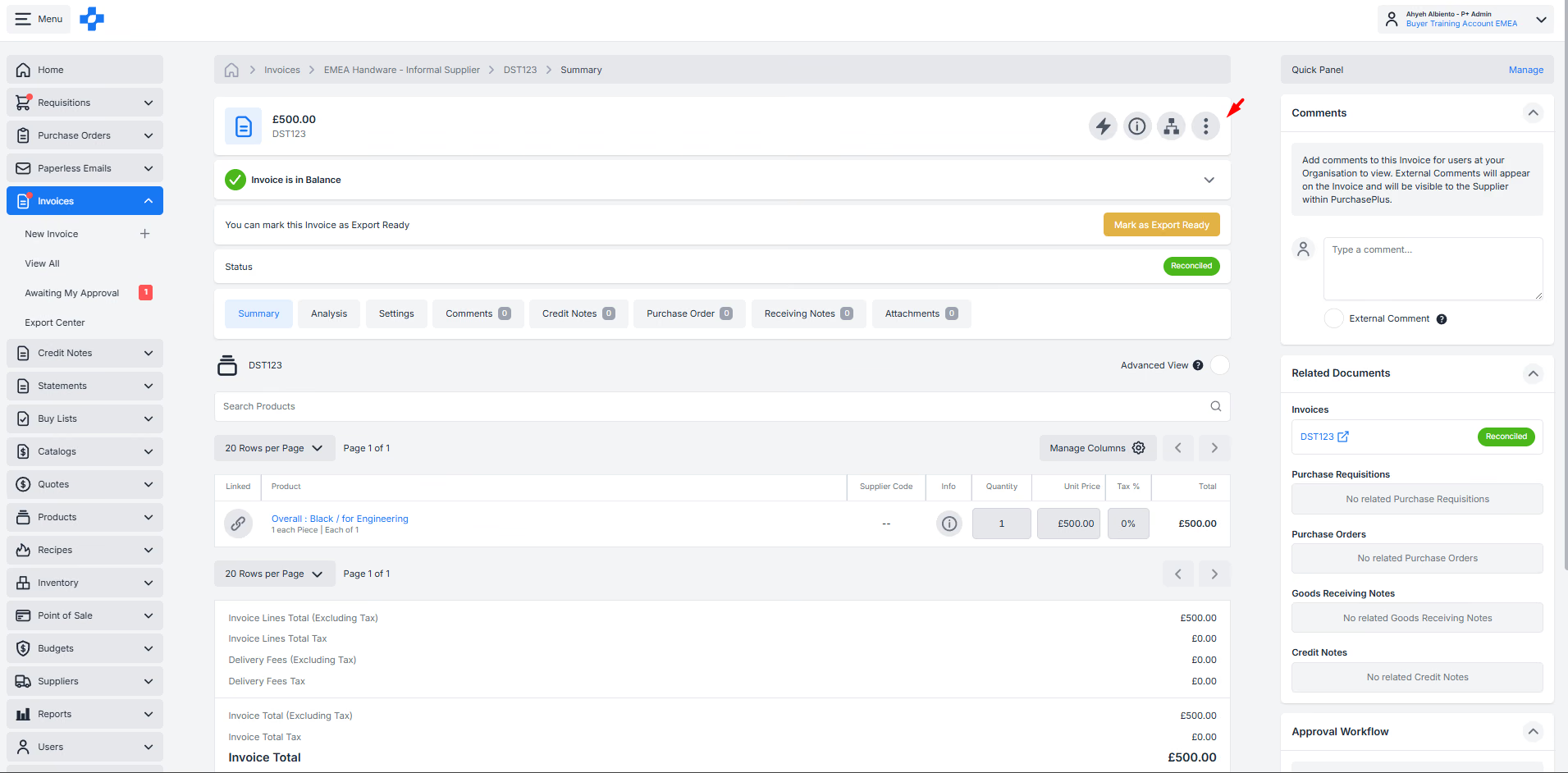
4. Under the actions menu, select Mark as Exported. 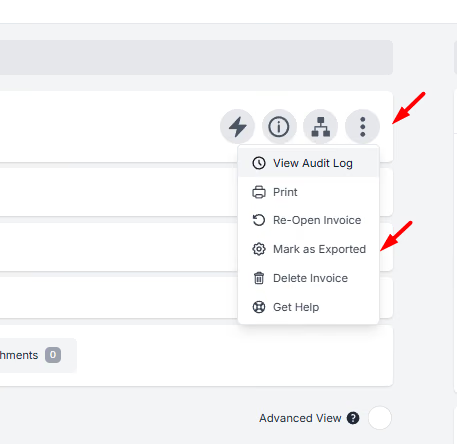
A confirmation message will display:
Action: Mark Invoice as Exported Purpose: Manually changes an invoice’s status to "Exported" without generating or sending an export file. When to use: Use this feature only when an invoice has already been processed outside of PurchasePlus and needs its status updated manually.
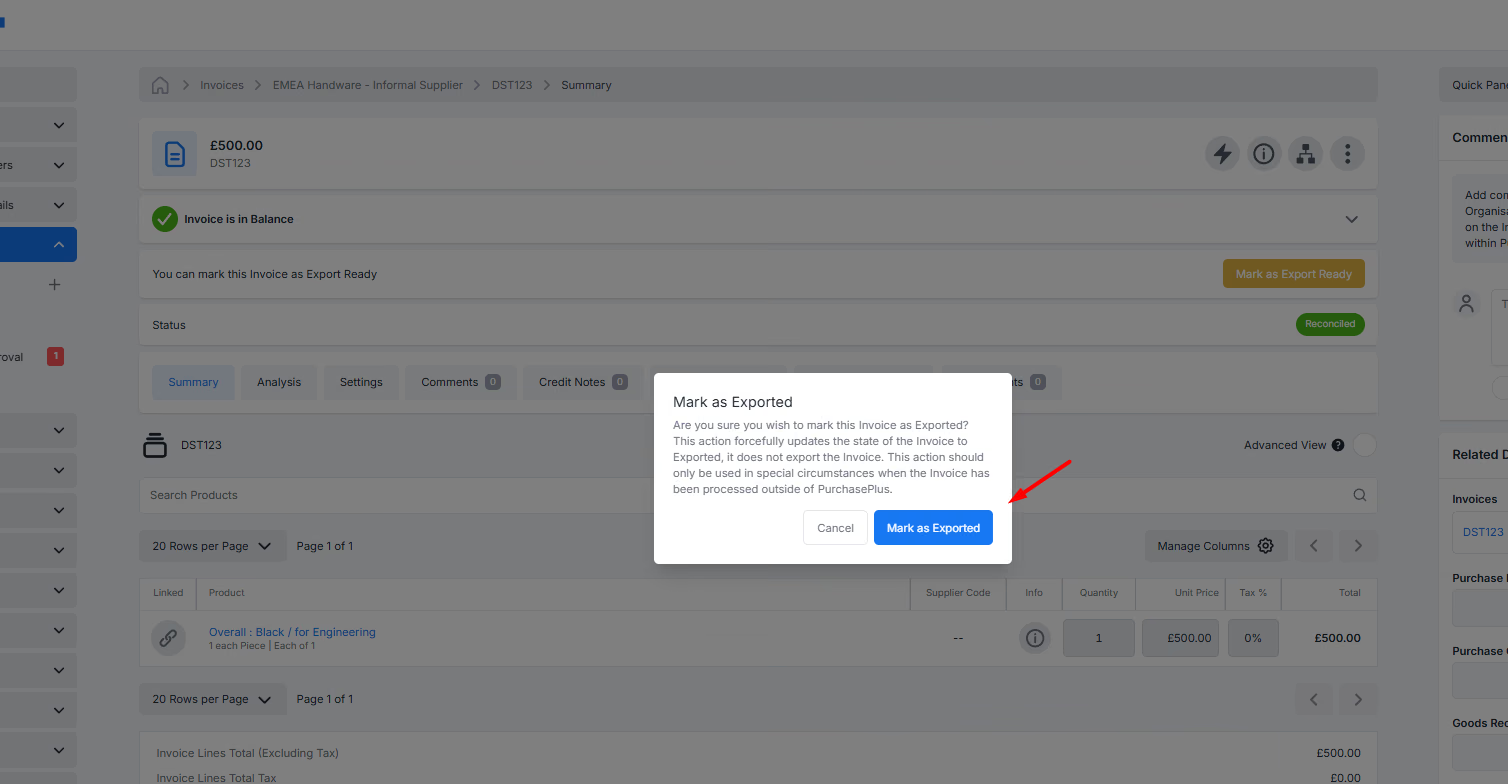
5. Select Confirm - Mark as Exported to update the status. Upon completion, the invoice will reflect the Exported state, highlighted in purple: 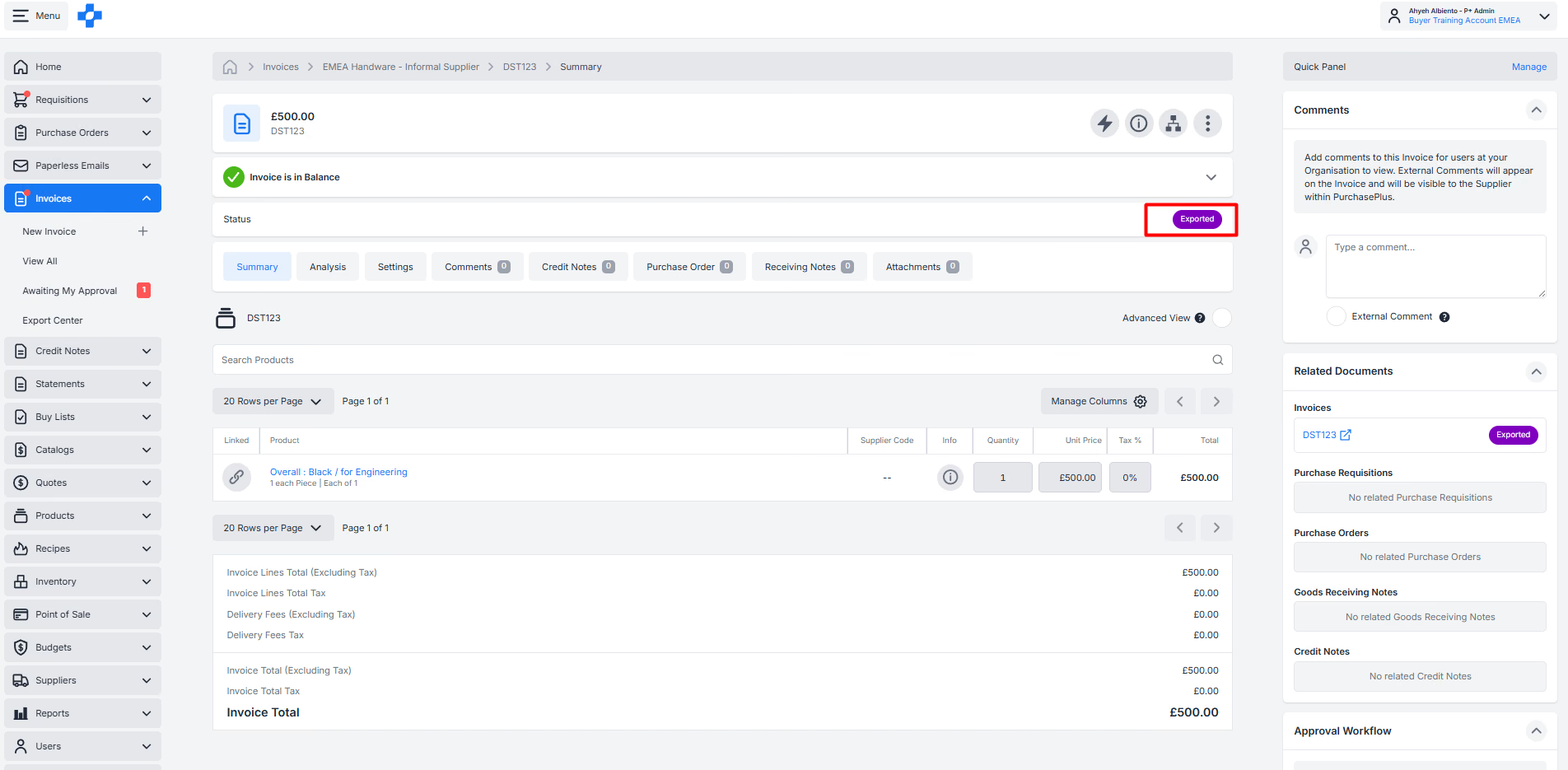
Your Invoice has now been changed to "Exported" without processing it through Purchase Plus.