End-of-Month Stocktake
End-of-Month Stocktake
Stocktakes are the best way to regularly verify the quantity of Stock Items that move into and out of your Stock Locations over a given period. This article details our experts' recommended End of Month Stocktake procedure for users of our Inventory module.
Permissions
To complete the actions detailed in this article, users will need the following permissions:
- Manage Transfers
- Complete Transfers
- Manage Stocktakes
- Close Stocktakes
- Manage Reports (recommended)
Before You Start
Prior to starting your Stocktake, there are a number of actions that Inventory users should take, to set your Stocktake up for success.
1. Run the PO Lines Report ensuring that all relevant Purchase Orders (i.e. those that are pertinent to the month for which you are completing the Stocktake) have been Received. If there are Purchase Orders that have been delivered to your Organisation but have not been marked as Received in PurchasePlus, please Receive the Goods to Inventory for each Purchase Order. 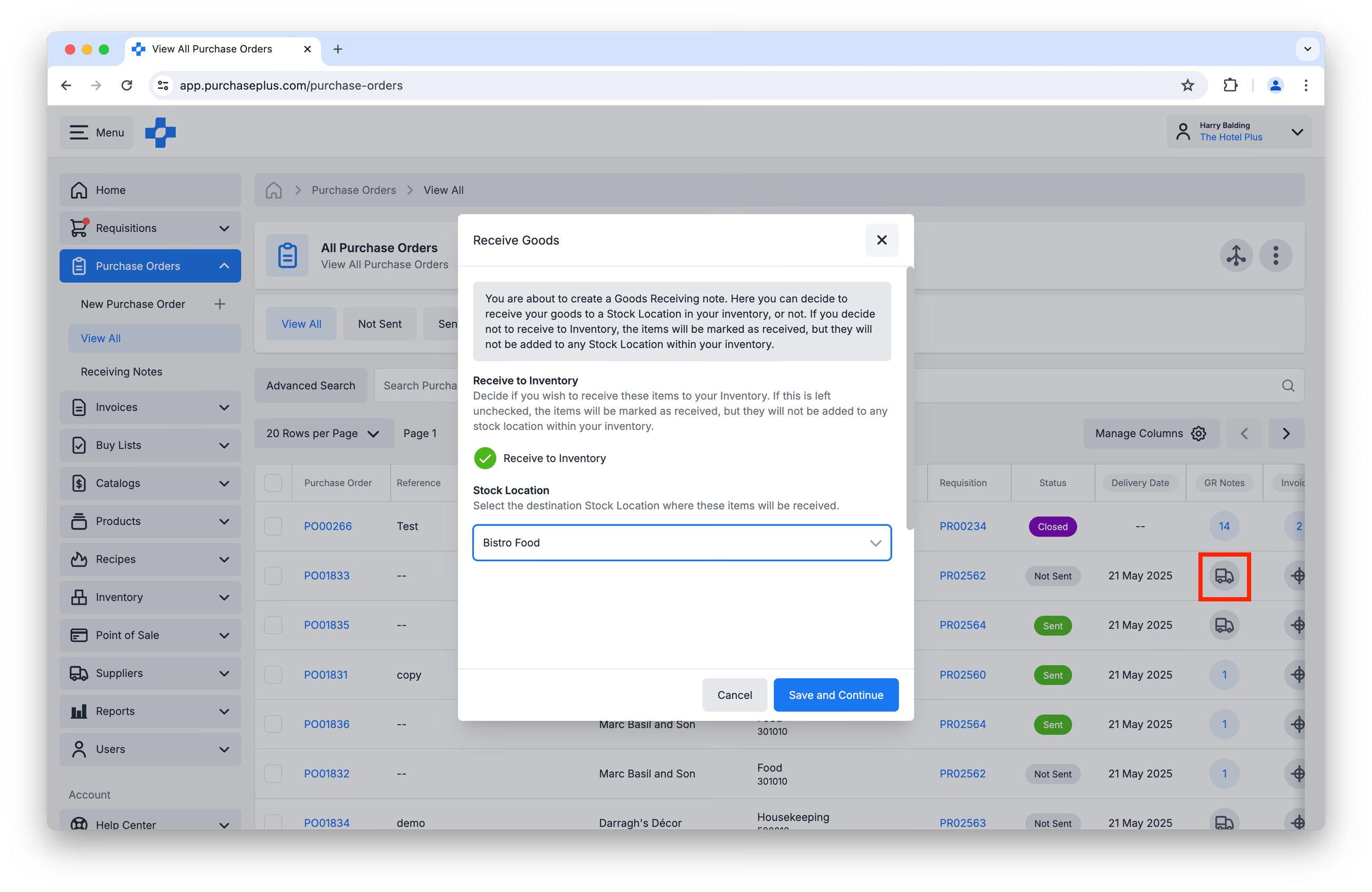 2. Run the Stock Valuation Detail Report. This report can assist with identifying obvious discrepancies between Unit Values and Unit Counts.
3. Complete any outstanding Transfers that are in the Open or Awaiting Approval states. 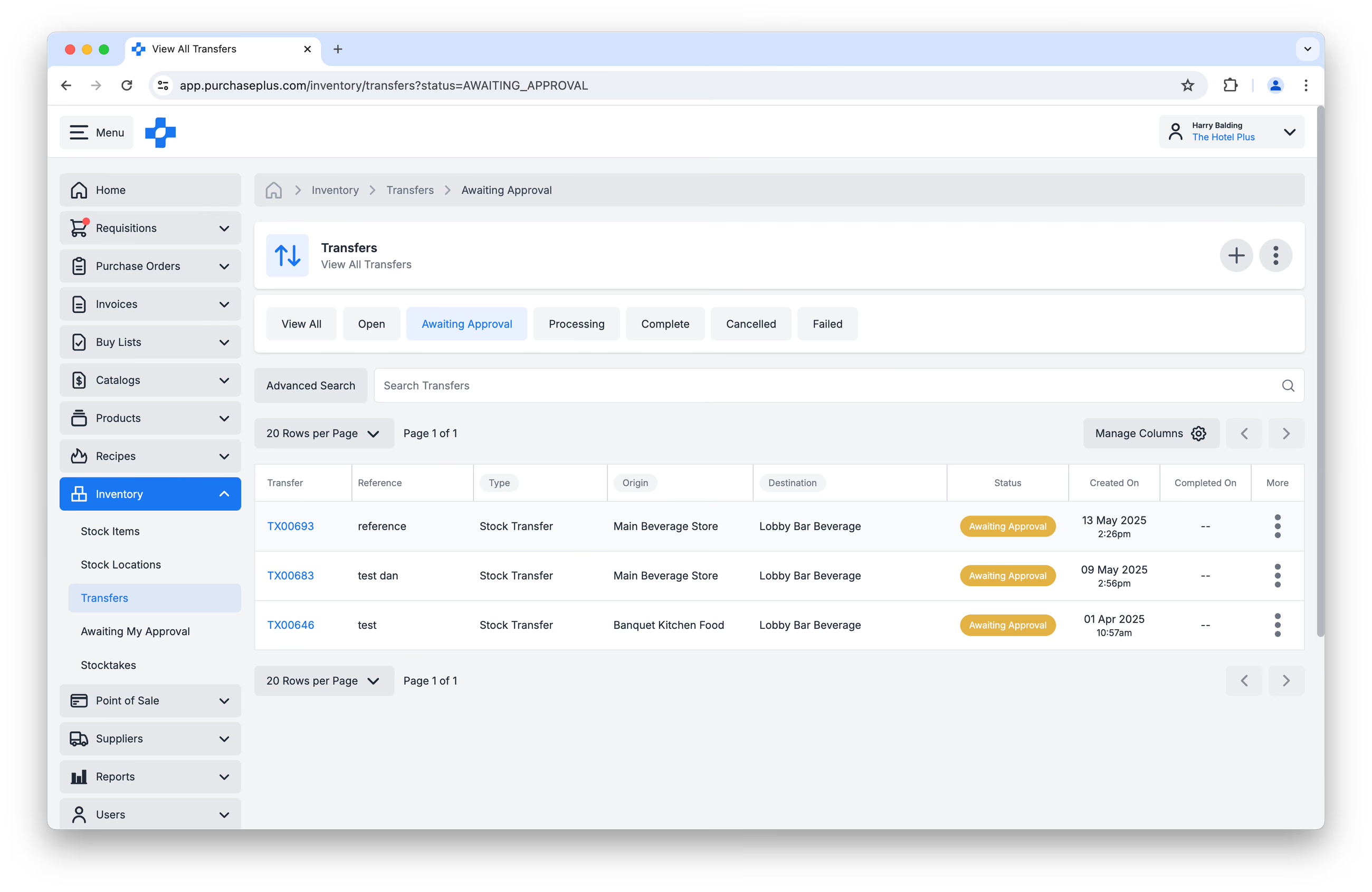
Starting an End of Month Stocktake
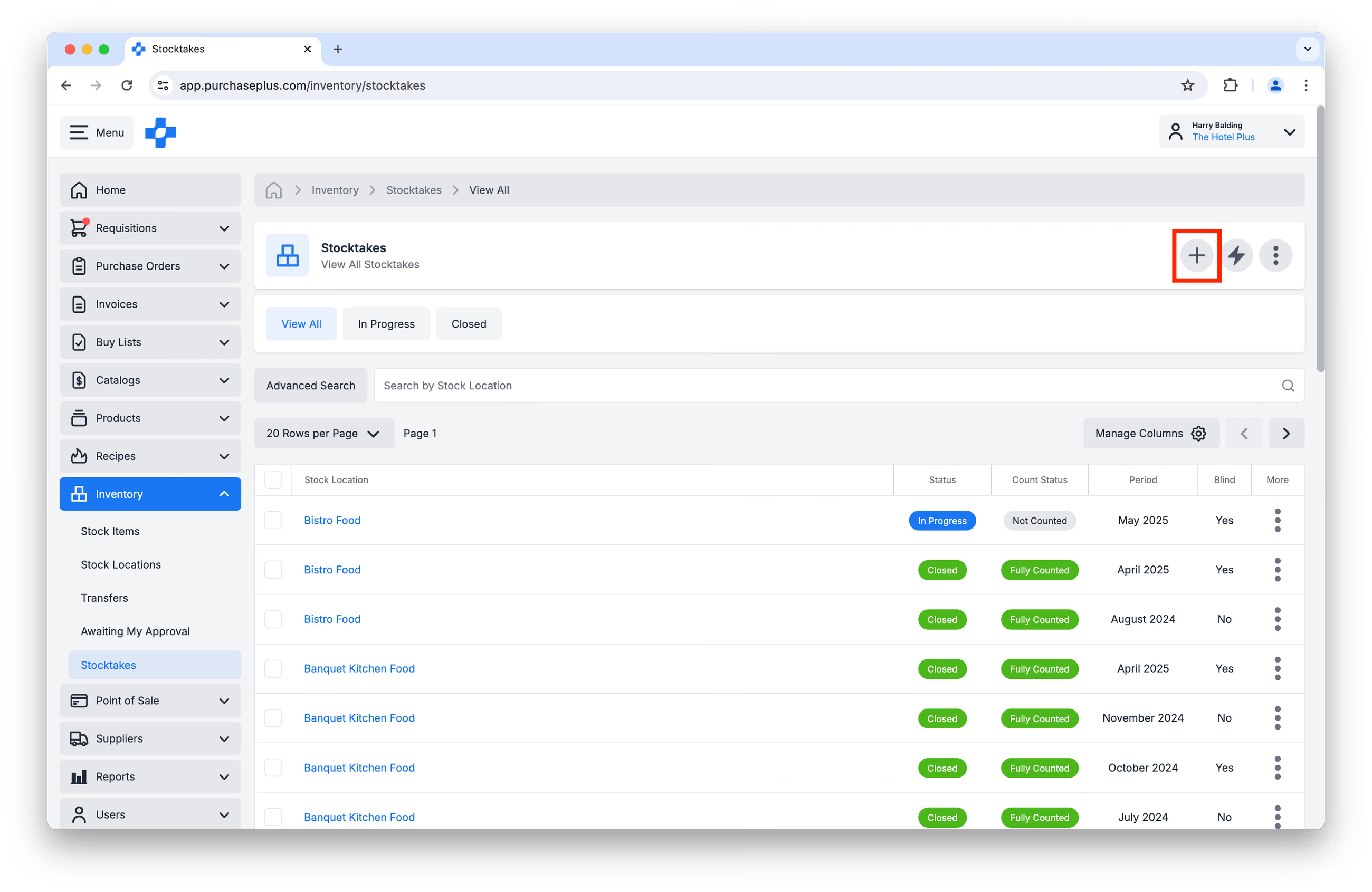
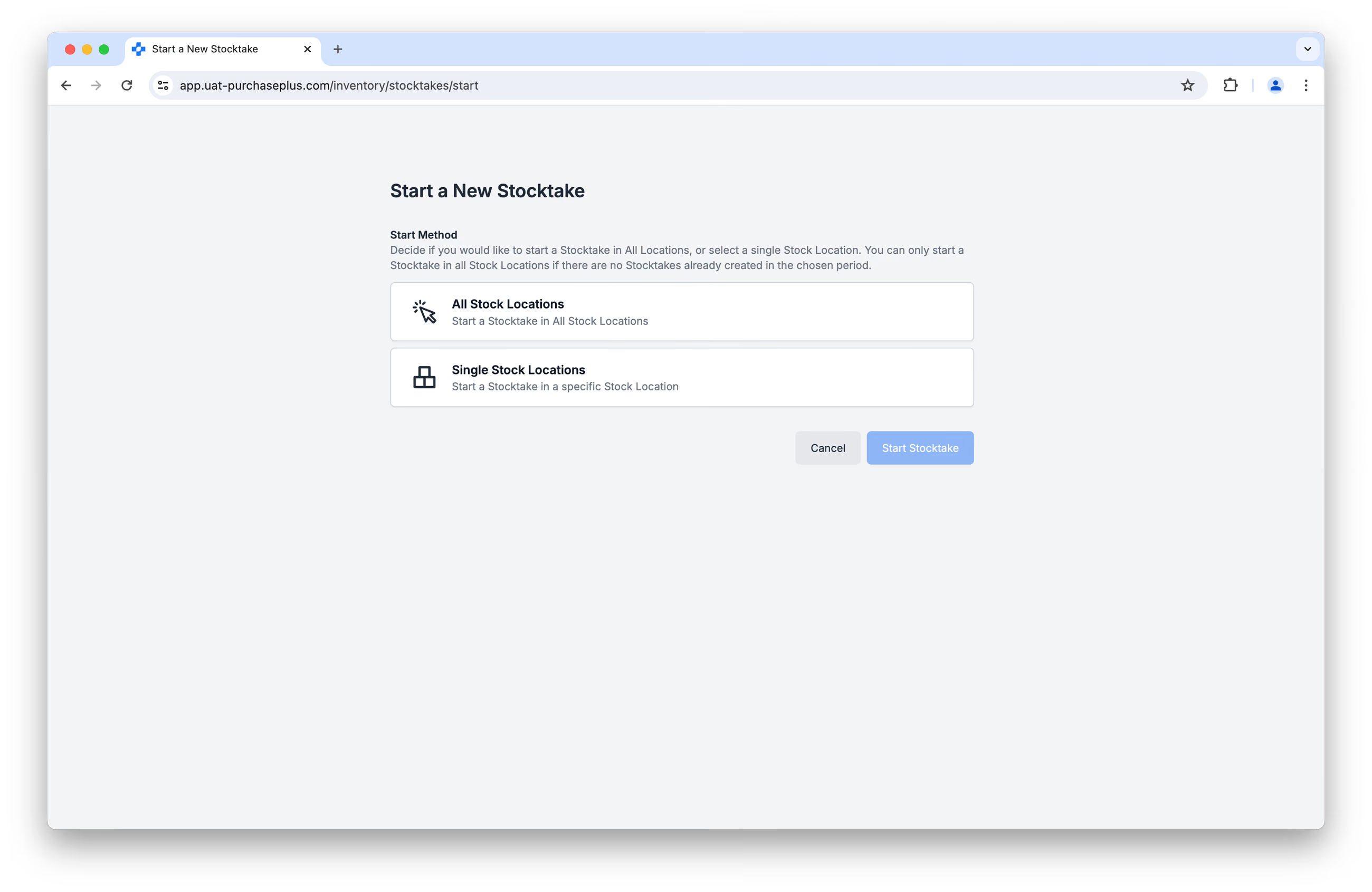
1. Click the [Start a New Stocktake] button on the [Inventory] → [Stocktakes] page.
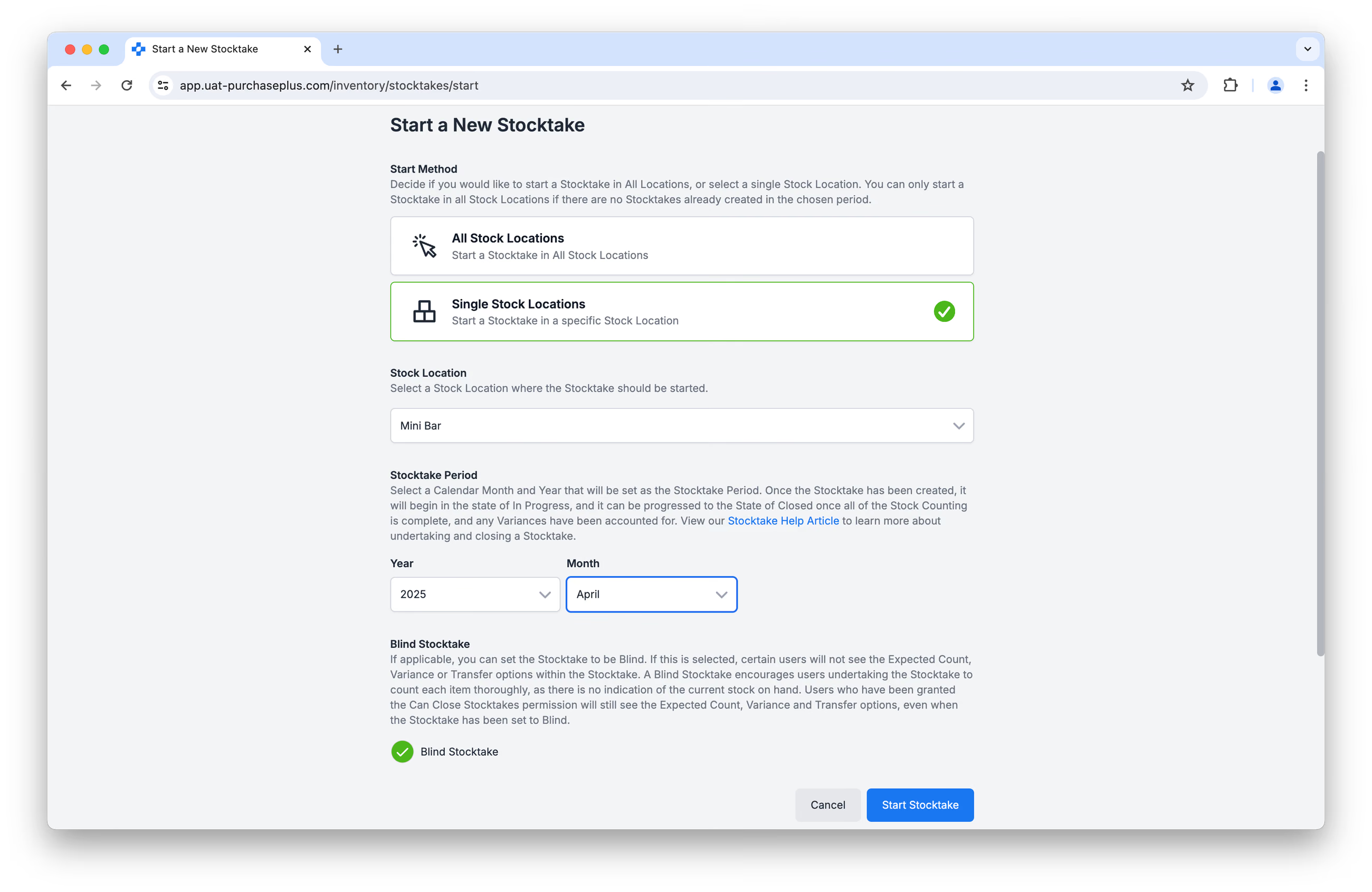
2. Select between starting a Stocktake at a Single Location or at All Location. If [Single Stock Location] is selected, you will be prompted to identify the Stock Location.
3. Enter the Stocktake Period (i.e. the month that is ending, or has recently-ended).
4. You can opt to make the Stocktake ‘Blind’, meaning that the users conducting the Stocktake will not see a count of how many Stock Items are expected to be in the Location.
Conducting an End of Month Stocktake
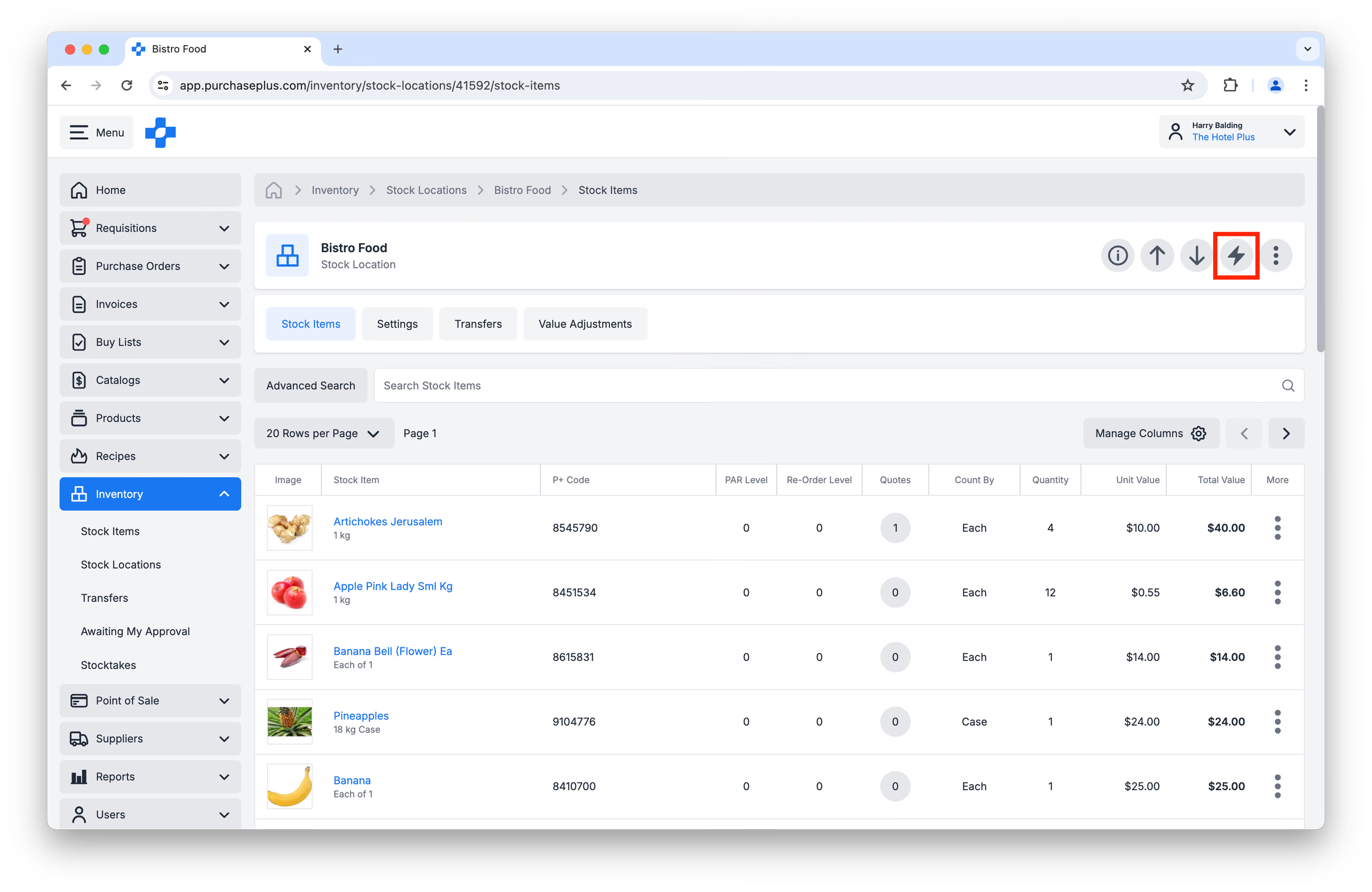
1. Navigate to [Inventory] → [Stocktakes] and click on the name of the Stock Location that you would like to count: 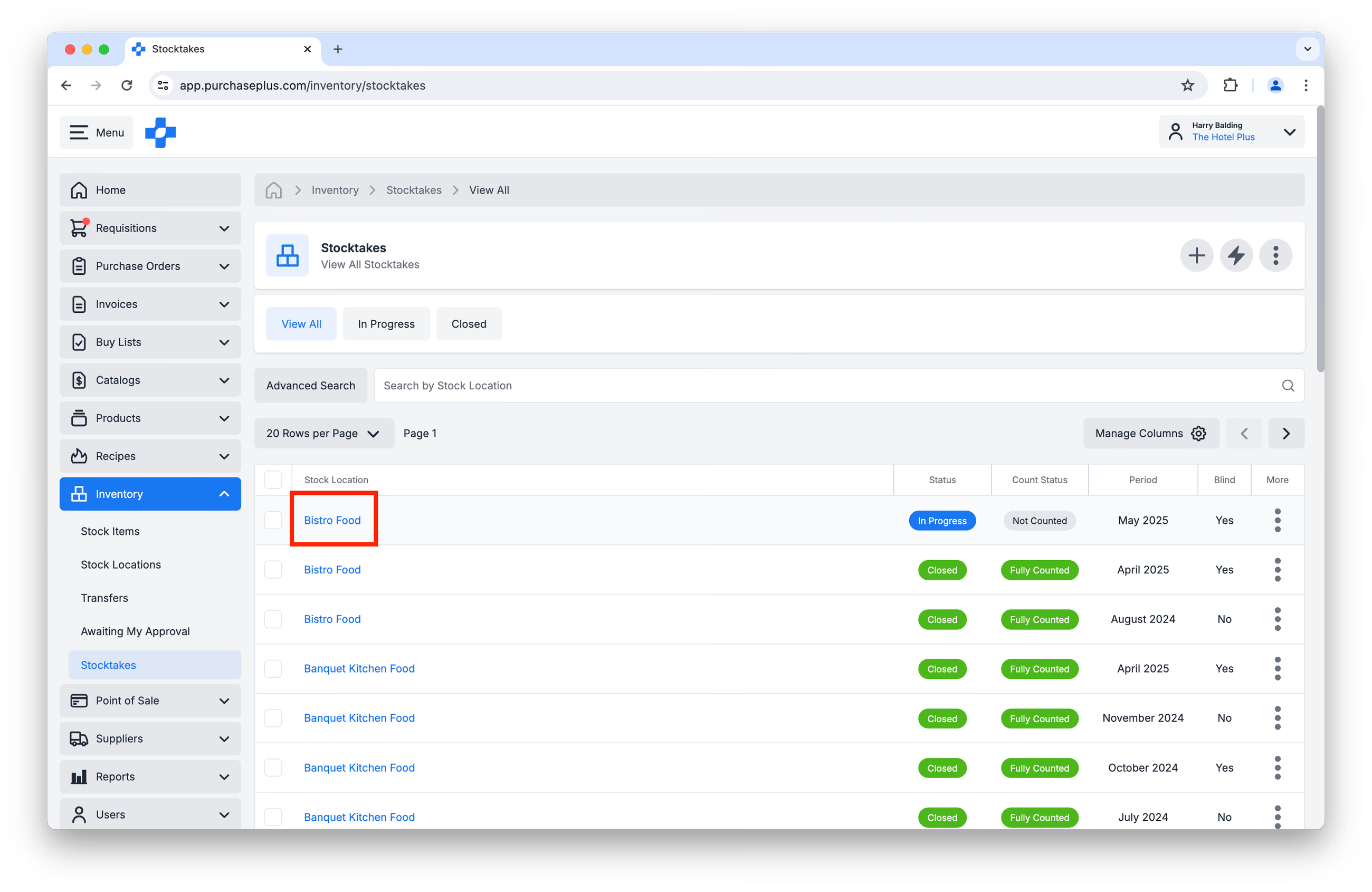
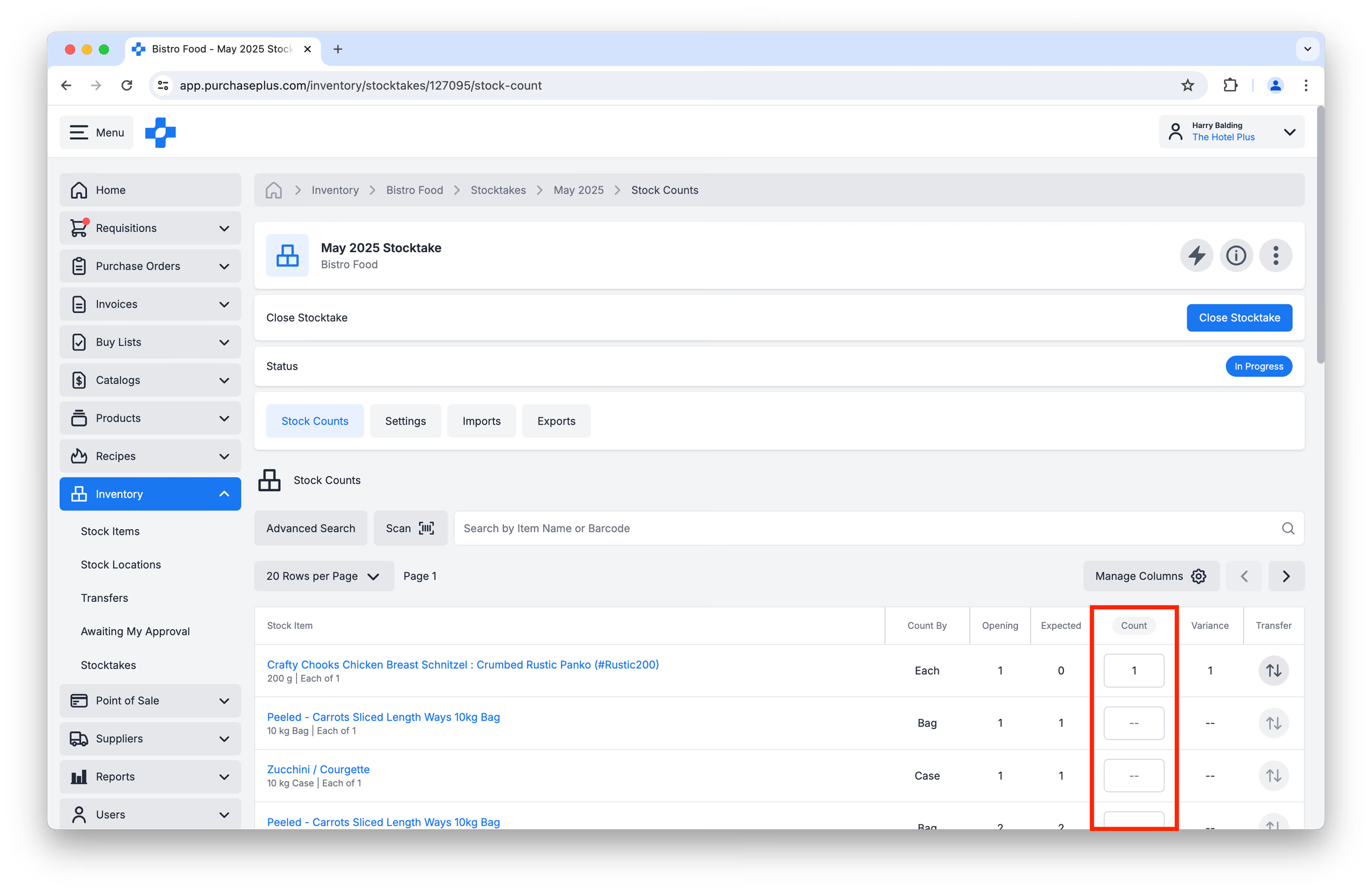
2. Add your Counts in the [Count] column, next to each Stock Item. You can add the counts either inside PurchasePlus using your chosen mobile or desktop device (see image below), or by Exporting and then Importing the Stocktake Count by CSV:
3. Repeat Steps 1 and 2 for each Stock Location that you are counting as part of this Stocktake.
Variances and close
1. When you have counted all of the Stock Locations that you need to, run the Stock Variation Report to identify all your Variances in your count, and to see the associated dollar values of the Variances. Take note of (and address if required) any major discrepancies or issues in your counts, for example:
- High-end products being a 0 count,
- Unusually large variances,
- Unusual discrepancies between Unit Value and Quantity Value.
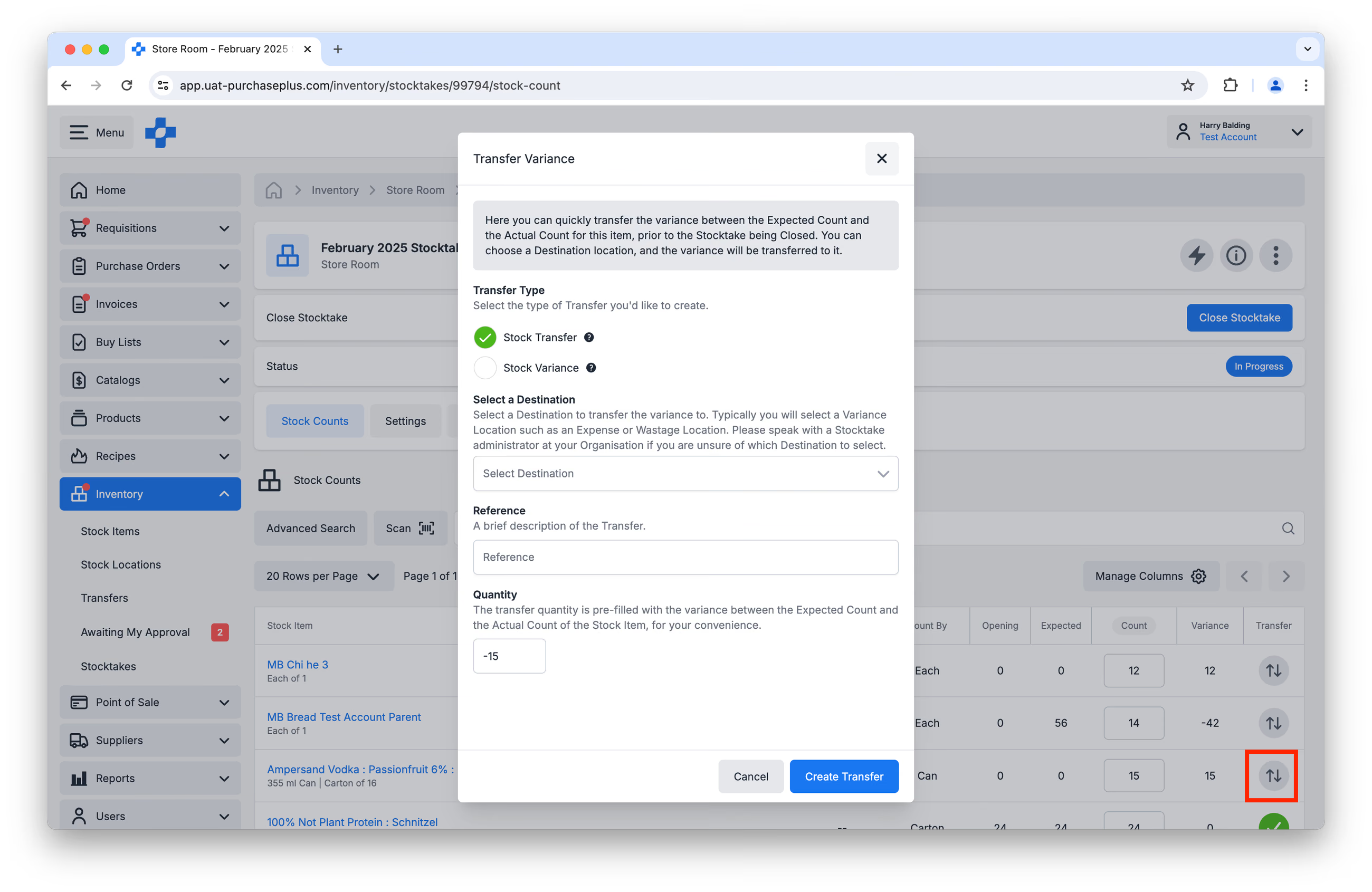
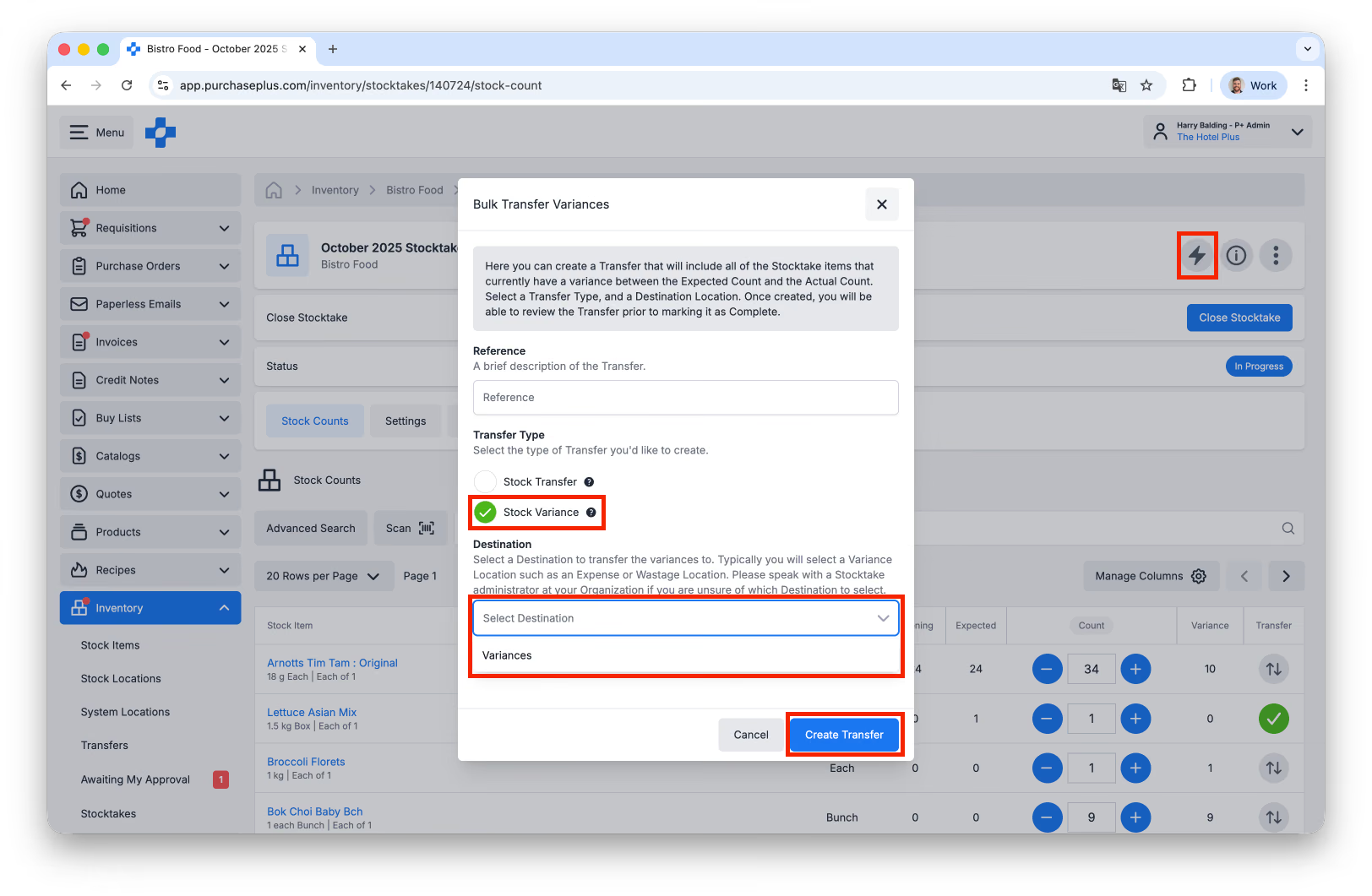
2. Address any Variances that arose in your count by creating Variance Transfers from the Stock Location to a Variance (or Expense) Location. If you counted multiple Stock Locations, we suggest clearing your main Stock Location's variances first to avoid double handling Transfers, or Transferring Stock that has been potentially miscounted or misplaced.
You can Transfer Variances individually:
Or create a Bulk Stock Variance for all variances in the Stock Location's count, selecting 'Variances' or 'Cost of Goods Sold' as the Destination.:
3. You can then either do any final Transfers to other Expense Locations or waste, if your Organisation requires this as part of your internal processes.
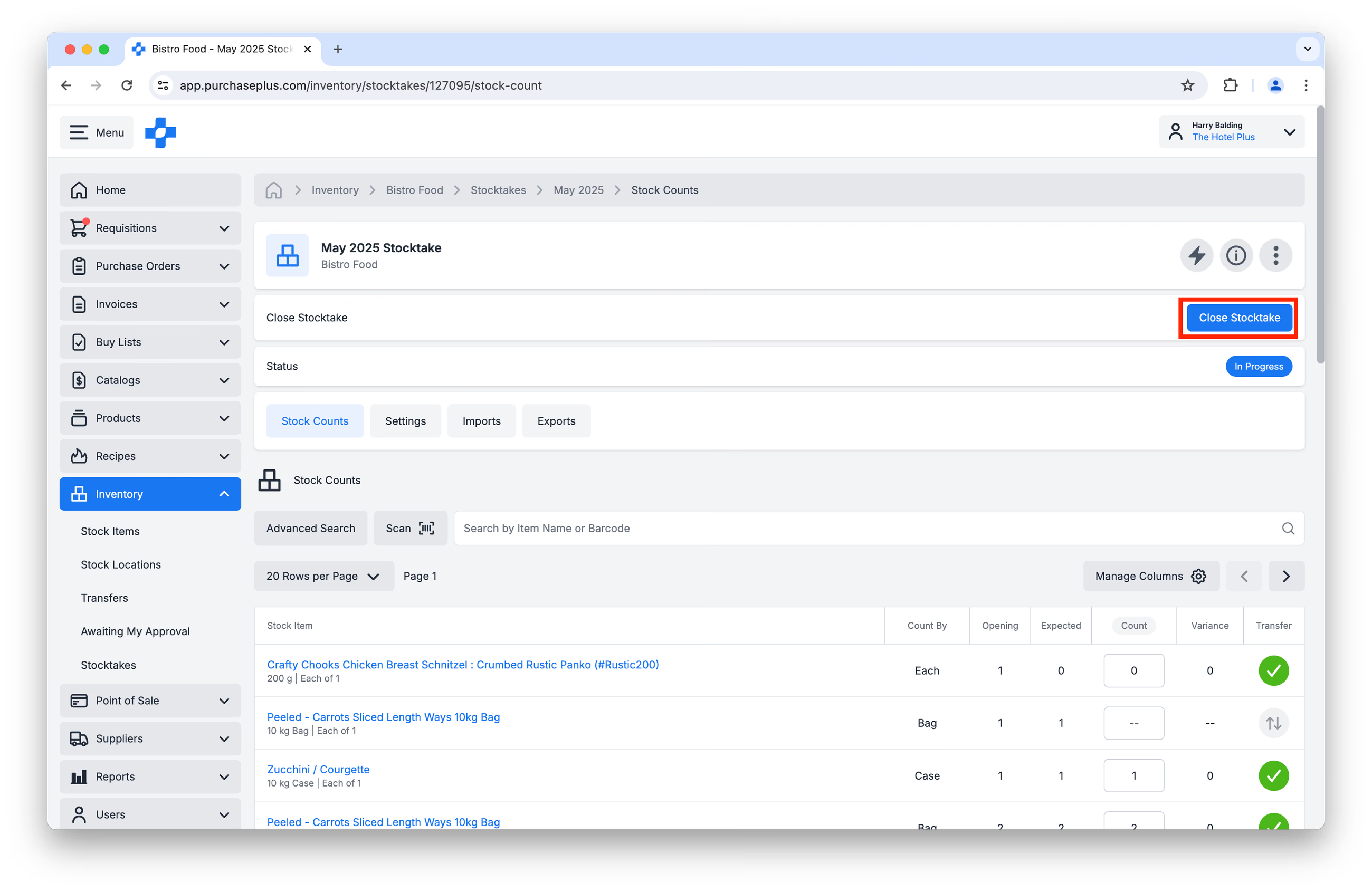
4. Close each Stocktake in every Stock Location that you counted:
5. When all Stocktakes have been Closed, run the following Reports. Export and save the Reports in a secure location:
- Stock Valuation Detail Report, to get your current counts, post-Stocktake.
- Cost of Goods Sold Report
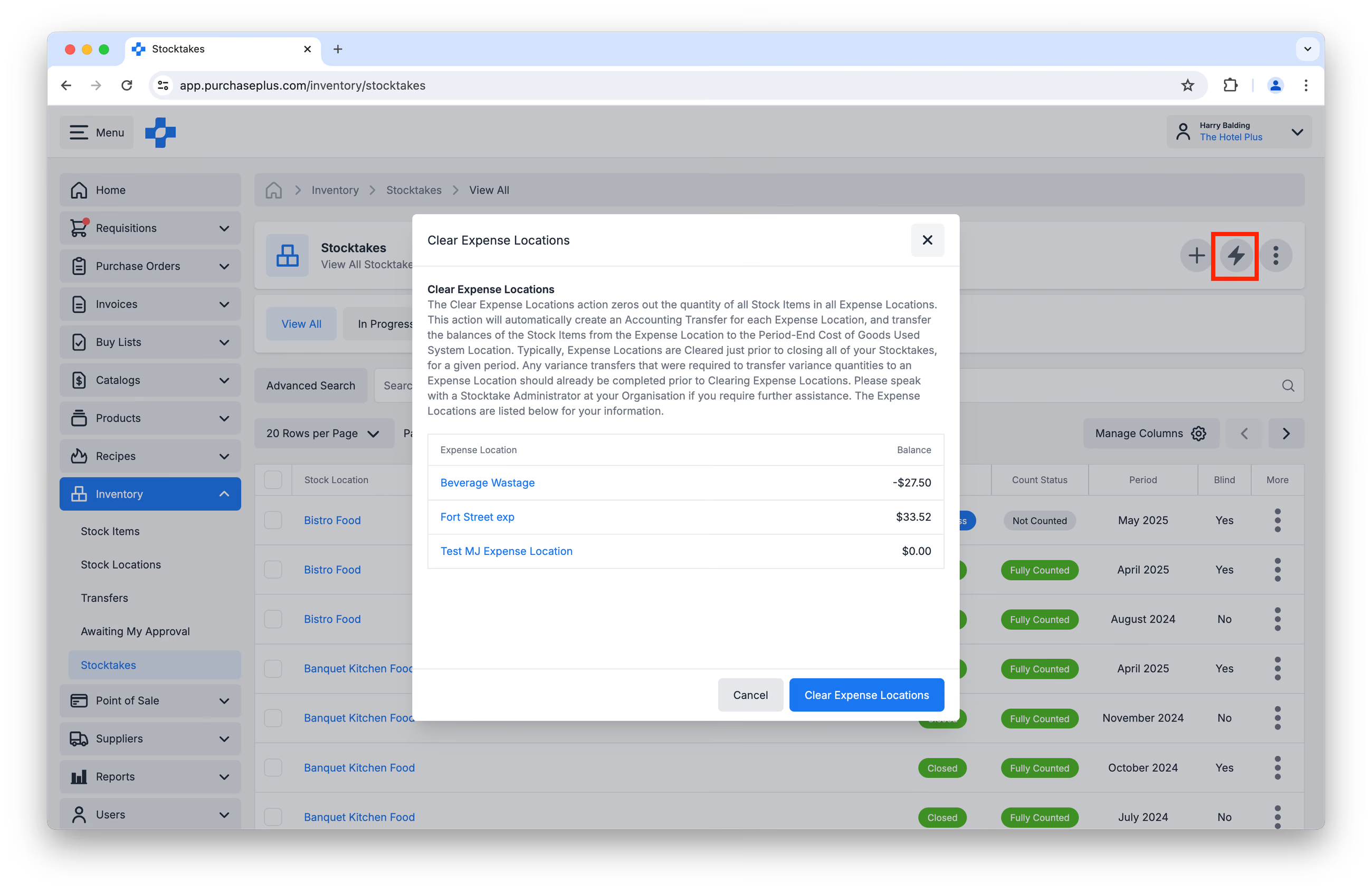
6. Clear your Expense Locations to zero out the quantity of all Stock Items in all Expense Locations. This action will automatically create an Accounting Transfer for each Expense Location, and transfer the balances of the Stock Items from the Expense Location to the Period-End Cost of Goods Used System Location:
Helpful Reports
The following Reports may be used to help during your End of Month Stocktakes:
- Transfers Report
- Stock Reconciliation Report
- Cost of Goods Sold Report
- Stock Valuation Summary Report
- Stock Valuation Detail Report
- Period End Balances Detail Report
- Stock Take List Report
- Stock Variation Report
- Transfer Lines Report
- Stock Reconciliation Lines Report
- Purchase Order Lines Report
- Purchase Orders Report
- Stock Items and Substitutes Report
Frequently Asked Questions
- Will creating new Goods Receiving Note while the Stocktake is In Progress increase the Count within the Stock Location?
Yes. Receiving new goods to Inventory in this scenario will increase the count.
- Will changing Unit Values affect the Reports?
Yes. The unit values will change on any reports produced after the Unit Values have been updated.
- Can you Cancel a Stocktake?
No. You will need to complete the Stocktake and reopen a new one.
- How can I correctly Receive a PO that has been marked as Received, but not Received into Inventory?
If the PO has been Received, but not to Received to Inventory, you will need to cancel the Goods Receiving Note, and Receive it again into Inventory.
Advanced Tips & Tricks
- Running the Stocktake List Report will provide you with an exportable list of all Open Stocktake Locations and their Stock Items. This can be used instead of exporting the Stocktake in each individual Location.
- Completing a Stocktake with Barcode Scanning is possible in PurchasePlus, and it is a great way to accelerate Stocktakes. This requires Barcodes to be set this up by each Customer first.
- 'No Stocktake Inventory Management' is possible in PurchasePlus. It requires our Point of Sale module, and an integration with your external POS system required. Sales made at your POS terminal are linked with Stock Items in your Stock Locations, and automatically decremented periodically.
- For Organisations that do not use the Recipes and/or POS modules only: you may wish to navigate to each counted Stock Location and Clear any 0 Quantity Stock Items, so that the Stock Location looks 'cleaner', and does not display Stock Items that are no longer kept in that Location: