Manage Products
Manage Products
Buy Lists are a powerful way to standardise and automate procurement decisions across an Organization - ensuring that Purchasers can buy the Right Products from the Right Suppliers at the Right Price.
A Buy List combines a predefined ‘shopping list’ of Products that the Purchaser is interested in. A Buy List displays all of the available Quotes for those Products, from all of their Suppliers' Catalogs.
To manage the products in a Buy List, Users must:
- Have the 'Add Items to Buy Lists' permission, and
- Be managing a Buy List owned by their currently signed-in Organisation or one of its descendent Organisations. Learn more about Buy List Ownership.
Add products individually
1. Go to [Buy Lists] and select [Buy List Builder] from the side navigation bar, or select the [Open Buy List Builder] icon when viewing All Buy Lists.
![Select [Buy List Builder]](/images/docs/for-purchasers/manage-products-in-a-buy-list-1.avif)2. Find products via:
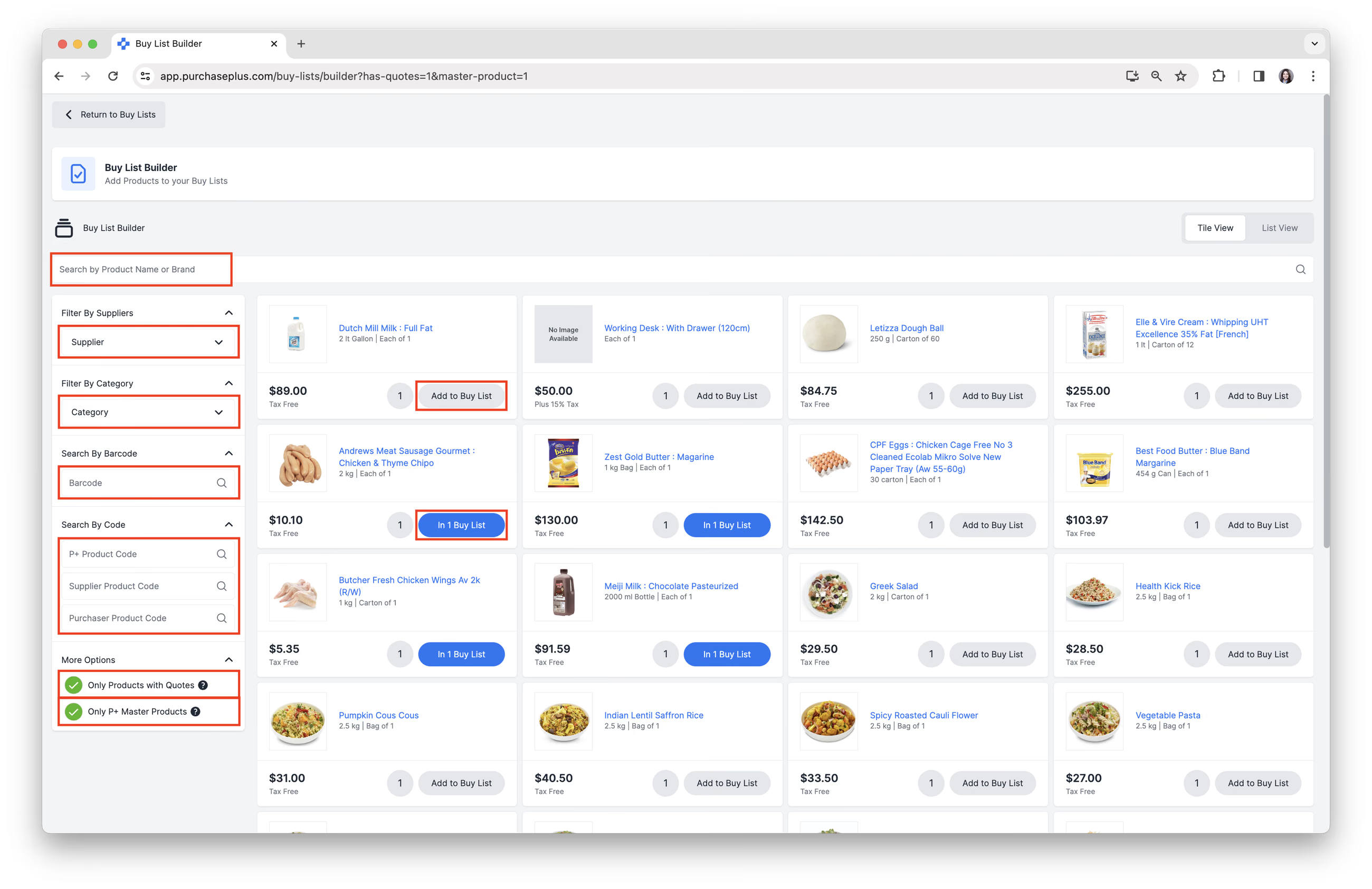
- Search by Product Name or Brand.
- Filter By Suppliers.
- Filter By Category.
- Search By Barcode
- Search By P+ Product Code, Supplier Product Code, Purchaser Product Code.
- Filter by showing Only Products with Quotes.
- Filter by showing Only P+ Master Products.
See our Advanced Product Search article to learn more about searching.
- Click [Add to Buy List] or [In # Buy List] to open the modal. The In # Buy List button indicates that the item is already on at least one Buy List.
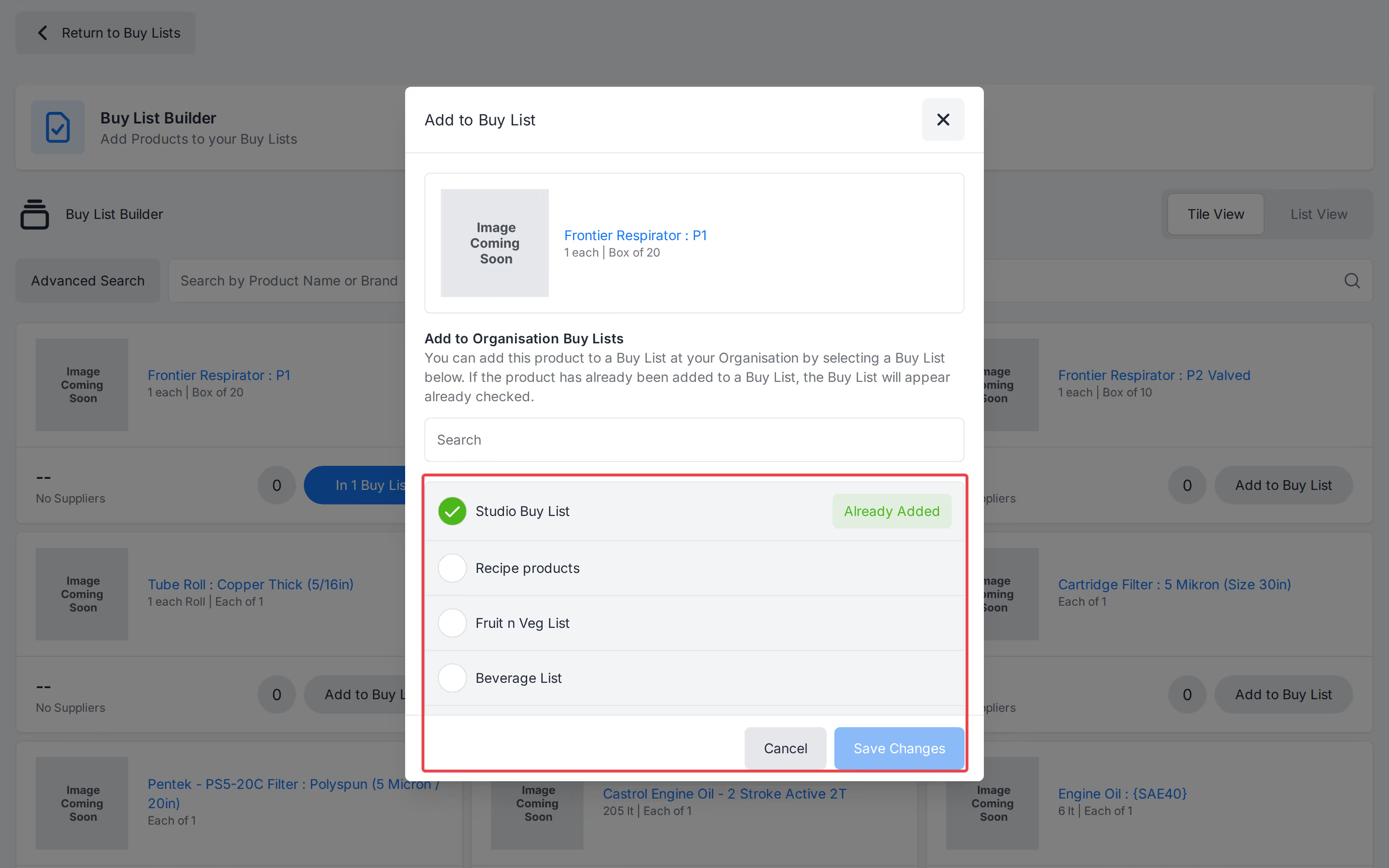
- Select the [Buy Lists] you would like the product on. Lists the product is already on are pre-ticked and marked Already Added. Click [Save Changes] (or [Add to Buy List] when it is not yet on any list).
 ![Select [Buy Lists] you would like to add the product to](/images/docs/for-purchasers/manage-products-in-a-buy-list-3.avif)
5. Repeat selecting and adding Products to Buy Lists, as required.
Best Practice:
When adding Products to Buy Lists (especially those intended for use in creating Requisitions for Registered Suppliers) it is highly recommended that, wherever possible, select items from the Supplier-Managed Catalog (and not a Self-Managed Catalog).
This helps to ensure that the Product data (codes, pricing, units of measure, etc.) are accurate, current and recognised by the Supplier. In turn, this reduces the chance of mismatches, order rejections, or manual corrections later on.
Additionally, Supplier Catalogs can change over time; Products may be added, updated, replaced, or discontinued — so it’s good practice to review your Buy Lists regularly. We recommend Quarterly or Monthly reviews, depending on the volume of Suppliers and the Suppliers' price volatility.
Importing and Exporting a Buy List
Purchaser Users with the ‘Manage Buy Lists’ permission can also populate a Buy List with Products via CSV Upload on the [Buy List] → [Imports] tab.
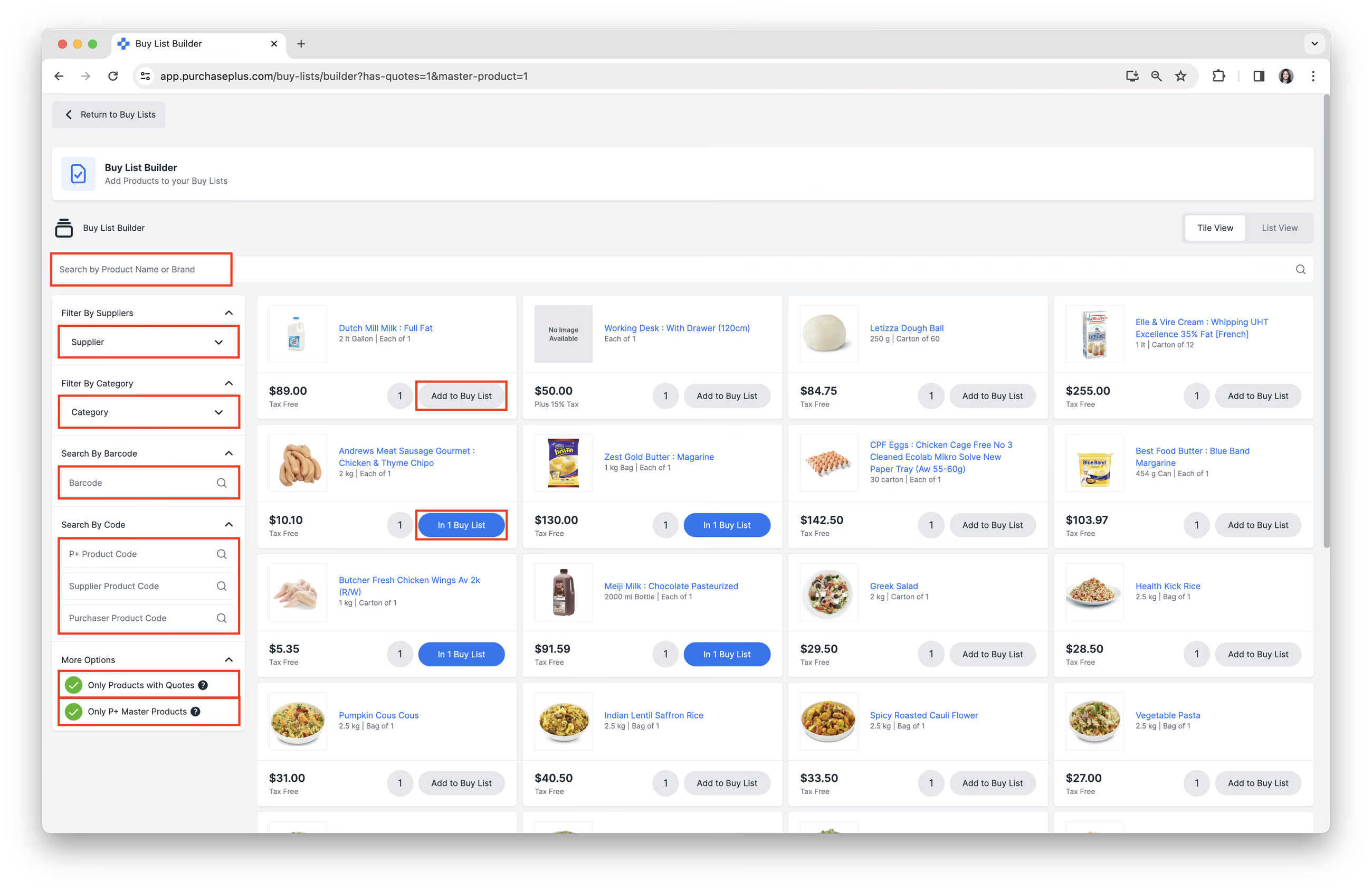
Importing and Exporting the Buy List appear as tabs in the Header of the Buy List:
It is very important that the CSV be formatted correctly. You can use the [Export] function to output a CSV that is the correct format to use for Imports. This has the advantage of also exporting all of the data currently contained within the Buy List (i.e. products, prices, etc). You can also use this blank template.
Once you have populated the template, you can Import it. Please note: When Importing a Buy List (whether you are using an Export from the Buy List, or another source, like a Catalog) , it is important to ensure that the [pp_product_id] is correctly carried over to the import template. This is required for the import to be successful.
Finally, please ensure that the file is saved in the correct format (.csv). If the file is saved as any other type (e.g., Excel workbook, Word document, etc.), the Import will be unsuccessful.
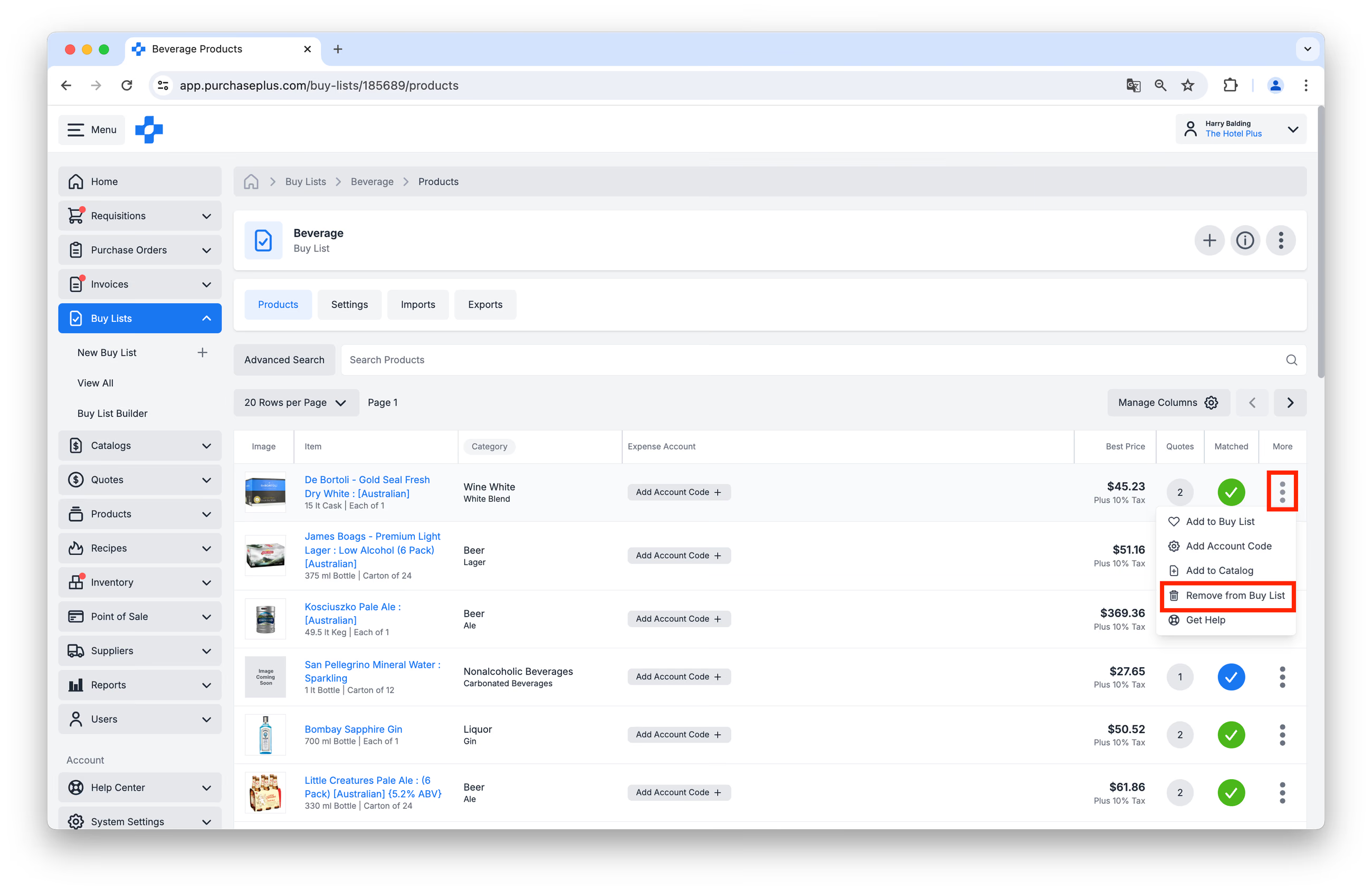
Remove a product from one list
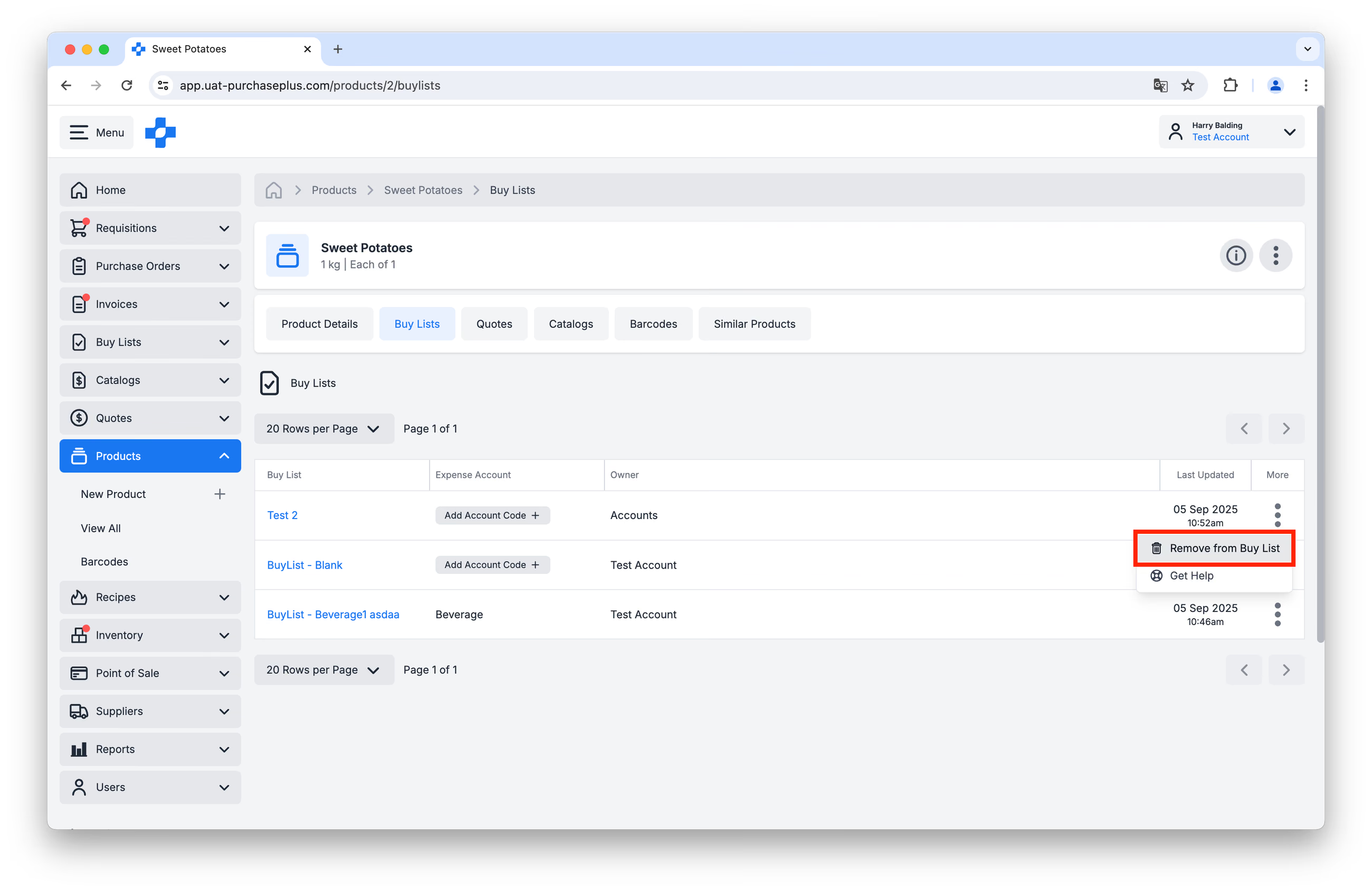
You can Remove a Product from a Buy List by navigating the the Buy List in Question, locating the Product in the table, and then clicking [More] → [Remove from Buy List]:
Remove a product from multiple lists
You can Remove a Product from multiple Buy Lists by navigating to the Product in question in the [Products] → [View All] table and clicking on its Product name:
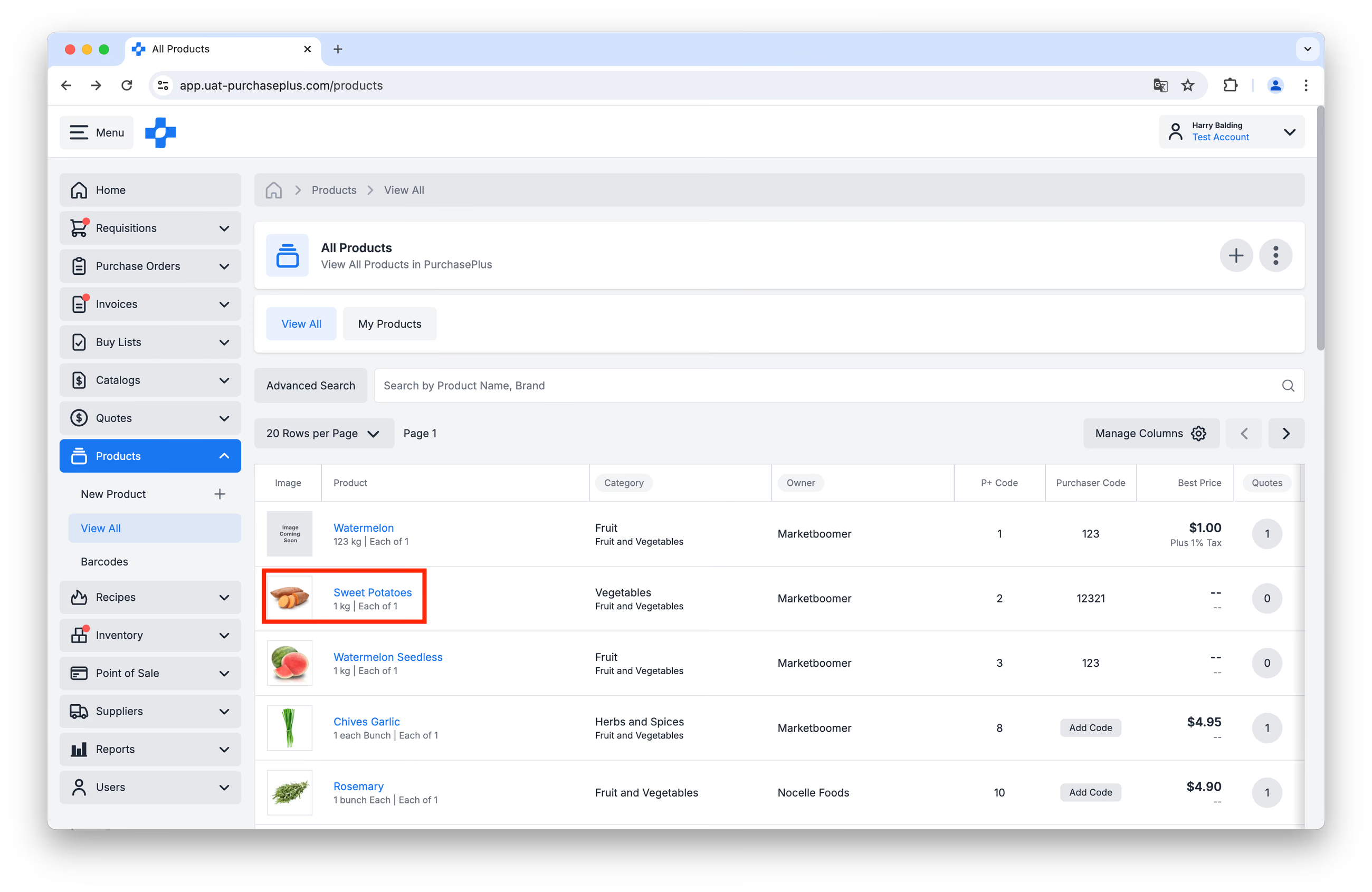
Then, click on its [Buy Lists] tab. You can quickly remove the Product from as many Buy Lists as required by clicking [More] → [Remove from Buy List] in each row: