

View and Update Invoices
View and Update Invoices
Access Invoices
1. Select [Invoices] → [View All] from the side navigation bar.
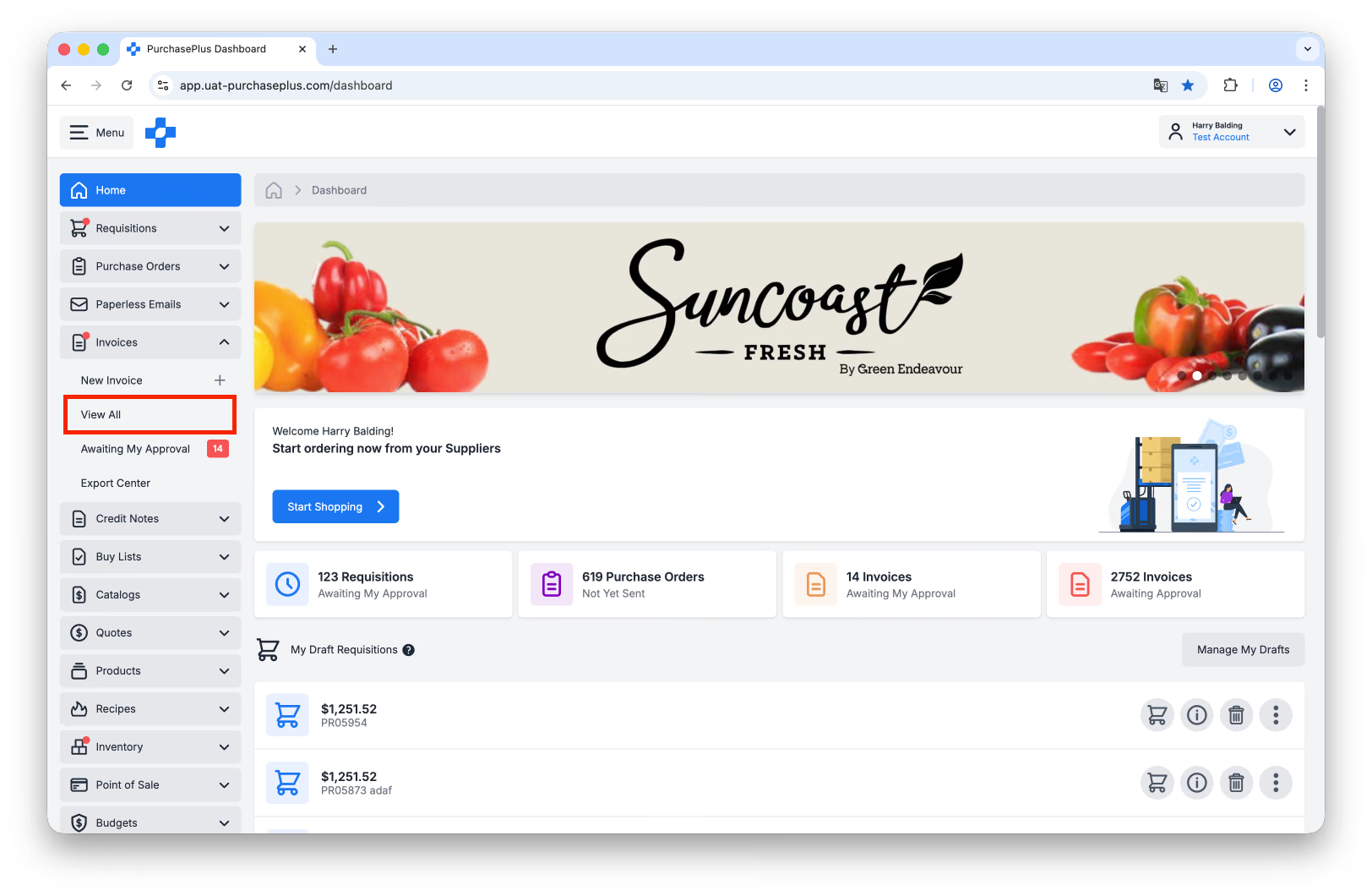
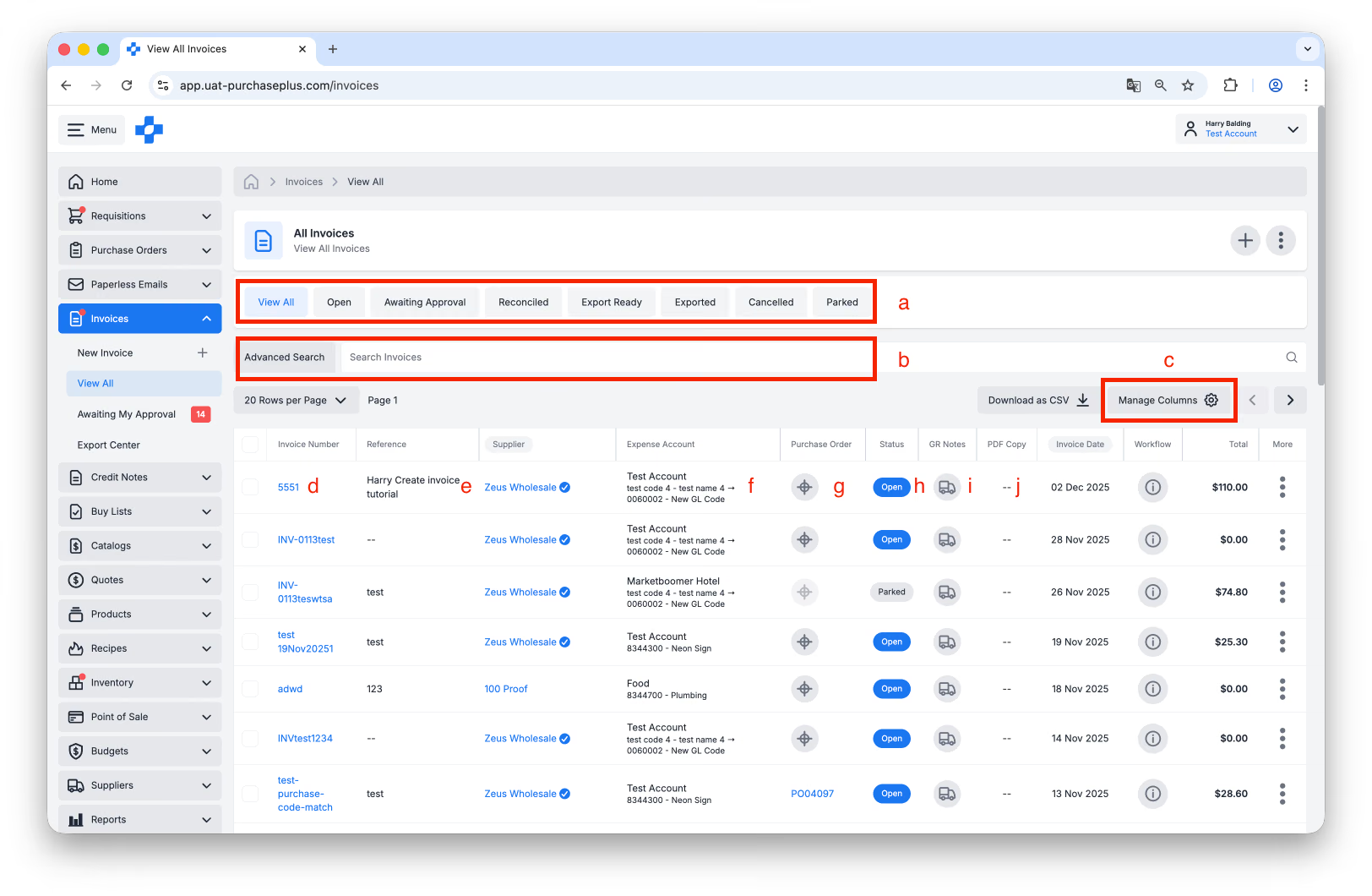
2. From the View All Invoices table view, you can complete the following tasks:
- Filter All Invoices by Status.
- Use [Search] to find the Invoice you would like to review.
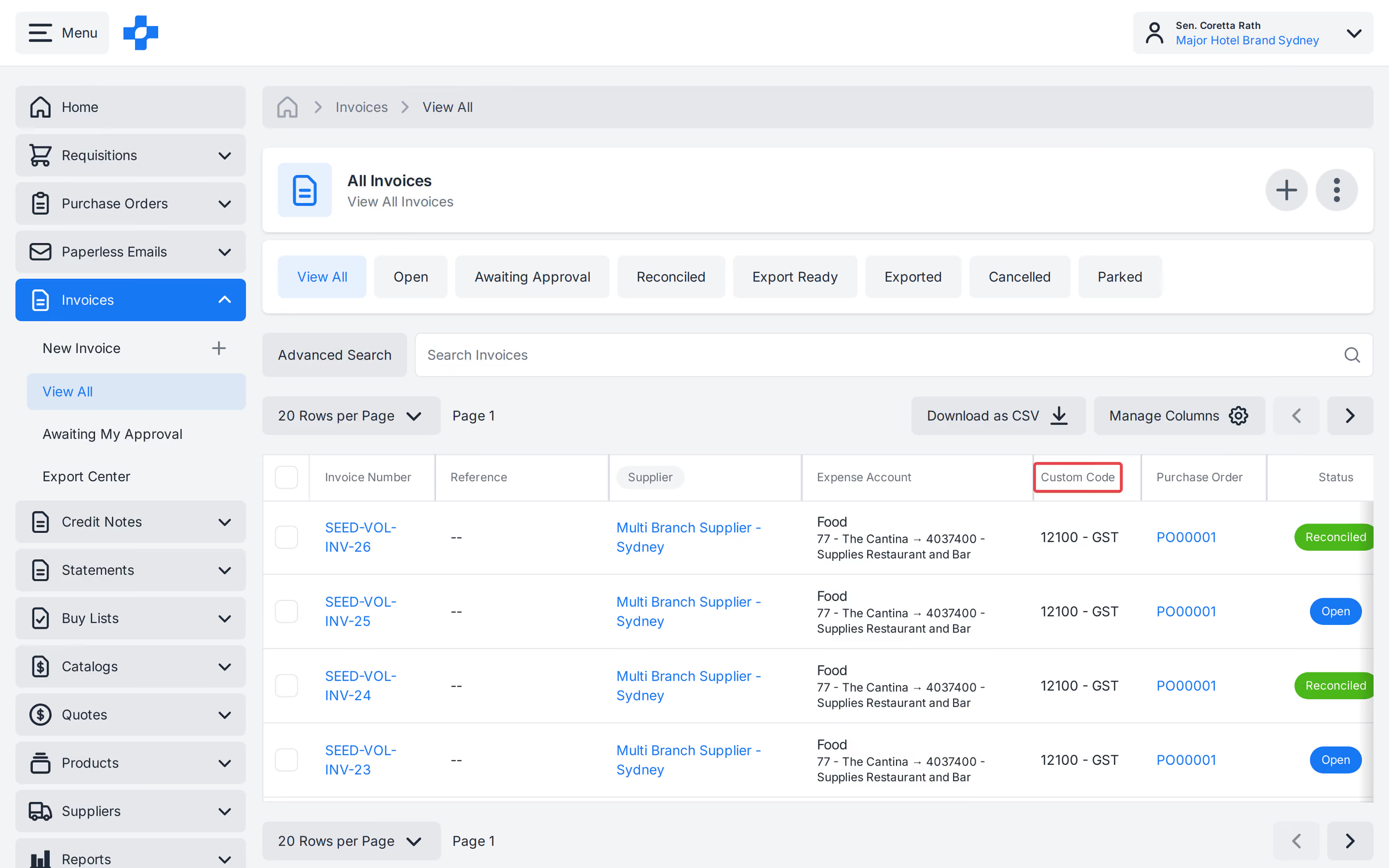
- [Manage Columns] to show or hide columns shown in the table. On [View All] and [Awaiting My Approval], you can show a Custom Code column. On [View All], you can also show an optional PO Variance column (Invoice ex-tax minus matched Purchase Order ex-tax). It is off by default and saved with your column preferences. Like PO Total, it is hidden for Paperless-only Organisations, and it is included in the CSV export when visible.
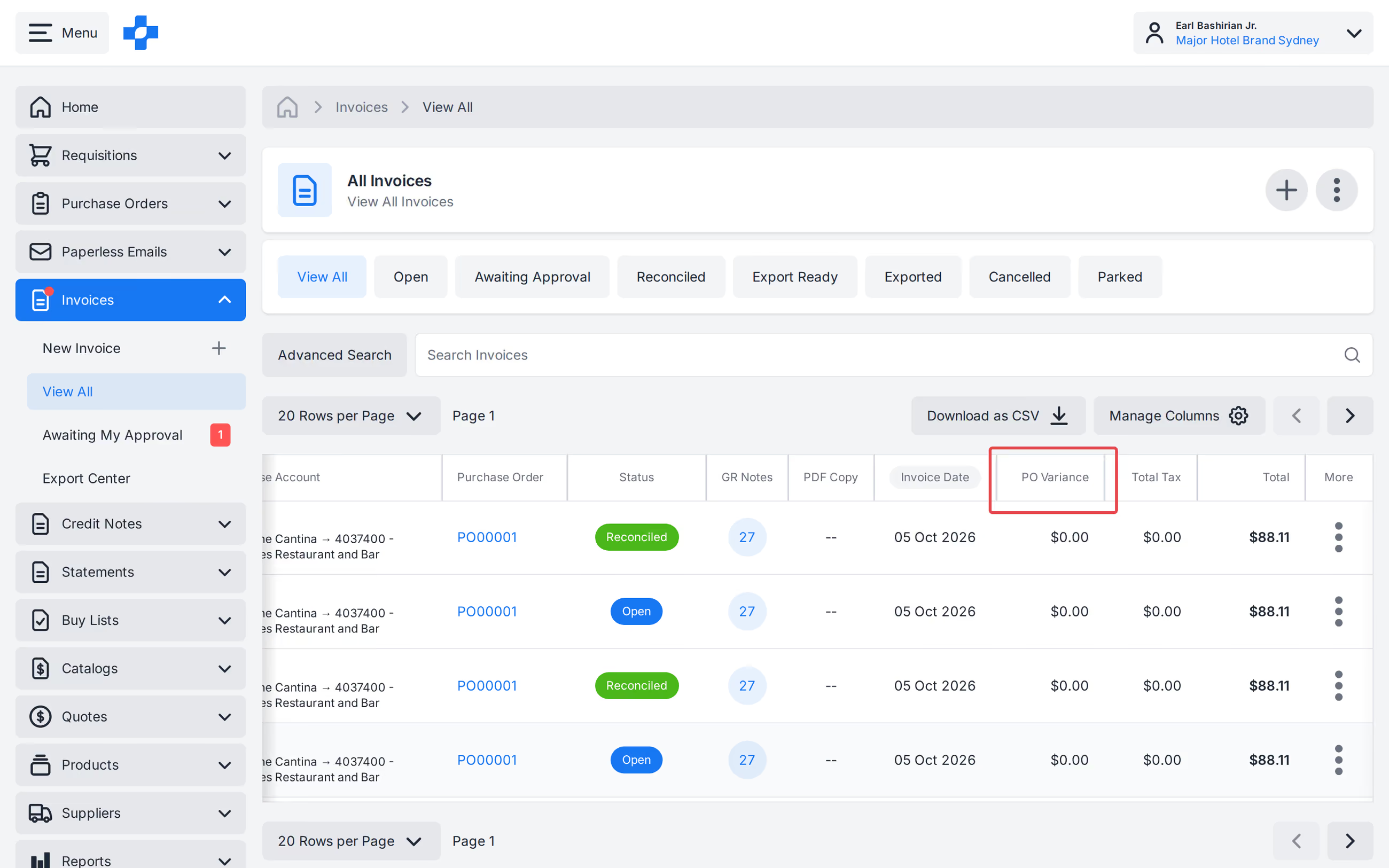
- On [View All], click [Manage Columns], open Sorting Preferences, and select [Created Date - Newest to Oldest] or [Created Date - Oldest to Newest]. This matches the Created On column. Click [Save Changes]. The sort is saved for that view. [Invoices Awaiting My Approval] has its own saved sort.
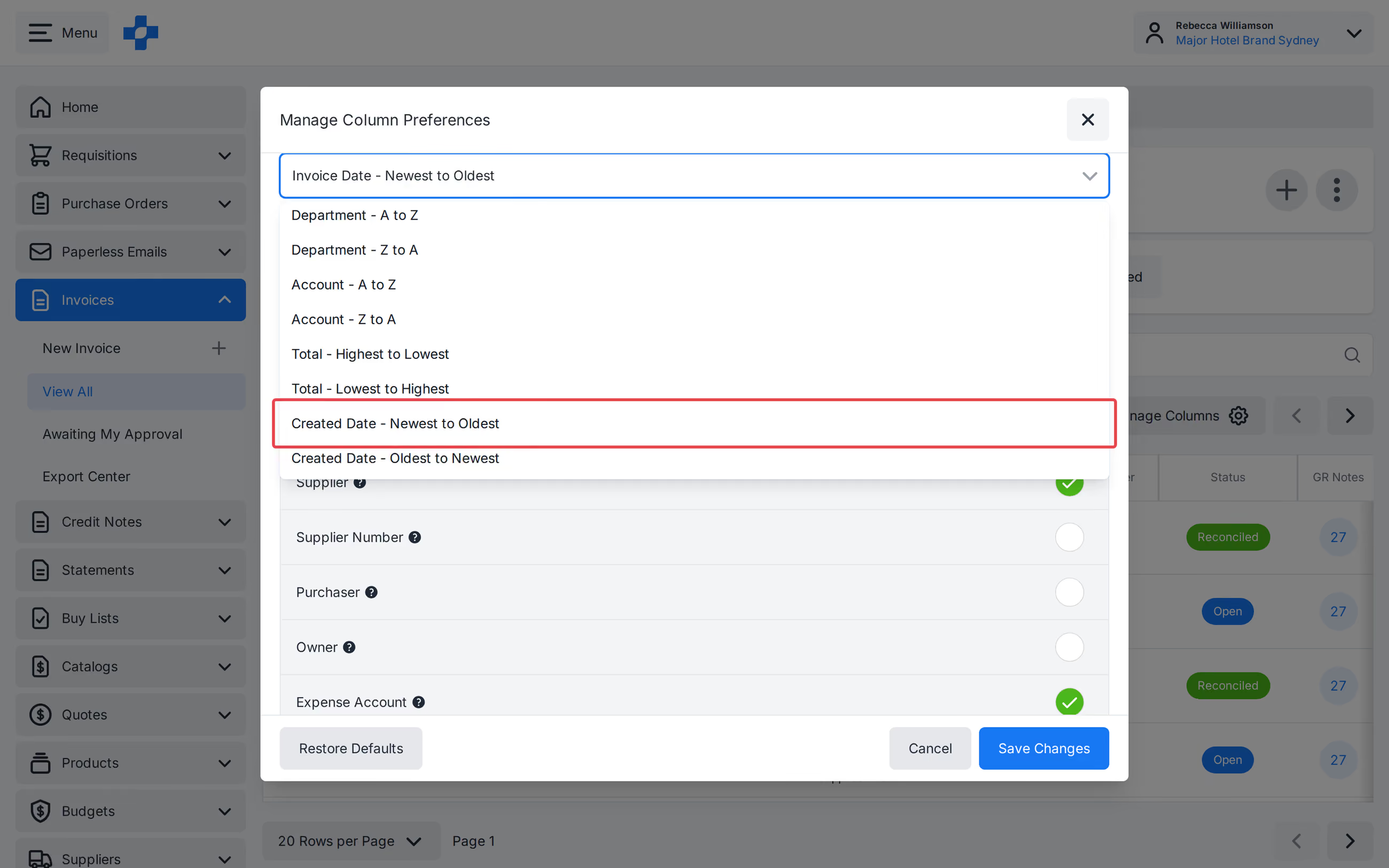
- Click on the [Invoice Number] to open the Invoice.
- Hover on the [Reference] to add or edit the Invoice Reference. This is only possible when the Invoice is in an 'Open' or 'Awaiting Approval' state.
- Hover on the [Expense Account] to add or edit the Department or Account that the Invoice is expensed against. This is only possible when the Invoice is in an 'Open' or 'Awaiting Approval' state.
- [Purchase Order]. Determine if the Invoice has been matched to a Purchase Order. See our Match a Purchase Order to an Invoice article to learn more.
- View the [Status] of the Invoice.
- [GR Notes]. View the Goods Receiving Notes that are associated to the Invoice or create a new Goods Receiving Note against the Purchase Order that the Invoice is matched to.
- View the [PDF Copy] of the Invoice. This option is available if the Invoice was created from a PDF, via the PurchasePlus Paperless Invoicing solution.
Updating Invoices
Generally, a Invoice in the 'Open' or 'Awaiting Approval' state can be updated by any user with the 'Manage Invoices and Credit Notes' permission and/or the 'Manage Invoices and Credit Note Lines' permission (depending on what they wish to update). Editing the Invoice Date shows the same warning as manual create. A date more than 1 day in the future warns and can still be saved.
Note - An Invoice Date more than 6 years in the past, or more than 6 years in the future, cannot be saved.
Updating Invoices outside of the Open or Awaiting Approval states require extra steps before any changes can be made:
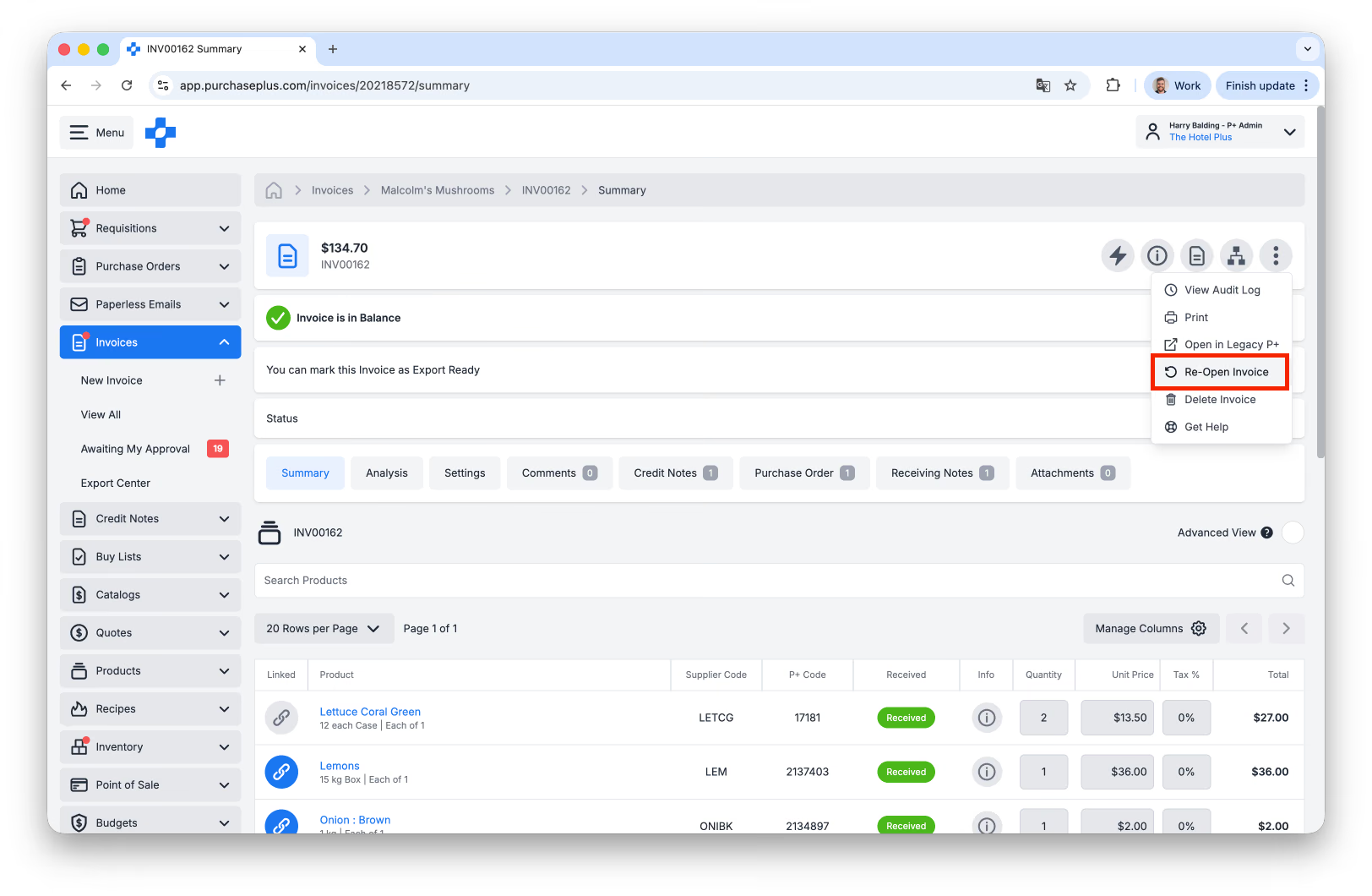
- To update an Invoice in the 'Reconciled' state, the Invoice must be Re-opened by clicking 'Re-Open Invoice' in the [More] menu in the header of the Invoice:
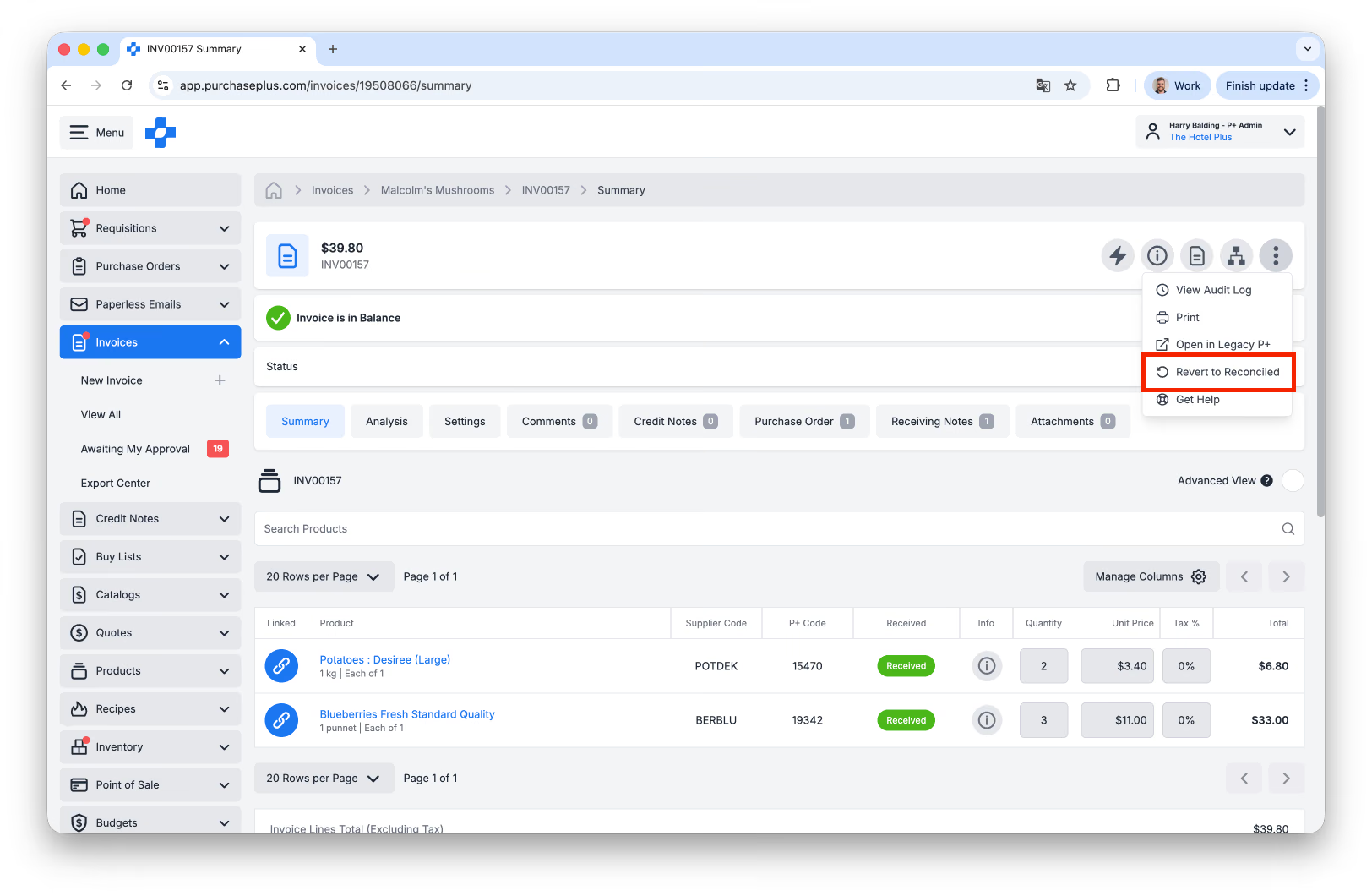
- To update an Invoice in the 'Export Ready' or 'Exported' state, the Invoice must first be [Reverted to Reconciled] in the [More] menu in the header of the Invoice, and then 'Re-opened' as per the above.
When the necessary changes have been made to the Invoice, it will have to re-progress through any Invoice Approval Workflows in place for the relevant Organisation Unit.
Approving Invoices
If an Invoice is in the 'Awaiting Approval' state, it means that it must successfully pass through an Approval Workflow in order to progress the Invoice to a 'Reconciled' state.
There are many reasons why an Invoice can become flagged and require Approval. Each of the Flag reasons are shown on the Invoice Flags tab, as well as each of the Invoice Line Flags are shown in the Flags column on each Invoice line.
As a nominated Approver, you may review each Flag reason and decide if you wish to resolve the Flag reason, or approve the Invoice without resolving some or all of the Flags.
Invoice and Credit Note Approval Workflows require their own article to explain in-depth. Learn more by reading this guide.
Using the Invoice Power Editor
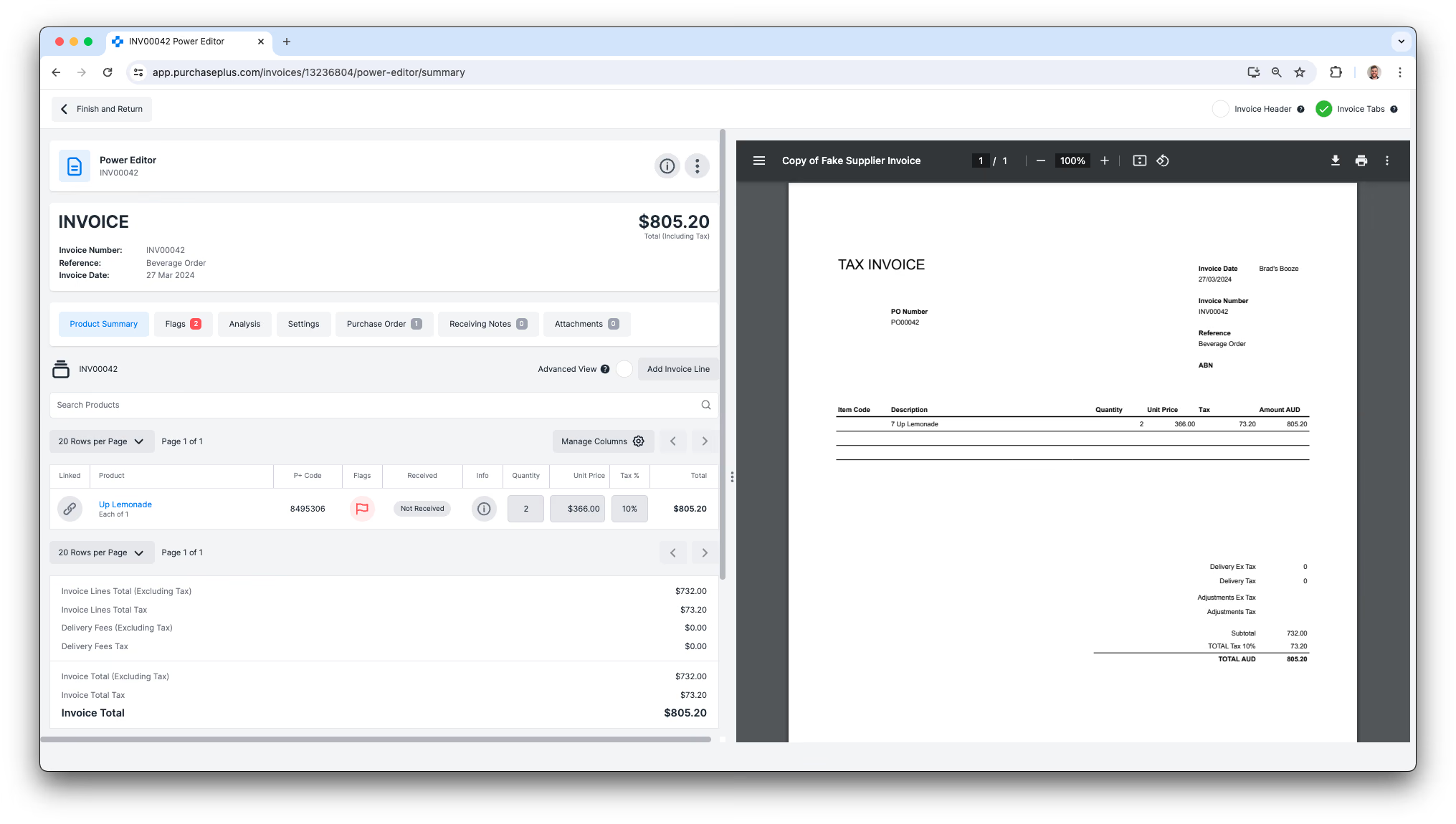
Users that have the 'Can Manage Invoices and Credit Notes' Permission can use the Invoice Power Editor to review and update an Invoice in PurchasePlus, side-by-side with a PDF Invoice that they received to their paperless invoicing email address.
To begin using the Invoice Power Editor:
- Select any Invoice from the [Invoices] → [View All], or [Invoices] → [Awaiting My Approval] areas.
- In the Invoice Header, select [Power Editor].
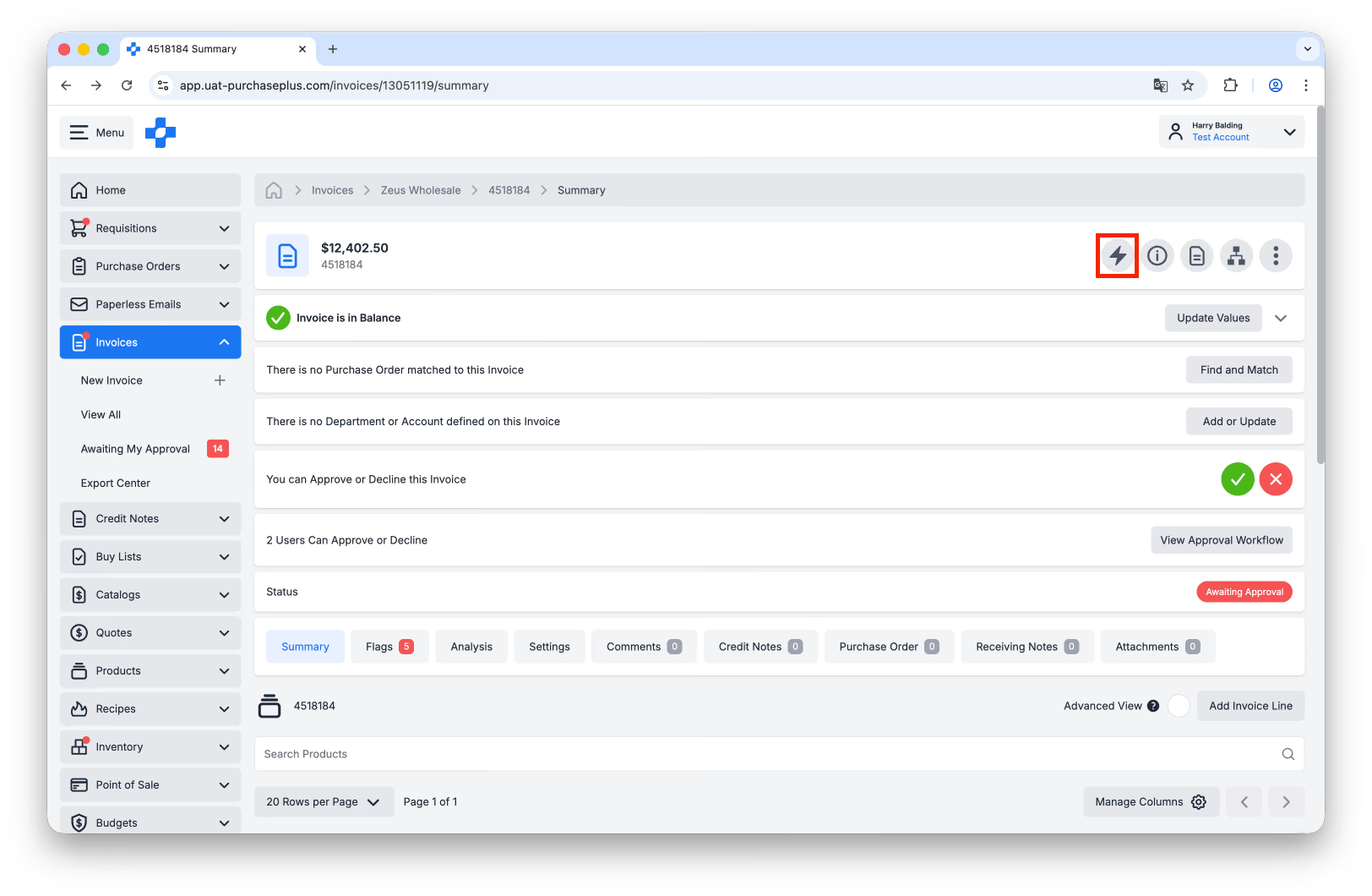
- If the Invoice was created in PurchasePlus by the act of a Supplier emailing the PDF invoice to your Paperless Invoicing Email Address, you will be able to view the PDF on the right-hand side of the Invoice Editor page in PurchasePlus, for easy reference when updating an Invoice.
Review tips
Match Purchase Orders & Invoices
- If applicable to your Organization, ensure a Purchase Order is matched to the Invoice before reviewing any Flag reasons.
- Link Invoice Line Items to Purchase Order Line Items, if needed.
Receive Goods & Services
- Check if items have been received. If applicable to your Organization, receiving a Purchase Order is a critical step in ensuring the items have been delivered and signals to the Invoice Approver that the Invoice is okay to be approved.
Check Line Items on Invoice before Approving
- In case of discrepancies between Purchase Order price and Invoice price, you may wish to reach out to the Supplier for a potential Credit Note for any variance.