

Catalogs and Buy Lists
Quick Start Guide to Creating Self Managed Catalogs and Buy Lists
Check for Supplier Managed Catalogs
PurchasePlus has a global network of thousands of Suppliers, so there's a good chance your Supplier has their products and prices available in PurchasePlus. Find these Catalogs by going to [Catalogs] → [View All] -> [Supplier Managed] tab.
Remember
- If your Supplier is not listed, reach out to your PurchasePlus Champion to get the Supplier them enrolled onto PurchasePlus.
Self-managed catalogs
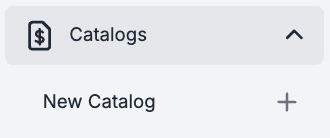
To make ordering easier, self-managed pricing catalogs can be created for Suppliers not on the PurchasePlus network. This can be done by going to [Catalogs] → [New Catalog].
Remember
- To get price comparison against products other Suppliers sell, use the [Advanced Search] → [Only Products with Quotes] option.
- Update prices in your Self Managed Catalogs via an Import. First [Export] the Catalog, update the pricing in Excel and [Import] it back into PurchasePlus.
- Copy a Self Managed Supplier Catalog's products to a different Supplier by Exporting and Importing into a new Supplier's Catalog.
Buy lists
Creating Buy Lists for regularly ordered items makes purchasing quick and easy. You'll see price comparison on products and can order from multiple Suppliers at once.
Remember
- Create Buy Lists around your ordering habits.
- Set a default Department and Account Code on Buy Lists to automate Requisitions coding.
- Use the Advanced Search to filter products by Supplier, Category and Only Products with Prices.
- If creating multiple Buy Lists with some of the same products, use the [Buy List Builder].