Draft Requisitions
Draft Requisitions
Requisitions are in a Draft state until they are submitted for Approval. Users that wish to return to a Draft Requisition and either view, edit or cancel the Requisition can do so by following these steps.
Access Draft Requisitions
1. You can find Draft Requisitions at multiple locations.
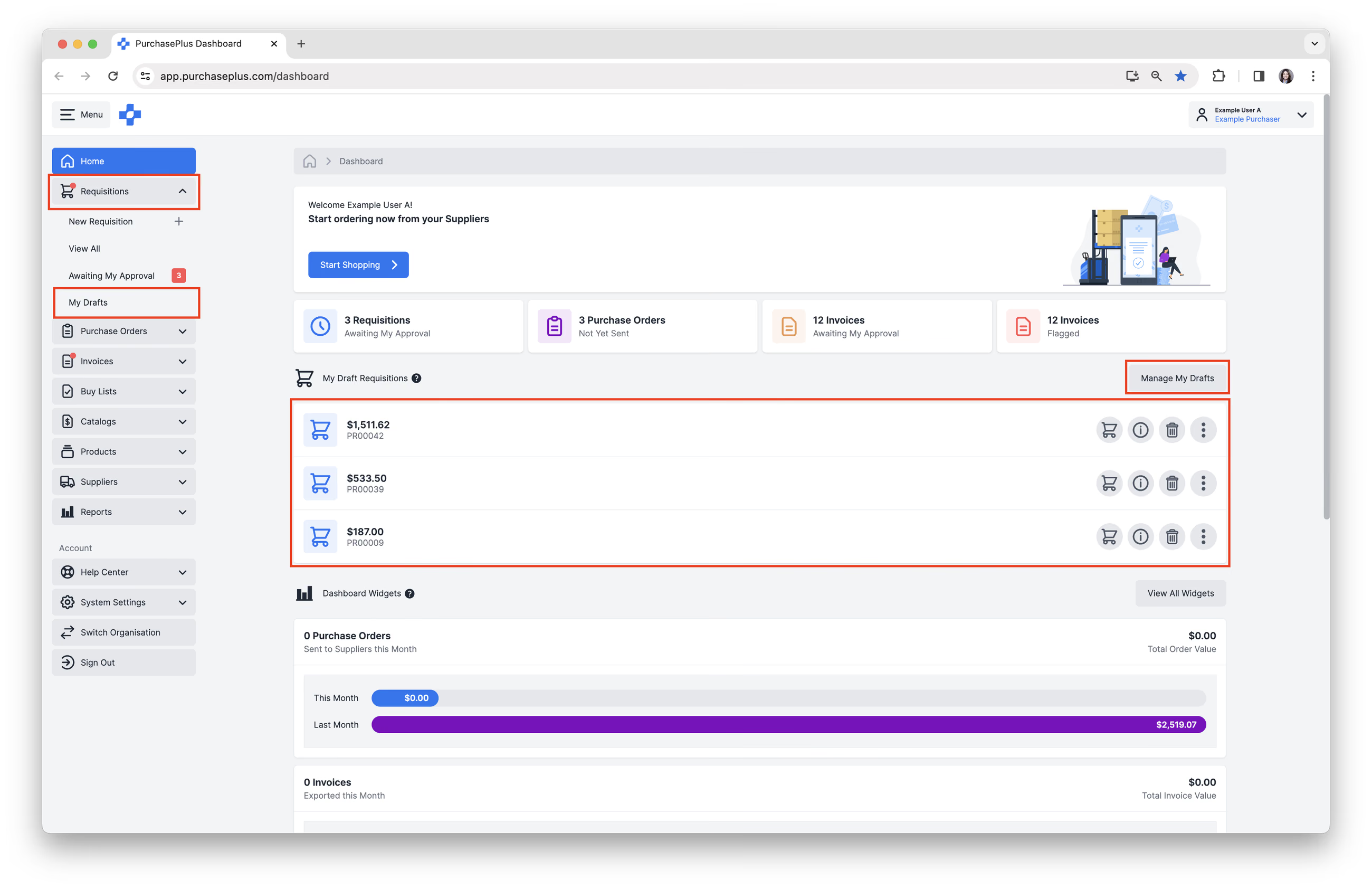
- Select [Manage My Drafts] from the Home Dashboard. From the Home Dashboard, you can also:
- - Click [Cart] to resume Shopping.
- Click [Info] to view the Requisition.
- Click [Bin] to cancel the Requisition.
- Select [Requisitions] → [My Drafts] from the side navigation bar.
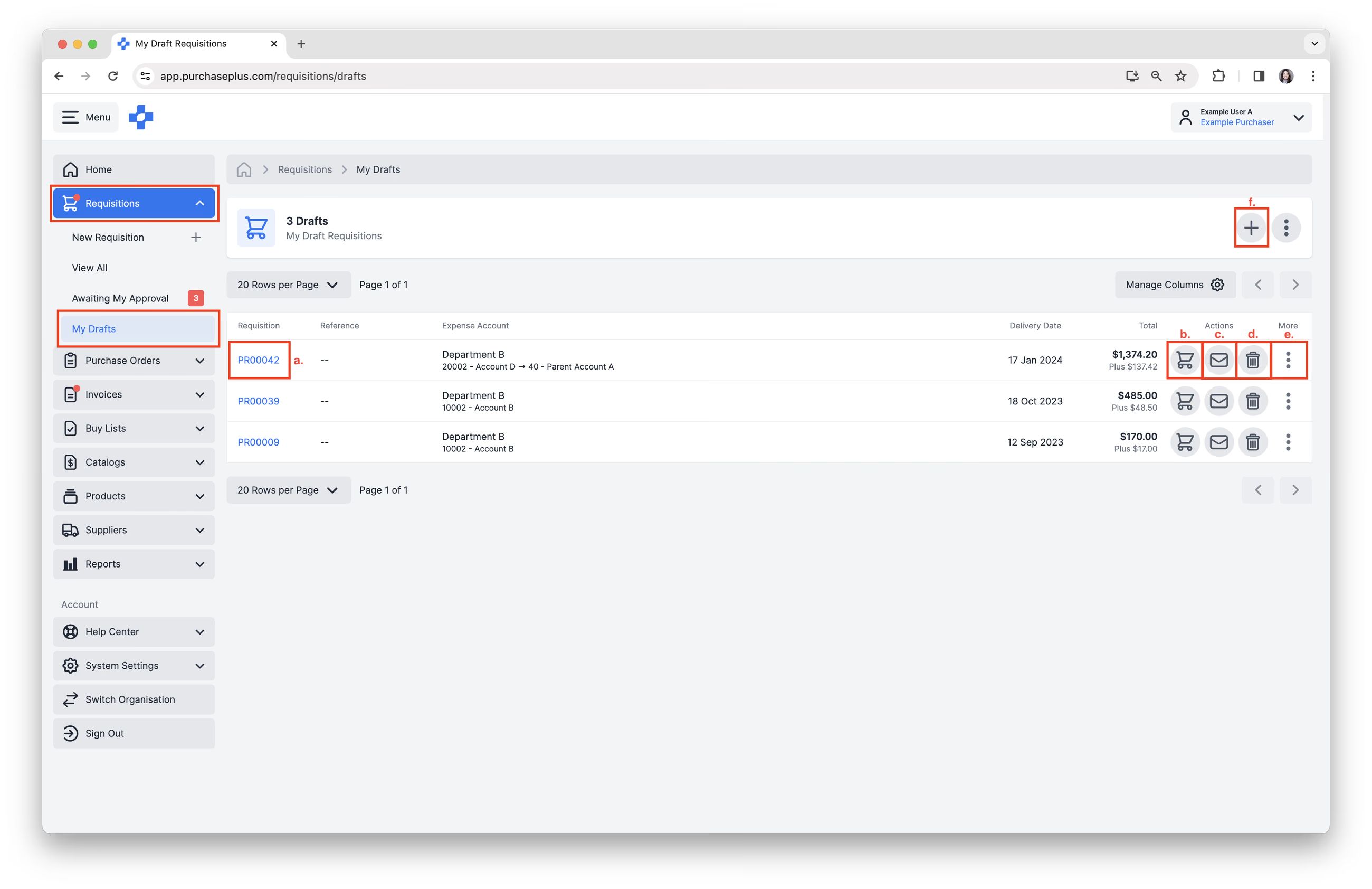
2. From [My Drafts] choose to do the following:
- Click [Requisition Number] to view Requisition.
- Click [Cart] to resume Shopping.
- Click [Envelope] to submit for approval.
- Click [Bin] to cancel Requisition.
- Click [More] → [View Requisition] → [Print] → [Open in Legacy P+] → [Get Help]
- Click [+] to create a new Requisition.
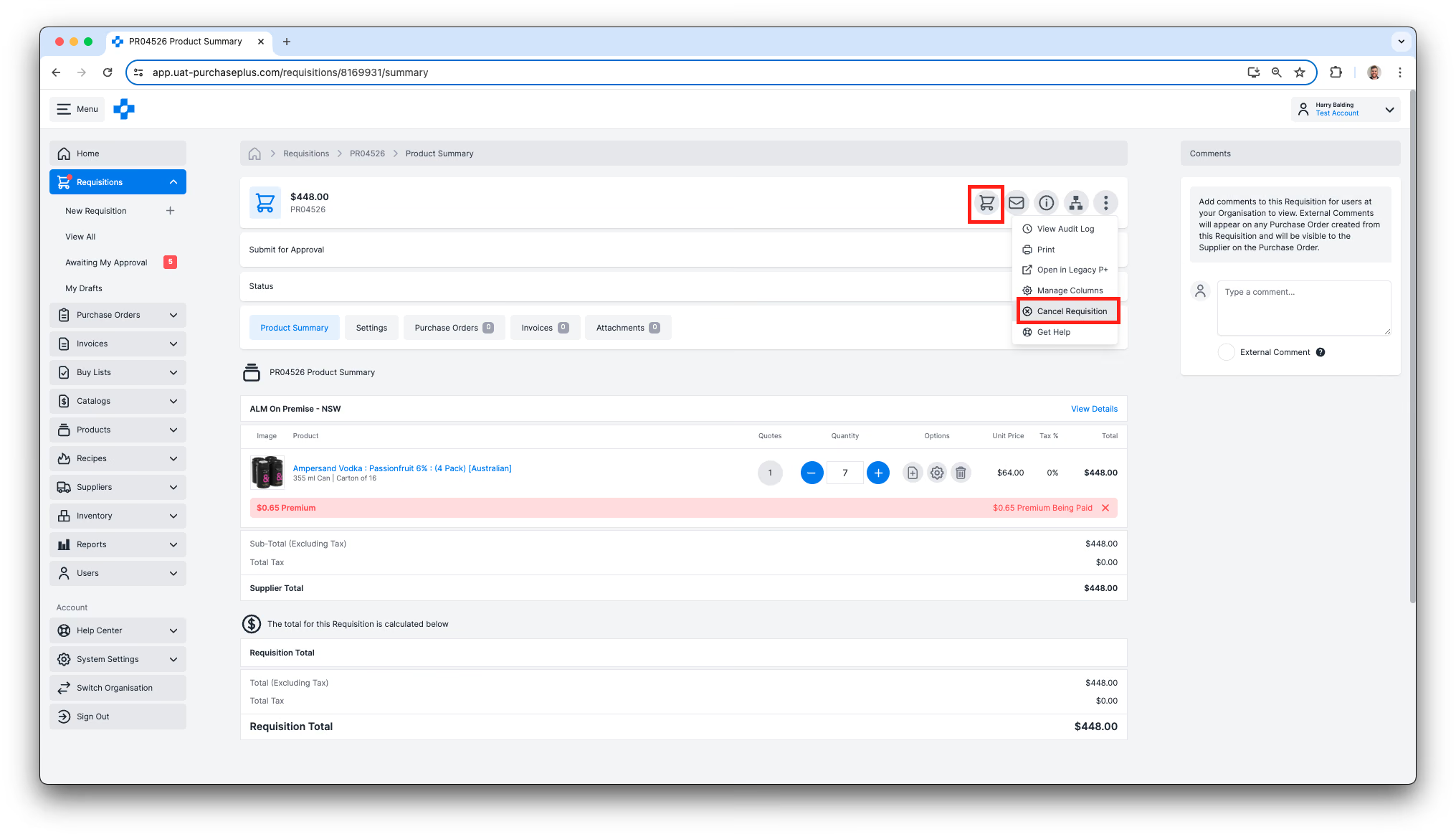
3. Click the [Requisition Number] to view the Requisition and Resume Shopping or Cancel the Requisition.