

Sign In to PurchasePlus
Sign In to PurchasePlus
Sign in to PurchasePlus
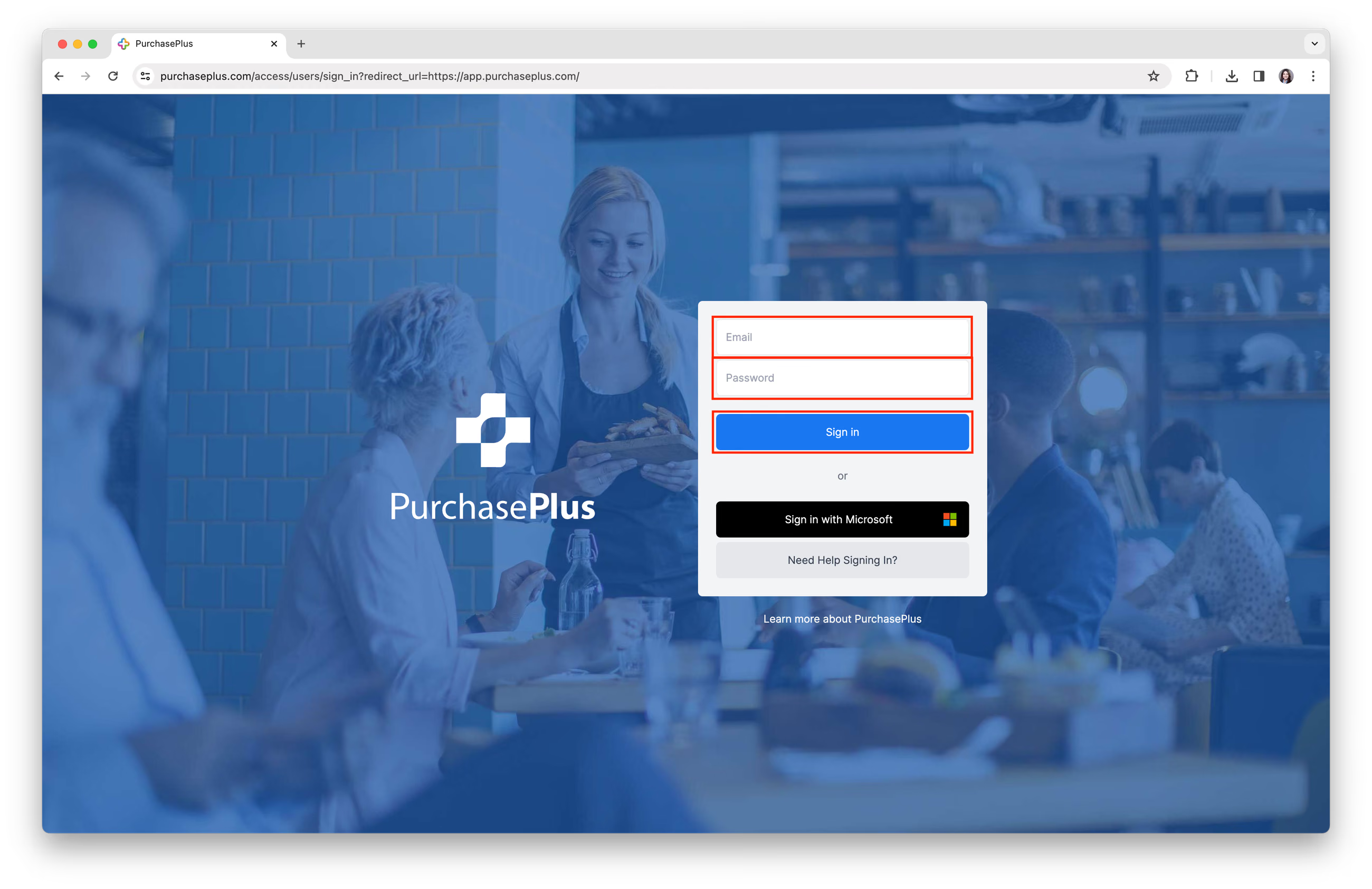
1. To access the PurchasePlus Sign In page, visit https://app.purchaseplus.com. (Our recommended browser is Google Chrome).
- Enter your 'Email address' and 'Password' and click the [Sign In] button.
If your session has been idle, or you signed in on another browser, a save or submit in PurchasePlus asks you to Sign In again instead of failing silently.
Sign in with Microsoft
Note: If your email address belongs to a Microsoft account, and that email address also belongs to your user account on PurchasePlus, you can sign in using the [Sign in with Microsoft] option.
Step 1: Click [Sign in with Microsoft], you will be redirected to Microsoft Sign In page.
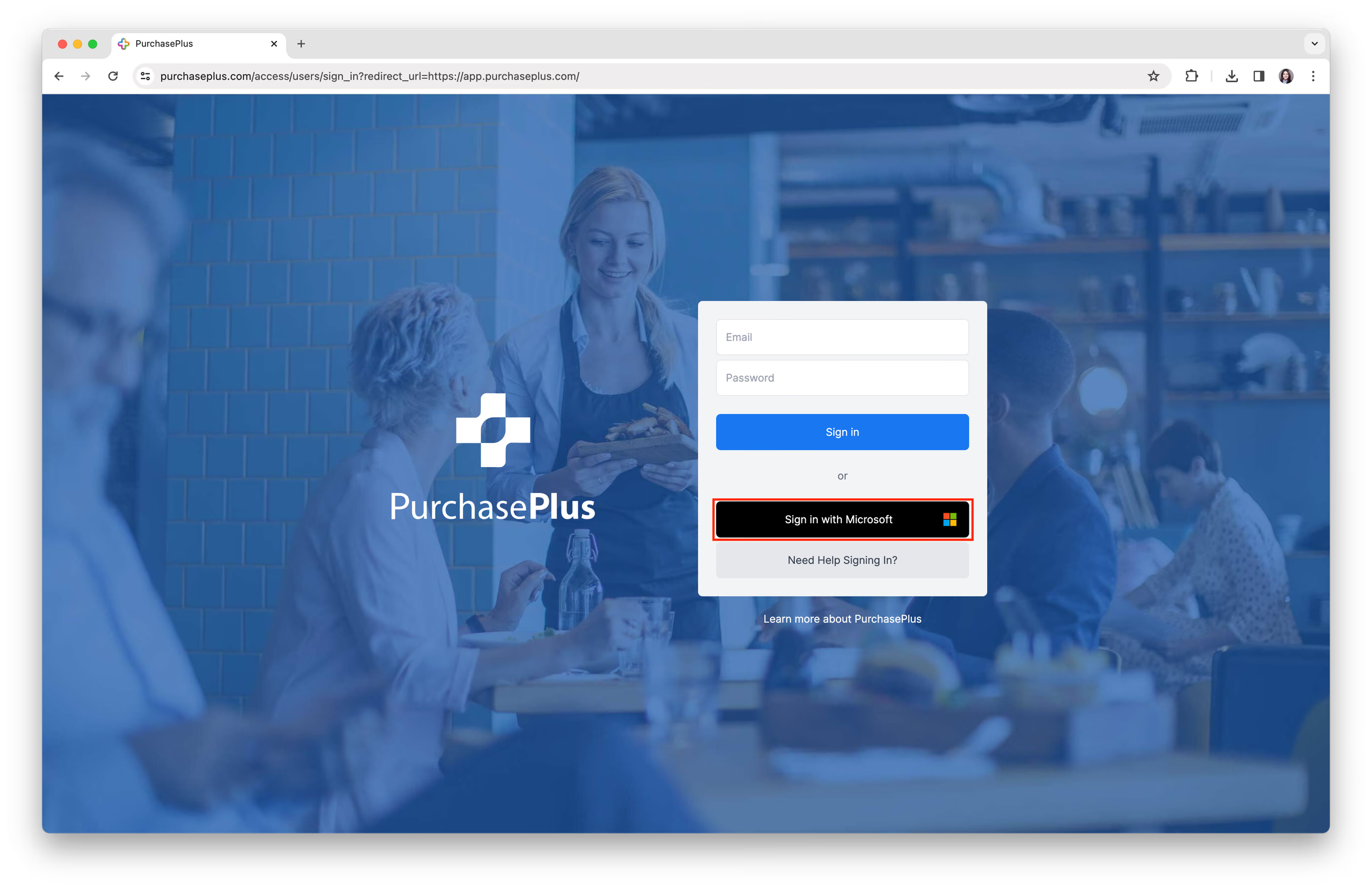
Step 2: Enter your 'Email address' and 'Password' that belongs to a Microsoft account.
Step 3: You may be presented with the following prompt, please click [Accept].
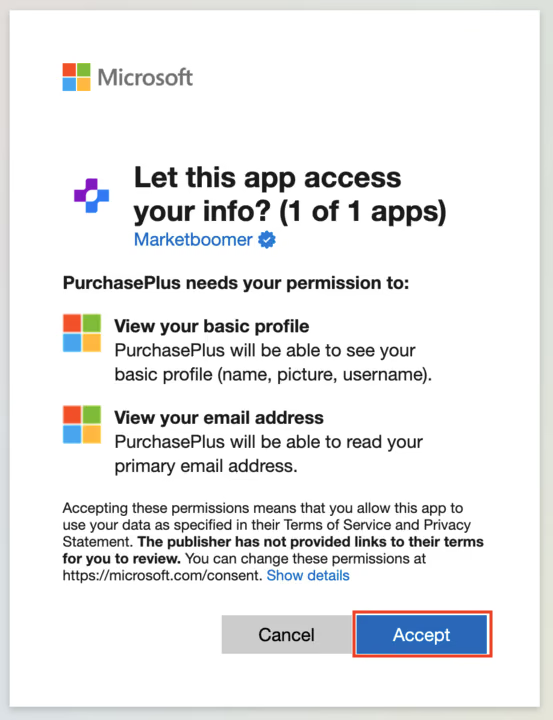
Step 4: You will be forwarded back to PurchasePlus and be signed in to your account.
Note: If there is no user in PurchasePlus that matches the Microsoft Email Address you used, you will land back on our Sign In page and see a "Sign In Unsuccessful" prompt.
First-time sign in
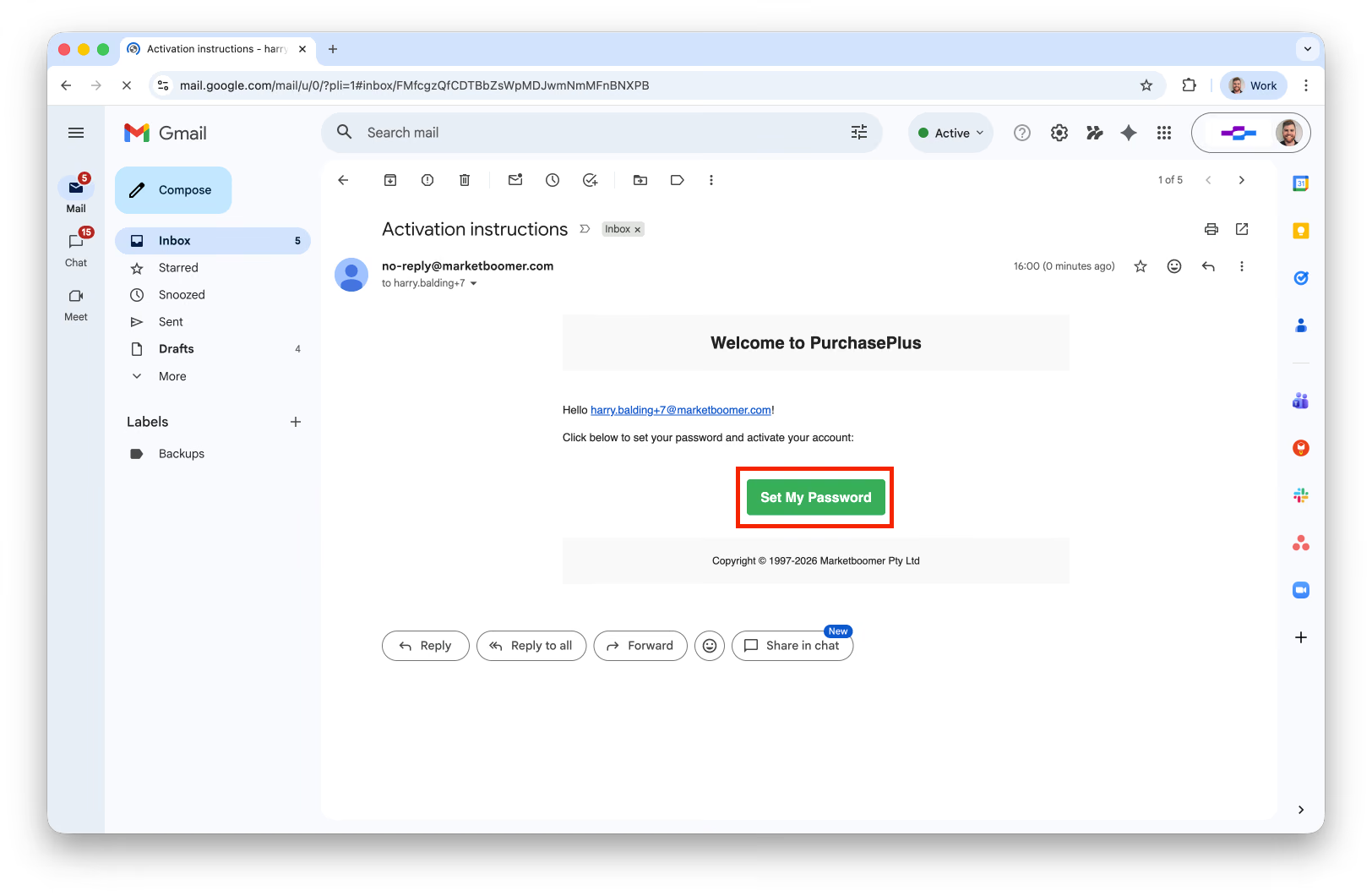
Before you can Sign In to your account for the first time, you will need to confirm your account and set a password.
Step 1: Access the email account that was invited to join PurchasePlus by your administrator and click 'Set My Password':
Step 2: Enter your new password and confirm. This is the password that you will now use to access PurchasePlus.
Troubleshooting: I Did Not Receive Account Activation Email
If you did not receive an Account Confirmation Email (or it has been deleted), please follow these steps:
Step 1: Click [Need Help Signing In?]:
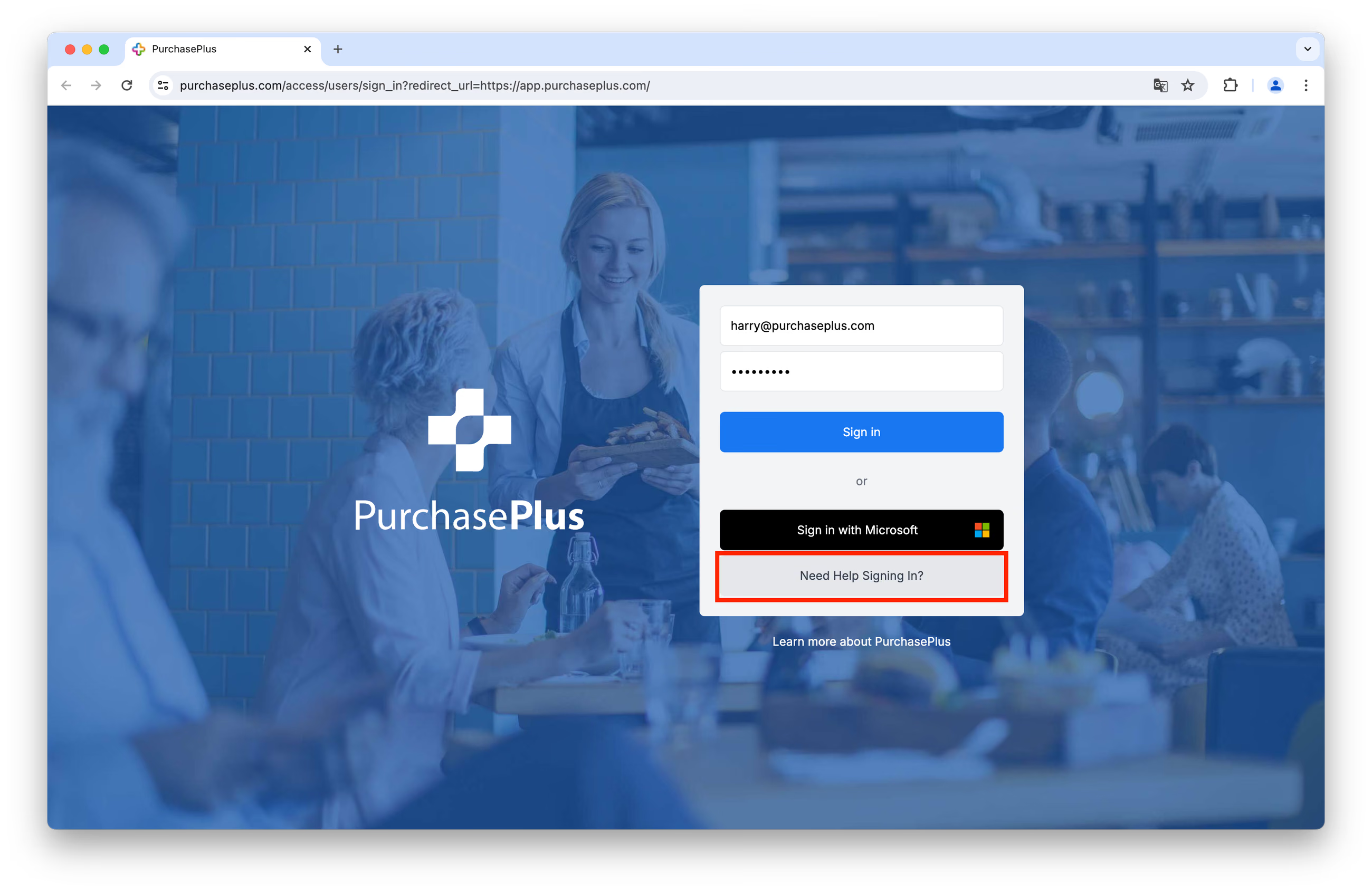
Step 2: Click on [Re-Send My Welcome Email].
Step 3: Enter your registered email address, and click [Re-send Welcome Email].
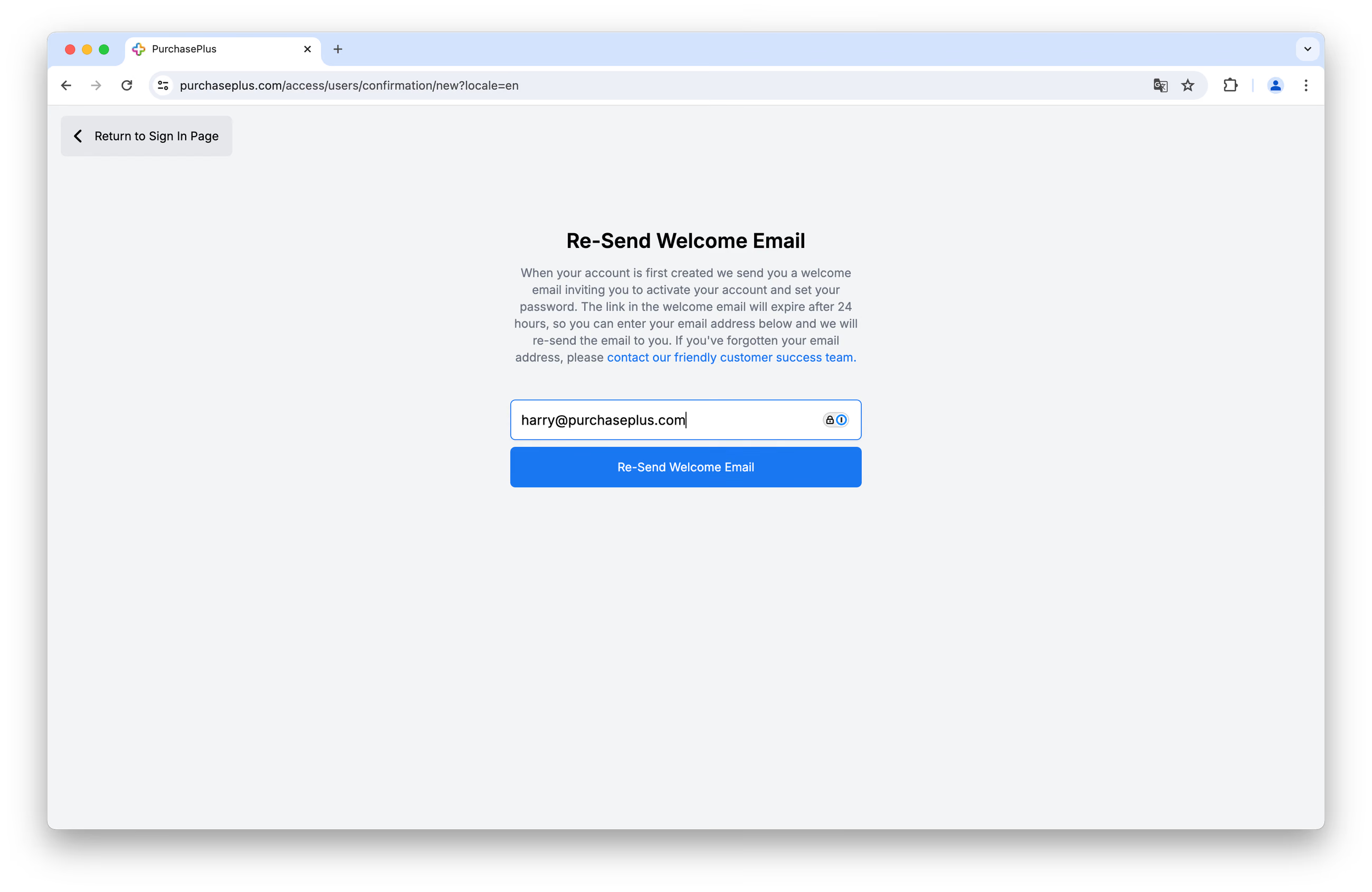
You will shortly receive another welcome email and can follow the steps contained therein to activate your Account.
Resetting Your Password
If you have forgotten your password, you can reset it and sign in by following these steps:
Step 1: Click [Need Help Signing In?]:
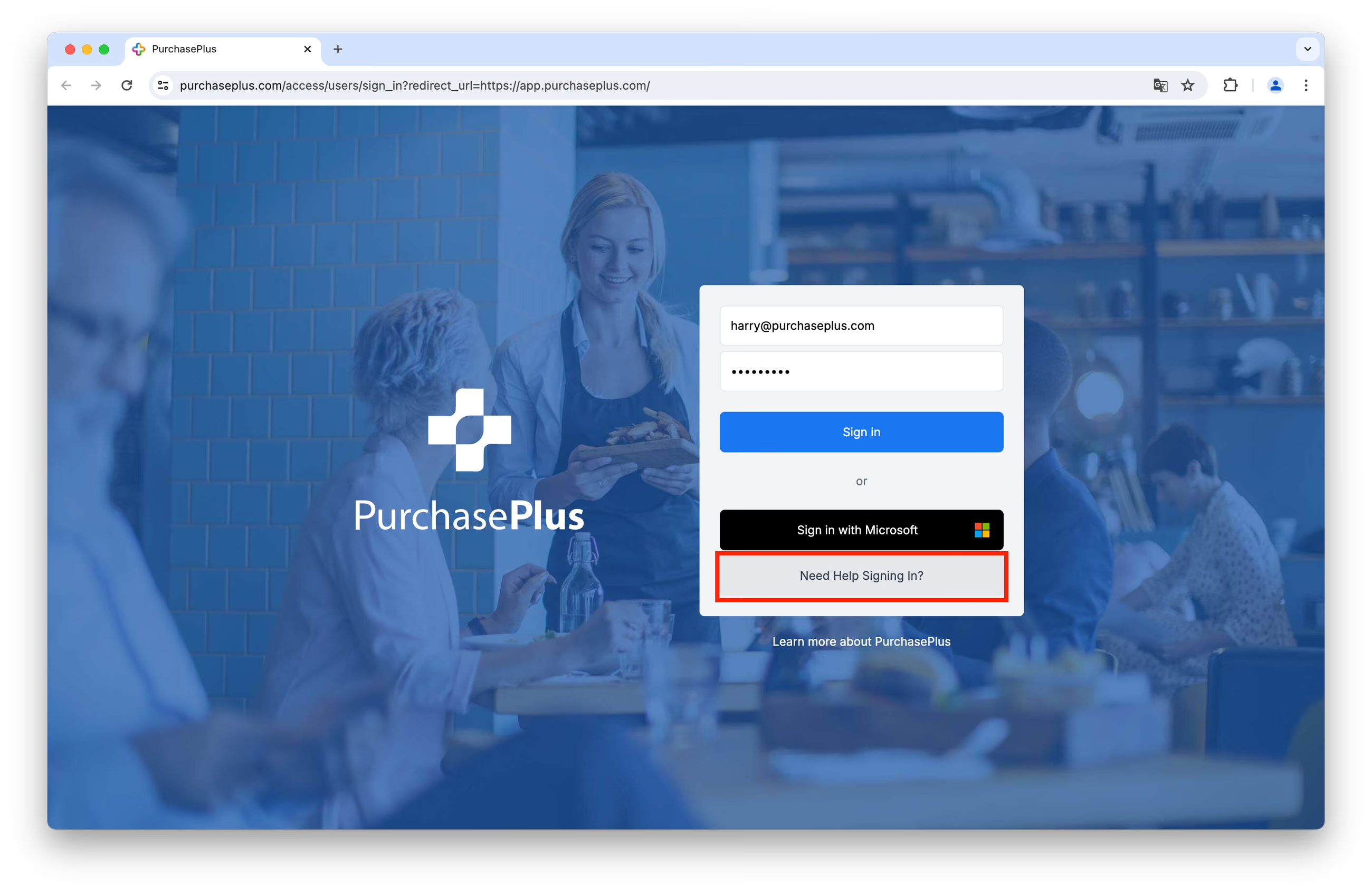
Step 2: Click [Reset My Password].
Step 3: Enter your registered email address, and click [Send Password Reset Instructions]:
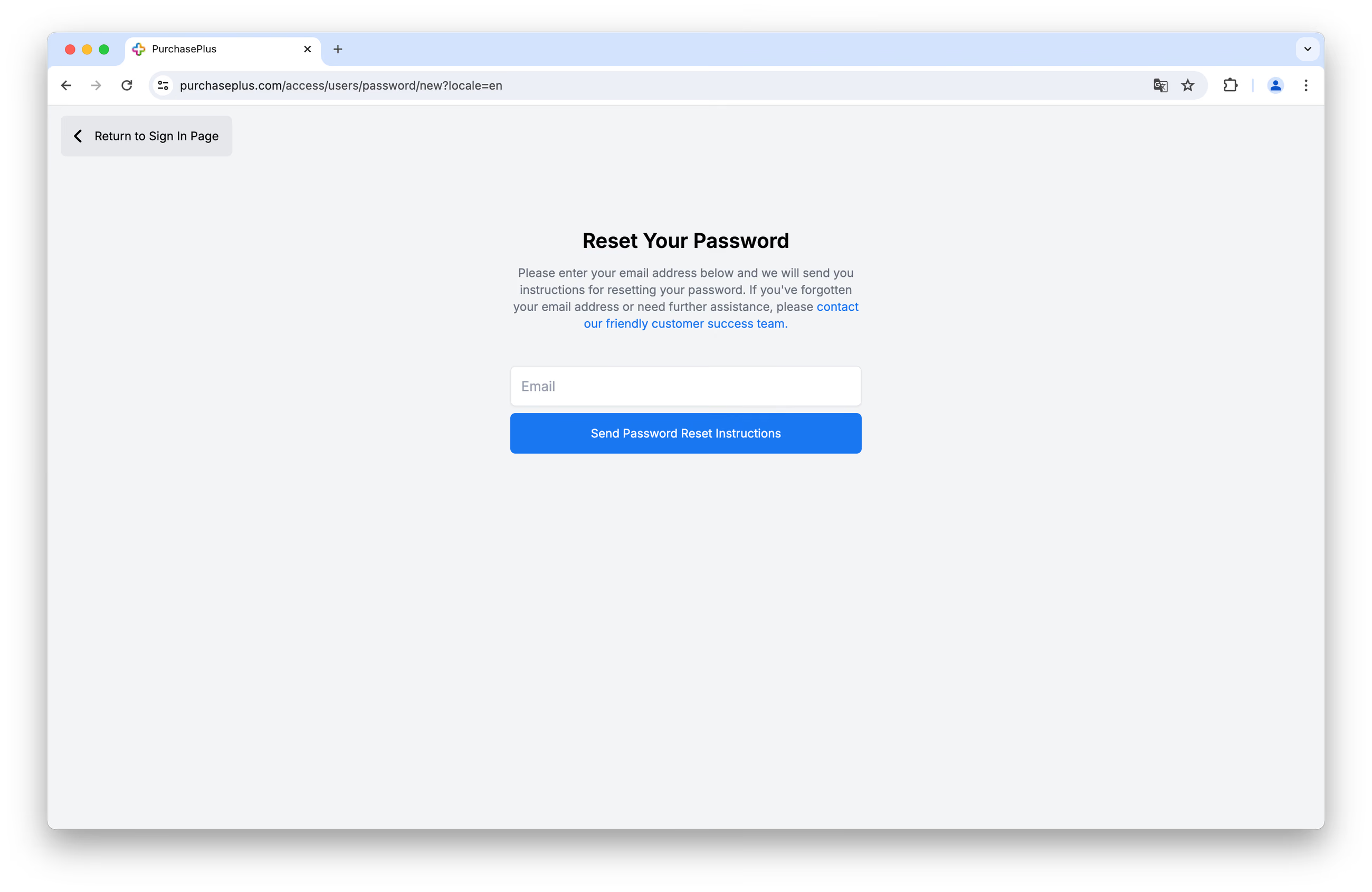
You will shortly receive an email from us, and you can follow the steps contained therein to reset your password.
Password (length between 12 to 128 Characters, must include at least one digit, one lowercase letter, and one upper case letter)
Sample Ideal Password: *mub!qzr0ADF_rzj0duh*#
If you are require any further assistance signing in to PurchasePlus please contact our friendly customer support team.