

Finance Teams
Finance Teams
Approve Requisitions
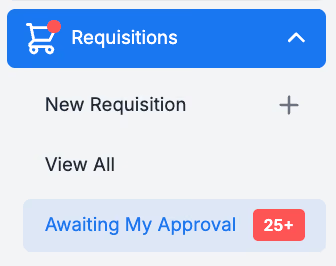
Before any Purchase Orders are generated, Requisitions need to be approved by the designated Approver(s.) If you're an Approver, you’ll see a red number in the [Requisitions] → [Awaiting My Approval] section.
You can Approve requisitions in bulk or individually. You can also Decline a Requisition.
Remember
As an approver, you can review and amend details of the Requisition before its approved including:
- Products, prices and quantities
- Departments and Account Codes on the product lines and entire requisition.
- Order Instructions to the Suppliers
Review invoices by status
Invoices can be in one of several Statuses. These should be reviewed regularly.
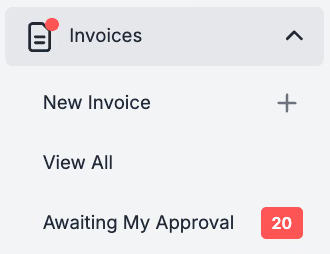
If the Invoice does not meet your Thresholds and Invoice Flag settings, the Invoice will flag for review, following your Invoice Approval Workflow. You can view these in [Invoices] → [Awaiting my Approval].
It is best practice to match your Invoices to a Purchase Order if applicable. Match to an existing Purchase Order or, if appropriate, create a retroactive Requisition if one doesn't already exist. Here you can find best practises for reviewing Flagged Invoices and Credit Notes.
Remember
- ### Every Invoice needs to have a Department and Account code set.
- An Invoice may need to be split across multiple Departments and Account codes, this can be done in the Advance View Mode.
- Some Invoices will never have a Purchase Order or Goods Receive Note (eg. Energy bills).
- If you're creating a retroactive Requisition to match to an Invoice, be sure to untick [Send to Supplier].
Approve flagged invoices and credit notes
Once you're happy that any issues with an Invoice or Credit Note have been resolved, you can Approve the document.

Remember
- If you have an issue with an Invoiced Unit Price or item Quantity, get in touch with your supplier for a new Invoice.
- Invoice numbers need to be unique, otherwise will be rejected by the system.
- Invoices can be Cancelled if they are never going to be paid.
Export Reconciled Invoices and Credit Notes
Depending on your Accounts Payable settings, the method for sending your Invoices and Credit Notes to your Accounts Payable system for payment is slightly different. You can see which Type your Organisation uses by clicking on your [Organisation Name] in the top right of PurchasePlus → [About] → [Organisation Details] → [AP System Type.]
Type A - Individual Export
With this method, Reconciled Invoices and Credit Notes are individually Exported, and an Export file containing the single Invoice or Credit Note is automatically created and sent to your AP system.
In the [Invoices] → [Reconciled Invoices] section, open the Invoice you want to export and click [Export].

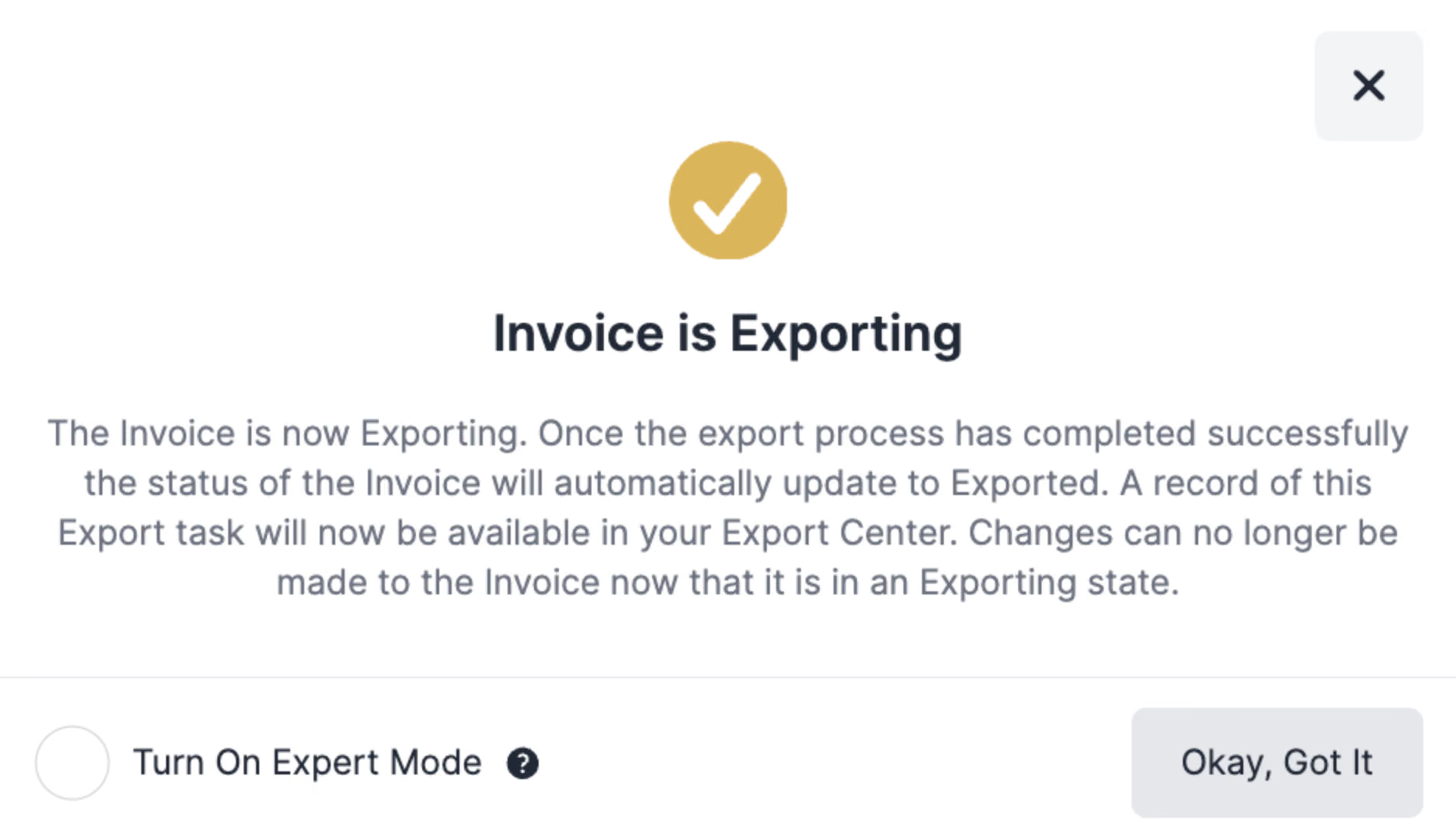
Once the Export process has completed successfully, the status of the Invoice will automatically update to Exported. The Invoice should also have arrived in your External Accounting System. A record of this Export task will be available in [Invoices] → [Export Center]
Type B - Batch Export File
In the [Invoices] → [Reconciled Invoices] section, open the Invoice you want to export and click [Mark as Export Ready].

When you're ready to create a Batch File to import into your AP system, go to the [Invoices] → [Export Center] and use the [Create New Export File] to create a new Batch File. You'll be able to set parameters for the 'Export ready' Invoices and/or Credit Notes you want to batch.

One the Batch file has finished Processing, you can download it from your [Export Center] to import into your AP system.

Remember
- Type B - Depending on the settings you used to create Batch file, you may still need to use [More] → [Mark as Exported] to confirm the successful import into your AP system.
Tips for easier Invoice processing
- You can set default Department and Account Codes for Supplier’s Invoices.
- Departments can have distinct Invoice Thresholds and Invoice Flag settings.
- Search for new Suppliers under [Suppliers] → [Supplier Directory] before creating a new Self Managed Supplier.
- Set a PO destination (email address) for newly created Suppliers.