

Unmatch a Purchase Order
Unmatch a Purchase Order
Purchase Orders are 'matched' to Invoices as part of the Invoice Reconciliation process. It allows our software (or a human reviewer) to ensure that what the Supplier has Invoiced is actually what you Ordered.
Occasionally, you may need to 'unmatch' an Invoice from a Purchase Order, in the event that an Invoice must be re-issued or an incorrect match was made. This article explains the process of unmatching a Purchase Order from an Invoice.
Prerequisites
There are three prerequisites that must be met before a Purchase Order can be Unmatched from an Invoice:
- The user must be signed into PurchasePlus. This feature is not available in Legacy PurchasePlus.
- The Invoice must be in either the Open or Awaiting Approval Status.
- All of the Linked Lines on the Invoice must first be Unlinked. See the Guide below for more details.
Unmatching a Purchase Order from an Invoice
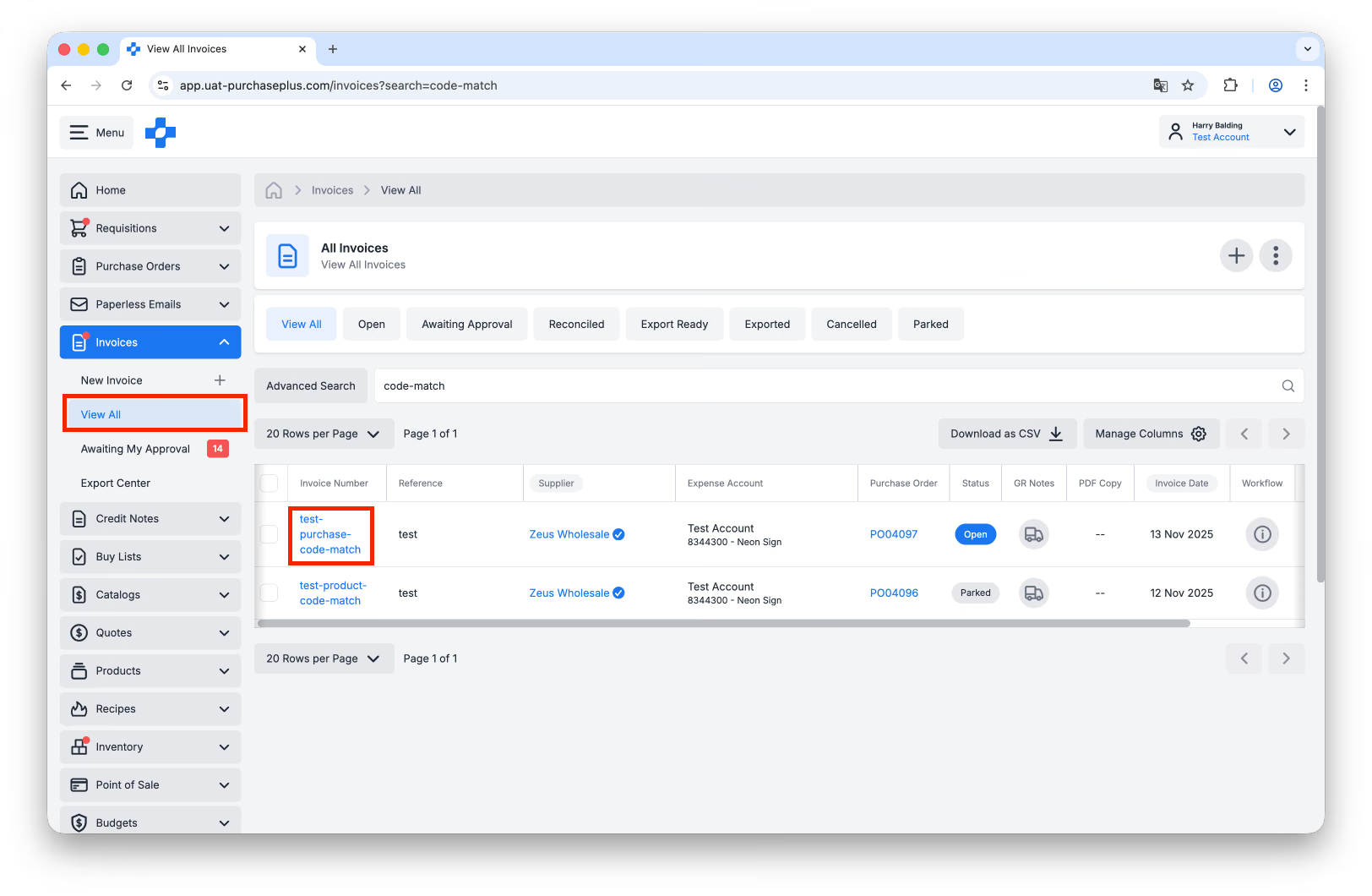
Step 1: Visit [Invoices] → [View All] and search or browse for the Invoice in question. Click on the Invoice Number to view the Invoice in greater detail:
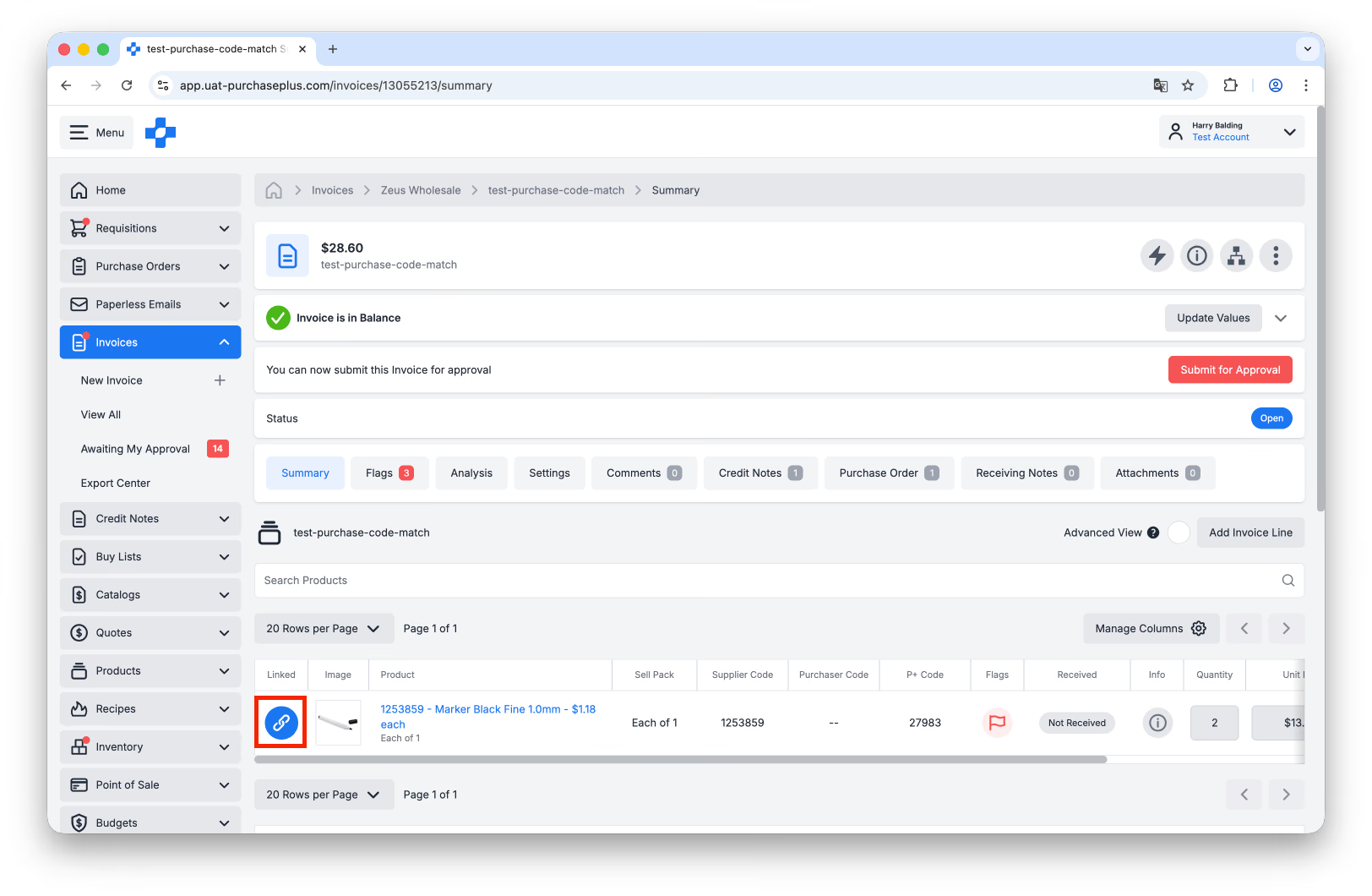
 Step 2: Every Linked Line must be Unlinked. Click [Linked]:
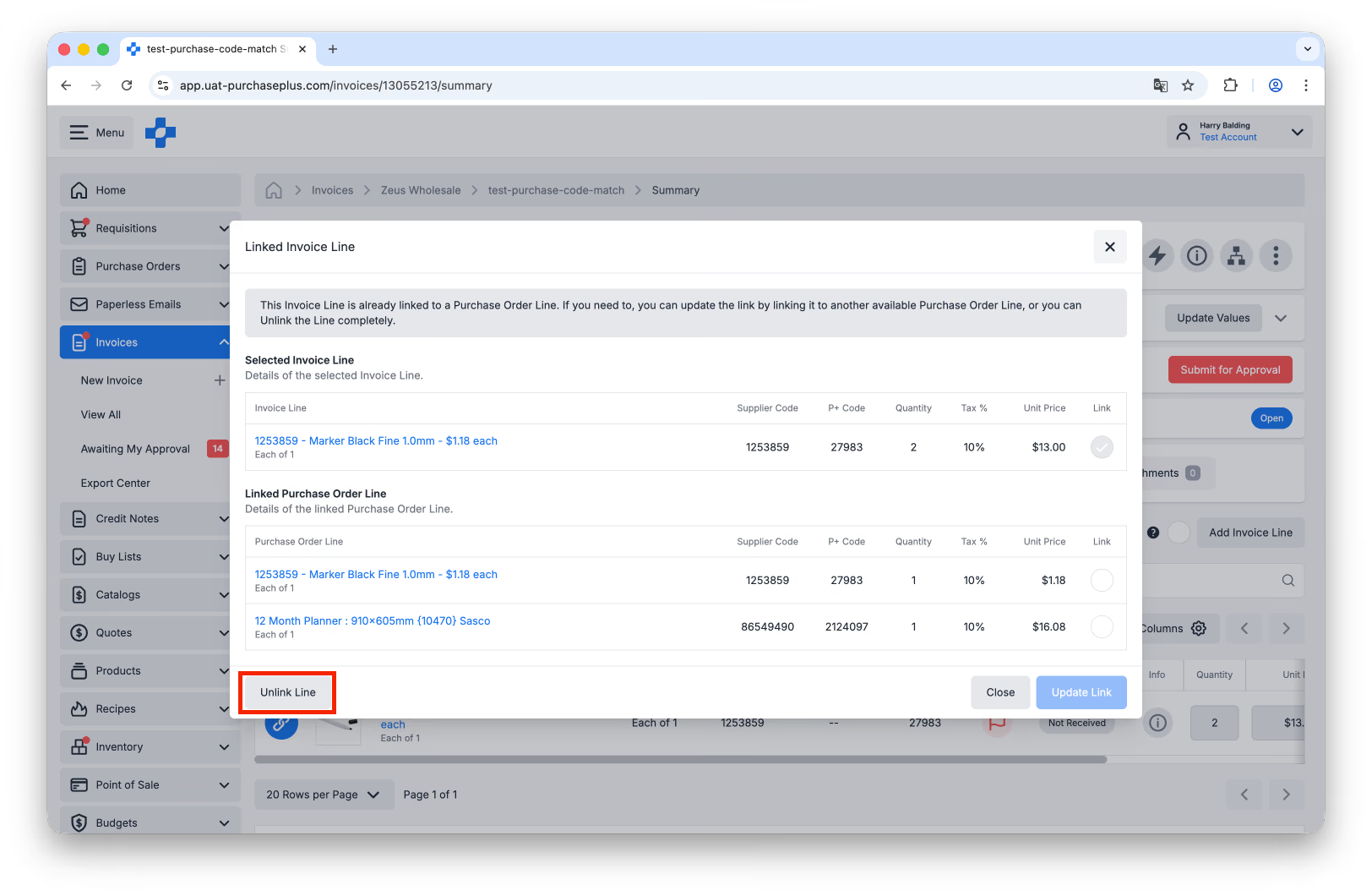
 Step 3: Then click [Unlink Line]. Repeat Steps 2 and 3 for every Linked Line:
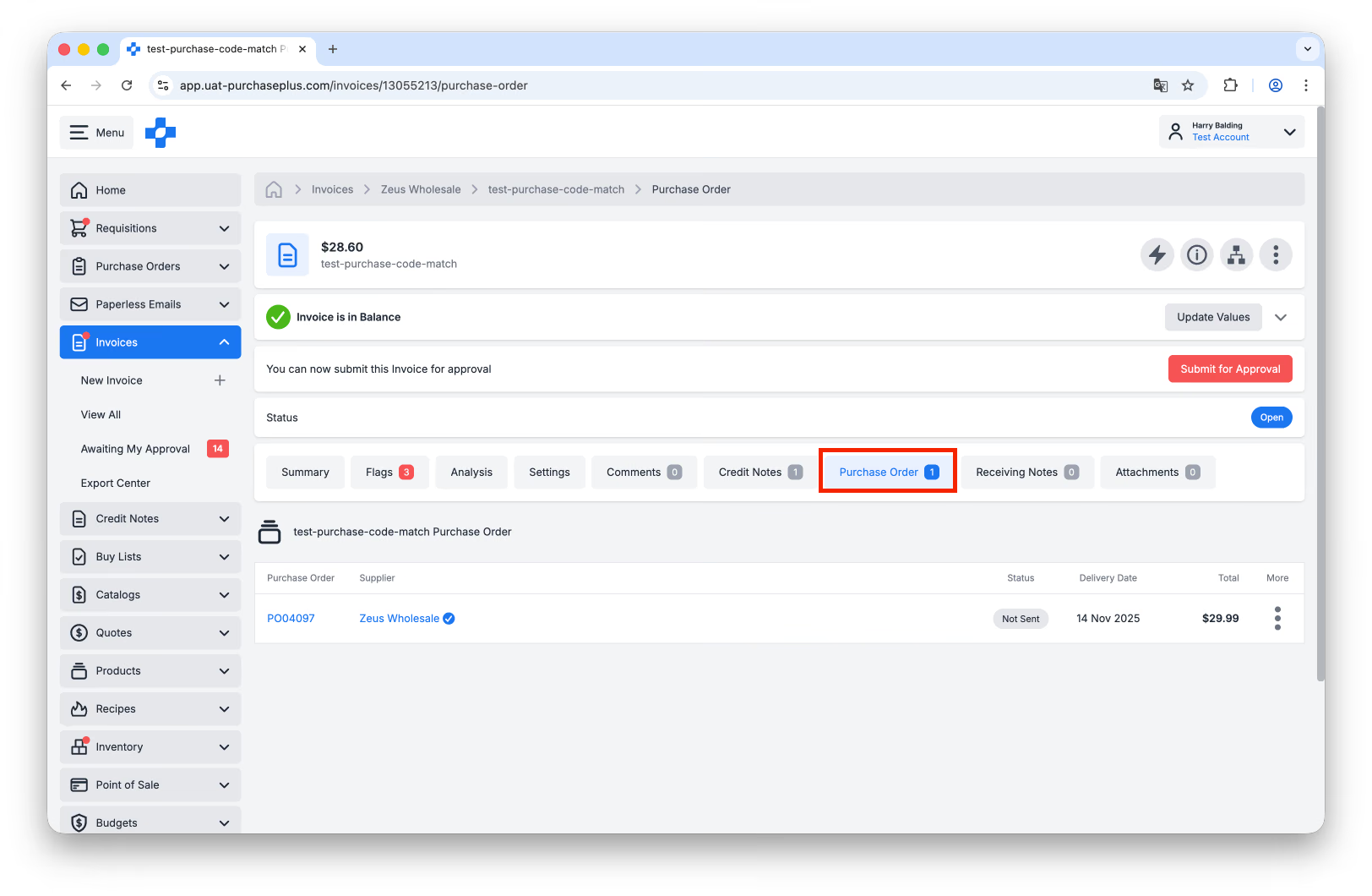
 Step 4: Once all Line Links are removed, click on the [Purchase Order] tab of the Invoice:
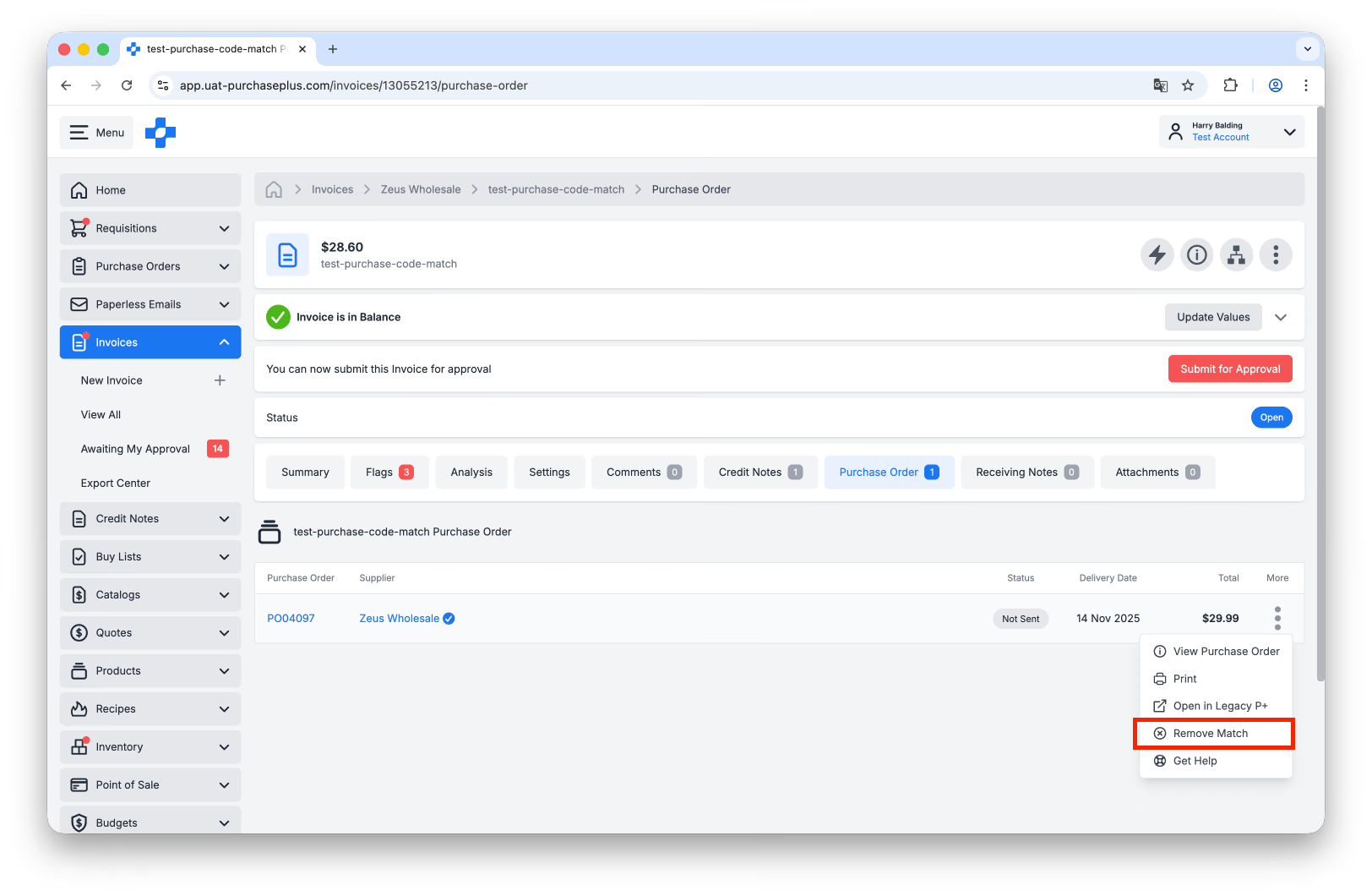
 Step 5: Click the [More] Menu, and then click [Remove Match]. If the Prerequisites are not met, this action will be unsuccessful.
 Step 6: Confirm the action by clicking [Remove Match]:
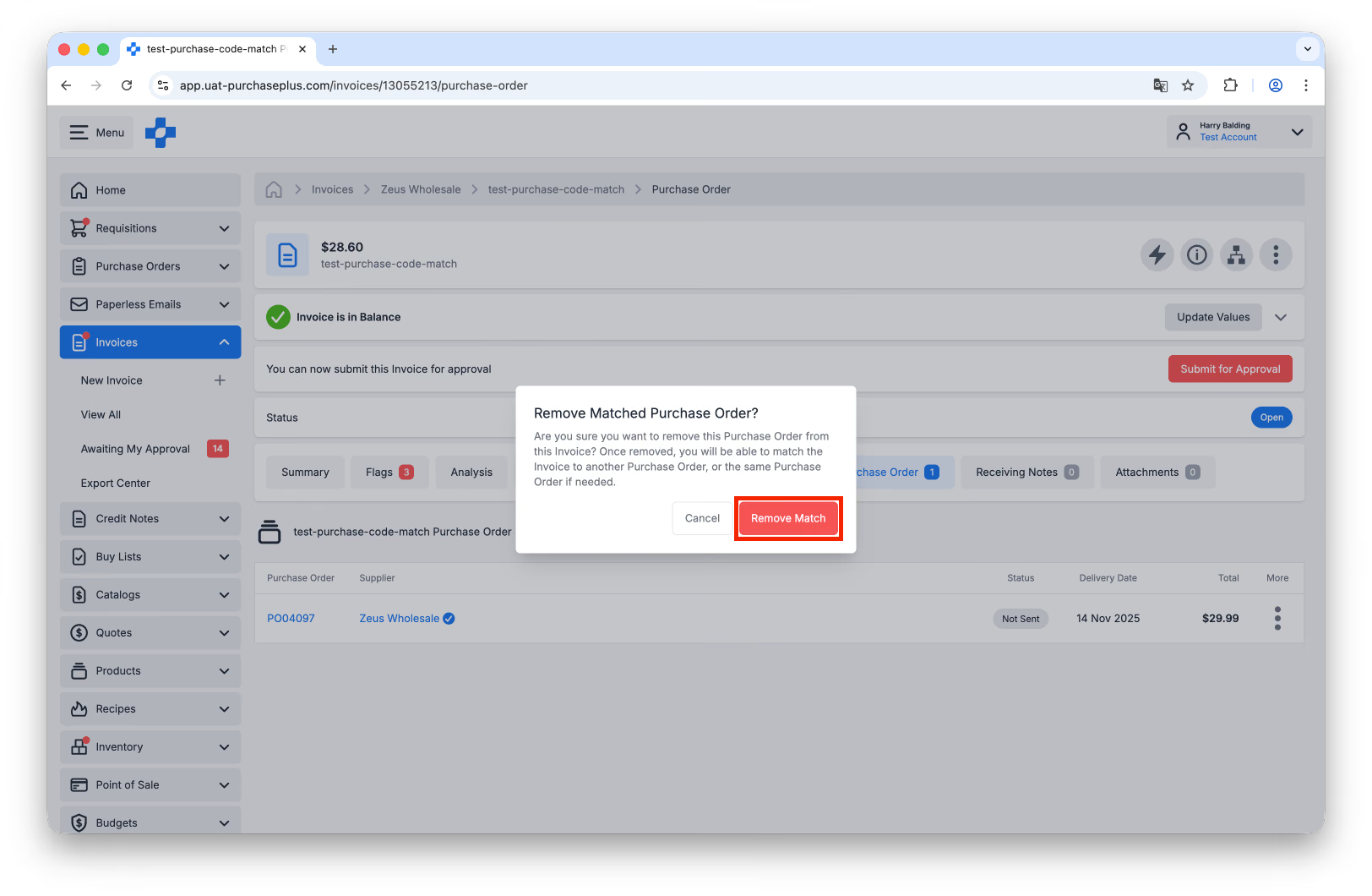
Step 7: The Purchase Order has now been unmatched from the Invoice, and a new Purchase Order can be matched to the Invoice.
Please read this article for information regarding matching a New Purchase Order to an Invoice if required.