

Run a Report
Run a Report
Run a Report
A very large amount of data is generated by (and stored in) your PurchasePlus system. Accessing this data en-masse in the form of downloadable Reports is a great way to better-inform your business decisions.
Reports in PurchasePlus (previously known as 'Snapshots') have their own area in our system: [Reports], accessible by the side navigation bar. Clicking [Reports] → [View All] will reveal the list of Reports available to users at your Organisation:
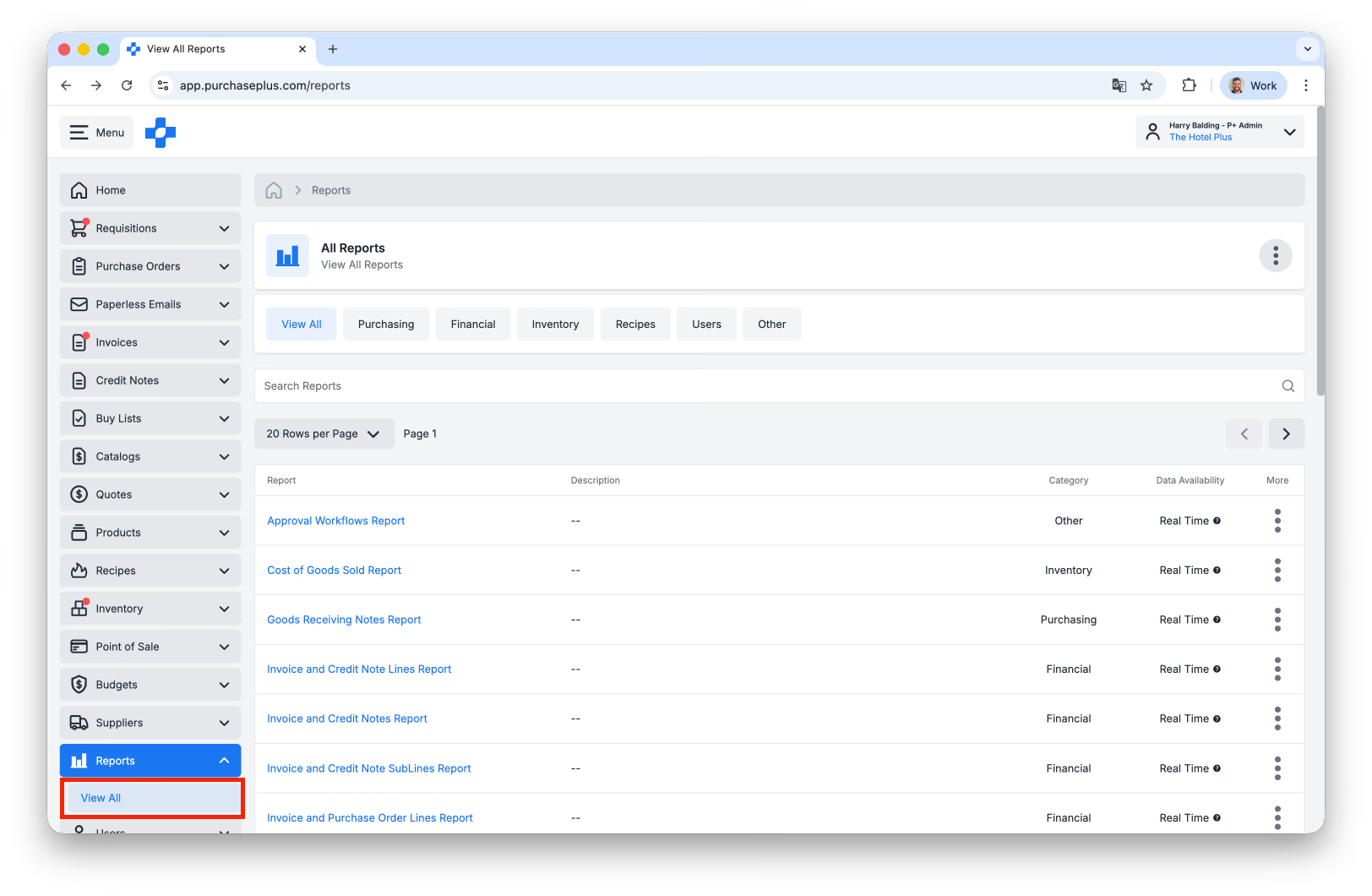
On this page, you will see a number of columns that help understand each Report.
Report Metadata
There are four columns of metadata for each report on this page:
- Report: Also known as the 'Name' or 'Type' of Report. Click on the data in this column when you want to review past executions of this Report, or to Run a new iteration of the Report.
- Description: Allows users to view the Description of each Report and decide if it meets their needs.
- Category: You can filter the list of Reports by Category using the tabs along the top of the page. Please note that the tabs displayed will depend on which modules are enabled for your Organisation.
- Data Availability: Data can be Real Time (i.e. snapshotted immediately at the time of Report Execution), or Delayed, meaning that the Report Data may be up to 24 hours old.
Run a Report
1. Click [Reports] → [View All] from the side navigation bar.
2. Select the [Report] you would like to run.
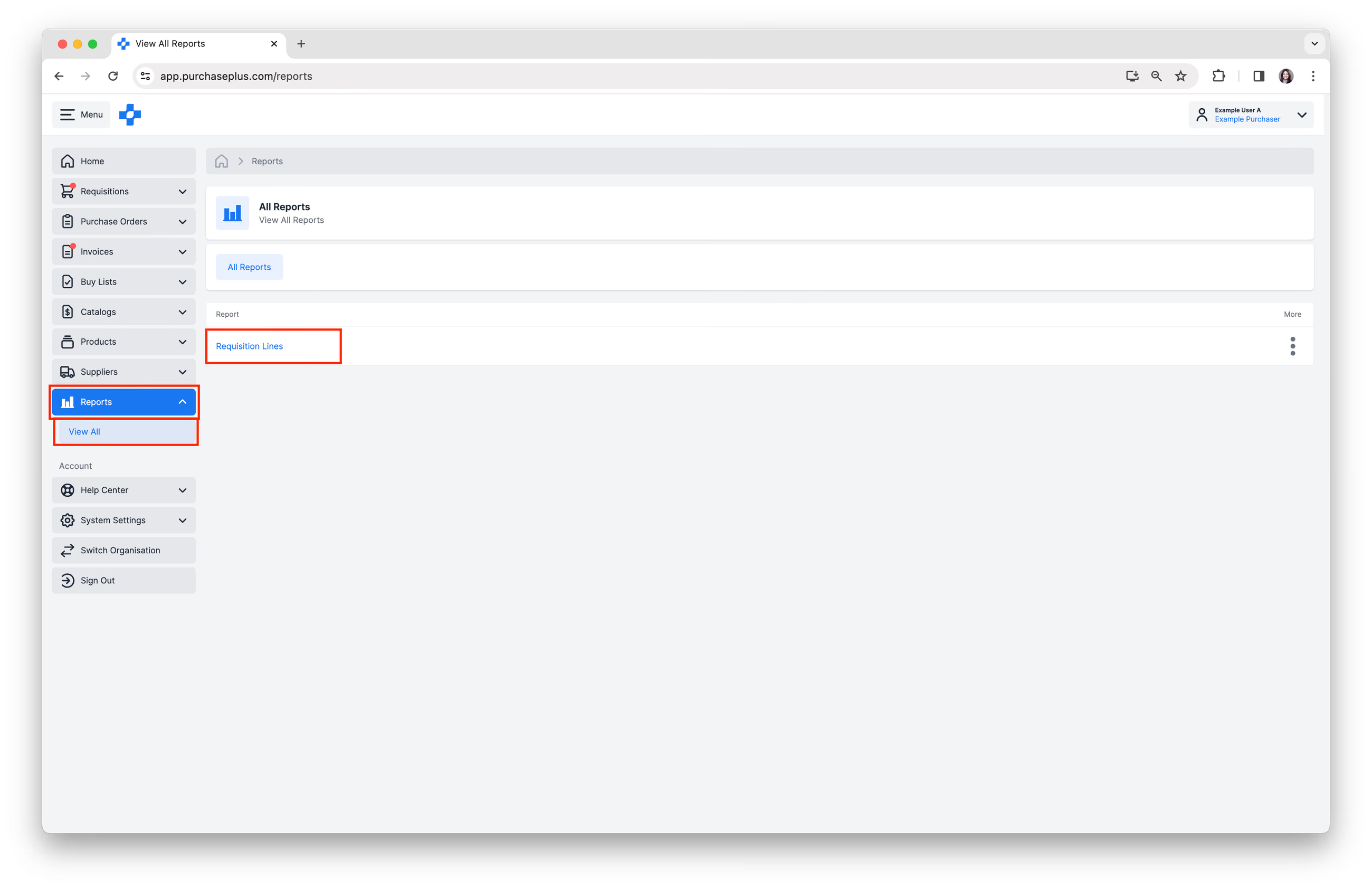
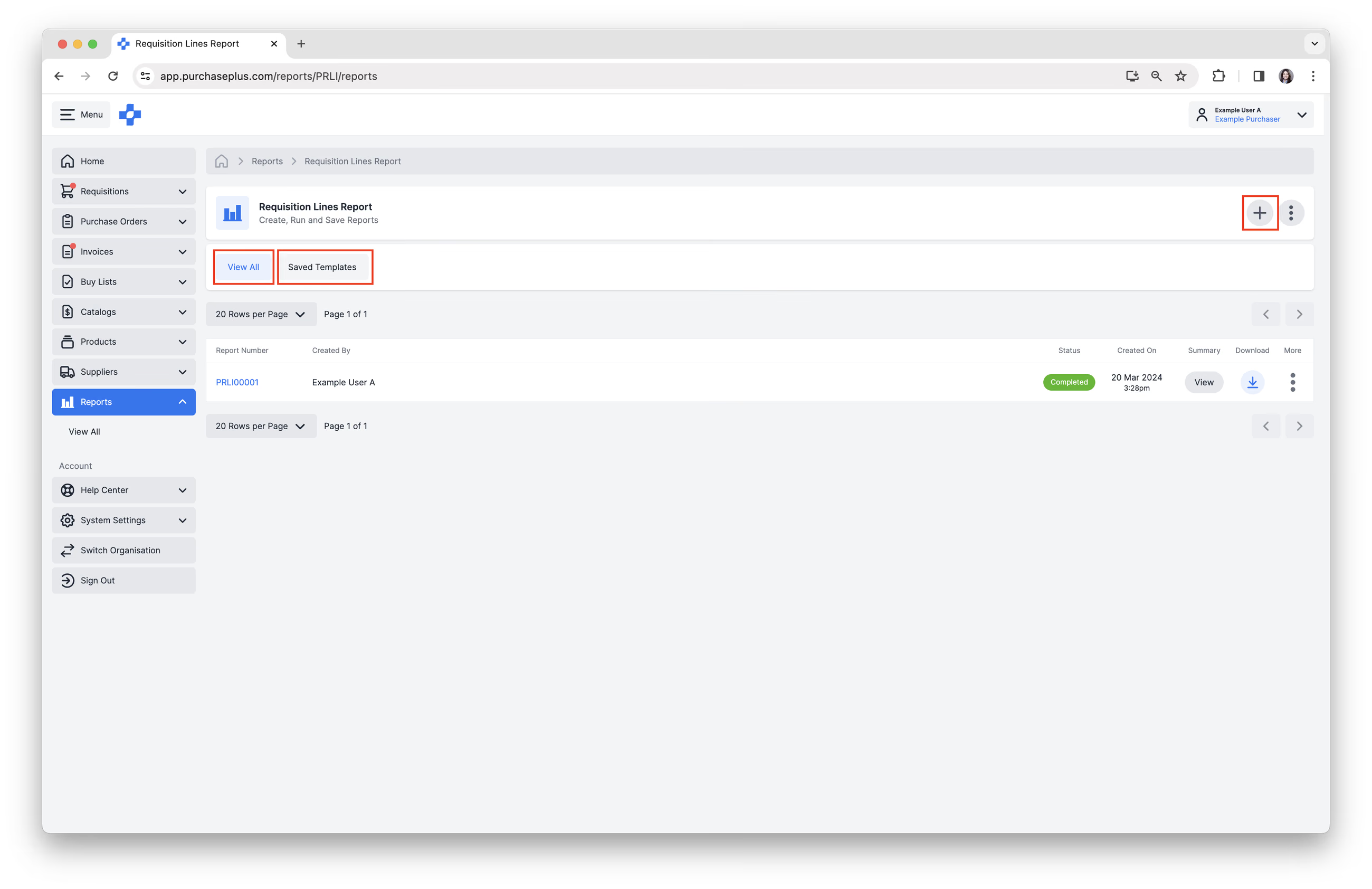
3. You can view previous iterations of the Report, as well as it's status, generation time and date, the User that generated it, and a Download Link.
4. Click [Create a New Report] located in the top right corner. You may also choose to Create a Report from a [Saved Template], if one exists (see Steps 5a-f for more information).
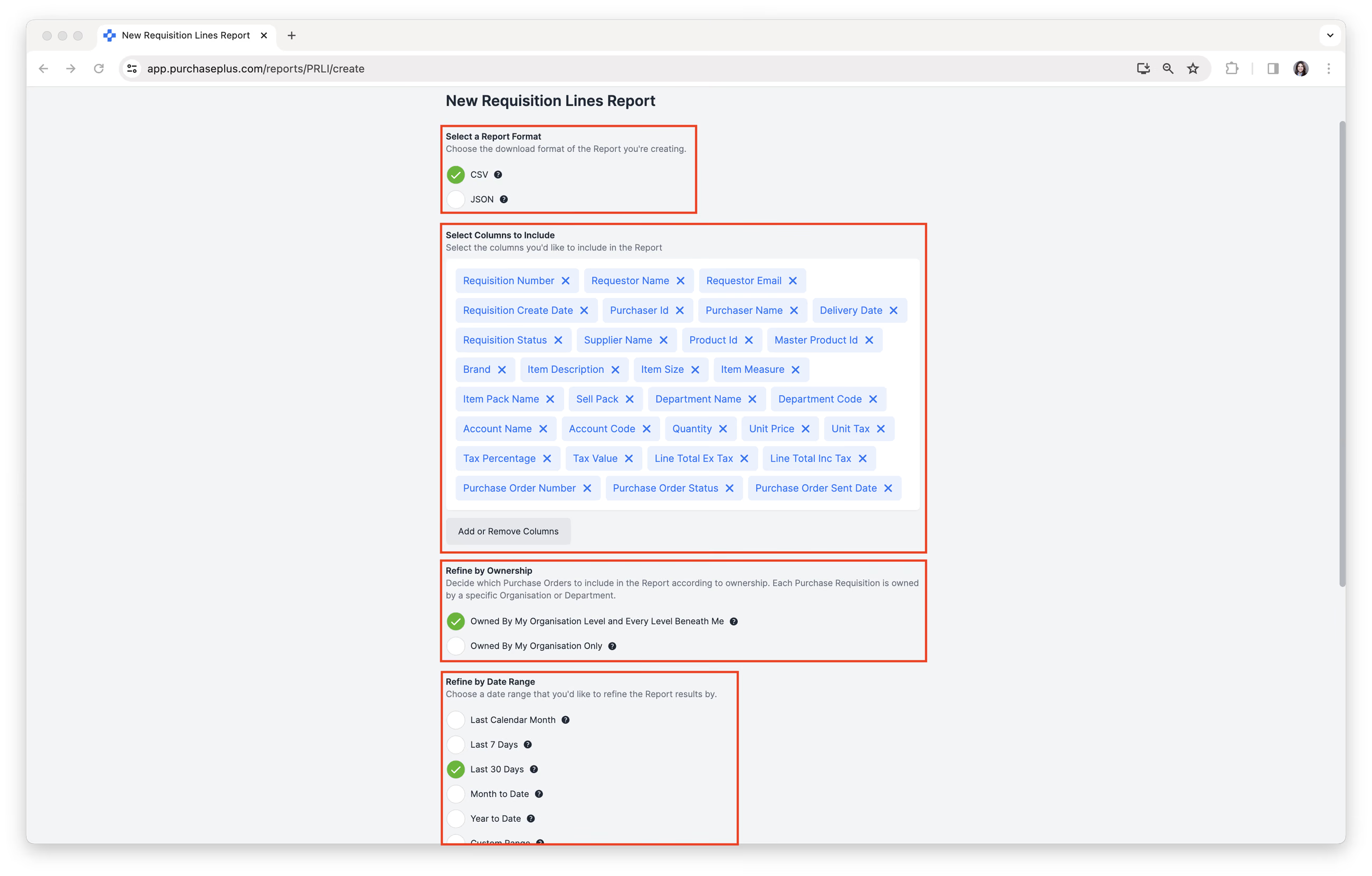
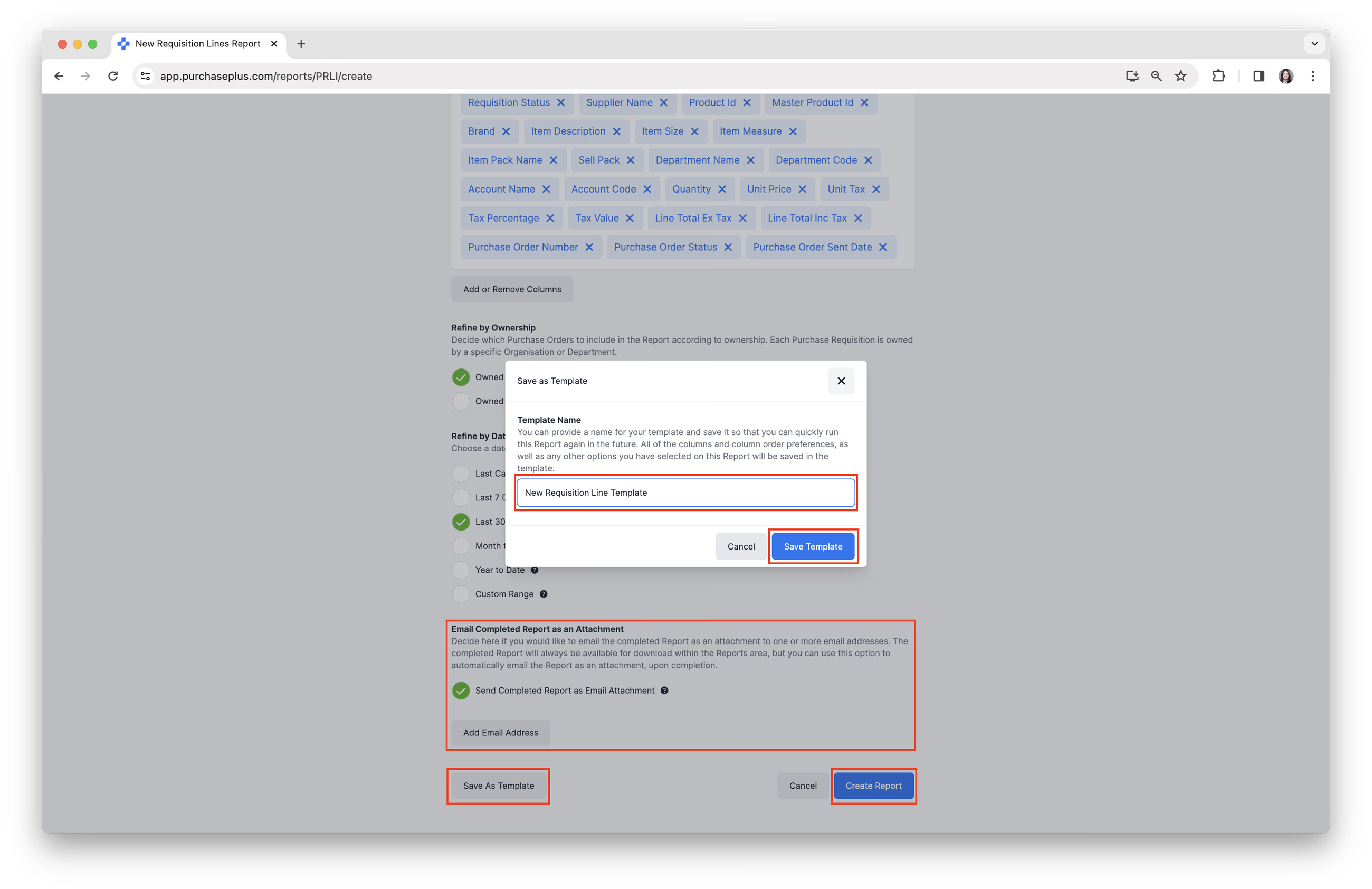
5. Complete the New Report form that specifies the information you would like included in the Report. Every report will have different options to select. For example, the Requisition Lines Report Form includes the following options:
- Select a Report Format.
- Select Columns to Include. You can [Add or Remove Columns].
- Refine by Ownership. This option appears only when the report supports Organizational hierarchy and Show Owner Filter is on for that report. It enables a User to run a report based on activity located at their current Organizational level (e.g. 'Sydney Hotel'), or their current Organizational level and all levels below it (e.g. 'Sydney Hotel' + 'Kitchen' + 'Cafe' + 'Bar').
- Refine by Date Range.
- Select [Send Email Completed Report as an Attachment] → [Add Email Address] if desired.
- Choose if you would like to [Save As Template], if you run this report often. Enter a 'Template Name' and click [Save Template].
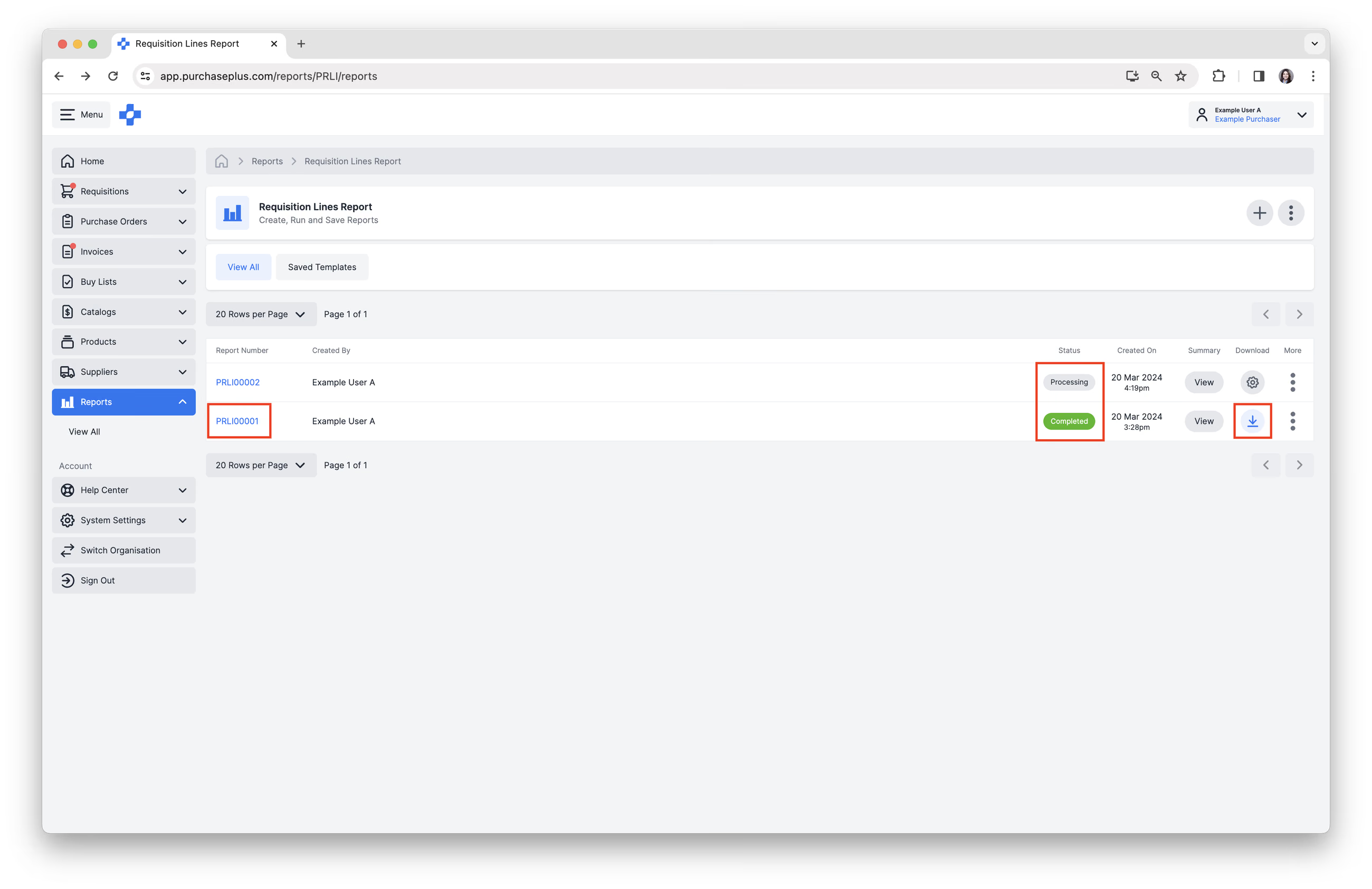
6. Click [Create Report], when you are ready. The Report Status will move from 'Processing' to 'Completed', when the Report is ready to be viewed.
7. Click [Report Number] to view the Report on PurchasePlus.
Download a Report as CSV or PDF
Once the Report has finished processing, you can select [Download] to save the file on your device as CSV.
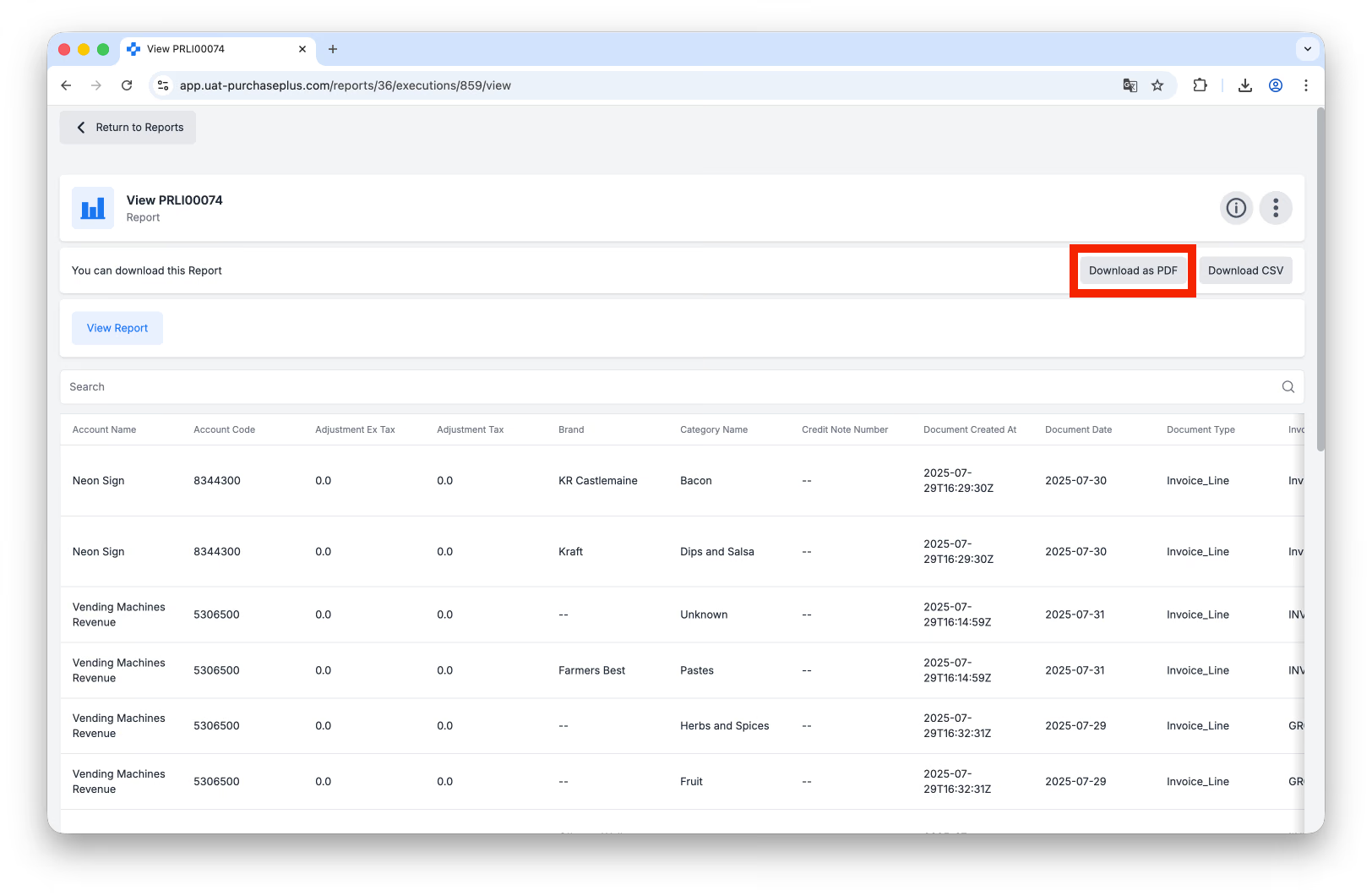
If you prefer, you can download the report as PDF by clicking on the Report Number from the table, and then clicking [Download as PDF]:
Available Standard Reports
- Approval Workflows Report
- Cost of Goods Sold Report
- Invoice and Credit Notes Report
- Invoice and Credit Note Lines Report
- Invoice and Credit Note Sub-Lines Report
- Invoice and Purchase Orders Report (Formerly known as the Accrual Lines Report in Legacy PurchasePlus)
- Invoice and Purchase Order Lines Report
- My Suppliers Report
- Period-End Balances Detail Report
- POS Items Report
- Purchase Orders Report
- Purchase Order Lines Report
- Purchase Requisition Lines Report
- Recipes Report
- Recipe Line Items Report
- Slow Moving Items Report
- Stock Items and Substitutes Report
- Stock Reconciliation Report
- Stock Reconciliation Lines Report
- Stock Take List Report
- Stock Valuation Detail Report
- Stock Valuation Summary Report
- Stock Variation Report
- Transfers Report
- Transfer Lines Report
- Users Report