Overview
Overview
What is a supplier?
‘Suppliers’ are the Organizations from whom you purchase Goods or Services. A Supplier in PurchasePlus is simply an Organization with the Type ‘Supplier’ (as opposed to Organizations of the Type ‘Purchaser’).
 Suppliers and Purchasers are treated very differently in PurchasePlus; for example, this article explains how Purchasers can create, manage and interact with their Suppliers - whereas a Supplier cannot create or manage a Purchaser Organization.
Registered vs. Self Managed Suppliers
Supplier Organizations can be:
- Registered Suppliers, meaning that the Supplier has an account in PurchasePlus, and users at that Organization sign in to our system to maintain their Products, Catalogs and more.
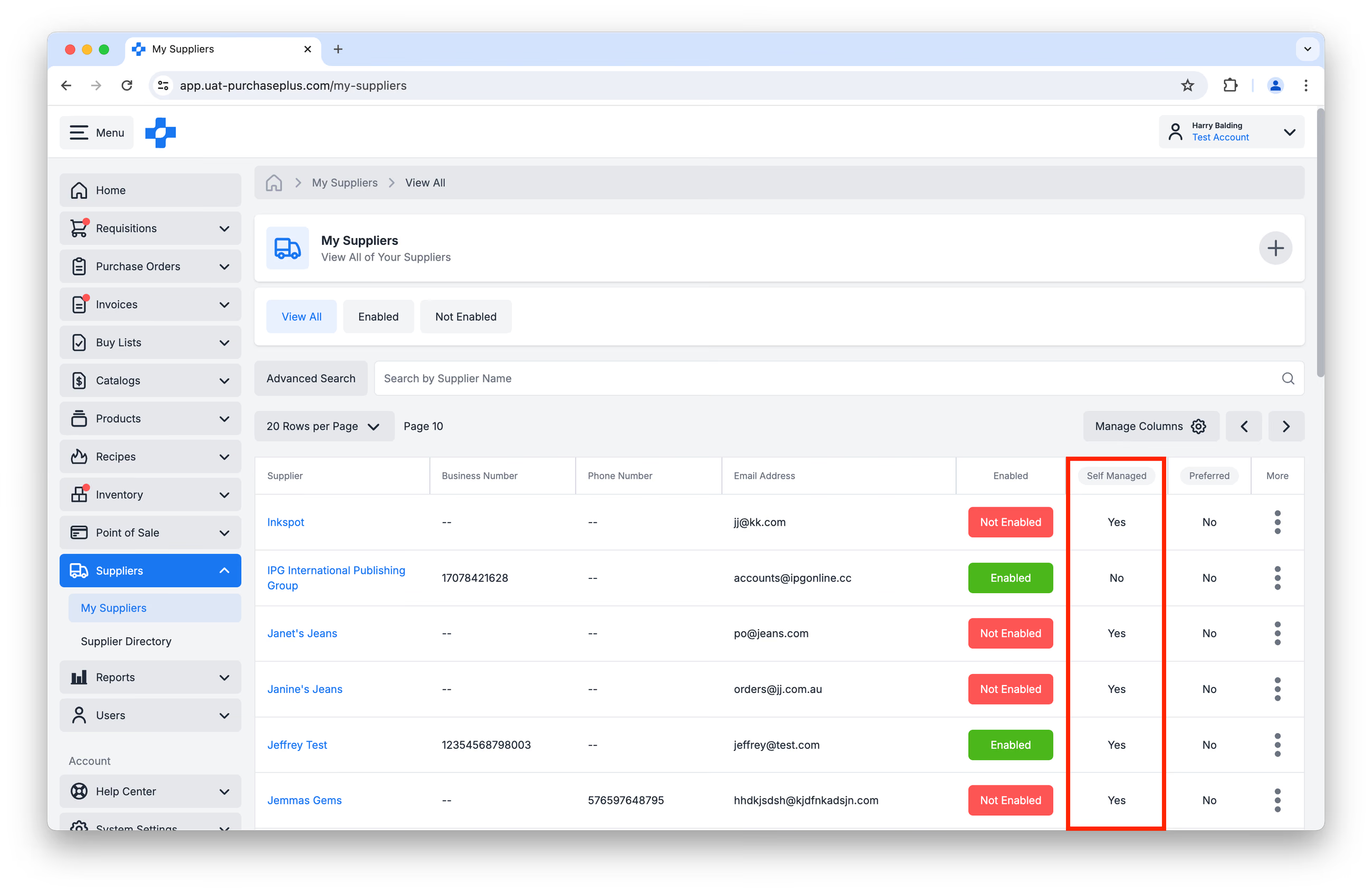
- Self Managed Suppliers, meaning that your Purchasing Organization ‘owns’ the Supplier entity in our system. It has been created by a user at your organization, and all Products and Catalogs assigned to this Supplier are also owned by your Organization. Employees of this Supplier will never know that their Organization exists in PurchasePlus, and they cannot sign in to our system.
Trade Relationships
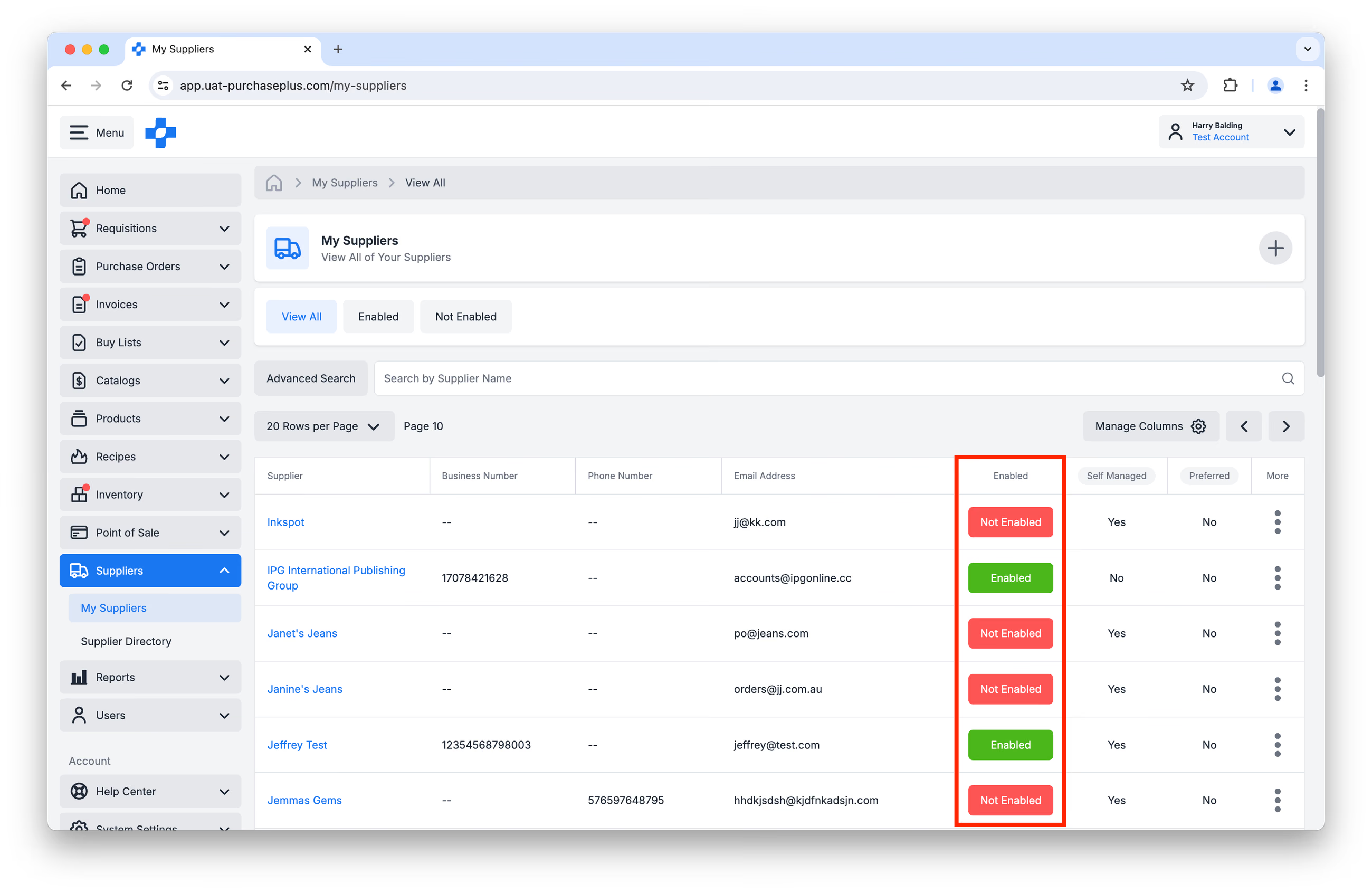
Trade Relationships are very important concepts in PurchasePlus. They are representative of the real-world connection between a Purchaser and a Supplier, and can be marked as Enabled or Disabled by the Purchaser (and to some extent, by Registered Suppliers too) in our system.
Purchasers that initiate a Trade Relationship with any Supplier (either Registered or Self Managed) automatically Enable the Trade Relationship for both parties, and the Purchaser can immediately create a Self Managed Catalog, assign it to the Supplier, and begin adding Products from that Supplier's Catalog(s) to their Requisitions.
However, the Trade Relationship must be Enabled by both the Purchaser and the Registered Supplier for that Registered Supplier to be able to assign a Catalog to the Trade Relationship (thus making the Catalog’s Products available to the Purchaser in their Requisitions).
Managing Trade Relationships
Purchasers can initiate (thereby 'enabling') a Trade Relationship with a Supplier by:
- ‘Connecting’ with a Registered Supplier using the [Suppliers] → [Supplier Directory], or
- Creating a Self Managed Supplier using the [Suppliers] → [My Suppliers] → [Add a New Self Managed Supplier] button.
Purchasers can mark a Trade Relationship with a Supplier as Not Enabled by:
- Viewing the table of Suppliers in the [Suppliers] → [My Suppliers] and clicking on the ‘Enabled’ Status to update it to Not Enabled.
- Viewing the Supplier Profile and clicking on the ‘Enabled’ Status to update it to Not Enabled.
Advanced: Supplier Numbers and Trade Relationships
When you add a totally-new Supplier to your AP System inside PurchasePlus, you assign it a default Supplier Number. This number is used to match the Supplier to the corresponding field in your Accounts Payable system when Invoices and Credit Notes are exported. This may be done in conjunction with our team upon initial account provisioning.
Once a Supplier has been added, you can update the Supplier Number in the My Suppliers area. However, this change only applies to the Trade Relationship between the Organisation that you are signed-into currently and the Supplier; it will not affect the Supplier Number used in any other Trade Relationships (i.e. with other Organisations or Departments in your Organisation Hierarchy - each of whom can maintain their own Supplier Number for that Supplier), and nor will it change the default Supplier Number set in your AP System.
Connect a registered supplier
You can browse and search a list of Registered Suppliers using the [Suppliers] → [Supplier Directory] area, and Connect with any Supplier on our network.
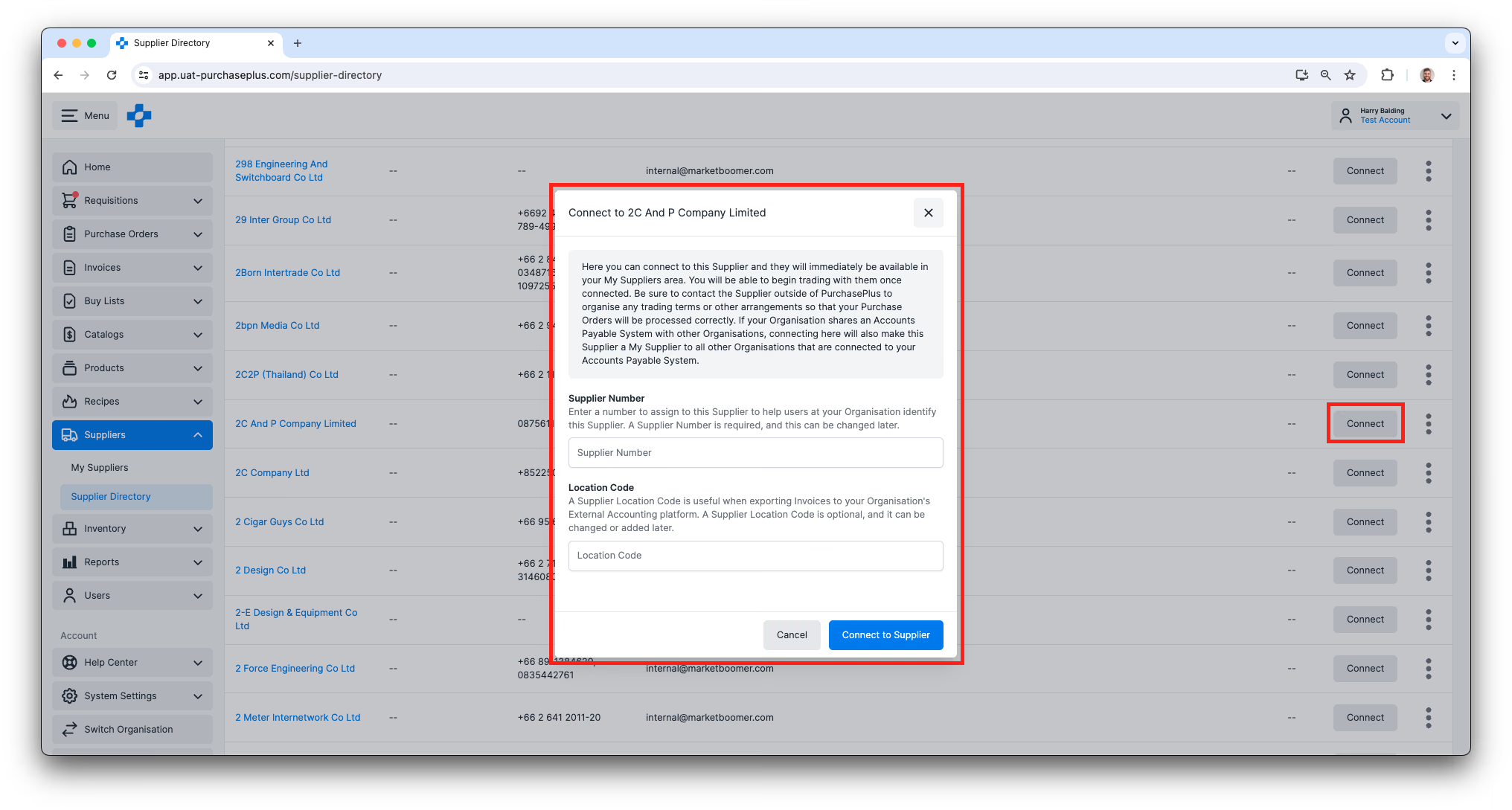
Once the Registered Supplier has also enabled the Trade Relationship, they will be able to curate and assign a Supplier-Owned Catalog to your Organization, and you can start buying their products in your Requisitions.
To learn more, please read our article about Connecting with Registered Suppliers.
Finding Supplier Contact Details
Go to [Suppliers] → [Supplier Directory], search for the Supplier by name and you will find their registered phone number and email address. If you would like an introduction to the Supplier, please contact our Supplier Relations team and we would be delighted to help.
Create a self-managed supplier
Creating the Self Managed Supplier Organization is quite simple, and after it is created, you can add lots of detail to complete the Supplier’s profile and ensure that your Purchase Orders are sent to the right place, and automatically coded to the correct default Department and Account Code at your Organization.
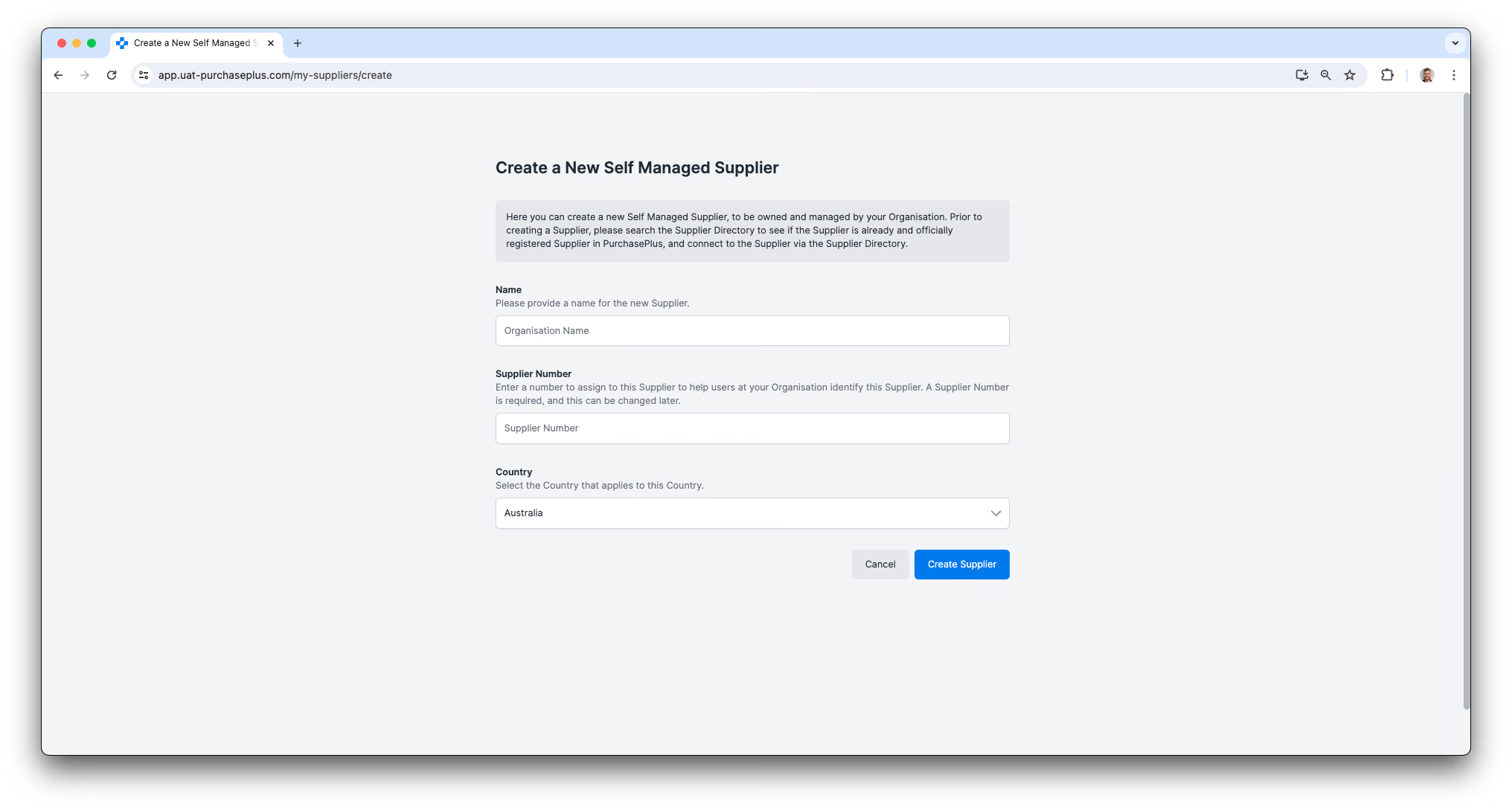
To learn more, please read our article about Creating a Self Managed Supplier.
Manage suppliers
Purchaser Users can view the Suppliers Organizations with whom they have an Enabled Trade Relationship in the [Suppliers] → [My Suppliers] Side Navigation menu.
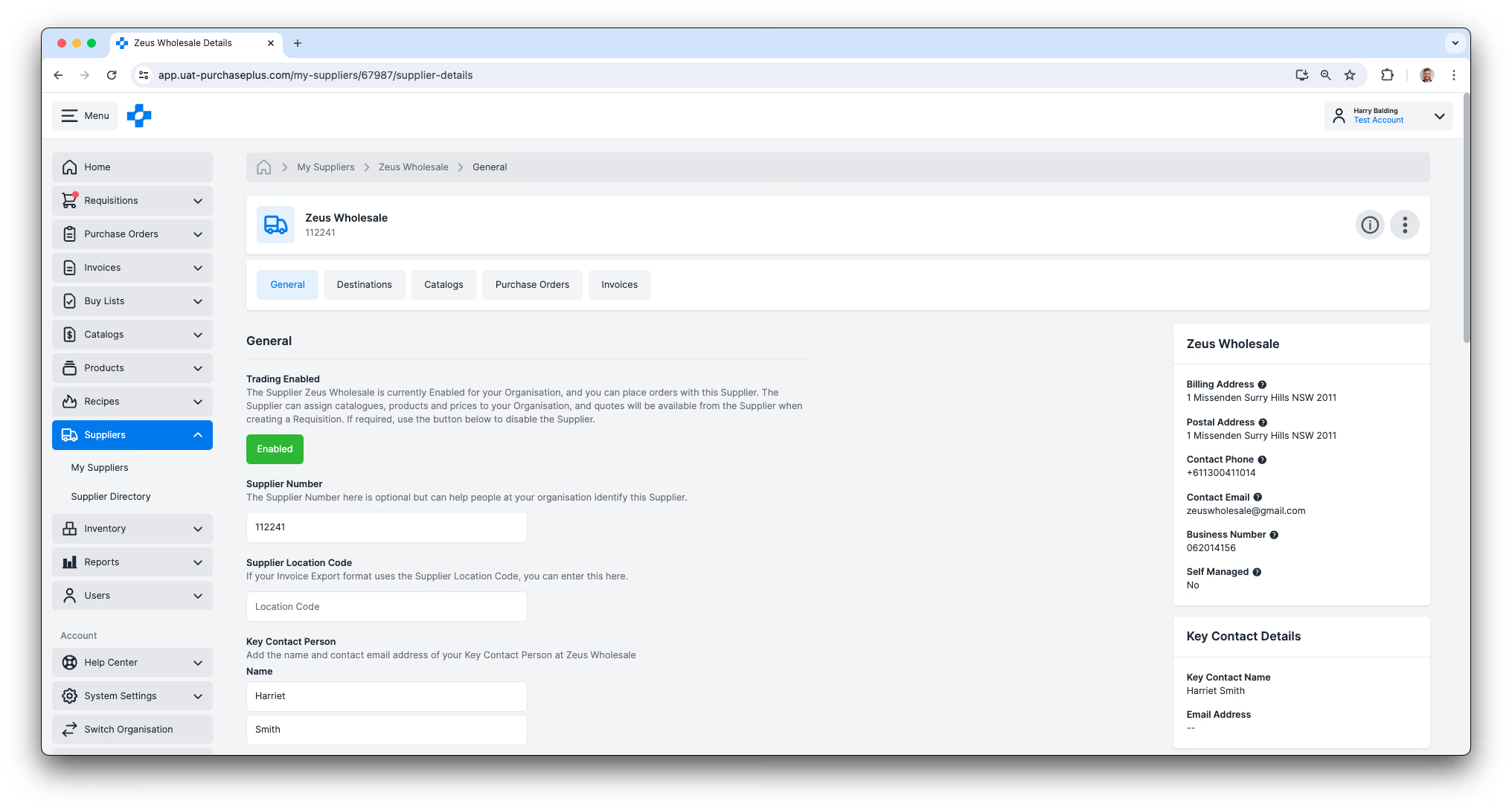
Clicking a Supplier name will display the Supplier’s profile information, and users with the ‘Manage Suppliers’ Permission can update the profile information of any Self Managed Supplier.
The Supplier Profile (as viewed through the [My Suppliers] → [Supplier Name] lens) will also allow users to view:
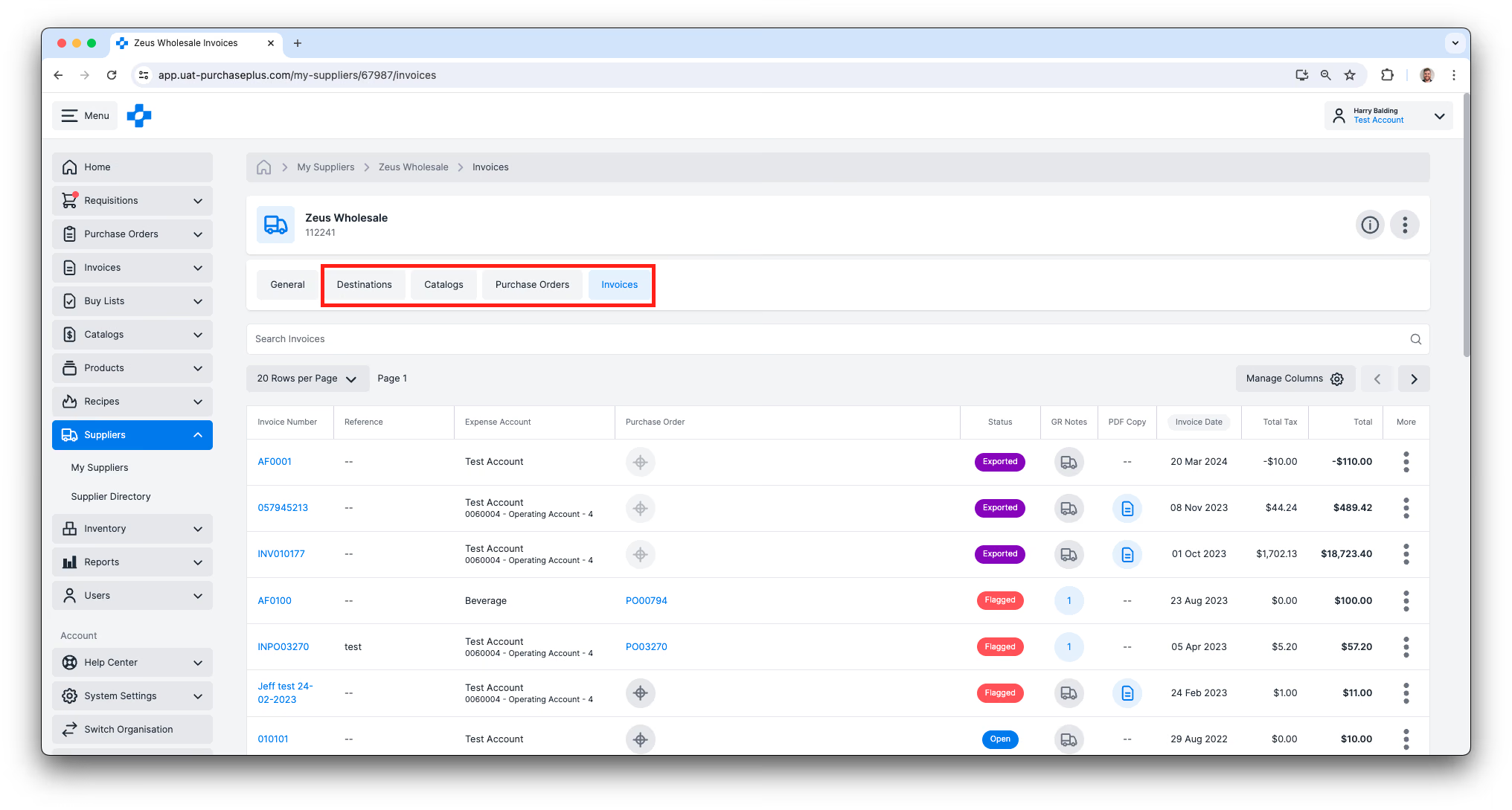
- Destinations that have been set up for this Supplier. If the Supplier is a Self-Managed Supplier owned by your Organization, you can create as many Destinations as needed, but only one can be set as the Default Destination. The Default Destination determines where a Purchase Order will be sent when the Requisition from which it is generated is configured to automatically send the Purchase Order upon approval.
- Catalogs that are available to your Organization for purchasing via this Supplier,
- Purchase Orders sent to this Supplier, as well as any related Receiving Notes,
- Invoices received from this Supplier.
- Credit Notes from this Supplier, on the [Credit Notes] tab. See our 'View and Manage Suppliers' article to learn more.
Preferred Suppliers
If you have the 'Manage Suppliers' permission, you can choose to tag a Supplier as a Preferred Supplier in the Supplier's General Settings tab:
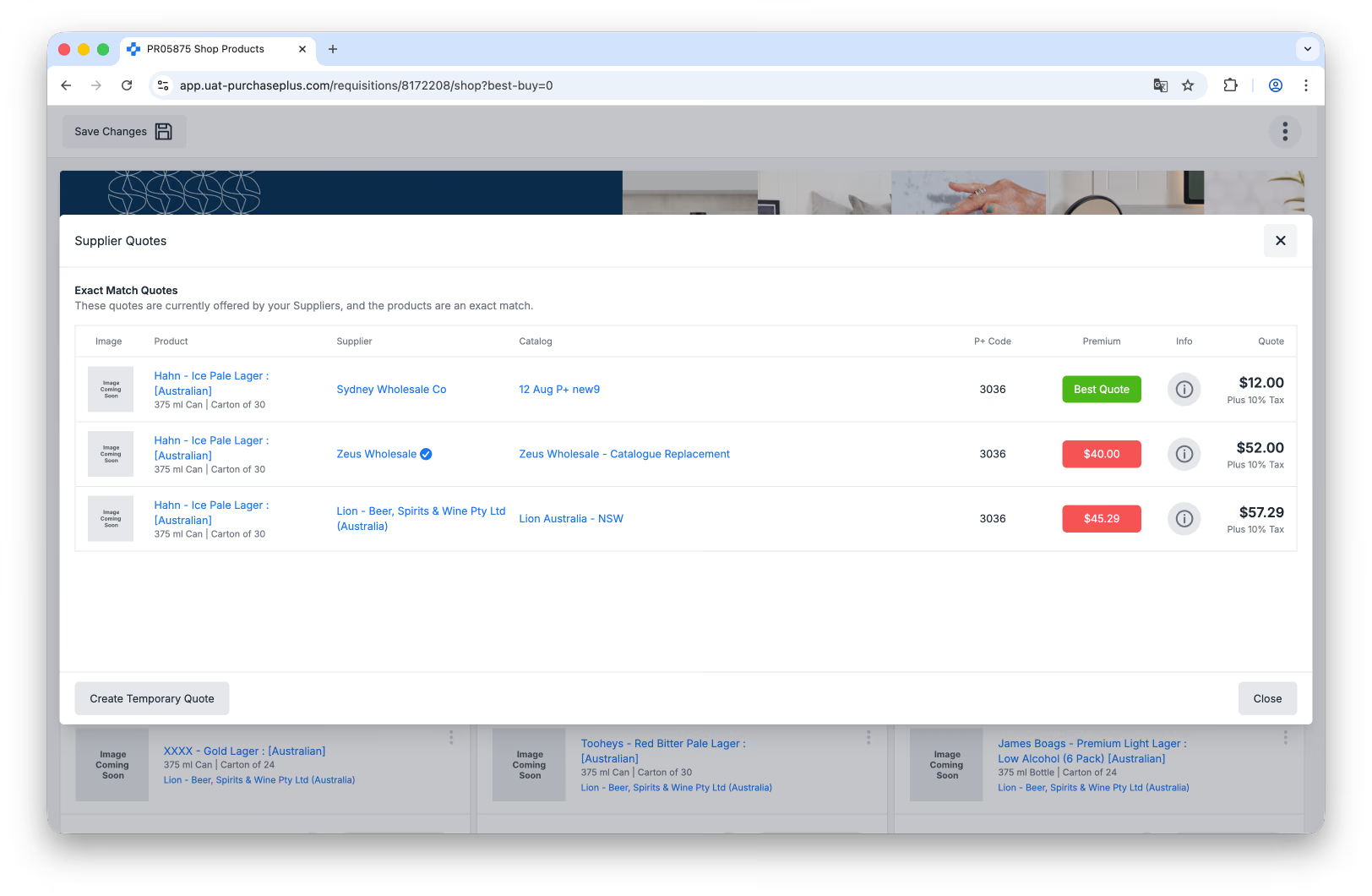
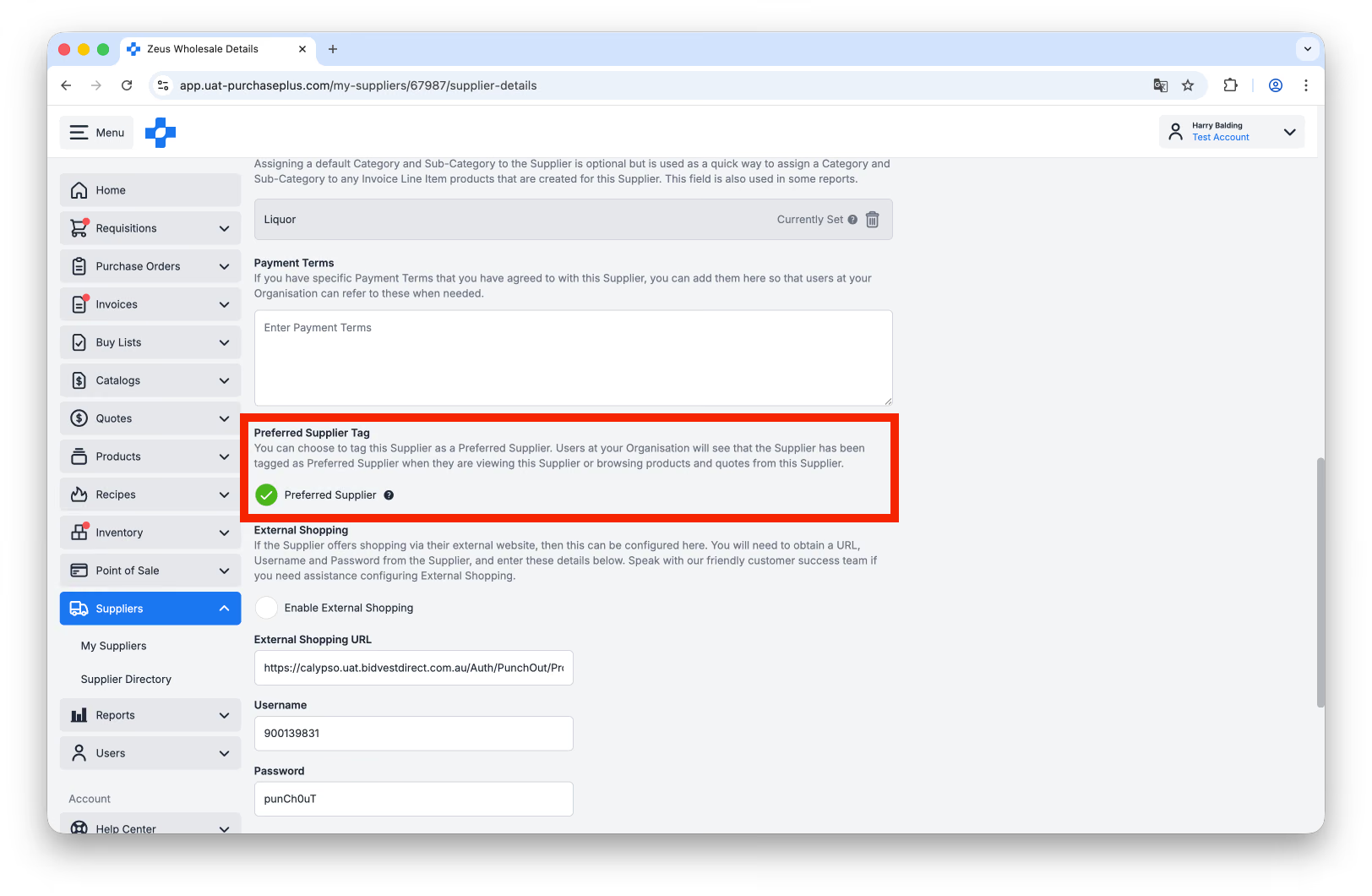 Users at your Organisation will see that the Supplier has been tagged as Preferred Supplier (with a blue check icon) when they are viewing this Supplier, or when they are browsing products and quotes from this Supplier (for example, when they are creating a Requisition):