

Overview
Overview
'Budgets' is an optional Module that allows Organisations to better manage and monitor their spend with their Suppliers according to their Year/Month and Expense Account requirements.
What is a budget?
A 'Budget' in PurchasePlus is a spending limit, set by permitted users, and applied to an area of their business for a specific period of time.
Budgets are made up of:
- A Year and Month that the Budget applies to,
- An Organisation Unit (Department) and Account Code that the Budget applies to, and
- A Budget Amount (exclusive of tax) that applies to the Budget.
When a Requisition is raised by a Purchaser, the 'Budget Amount' is consumed when both:
- the Requisition's Delivery Date falls in the Budget's Year/Month, AND
- the Requisition is expensed to the Budget's Organisational Unit and Account Code.
Budgets in PurchasePlus do not prevent users from raising or submitting Requisitions (even if the Requisition will mean the relevant Budget is exceeded), but all of the Requisition's Approvers are made aware that their Requisition will exceed the Budget before it becomes a Purchase Order.
Viewing Budgets
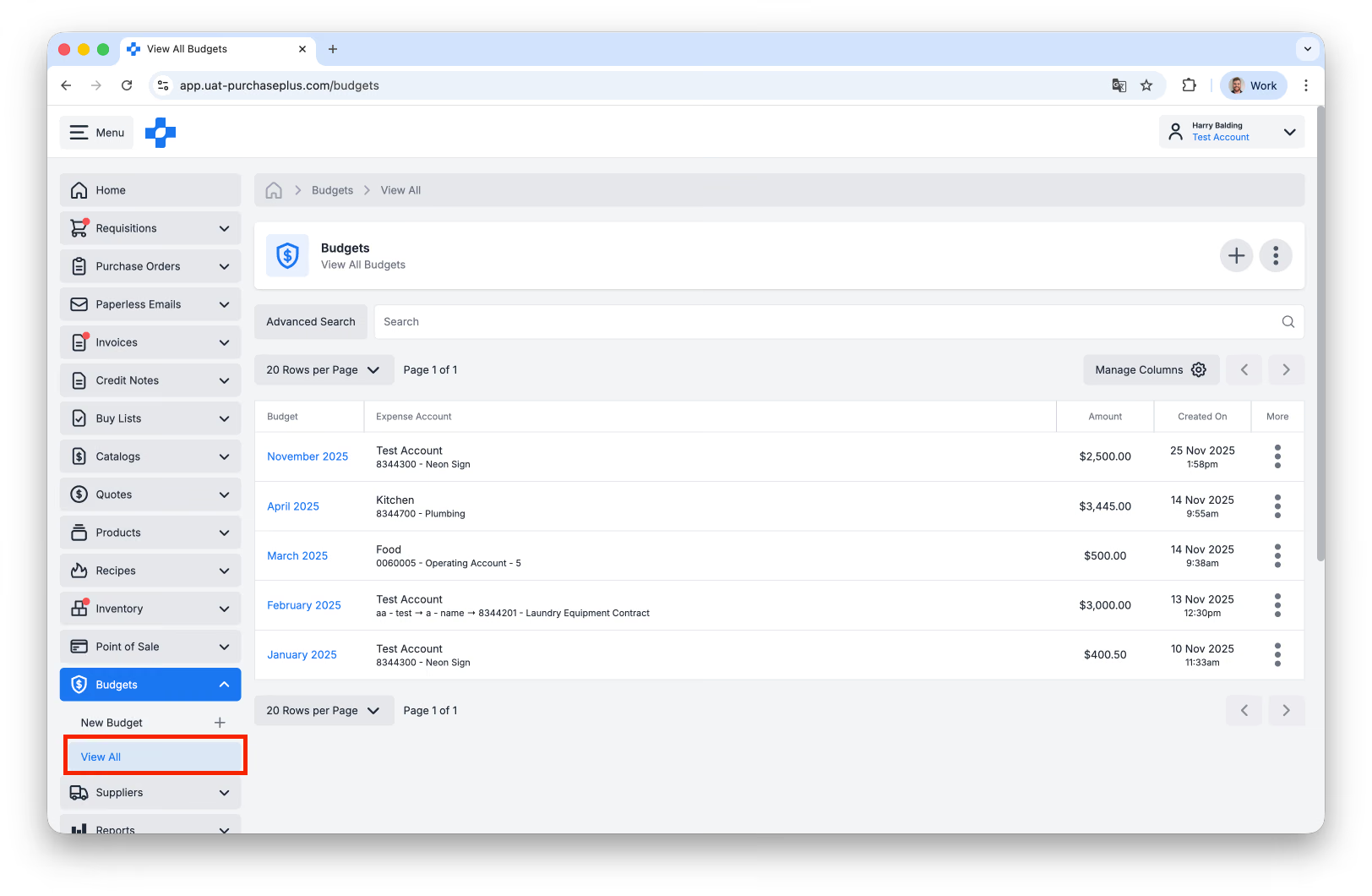
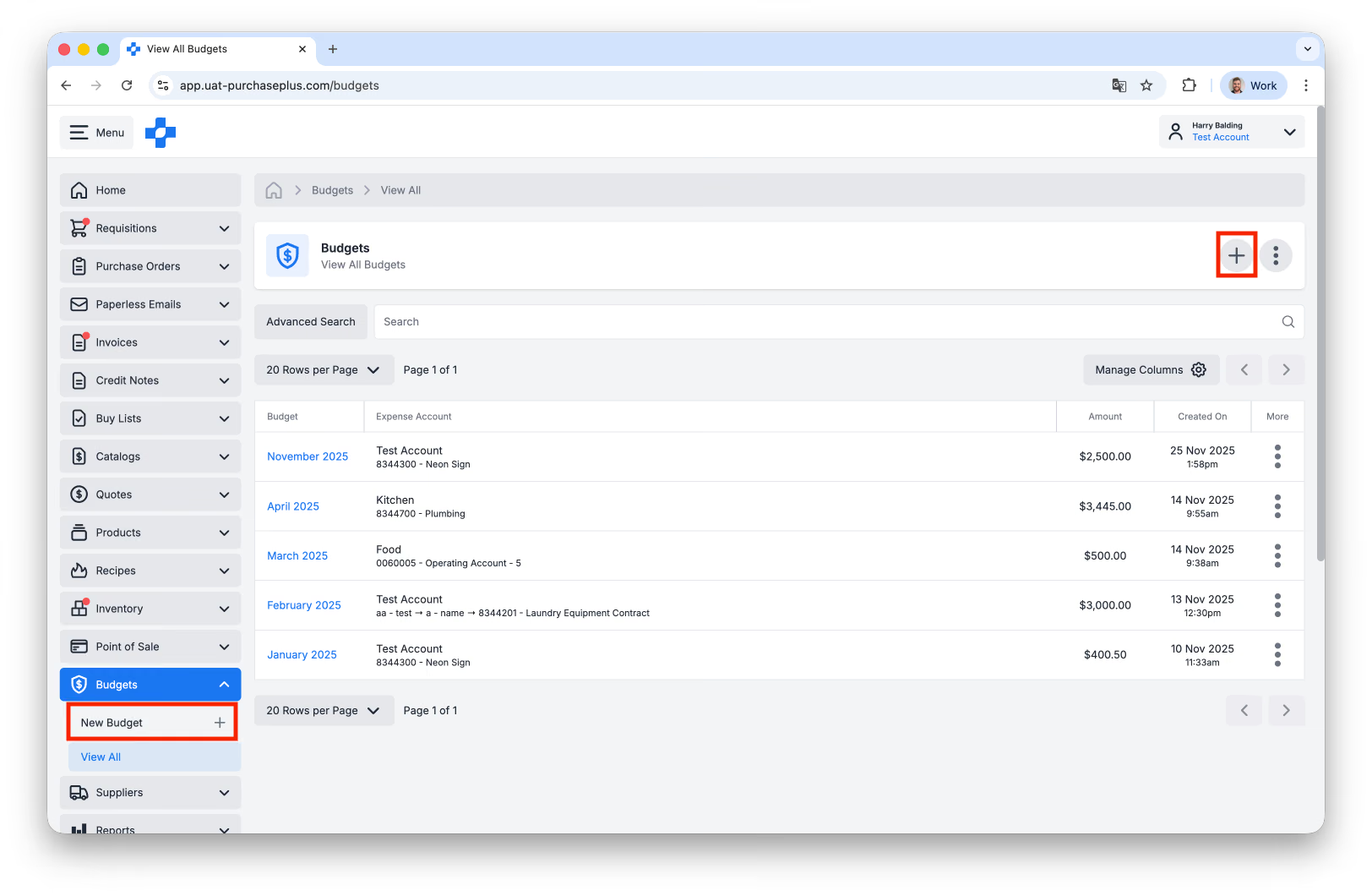
Enabled Organisations can view their Budgets in a table by clicking [Budgets] → [View All] in the side navigation bar:
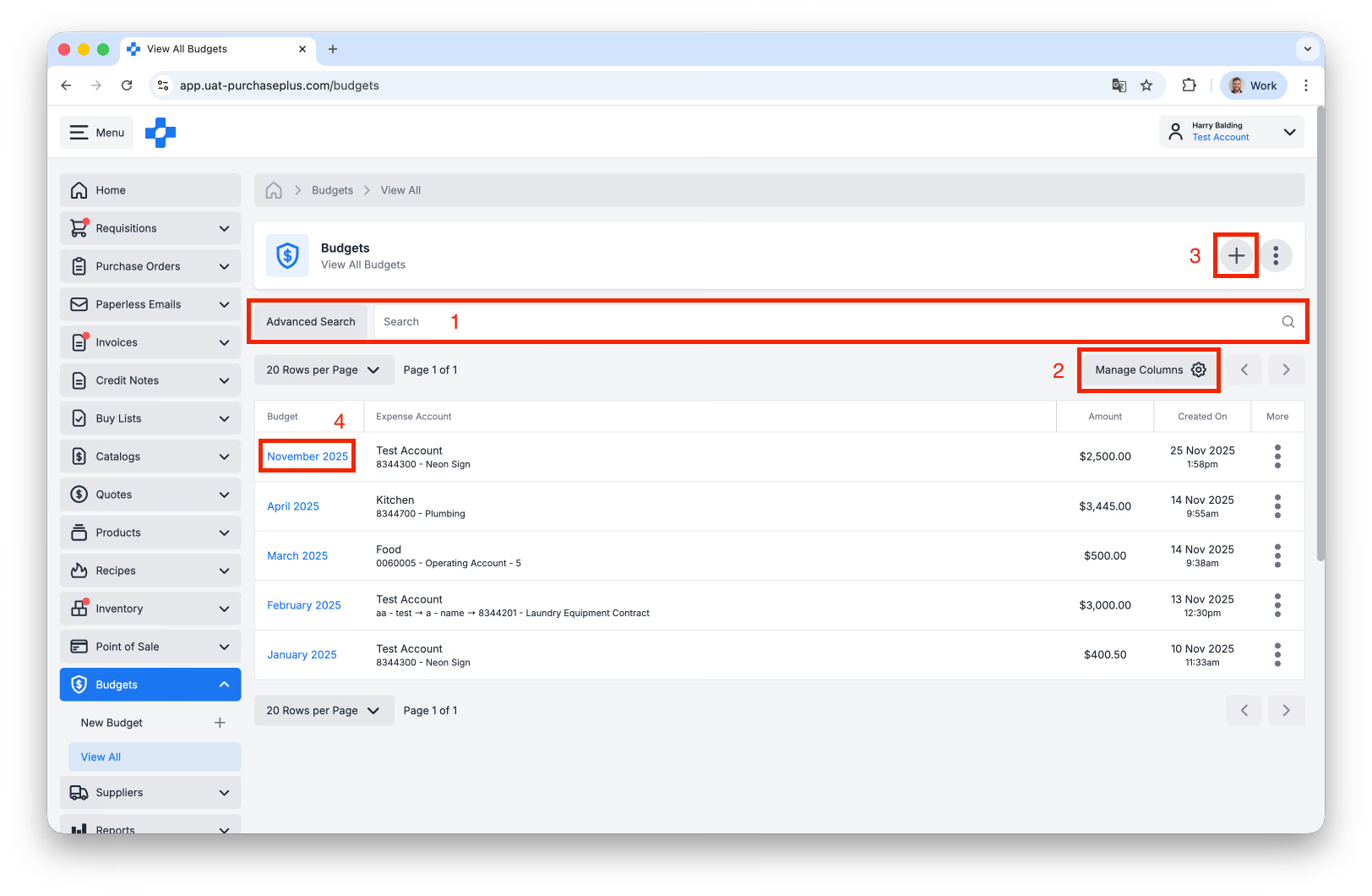
From this view, you can:
- Use the Search and Advanced Search filters to find a specific Budget,
- Edit the columns that appear in the table using the [Manage Columns] feature,
- Create a New Budget (more on this below), and
- Click on a Budget in the table to view it in greater detail.
Viewing a Single Budget
By clicking on a Budget from the table view, you will be presented with two pages that help you understand the Budget in its (real-time) context: the Usage page and the Requisitions page.
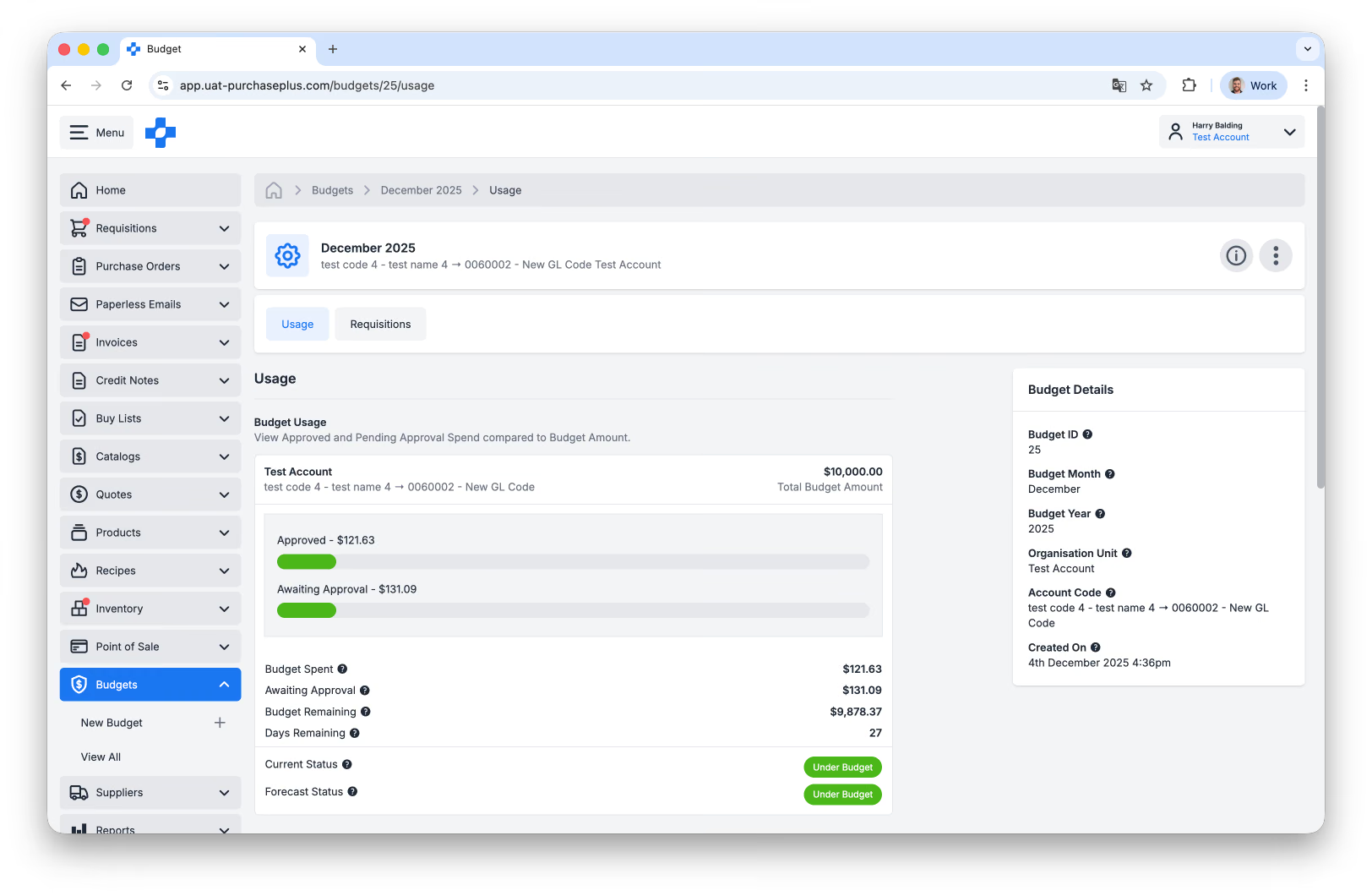
The Usage page visually represents the value of the Approved and Pending Requisitions compared to the relevant budget amount:
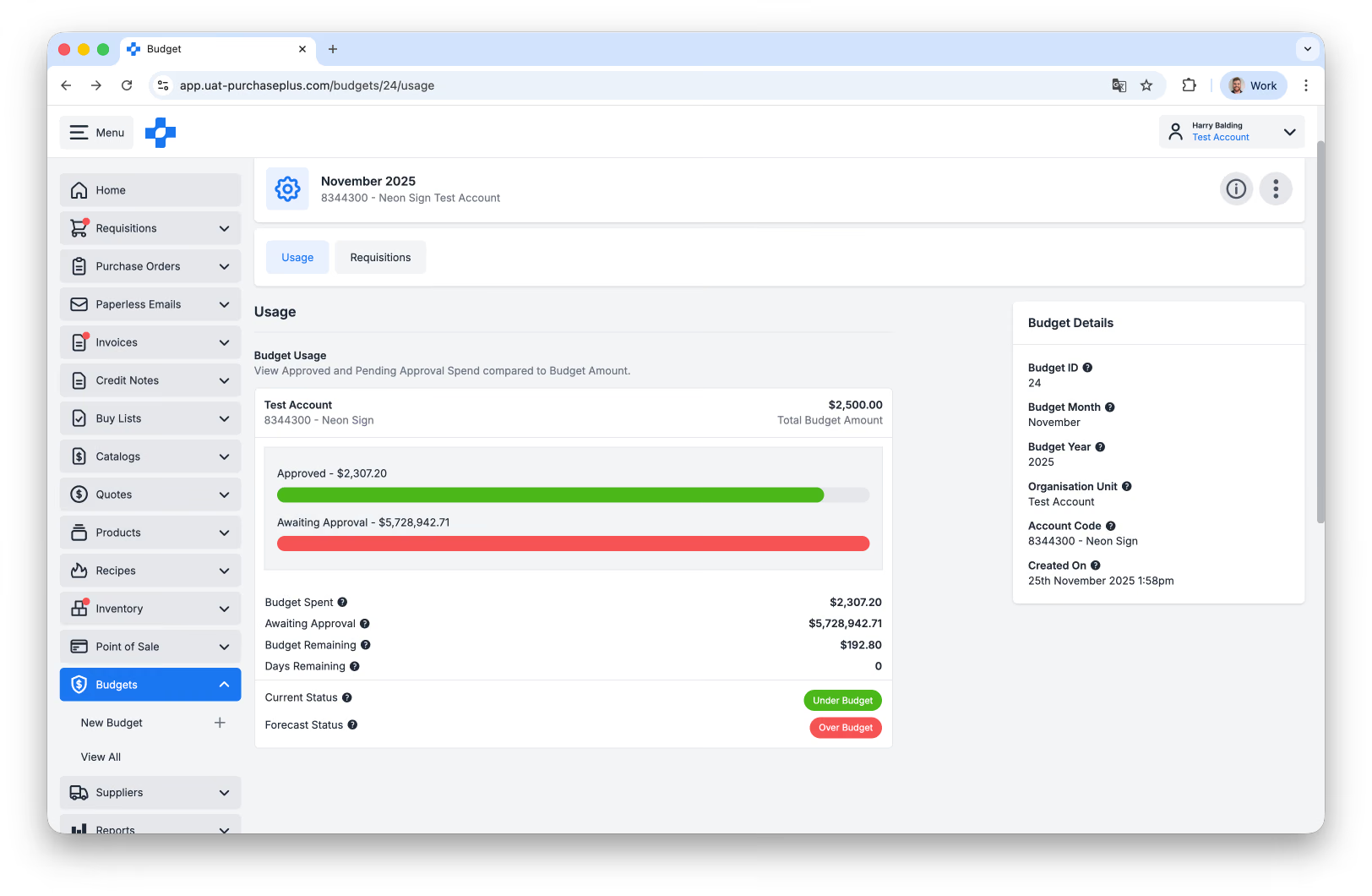
- Approved (or 'Budget') Spend is made up of the total, tax exclusive value of all the Approved and Closed Requisitions with a Delivery Date in the Budget Month and Year AND that were expensed to the Budget's Organisation Unit and Account Code.
- Awaiting Approval is made up of the total, tax exclusive value of all the Awaiting Approval Requisitions with a Delivery Date in the Budget Month and Year AND that were expensed to the Budget's Organisation Unit and Account Code.
Additionally, users can quickly view the Budget Remaining, Days Remaining, Current Status, and Forecast Status for the Budget:
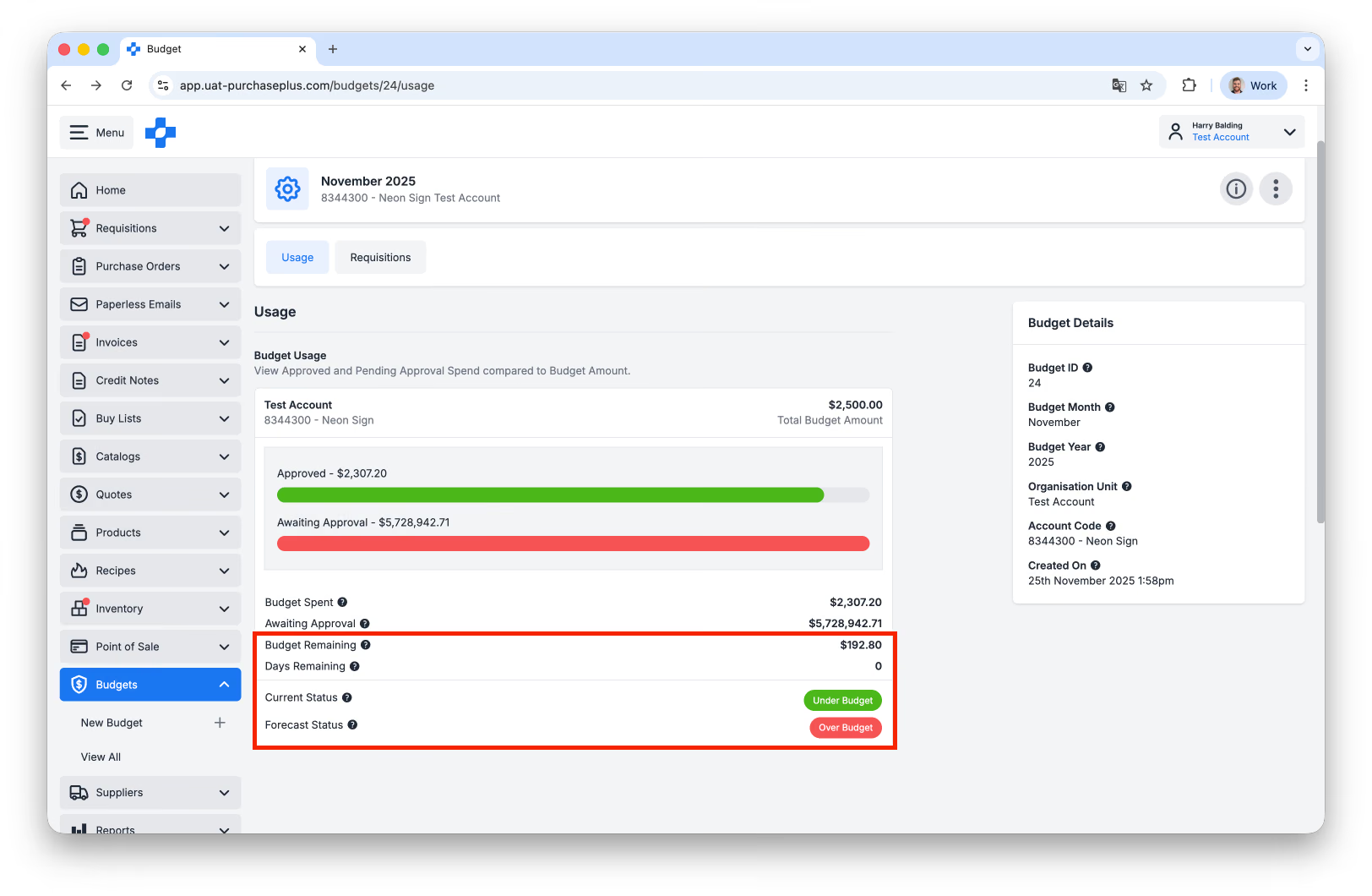
The Forecast Status is a simple calculation that indicates if the Budget Spent plus the Awaiting Approval Requisitions will exceed the Budget Limit.
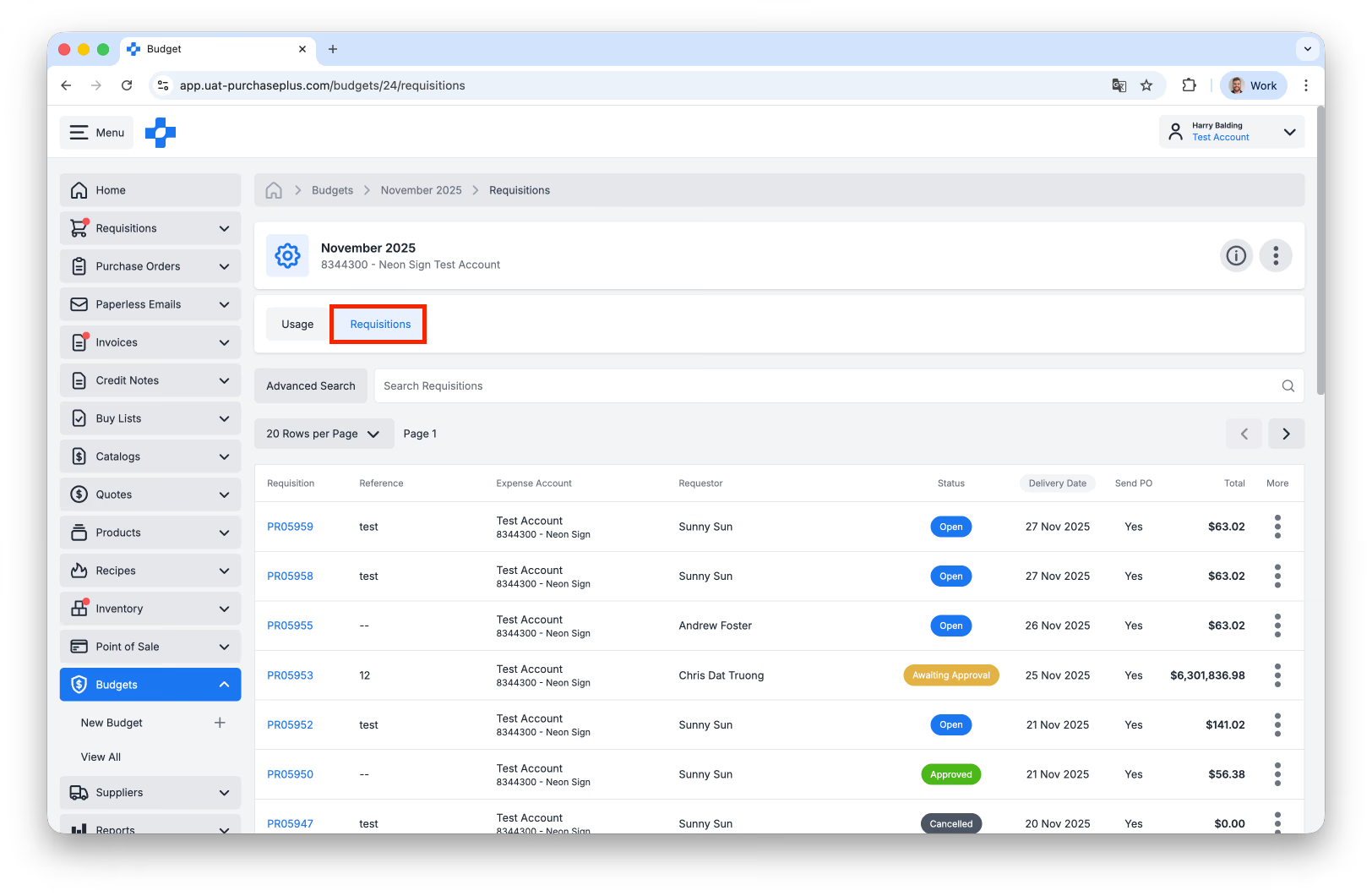
Finally, users can view all of the Requisitions that are consuming the Budget in question by clicking the [Requisitions] tab on the Budget:
Create a Budget
Users with the 'Manage Budgets' permission can create a new Budget by clicking [New Budget] from the side navigation bar, or the header of the [Budgets] → [View All] page:
The user will be taken to a new page where they must supply the following values:
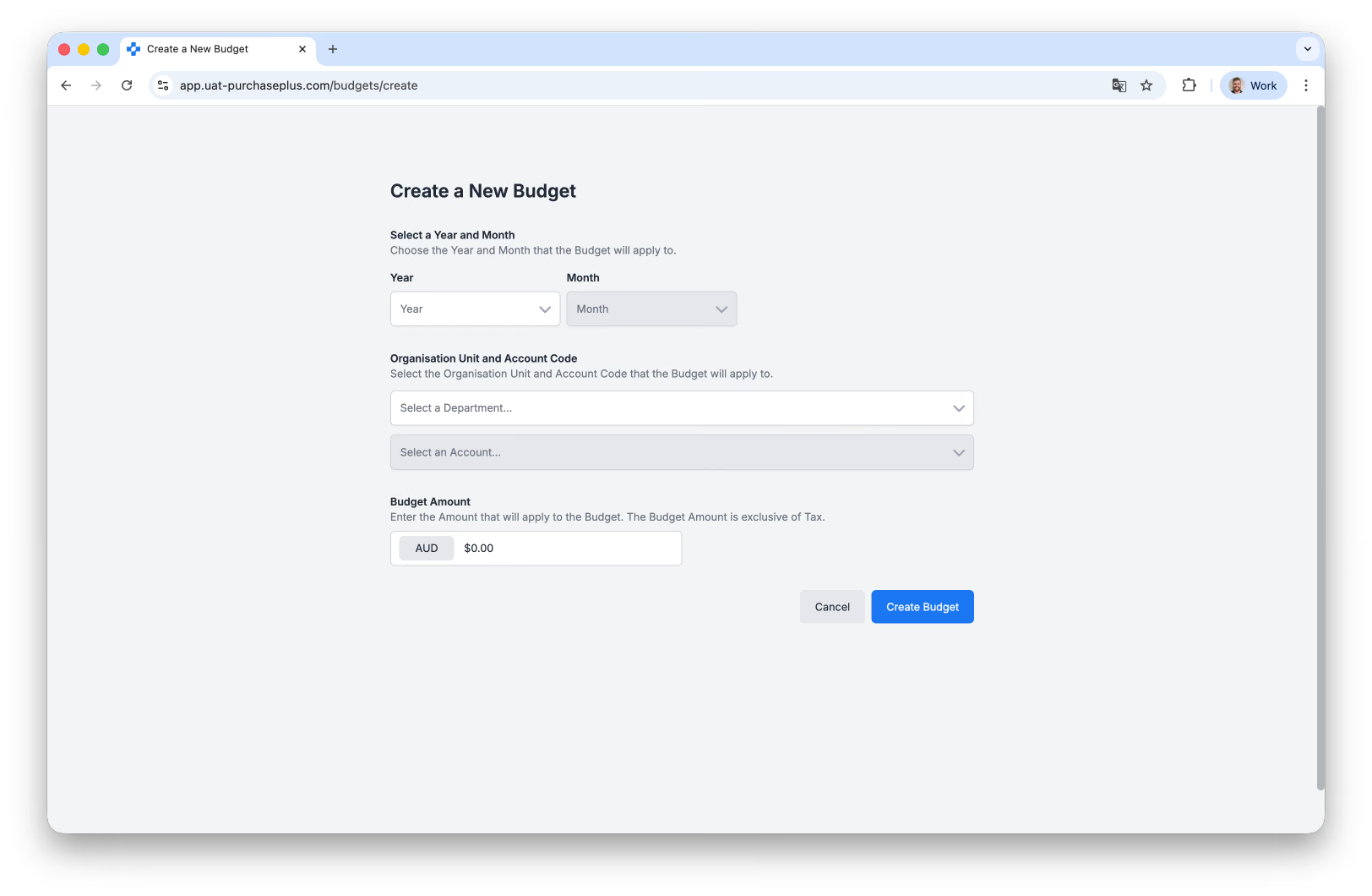
- Year and Month that the Budget will apply to. That is, any Approved Requisition with a Delivery Date that falls in this Year/Month combination will consume this Budget.
- Organisation Unit and Account Code. In addition to the Year/Month combination, an Approved Requisition that is expensed to this Organisation Unit and Account Code combination will consume this Budget.
- Budget Amount (tax exclusive). This is the 'Limit' for the Budget, that when exceeded, is considered 'over budget'.
Once these values have been supplied, click [Create Budget] at the bottom of the page. The Budget will immediately be processed against any Approved (and Awaiting Approval) Requisitions that meet both the Year/Month and the Org Unit/Account Code combinations configured for the Budget.
Budget on a requisition
While Approving
Requisition Approvers can see if a submitted Requisition will exceed its Budget:
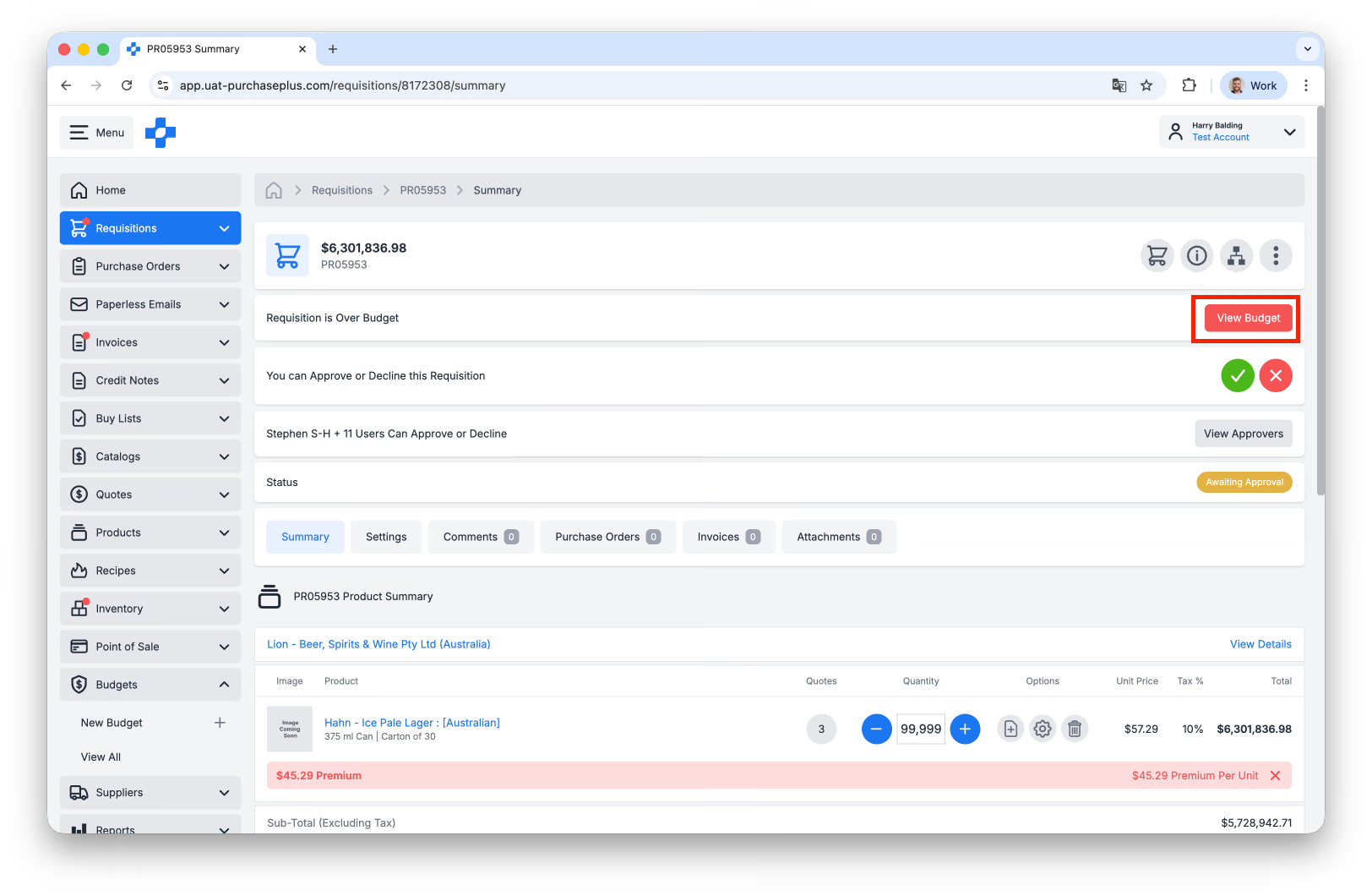
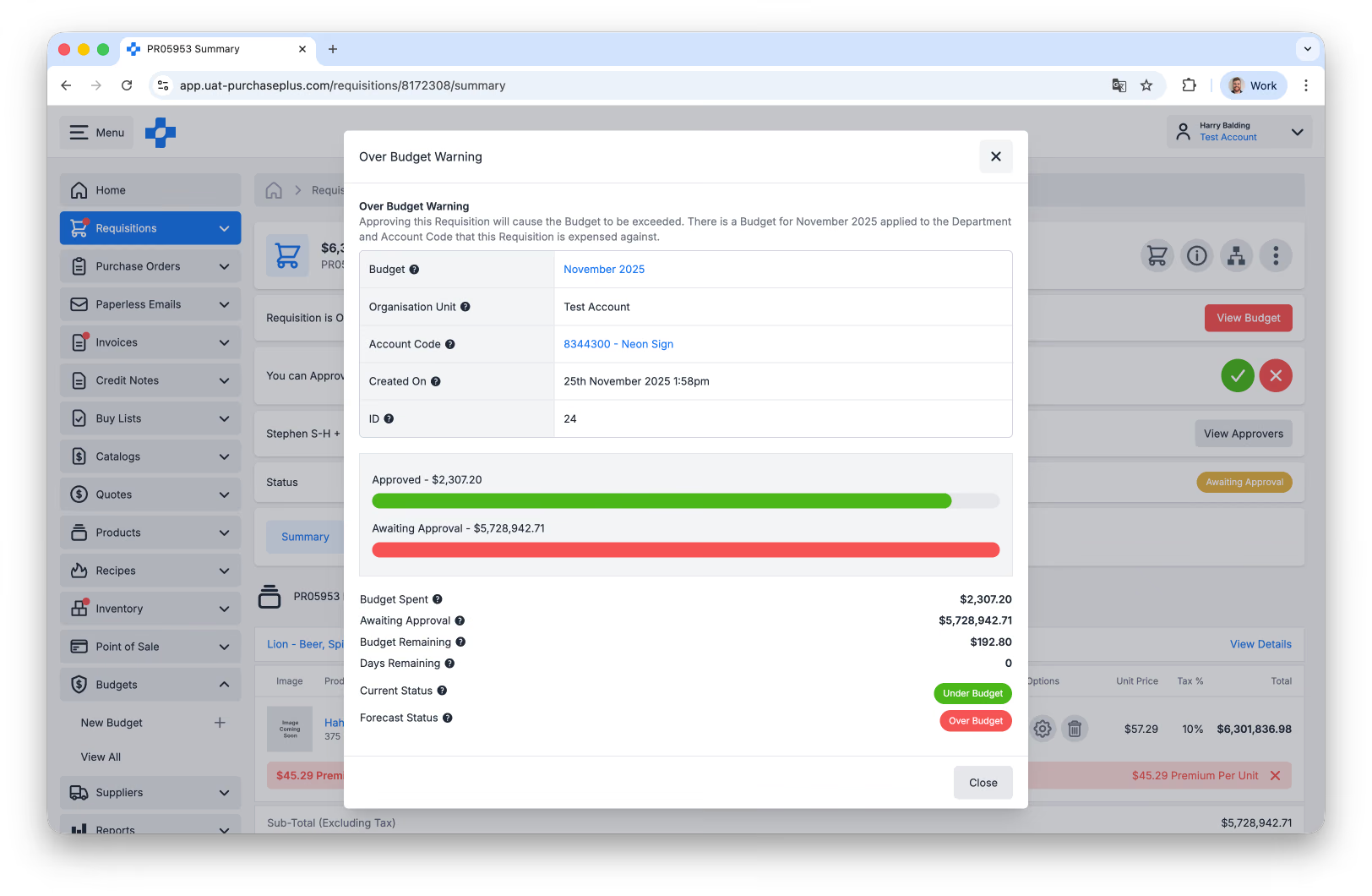
By clicking [View Budget], the Approver can quickly understand the Budget's status, and follow a link through to the Budget for more information if required:
Live Budget Tracker
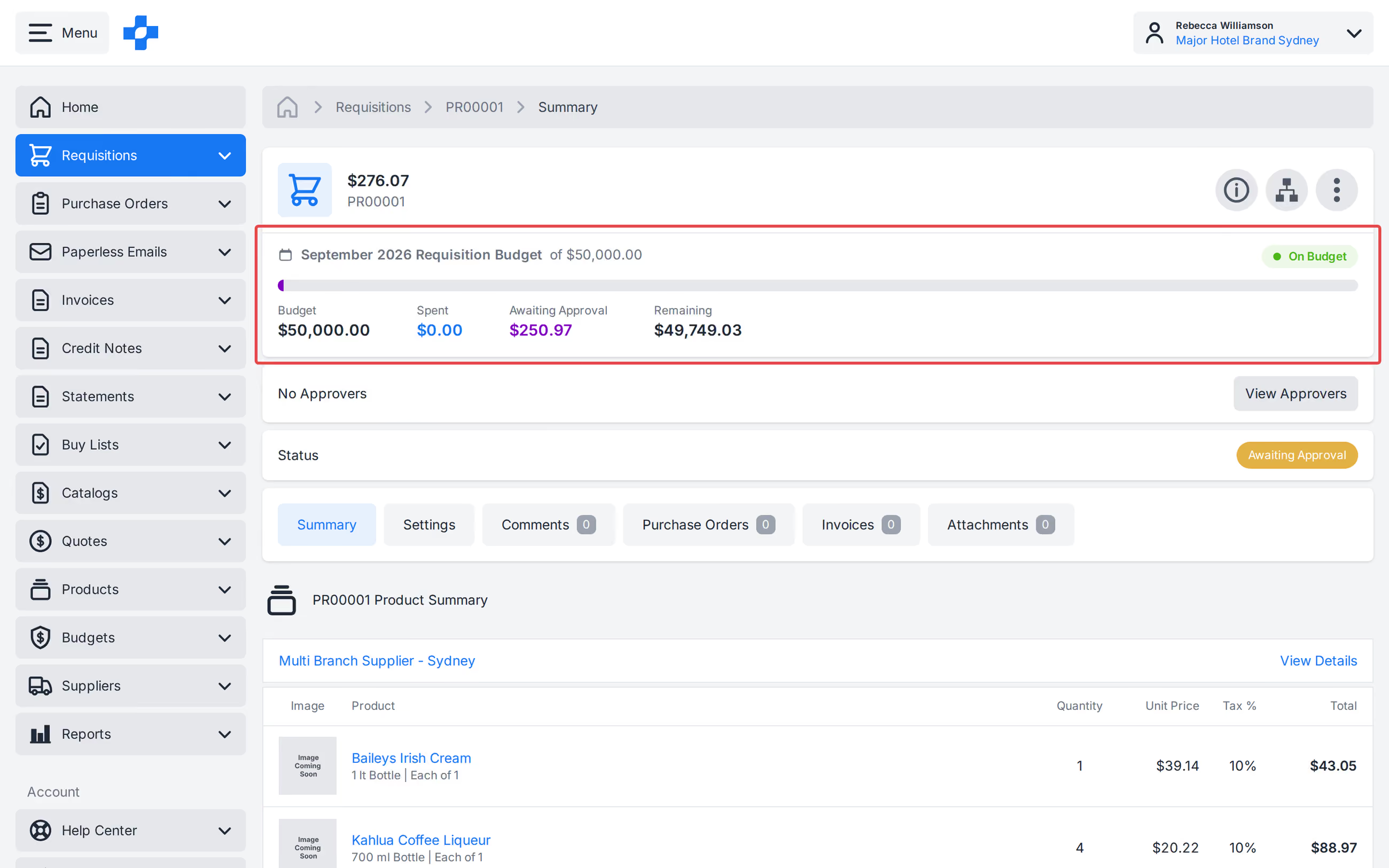
When a Requisition is linked to a Budget, the Requisition header shows the live Budget position on every screen size:
- The Budget period and amount.
- A Spent / Awaiting Approval / Remaining bar.
- Budget, Spent, Awaiting Approval, and Remaining.
- An On Budget or Over Budget pill.
The tracker is hidden when the Requisition has no linked Budget.
Quick Panels on Wide Monitors
Advanced Users who use PurchasePlus on a large monitor may also benefit from the Quick View Panels that appear on the right-hand side of a Requisition:
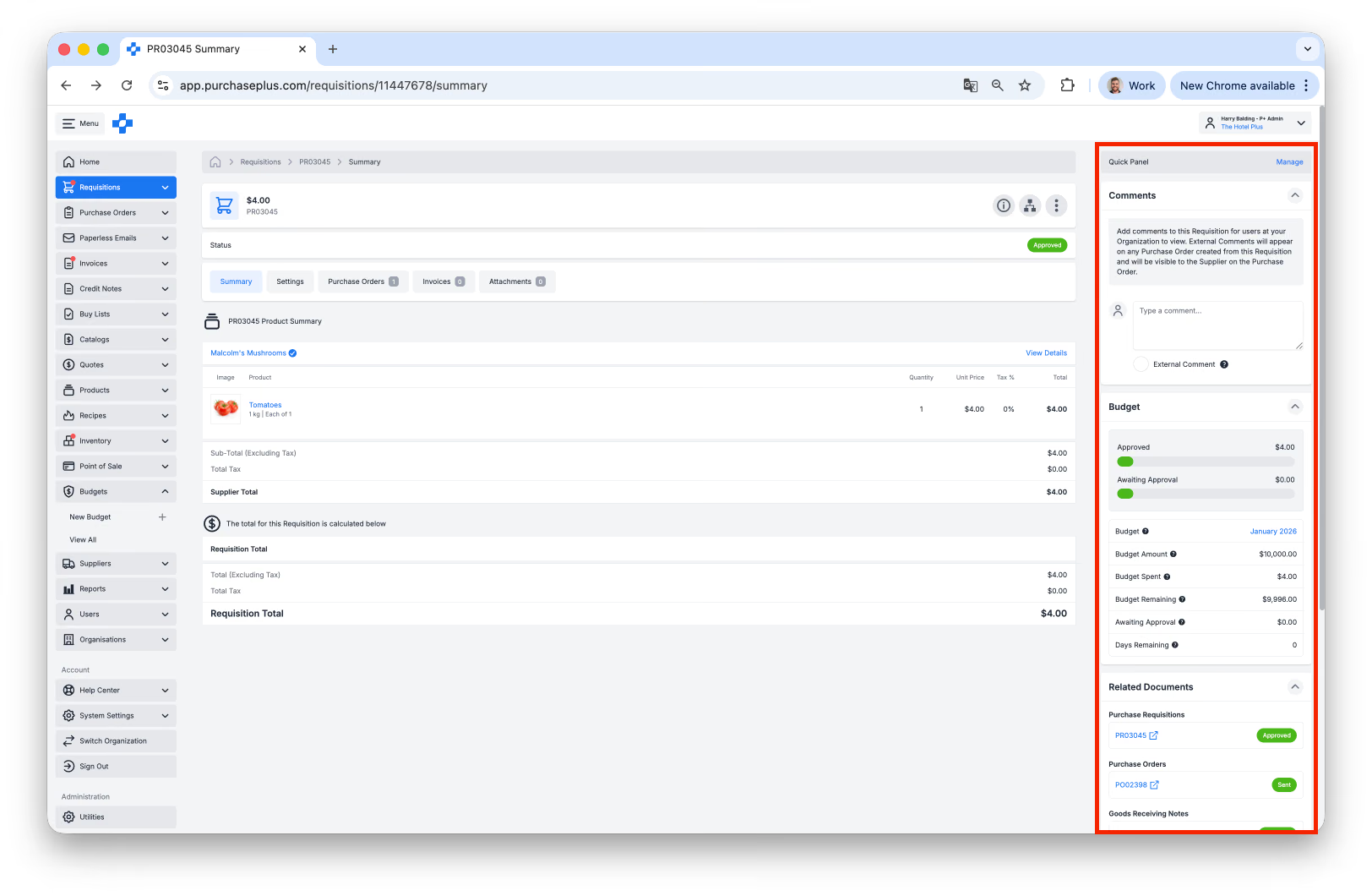
The Requisition Quick View Panel can be configured to display:
- Any comments left on the Requisition by another user at your Organisation,
- The links to Related Documents - e.g. the Purchase Orders generated when the Requisition was Approved, and
- Information regarding the Budget that this Requisition will be consuming - specifically, the spend value Approved and Awaiting Approval.
You can use the [Manage] button in the top-right hand corner of the Quick View Panel to configure what your panels will display.
Note - The Quick View Panel is hidden when the monitor is not large enough. The Live Budget Tracker in the Requisition header still shows.