

Match a Purchase Order
Match a Purchase Order
When an Invoice is created via the Paperless Invoice method, PurchasePlus will automatically match a Purchase Order to the Invoice, if it can find a logical match. Purchase Orders and Invoices can only be matched if both documents originate from the same Supplier.
You may need to manually match a Purchase Order to an Invoice because the Supplier did not add the Purchase Order number to the Invoice when they sent it to you via PurchasePlus. If the Invoice was manually created, the Purchase Order must also be manually matched.
There are two ways to match a Purchase Order to an Invoice, and we will cover both of these in this article below.
Firstly, it is important to note that in PurchasePlus, users can only match one Purchase Order to an Invoice (although users can match multiple Invoices to a Purchase Order). This system design enables us to deliver other benefits that would be impossible (or extremely difficult) otherwise - for example, automated three-way matching between Purchase Orders, Invoices, and Goods Receiving Notes.
From the invoice
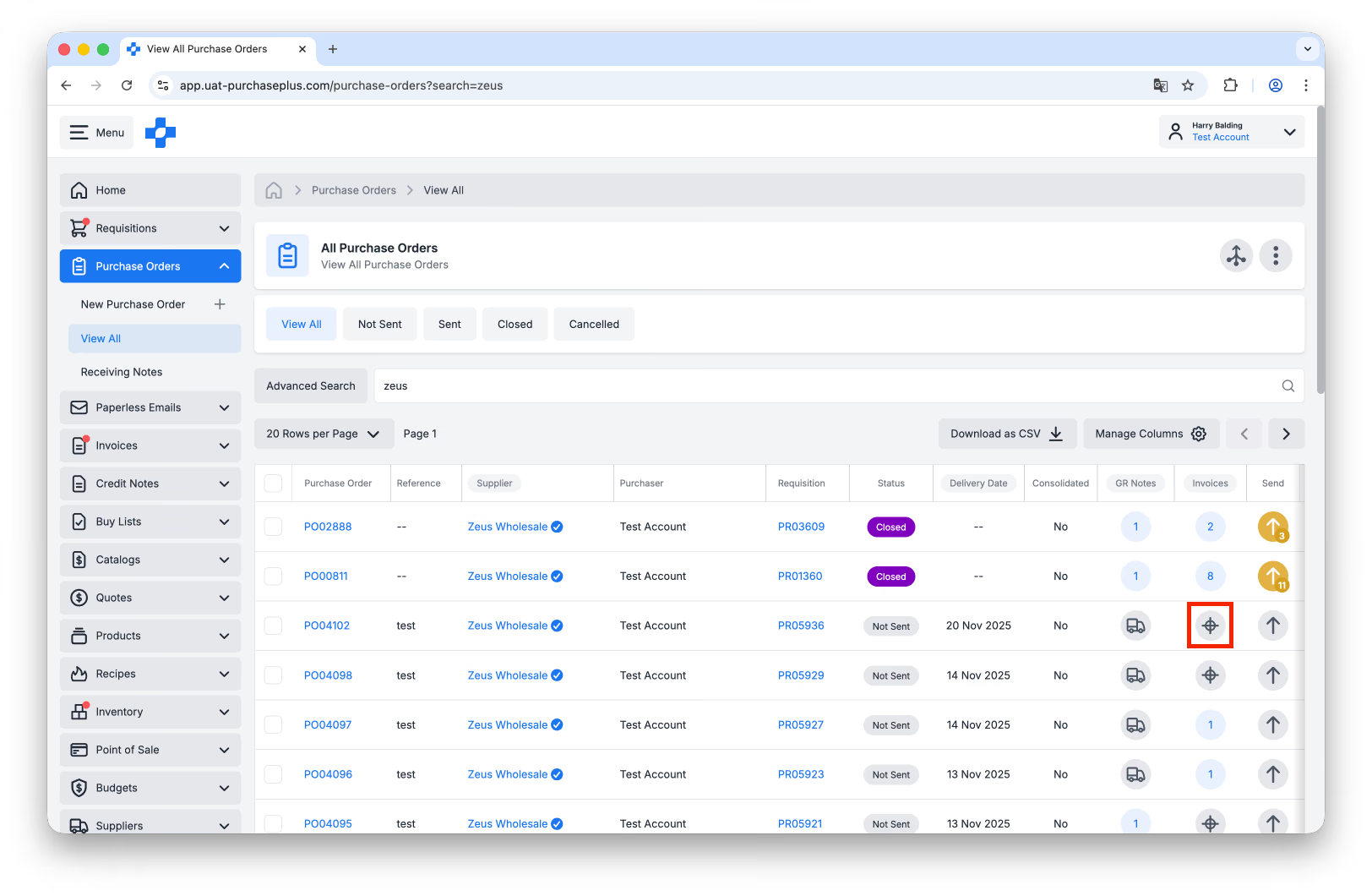
Step 1: Select [Purchase Orders] → [View All] and find the Purchase Order, you would like to match to an Invoice.
Step 2: Select the [Match] button in the Invoices column. If you see a number instead of the Match icon, it indicates that an Invoice has already been matched to the Purchase Order. You are able to match multiple Invoices to one Purchase Order:
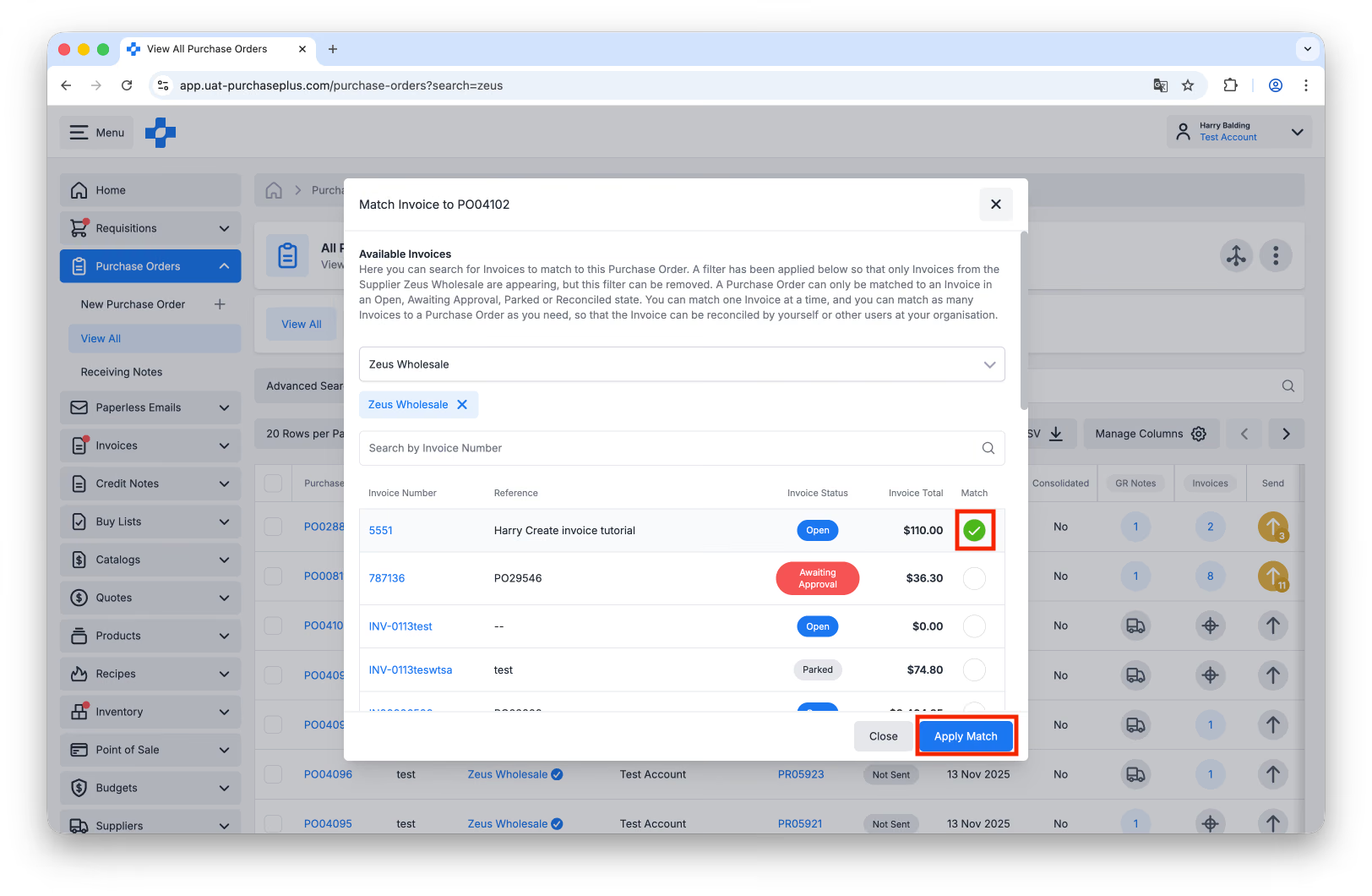
Step 3: A window will open listing all available Invoices that you could potentially match to the Purchase Order. This list is pre-filtered by the Purchase Order Supplier, but you can remove this Supplier filter if needed. Select the [Match] checkbox on the Invoice you would like to match, then click [Apply Match]:
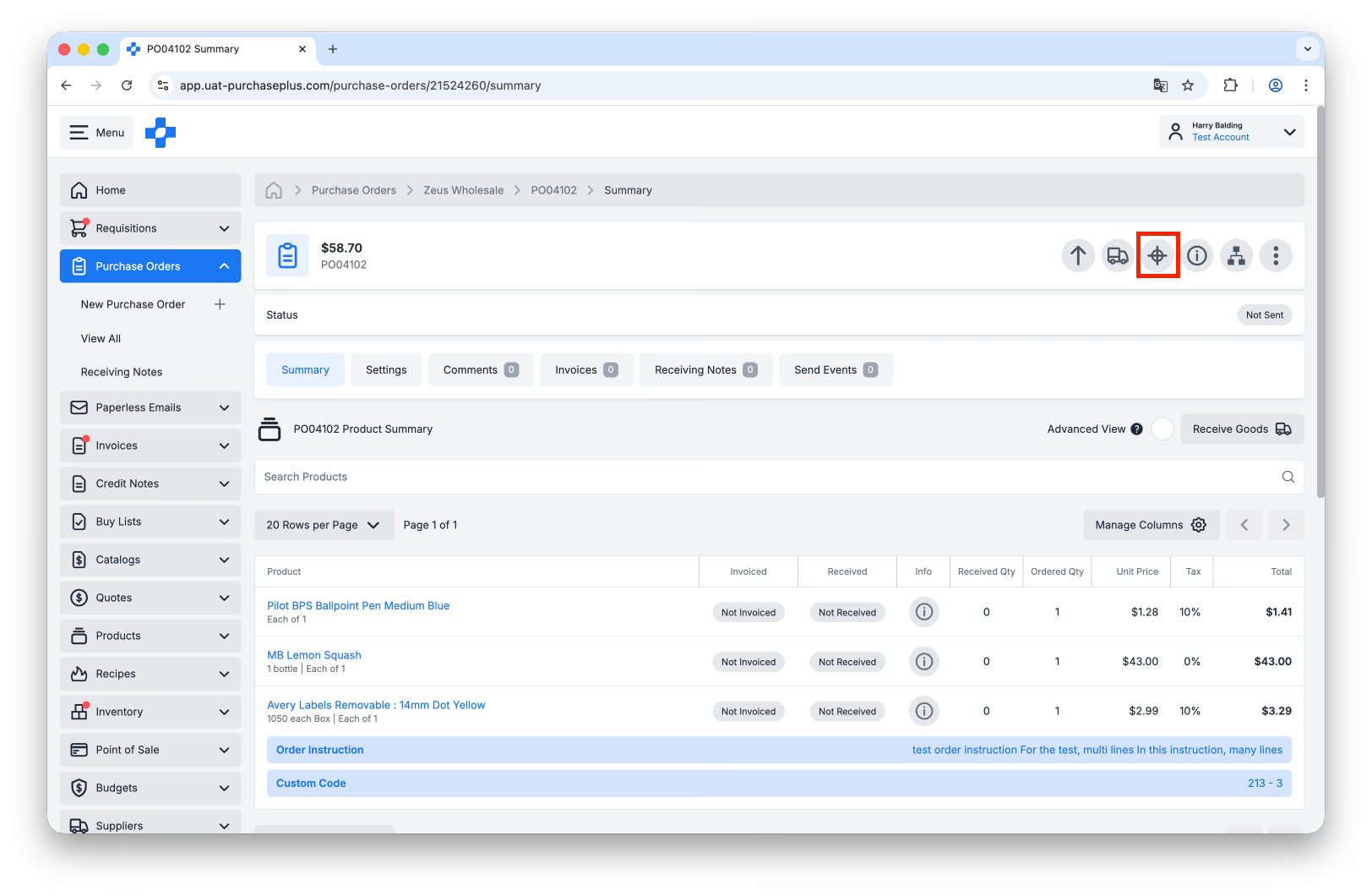
Step 4: Alternatively, you can also take the steps above while within the Purchase Order. Click either the [Match] button in the Invoice header, or click the [Match Invoices] button from the quick action bar:
From the purchase order
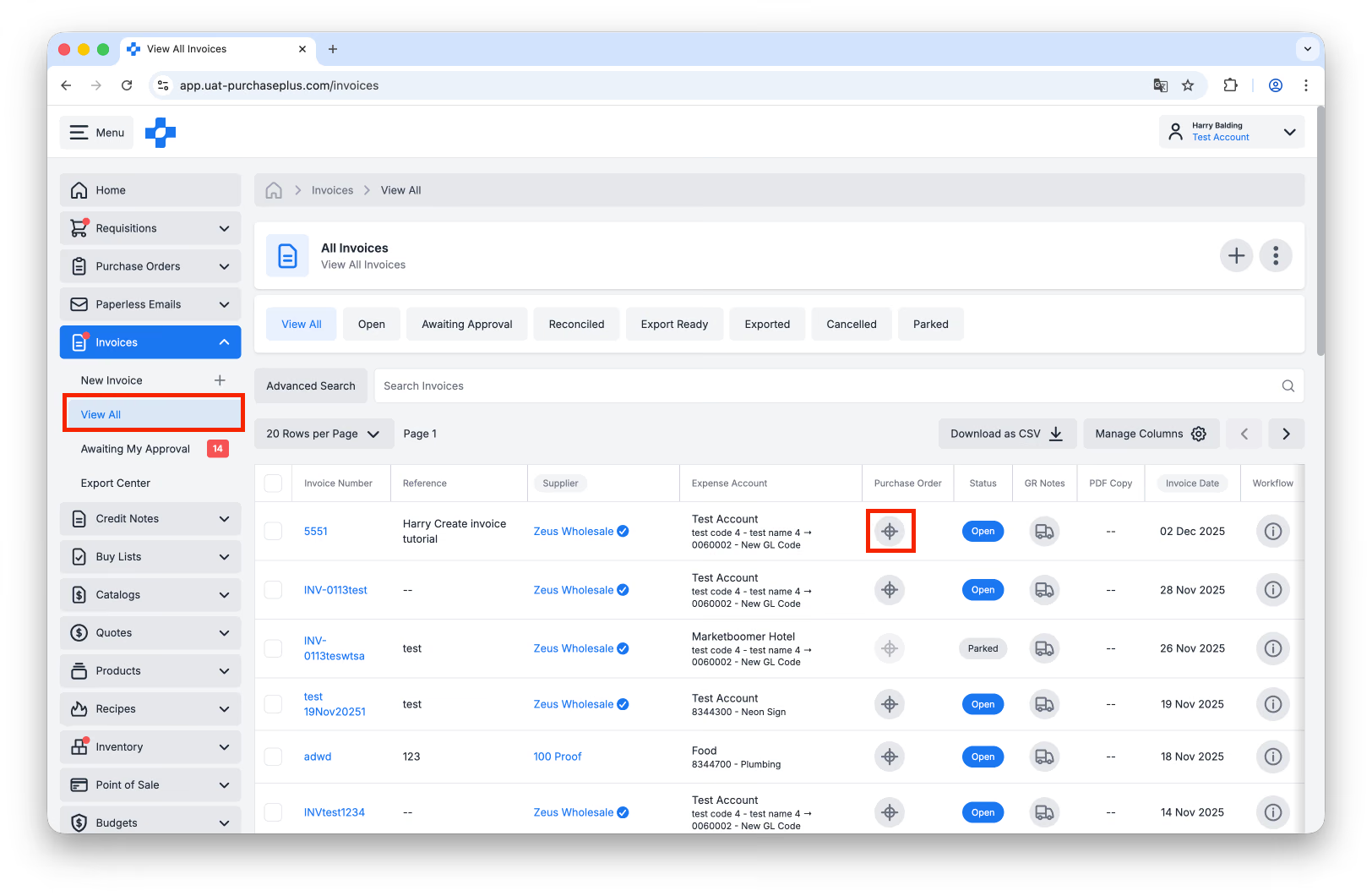
Step 1: Select [Invoices] → [View All] and find the Invoice you would like to match with a Purchase Order.
Step 2: Select the [Match] button in the Purchase Order column. If there is already a Purchase Order number appearing in the column, a Purchase Order has already been matched to the Invoice. You are able to only match a single Purchase Order to an Invoice:
Step 3: A window will open listing all available Purchase Orders that you could potentially match to the Invoice, and a column that displays a count of Invoices already matched to the PO: 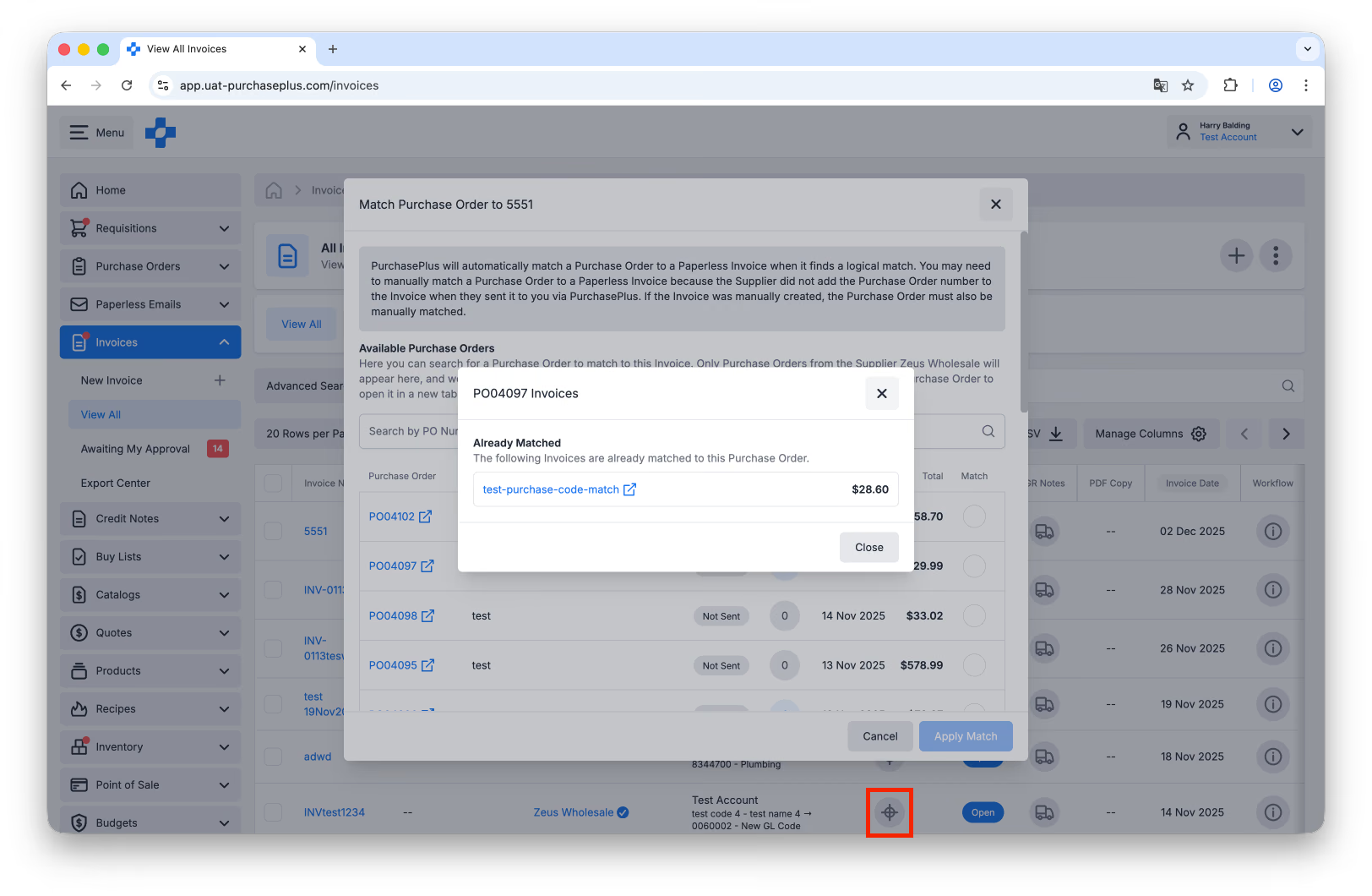 Select the [Match] checkbox next to the Purchase Order you would like to match, then click [Apply Match].
Step 4: Alternatively, you can also take the steps above while within the Invoice. Click the [Find and Match] button in the quick action bar: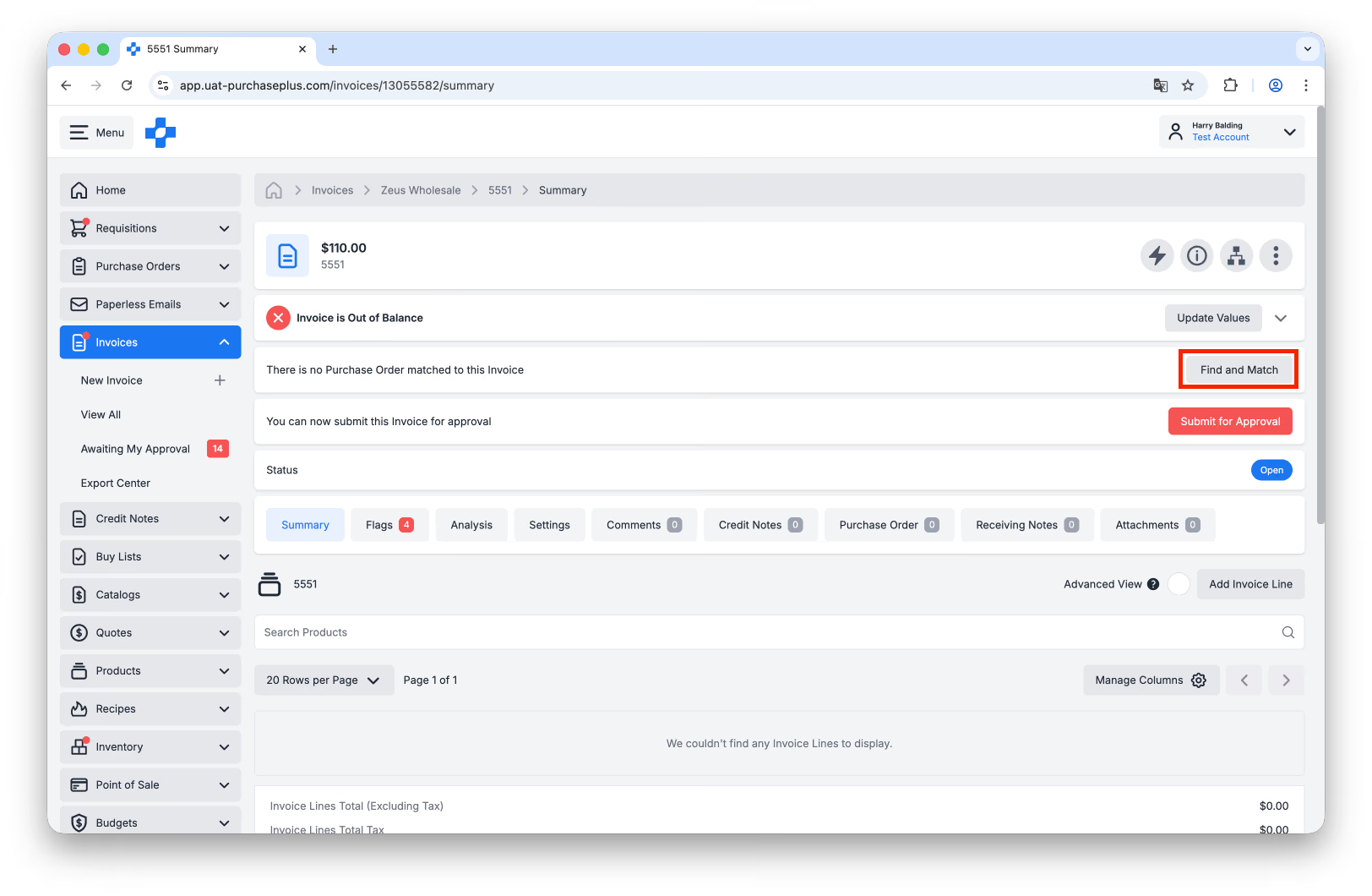
Unmatch a Purchase Order from an Invoice
If you find that a Purchase Order has been incorrectly matched to an Invoice, you can remove the Purchase Order from the Invoice. We call this 'Unmatching'.
Please read this article for more details about Unmatching a Purchase Order from an Invoice.
Match a PO from a different supplier
Purchase Orders and Invoices can only be matched if they originate from the same Supplier (as they appear in PurchasePlus).
This can appear confusing - especially if both documents appear to originate from almost identical Suppliers, and describe the same transaction - because matching will not be available in this scenario.
To rectify this issue, follow these steps:
1: [Cancel] the Purchase Order:
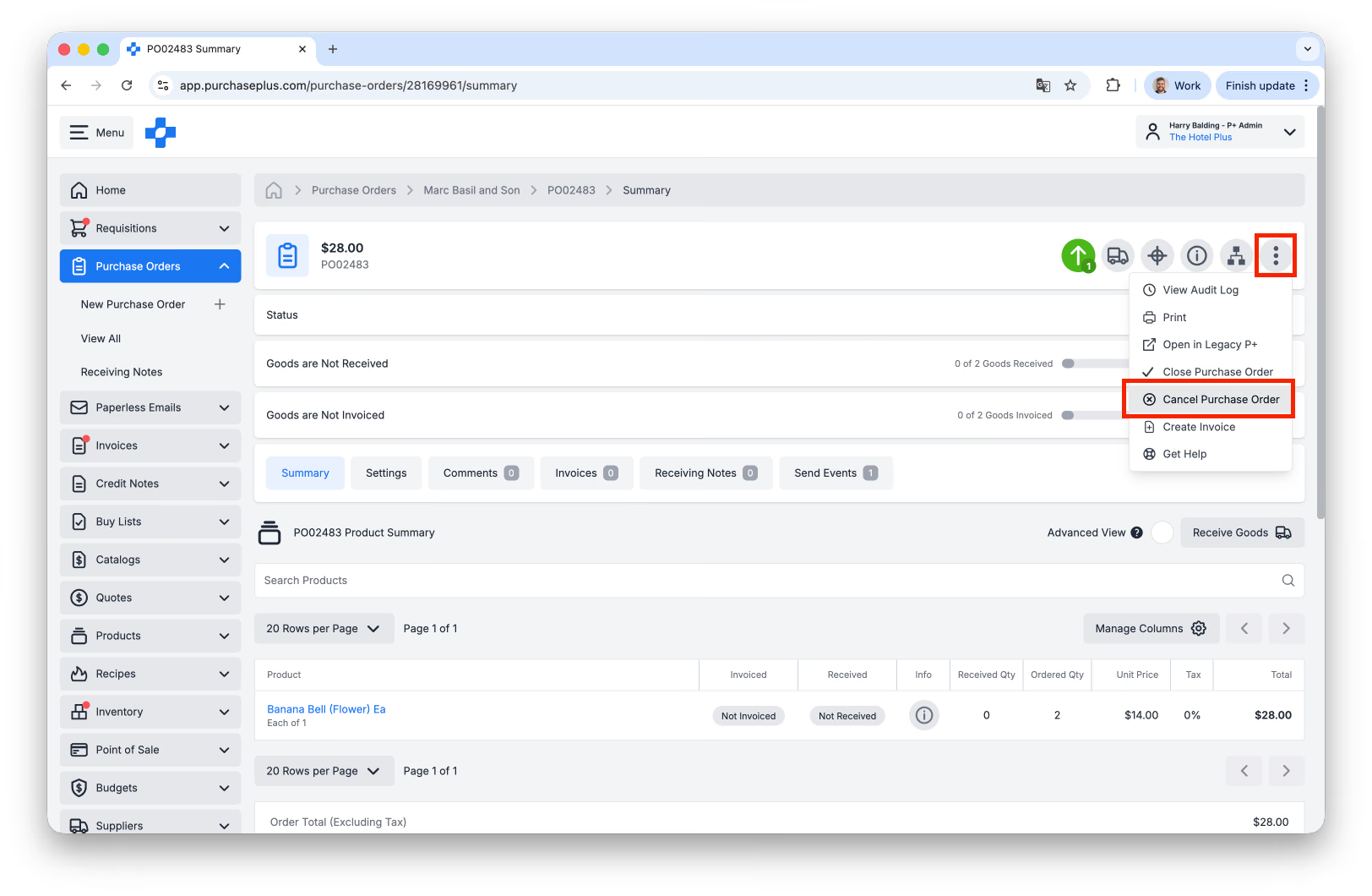
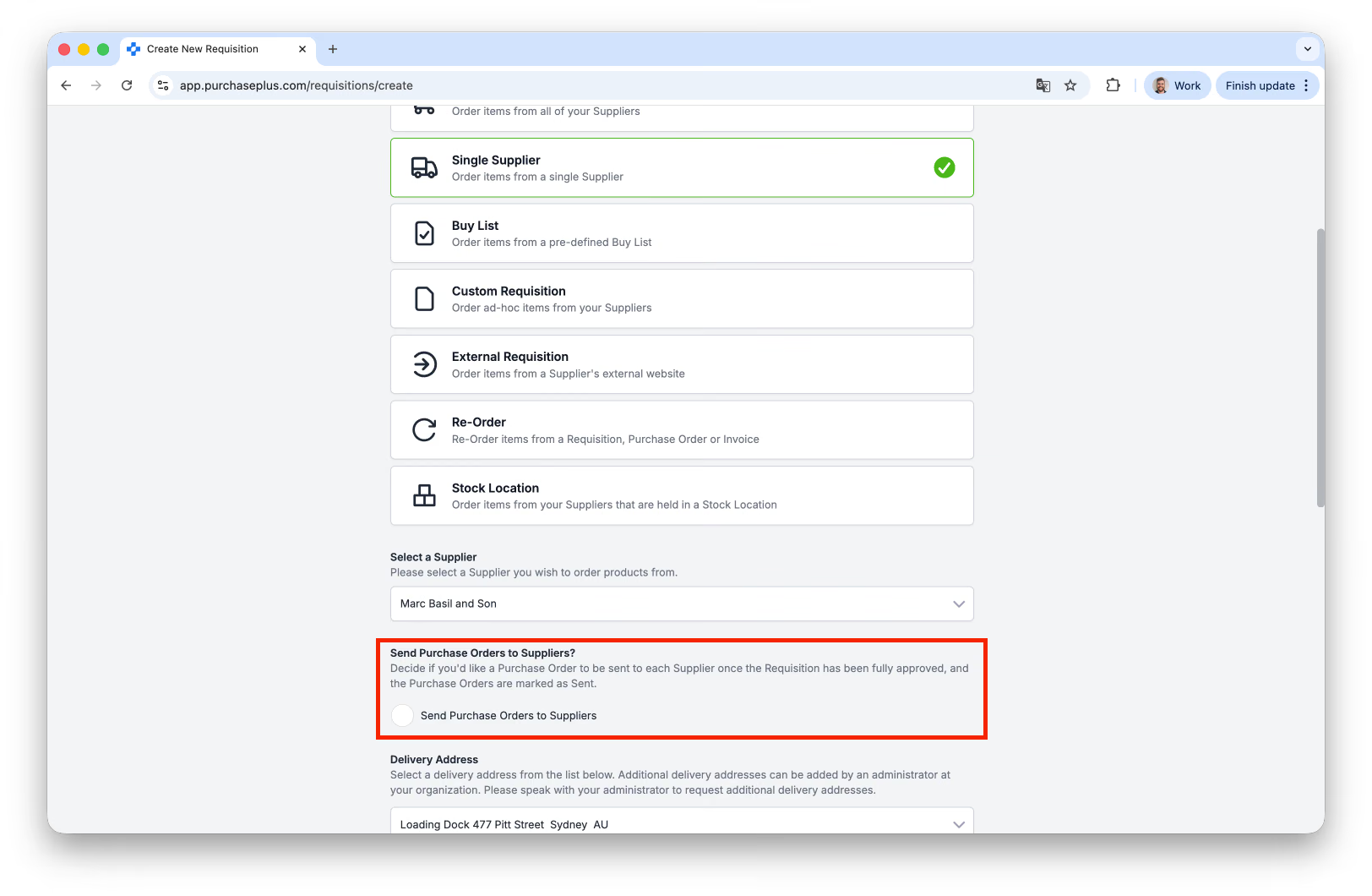
2: Create a new 'Single Supplier' Purchase Requisition, ensuring that you are ordering from the same Supplier account as the Invoice. Ensure the [Send to Supplier] option is de-selected:
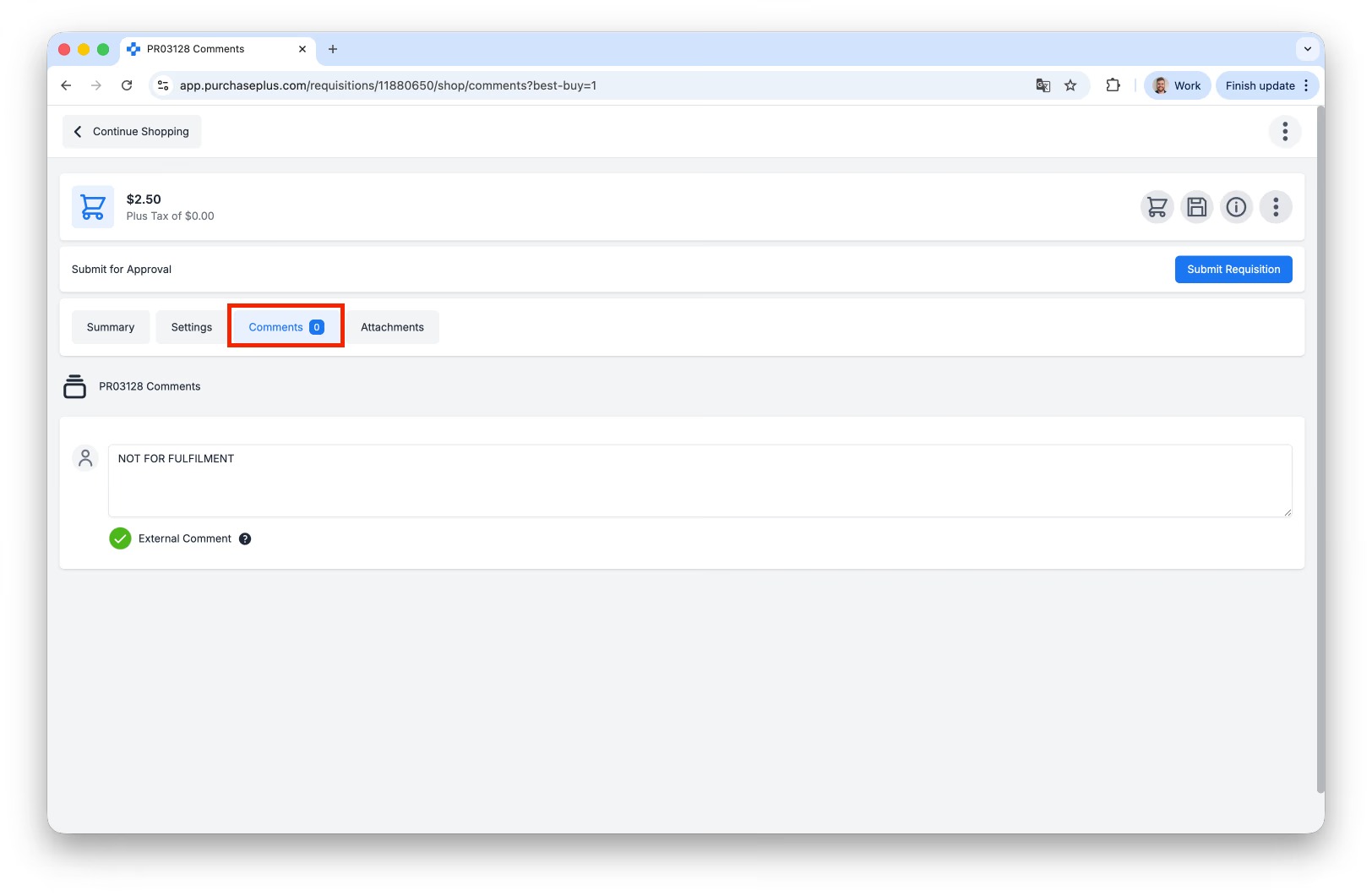
3. Write a comment such as 'Do not fill this order' in the comment section:
4. Once the Purchase Requisition is approved (and becomes a Purchase Order), you can match the Purchase Order to the Invoice. You may also choose to leave a comment on both documents, noting that they belong to one another.