

Overview
Overview
Understanding the PurchasePlus Organisations model and its implications is one of the best ways to become a power user of PurchasePlus.
This is the first part in a 6-part series designed for all System Administrators.
Organisation
An Organisation is an entity in PurchasePlus that can be representative of:
- A Purchaser,
- A single hotel, hospital or lifestyle venue,
- A Department within that property, or
- A single hotel, hospital or lifestyle venue,
- A Supplier.
Organisations in PurchasePlus can be classified in different ways, and depending on their classifications and their highly configurable Organisation settings, they can interact with one another in powerful ways - ultimately culminating in Purchaser Organisations procuring the right products, from the right Supplier Organisations, at the right price.
When users sign in to PurchasePlus, they are signed into an Organisation, to conduct their business and complete their tasks on behalf of that Organisation. The functionality available to each user is determined in part by the Organisation’s Type, its Settings, its place in the Organisation Hierarchy, and their own personal (user) Permission set.
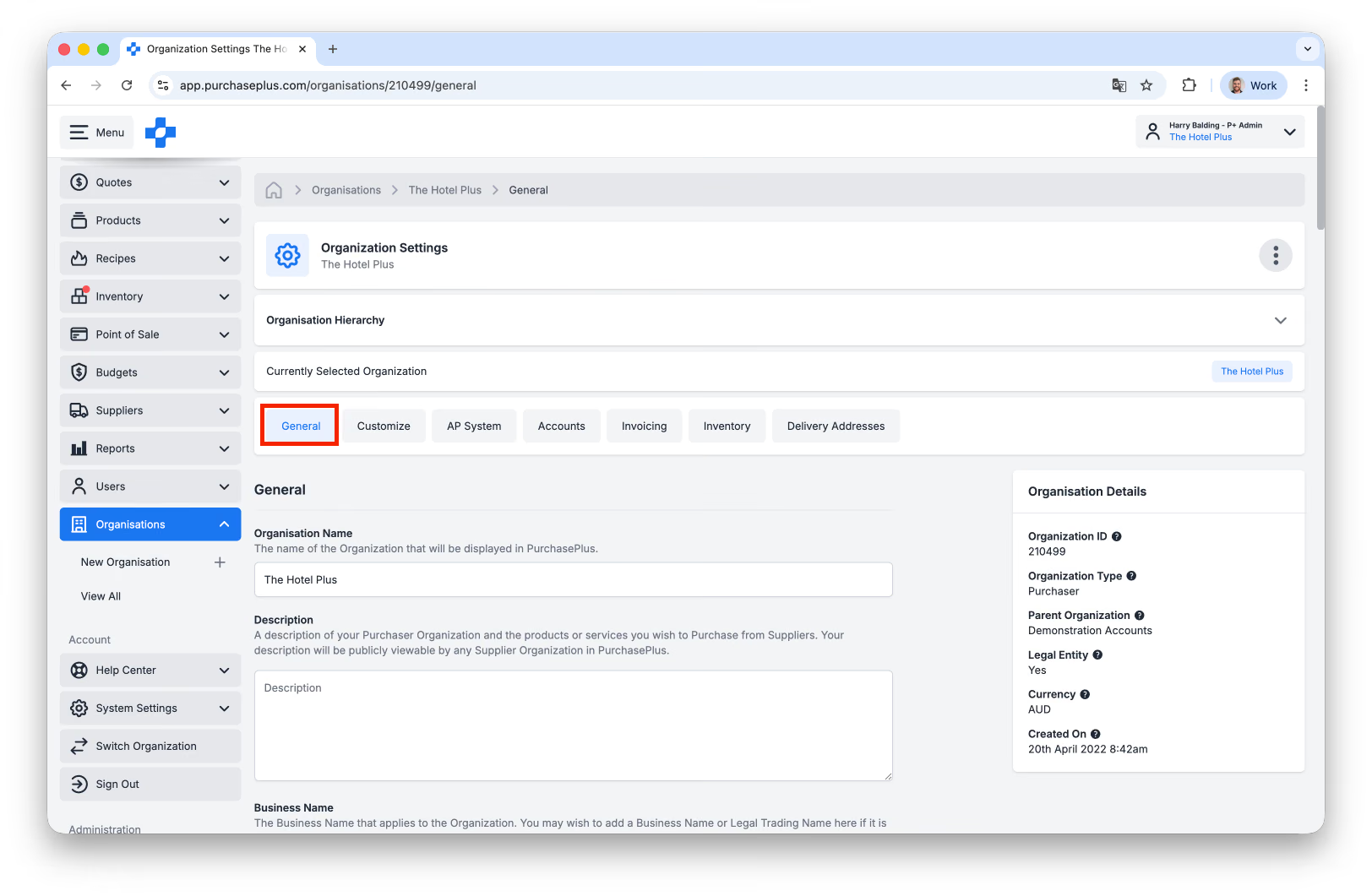
Organisations have a unique Organisation ID, an Organisation Name, and a number of different identifiers, descriptors and contact details that are available for users with the ‘Manage Organisations’ permission to view and edit on the [General] tab of the Organisation:
Organisation Types
Organisations can be classified as either a Purchaser or a Supplier. The functionality that is available to users signing into each Type of Organisation is very different:
- Suppliers have functionality for creating and managing Products and Catalogs, and additional insights into their Invoices and Purchase Orders originating from PurchasePlus.
- Purchasers have access to our highly configurable procure-to-pay platform (Products, Catalogs, Requisitions, Approvals, Purchase Orders, Receiving, Paperless Invoice Reconciliation), as well as additional extras like Inventory Management, Recipes, Point of Sale and more.
Legal Entities
Organisations can be Legal Entities or Non-Legal Entities in PurchasePlus.
A Legal Entity is a Company or Business unit that is registered with the central business registry in its country, and will have a Business Number (e.g. in Australia, it is an ABN). Trading Businesses (like a Hotel) should almost always be set up as Legal Entities, but Departments (i.e. sub-Organisations) under that Trading Business (e.g. Housekeeping) should usually be set up as Non-Legal Entities.
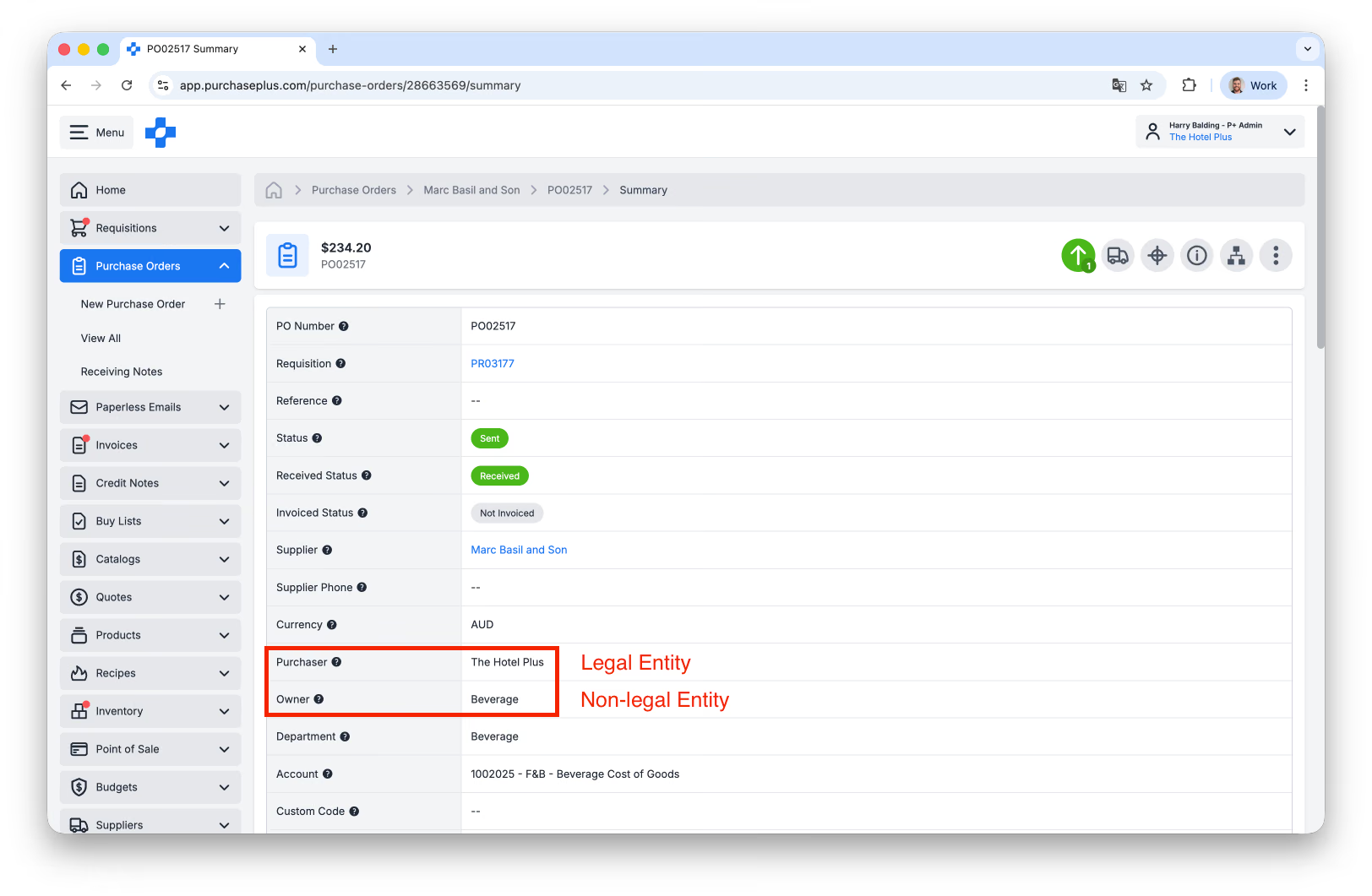
Legal Entities and Non-Legal Entities are treated differently in PurchasePlus. For example, a Non-Legal Entity (i.e. a Department, or Child Organisation) may generate Requisitions and Purchase Orders, but the nearest Parent Organisation that is a Legal Entity will be set at the Purchaser of that Legal Entity:
Verification Status
Organisations can be Verified or Unverified in PurchasePlus.
A Verified Organisation is either a Purchaser Organisation or a Registered Supplier Organisation. That is, real-world users will sign into this Organisation and complete their tasks.
An Unverified Organisation is a Supplier Organisation that is managed by a Purchaser (i.e. a Self Managed Supplier) and no user ever signs into this Organisation.
Organisation Hierarchy
Organisations can be endlessly ‘nested’ under other Organisations. This is how we digitally represent Organisational structure in the real world, and this structure enables Purchasers to view their Properties, Properties to view their Departments, and Departments to view their specific documents and data.
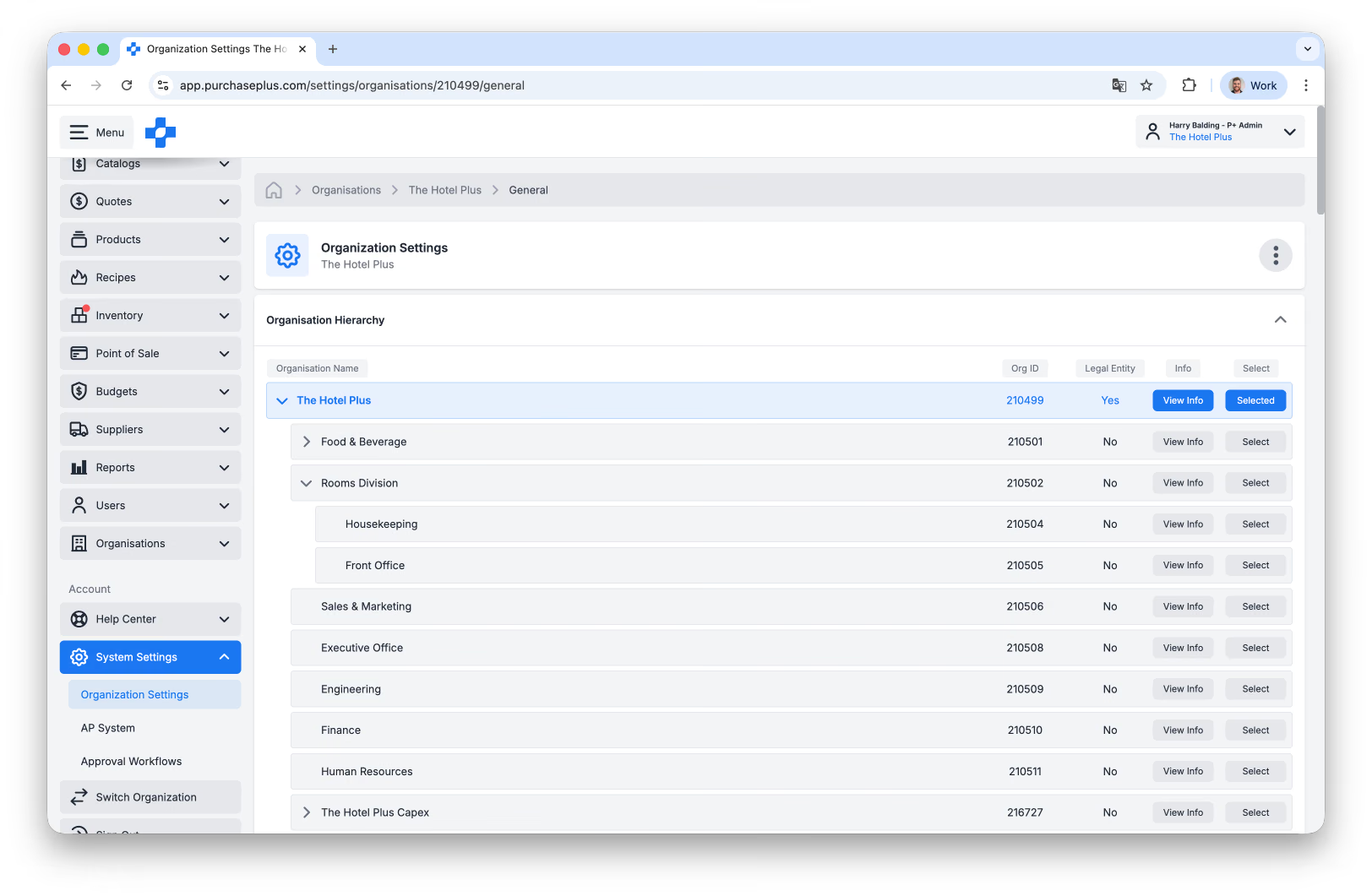
Additionally, this Organisation Hierarchy model is used to prevent users who are members of one Organisational node from viewing data that belongs to other nodes they have no involvement with, and giving the users that are members of the Parent Organisations a view of all below them.
A user that is signed into a Parent Organisation will be able to select its Child Organisations while completing various actions in PurchasePlus. These child Organisations will often be referred to as ‘Departments’ in the system; a Department is simply a Child Organisation nested under the Current Session Organisation - that is, the Organisation that the user is currently signed into.
Users signed into Child Organisations will not be able to conduct business on behalf of their Parent Organisation(s), although many features (for example, Catalogs, Recipes and more) do cascade down the hierarchy - meaning that Child Organisations ‘inherit’ data structures like these ones from their Parents, and they do not need to be set up a second time.
Example Organisation Hierarchy
The below example is illustrative of how an Organisation can be set up in a functioning Hierarchy and how Legal Entity Status and Verification Status are implicated.
Customer Group: Inland Hotels Group (isVerified = TRUE, isLegalEntity = TRUE)
- Property: Tamworth South Hotel (isVerified = TRUE, isLegalEntity = TRUE)
- Department: TSH Kitchen (isVerified = FALSE, isLegalEntity = FALSE)
- Department:TSH Cafe (isVerified = FALSE, isLegalEntity = FALSE)
- Department:TSH Alcohol (isVerified = FALSE, isLegalEntity = FALSE)
- Property: Tamworth Central Club (isVerified = TRUE, isLegalEntity = TRUE)
- 1. Department: TCC Front Bar (isVerified = FALSE, isLegalEntity = FALSE)
- Department: TCC Back Bar (isVerified = FALSE, isLegalEntity = FALSE)
- Department: Bistro89 (isVerified = FALSE, isLegalEntity = TRUE)
Some common scenarios to elaborate:
- Users signed into (1) will be able to view and conduct business on behalf of the departments below them (1a), (1b), (1c).
- Users signed into 1b will not be able to conduct business on behalf of (1), (1a), (1c).
- Users at (2) or any of its descendants will not be able to view or conduct business on behalf of (1) or any of its descendants.
- Users signed in at the Customer Group level will be able to view and conduct business on behalf of (1), (2) and all of their descendants.
Viewing your Organisation Hierarchy
Users with the ‘Manage Organisations’ Permission can view their Organisation Hierarchy by visiting [System Settings] → [Organisation Settings] and clicking the caret icon in the [Organisation Hierarchy] panel:
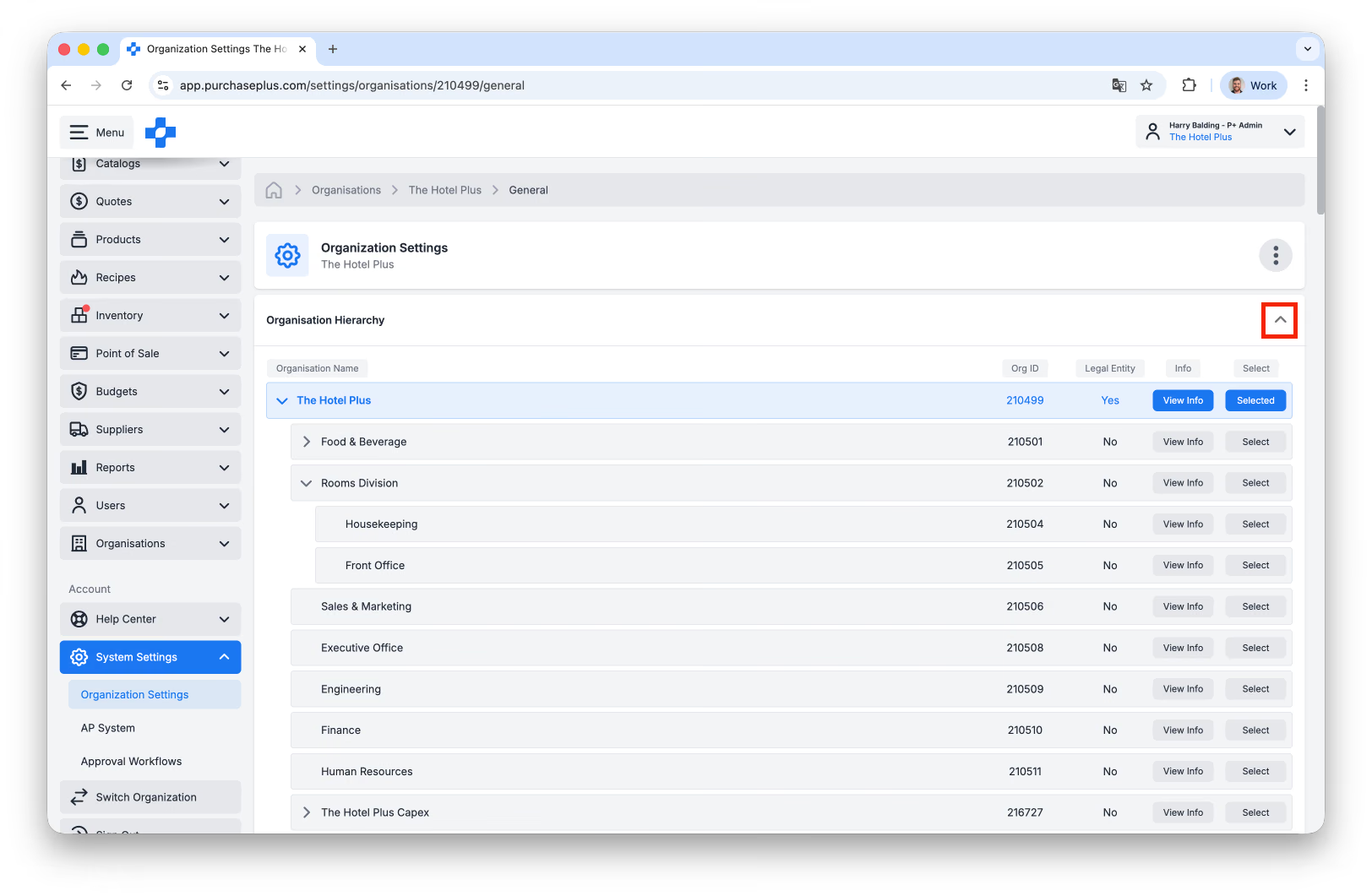
The Hierarchy is visually represented with Child Organisations being nested under their Parent Organisations.
Some Organisations have a chevron icon on the left hand side of their row, and these Organisations can be Expanded to reveal their descendant Organisations, or collapsed to hide them:
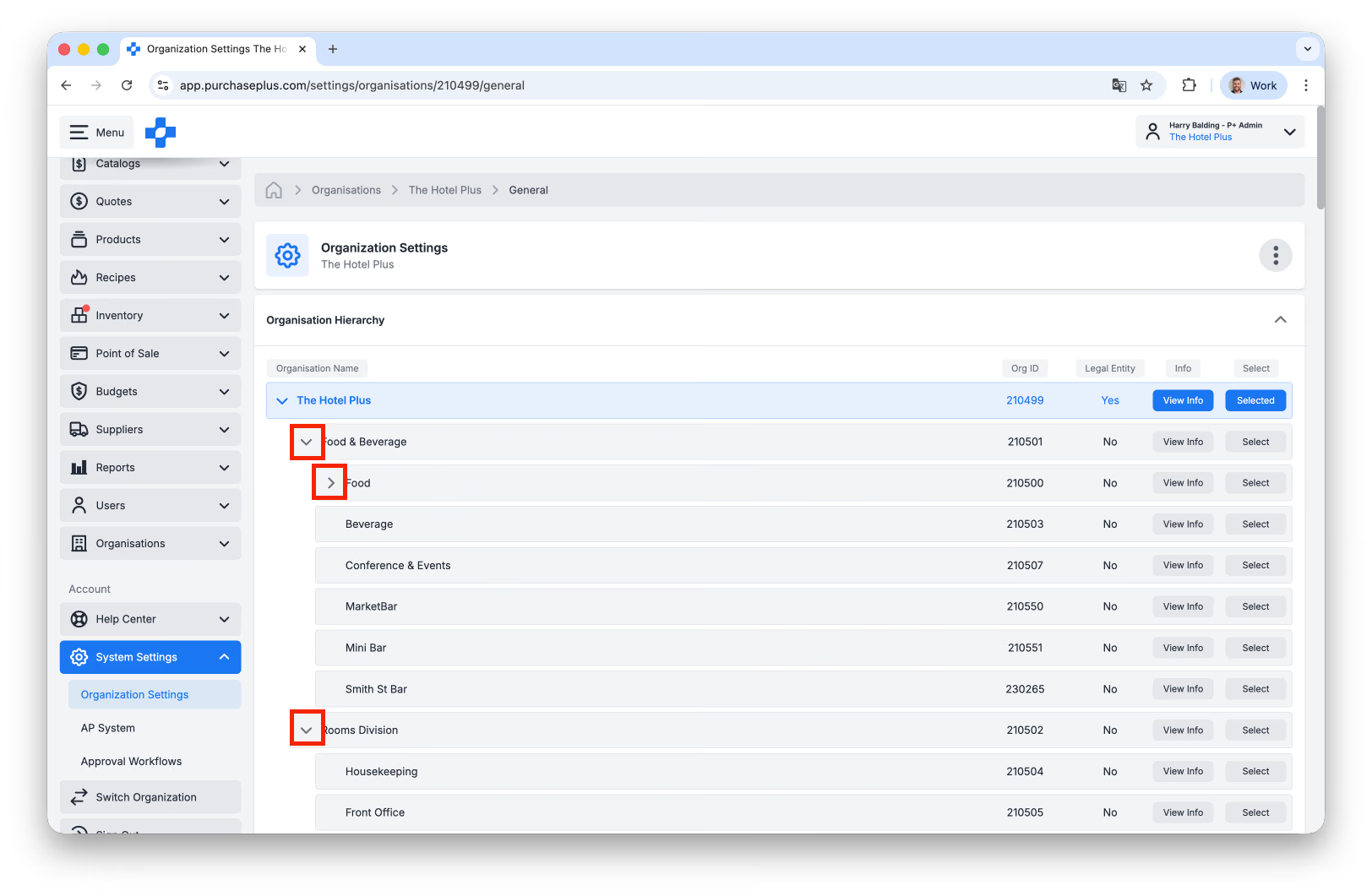
From this table, you can additionally see the unique Org ID, Legal Entity Status, and a [View Info] panel that summarises the selected Organisation.
Finally, by clicking [Select], you can visit that Organisation’s Settings Page and make changes if required.
Organisation Membership
The way PurchasePlus determines which Organisation(s) that a user is allowed to sign into is a ‘membership’ model.
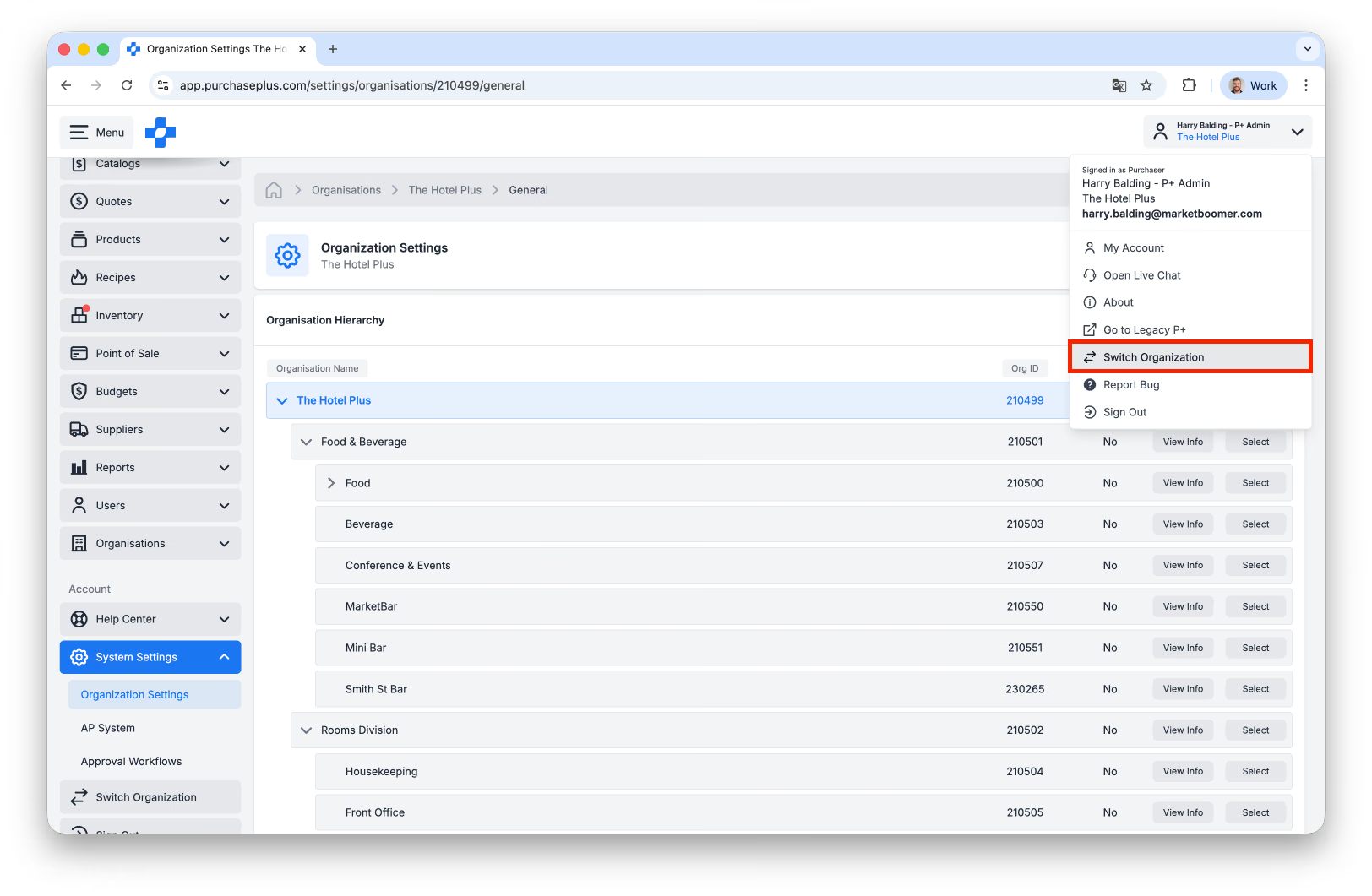
A user can be a ‘member’ of one or more Organisations - if the latter, they can sign into the different Organisations of which they are a member (and complete their tasks on behalf of this Organisation) using the Organisation Switcher:
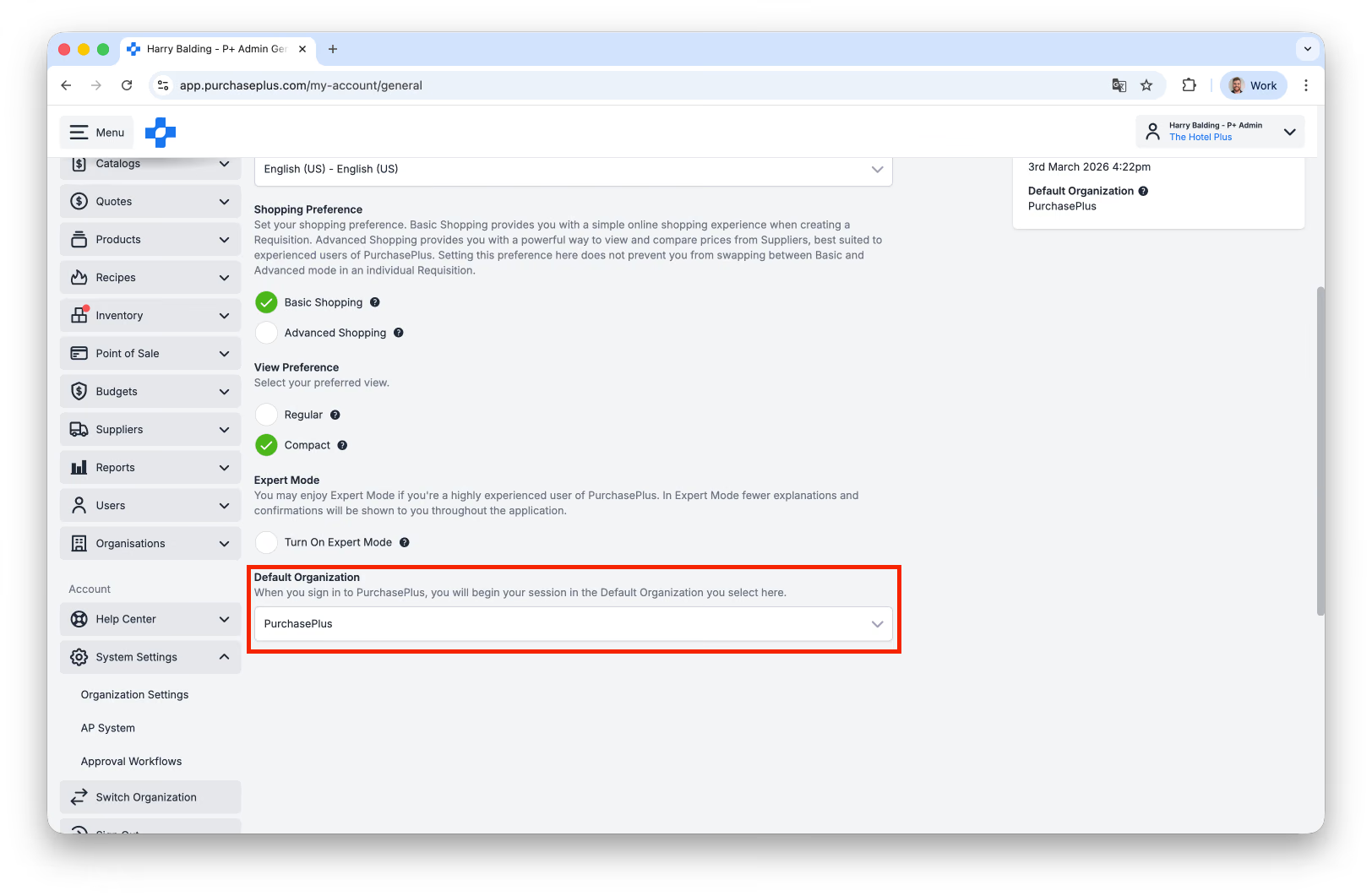
Each user must have a ‘Default’ Organisation, which determines the Organisation in which they begin their session when they first sign in. The user can update their own Default Organisation anytime in their Account section, with the available Organisations restricted to those of which they are a member:
Other users that are (a) members of the same Organisation(s) and (b) have the ‘View Users’ and/or ‘Manage Users’ permissions will be able to view and/or manage this user (and all other users) at the Organisation.
AP Systems
This section is for Advanced Users only.
An AP System is a PurchasePlus-owned system object that abstracts away the potential complexity of a Purchaser’s Organisation Hierarchy into a high-level ‘container’ that makes certain data generated by its member organisations available for export by integration into the specified (external) accounting system on the Purchaser’s side.
Additionally, Organisations sharing an AP System will be able to access shared data that belongs to the AP system (Suppliers, for example).
More than any other object or attribute in PurchasePlus, an AP System is what represents a Client in its entirety.
AP Systems have:
- A Name - usually the name of the highest-level organisation node that will be using this AP System as the Organisation Node, followed by ‘AP Hub’. For example, ‘Inland Hotels New South Wales AP Hub’.
- An AP System ID (which is unique)
- An AP System Type.
- A Currency.
- An Export Format (for Invoices and Credit Notes being exported to an external accounting system) and if applicable, one or more Export Format Variants.
- Electronic Destinations that can be used by Purchaser Organisations who belong to this AP System to send Export Files and Report Files electronically. There can be as many Destinations here as needed, but only one can be set as the Export Default for an AP System.
- Purchasers that are using the AP System.
- Suppliers that have been manually added to the AP System, or connected to a Purchaser using the AP System via the system will be listed on the AP System.
- Trade Relationships between Purchasers and Suppliers in the AP System.
- (Optional) Header Custom Fields.
- (Optional) Sub-Line Custom Fields.
AP Export Format
An AP Export Format is GraphQL (GQL) Code that takes data from the PurchasePlus database and exports a raw JSON file. This JSON file is designed for the Purchaser’s specific Accounting system to be ingested automatically, and so there is usually quite a bit of variation between AP Export Formats.
AP Export Formats require:
- A Name - usually named after the top-level Purchaser, e.g. ‘Inland Hotels Group’.
- A Class - always GQL in PurchasePlus.
- An Output File Type. Note that for PurchasePlus (GQL Class), only JSON is available as an Export Format.
AP Export Formats can also have an Accounting Period Enabled or Disabled value, which (if enabled) will prompt users at Type B Organisations to supply an Accounting Period in their AP Export File.
AP Export Format Variants
Each AP Export Format can have multiple Variants. A Variant is GQL Code that takes the raw JSON file, performs manipulations on it, and can output the AP Export Data in a different format (e.g. CSV), but the Variant must be designed to specifically create the Output File Type defined, and requires custom engineering work from PurchasePlus.
AP Export Format Variants require:
- A Name. Follow a similar naming convention to the AP Export Format, with a ‘Variant’ at the end.
- An Output File Type. There are multiple File Types available, so please ensure you select the option required by your external AP System.
- A Function Name. This is used to call the transformations that will be applied by the Variant, and is one of the reasons that AP Export Formats and their Variants require Engineering Input.
- An Owner Organisation ID. The Owner ID is used to identify who the AP Export Format Variant was created for.
AP System Export Type
Once an Organisation has been added to an AP System, their Export Type can be set.
- Type A should be used if the Organisation exports Invoices and Credit Notes one at a time, to a preset electronic destination. These Organisations are able to select multiple Invoices and Credit Notes and export them in bulk - this will send multiple export files (one for each document) to the Electronic Destination.
- Type B should be used if the Organisation manually creates Export Files (containing one or many Invoices/Credit Notes) via the Export Center, and downloads or sends them to an Electronic Destination at their discretion as a single file.
This preference does not change anything about the AP Export Format applied to this Organisation, it only controls what options will appear to users at this Organisation on a Reconciled Invoice or Credit Note, and in the Invoices and Credit Notes area of the Export Center.
Each Organisation will have their own preference for their Export Type depending on their Organisational requirements, but as a general rule, this is a very important setting and please do not change it without first having a thorough understanding of the Organisation's other AP Export Format Settings. It is recommended that this setting only be updated in conjunction with PurchasePlus configuration team members.