Approve a Requisition
Approve a Requisition
In PurchasePlus, when a Requisition is submitted for approval, it will be progressed to the 'AWAITING APPROVAL' status. The Requisition is placed into the Approval Workflow that applies to the Department and Account Code.
The approving users in the first rank of the workflow will receive an email, informing them that the Requisition has been submitted, and can now be approved or declined. Read on to learn more.
Awaiting my approval
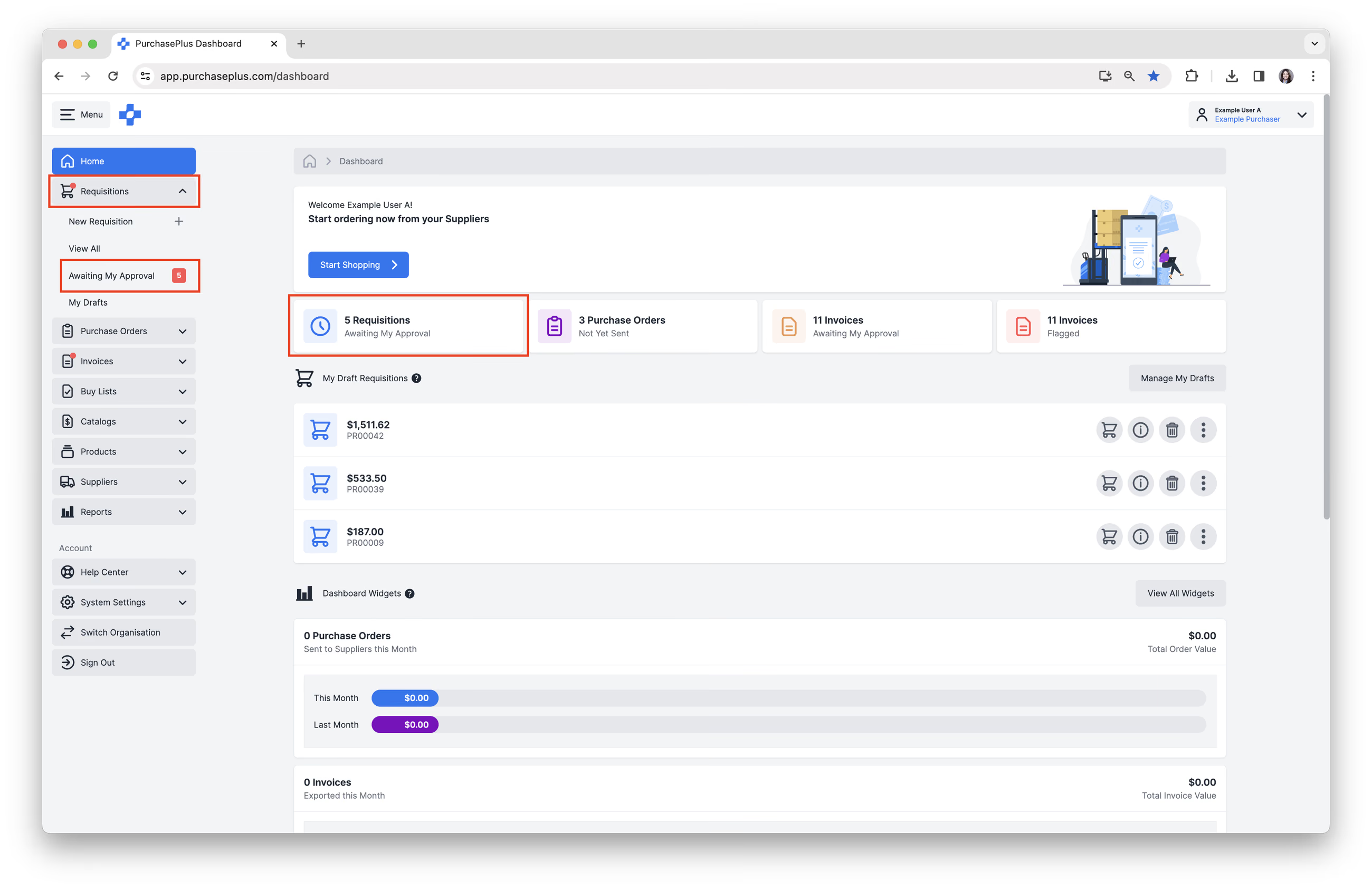
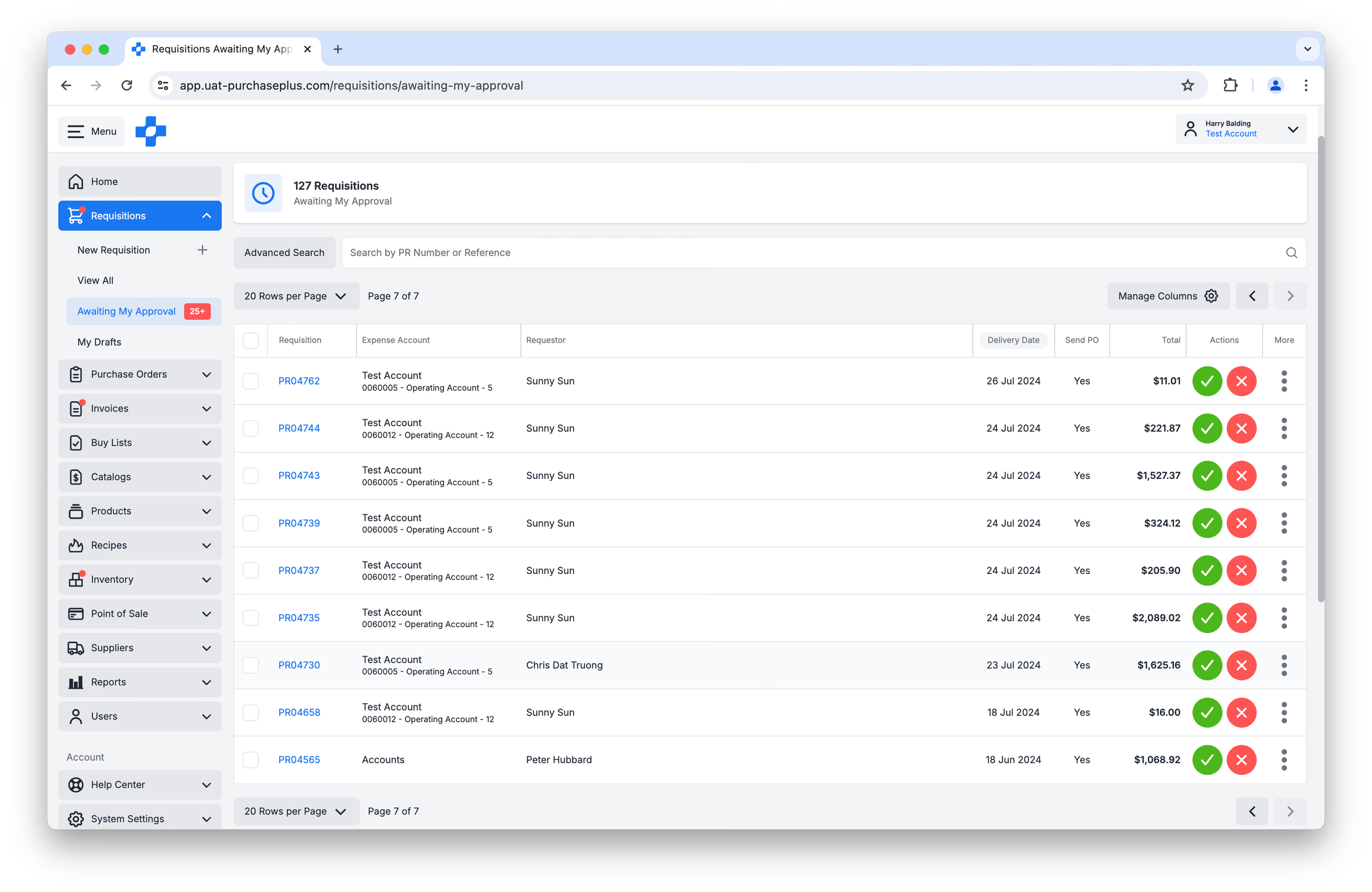
The list of Requisitions Awaiting Approval can be found via:
- [Home] Dashboard → [Requisitions Awaiting My Approval].
- Side navigation bar [Requisitions] → [Awaiting My Approval].
Click on the Requisition Number in the [Requisition] column to view the Requisition in more detail:
The following areas can be reviewed when reviewing a Requisition:
- Products.
- Quotes. A product may have one or many quotes from your Suppliers, depending on the product, your Suppliers, and the Requisition type. Changing a line to another Supplier's Quote requires the 'Can Change Suppliers on Requisitions' permission. Without it, you can still view Quotes and change Quantity.
- Quantity.
- Order Instructions for each product, if any.
- Custom Department and Account Code for each product, if any. A product can be expensed against a custom Department and Account. If no custom values have been applied to the product, it will be expensed according to the Department and Account applied to the Requisition.
- Remove Product.
- Price, Tax Percentage and Line Totals.
- The Approve button.
- The Decline button.
Approve a Requisition
In the Action column, you can [Approve] or [Decline] a Requisition. Alternatively, you can click on the [Requisition Number] to view the Requisition details. 


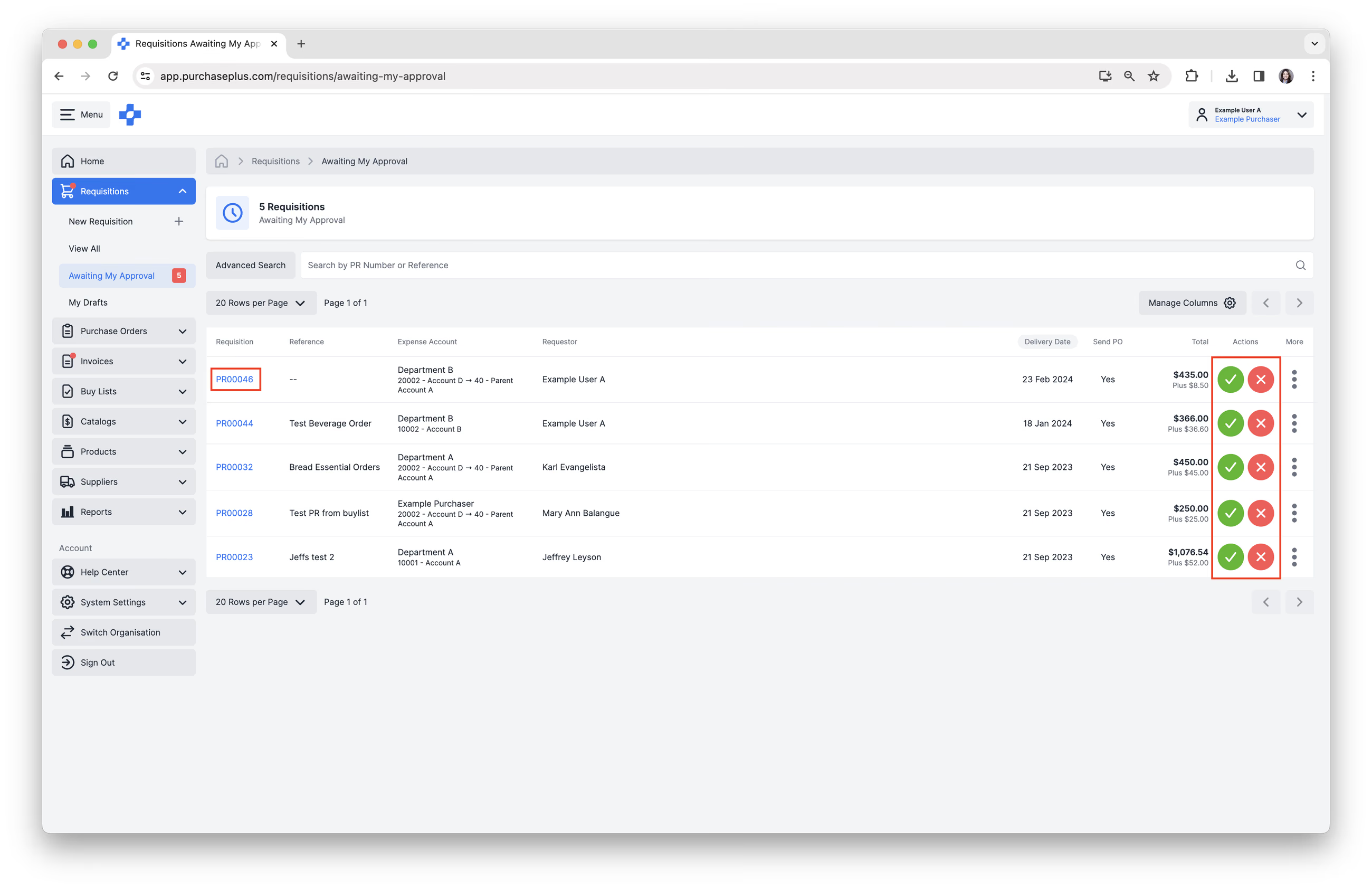
Click [Green Tick] button, shown in above image, to Approve the Requisition and a confirmation message will be displayed. If further approvals are required in the Approval Workflow, the confirmation message will explain that the Requisition is Partially Approved.
However, if you are the Final Approver in the Approval Workflow, the confirmation message will explain that Final Approval has been granted, and a Purchase Order has now been generated for each of the Suppliers included in the Requisition. You have the option to [View Purchase Orders]. If the Purchase Orders need to be Sent immediately, this can be done by visiting each Purchase Orders. See our Send a Purchase Order article to learn more.
Approving a Requisition with a Budget
If your Organisation uses our Budget module, Approvers see the live Budget position in the Requisition header (period and amount, Spent / Awaiting Approval / Remaining, and an On Budget or Over Budget pill). See our 'Budgets Overview' article to learn more.
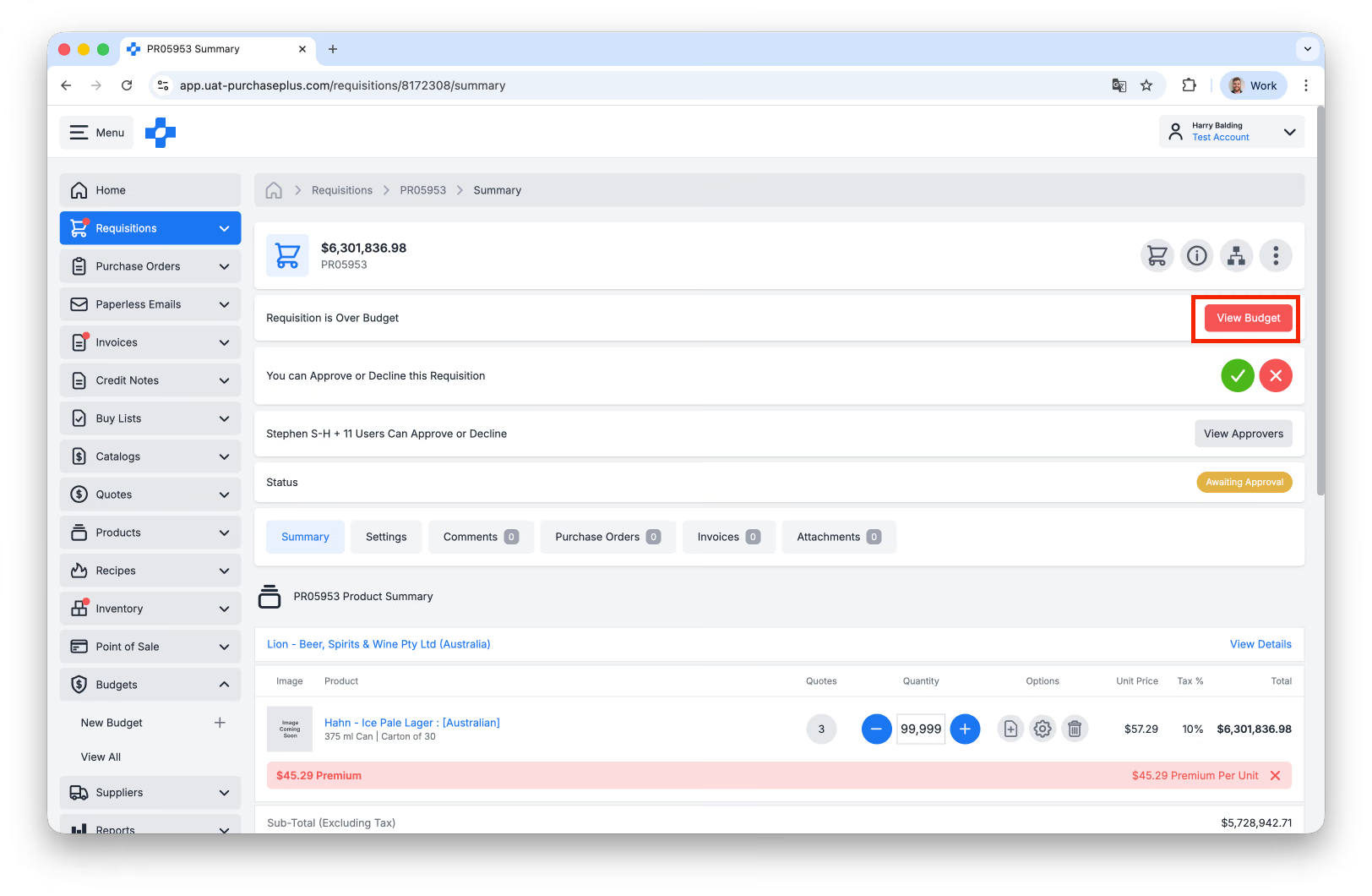
Learn more about Approving Requisitions with a Budget.
Decline a Requisition
1. Click [Red Cross] button to Decline the Requisition.
2. Add a 'Decline Reason', and click [Confirm and Decline]. The reason will be included in the Decline notification email, sent to the user who created the Requisition.
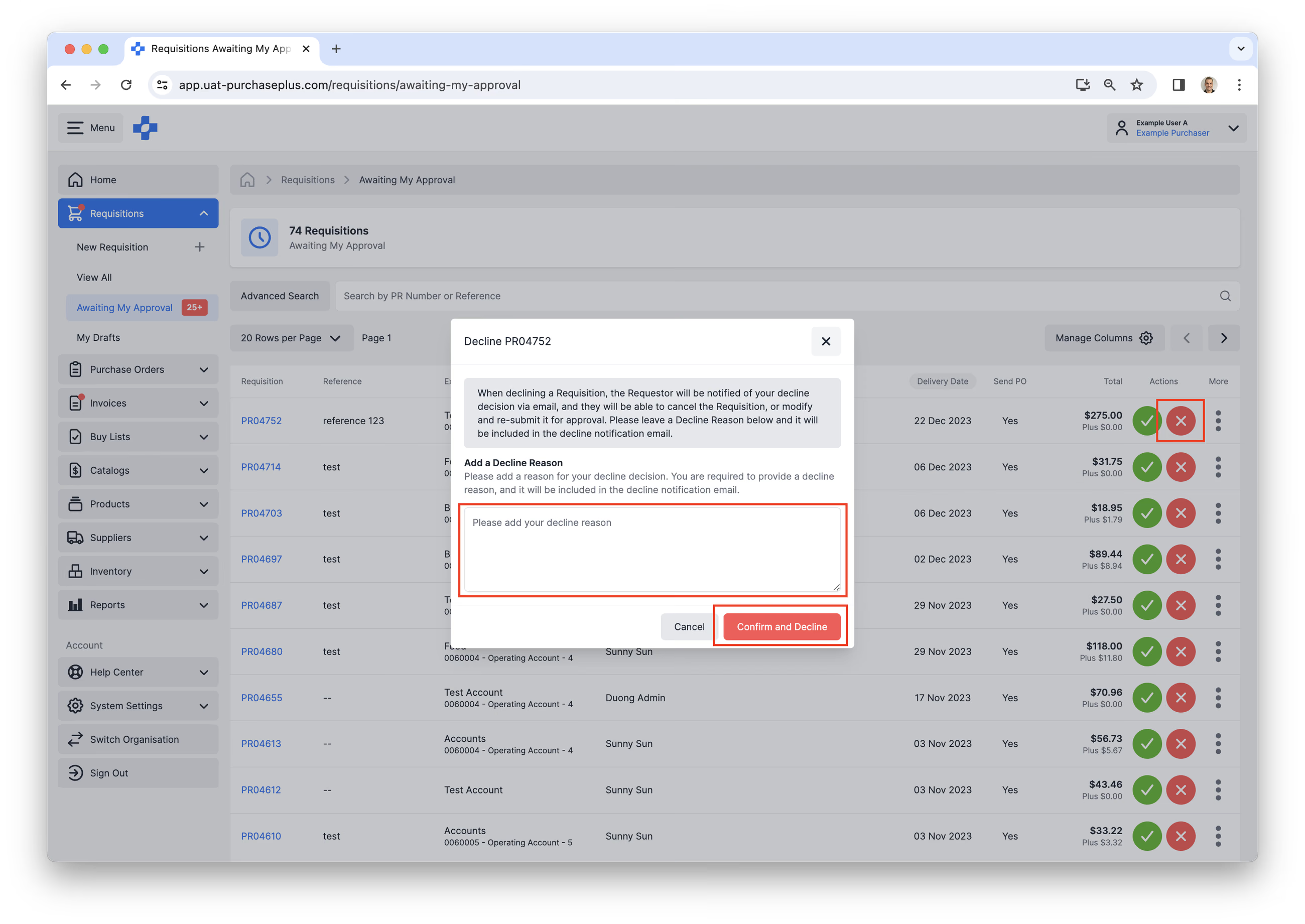
The status of the Requisition will be changed to 'DECLINED' and the user will have the option to Continue Shopping the Requisition, to make any necessary changes prior to re-submitting for approval once more.
The Declined Requisition can also be cancelled if it is no longer needed.
Approving Requisitions in Bulk
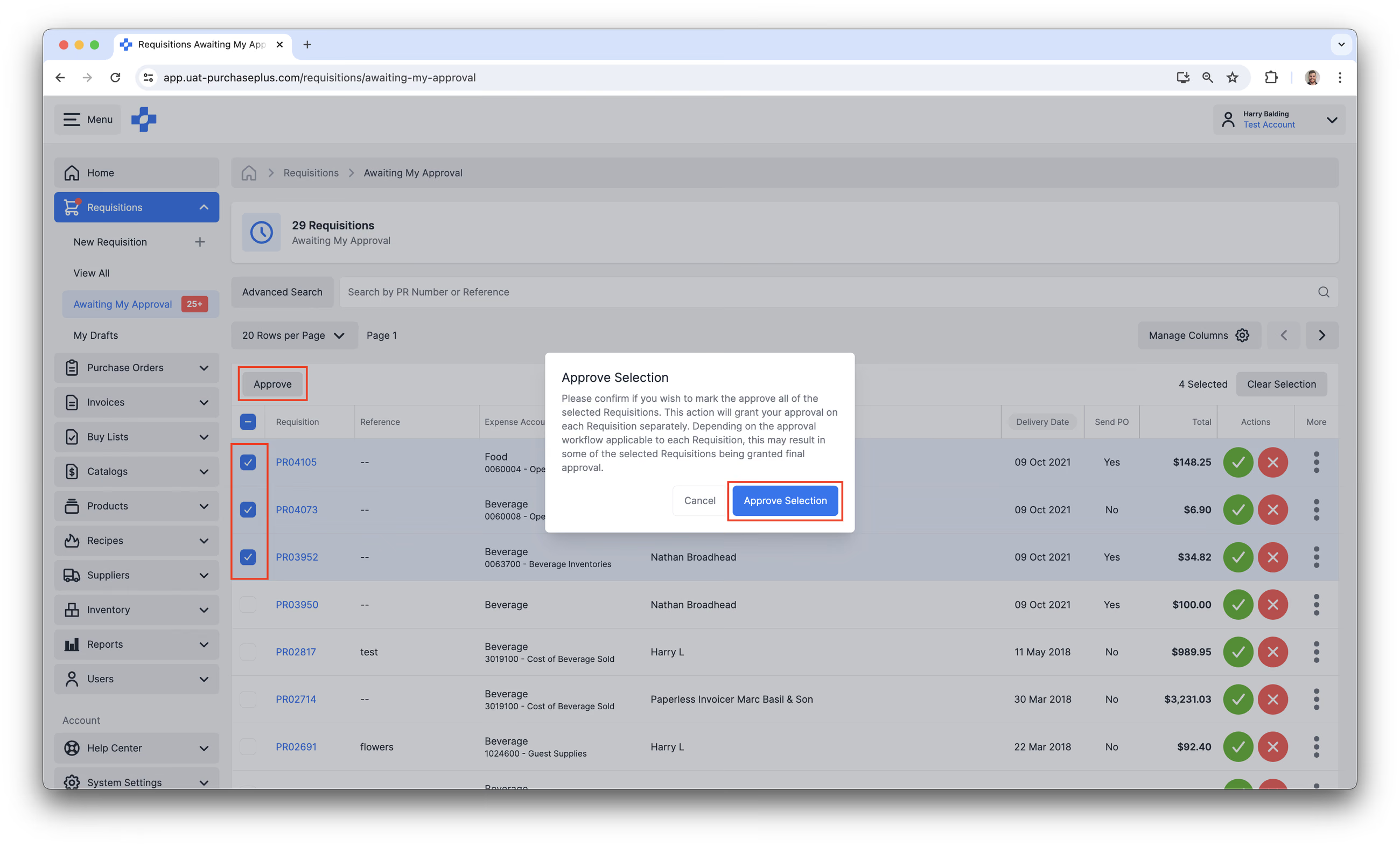
Users that are able to Approve Requisitions are able to select multiple Requisitions and Approve them in bulk.
1. Using the Side navigation bar, select [Requisitions] → [Awaiting My Approval].
2. If you have the ability to Approve a Requisition, the table will allow you to select multiple Requisitions by clicking the box to the left of the Requisition ID.
3. At the top of the table (above the Requisitions column), an [Approve] button will appear when you have selected one or more Requisitions.
4. Clicking 'Approve' will display a confirmation step. Clicking [Approve Selection] will grant your approval on each Requisition separately. Depending on the approval workflow applicable to each Requisition, this may result in some of the selected Requisitions being granted final approval.