Overview
Overview
Overview
Buy Lists are a powerful way to standardise and automate procurement decisions across an Organization - ensuring that Purchasers can buy the Right Products from the Right Suppliers at the Right Price.
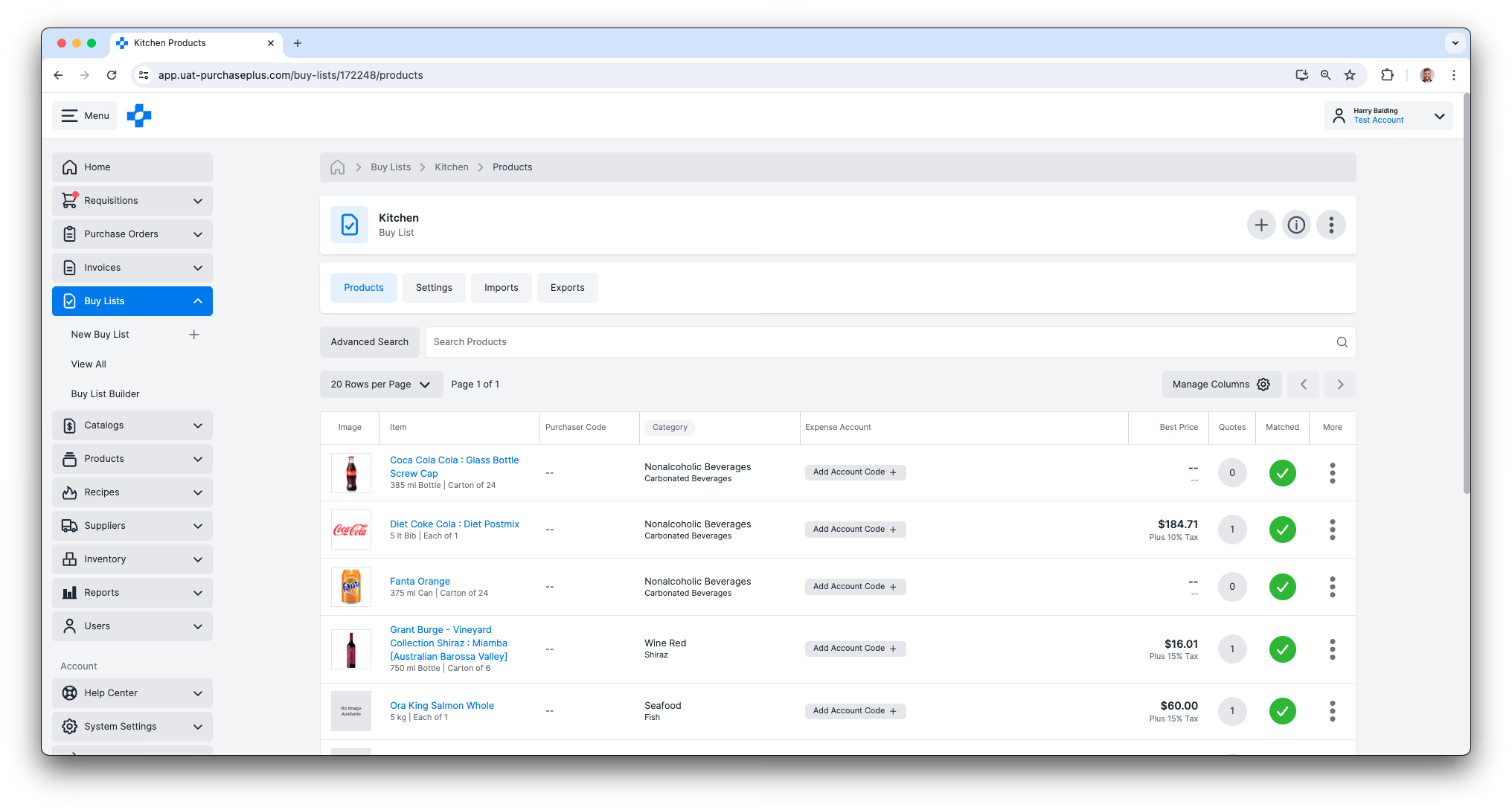
A Buy List is a way of collating a predefined ‘shopping list’ of Products that the Purchaser is interested in. A Buy List displays all of the available Quotes for those Products, from all of their Suppliers' Catalogs.
Buy Lists compound in value when a user with the 'Create Buy List Requisitions' permission creates a Buy List Requisition.
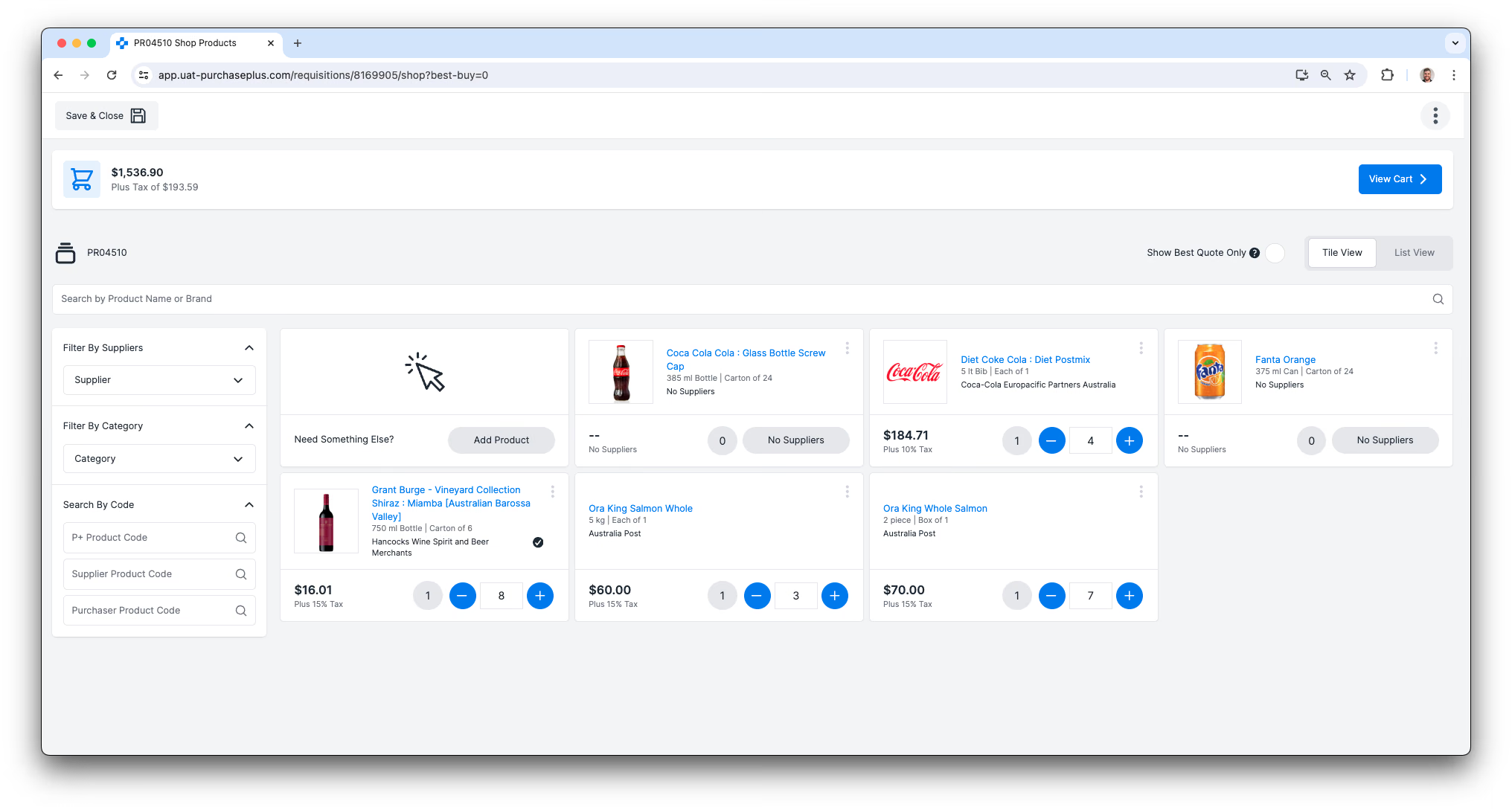
The user is guided towards adding the predefined products to the Requisition, and is encouraged to select the lowest Quote from their Suppliers that offer that product.
Once the Requisition is submitted by the user and approved by the required Approvers, it will be split into multiple Purchase Orders, and sent to the Suppliers that were nominated in the Requisition.
Creating a New Buy List
Purchaser Users with the ‘Manage Buy Lists’ permission can create a New Buy List via [Buy Lists] → [New Buy List] in the side navigation bar, and begin to add Products to the Buy List.
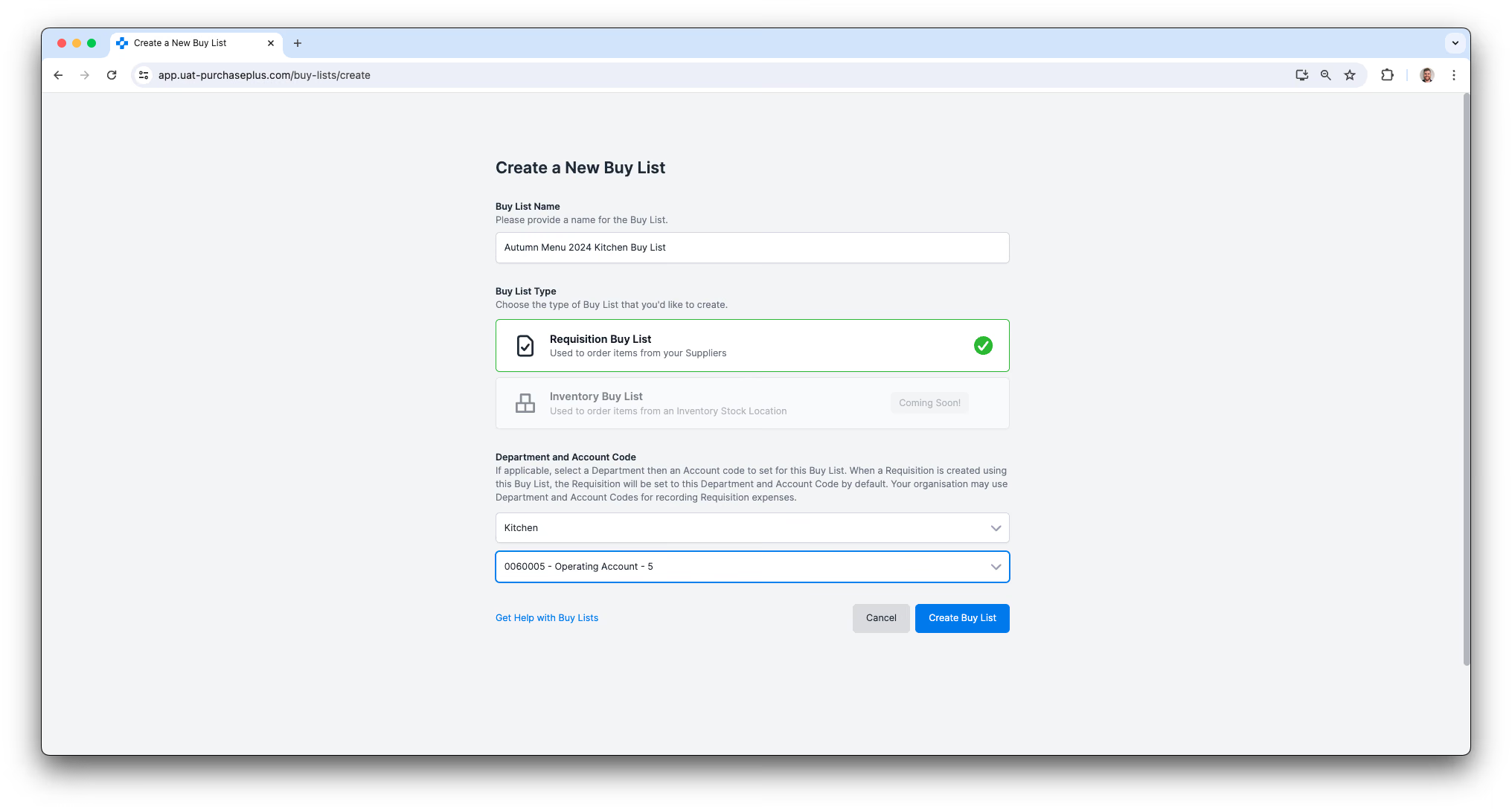
Please read our article about Creating a New Buy List for more information.
Importing and Exporting a Buy List
Purchaser Users with the ‘Manage Buy Lists’ permission can populate a Buy List with Products via CSV Upload on the [Buy List] → [Imports] tab. It is very important that the CSV be formatted correctly; you can use the [Export] function to output a CSV that is the correct format to use for Imports.
Importing and Exporting the Buy List appear as tabs in the Header of the Buy List:
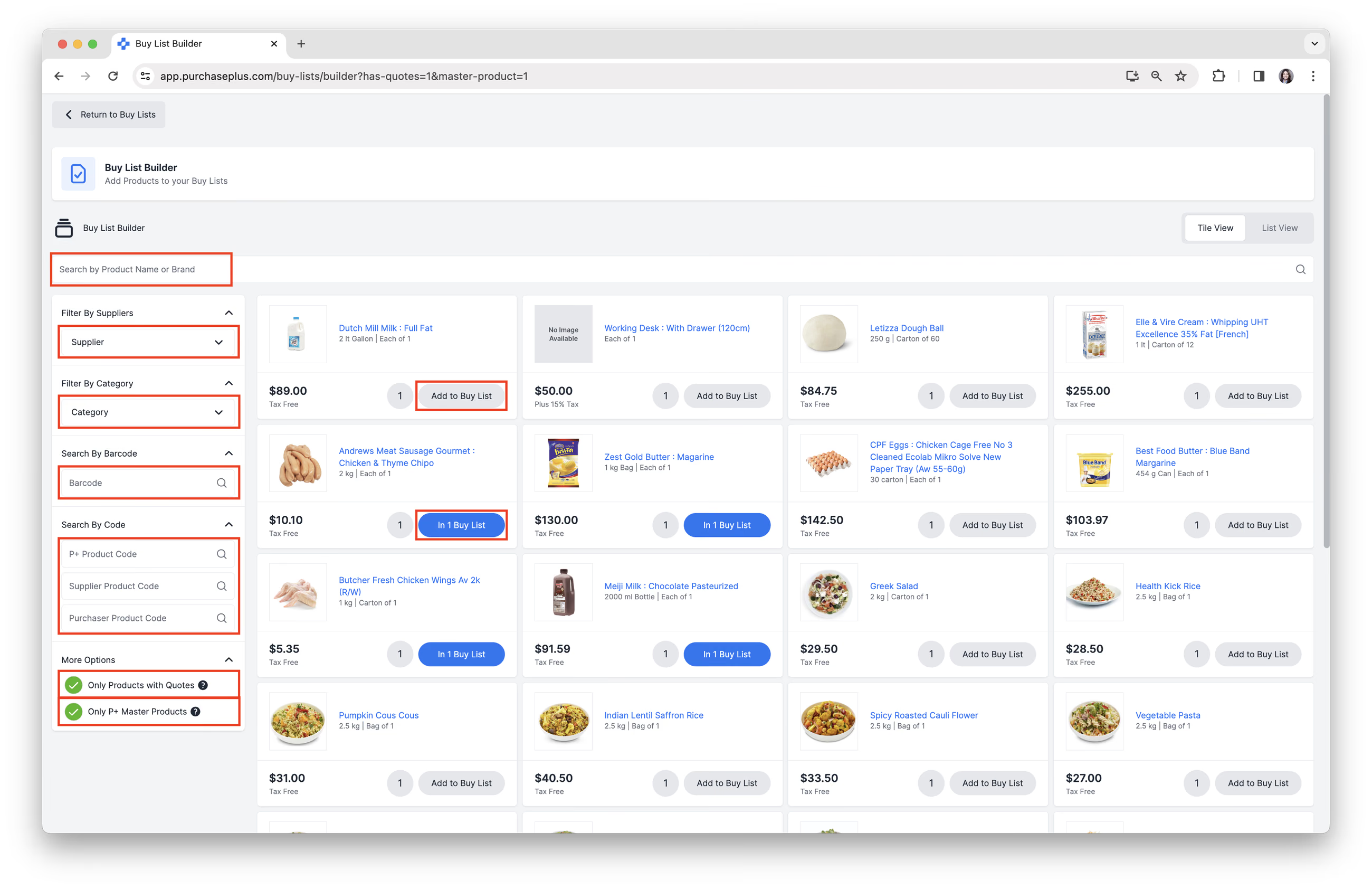
Manage products
Purchaser Users with the ‘Add Items to Buy Lists’ permission can Add and Remove Products from an existing Buy List.
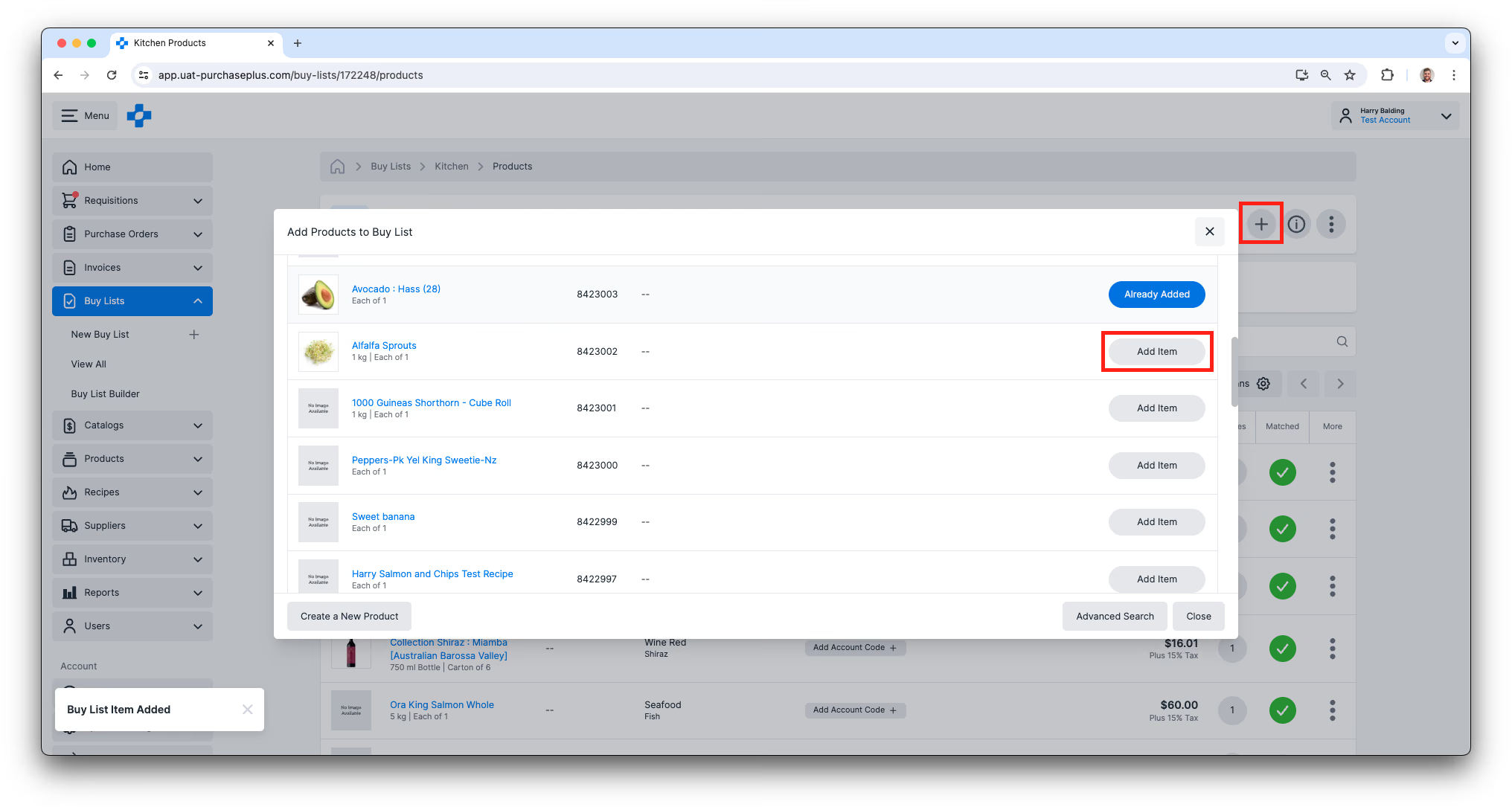
When adding Products to Buy Lists (especially those intended for use in creating Requisitions for Registered Suppliers) it is highly recommended that, wherever possible, select items from the Supplier-Managed Catalog (and not a Self-Managed Catalog).
This helps to ensure that the Product data (codes, pricing, units of measure, etc.) are accurate, current and recognised by the Supplier. In turn, this reduces the chance of mismatches, order rejections, or manual corrections later on.
Additionally, Supplier Catalogs can change over time; Products may be added, updated, replaced, or discontinued — so it’s good practice to review your Buy Lists regularly.
Please read our article about Managing the Products in a Buy List for more information.
Create a requisition
Users with the ‘Create Buy List Requisitions’ permission can create a new Requisition from the Buy List. Please read our article about Creating a Requisition from a Buy List for more information.
Advanced
Buy List Ownership and Hierarchy Implications
Every Buy List has an 'Owner', which is the Organisation under which the Buy List was first created:
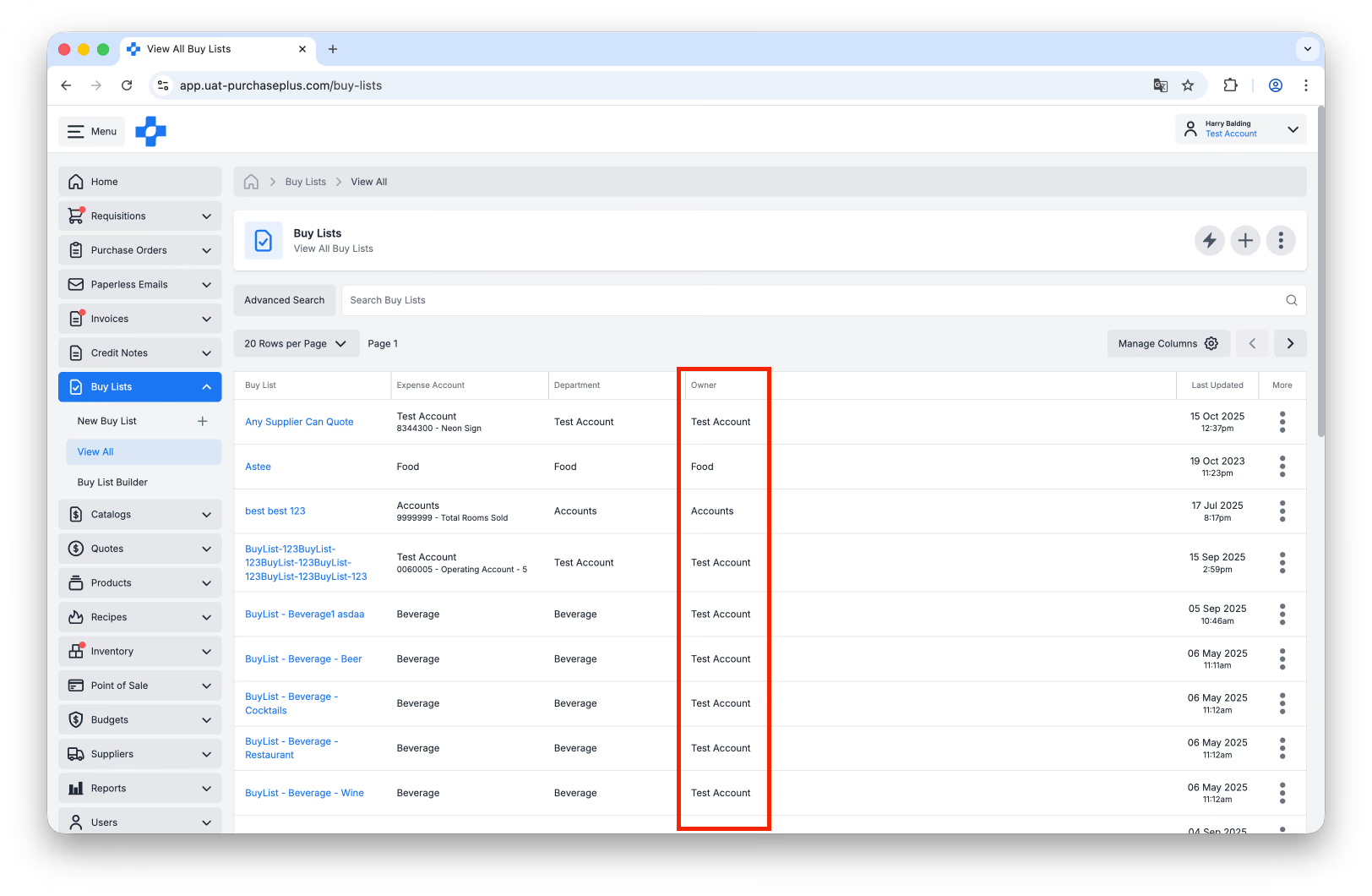
Organisations in PurchasePlus usually exist within a Hierarchy - i.e. Organisations can have 'parents' and 'children' which are above and below the Organisation in question respectively. PurchasePlus uses the 'Owner' of the Buy List to determine which users, at which Organisations in the Hierarchy, can manage the Buy List.
- Users can:
- View, Manage the Settings, and Manage the Products in a Buy List owned by their currently signed-in Organisation.
- View all Buy Lists that are owned by Organisations above and below their currently signed-in Organisation.
- Manage the Settings of a Buy List that is owned by a Child Organisation to their currently signed-in Organisation (e.g. its Name, Department, etc).
- Add Products to and Remove Products from a Buy List that is owned by a Child Organisation to their currently signed-in Organisation.
- Users can not:
- Manage the Settings of the Buy List that is owned by a Parent Organisation to their currently signed-in Organisation (e.g. its Name, Department, etc),
- Add Products to a Buy List that is owned by a Parent Organisation to their currently signed-in Organisation,
- Remove Products from a Buy List that is owned by a Parent Organisation to their currently signed-in Organisation.
This logic, combined with the relevant User Permissions for Buy List management, enables PurchasePlus to support top-down management of Buy Lists without sacrificing the user's ability to manage their property- or department-specific Buy Lists that they need to manage closely.
Finally, the Owner of the Buy List can not be changed. If you need to move a Buy List up or down the Organisation Hierarchy, you must export and then import the Buy List at the desired level in the Organisation Hiearchy.
Department and Account Code per Buy List
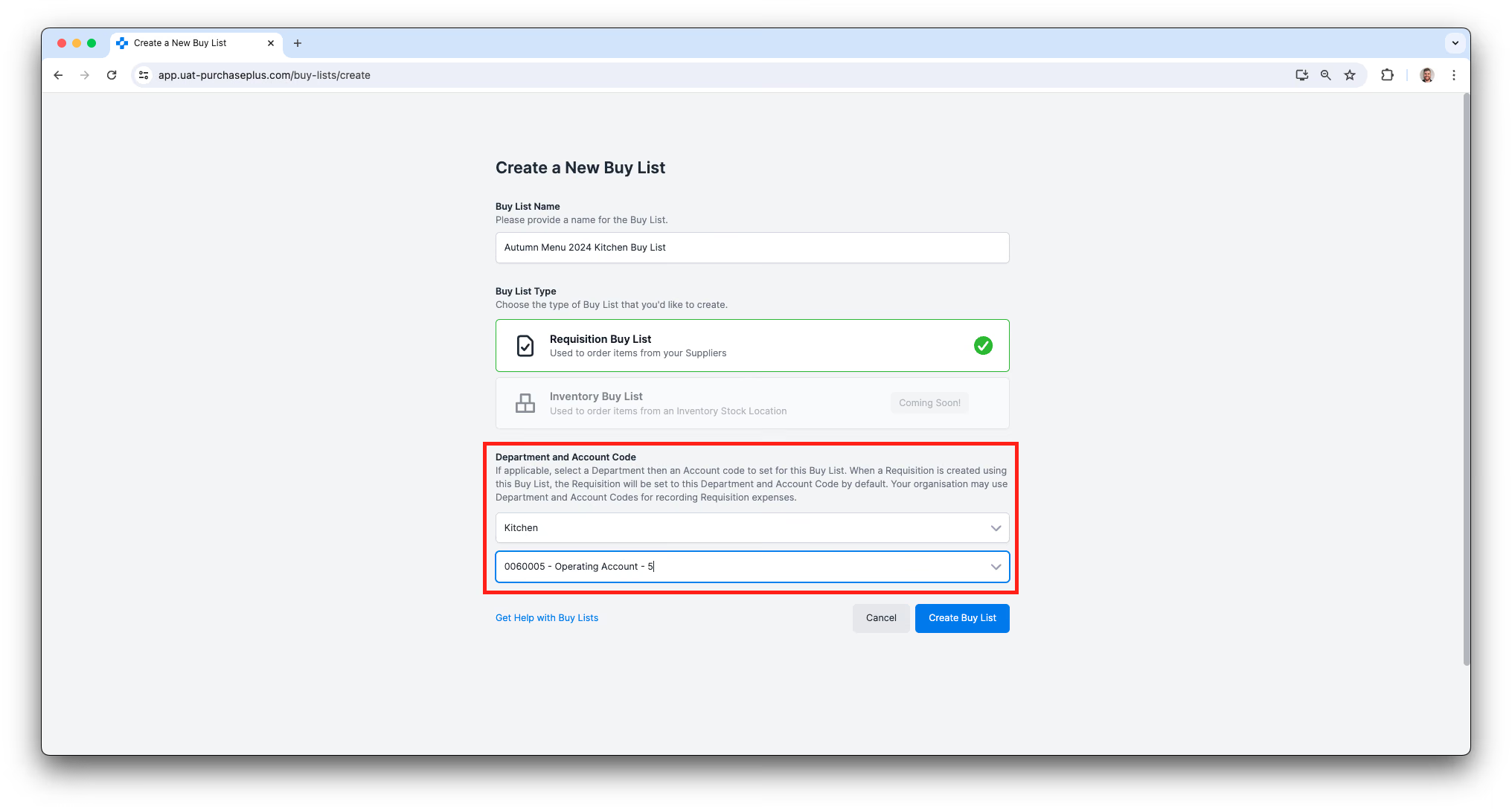
When a User with the ‘Manage Buy Lists’ permission is creating a new Buy List, they can optionally supply a default Department and Account code for the Buy List. When a Requisition is created using the Buy List, the Requisition will be set to this Department and Account Code by default. This can be updated at any time in the Settings tab of the Buy List.
Department and Account Code per Buy List Item
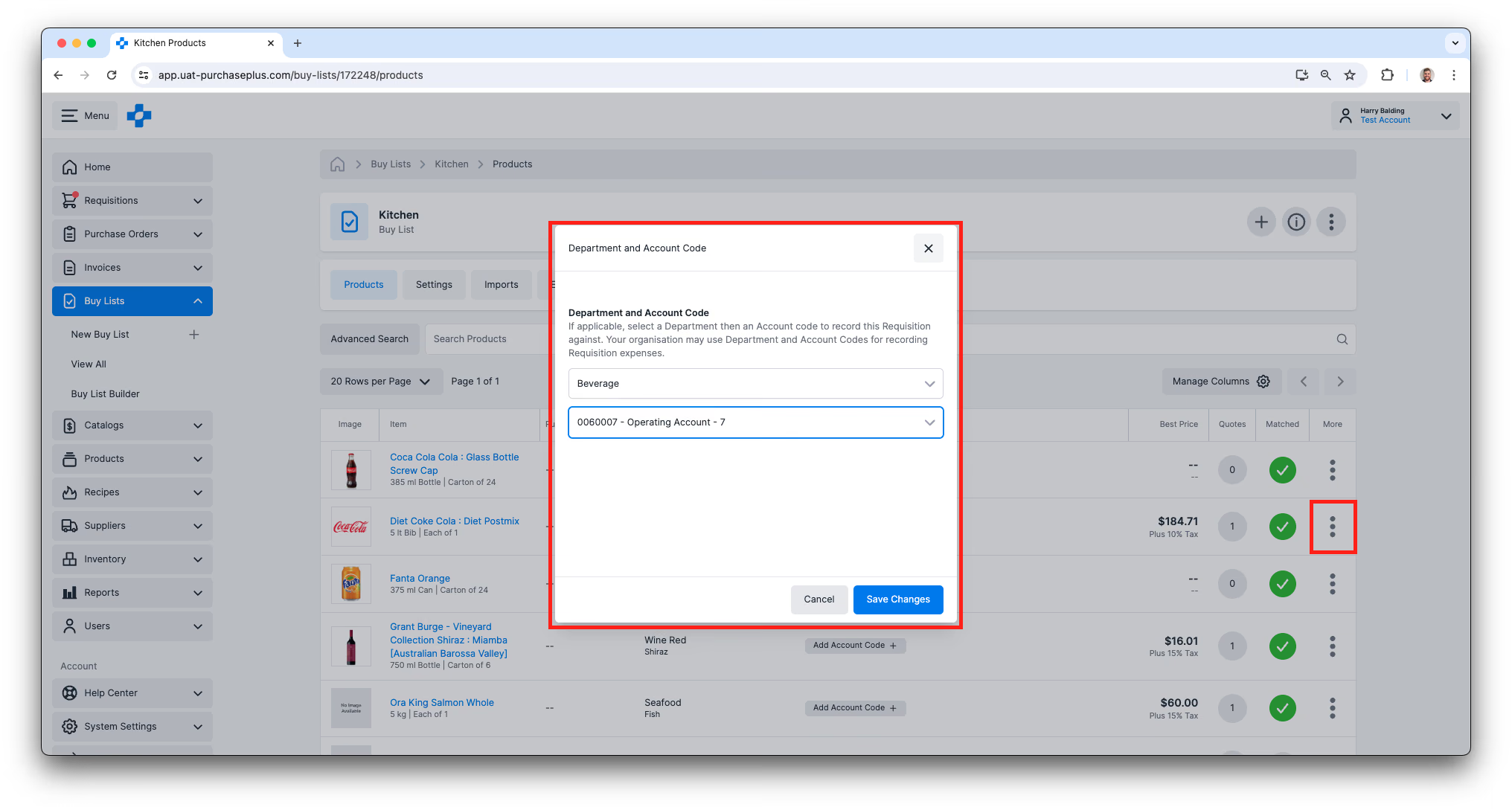
When a User with the ‘Manage Buy Lists’ permission is viewing an existing Buy List (e.g. when adding new Product to the Buy List), they have the ability to add a default Department and Account Code for any product in the Buy List.
Enabled Suppliers per Buy List
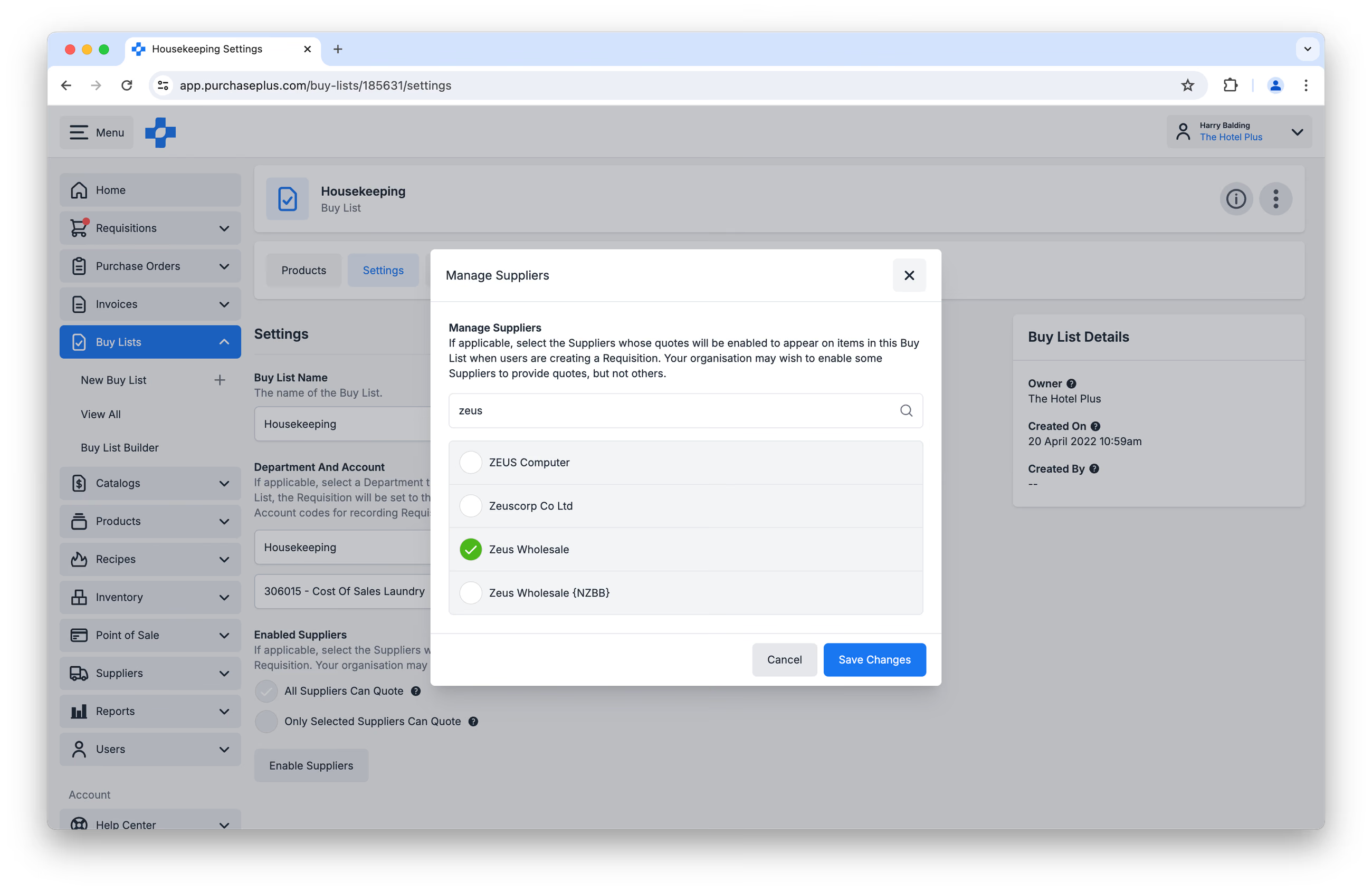
Occasionally, you may wish to specify which Suppliers' Quotes are made available to users that are Creating a Requisition from a Buy List. This feature is found in the [Settings] tab of the Buy List:
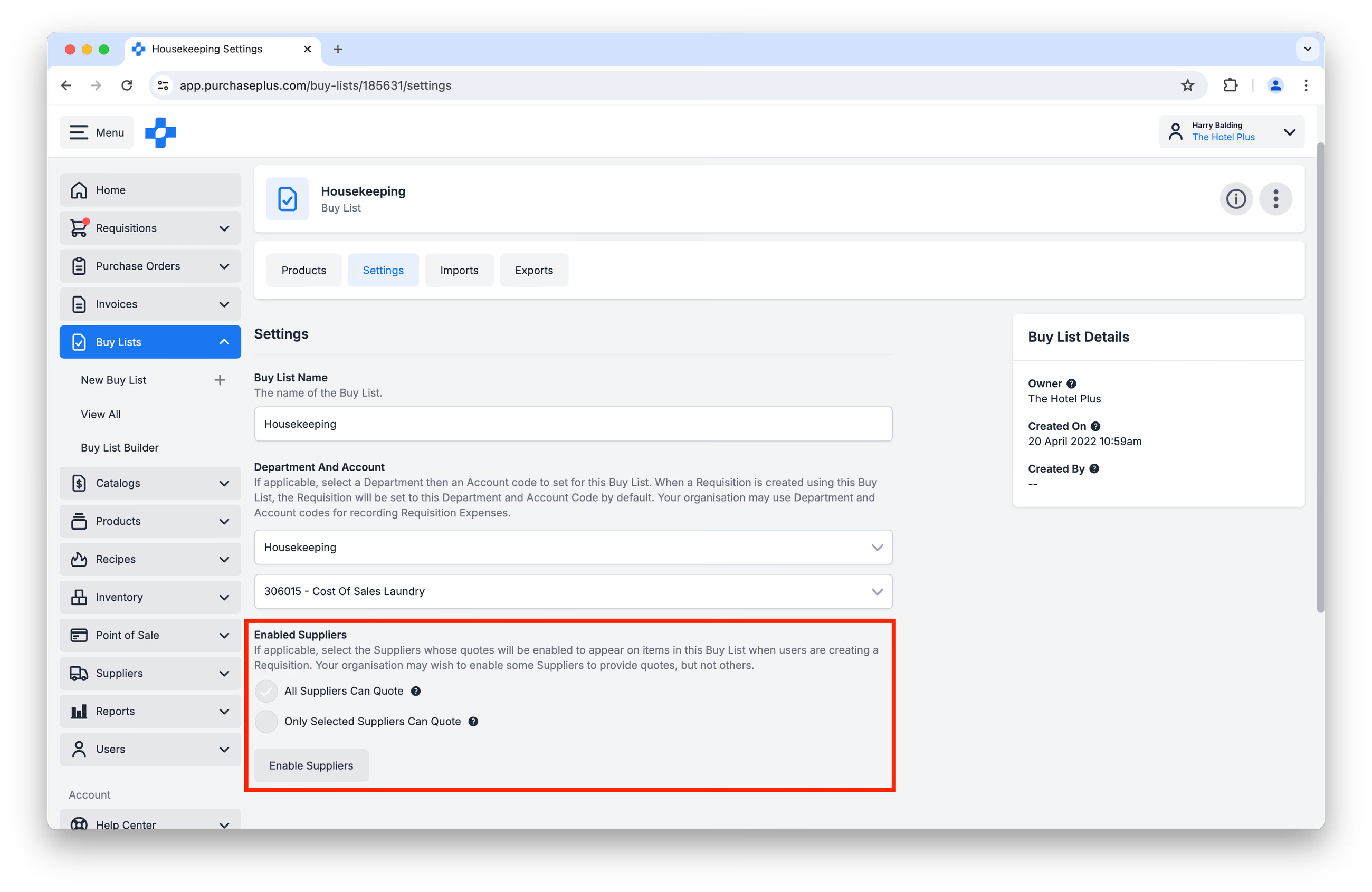
By default, every Buy List will allow All Suppliers to provide quotes on Buy List Products. If you wish to specify the Suppliers that can quote, click [Enable Suppliers], and then search and select the Suppliers you wish to allow to quote by clicking the checkbox next to the Supplier name. Click [Save Changes] to action the changes: