

Transfers
Transfers
Transfer
A Transfer is a way to manage (and account for) the movement of Stock Items between Stock Locations.
A Transfer can be created manually at any time if the user has the ‘Manage Transfers’ permission, or they may be created automatically during certain actions - e.g. Receiving Goods, or during the initial setup of Opening Balances in a Location.
Transfer Notes are created for each type of transfer, where you can view a detailed summary of the Transfer’s Origin, Destination, transferred Stock Items and other important information.
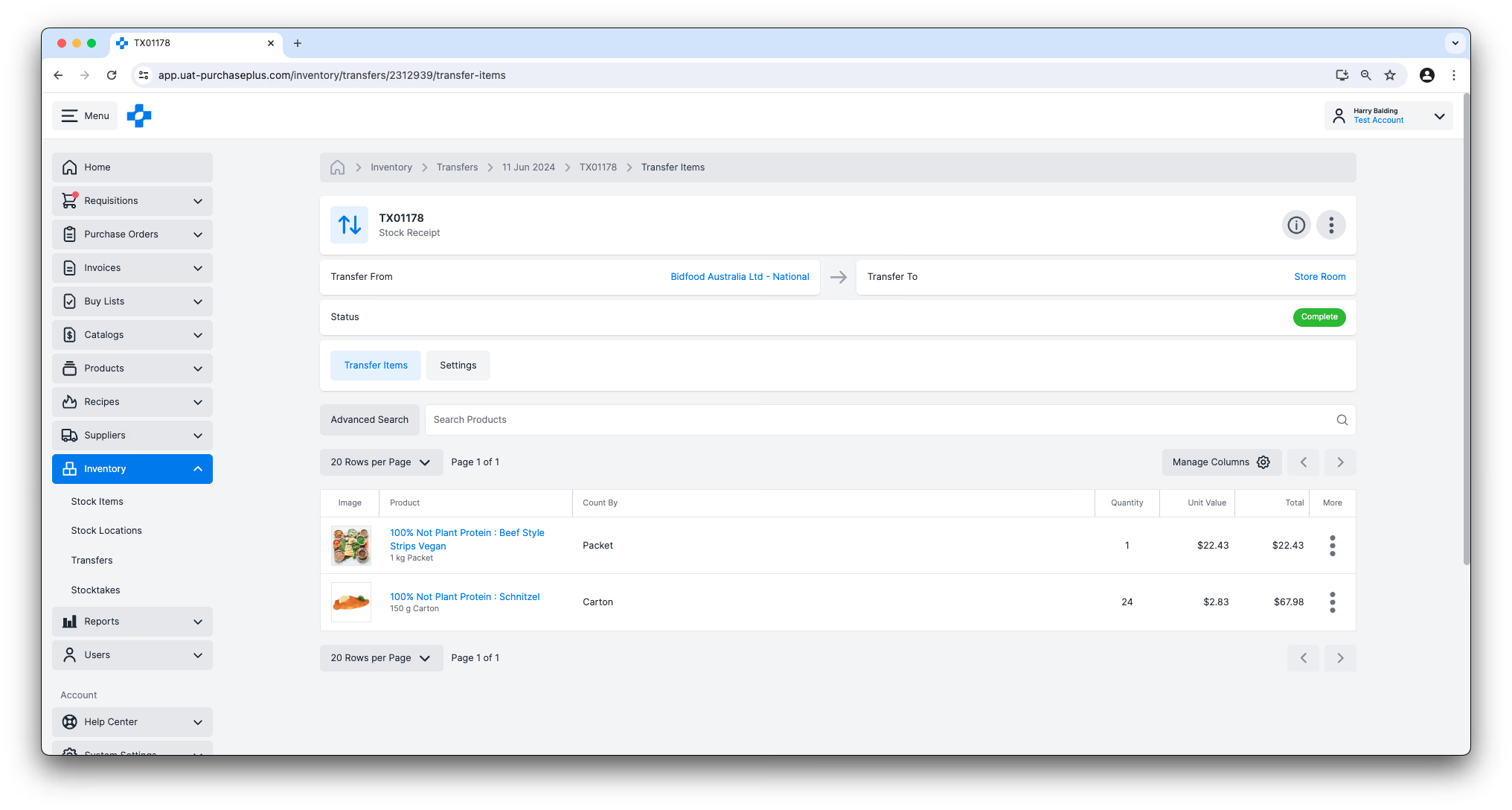
Types of Transfers
There are many different types of Transfers in the PurchasePlus Inventory module:
- Stock Transfer: used for moving Stock Items from one Location to another,
- Stock Adjustment: used for adjusting the quantity of one or more Stock Items in a Stock Location,
- Stock Variance: used to Transfer the variance between the Expected quantity and the Actual quantity of Stock Items in a Stock Location. This is usually done as part of a Stocktake.
- Opening Balance Transfer: used to populate Stock Items in a Location for the very first time. The initial Opening Quantity will be transferred from your Opening Balances Location. This can be done via an import of a CSV. Please see our Importing Opening Balances by CSV article for more information.
- Stock Receipt: used to account for a Transfer of Stock Items from one of your Suppliers into your Stock Location. This Transfer is created automatically when Receiving Goods from a Purchase Order, into an Inventory Location.
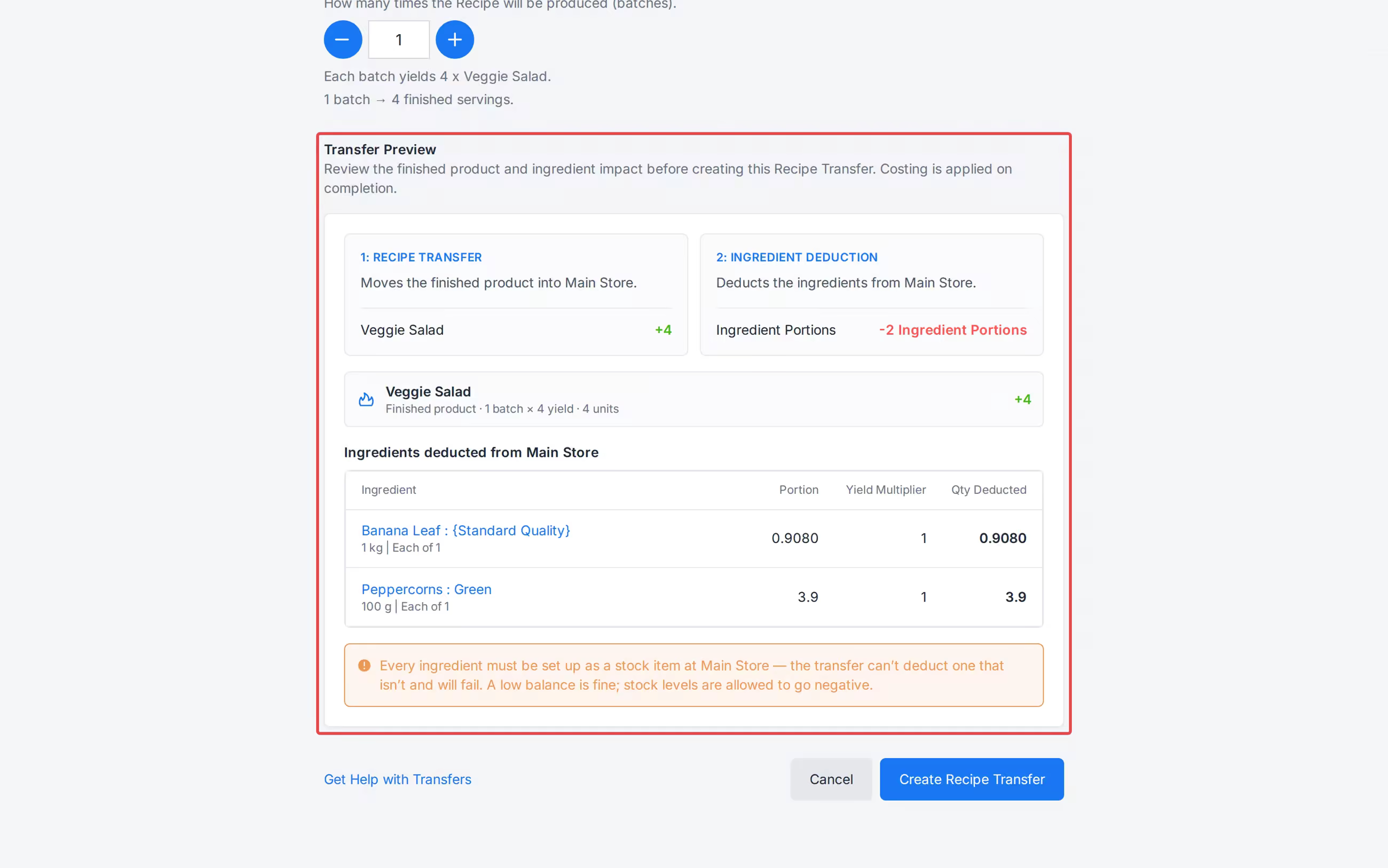
- Recipe Transfer: used to prepare an Inventory Recipe. Once Complete, it adds the finished Recipe to the Destination Stock Location and deducts the Ingredients used to make it.
- Ingredient Deduction Transfer: created automatically when a Recipe Transfer is marked Complete. It is linked to the Recipe Transfer.
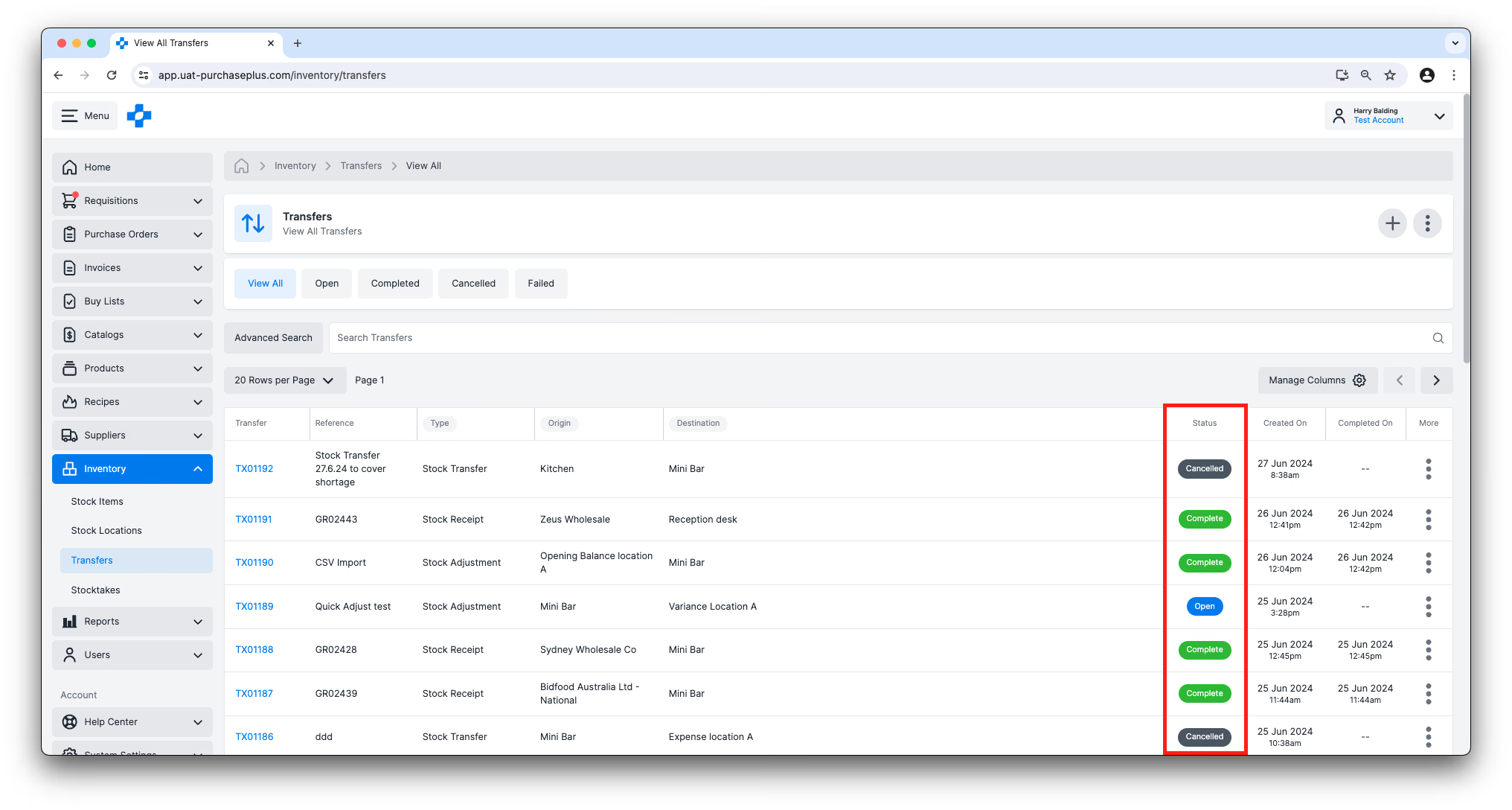
Transfer Statuses
Each Transfer has a Status which indicates where the Transfer is in its lifecycle. The possible Transfer statuses are:
- Open: The Transfer has been created, but is not yet complete. In the Open state, a Transfer can be edited by users with the ‘Manage Transfers’ permission. Stock Items can still be added to the Transfer, and some Settings of the Transfer can be edited while in the Open state. When it is appropriate, an Open Transfer can be manually marked as Complete by any user who has the 'Complete Transfers' permission.
- Awaiting Approval: The Transfer is Awaiting Approval from an eligible user at your Organisation. Only Approvers can make changes to a Transfer in this status.
- Complete: The Transfer has been finalised, either manually by a User with the ‘Complete Transfers’ permission, or automatically as part of certain actions - e.g. Receiving Stock Items into your Inventory. The Stock Items on the Transfer Note have been decremented from the Origin Location, and Incremented at the Destination Location. No new Stock Items can be added to the Transfer, and no Settings can be edited on a Completed Transfer. Once in the state of Complete, the Transfer cannot be cancelled or reversed, as the movement of Stock Items and all of the important calculations resulting from this, have been actioned.
- Cancelled: An Open Transfer can be ‘Cancelled’ before it is marked as Complete, and no further action can be taken on the Transfer once it is in the Cancelled state.
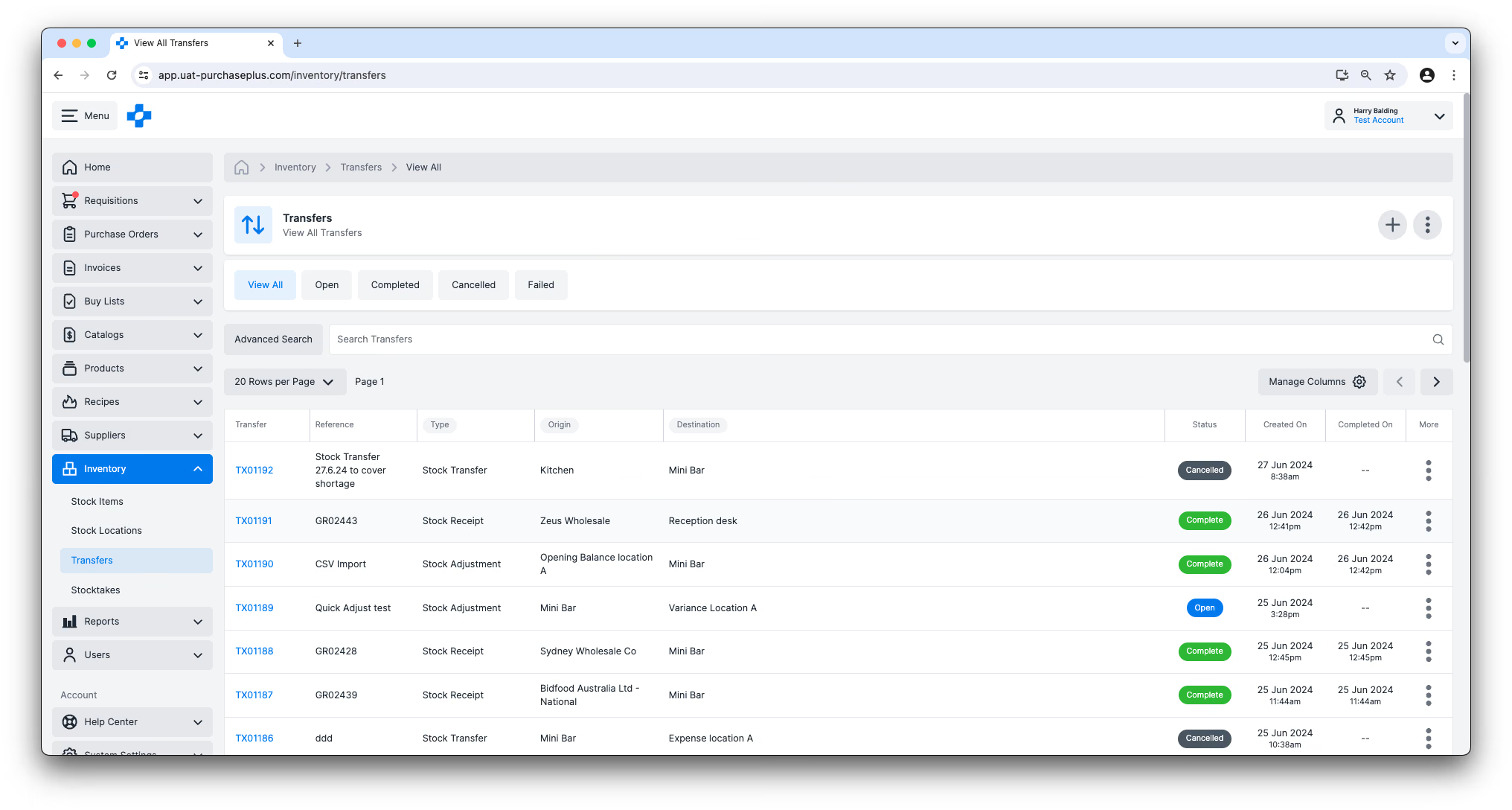
Viewing Your Transfers
Users can view Transfers across all of their Locations by navigating to [Inventory] → [Transfers] in the side navigation bar.
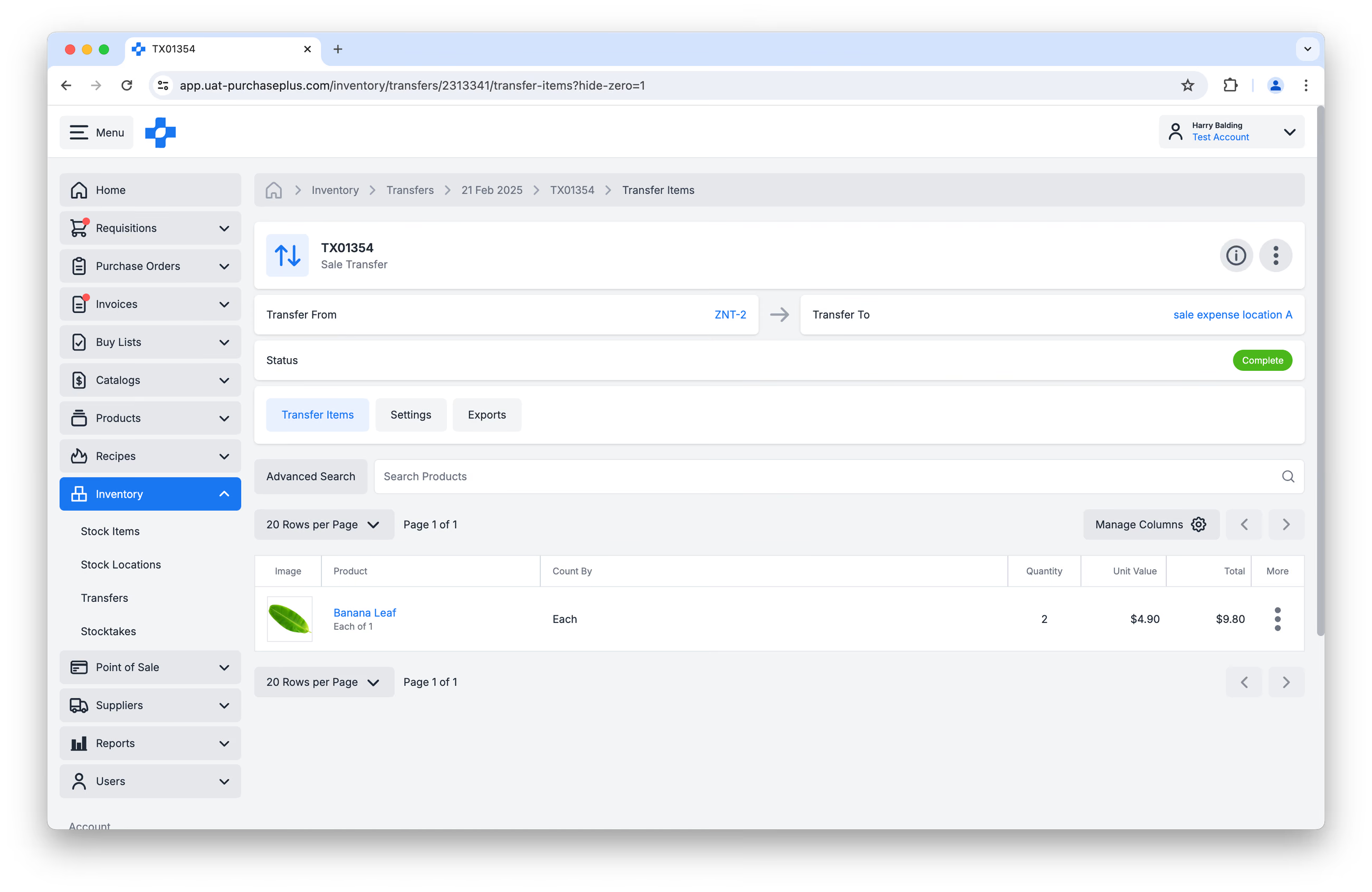
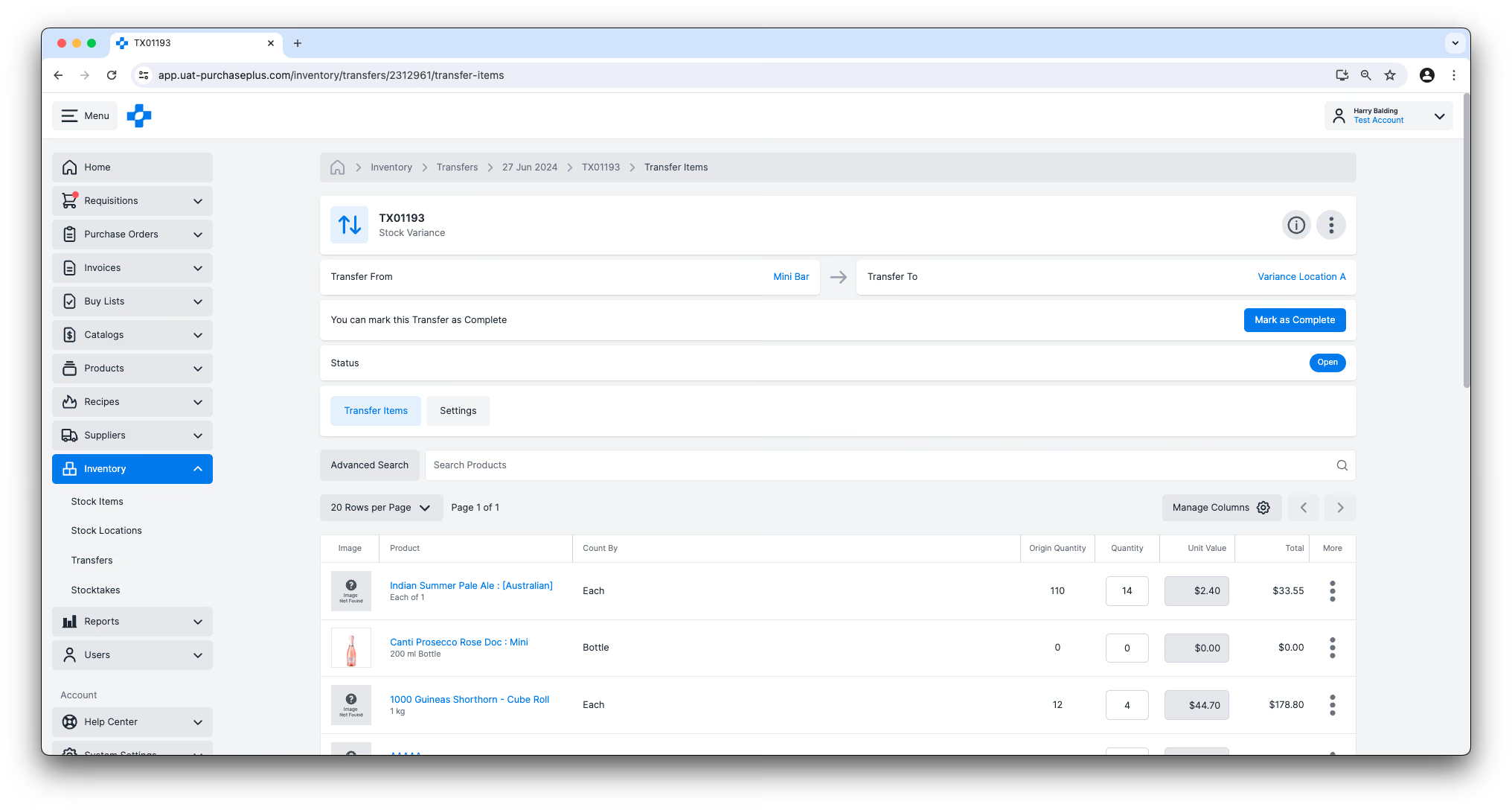
You can click on the Transfer (i.e. 'TX01234') to view a Transfer in more detail, including the Origin, Destination, Delivery Date, Stock Items and Quantities included in the Transfer:
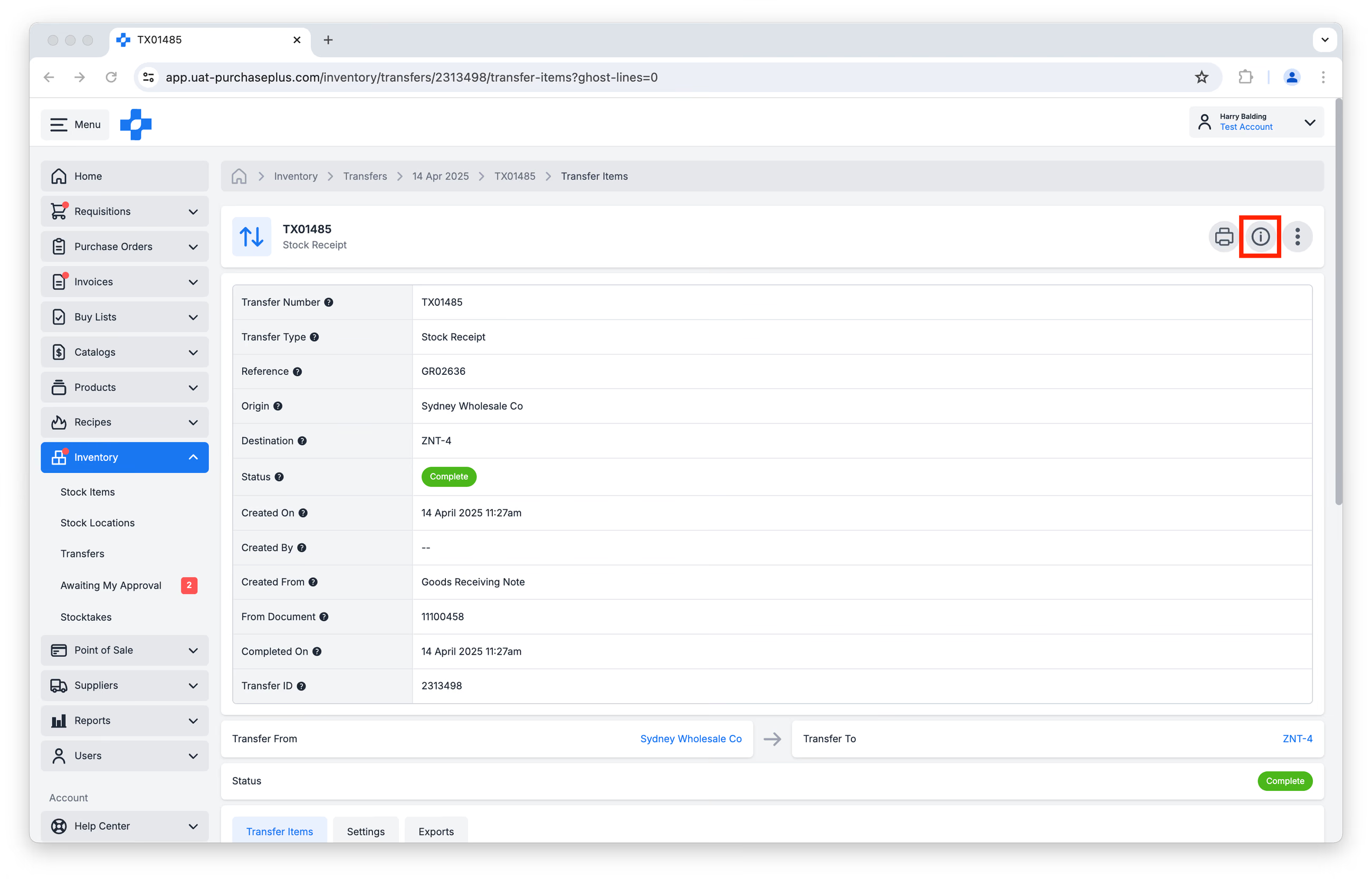
You can view detailed information about a Transfer, for example, the time and date that a Transfer was created, the user that initiated the transfer, the Origin and Destination Department and Account codes, or the Document from which the Transfer was automatically generated, by clicking the [Show or Hide Details] button in the header of the Transfer:
Hide Zero Quantity Lines in an Open Transfer
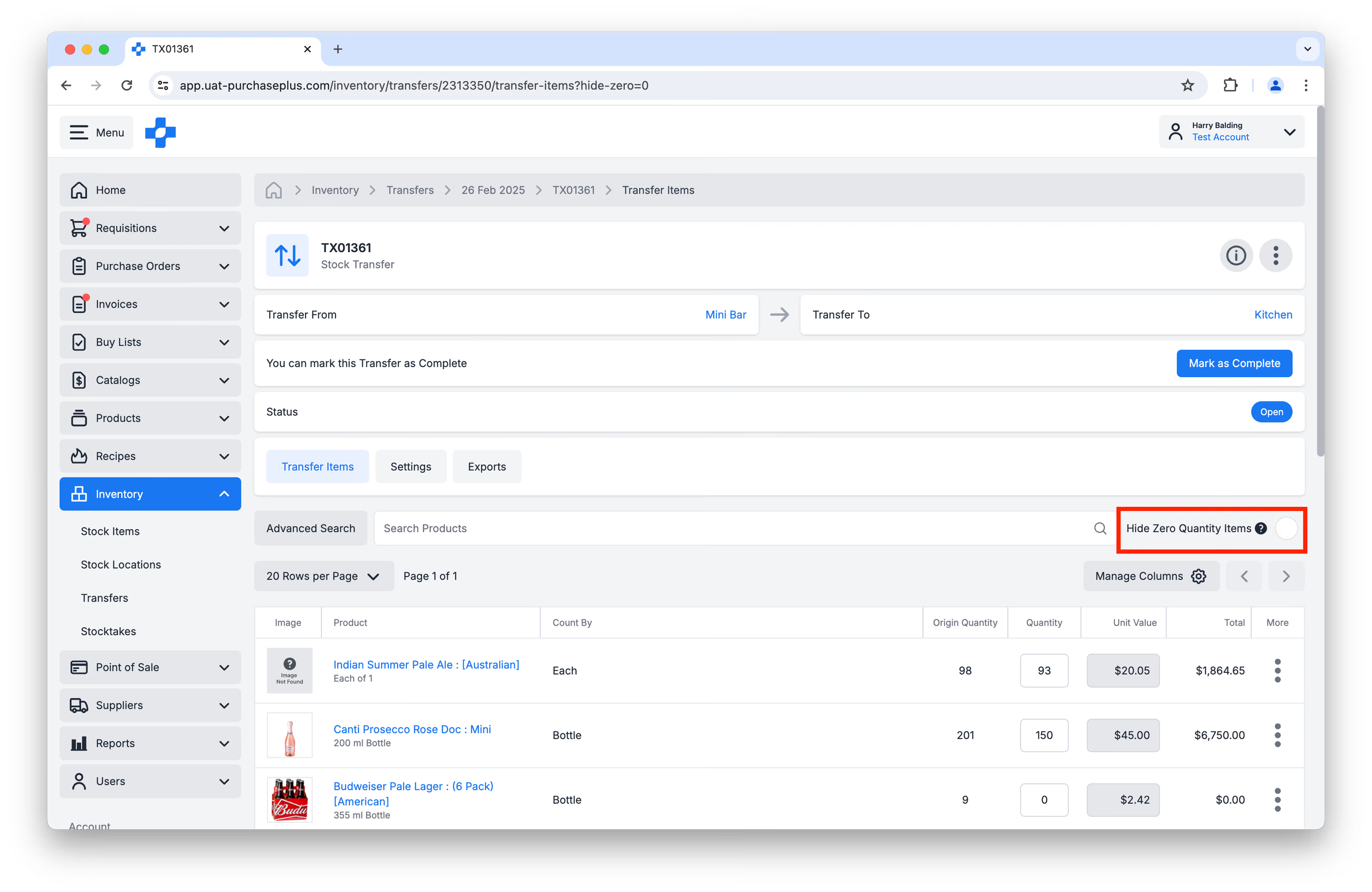
When you are viewing a Transfer in an Open State (e.g. when initially creating the Transfer, or reviewing the Transfer prior to Completion), you will be able to see every Stock Item available in the Origin Location, in case you would like to add it to the Transfer.
Occasionally, you may wish to hide the Stock Items with a Zero Quantity on a Transfer, to only view the items being Transferred.
You can use the [Hide Zero Quantity Items] checkbox to achieve this purpose:
Scan by Barcode
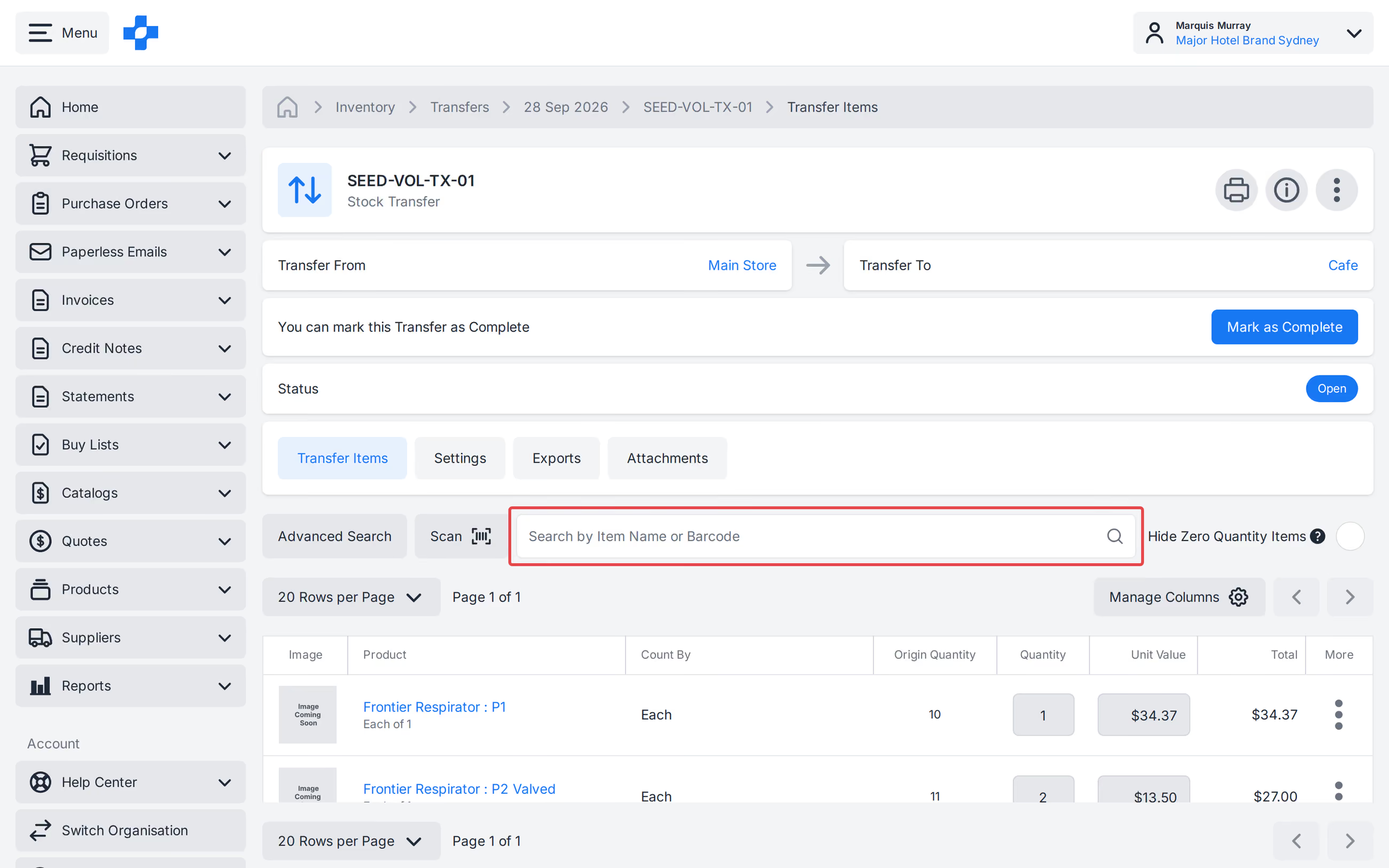
On an Open Transfer, use [Scan] or search by Item Name or Barcode to find a Stock Item. Quantity focus moves automatically after a match; press 'Enter' to search again.
See our 'Barcode Scanner' article to learn more.
Print a Transfer
To generate a print-friendly version of a Transfer, click [Print Transfer] in the header of the Transfer:
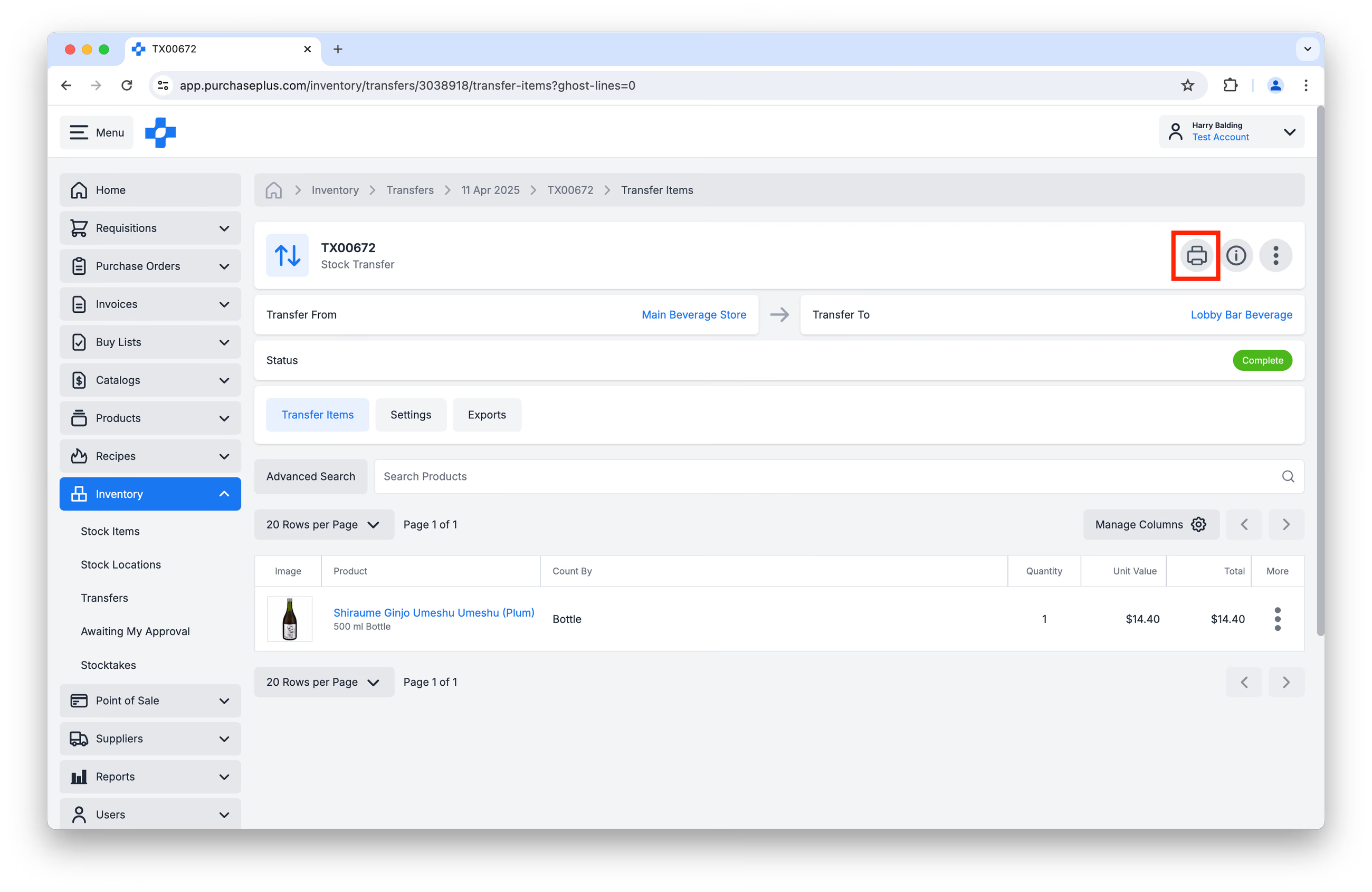
A browser dialog box will appear, prompting you to select your printer and printing options.
Attach a File to a Transfer
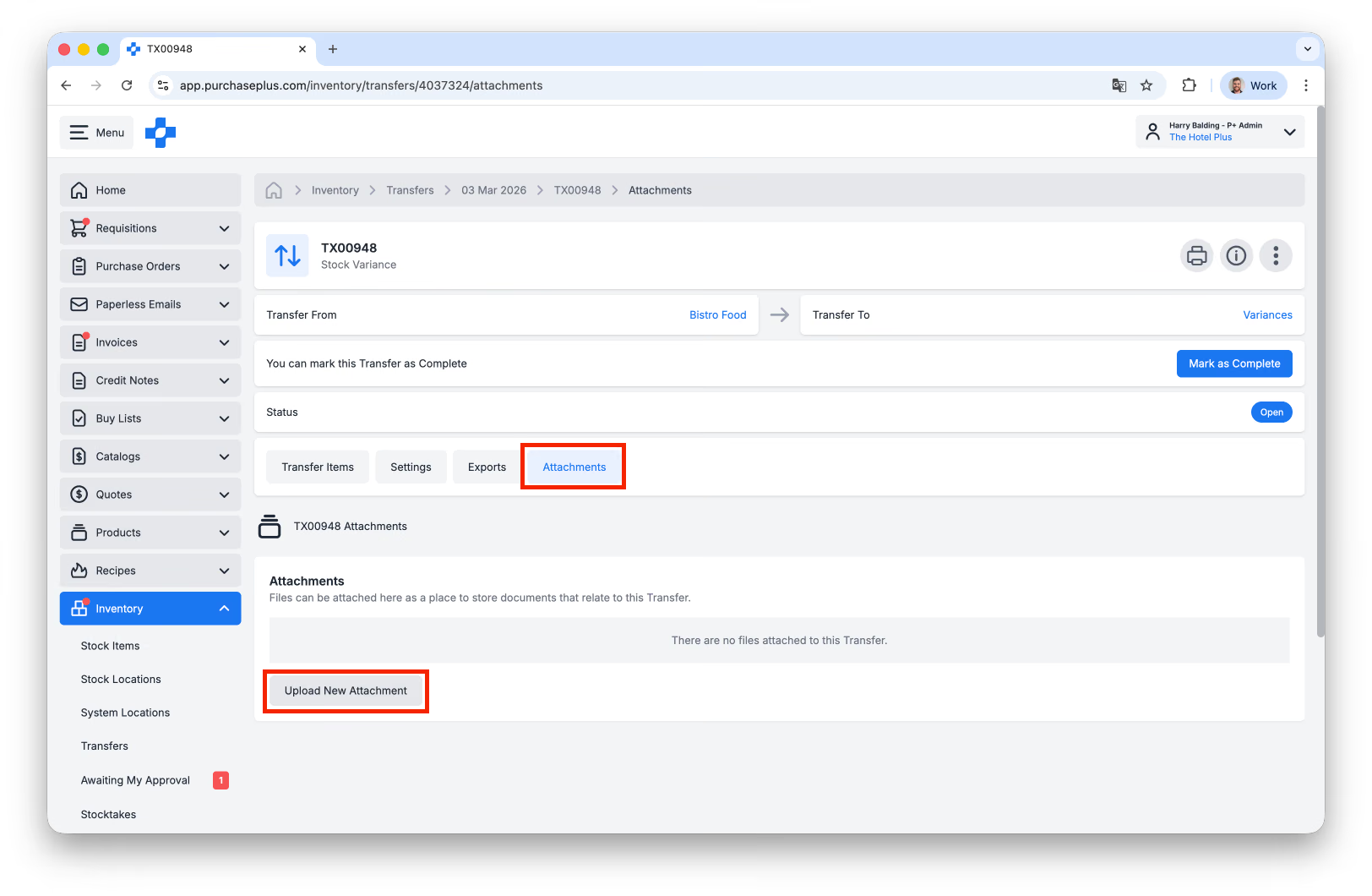
Users can attach a file of up to 5MB to a Transfer by clicking [Upload New Attachment] on the [Attachments] tab of the Transfer:
Importing and Exporting Transfers
Importing Transfers
Opening Balance Transfers (i.e. the initial population of a Stock Location with Stock Items) can be done via a CSV Import. Please read Create an Opening Balance Transfer via CSV Upload for instructions regarding the CSV format and validation rules, before uploading your CSV.
Exporting Transfers
Any Transfer can be 'exported', meaning that the transfer data (Product data, Quantity, Values) can be downloaded as a CSV.
To Export a Transfer, navigate to the Transfer in question, then click the [Exports] tab. Finally, click [Create New Export] and confirm the action:
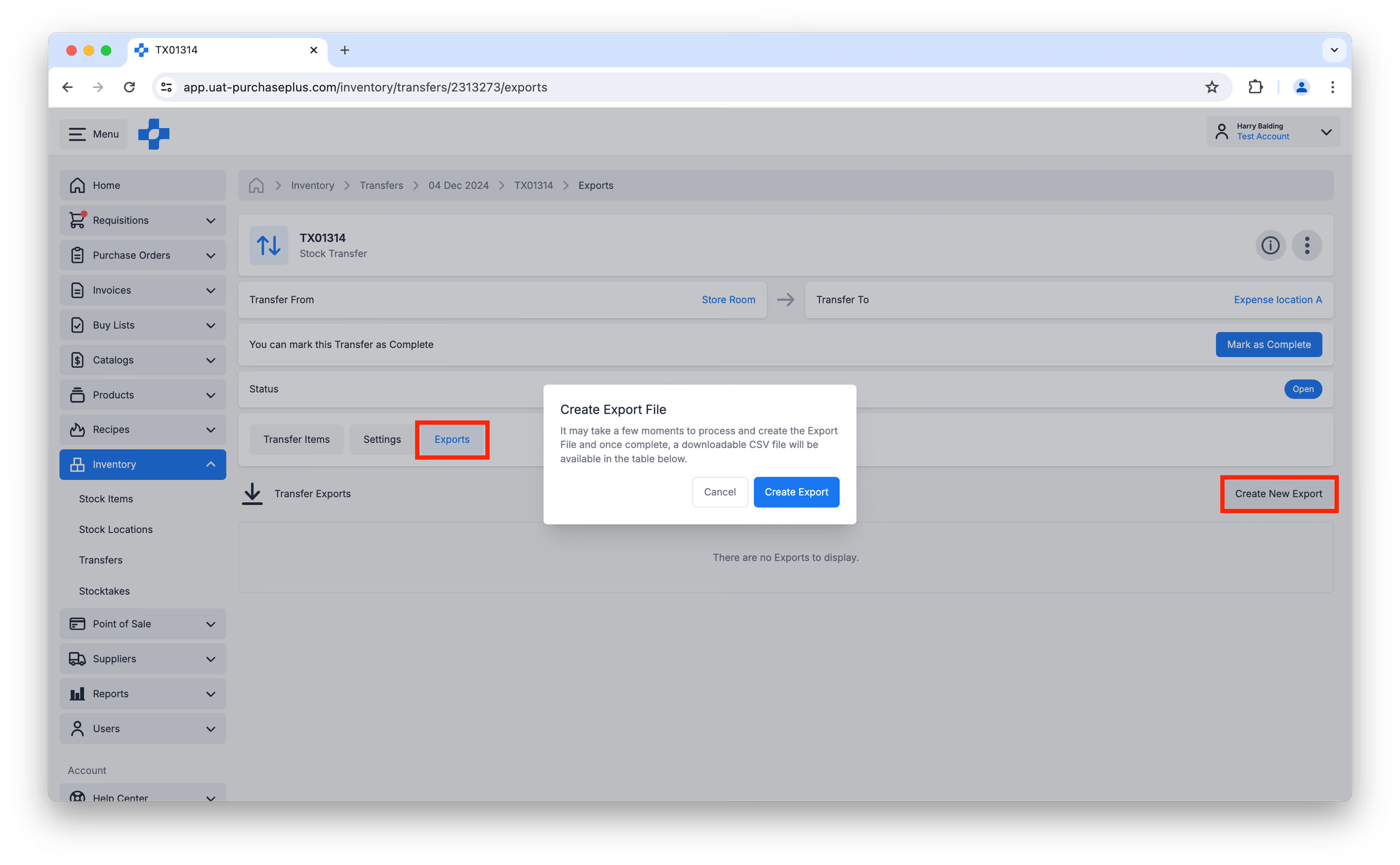
The Export will appear in the table of Exports once is has finished processing and is downloadable.
Creating and Managing Transfers
Users with the Manage Transfers permission can:
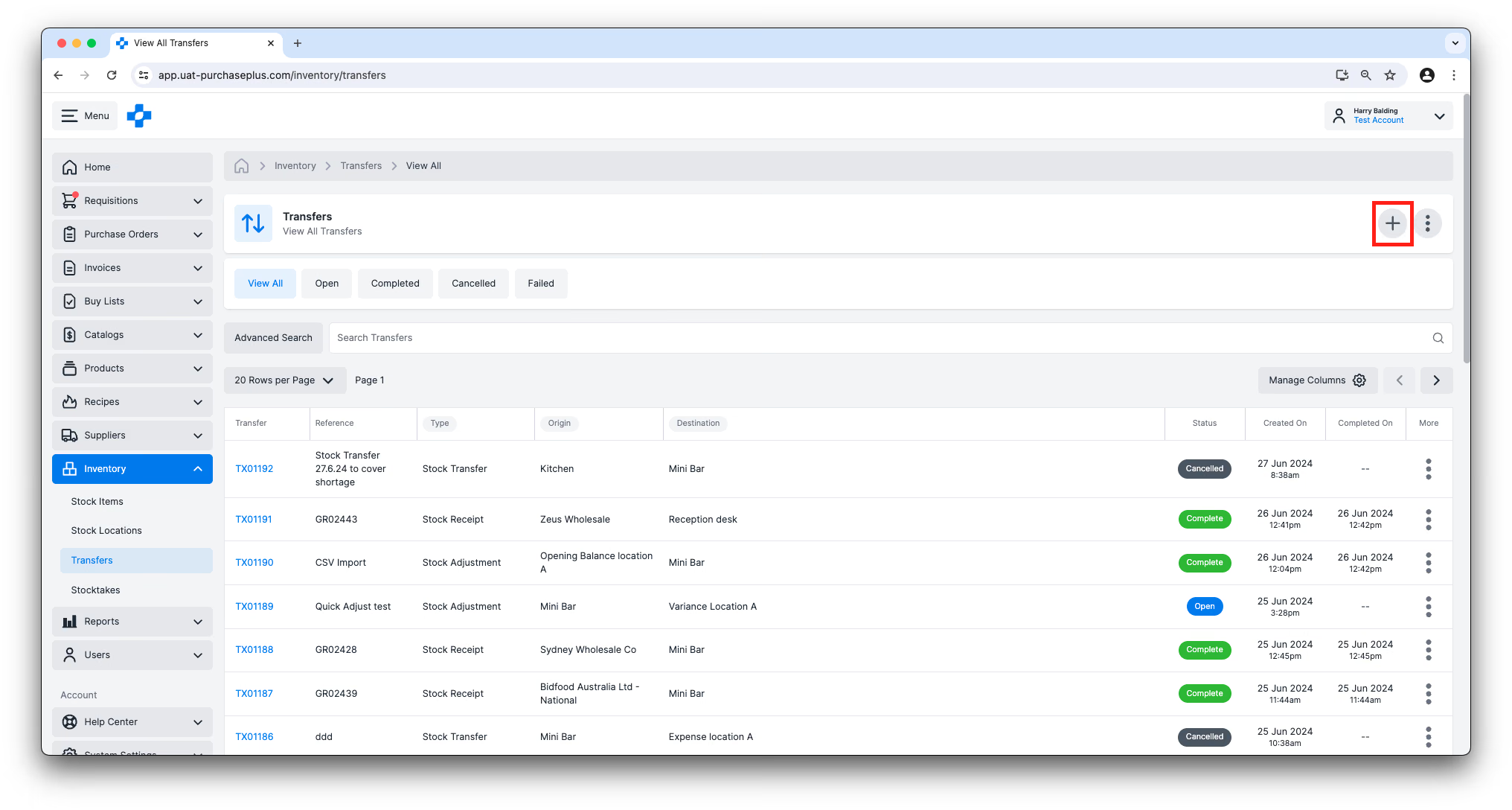
- The recommended method of Creating a New Transfer is by clicking the [Create New Transfer] button at the top right of the [Inventory] → [Transfers] page. Every Transfer requires an Origin and a Destination to be selected, prior to the Transfer being created. Stock Items included in the Transfer will be transferred from the Origin to the Destination, upon completion of the Transfer. Delivery Date is optional on create when the Origin is a Stock or Expense Location, and defaults to tomorrow. It is shown on the Transfer details and on [All Transfers] (sortable). On an Open Transfer, you can edit Delivery Date. Opening Balance and Recipe Transfer do not show Delivery Date.
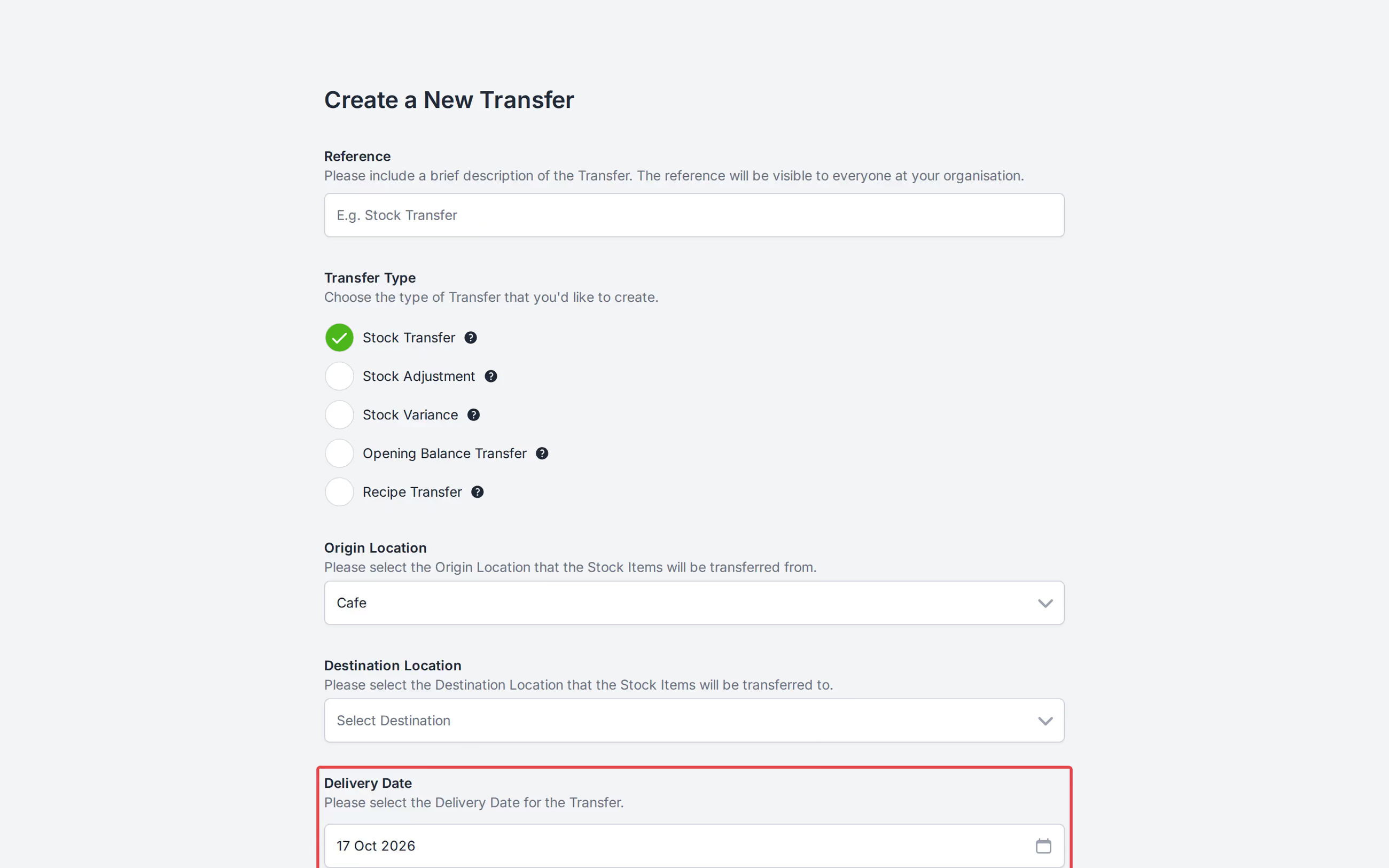
- The [Create New Transfer] form will result in the creation of a Transfer in the Open state, and Stock Items can be added to the Transfer and some Settings of the Transfer can be modified. For most Transfer types, all of the Stock Items held in the Origin Location will appear on the Transfer, with a Transfer Quantity of zero. The quantity of any Stock Item can be changed to something greater than zero, and this will cause that quantity to be transferred to the Destination Location, upon completion of the Transfer.
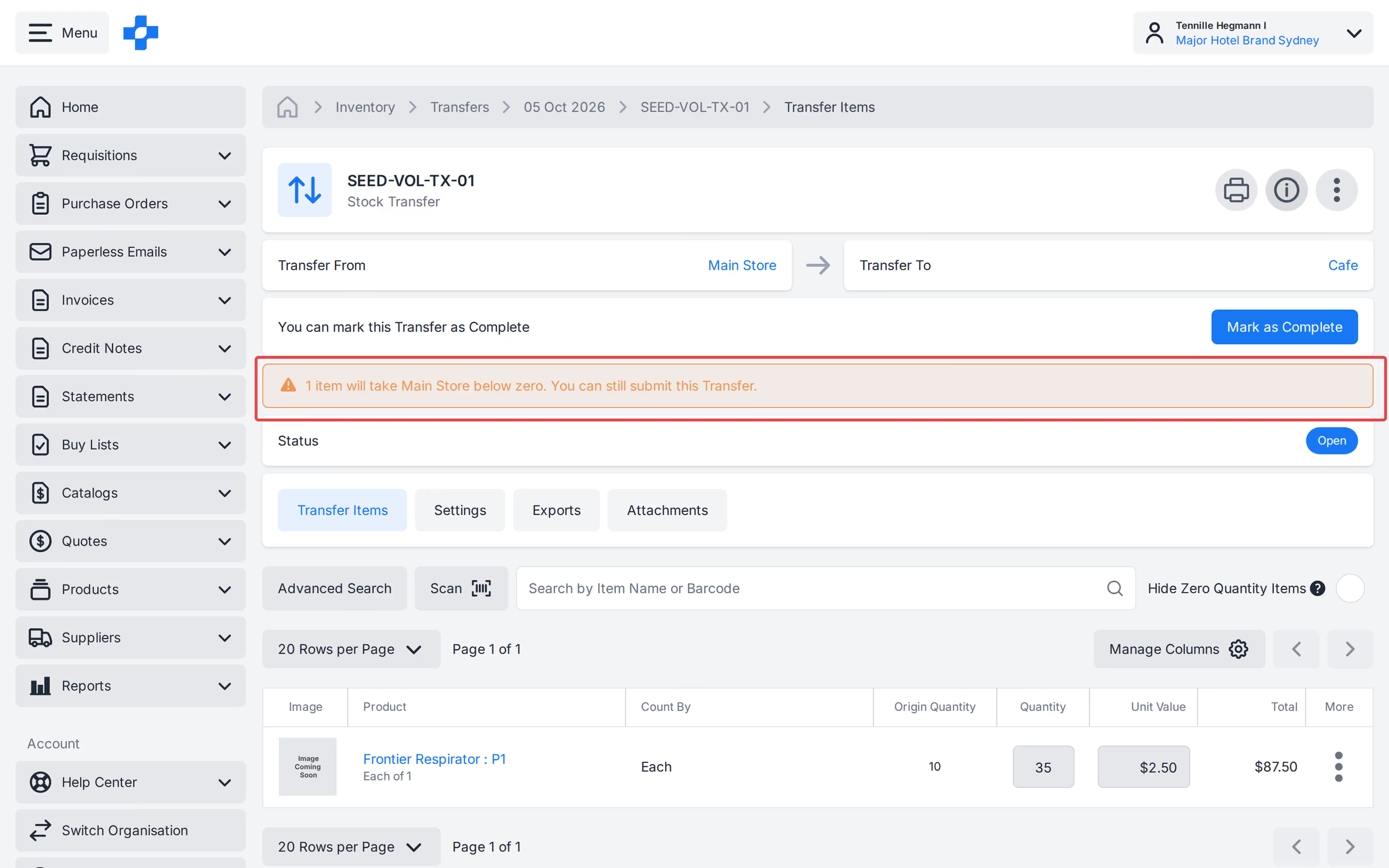
On an Open Transfer, the Quantity field is highlighted when the line exceeds origin stock. An orange banner under the action bar shows how many items will take the Origin Location below zero. You can still submit or complete the Transfer.
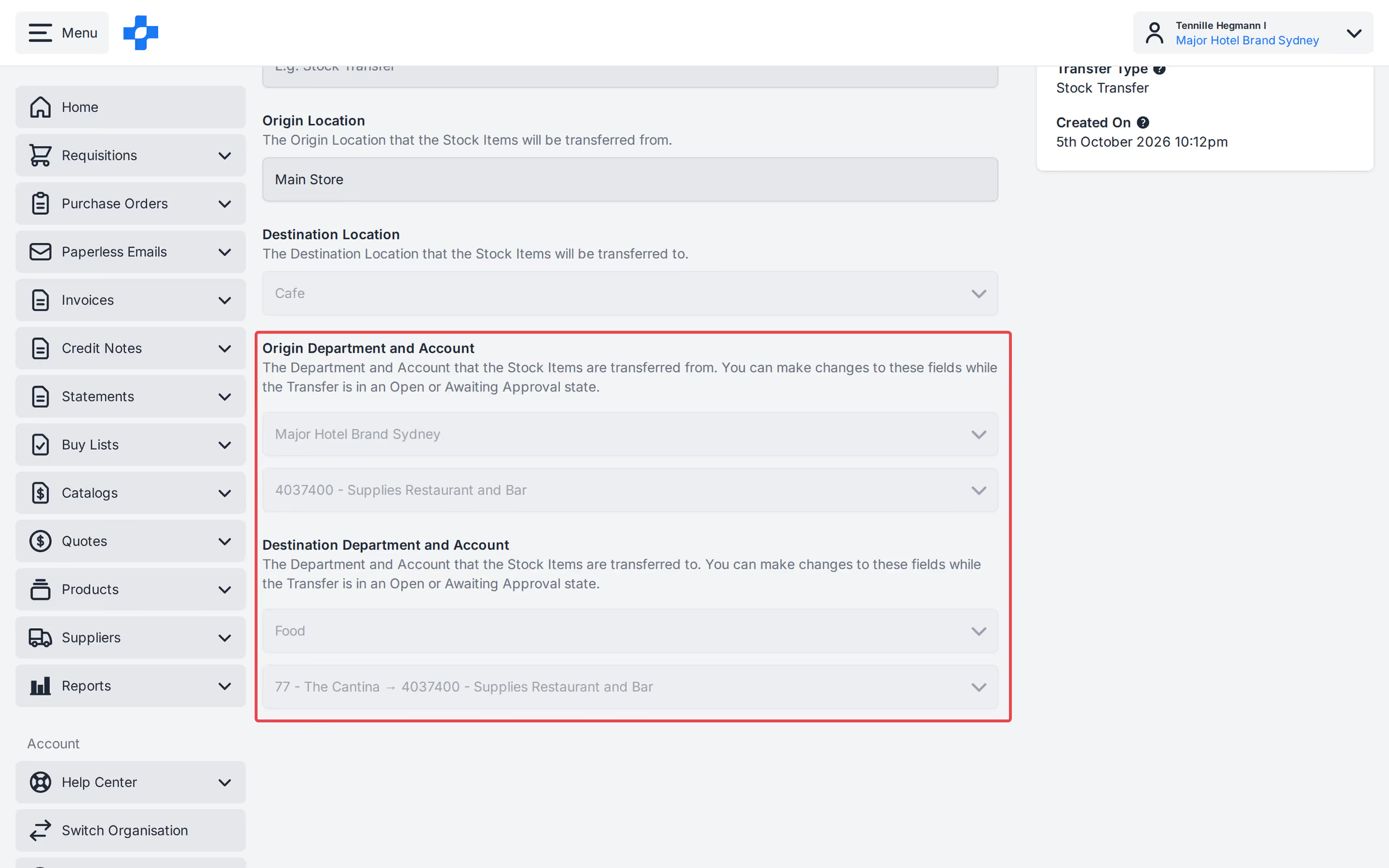
- Any Transfer in the Open state can be edited by a user with the Manage Transfers permission. Additionally, permitted users may update the Destination Location of a Transfer in the Open state. On [Settings], Origin and Destination Department and Account pickers are editable while the Transfer is Open or Awaiting Approval, when you have the Manage Transfers permission.
- Additionally, Transfers can be Created from a Stock Location. Learn More.
Creating a Recipe Transfer
Requires the 'Manage Transfers' permission. Only Inventory Recipes can be used.
- Click [Create New Transfer] and select type Recipe Transfer, or open an Active Inventory Recipe and click [Prepare Recipe] in the Recipe header.
- Select an Active Inventory Recipe, Destination Stock Location, and Yield Multiplier. The picker lists only Active Inventory Recipes.
- Review the preview. It shows the finished product that will be added and the Ingredients that will be deducted.
- Create the Transfer.
Completing Transfers
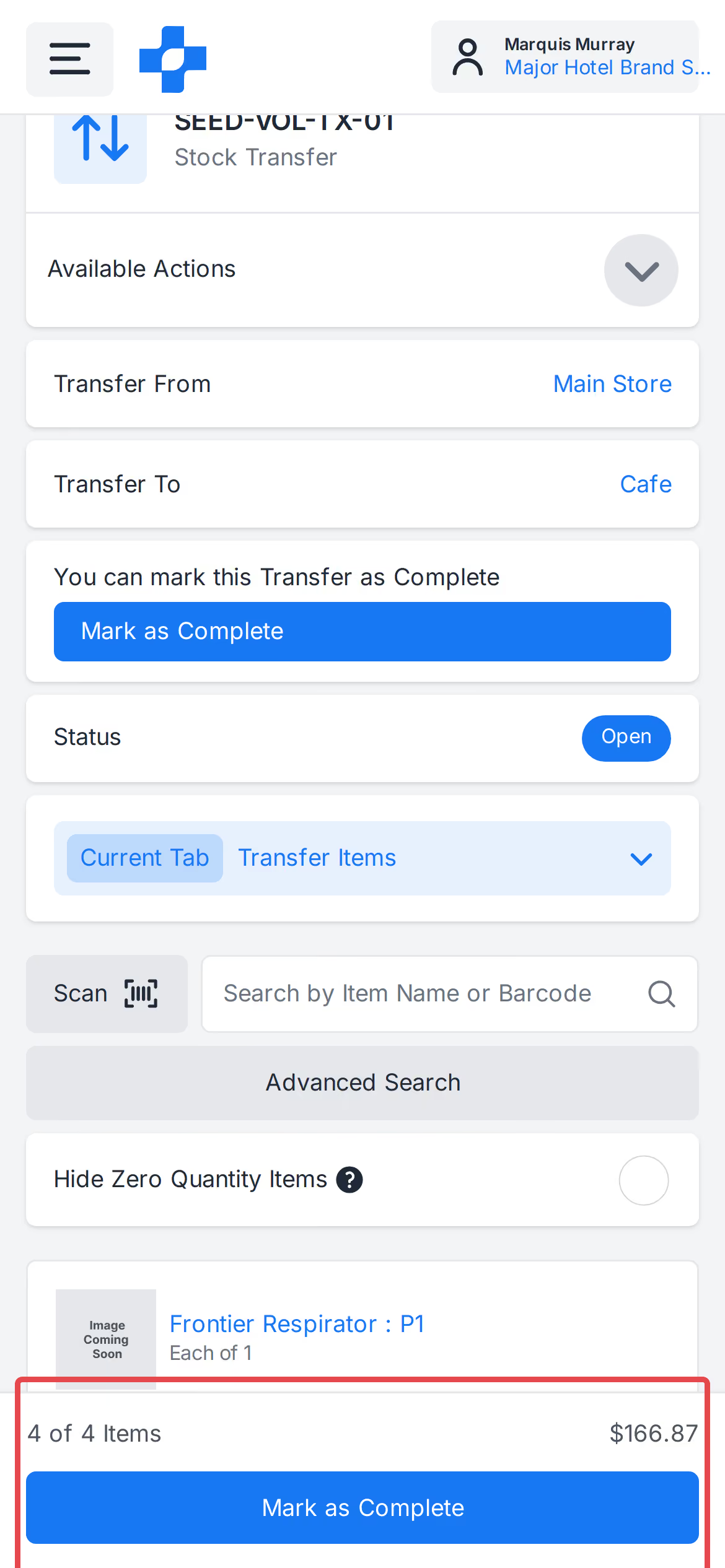
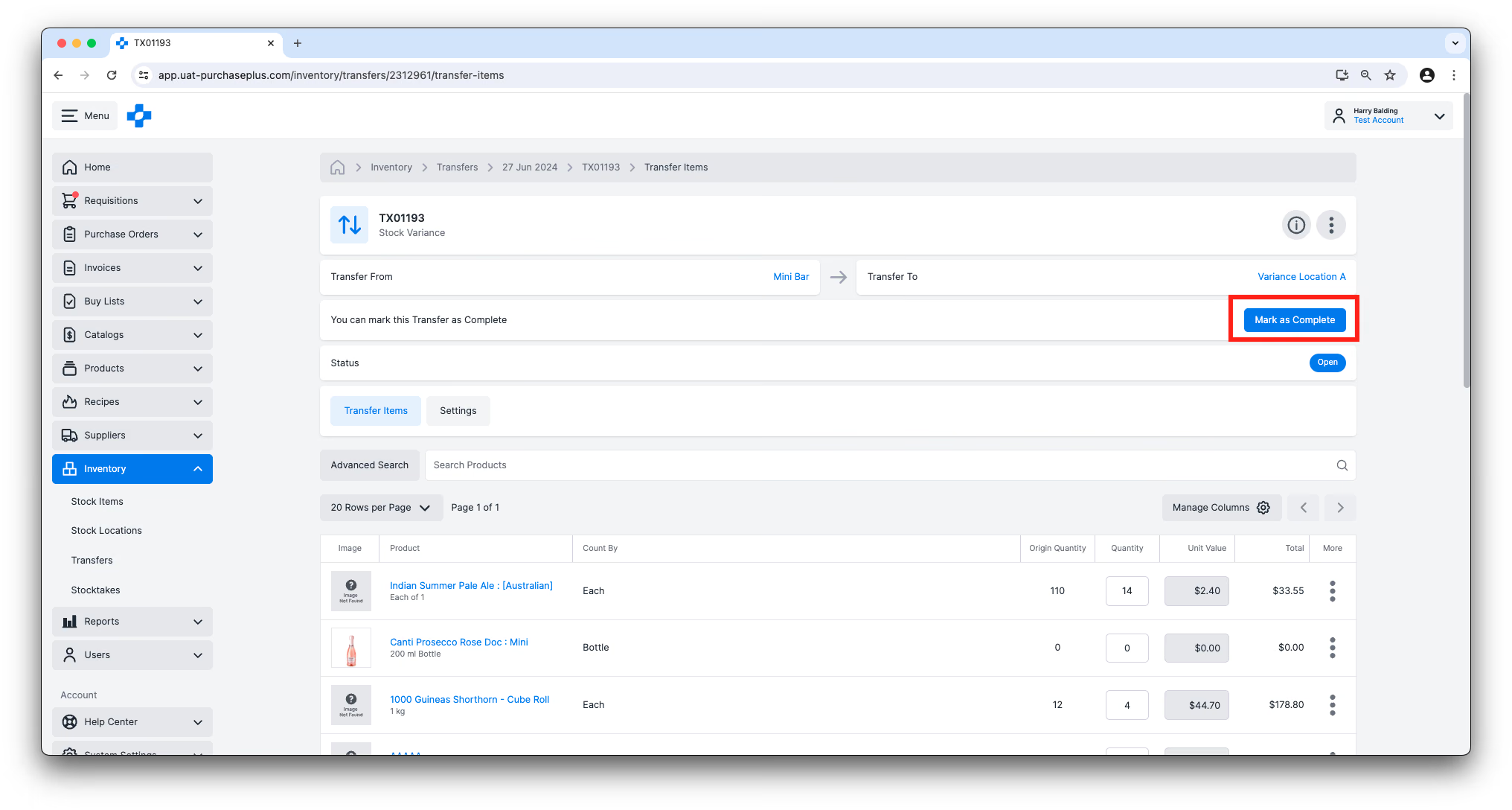
Marking a Transfer as Complete will decrement the quantities of Stock Items in the Origin Location and increment the Stock Items at the Destination Location. Click the [Mark as Complete] button in the header of the Transfer Note (or use [Submit for Approval] / [Mark as Complete] in the pinned bar on phone). Once in the state of Complete, the Transfer cannot be cancelled or reversed, as the movement of Stock Items and all of the important calculations resulting from this have been actioned. This ability is controlled by the 'Complete Transfers' permission.
Completing a Recipe Transfer creates a linked Ingredient Deduction Transfer. Each document links to the other. If the Destination Stock Location has a Transfer Approval Workflow, [Mark as Complete] still completes the Recipe Transfer. [Submit for Approval] returns an error and the Recipe Transfer stays Open.
On phone, Open Transfer counting uses a stacked search / [Advanced Search] / [Hide Zero] layout, a large minus/plus quantity stepper, and a pinned bottom bar with counted versus total, transfer value, and [Submit for Approval] or [Mark as Complete]. The desktop table is unchanged.
Cancelling Transfers
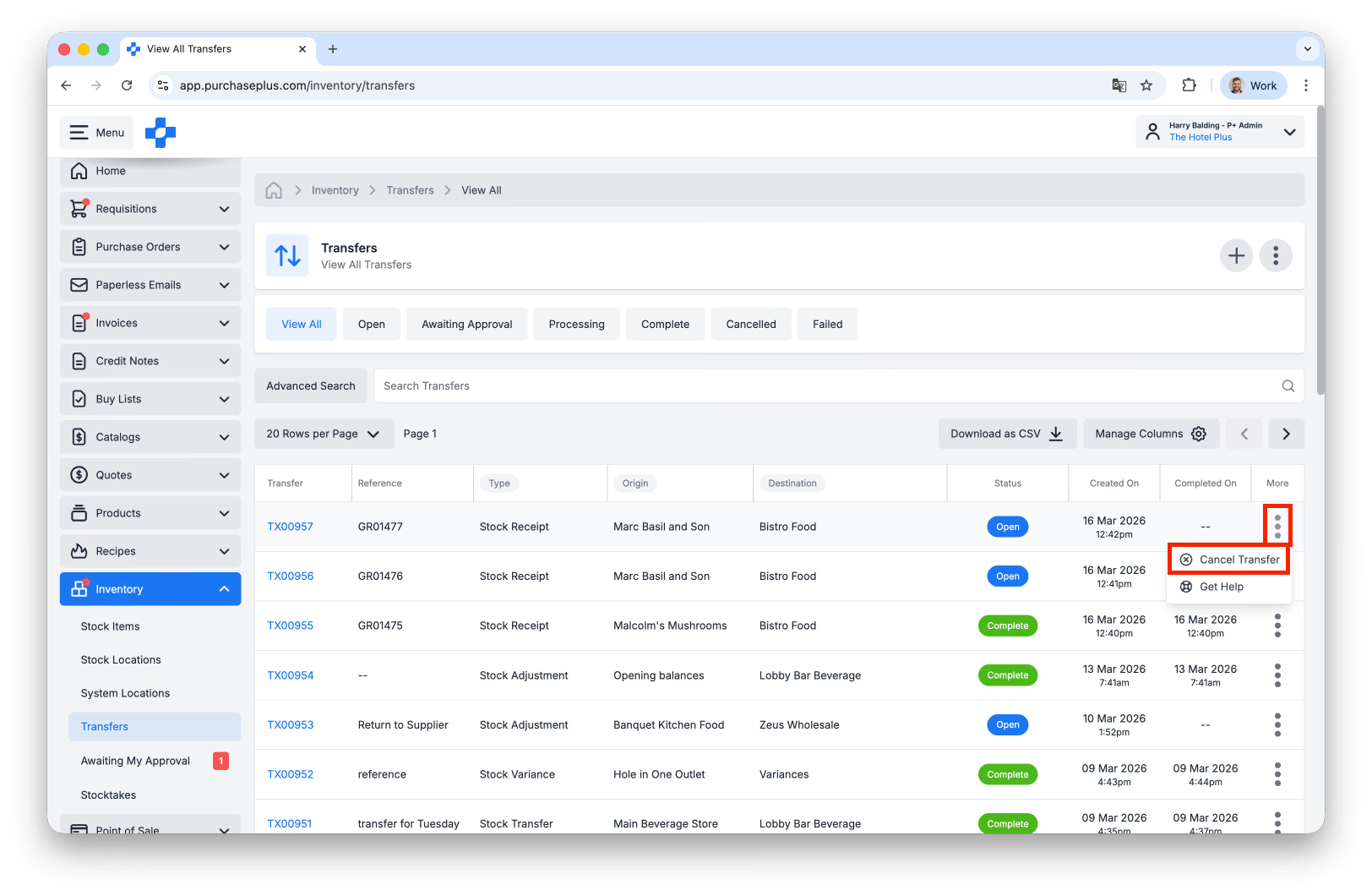
A Transfer in the Open State can be Cancelled from the [Inventory] → [Transfers] page by clicking [More] and then [Cancel Transfer]. This action is permanent and cannot be reversed.
Additionally, if an Approver Declines a Transfer, the Transfer is Cancelled. This action is permanent and cannot be reversed.
Transfer Logs
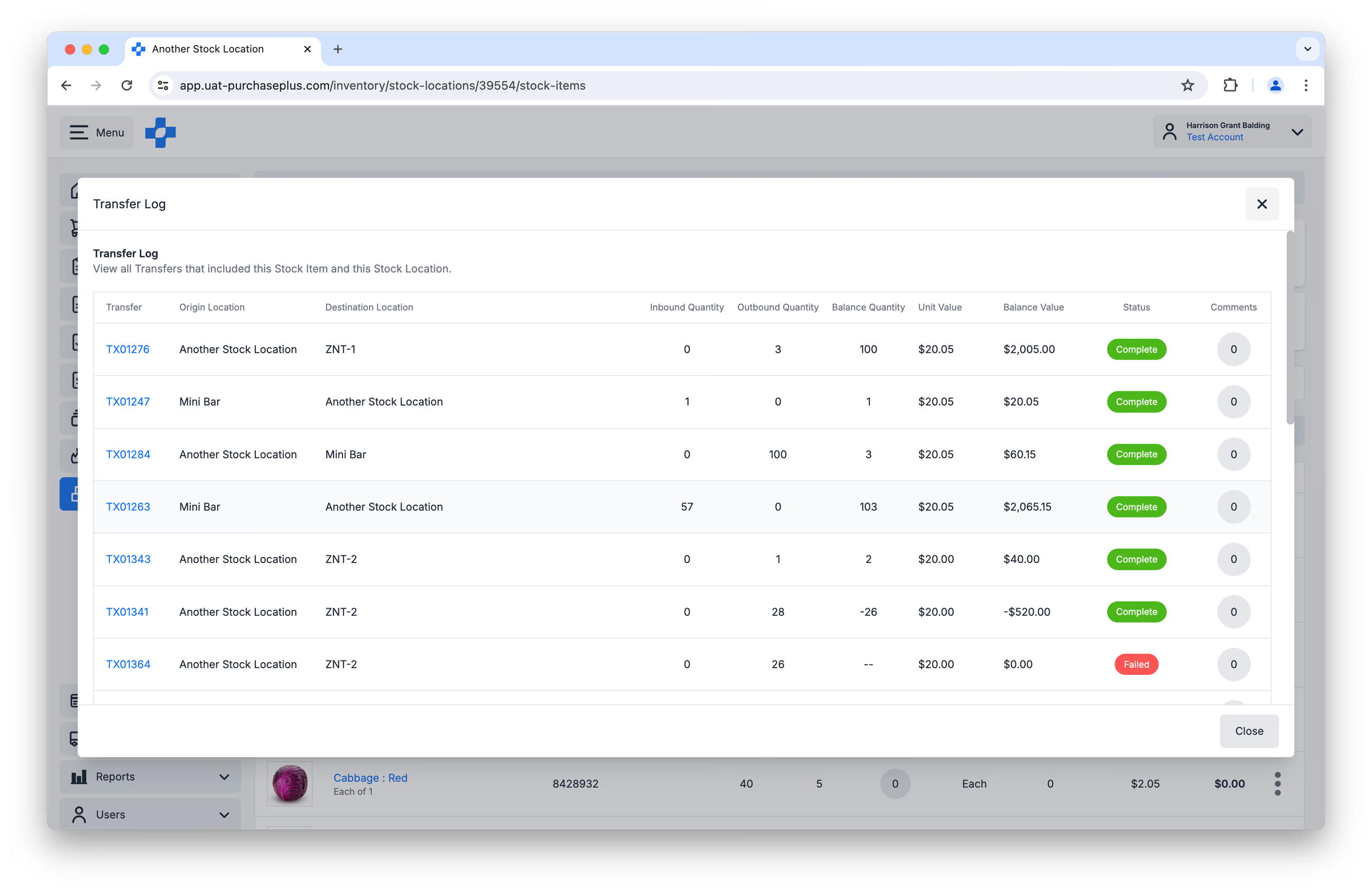
When viewing a Stock Item within a Stock Location, you can view additional details regarding the quantity and value changes resulting from a Stock Item moving in and out of the Stock Location. These details are in the form of a Transfer Log.
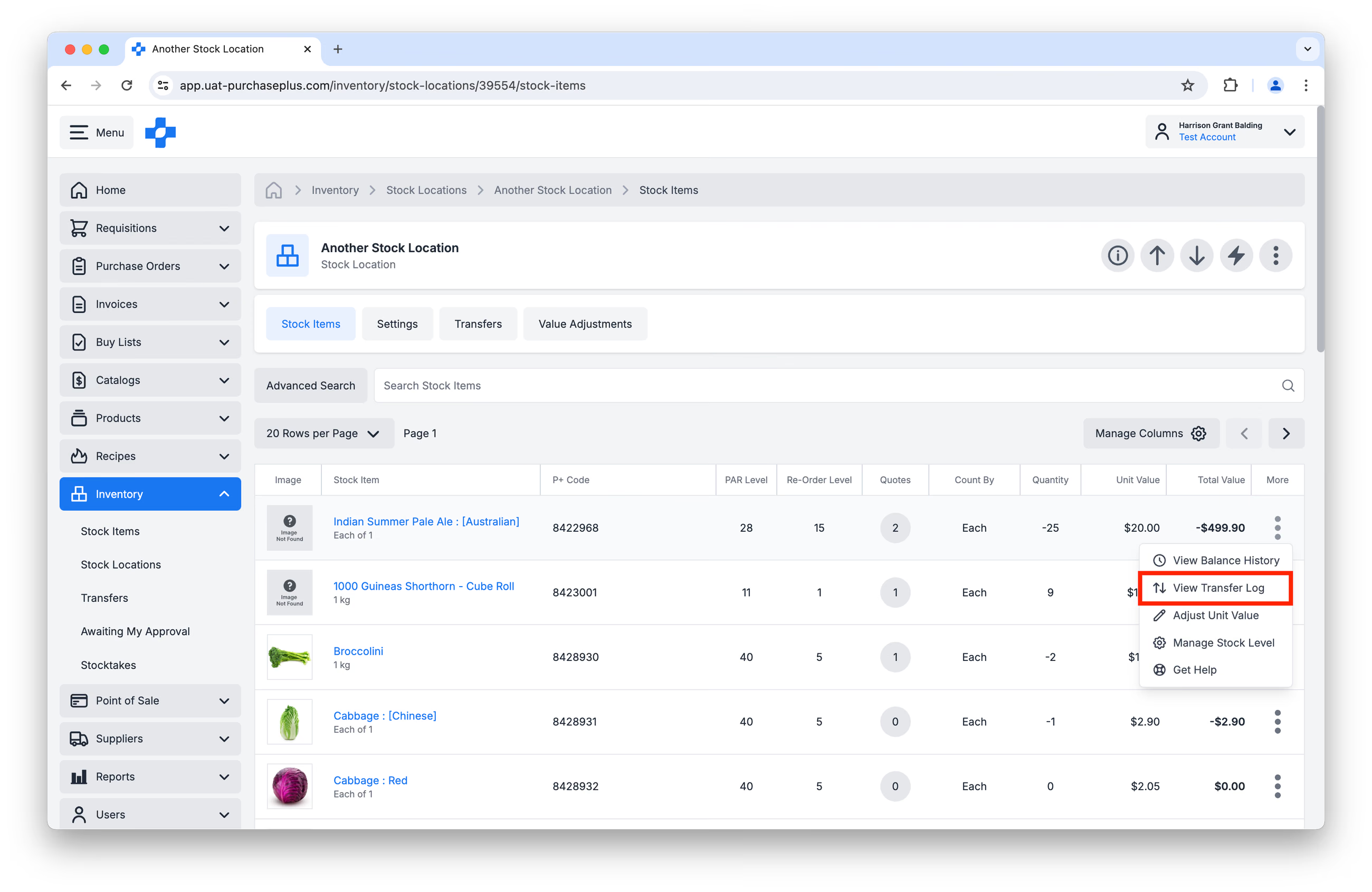
To view a Transfer Log, first navigate to a Stock Location, and click [View Transfer Log] in the [More] menu next to any Stock Item:
Clicking [View Transfer Log] will display a window whereby you can view the Transfers that implicate this Stock Item in this particular Stock Location, the Inbound, Outbound and Balance Quantities, the Unit and Balance Values, as well as any comments left on the Transfer:
Please Note: Transfer Logs are specific to a Stock Item within a Stock Location - i.e. you cannot view a Transfer Log on a Stock Item across all of your Stock Locations in a single view.
This is Part 4 of our Introduction to Inventory series.
- Read Introduction to Inventory, Part 1
- Read Introduction to Inventory, Part 2: Stock Items
- Read Introduction to Inventory, Part 3: Stock Locations
- Read Introduction to Inventory, Part 5: Stocktakes
How do I start using the Inventory Module?
If your Organization would like to begin using the PurchasePlus Inventory module, please contact your Account Manager or our friendly Customer Success Team for assistance with enabling the module, and to organize training for your users.
Note for Purchasers using Legacy PurchasePlus
The Inventory module in PurchasePlus has been redesigned, and is materially different to the Legacy PurchasePlus Inventory module. Organizations migrating from Legacy PurchasePlus to PurchasePlus will be given additional migration support.