

Reconciliation
Reconciliation
Statements
Statement Reconciliation is the in-platform replacement for spreadsheet-and-email statement reconciliation. You upload a supplier statement, the system extracts the lines, finds the matching invoices and credit notes already in PurchasePlus, flags anything that does not line up, and gives you a single workspace to resolve every exception and close the statement.
The goal is simple: kill the monthly reconciliation grind, surface missing invoices early, and keep an audit trail that stands up to a finance audit.
- Phase 1 Manual Ingestion & Core Reconciliation Users upload statements for AI extraction and review reconciliation results. Available Now
- Phase 2 Automated Ingestion Pipeline Statements sent via email are automatically ingested, parsed, and appear in the dashboard. In Development < 3 months
- Phase 3 Supplier Collaboration & Follow-up Automated supplier communications, deep-link to pre-filled upload form, and exception resolution workflows. In Development < 6 months
Statement
A statement is a document a supplier sends you, typically monthly, listing every invoice and credit note for the period. Each row on the statement is a statement line, and one statement line equals one invoice or one credit note.
Reconciliation happens at the line level. The system tries to find the matching invoice in PurchasePlus, compares the totals, and assigns each line one of four statuses. Once you have worked through anything that needs attention, you click Mark as Reconciled and the statement closes.
There is no automatic statement closure. Even if every line auto-reconciles, the statement stays Open until a person confirms it. That human checkpoint at the end is deliberate.
Enable Statements
The ability to use the Statements functionality needs:
- The Statement Reconciliation feature flag enabled for your Organisation Unit.
- Your role has the Manage Statement Reconciliation permission.
- The statement is owned by your current Organisation Unit or one of its Departments.
Upload and Reconcile a Statement
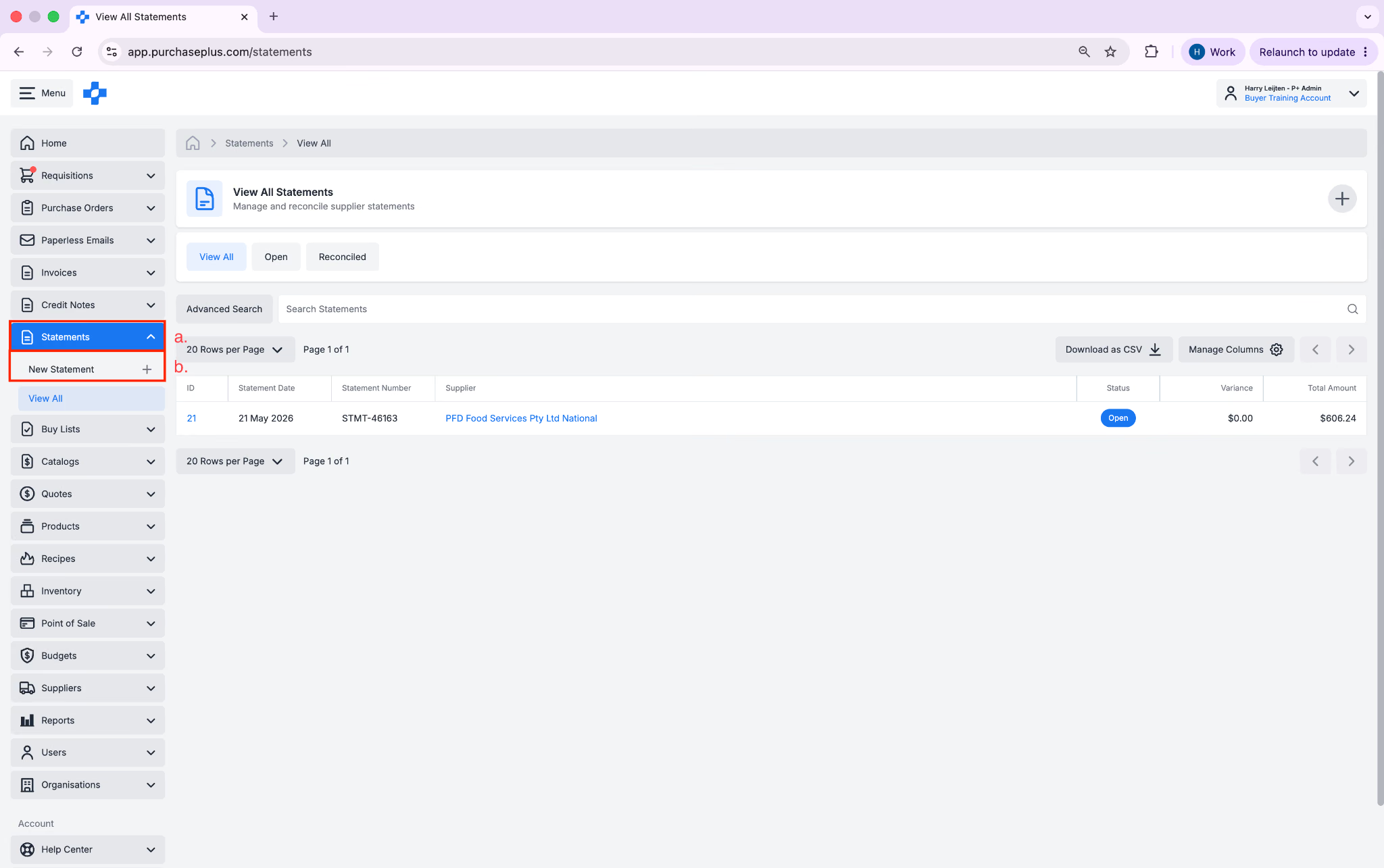
- Go to [Invoices] \> [Statements.]
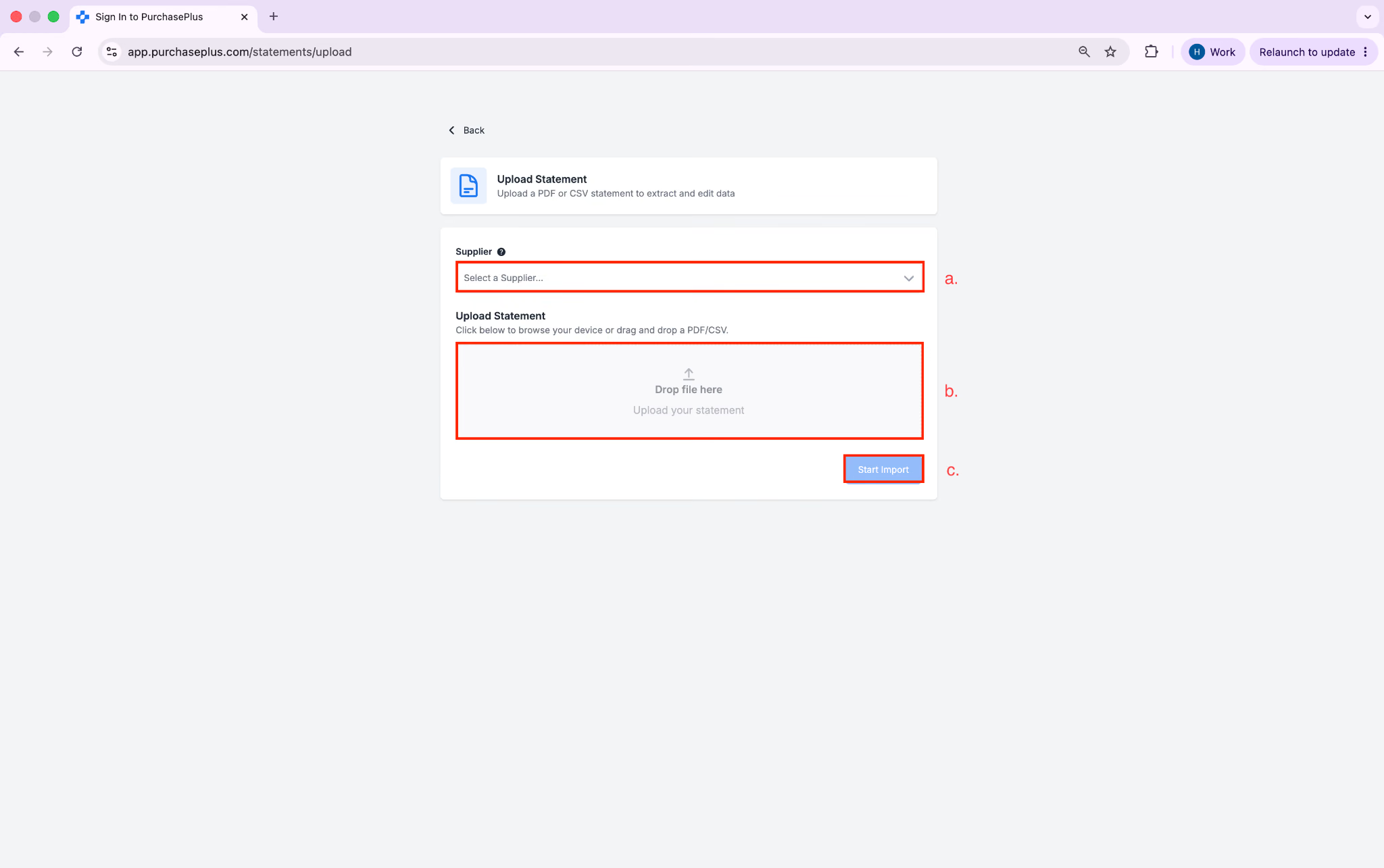
- Select the [Supplier] from the dropdown, drag and drop or select the statement PDF or image file and then click [Start Import]
- Click the [Link] button to link any Unmatched Lines to their appropriate Invoice or Credit
Note\- Lines will have a status of Pending if the document they relate to is not yet Reconciled. See Working Through Statement Statuses article for more information on how to deal with unreconciled Statement Lines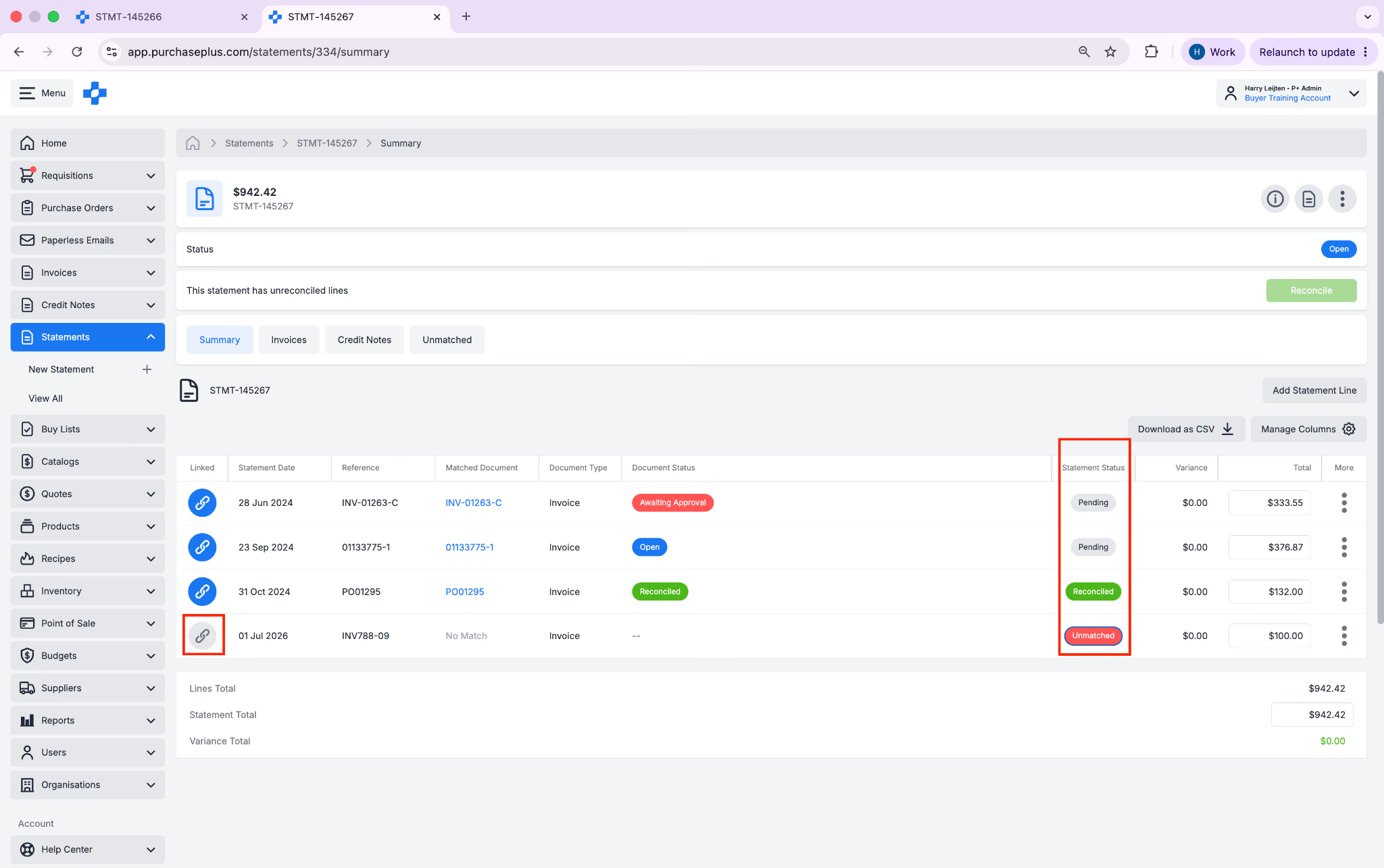
- Once all of your Statement Lines are Reconciled, click [Reconcile.]
Note\- If you cannot Reconcile a Statement Line, you can Force Reconcile. See Working Through Statement Statuses.
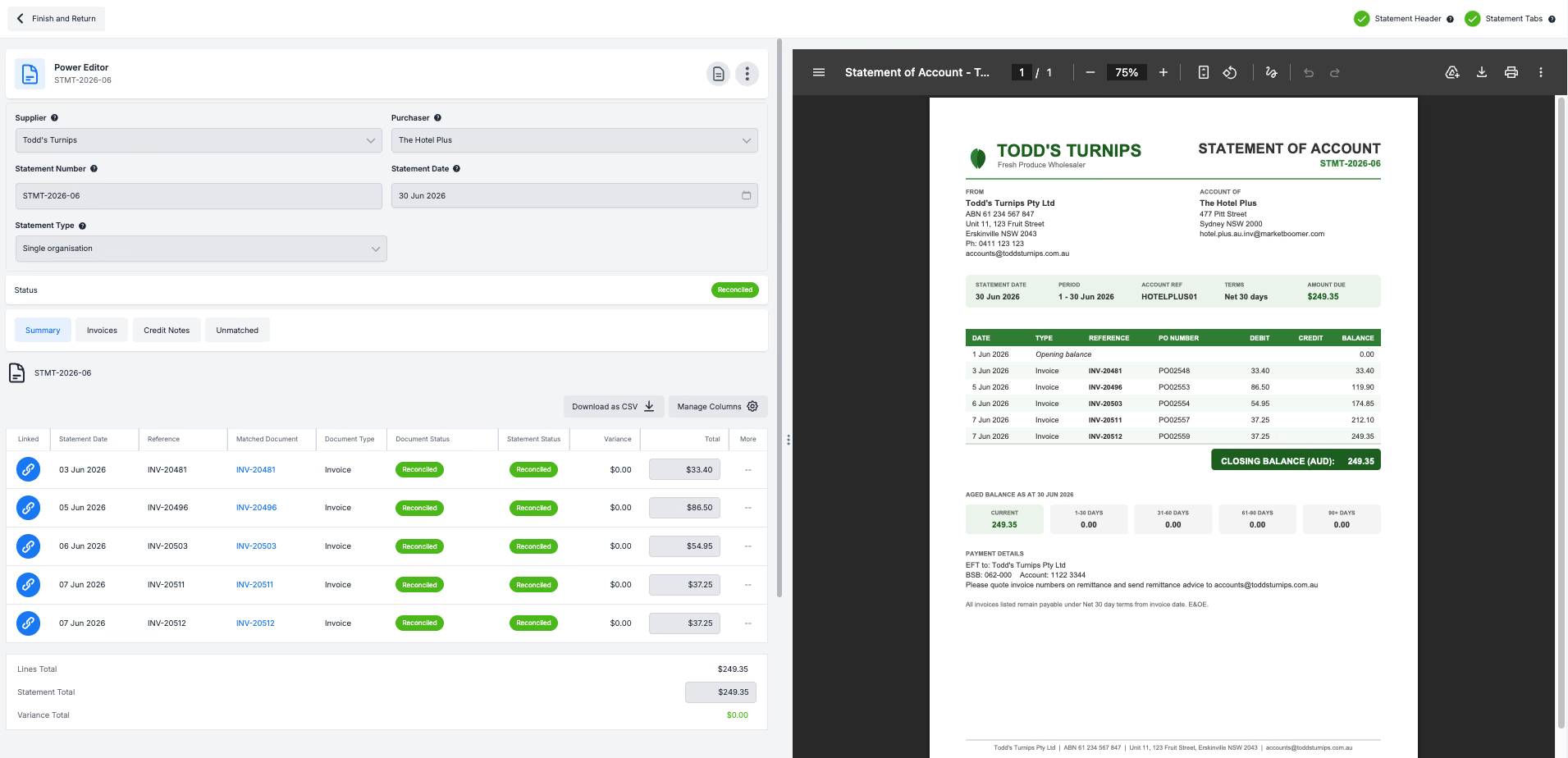
- Click [Confirm] to complete your Statement reconciliation.
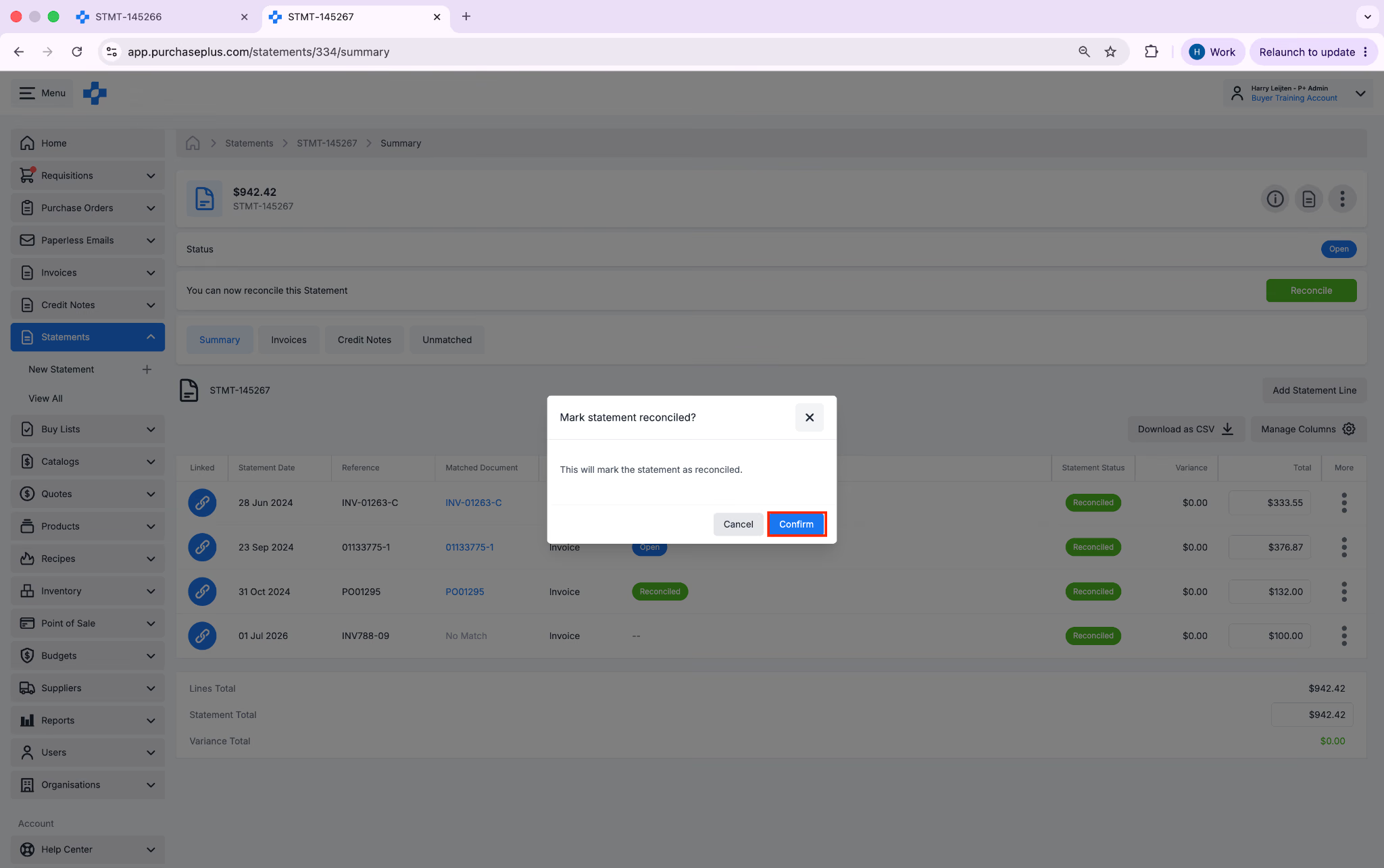
Your Statement is now Reconciled.