Overview
Overview
Product
Products in PurchasePlus are representations of the real-world products (and services) that your Organization buys from your Suppliers and uses across your operations.
Products are the basis of each line item on a Requisition, Purchase Order, Invoice, Credit Note, Transfer… essentially, Products are the object of almost all of the core functionality that PurchasePlus can offer!
Who Owns a Product?
Products can be owned by either Purchasers, Suppliers, or Marketboomer (which is the company behind PurchasePlus). We call Products that are owned by Marketboomer ‘Master Products’.
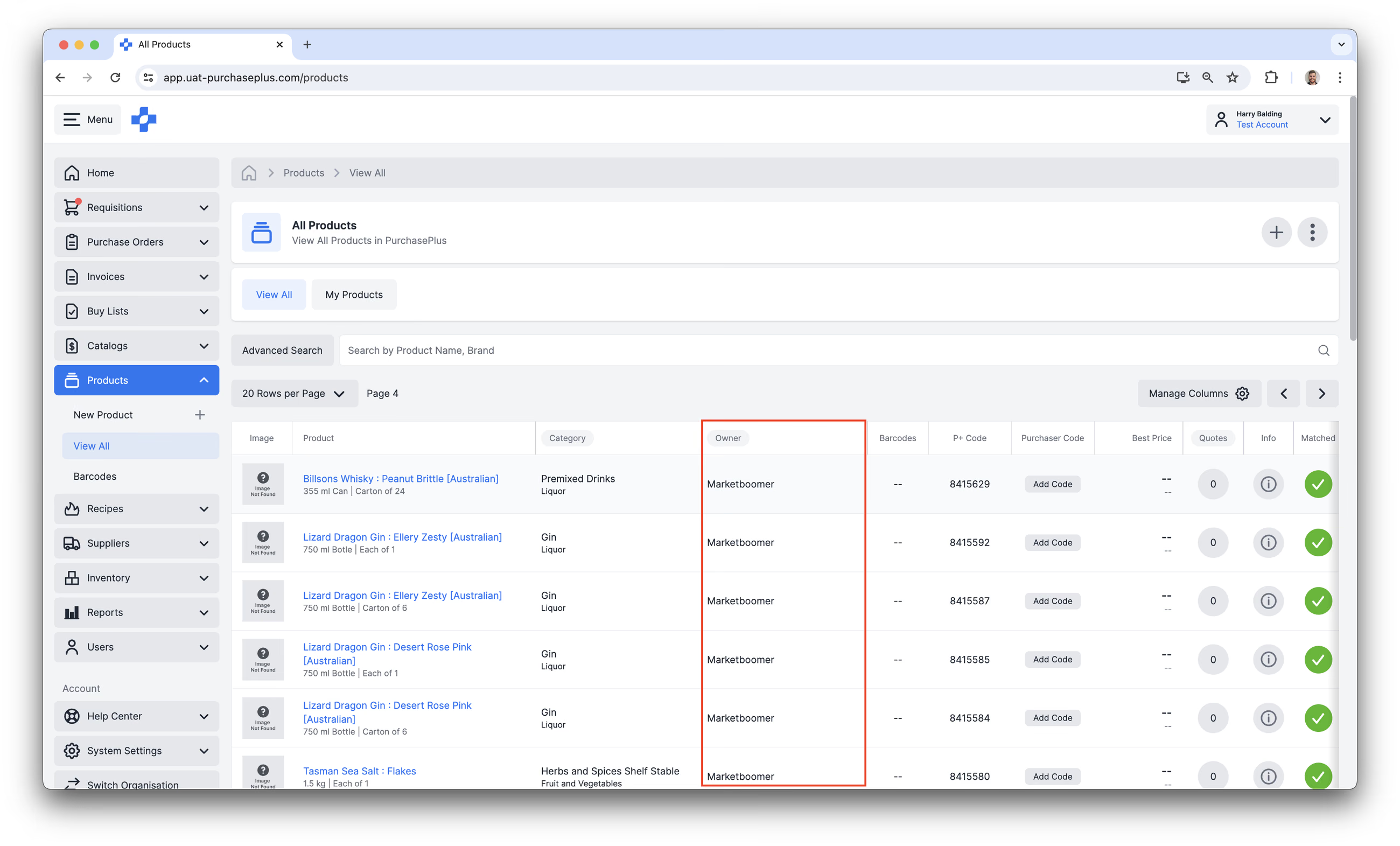
This architecture enables Purchasers to shop for 'Master Products', and see Quotes for all of the Supplier-owned (and Purchaser-owned) Products that have been Matched to Master by our team.
This is a very powerful feature of PurchasePlus, as it allows Purchasers to:
- Access the lowest Quote for a Product from all of their Suppliers for the same item when creating a Requisition,
- Create effective Buy Lists that are easy for users at their Organization to use, and
- Enjoy using a performant Procure-to-Pay system that is unencumbered by a complex database structure.
The Owner of a Product in PurchasePlus determines a number of things about the way the Product can be interacted with in the system.
Purchaser-owned Products
Purchaser-owned Products have been created by a Purchaser Organization, and have an ownerID that matches the organizationID of a Purchaser. This can be inspected in the Information Panel of any Product, and is displayed in many tables of Products throughout the PurchasePlus application.
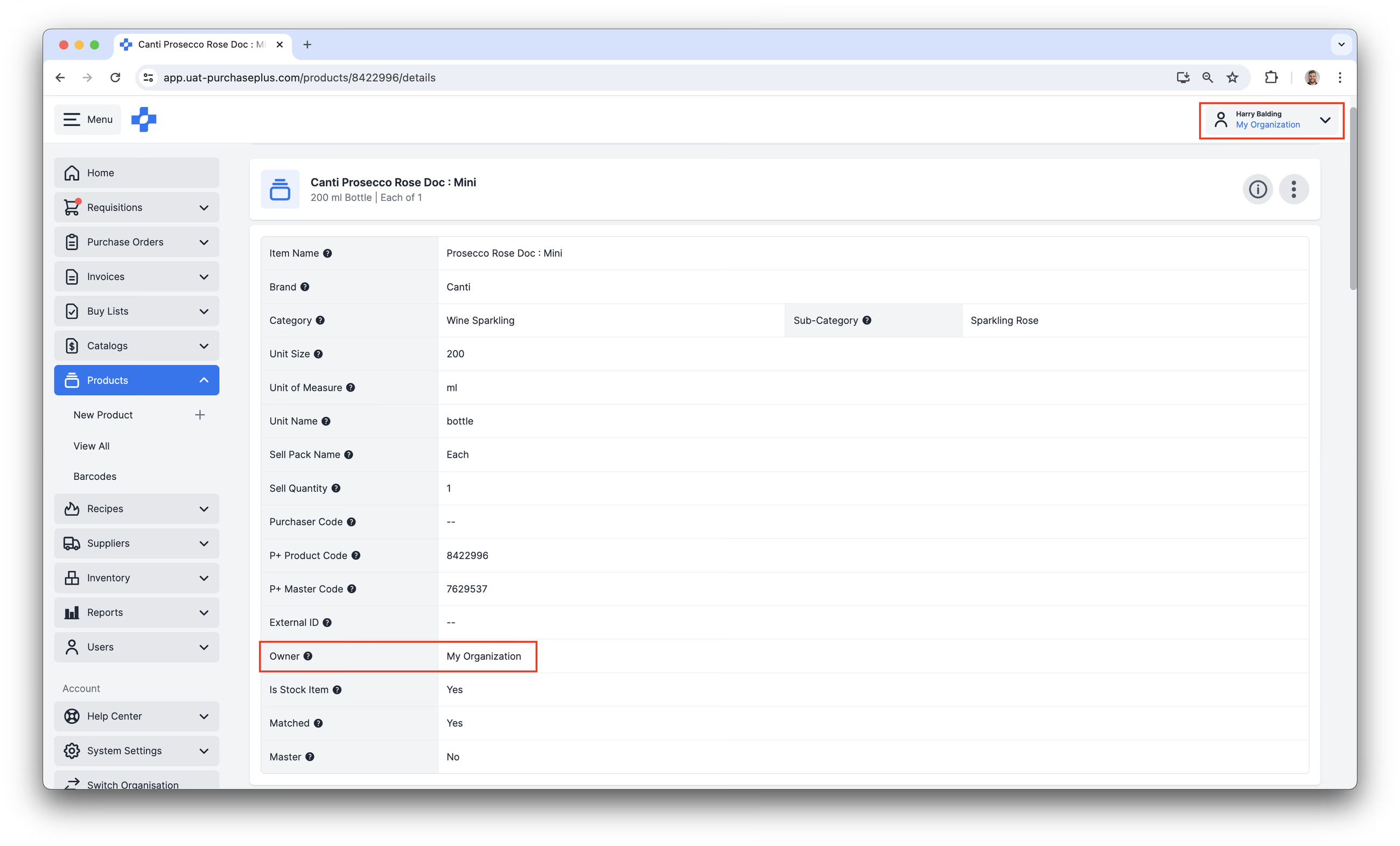
If a Purchaser Organization owns a Product, Purchaser Users with the required Permissions can:
- Update many of the Product's details,
- Add the Product to a Self Managed Catalog that is assigned to a Supplier,
- Update the Product’s Price in the Self Managed Catalog,
- Add the Product to a Requisition as per usual.
Which extra features require a Product to be owned by your Organization?
Importantly, if your Organization uses any of the following PurchasePlus functionality, then the implicated Products can only be Products be owned by your Organization, and not Supplier-Owned Products:
- Recipe Ingredients. Our rationale is: if your Supplier had the ability to update or delete a Product that is an Ingredient, then the Recipe (and associated menus) might be affected outside of your Organization’s control.
- Recipe Items. Our rationale is that Recipe Items are Products that are created by ‘Cooking’ a Recipe. Recipe Items can only ever be Purchaser-owned as Suppliers cannot ‘Cook’ Recipes.
- Stock Items. Our rationale is: if your Supplier had the ability to update or delete a Product that is a Stock Item, they may impact your Inventory Management ability negatively and affect your Stocktakes, Receiving Notes, etc.
Supplier-owned Products
Supplier-owned Products have been created by a Registered Supplier, and have an ownerID that matches the organizationID of that Registered Supplier:
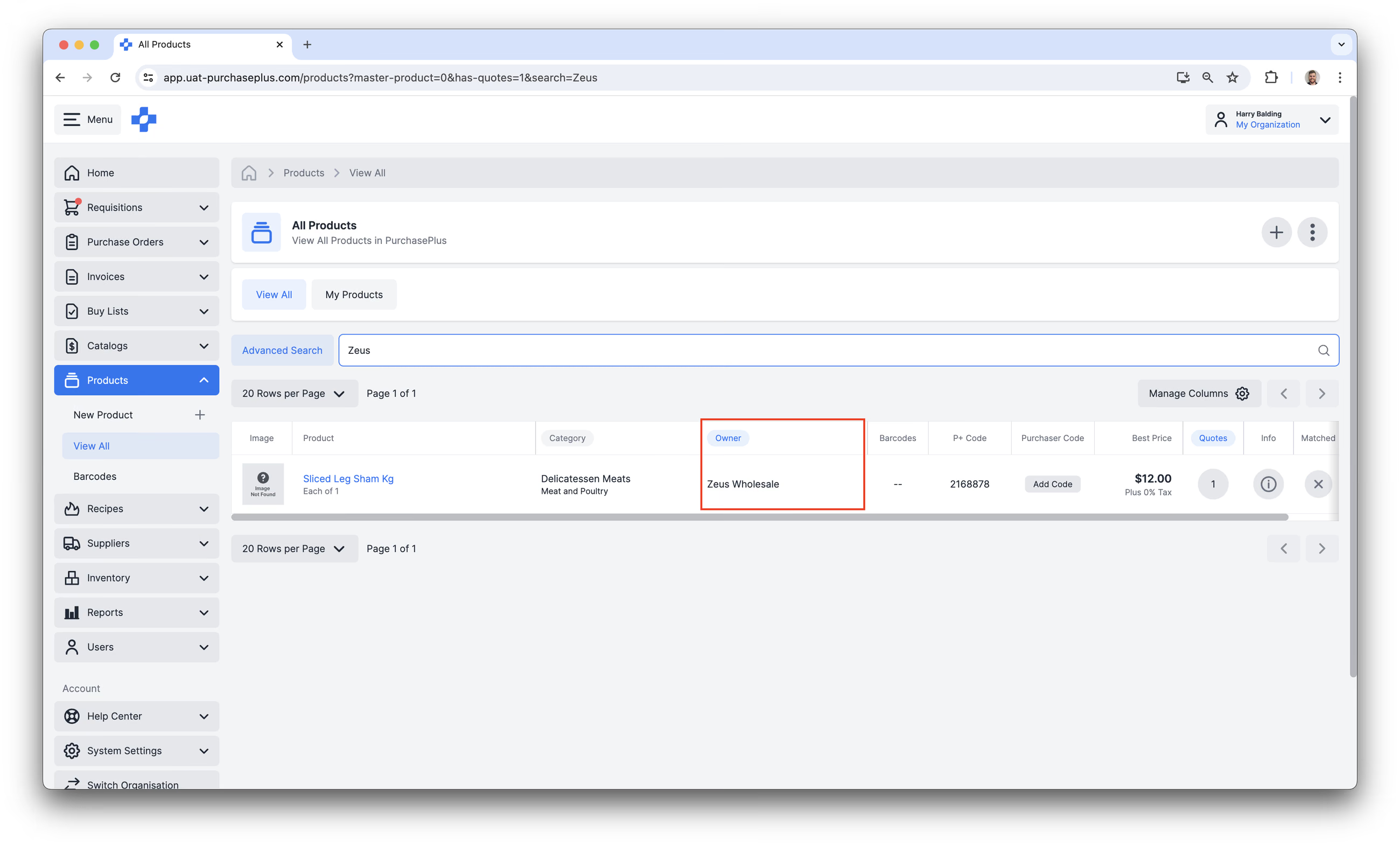
If a Registered Supplier owns a Product, they can sign into PurchasePlus and:
- Update the Product's details,
- Mark a Product as Out of Stock,
- Add the Product to a Catalog and update the Price of the Product,
- Set the Price for the Product in the Catalog,
- Assign the Catalog to a Trade Relationship with a Purchaser and make the Products contained within available to the Purchaser in their Requisitions.
As a Purchaser, although you cannot directly manage many of the Supplier-owned Product's details, you can make use of them in other ways that are critical to the Procure-to-Pay lifecycle. For example:
- Add Supplier-owned Products to your Buy Lists,
- Include Supplier-owned Products in your Requisitions,
- Clone the Product, so you can create an exact duplicate of the Product that is owned by your Organisation (and can then be considered as a Stock item, Recipe Ingredient, and more).
- This is especially powerful when the Clone and the Supplier-owned Product are matched to the same Master Product, as you will be able to see Quotes for the product against your Stock Items and Ingredients.
Master Products
PurchasePlus houses millions of products in our database. For best-in-class User Experience for both Purchasers and Suppliers, PurchasePlus internally curates an extensive list of Master Products that are available across all Organisations in our network.
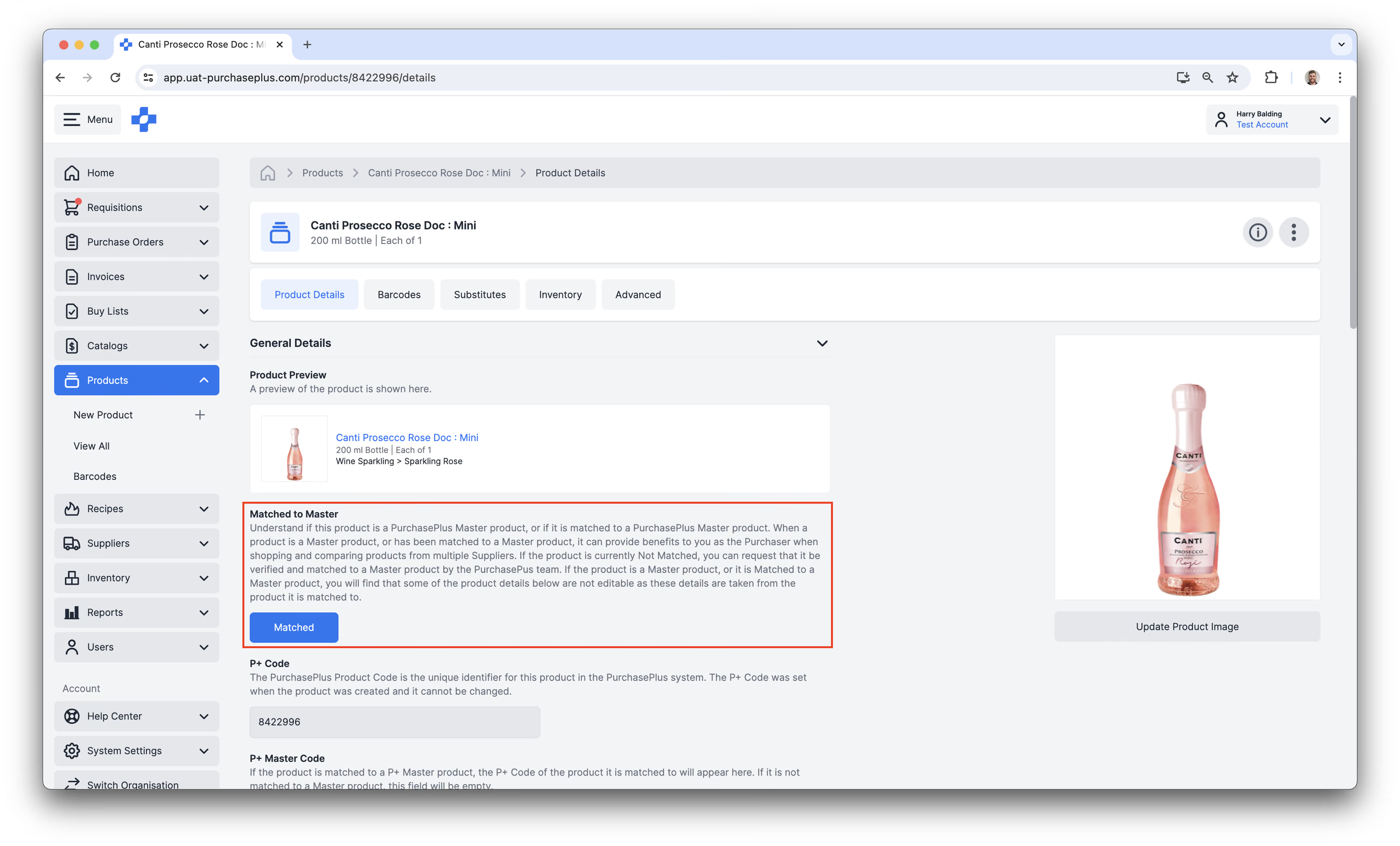
Master Products cannot be created by Purchasers or Suppliers, and nor can they match their Purchaser- or Supplier-owned Products to the Master Product. If a Product is currently Not Matched to Master, Purchasers and Suppliers can request that it be verified and matched to a Master Product by the PurchasePlus team.
If the Product is a Master Product, or it is Matched to a Master Product, users will find that some of the product details as viewed in the UI are not editable.
Creating New Products
Purchasers with the ‘Manage Products’ permission can Create New Products (owned by their Organization) in PurchasePlus. Please read our article about Creating a New Product for more information.
Managing Existing Products
A user with the 'Can Manage Products' permission can update a Non-Master Product that is owned by their Organisation at any time.
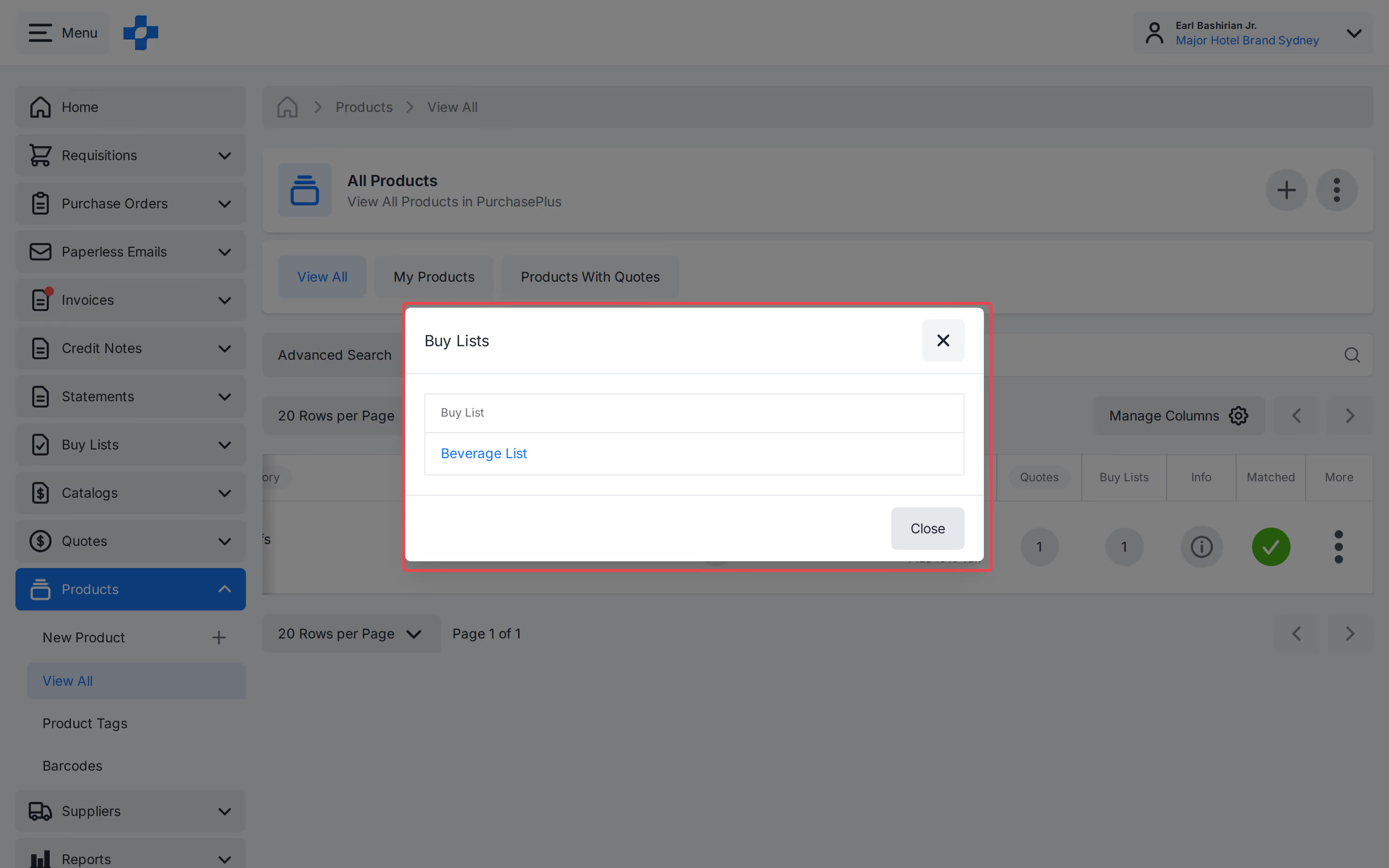
On [View All], use [Manage Columns] to show a Buy Lists count column (-- if none). Click the count to open a modal of linked Buy Lists. The count matches the product [Buy Lists] tab.
The steps below outline the process:
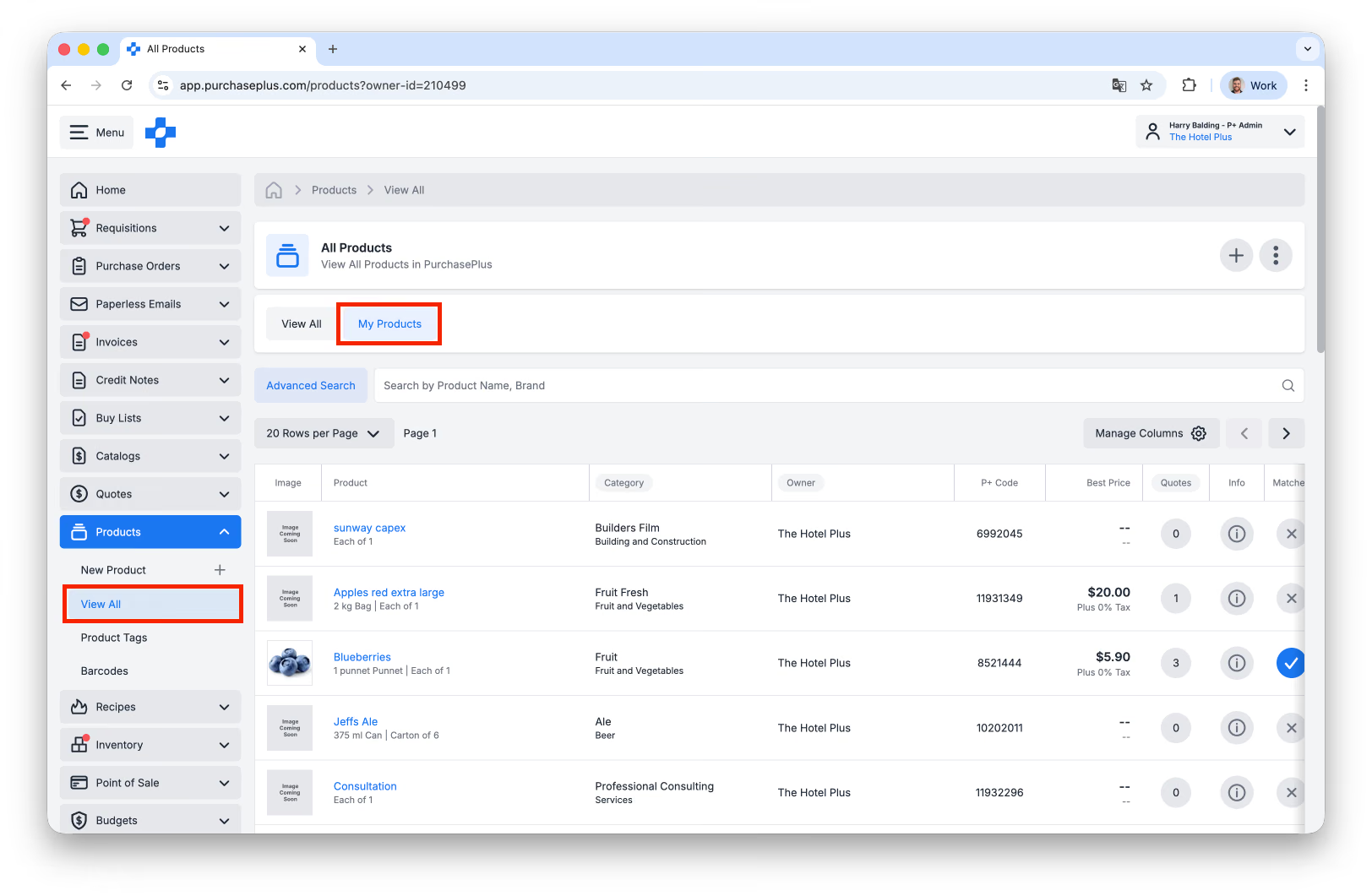
- In the side navigation bar, go to [Products] → [View All], then select **[My Products]:
**
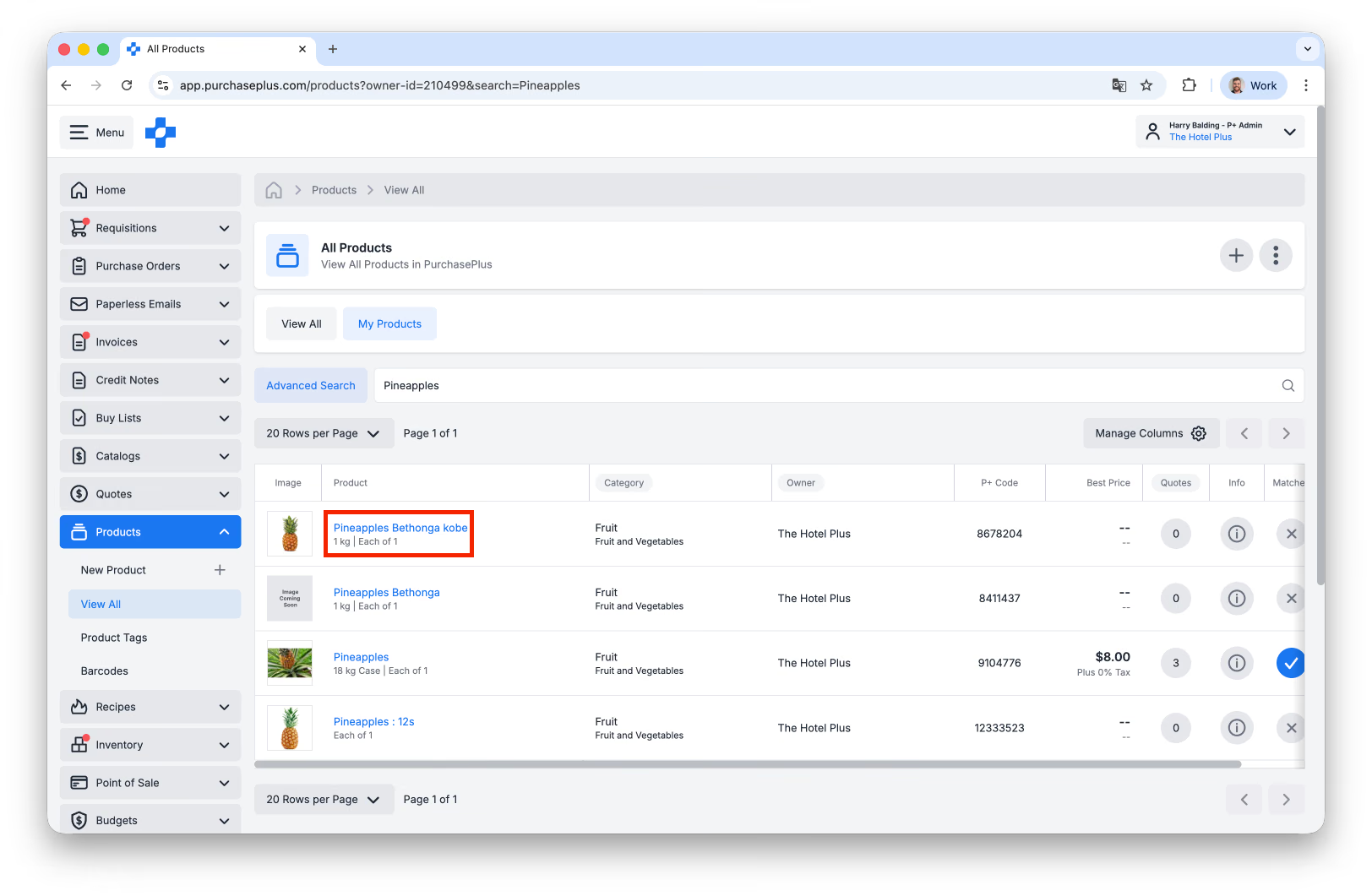
- Search for the Product you wish to update.
- If you know the P+ Code, use [Advanced Search]. We recommend finding the P+ Code via your Self-Managed Catalog, to ensure you are updating the correct Product.
- Click on the [Product] in the table:
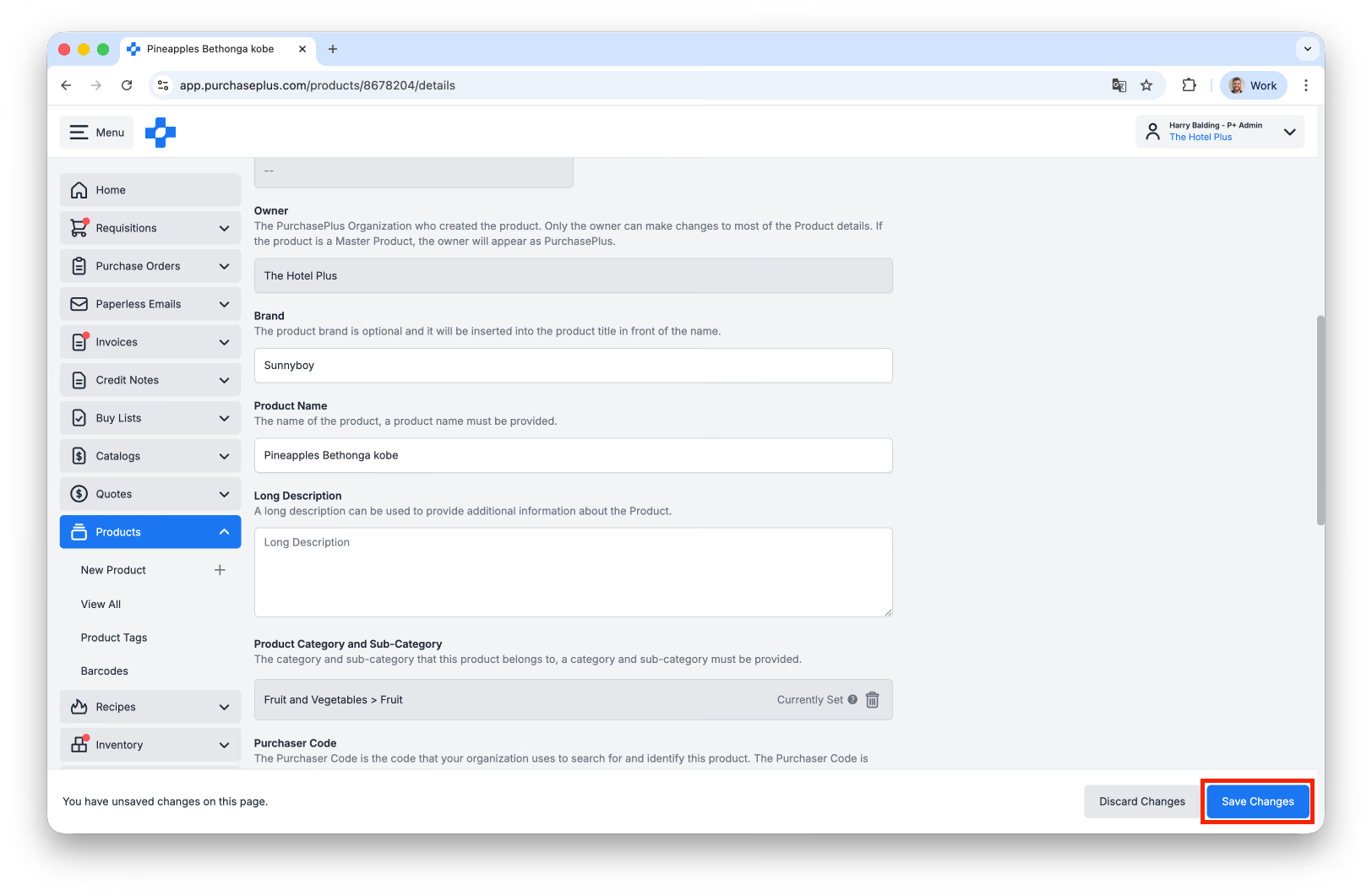
- On the Product details page, scroll to the field(s) you wish to update. You can update the following fields:
- Brand,
- Description,
- Category and sub-category,
- Unit size and unit name,
- Pack size,
- Image,
- You can also make this Product a Stock Item on the [Inventory] tab, if your Organisation uses our Inventory module.
- Once your updates are complete, click [Save Changes] to apply them:
Advanced
Barcodes
A Barcode can be created by Purchaser Organizations against any Product in PurchasePlus that they can view. You can add one or more Barcodes to a single product. Barcodes are useful when searching for Products, shopping a Requisition, Receiving Goods from a Purchase Order or performing a Stocktake.
To create a new Barcode, you must search for a Product in your [Products] → [View All] area, select the Product, and select the [Barcodes] tab.
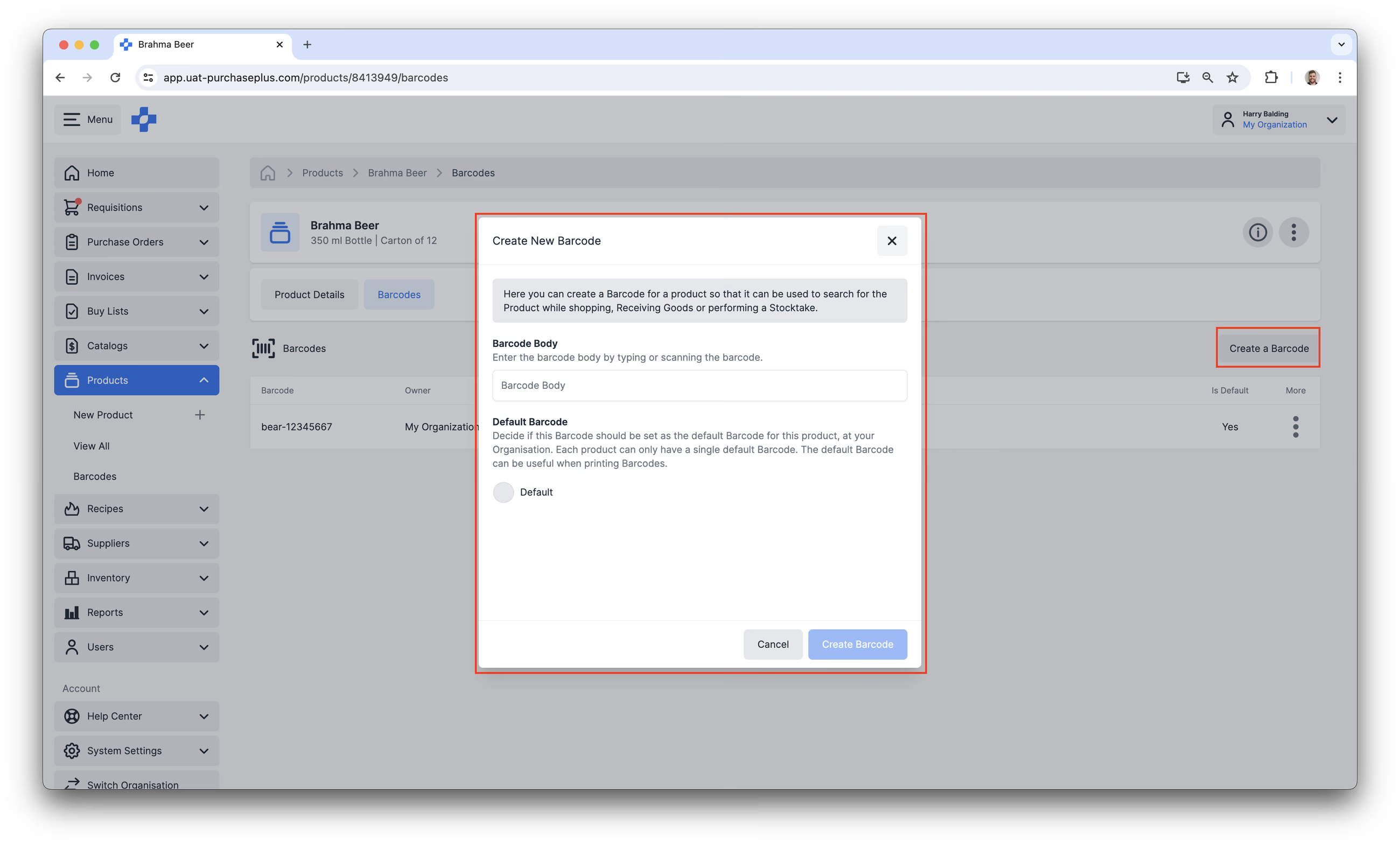
If you have the correct permissions, you can also update and delete barcodes in the [Products] → [Barcodes] area, accessible in the Side Navigation bar.
Product Tags
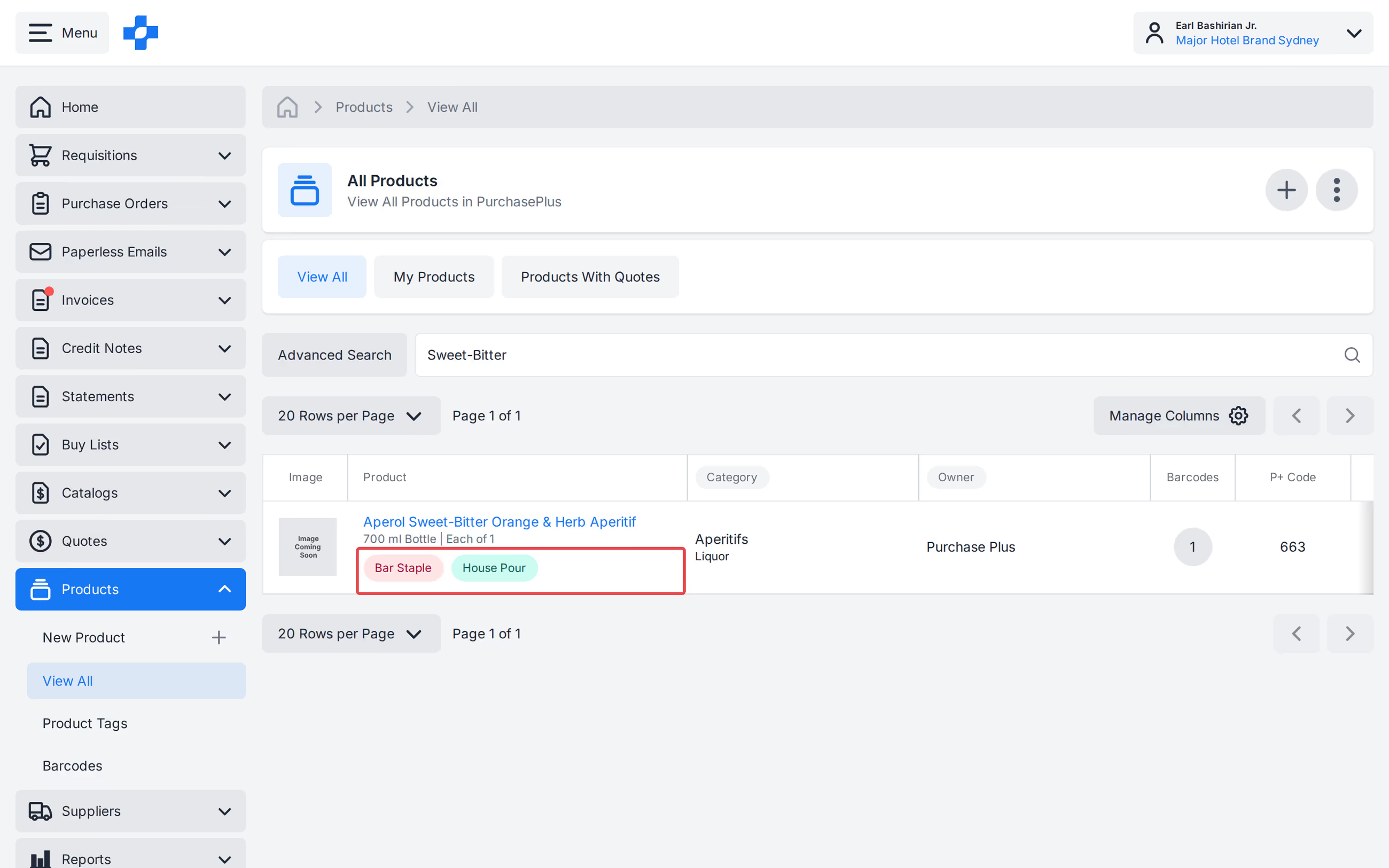
Product Tags are a way for the Owner of a Product to visually classify their Products by one or more commonalities.
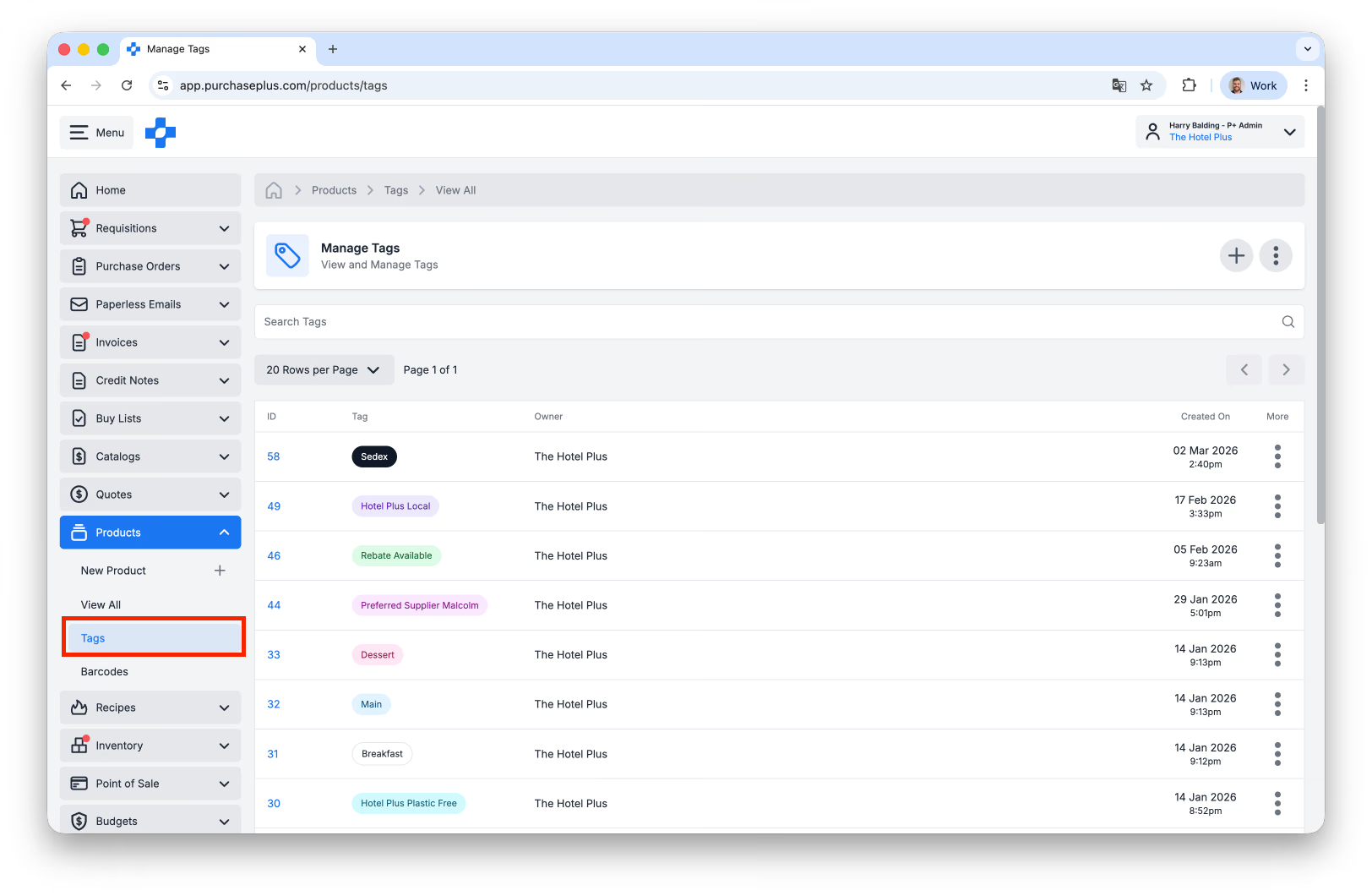
There is a [Tags] area in the [Products] side navigation bar for Purchasers to create and manage Product Tags:
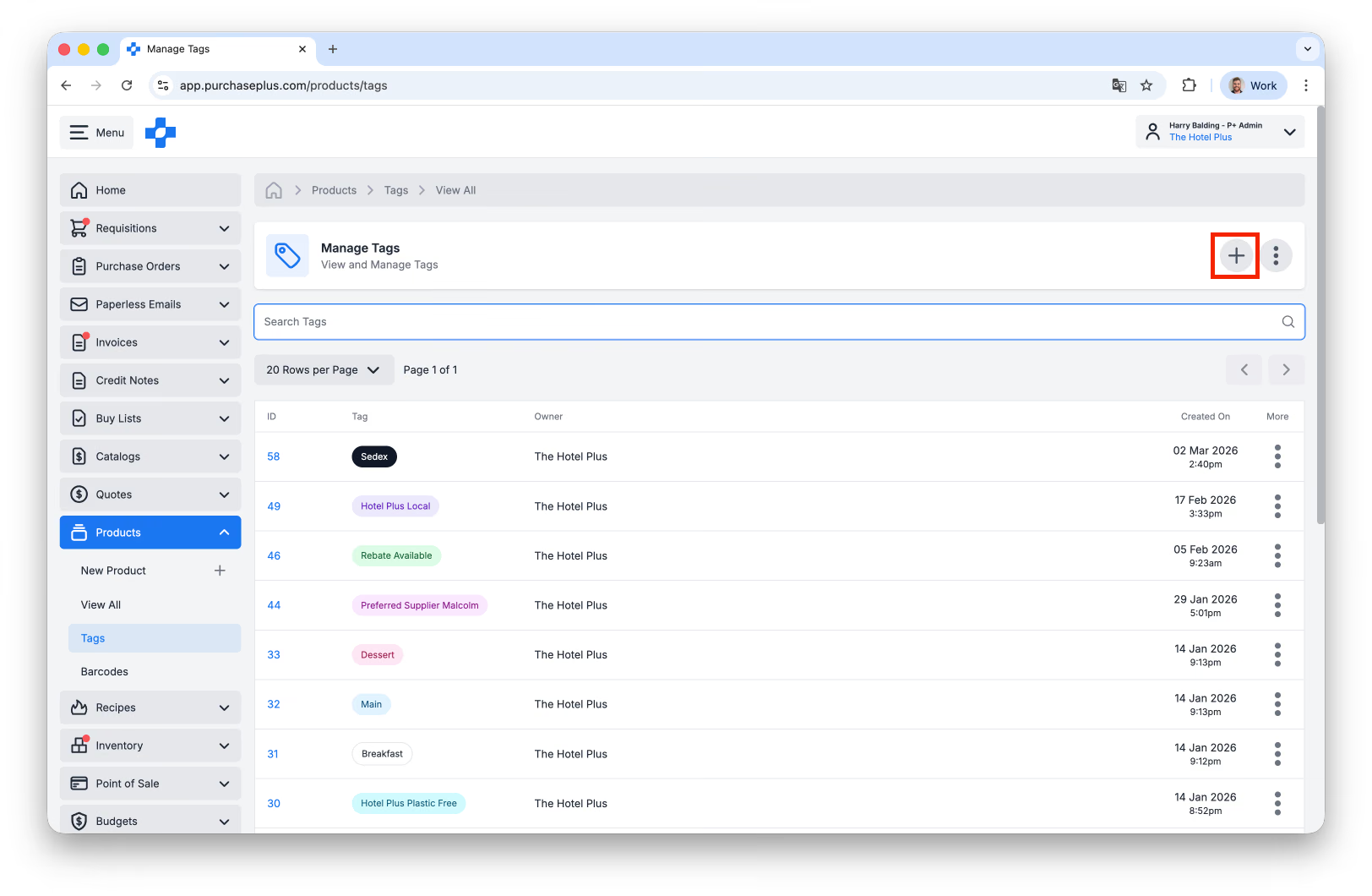
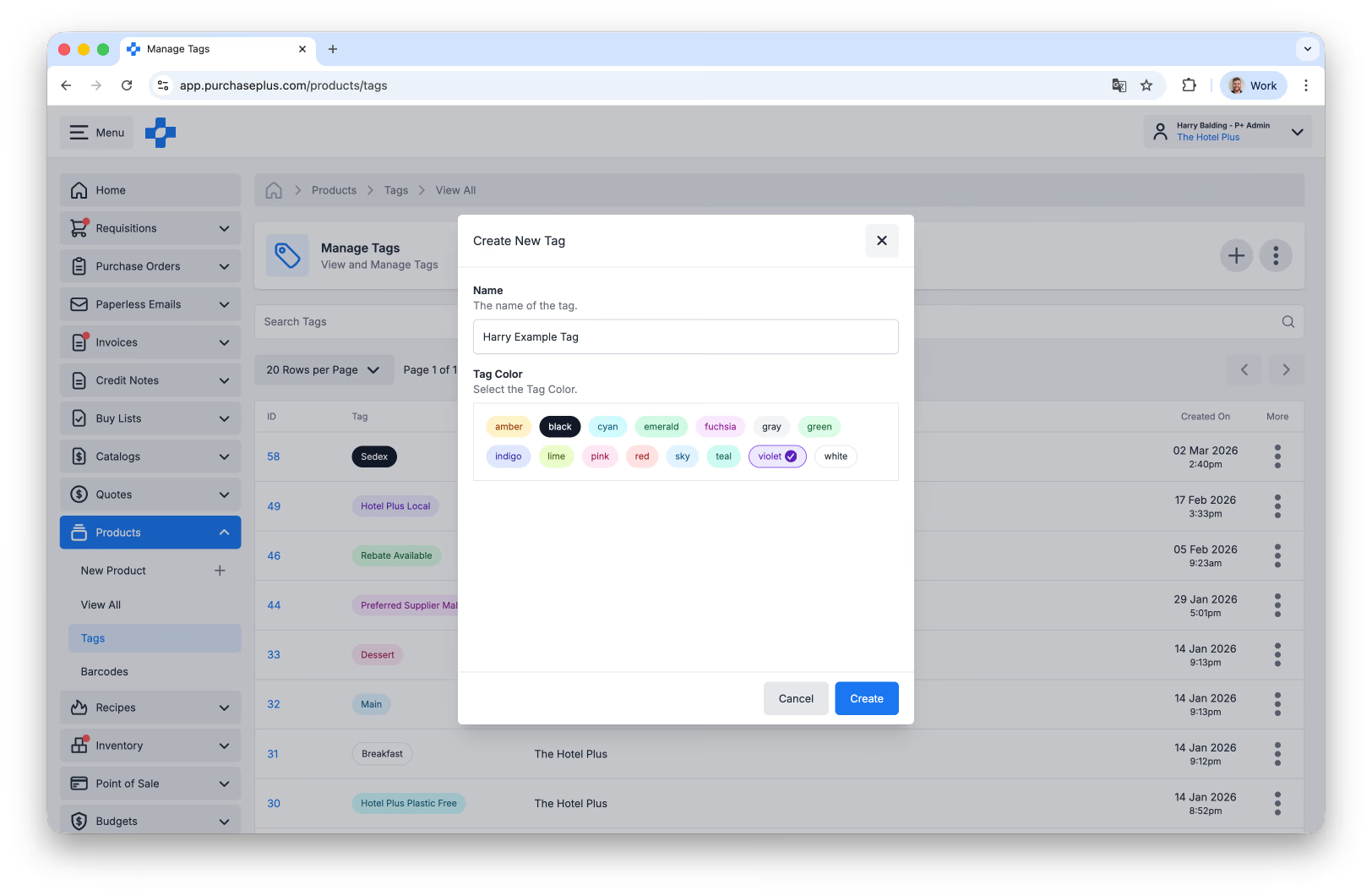
Purchasers can create Tags (if they have the Manage Products permission) by clicking [Create a New Tag] in the top-right of the screen:
Once you've named the tag and selected the Tag colour, click [Create]:
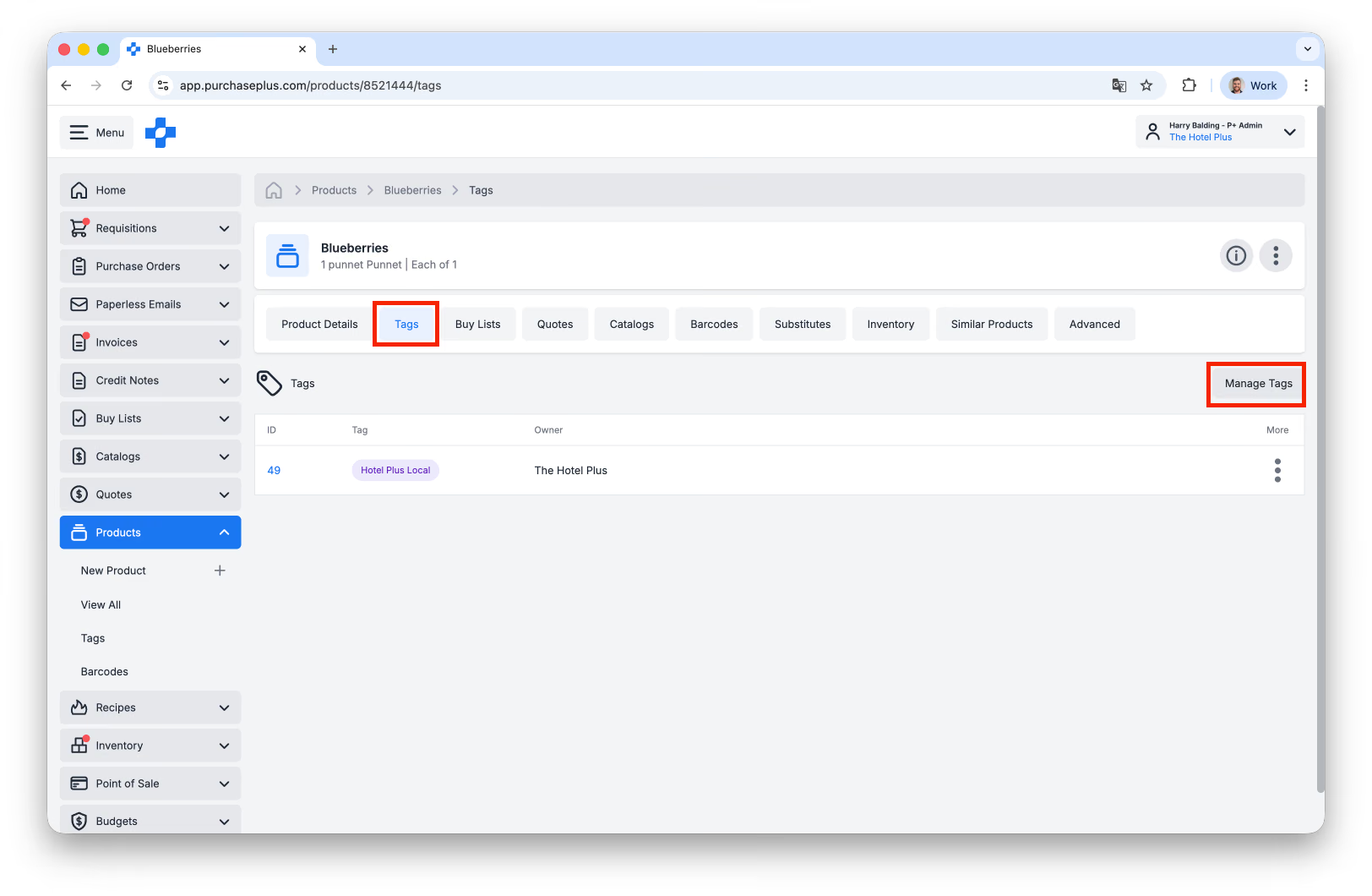
You can apply the Tag to any Product by visiting the Product's [Tags] tab, and selecting [Manage Tags]:
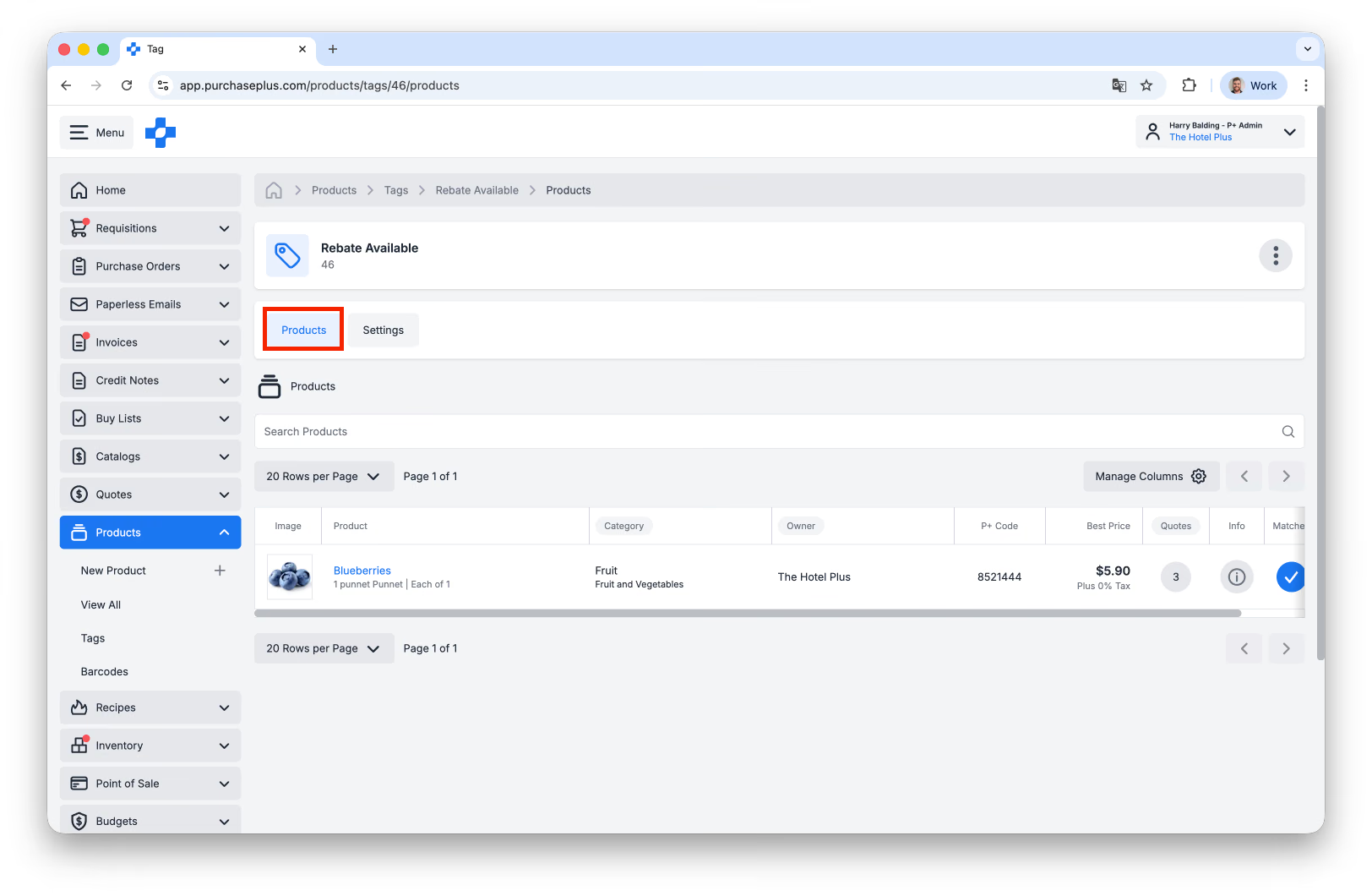
Additionally, you can view all of the Products with a specific Tag applied in the [Products] tab of the Tag:
Catalog Products, [Products] → [View All], Requisition browse, Buy Lists, and Buy List Builder show Tags under the product cell without applying a Tag filter.