

Supplier vs Self-Managed
Supplier vs Self-Managed
Supplier vs Self-Managed
A Catalog is a collection of Products and Prices that you can purchase from a Supplier in your Requisitions.
Catalogs can be either:
- Supplier-managed, which means that a Registered Supplier has created the Catalog, and populated it with Products and Prices. The Supplier can then assign it to your Purchasing Organisation, at which point the contained products are available for inclusion in a Requisition. As a Purchaser, you cannot edit Supplier-managed Catalogs.
- Self Managed, which means that a user at your Purchasing Organisation has created the Catalog, populated it with Products and Prices, and assigned it to one of your Suppliers - at which point the contained products are available for inclusion in a Requisition.
- Self Managed Catalogs can be assigned to both Self Managed and Registered Suppliers, but only your Purchasing Organisation is able to view and manage a Self Managed Catalog - regardless of whether the Self Managed Catalog is assigned to a Registered Supplier.
Identify the catalog type
You can access Catalogs in two ways:
- Via the [Catalogs] section in the side navigation bar.
- Via the [My Suppliers] section in the side navigation bar.
Option 1: Via the Catalogs Area
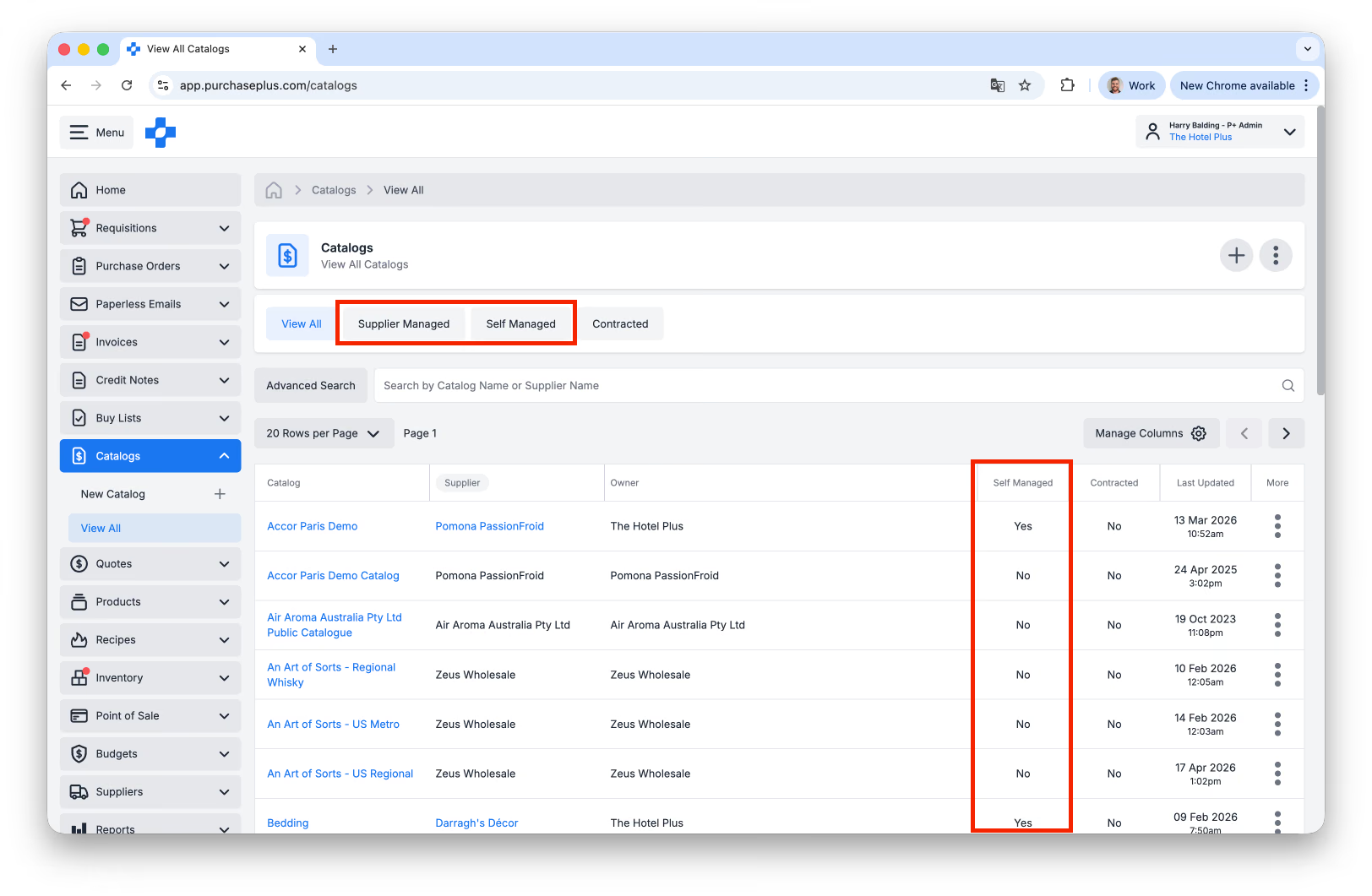
1. Select [Catalogs] → [View All] from the side navigation menu.
2. Filter Catalogs by [View All], [Supplier Managed] or [Self Managed] using the tabs under the Catalog name.
You can additionally view whether a Catalog is Supplier- or Self-Managed in the 'Self Managed' column of the table in the image below.
3. Use [Advanced Search] or [Search by Catalog Name or Supplier Name].
4. Click a [Catalog] to view the Products & Prices inside the Catalog.
Option 2: Via My Suppliers Section
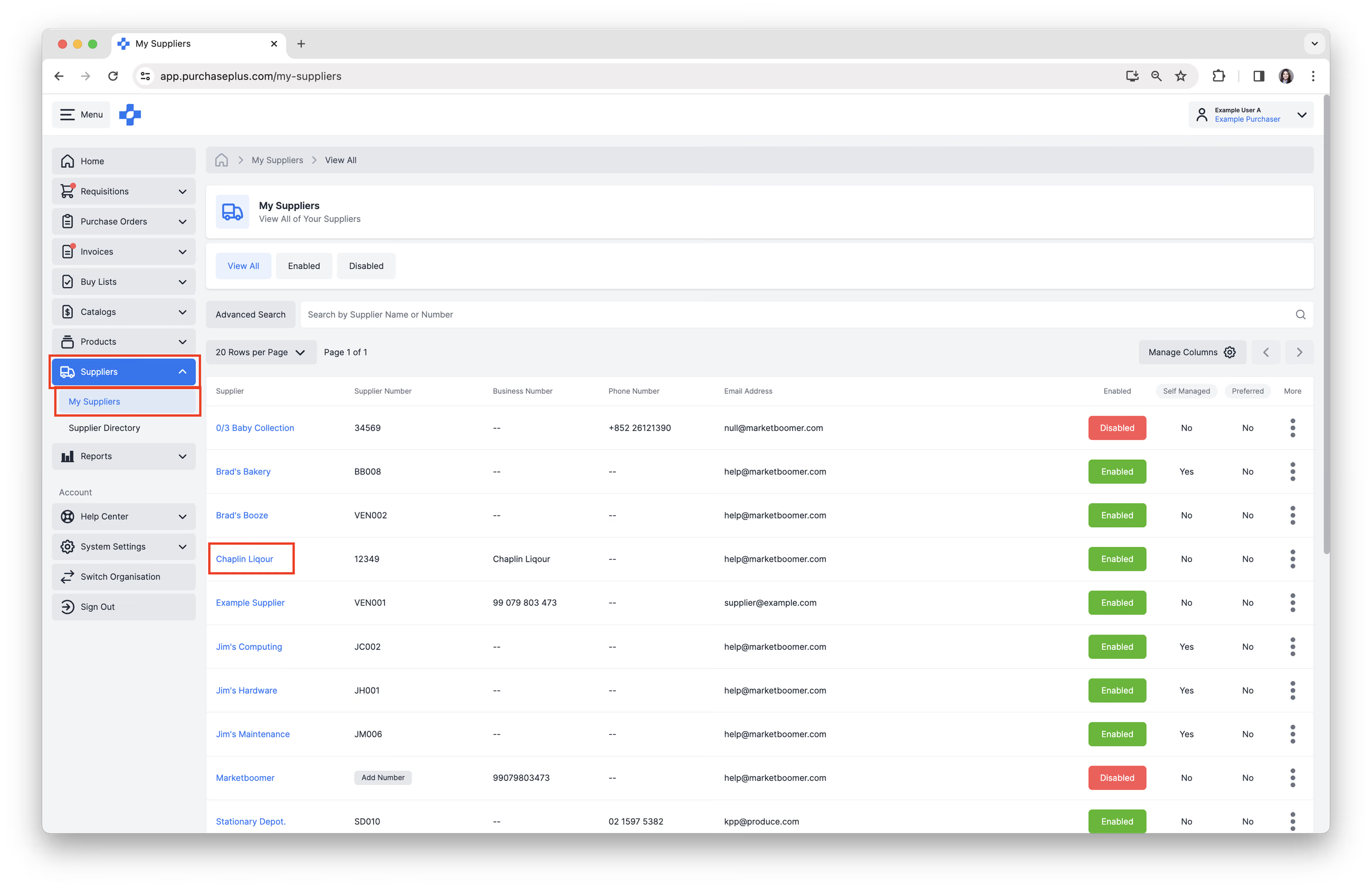
1. Select [Suppliers] → [My Suppliers] from the side navigation menu. Then select a Supplier.
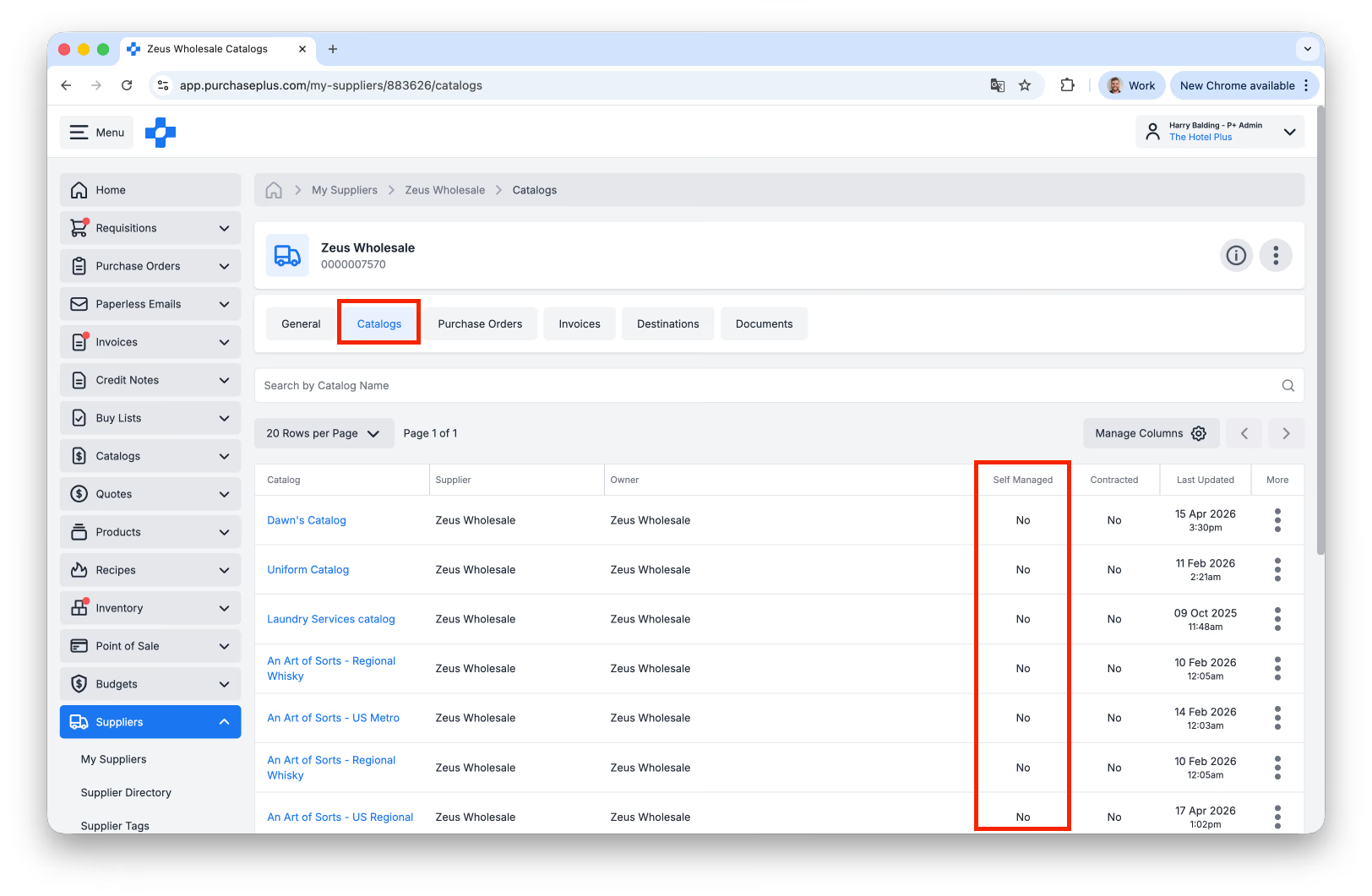
2. Select the [Catalogs] tab. You can view whether a Catalog is Supplier- or Self-Managed in the 'Self Managed' column of the table:
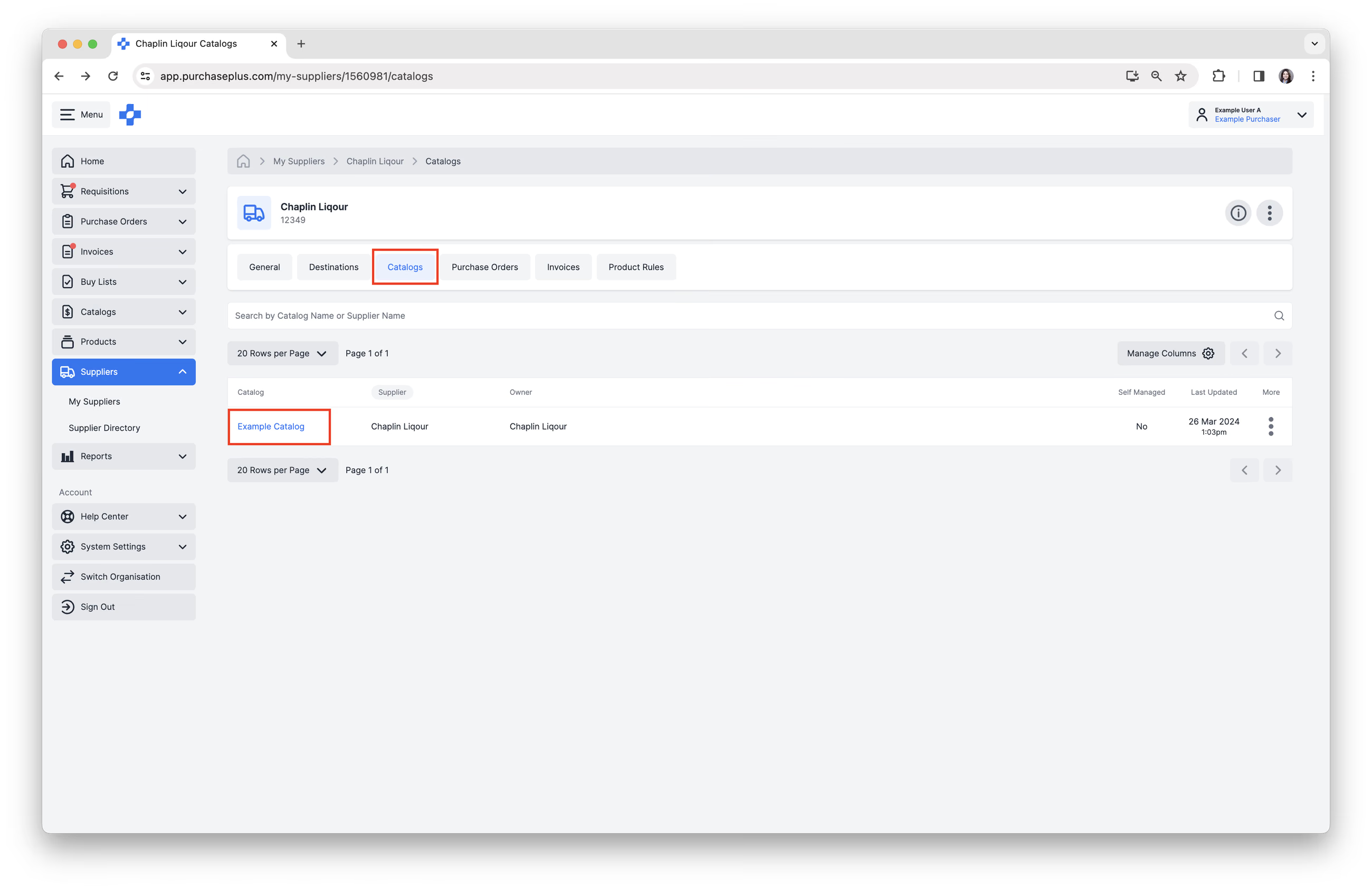
3. Click a [Catalog] to view the Products & Prices inside the Catalog.
Updating Catalogs
Supplier Managed Catalogs
If the Catalog is Supplier Managed, you are able to complete the following steps.
- Use [Advanced Search] or [Search Products] by Name.
- View Product Information.
- View the Unit Price and Tax Percentage of each Product.
- On each Product, select [More Options] → [View Product], [Add to Buy List] or [Add to Catalog].
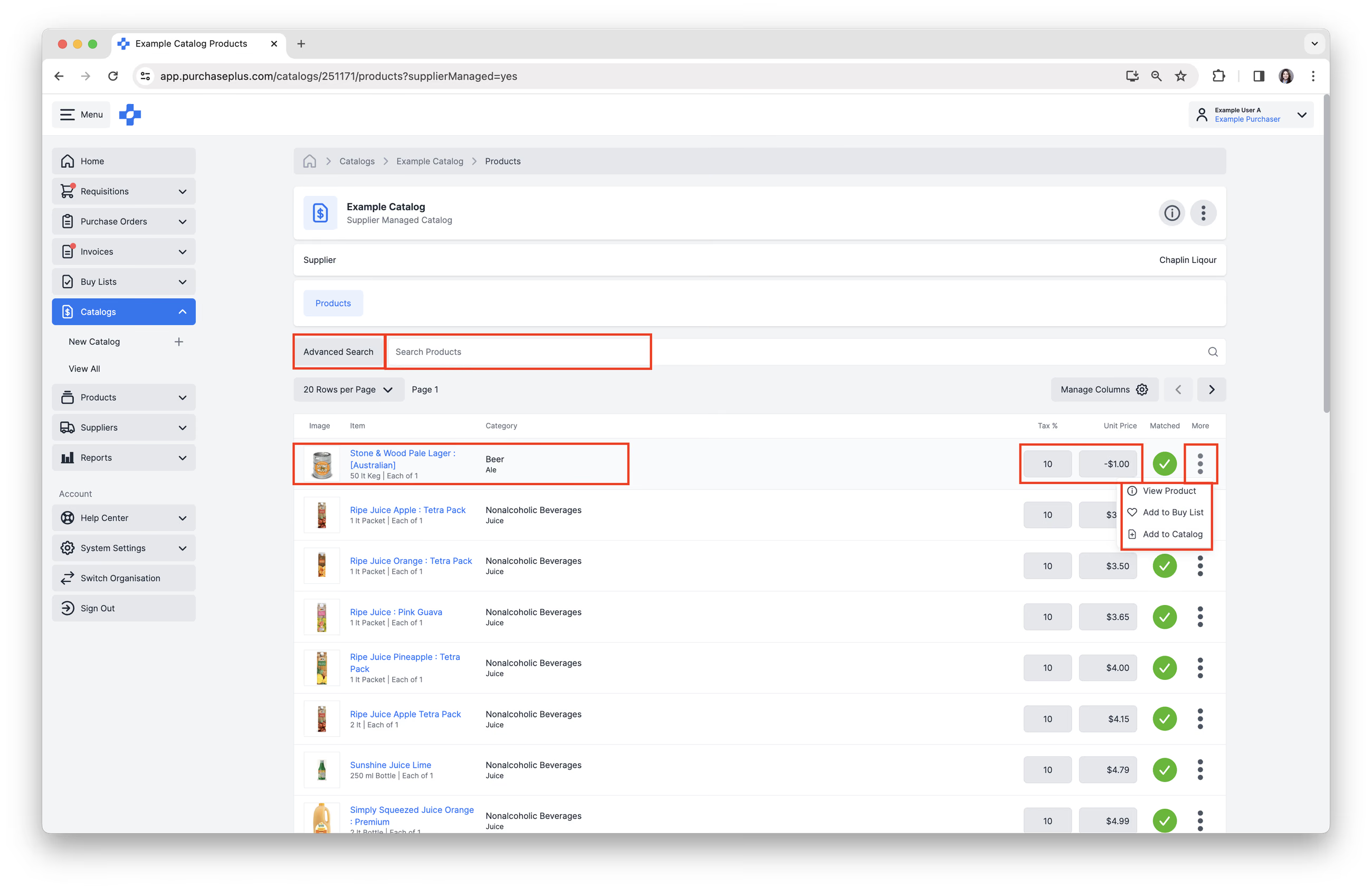
As a Purchaser, you are not able to update the Products or Prices in a Supplier-Managed Catalog. Instead:
- Contact your Supplier directly
- Advise them of the required price updates,
- Provide any relevant details (e.g. agreed pricing).
- Supplier updates their Catalog in PurchasePlus
- The Supplier will make the changes on their end.
- Supplier submits the update
- They will coordinate with the Supplier Relations or Catalog Team if required.
- System updated
- Once processed, the updated prices will reflect in your Catalog.
Tip: If the update is urgent, let your Supplier know so they can prioritise the request.
Self-Managed Catalogs
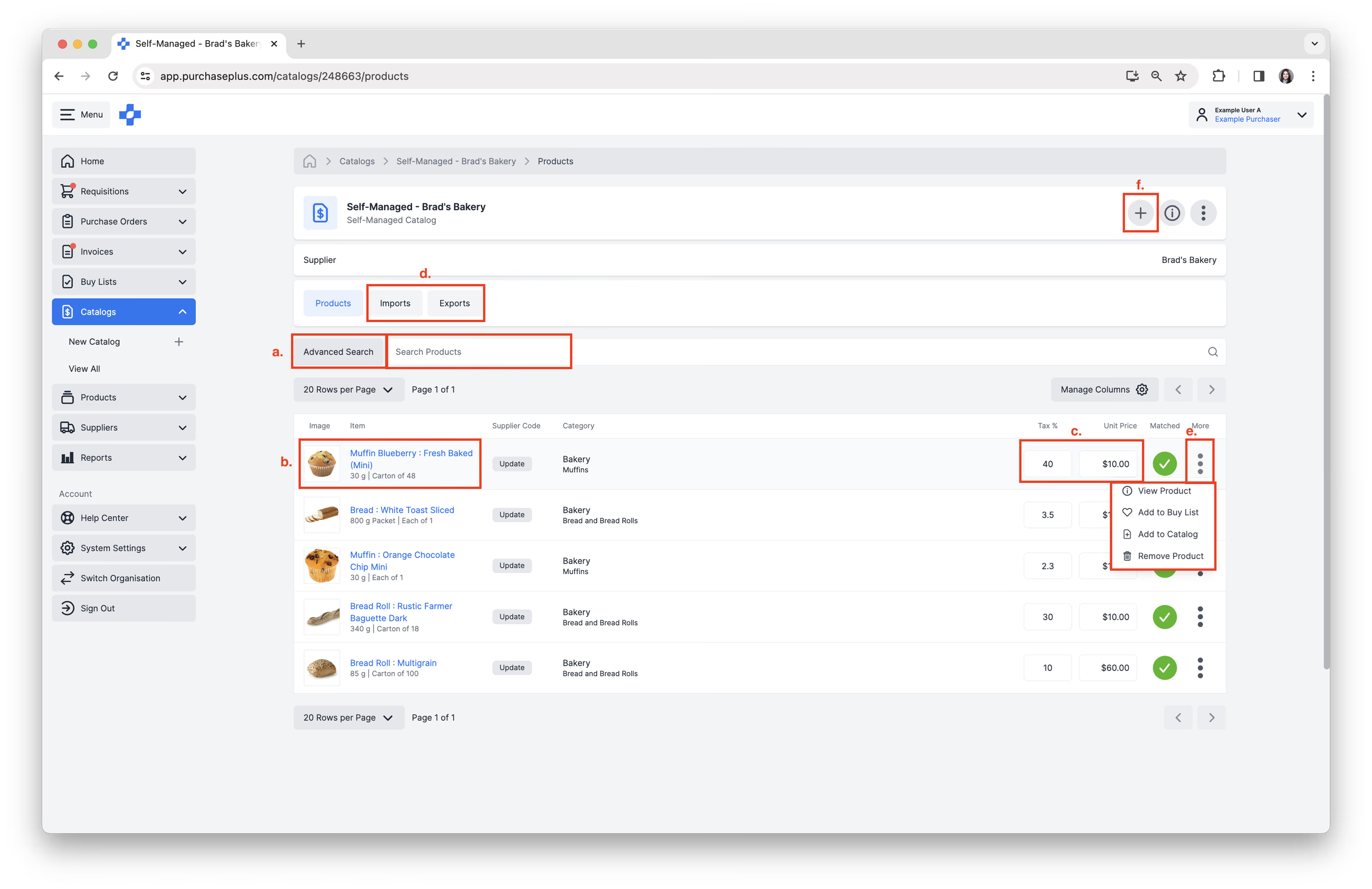
If the Catalog is Self-Managed, you can take the same actions as a Supplier Managed Catalog, and you can complete a number of additional actions if you have the 'Manage Self Managed Catalogs' permission enabled.
You can:
- [Search Products] by Name or use the [Advanced Search] feature.
- View Product Information.
- View or update the [Unit Price] and [Tax %].
- View or update the Catalog via the [Export] and [Import] tabs. See our Import a Self Managed Catalog article to learn more.
- On each Product, select [More Options] → [View Product], [Add to Buy List], [Add to Catalog] or [Remove Product].
- Click [Add a Product] in the top right corner to add a new Product to the Catalog. See our Import a Self Managed Catalog article to learn more.
Frequently Asked Questions
Why can’t I edit the price of a Product in a Catalog? If the price field is greyed out or locked, the Catalog is likely Supplier-Managed.
Why are there duplicate Suppliers? You may have both a Supplier-Managed and Self-Managed version of the same Supplier.
Who should I contact for price issues?
- Supplier-Managed → Contact the Supplier
- Self-Managed → Update directly in the system