Product Images
Product Images
Product Images
Suppliers can upload Product Images to PurchasePlus via their Product Catalog, to make their Products more attractive and recognisable to Purchasers that are creating Purchase Orders on our platform.
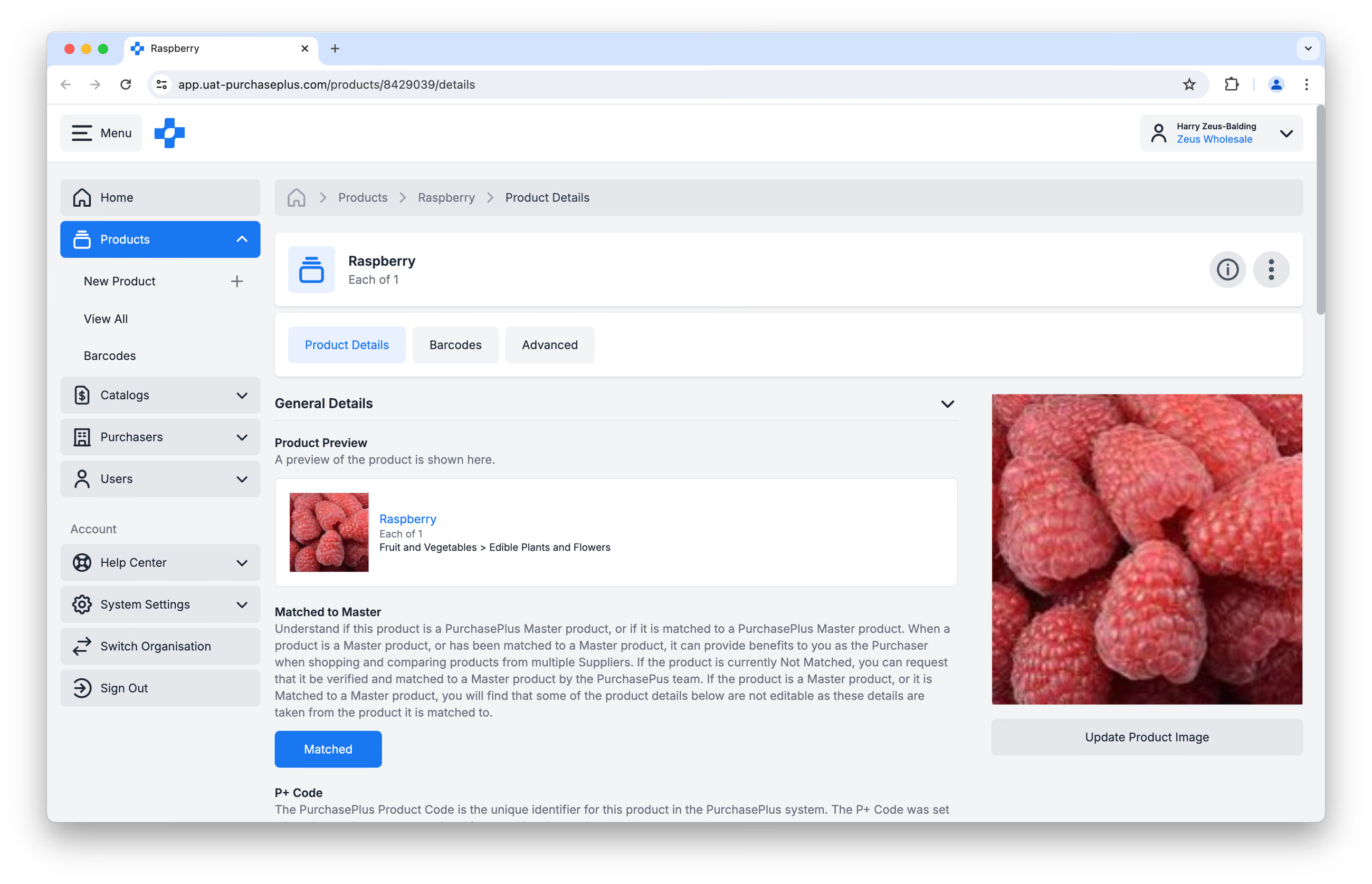
Image Format Requirements
- Images must be PNG, JPG or GIF and must be at least 800px wide and 800px high.
- We recommend a high-quality image with a white background to present your product in the best light for all customers.
- The image file name must be the same as the Product Code that you use in your PurchasePlus catalogs. e.g. '123456'.
Upload images
Step 1: Sign into your account here.
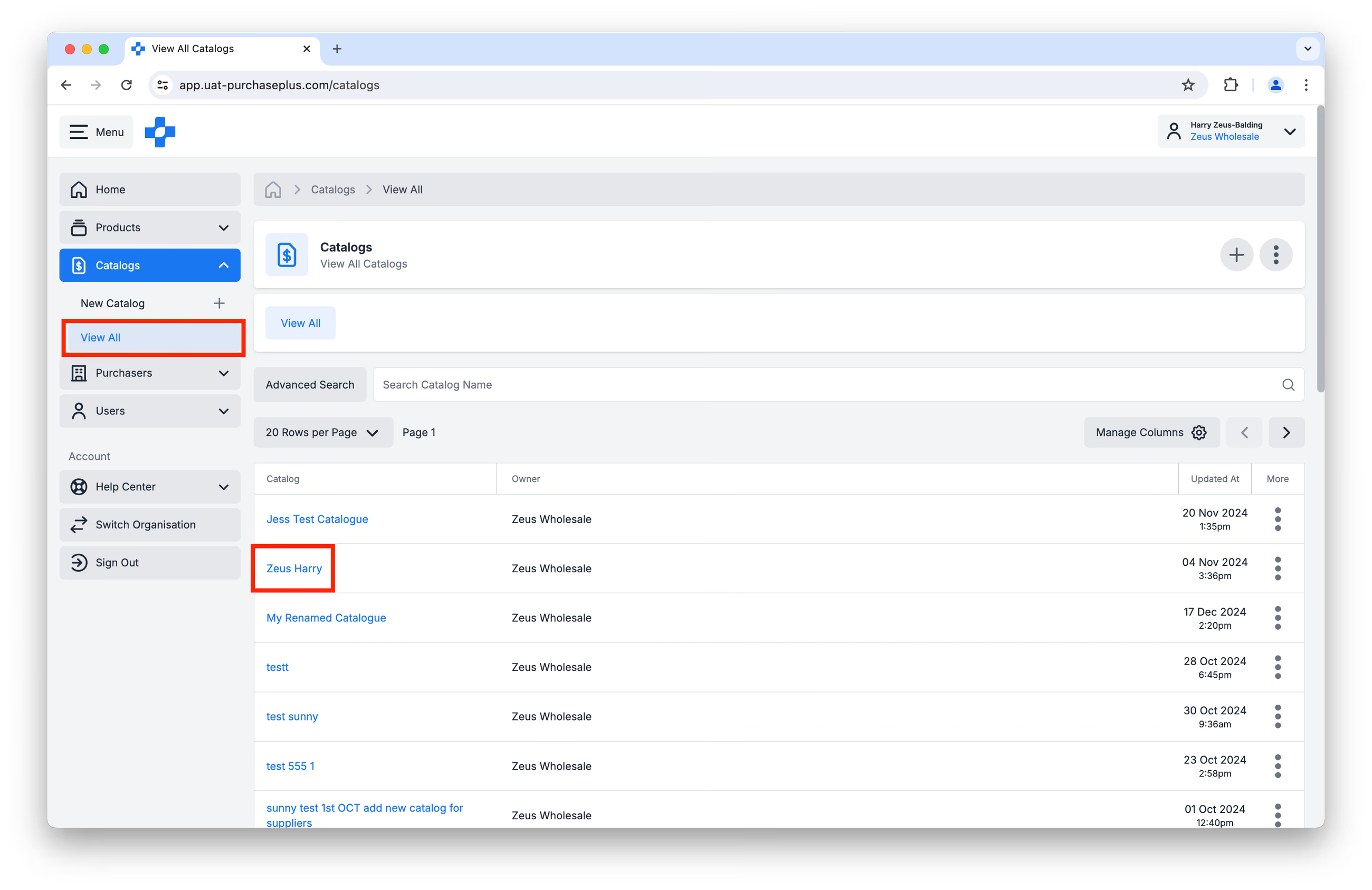
Step 2: Click on [Catalogs] → [View All] and click on the name of a Catalog that contains the products to which you would like to upload an image:
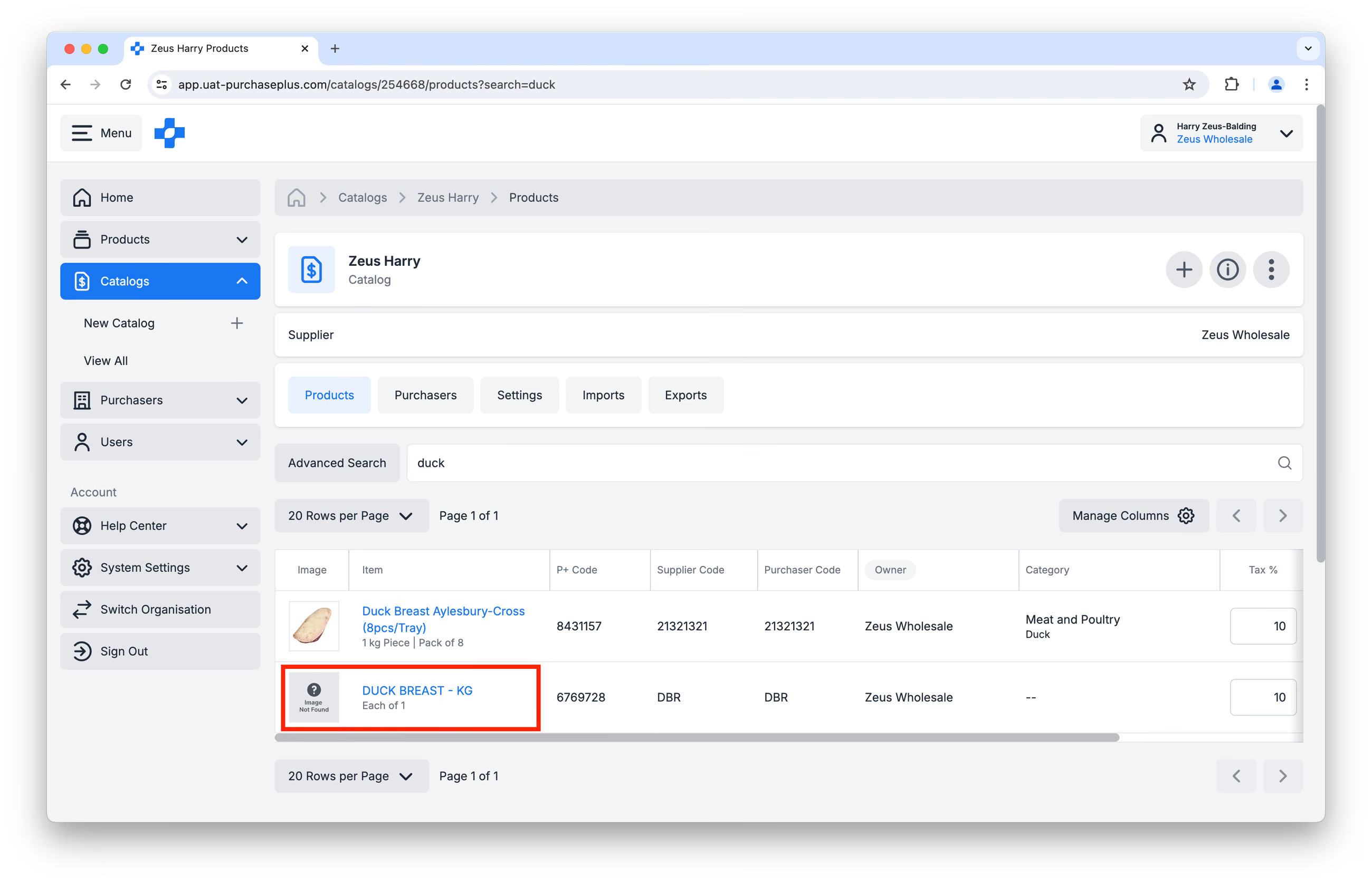
Step 3: Search for the product in the 'Search Products' field, and click on the name in blue:
Step 4: Click on [Manage Product] in the Product Information window:
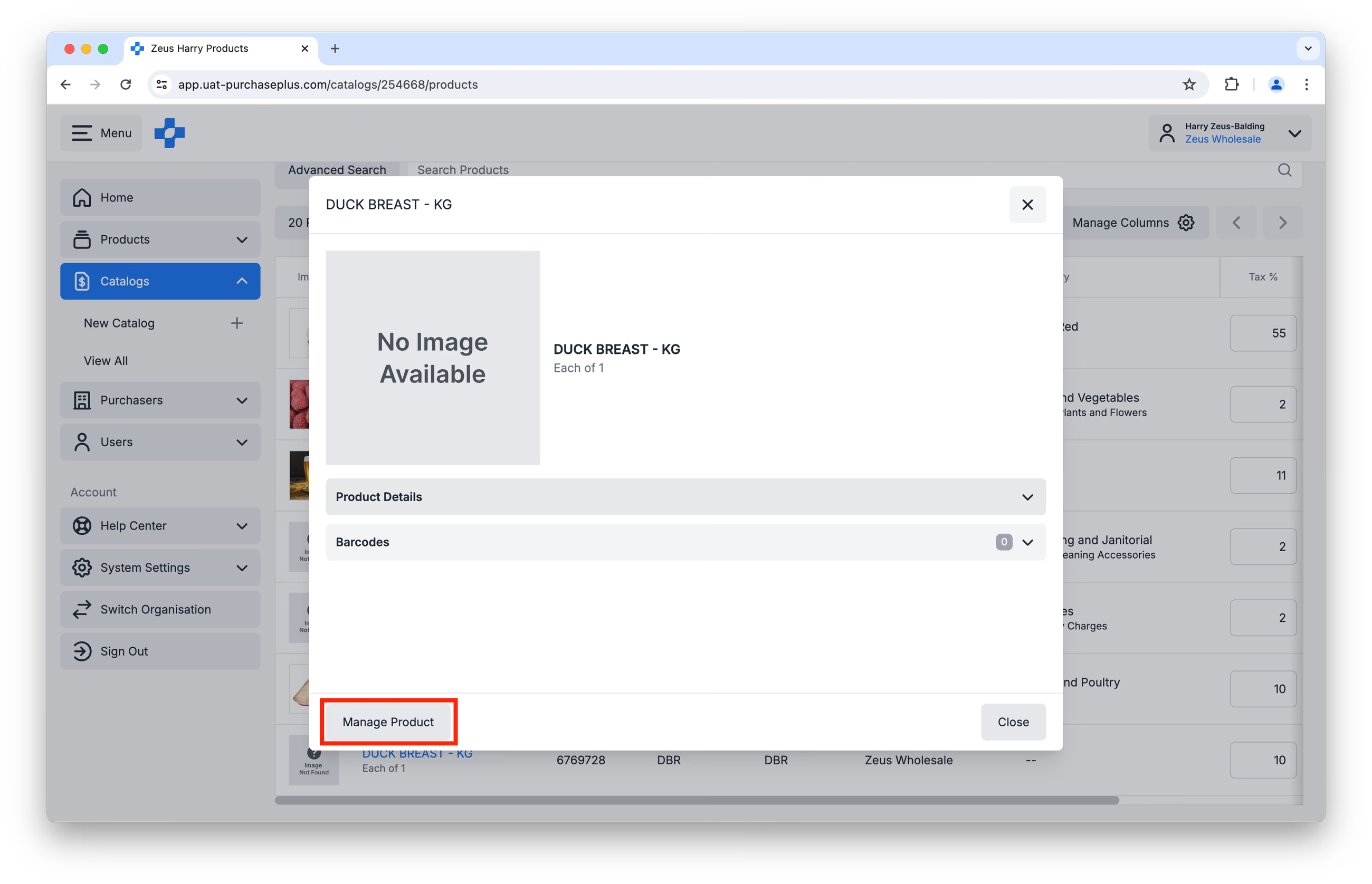
Step 5: Click on [Update Product Image]:
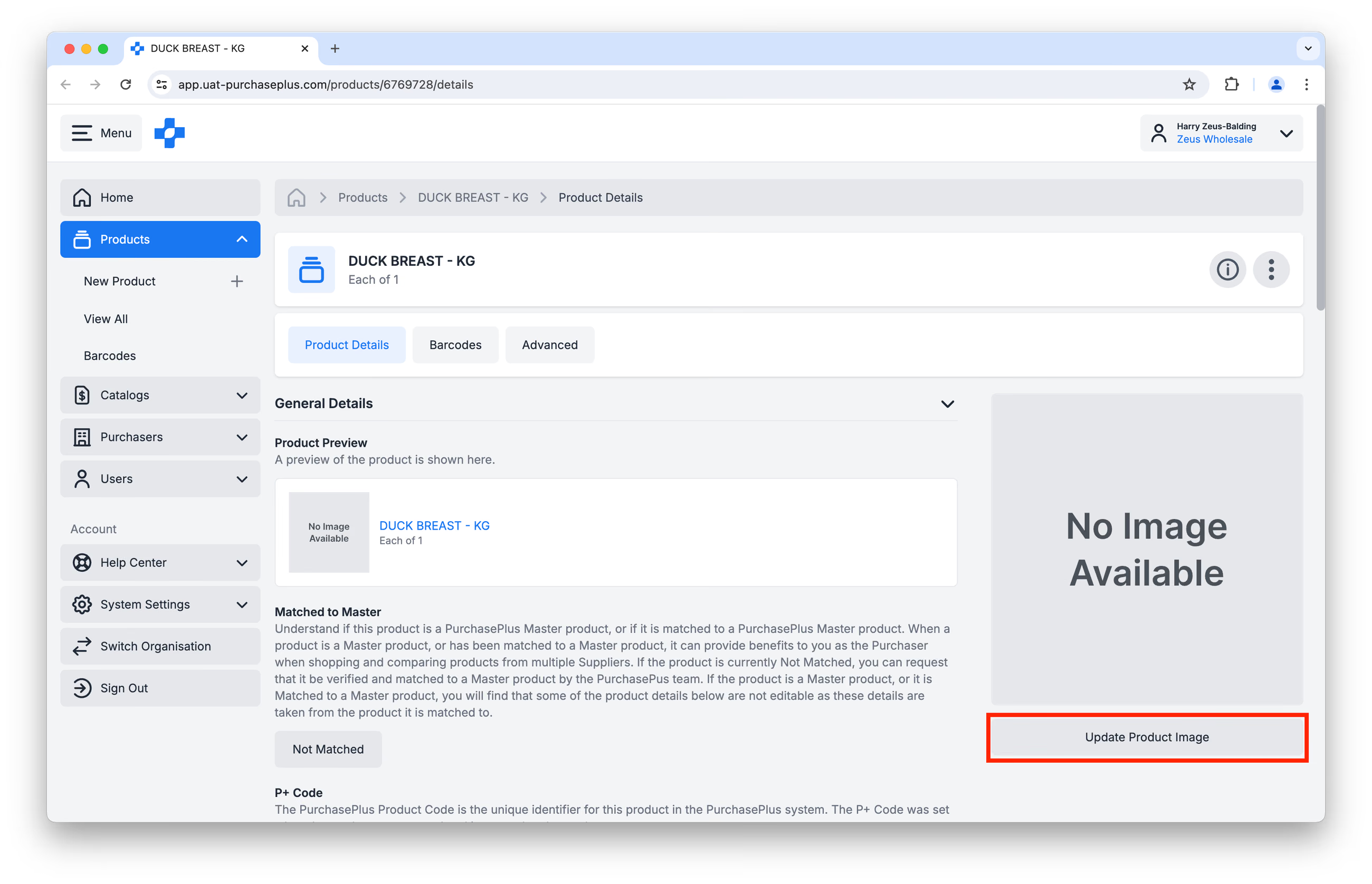
Step 6: Drag & drop your image (making sure it adheres to the image format requirements), or upload the file from your device. You may use the draggable [Crop] feature (overlaid atop your supplied image) to resize and ensure the focus is on your Product, while adhering to our formatting requirements. Click on [Save Changes] when you are ready.
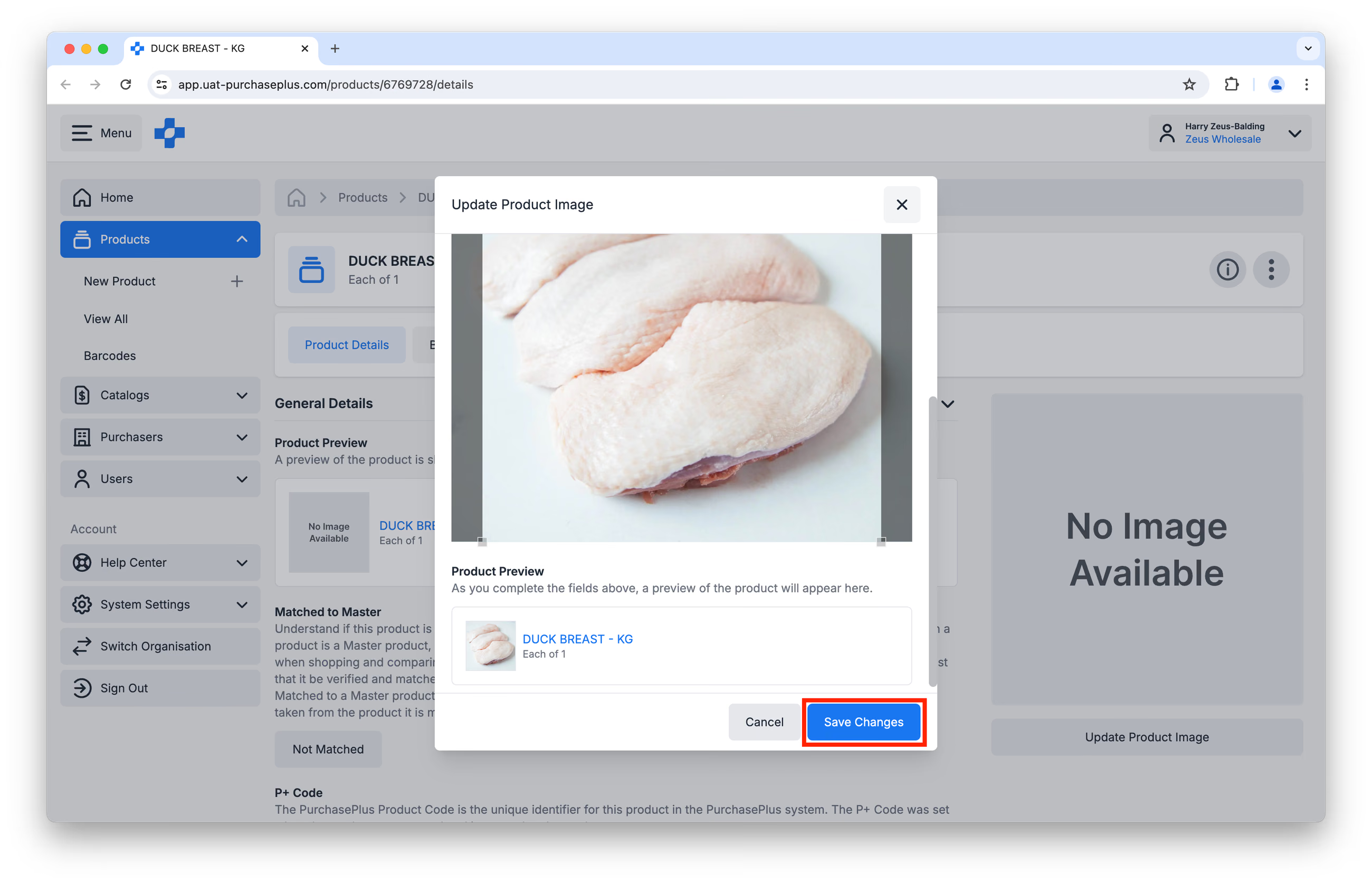
Your Product Image will now be visible throughout the PurchasePlus platform.
Help with multiple files
If you would like to upload a large number of Product images, our Supplier Relations Team would love to help.
First, create a shareable folder, containing all your Product Images. Common approaches include:
- Create a .zip file containing the images and send it to us,
- Downloading image files from an image repository (such as GS1) or your public website,
- Share image URLs in a spreadsheet or email,
- Save image files in a Google Drive/OneDrive/Dropbox folder and share it with us.
Our Supplier Relationship Team is available at: help.suppliers@purchaseplus.com.
Upload via API
Note: This option is only available for Suppliers that have an existing API integration with PurchasePlus. Get in touch with us if you'd like to set up an API Integration as a Supplier.
If you’re working with supplier-owned products - usually created through API integration, or uploaded manually our team - you can add product images directly via our Supplier API.
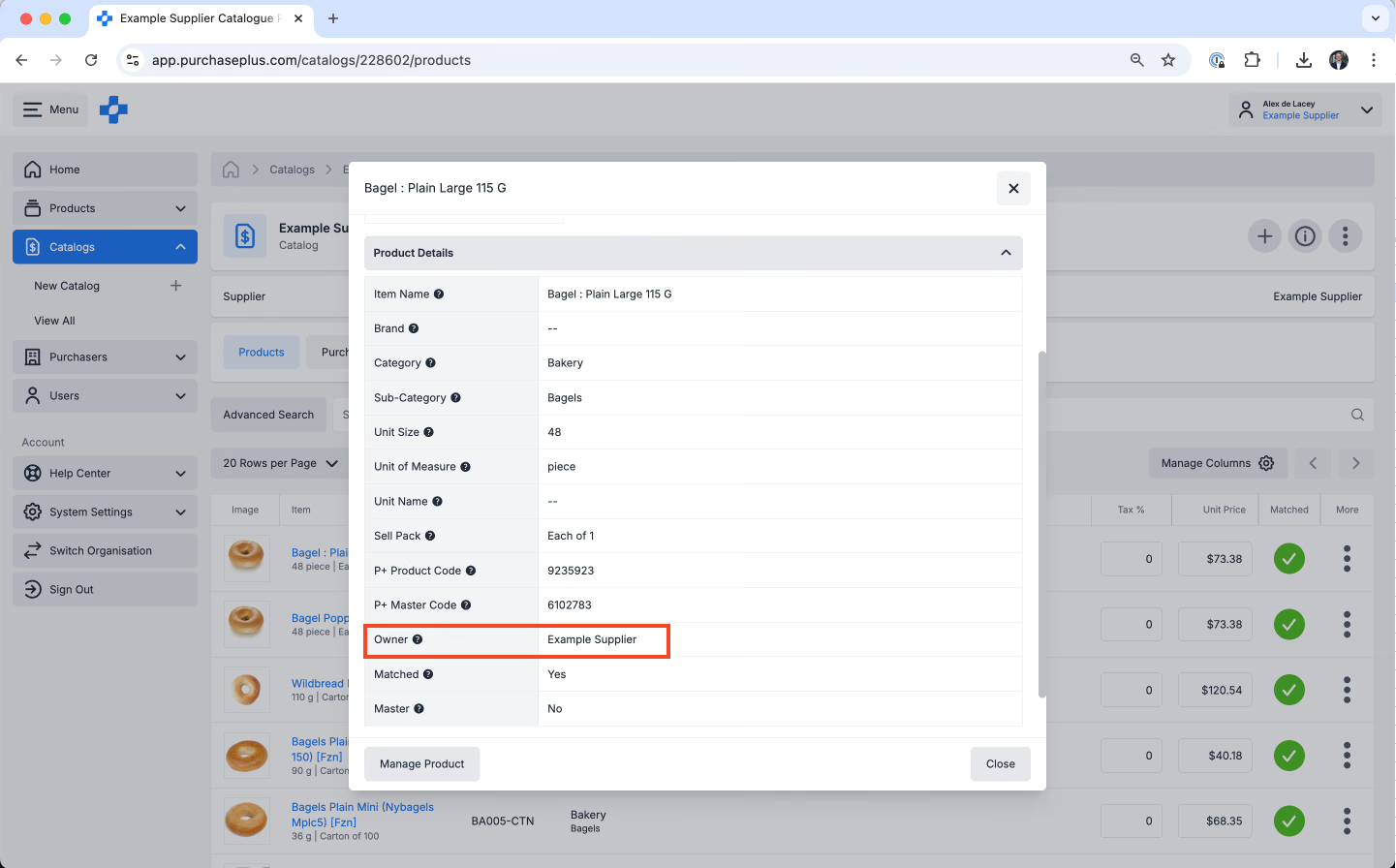
You can see if you are using supplier-owned products by looking in your catalogs, clicking on a product and checking the Owner field. If this matches your account name, it is a supplier-owned product.
Uploading Images:
- Send a PATCH request to the products endpoint at {base_url}/supply/api/products/{product_id}. Use a form-data request that includes the image file in a jpg or png format.
- Once completed, the image will appear in the [Products] tab for the corresponding Product.
Remove images
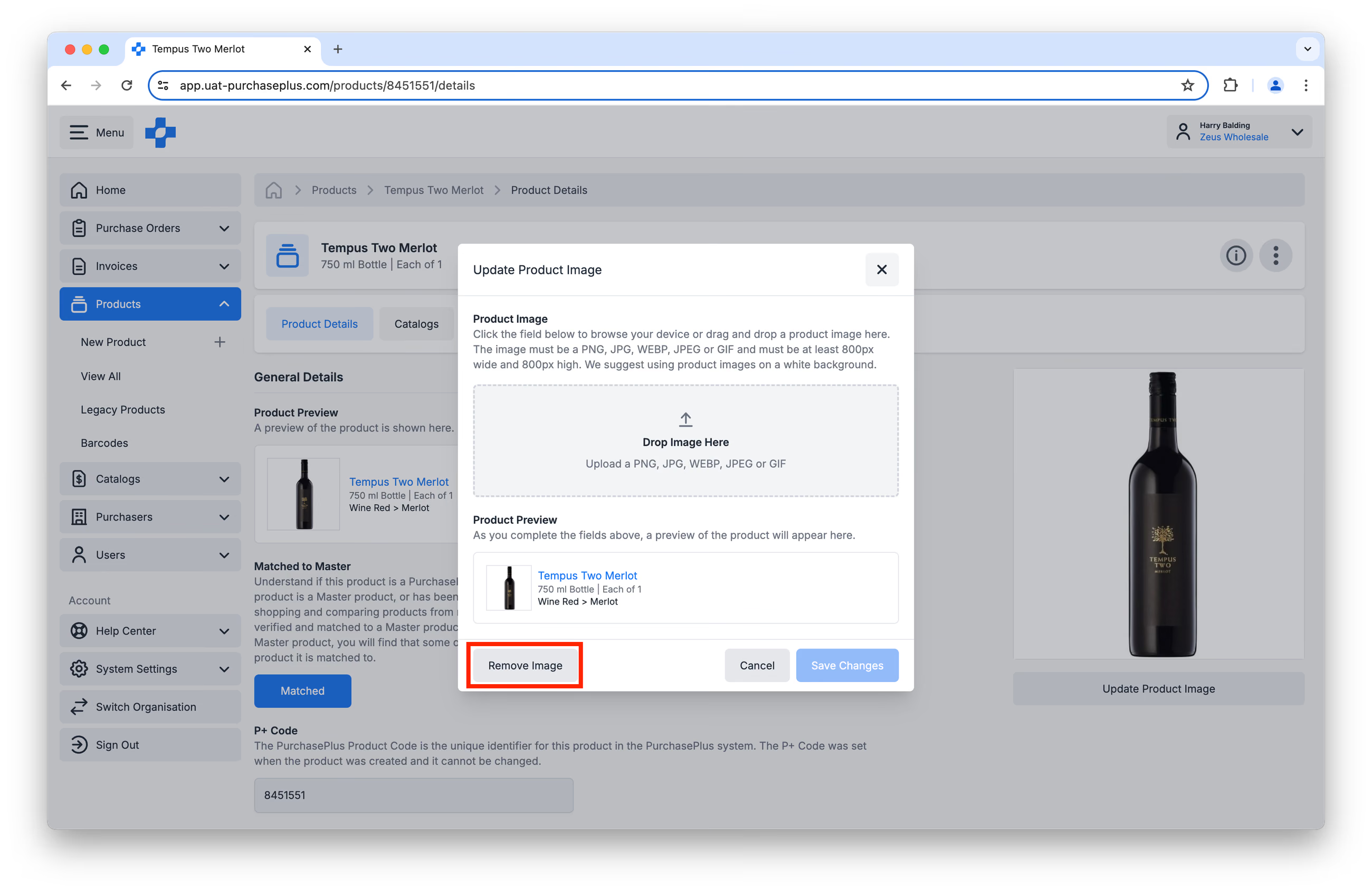
If your Organisation is the Owner of a Product, you can Remove the Product's Image by:
Step 1: Navigating to the Product Details page, and clicking [Update Image]:
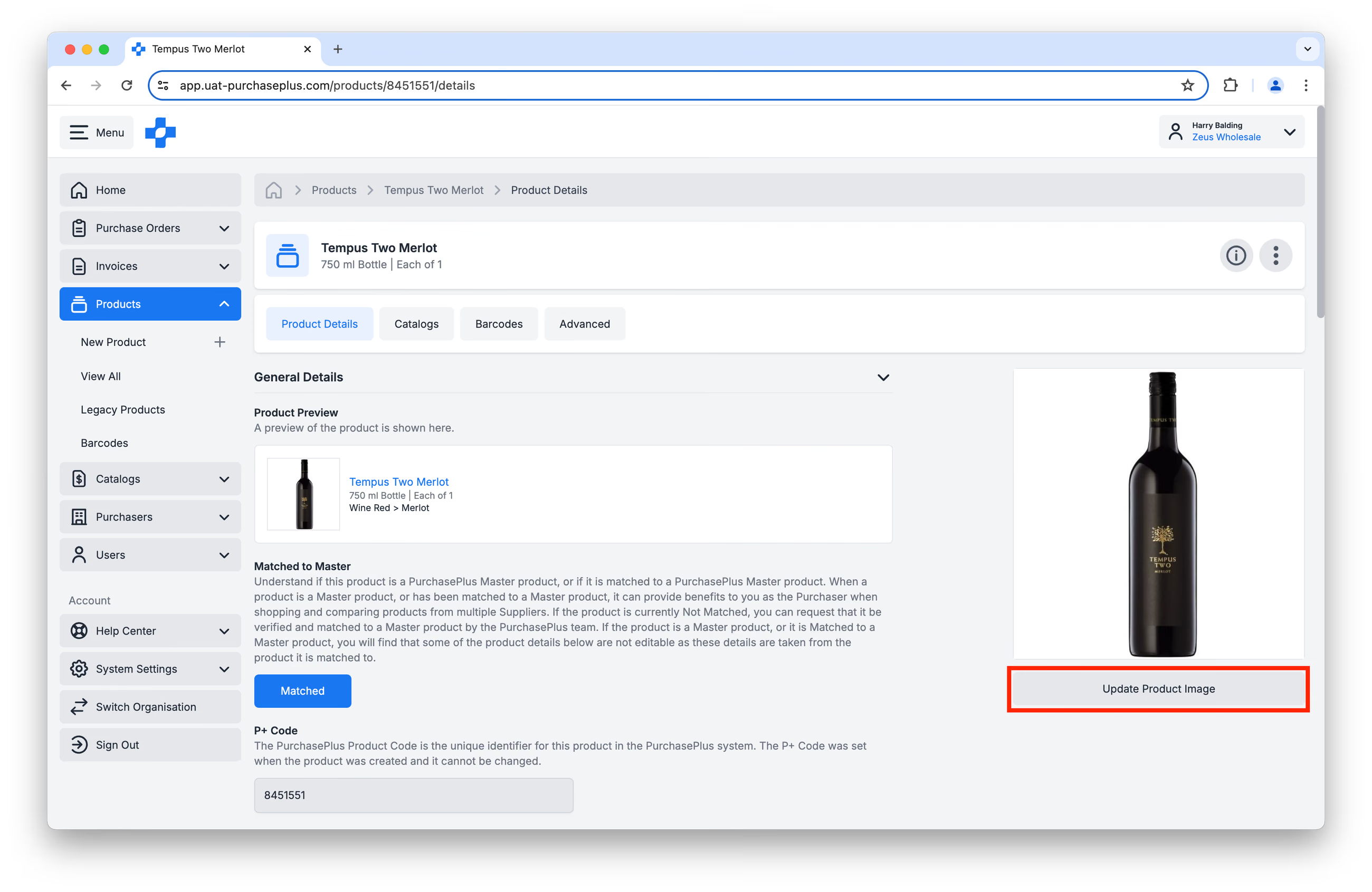
Step 2: Clicking [Remove Image] in the resulting window: