Overview
Overview
Catalog
A Catalog is a collection of Quotes (i.e. Products, with a Price, that Suppliers make available to Purchasers by 'assigning' the Catalog to them). The Quotes in these Catalogs are then available the assigned Purchasers for inclusion in their Requisitions and Purchase Orders.
Catalogs can be 'Supplier-managed', meaning Purchasers cannot edit these Catalogs. Catalogs can also be Purchaser-managed, which means that a user at a Purchasing Organisation has created the Catalog, populated it with Products and Prices, and assigned it to one of their Suppliers. Suppliers cannot edit Purchaser-managed Catalogs.
This article focuses on the former: Supplier-managed Catalogs.
What is a Quote (in PurchasePlus)?
A Quote is:
- A Product, with a
- Price and Tax %, that is
- Contained in a Catalog, that is
- Assigned to a Purchaser.
- Contained in a Catalog, that is
- Price and Tax %, that is
Quotes are what your Purchasers 'buy' when they are creating a Requisition using PurchasePlus.
You can see all of your active Quotes in the [Quotes] area, accessible via the left side navigation bar.
Viewing Your Catalogs
You can view the Catalogs that are owned and managed by your Organisation by clicking [Catalogs] → [View All] in the Side Navigation bar.
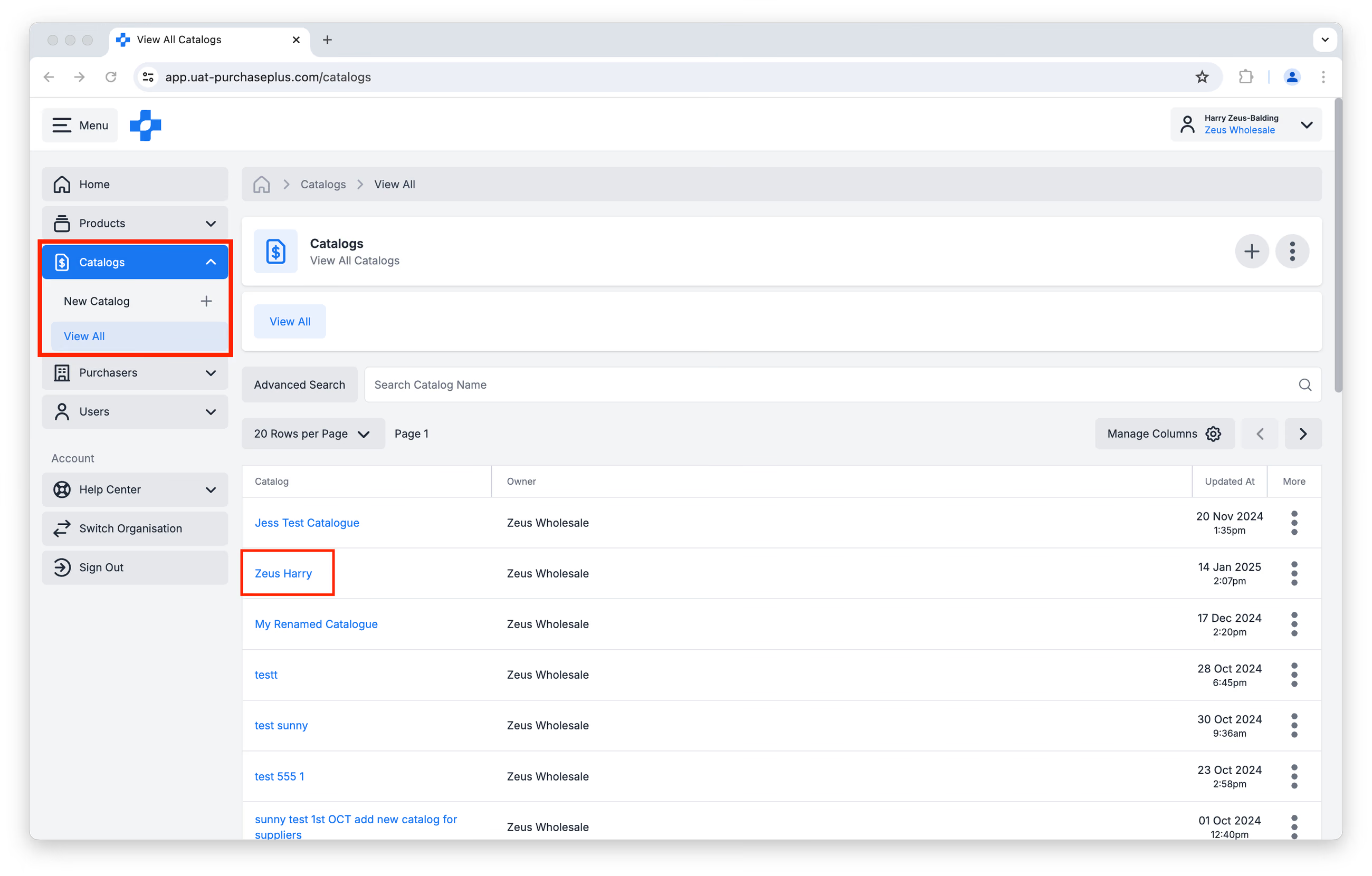
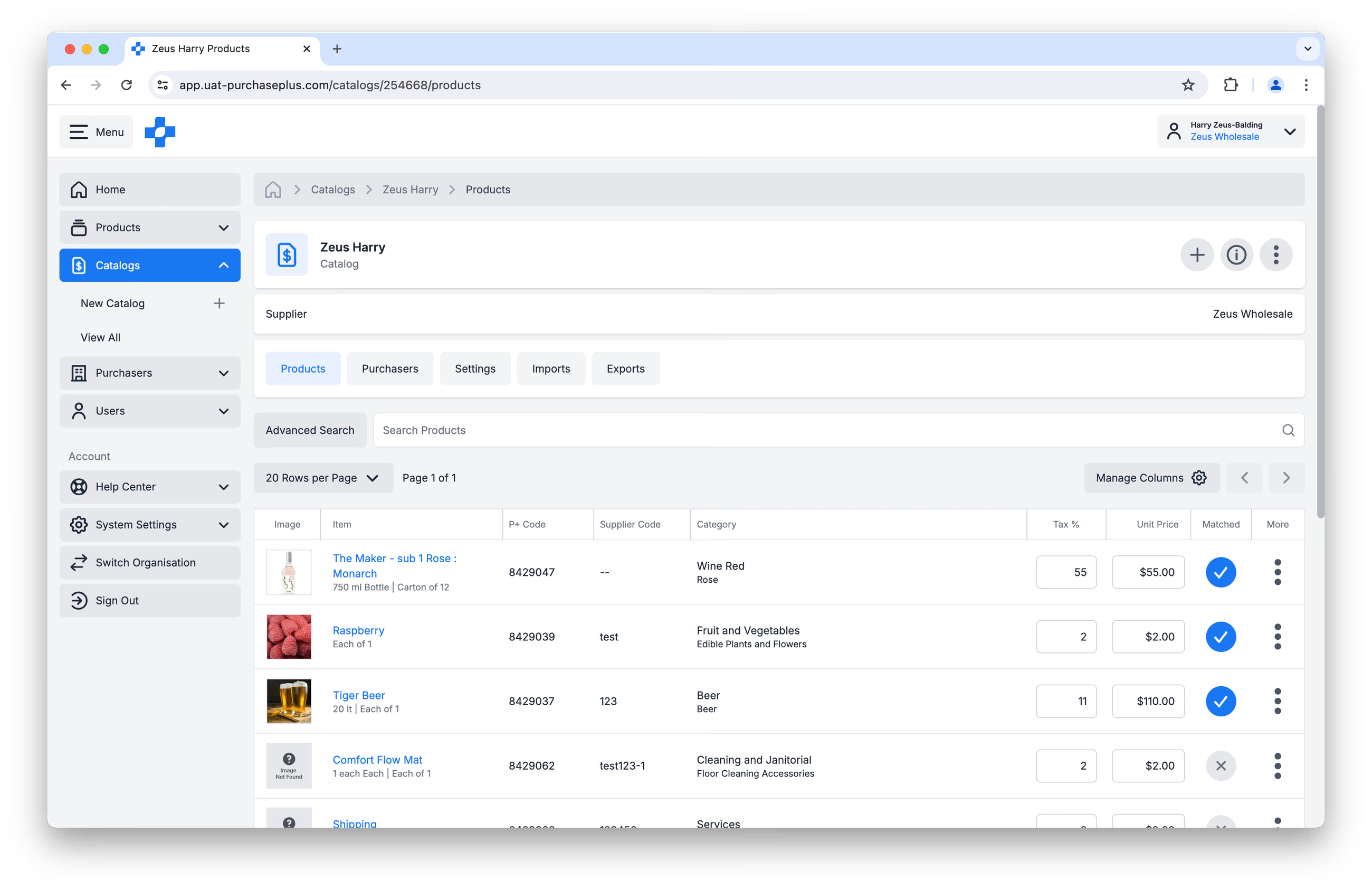
You can then click on the Catalog name to view a single Catalog in more detail:
Creating New Catalogs
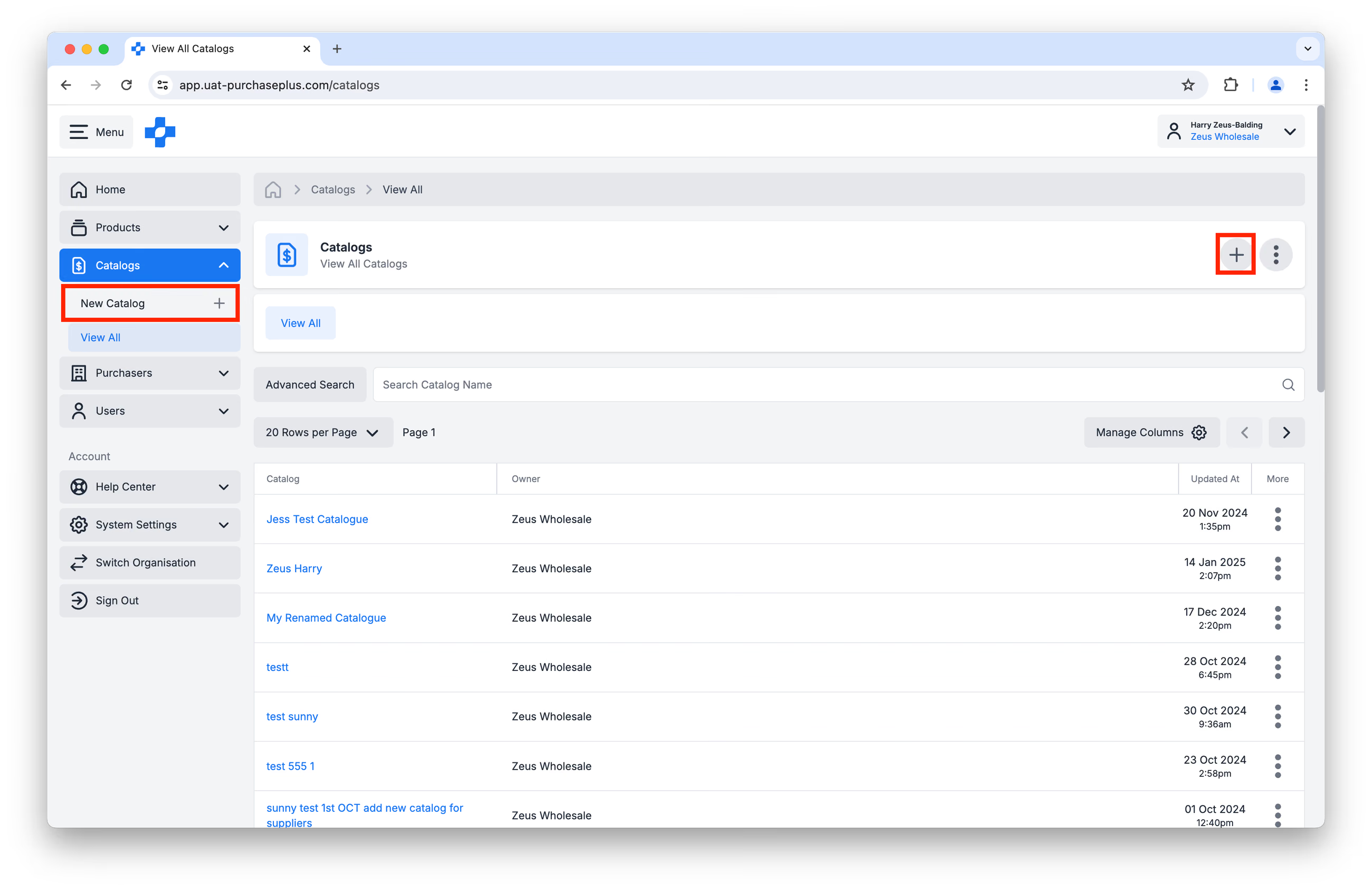
You can Create a New Catalog by clicking either:
- [New Catalog] in the Side Navigation Bar, or
- [Create New Catalog] in the top-right hand side of the View All Catalogs page:
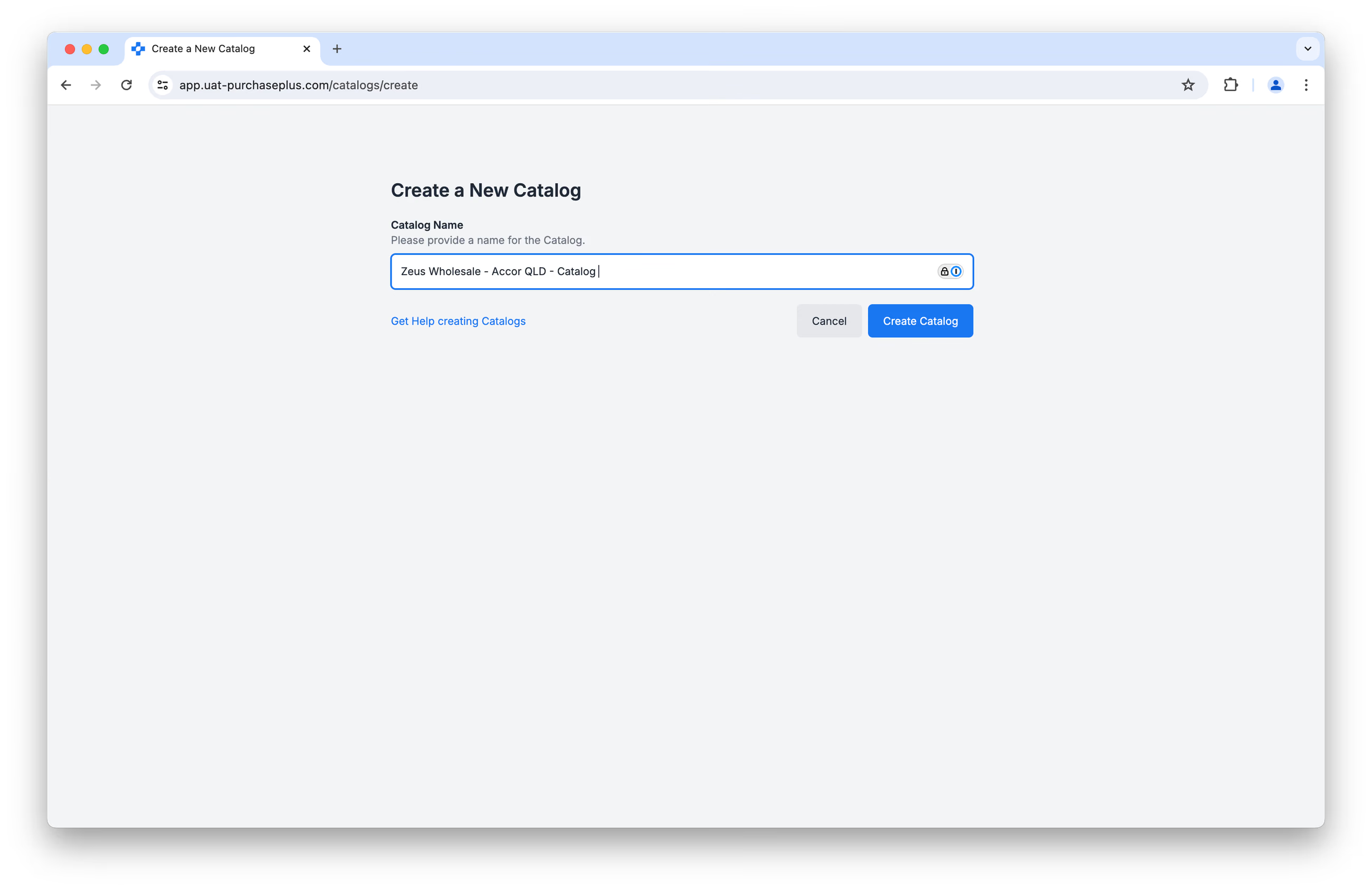
First, you will be prompted to give the new Catalog a name, before clicking [Create Catalog].
We recommend being as detailed as possible, as you may end up with a number of different Catalogs to distinguish between. We recommend a naming convention as follows:[Supplier Name - Customer Name - Catalog]
For example: 'Zeus Wholesale - Accor QLD - Catalog'.
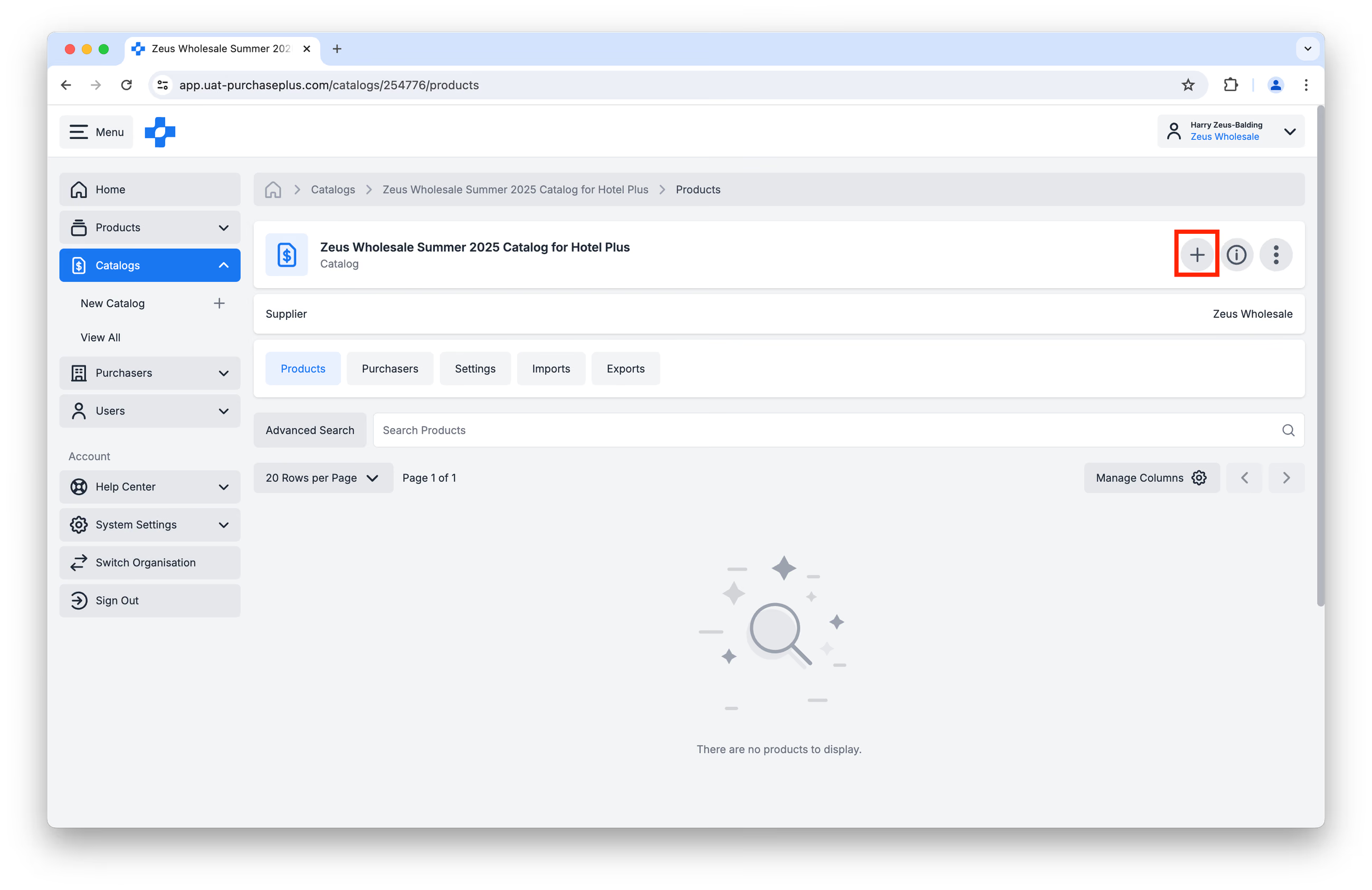
After you've clicked [Create Catalog], you will arrive at the empty Catalog page. Click the [Add a Product] button to begin populating your Catalog:
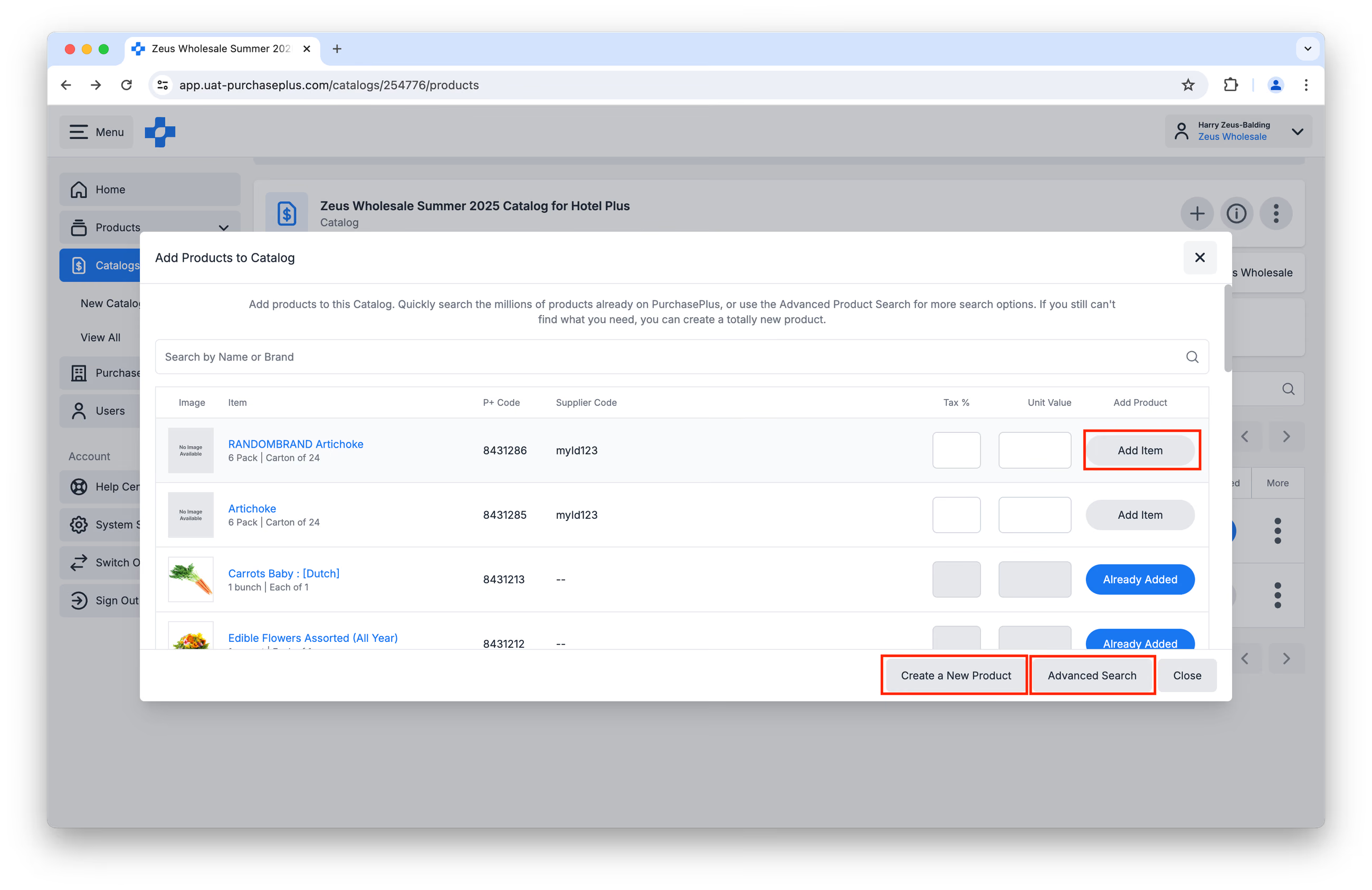
You can quickly browse your Products in the resulting window and click [Add Item] after specifying a Tax % and Unit Price.
You can also use the [Advanced Search] for more search options, or you can [Create a New Product] if required.
Once you have created the Catalog, you will most likely want to assign the Catalog to a Purchaser, in order to make the contained Products available for Purchasing.
Learn more about Adding Products to a Catalog or Creating New Products as a Supplier.
Create New Catalogs via CSV Upload
We have an entire team dedicated to helping Suppliers with Catalog Management.
If you would like to create a New Catalog by CSV upload, please feel welcome to begin using the New Product Template, and then get in touch with our Supplier Relations team and we would be delighted to assist in creating your Catalogs.
We can be reached at prices@purchaseplus.com.
Updating a Catalog
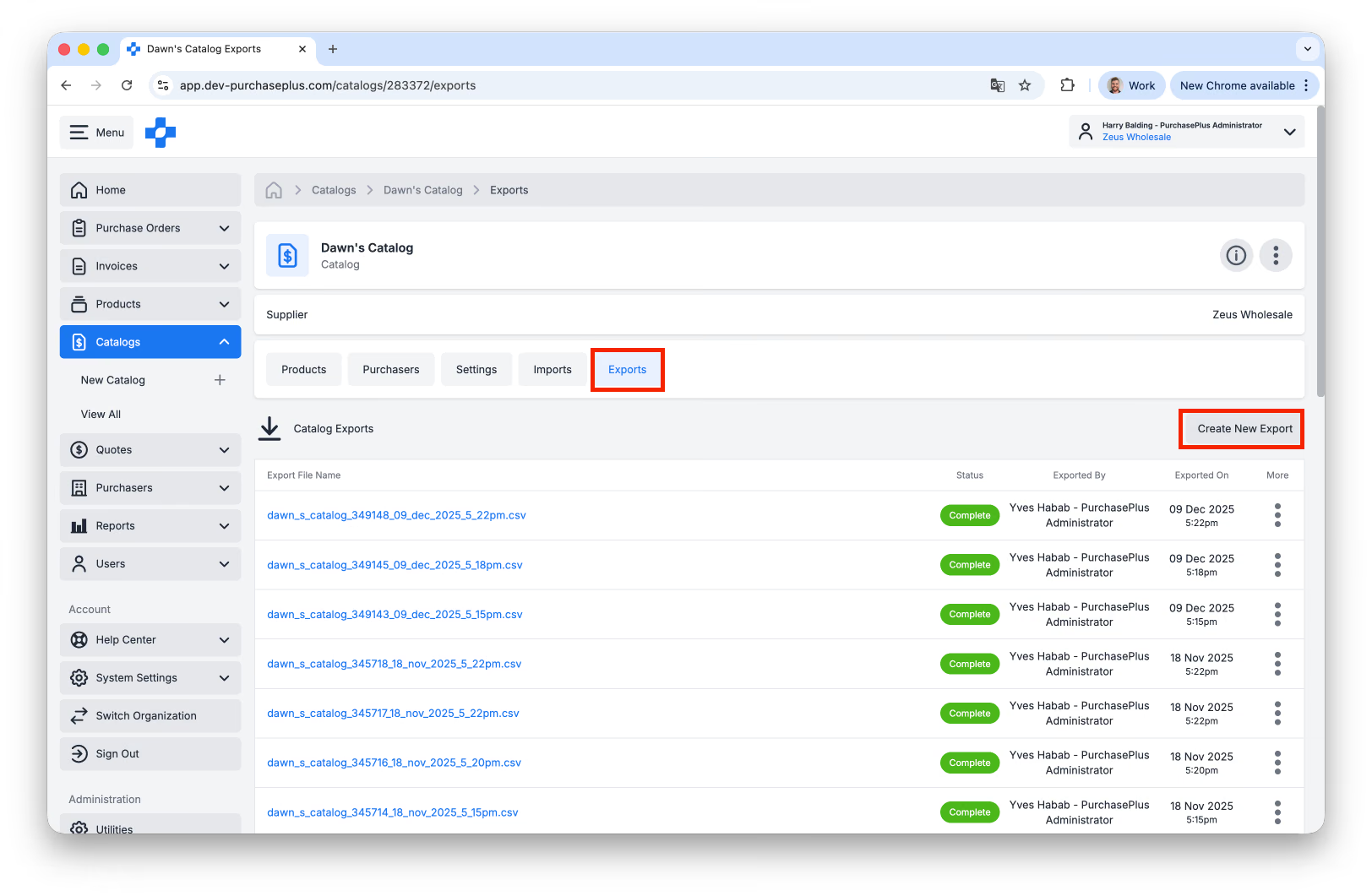
Before Updating a Catalog, it is best practice to first Export the Catalog, in case you need to restore it to its original condition. Visit the Catalog's [Exports] tab, then click [Create New Export]:
Updating Products and Unit Prices
You can Update Unit Price and Tax values one-by-one on the [Products] tab within a single selected Catalog, overwriting the values in the Tax % and Unit Price columns. Remember to press enter after updating the field. Note: we strongly recommend updating Catalogs by Importing a CSV for multiple Product price updates. 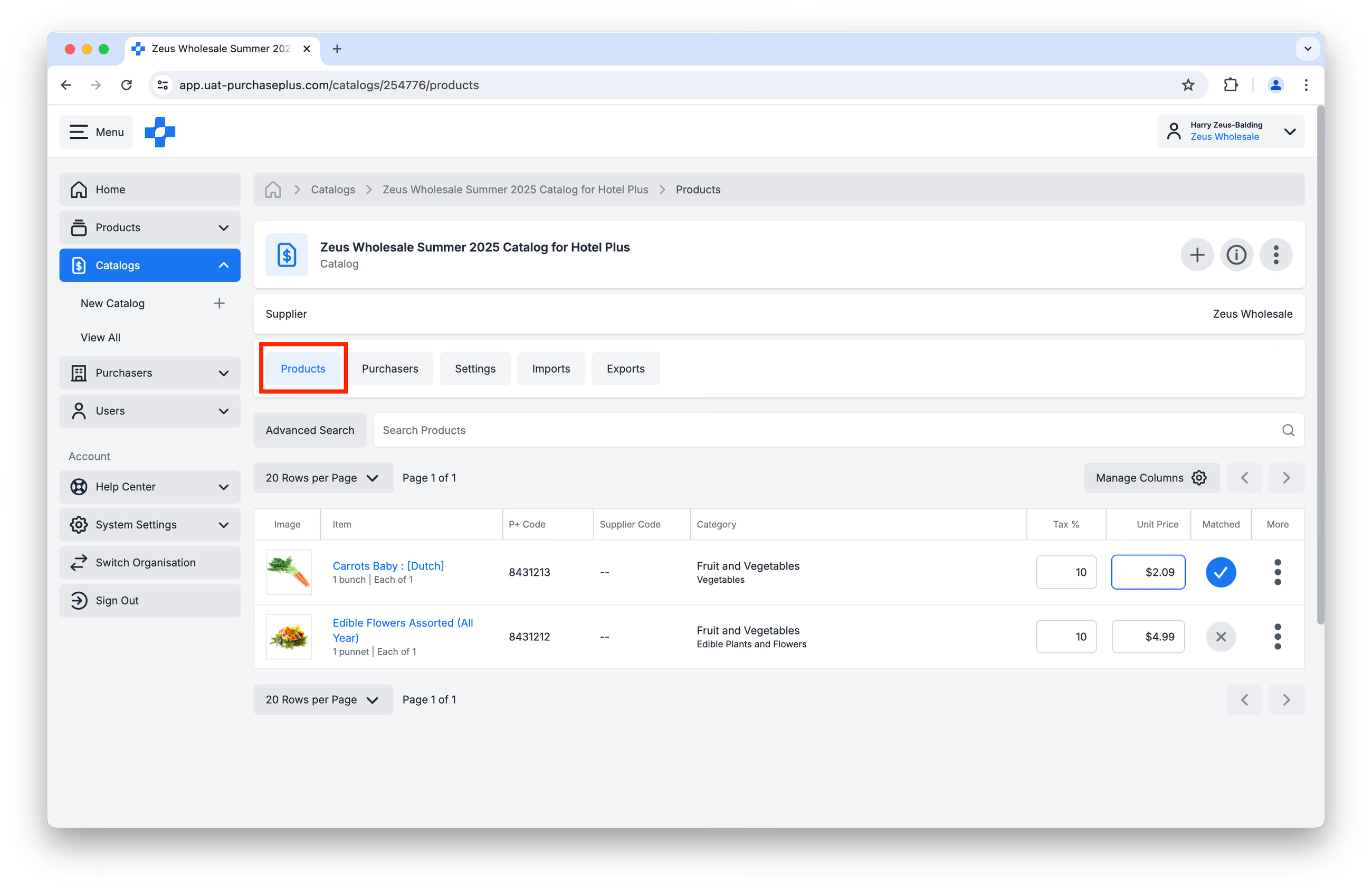 Updating the Unit Price of a Product can also be done by accessing the [Catalogs] menu inside a product. Additionally, the product can be added to a catalog if the Catalog ID is known and used.
Removing a Product/s from a Catalog
Please communicate your catalogue changes with your purchasers as necessary, to ensure their Buy Lists are current.
Choose the method that fits your needs:
Method 1: Remove a Single Product
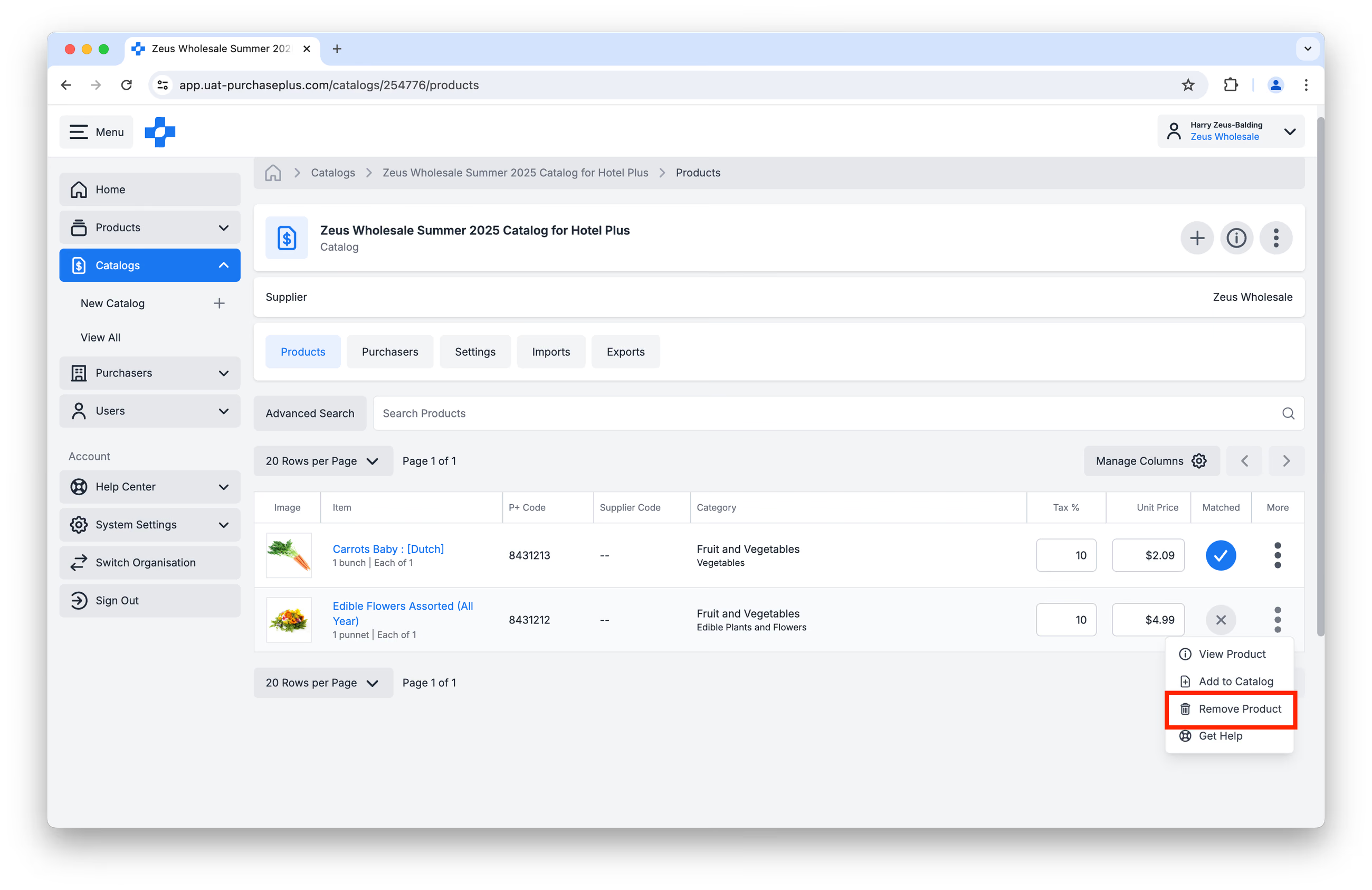
1. Open the Catalogue page. 2. Search and find the product you want to remove. 3. On the product line, click [More] on the right > [Remove Product].
Method 2: Bulk Delete Products (CSV)
We recommend exercising caution here, and following the Updating Catalogs by Importing a CSV process, Step 9, and selecting [Replace Entire Catalog] before the 'Begin import' stage.
Updating a Catalog's Name
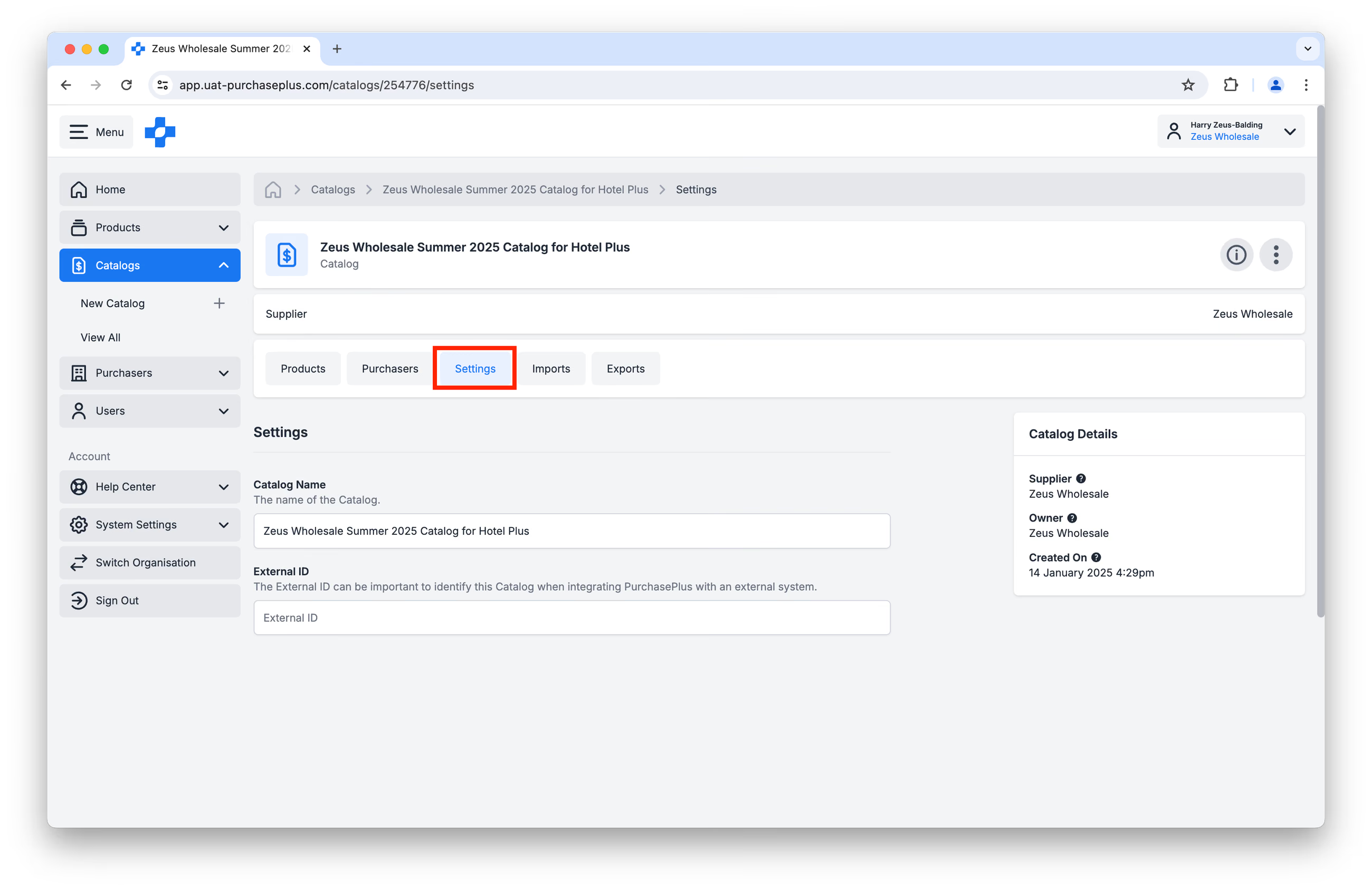
You can change the name of the Catalog in the [Settings] tab, by overwriting the Catalog Name field:
Public Catalog
On [Settings], Suppliers can set the Catalog public or private with [Make this Catalog public]. Confirm [Make Public] when turning the Catalog public. A Public badge appears on the Catalog header. [Catalogs] → [View All] shows Public or Private pills.
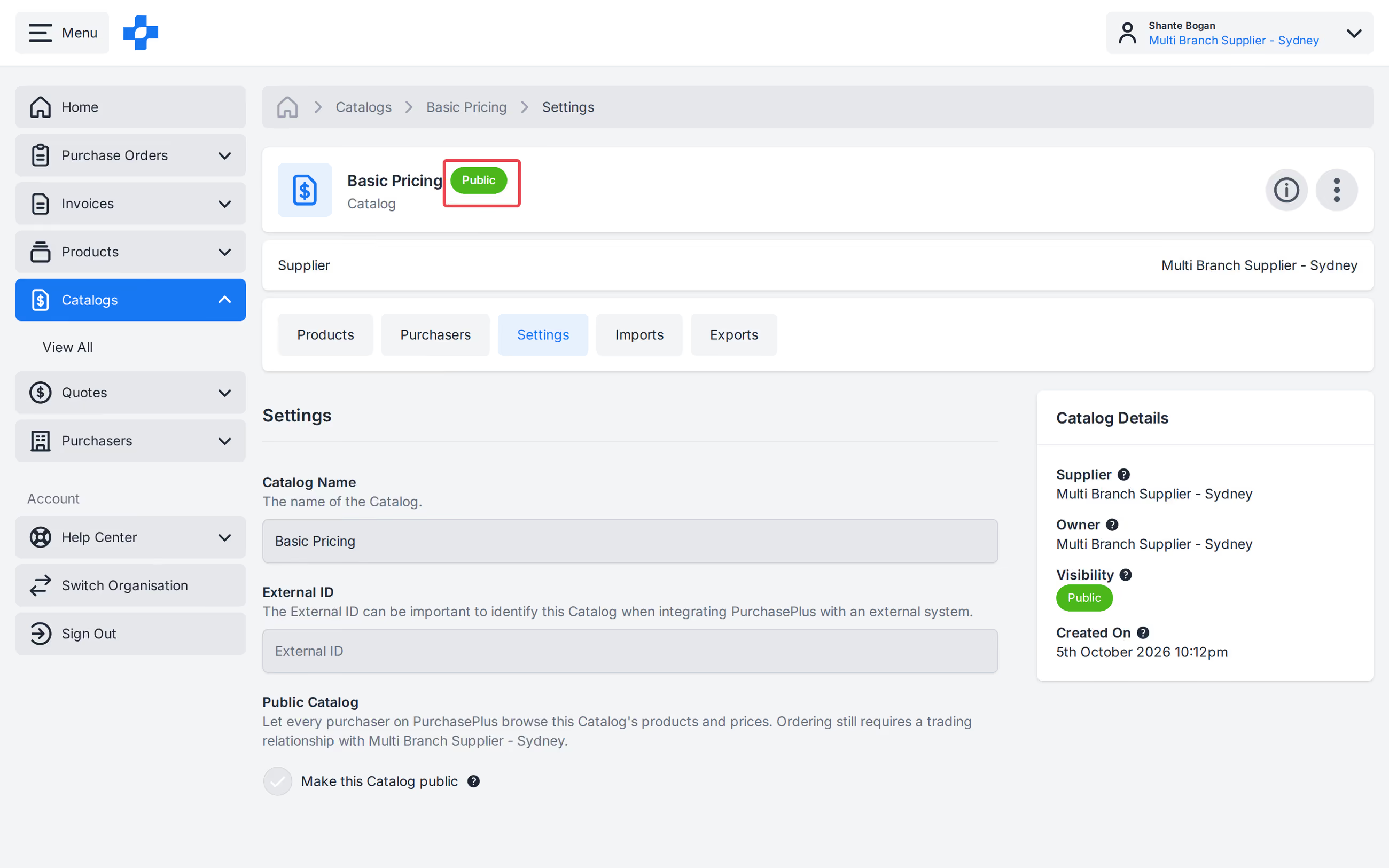
Note - A public Catalog can be found and browsed by any Purchaser on PurchasePlus. Ordering still requires a trading relationship. Assign the Catalog to Purchasers as usual. See Assign to purchasers.
Deleting a Catalog
Delete a Catalog from the [More] menu on the [View All Catalogs] page:
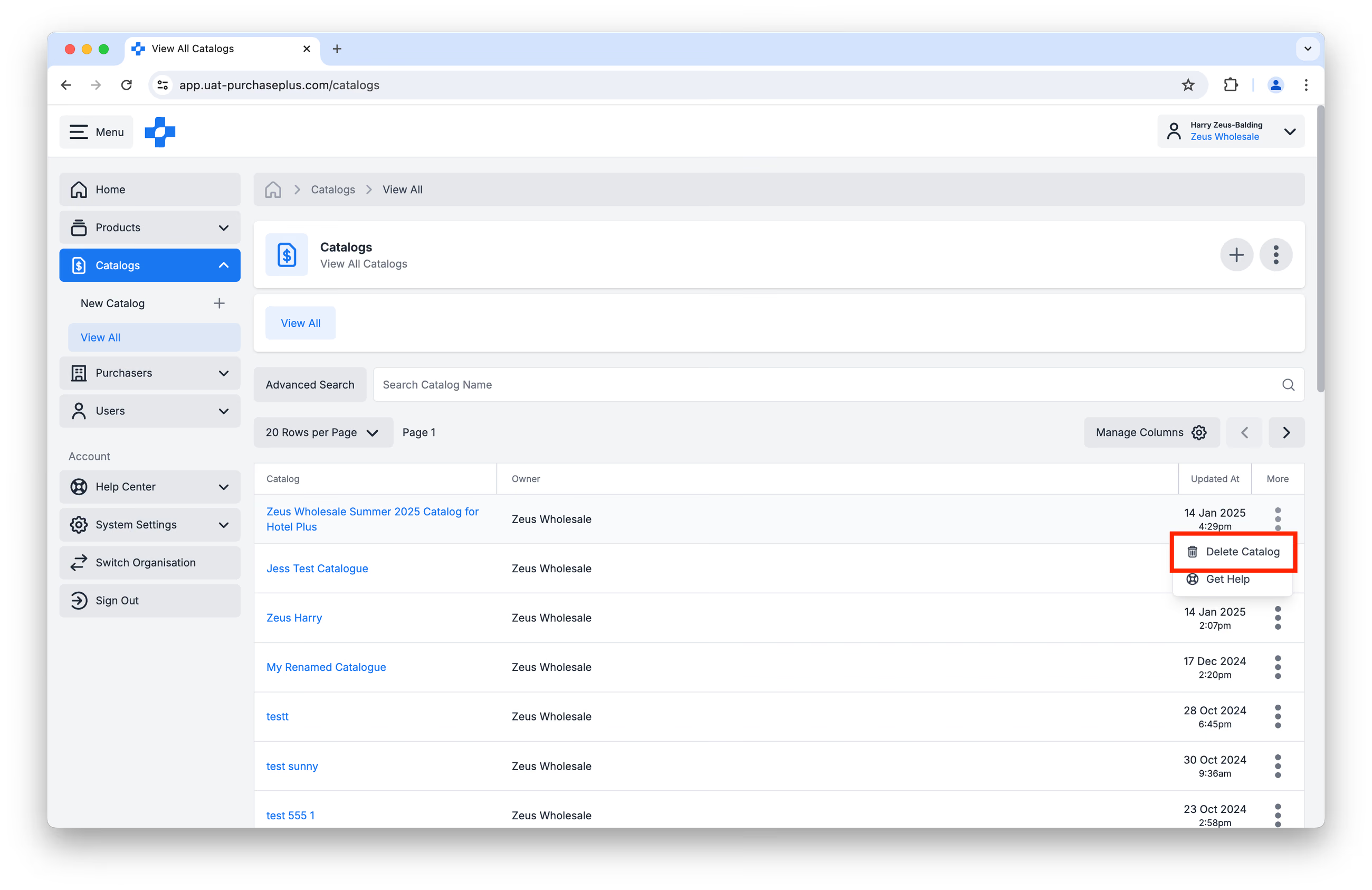
Please note, Deleting a Catalog is permanent, and the action cannot be reversed (even by our Supplier Relations Team). Before Deleting a Catalog, we recommend first Exporting the Catalog (see Steps 3 and 4 in this article for more details), and storing the Export file for future reference. Alternatively, reach out to prices@purchaseplus.com before deleting a catalog so we can create a back-up of the Catalog (including the list of assigned Purchasers and create an appropriate audit trail.
Seasonal or Temporary Discounted Pricing
For temporary price reductions or seasonal items, please include 'Seasonal', 'Special' or 'Promotional' in the Product Description to accompany the reduced-price.
To ensure your catalogue remains as up-to-date as possible, please submit a new request to the Catalogue team as soon as the promotion ends. This allows us to promptly revert your items to their standard pricing and availability.
Assign to purchasers
Catalogs must be assigned to a Purchaser, so that Purchaser can view your Products and add the Products to their Buy Lists and Requisitions.
To assign a Catalog to a Purchaser, first check that the Purchaser connection is Enabled in your account. Click on [Purchasers] → [My Purchasers] → [Enabled]:
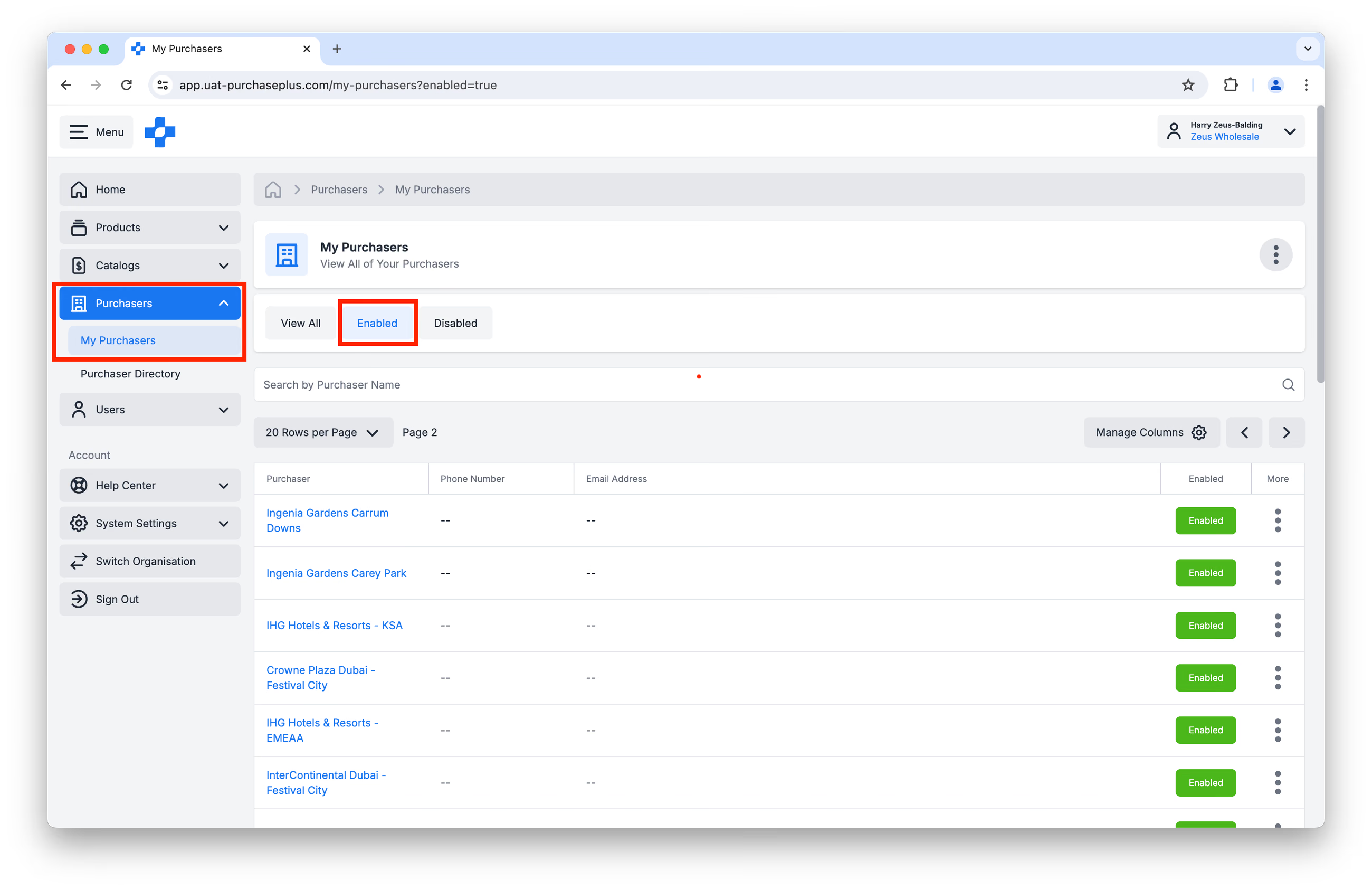
Type in the name of your Purchaser in the search bar at the top of the table. If you have previously connected with the Purchaser (and they have also enabled the connection from their side), they will appear in the list of results as Enabled.
If the Purchaser does not appear in this list, they must add your Supplier Organisation to their AP Hub and Enable the Trade Relationship with your Supplier Organisation. Should a Purchaser ask you for assistance with this connection, please direct them to our Customer Support Team, available at help@purchaseplus.com.
Click on the Purchaser's name to visit their profile:
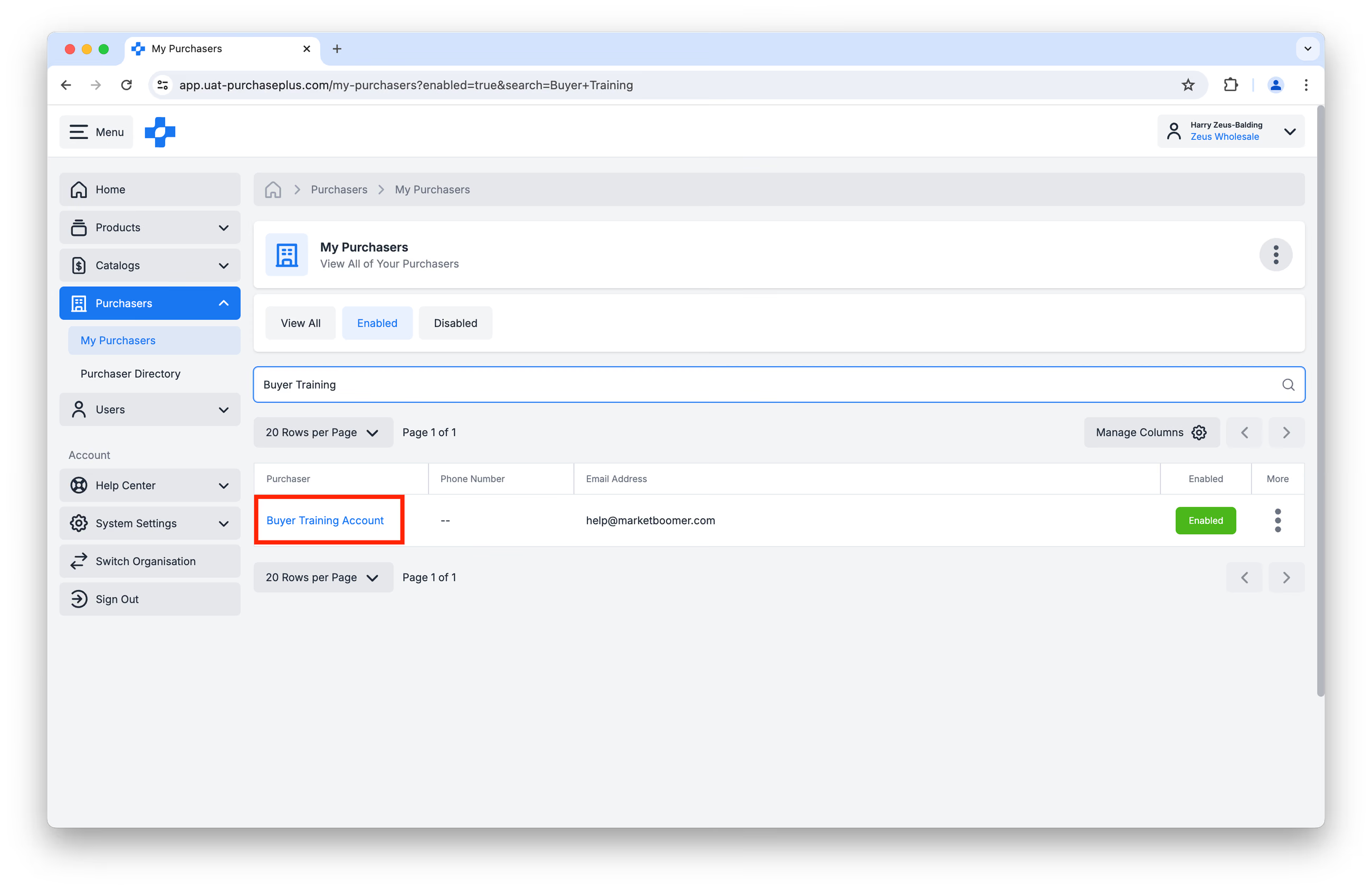
Then, click on the [Catalogs] tab. You can browse and search the existing list of Catalogs you have already assigned to this specific Purchaser:
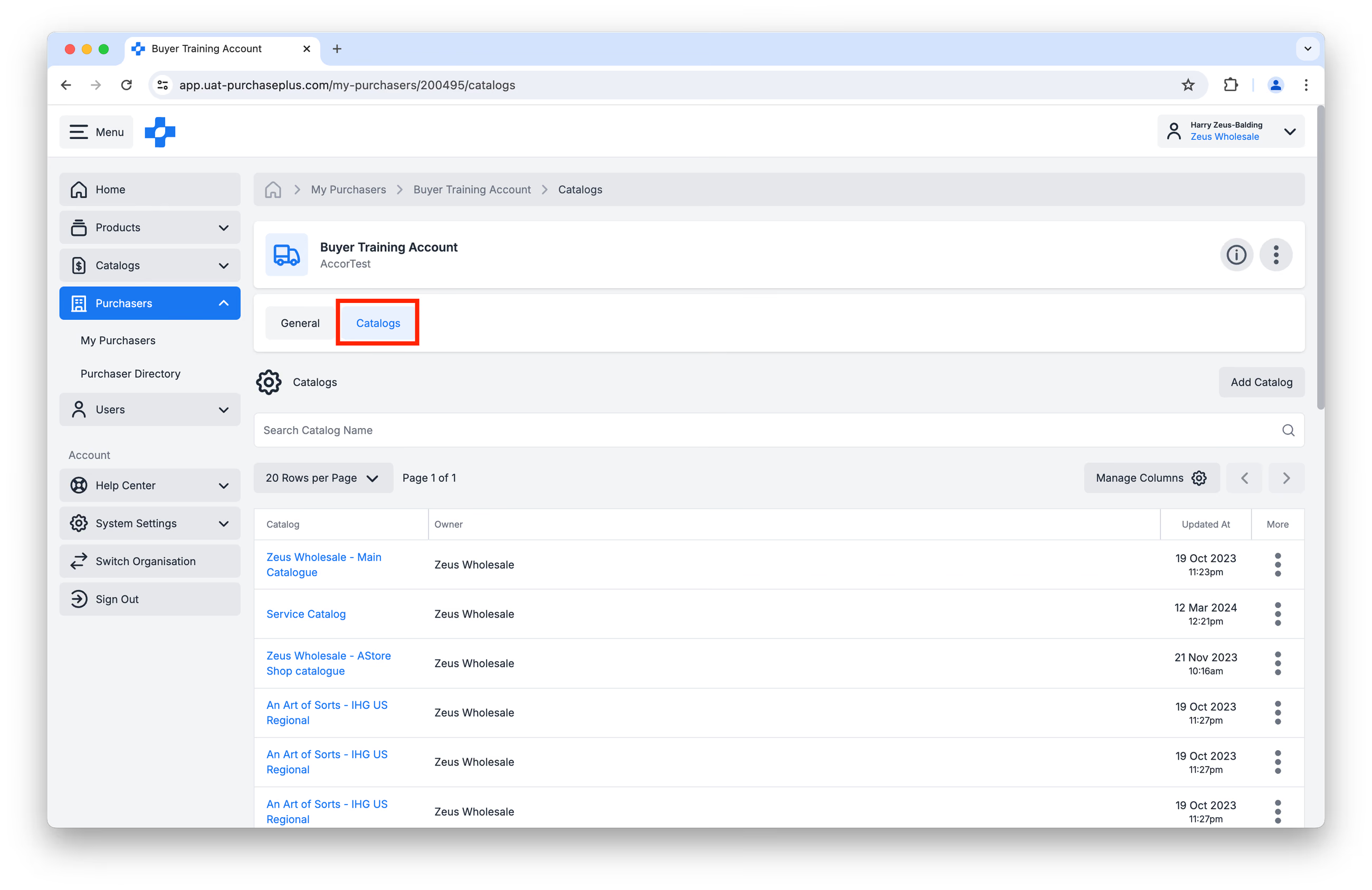
To assign a new Catalog to the Purchaser, click [Add Catalog]:
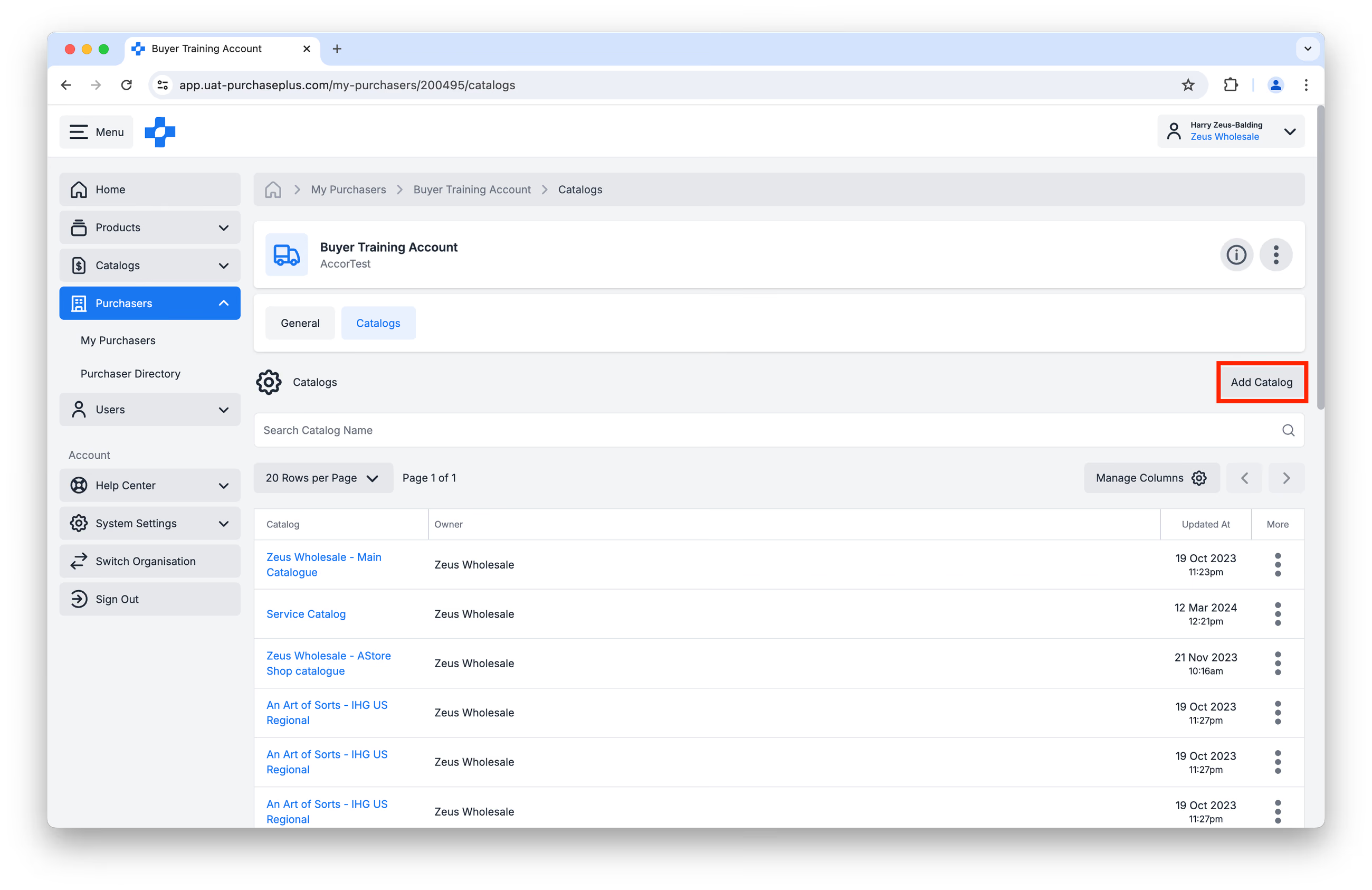
A new pop-over window with display the available Catalogs that you can add to the Purchaser (i.e. assign), as well as those that have already been added:
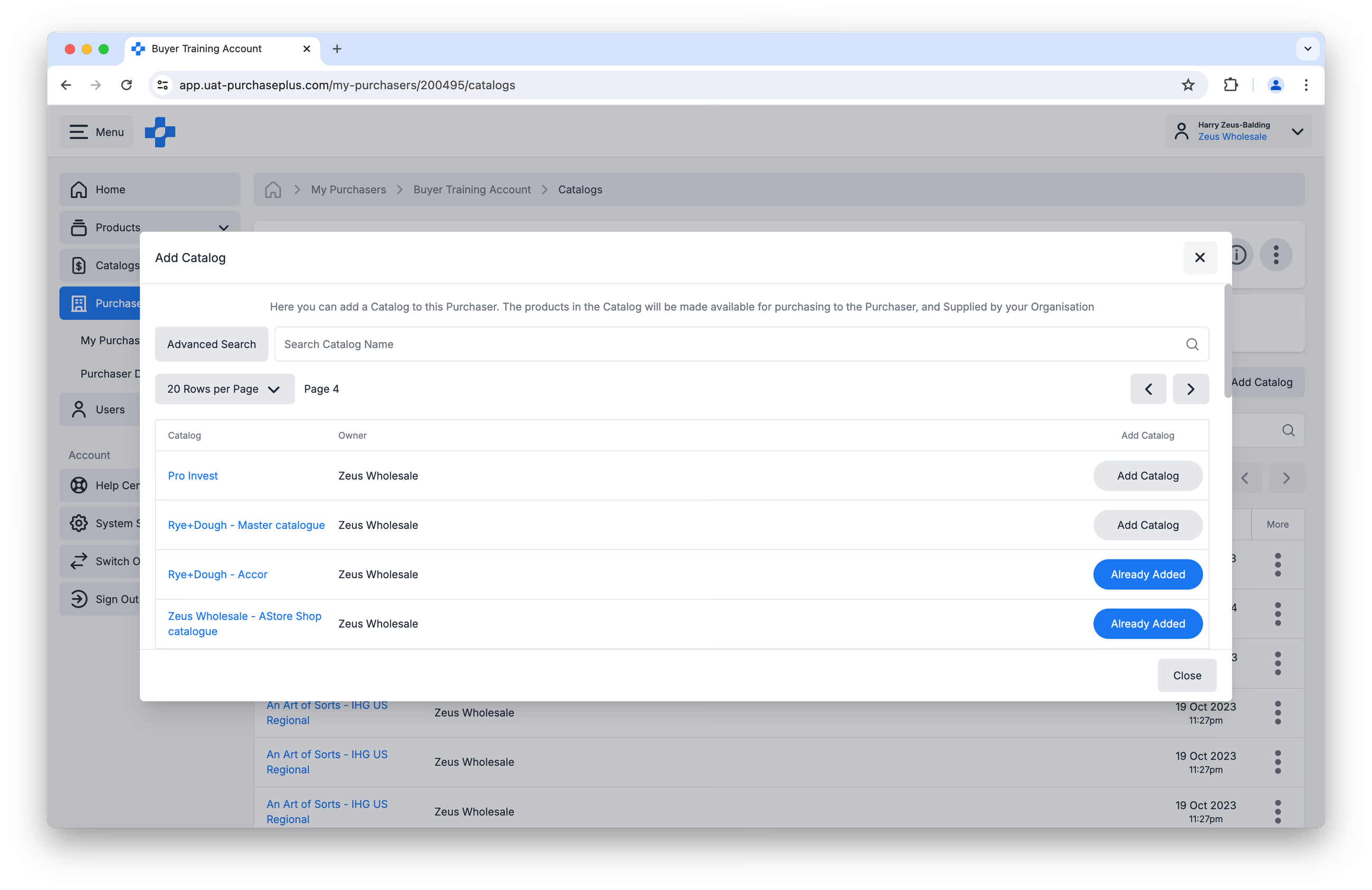
Browse or search for the Catalog that you want to add to the Purchaser, then click [Add Catalog]: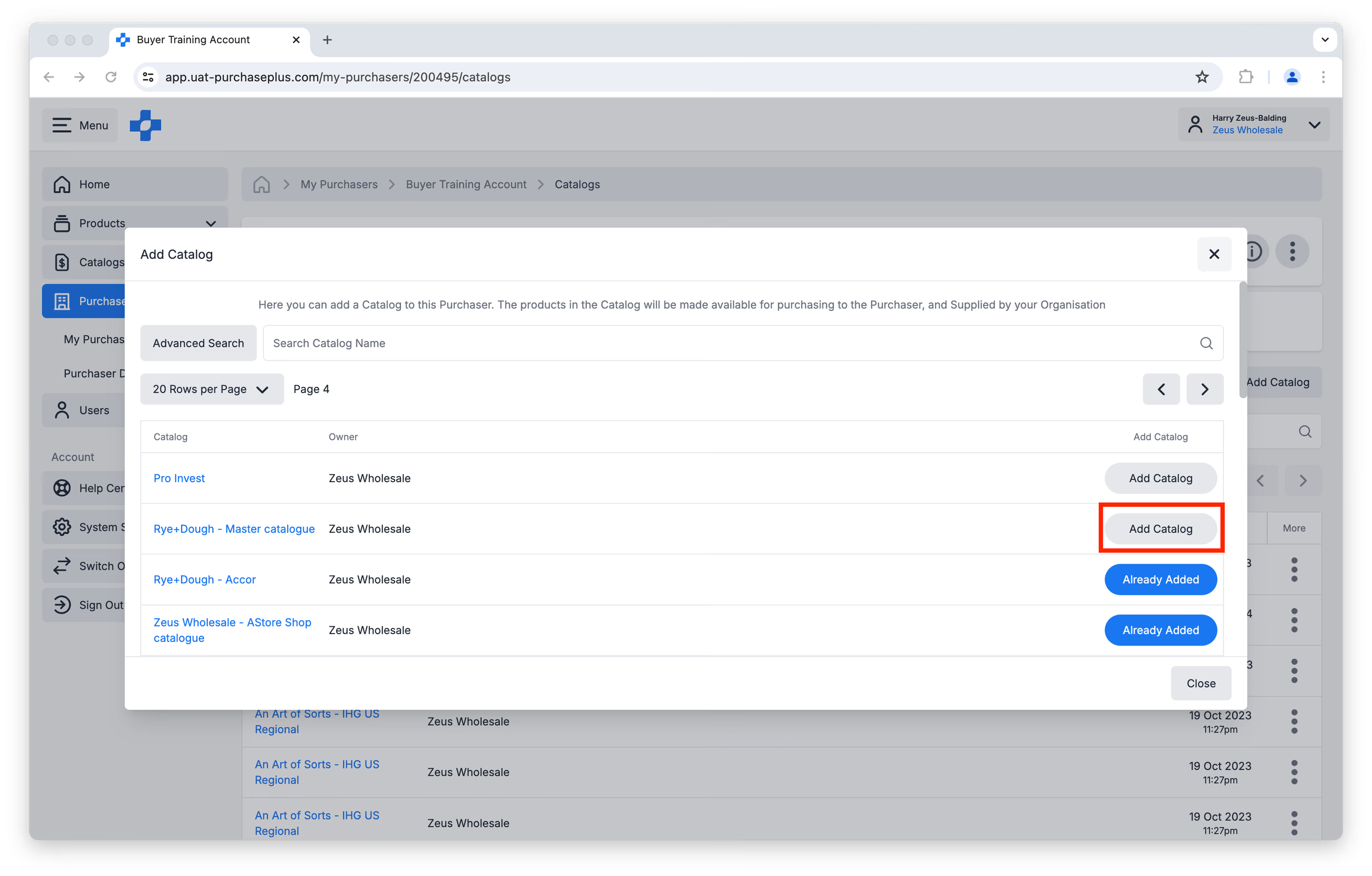
When assigning multiple Catalogs to a Purchaser, please be aware that the Purchaser will see differing prices on the same Products if the quotes are different in each Catalog (enabling them to only order the cheapest quote).
For this reason, PurchasePlus recommends using fewer Catalogs rather than more - not just across one Purchaser, but all of your Purchasers - as it reduces room for ambiguity and error.
Removing Catalogs from Purchasers
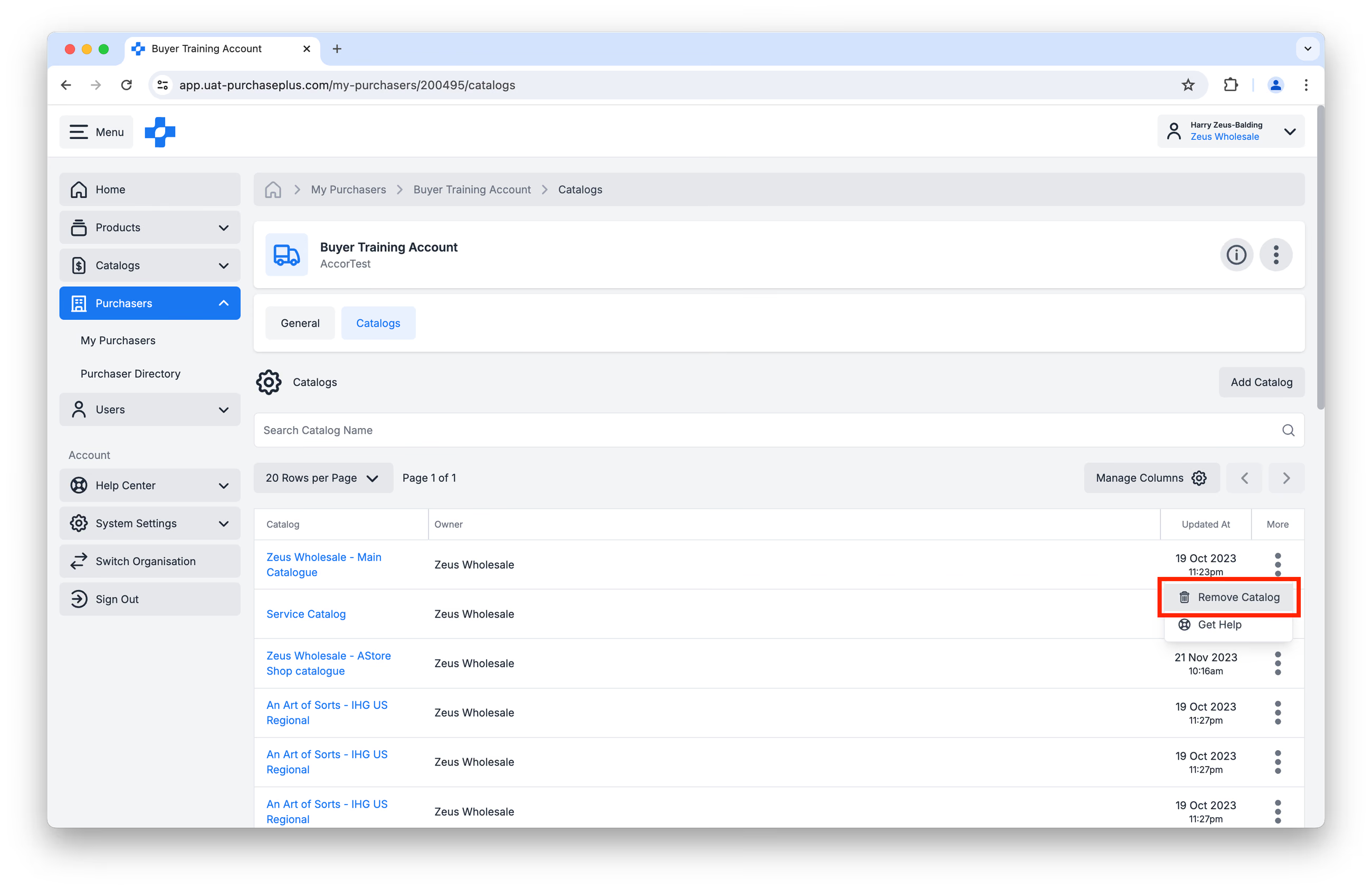
You can Remove a Catalog from a Purchaser by navigating to [Purchaser Profile] → [Catalogs] and then clicking [Remove Catalog] in the [More] menu.
View all of a Catalog's Assigned Purchasers
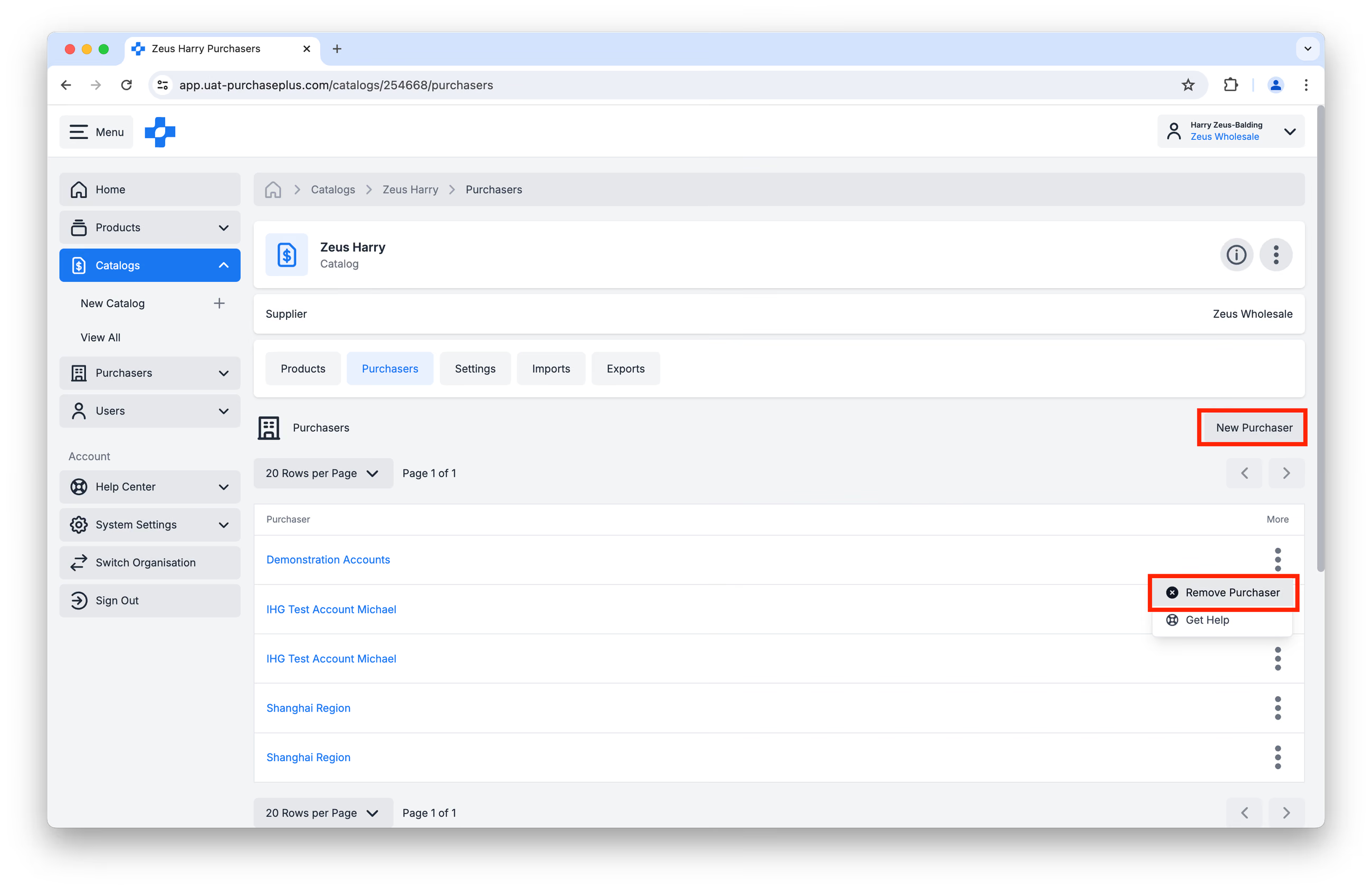
You can view all of the Purchasers to whom a certain Catalog is assigned by navigating to the [Catalogs] → [View All] page, and then selecting a Catalog:
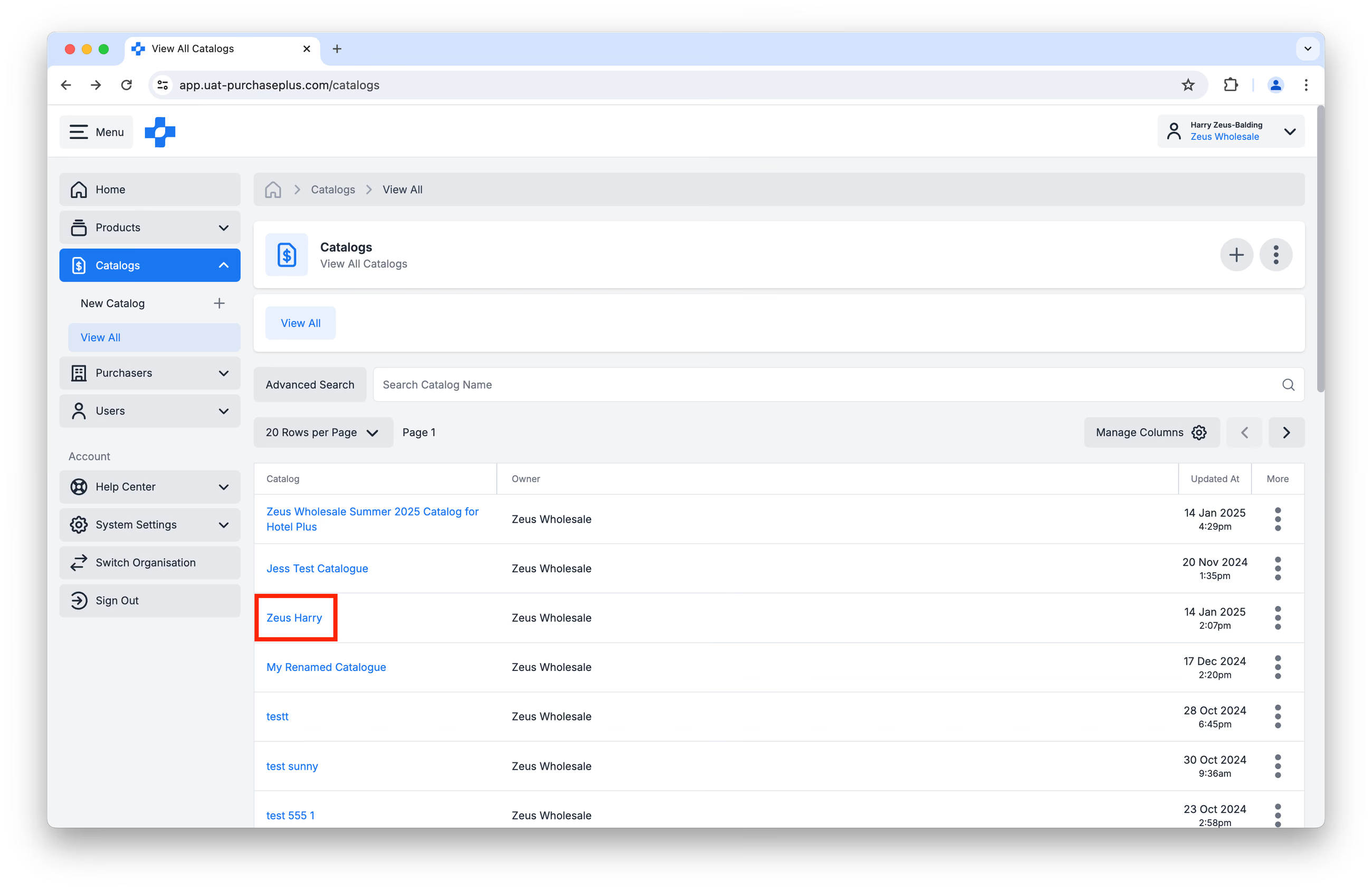
Then, click on the [Purchasers] tab. All of the listed Purchasers have been assigned this Catalog.
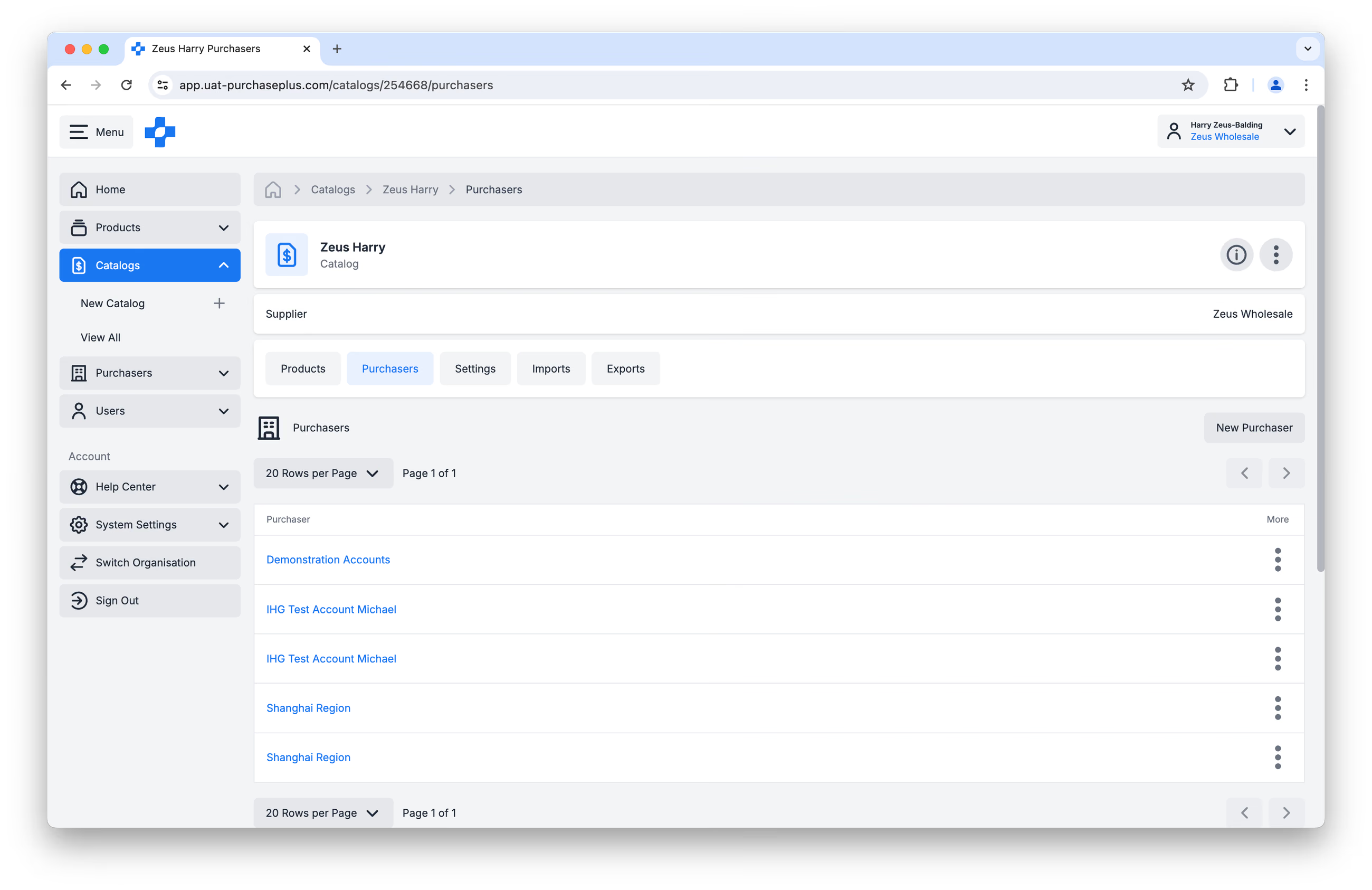
From this screen, you can also Add a New Purchaser to a Catalog by using the [New Purchaser] button, and Remove a Purchaser from the Catalog by clicking [Remove Purchaser] in the [More] menu: