

Stock Items
Stock Items
Stock Item
A Stock Item is a Product that is available in your Inventory and can be added to and held in one or more of your Inventory Stock Locations.
As a Stock Item, users at your Organisation will be able to receive Purchase Order items against it (during the Goods Receiving process), as well as include it in any Transfers. If a new Stock Item is created, it will also appear as a Product in the All Products area, and your Organisation (or your Parent Organisation, if your Stock Items are managed at the Group level) will be set as the owner of the product.
For a Product to be an eligible Stock Item, it must meet two criteria:
- It must be a ‘Single Unit’ - i.e. the Sell Pack must be ‘Each of 1’, and
- It must be a Product that is Owned by your Purchasing Organization (or your Parent Organisation, if Stock Items are managed at the Group level). This is to avoid a situation where a Supplier might update their Supplier-owned Product to a different name, Sell Pack or Unit of Measure, and then your Inventory Stock Levels and Valuations are all adversely affected.
Viewing and Managing Stock Items
Users with the ‘Manage Stock Items’ permission can View and Manage Stock Items by navigating to [Inventory] → [Stock Items] in the side navigation bar.
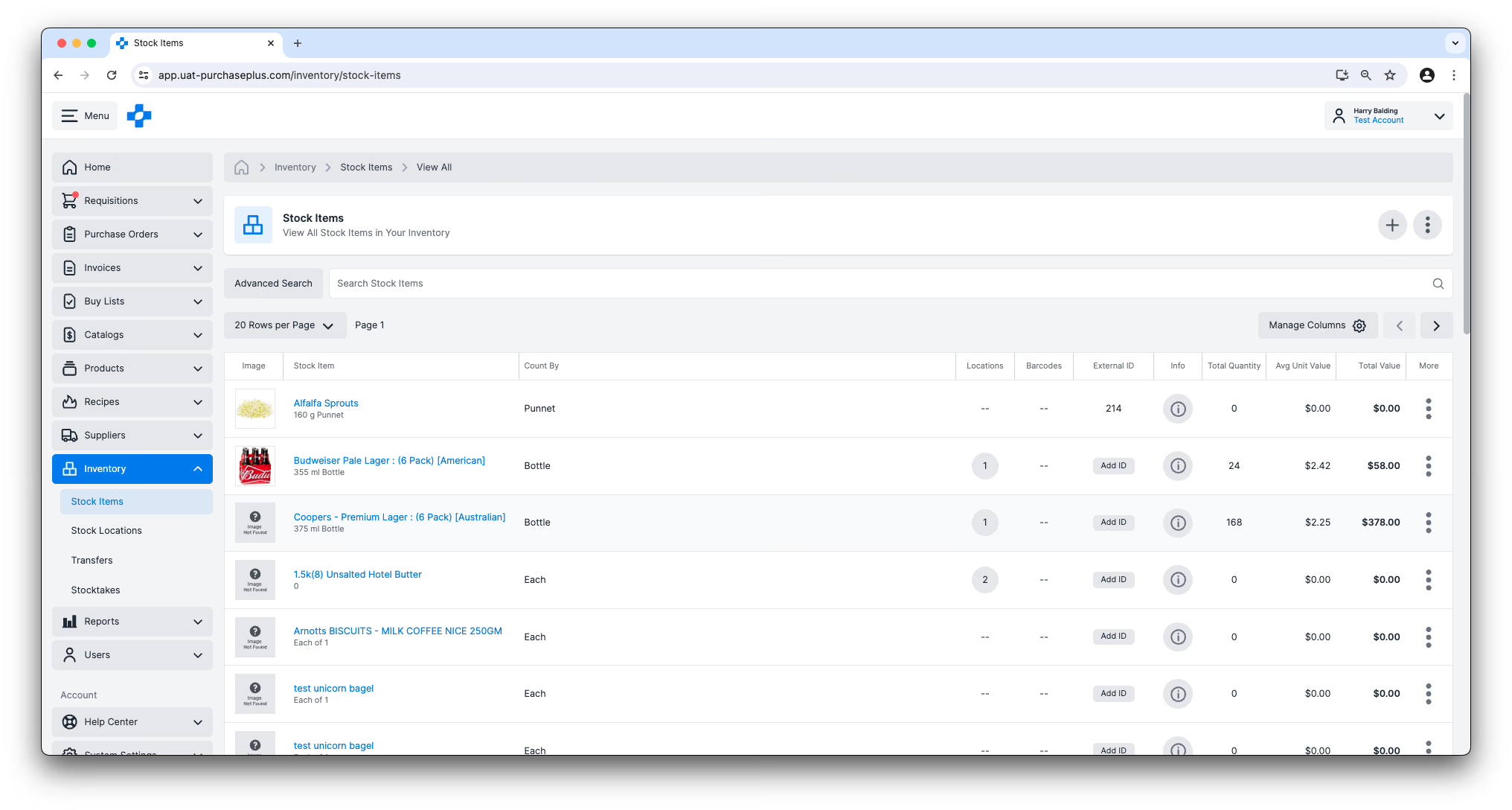
The Stock Items that appear in this table view include all of them items owned by any parent or descendant Organisation of your current Organisation (i.e. the Organisation that you're signed into).
You can customize the table using the ‘Manage Columns’ button, or dragging the column width borders to suit your preference.
From this view, you can also:
- Create a New Stock Item (see below for more details),
- Add the Stock Item to a Buy List,
- View the Stock Item in more detail,
- Add the Stock Item to a Stock Location,
- Add the Stock Item to a Catalog,
- Add a Barcode to the Stock Item,
- View Quotes from your Suppliers for the Stock Item,
- Archive the Stock Item. Archiving a Stock Item will mean that it is no longer held as a Stock Item in your Inventory. A Stock Item can only be archived when the Quantity and Total Value of the item are exactly zero, in all of your Stock and System Locations. Once the Stock Item has been archived, the product will remain available in your My Products area, and you can make it a Stock Item again in the future if needed.
A single stock item
Clicking on the name of a Stock Item in the table will take you to the selected Stock Item:
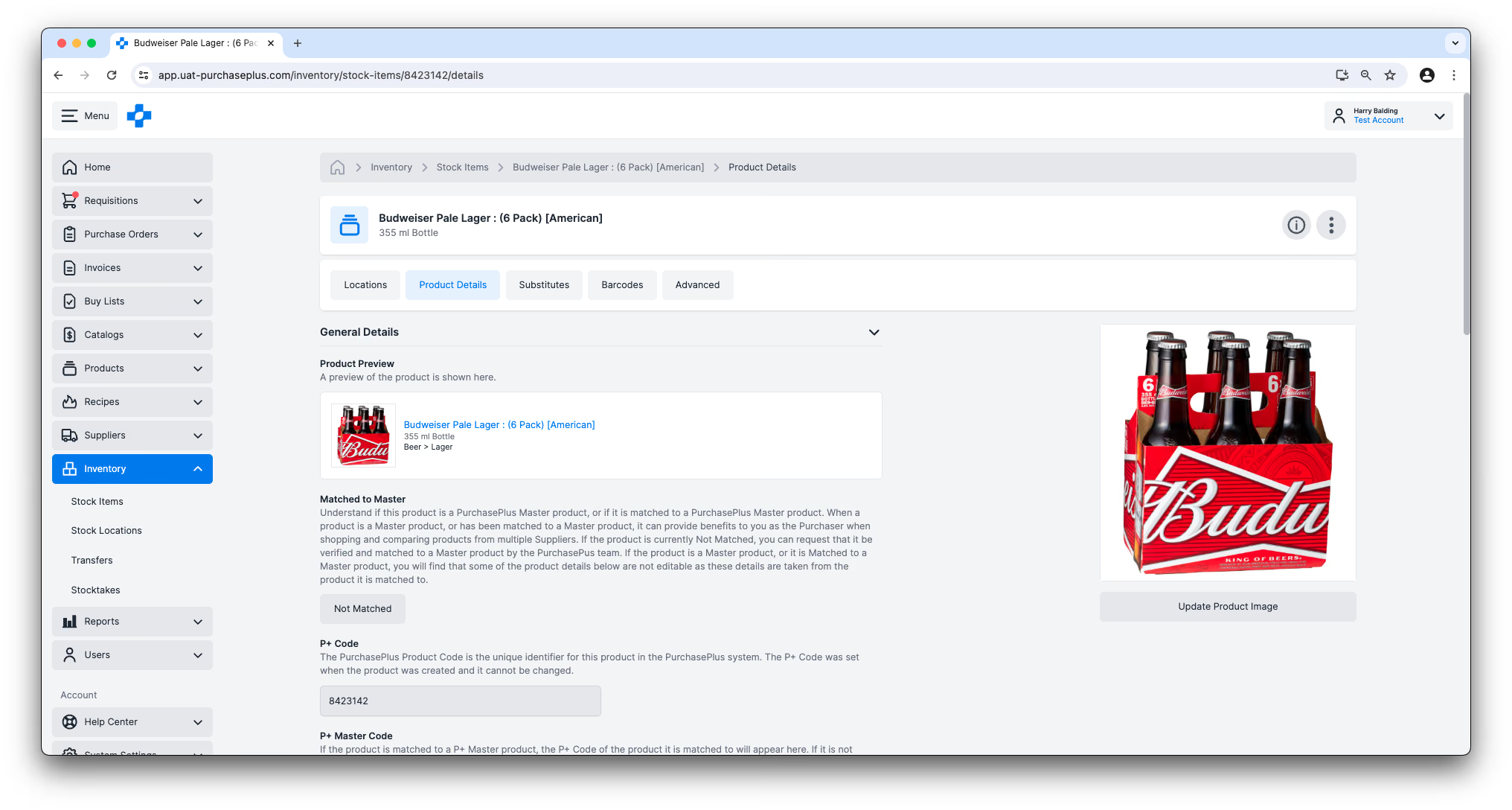
From this view, users with the ‘Manage Stock Items’ permission can:
- View any Stock Locations in which the Stock Item is currently being held,
- Edit some of the Product’s Details,
- Add one or more Barcodes to the Product,
- Add Substitute Products to the Product.
Substitute Products
Stock Items can have Substitute Products. A Substitute Product is a product that a your Organisation sees as similar to or exactly the same as the Product they are adding the Substitute to. This can be important and useful for deciding which products available on PurchasePlus can replenish the Stock Item, when it is Received into Inventory on a Goods Receiving Note.
You can add Substitute Products to a Stock Item by viewing the Stock Item’s [Substitutes] tab:
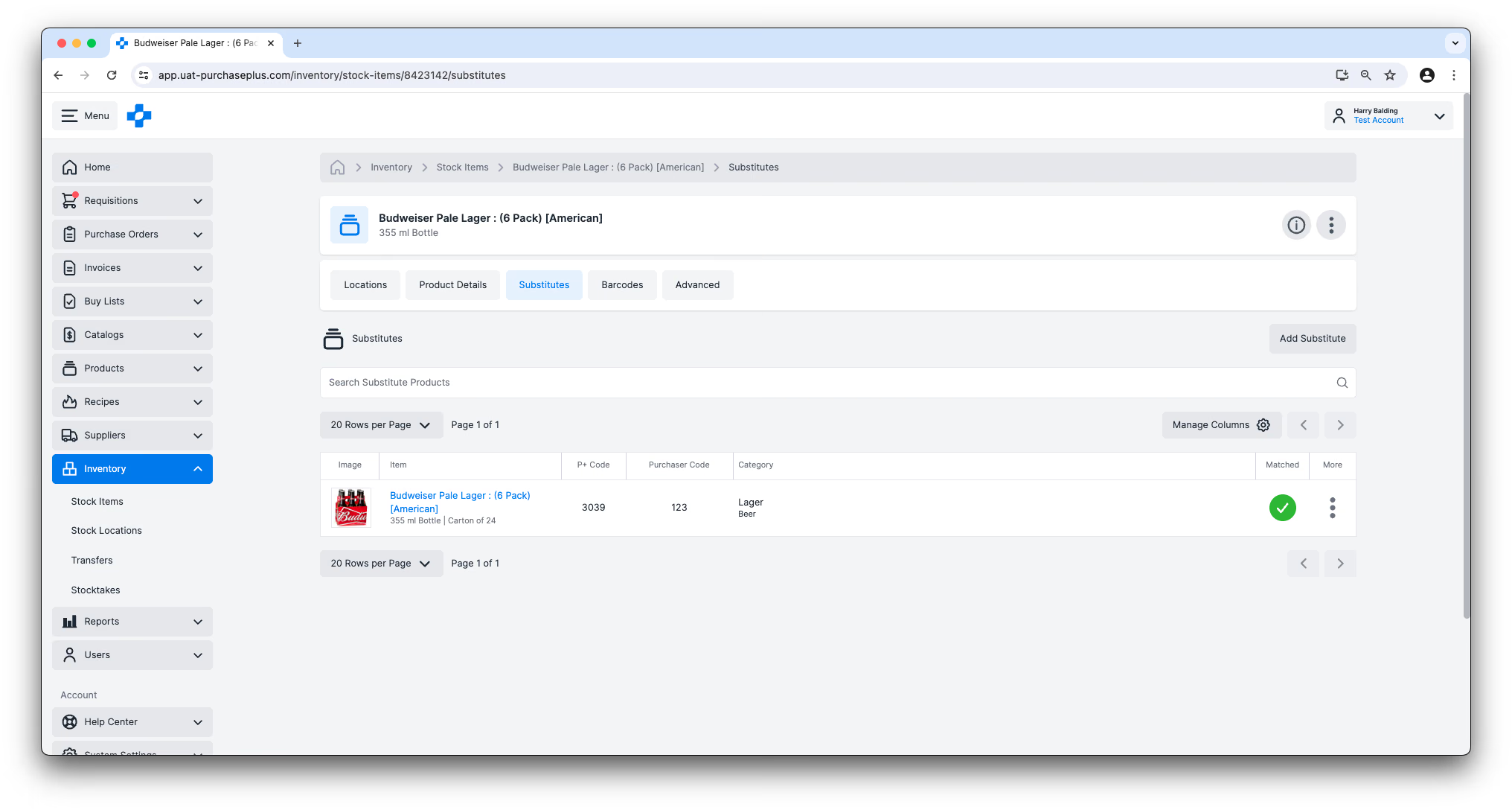
We recommend against making one Stock Item a substitute for another, as incrementing one Stock Item (e.g. in a Transfer, or a Receiving Note) will increment the substitute also.
Stock Item Values
When a Stock Item is held in a Stock Location, it can have a Unit Value.
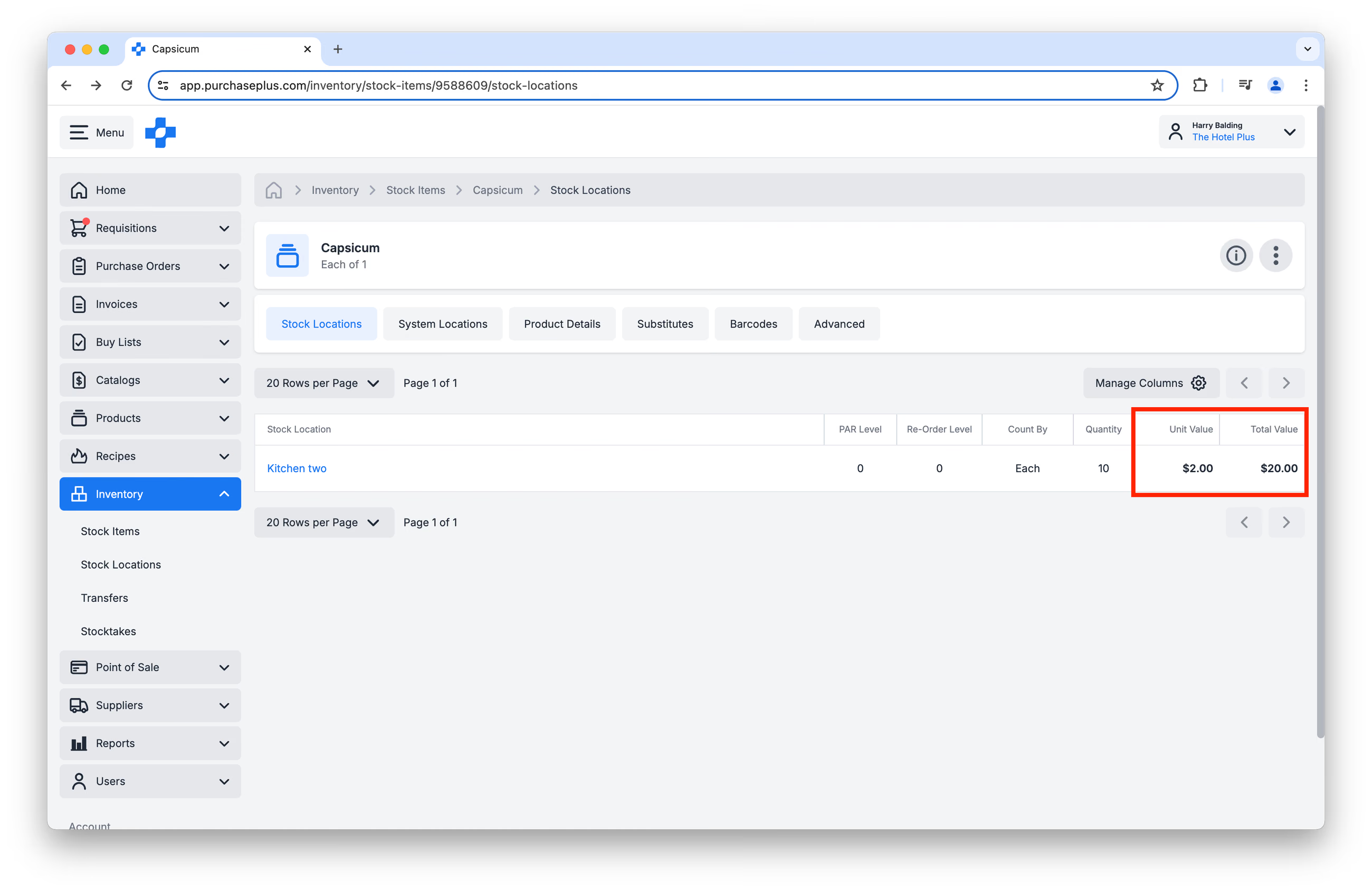 The Unit Value field is driven by the average price at which the Stock item was Received into a specific Stock Location.
The Total Value field is simply the Unit Value multiplied by the Quantity of the Stock Item that is currently being held as Inventory in a Stock Location.
Both the Unit Value field and Total Value field are unique per Stock Location. It is therefore totally possible to have two different Unit Values for the same Stock Item in two different Stock Locations, based on the average price it was received into those Locations over time.
You may occasionally need to adjust a Stock Item's Unit Value, in the event that a receiving error or stock re-valuation has occurred.
Finally, Stock Item Unit Values are used for Inventory Recipe Costings. Learn More about Inventory Recipes.
Quotes on stock items
Because Stock Items must be Products owned by your organisation (i.e. you cannot directly keep a Supplier-owned Product as a Stock Item in a Stock Location), there are two ways to get quotes against a Stock Item:
- Add the Stock Item to a Self-Managed Catalog and assign it to one of your Suppliers,
- Ask our Catalogs Team to match the Stock Item to a Master Product, and then get your Suppliers to quote on that Master Product. Get in touch with our Catalogs Team.
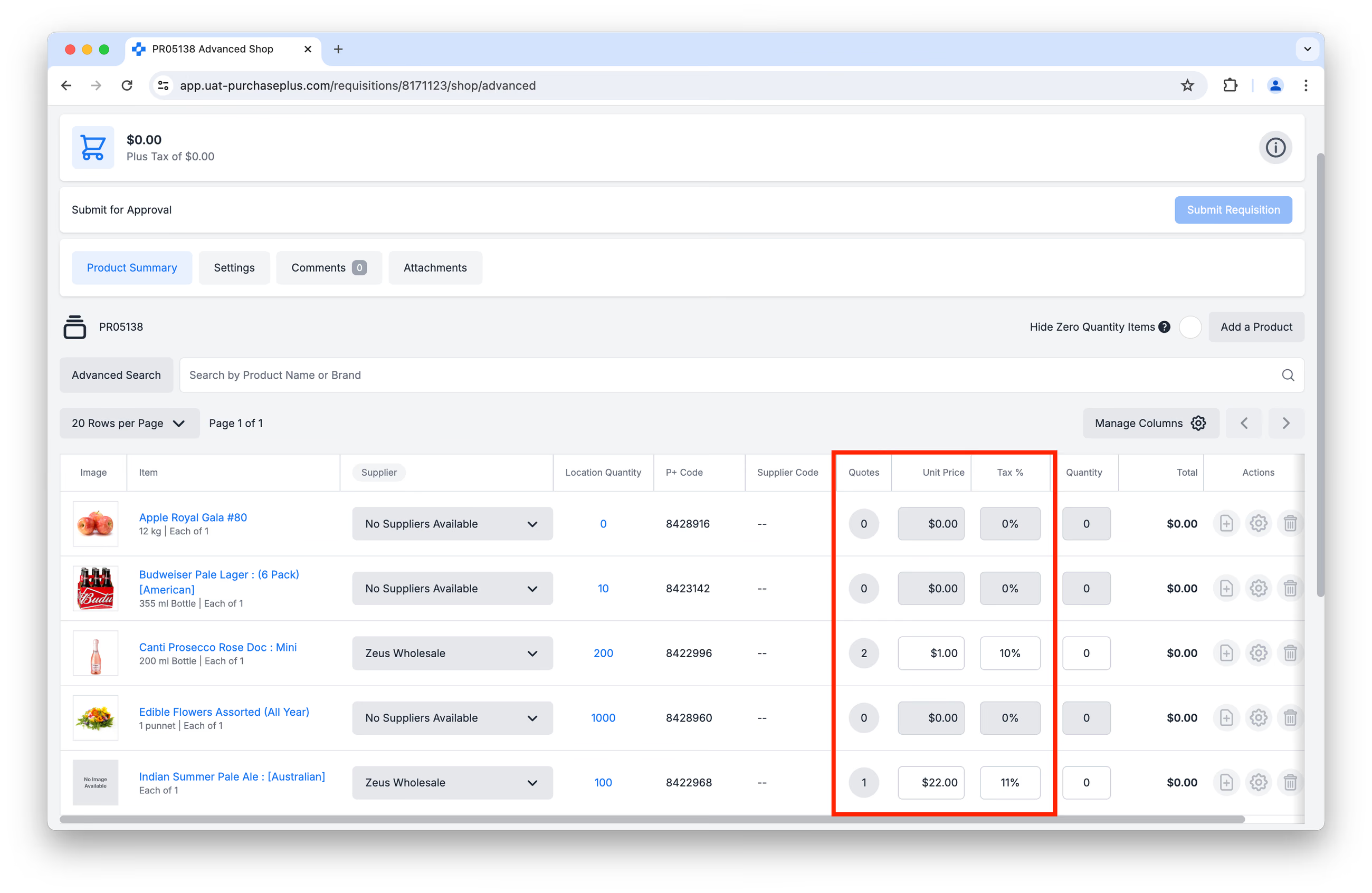 Obtaining quotes on Stock Items is necessary for Creating a Requisition from a Stock Location, which is a very powerful way of replenishing your Stock Levels without ordering the incorrect Stock Items.
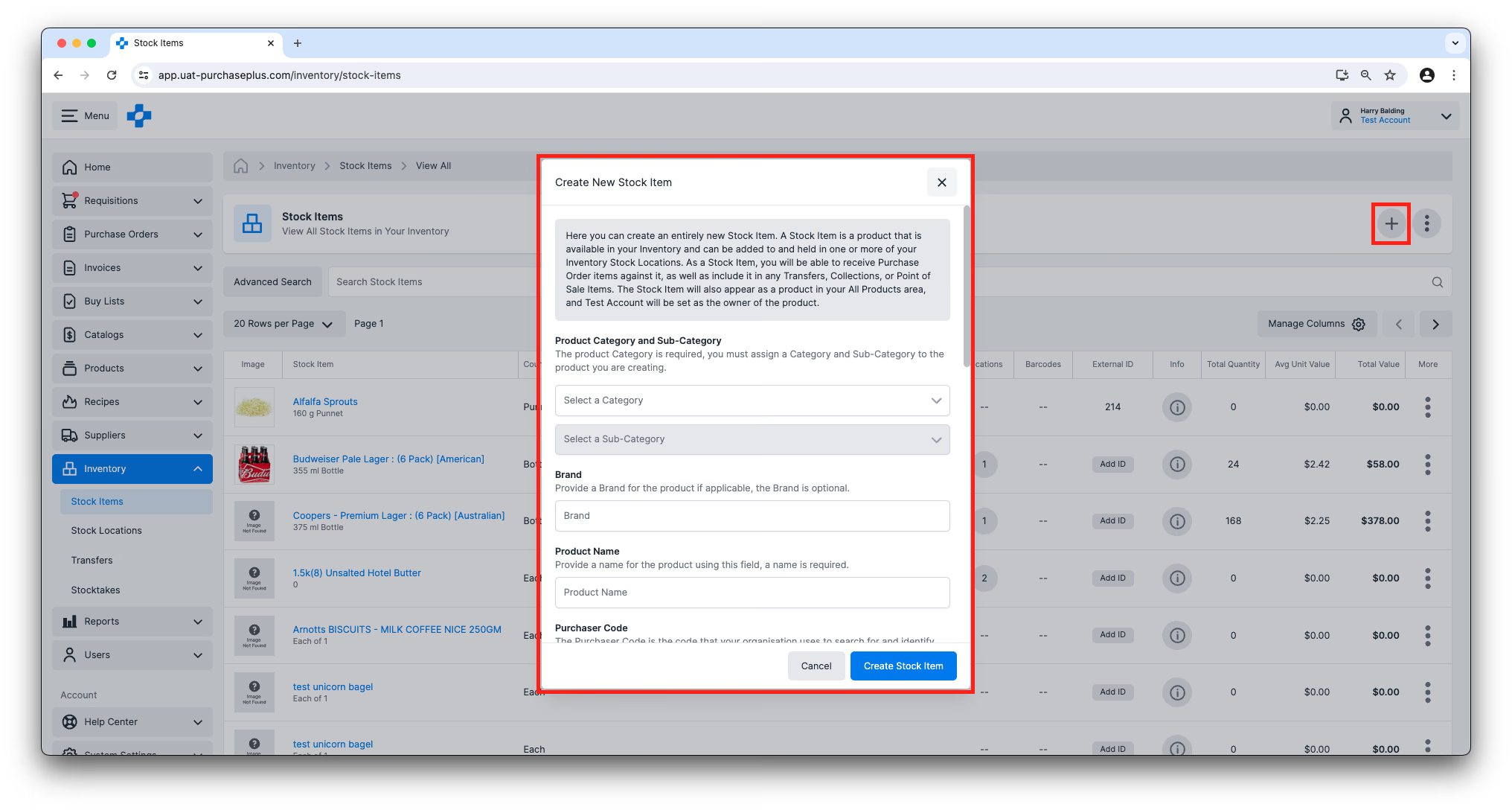
Creating New Stock Items
You can create a Stock Item by clicking the [Create a Stock Item] button on the [Inventory] → [Stock Items] page.
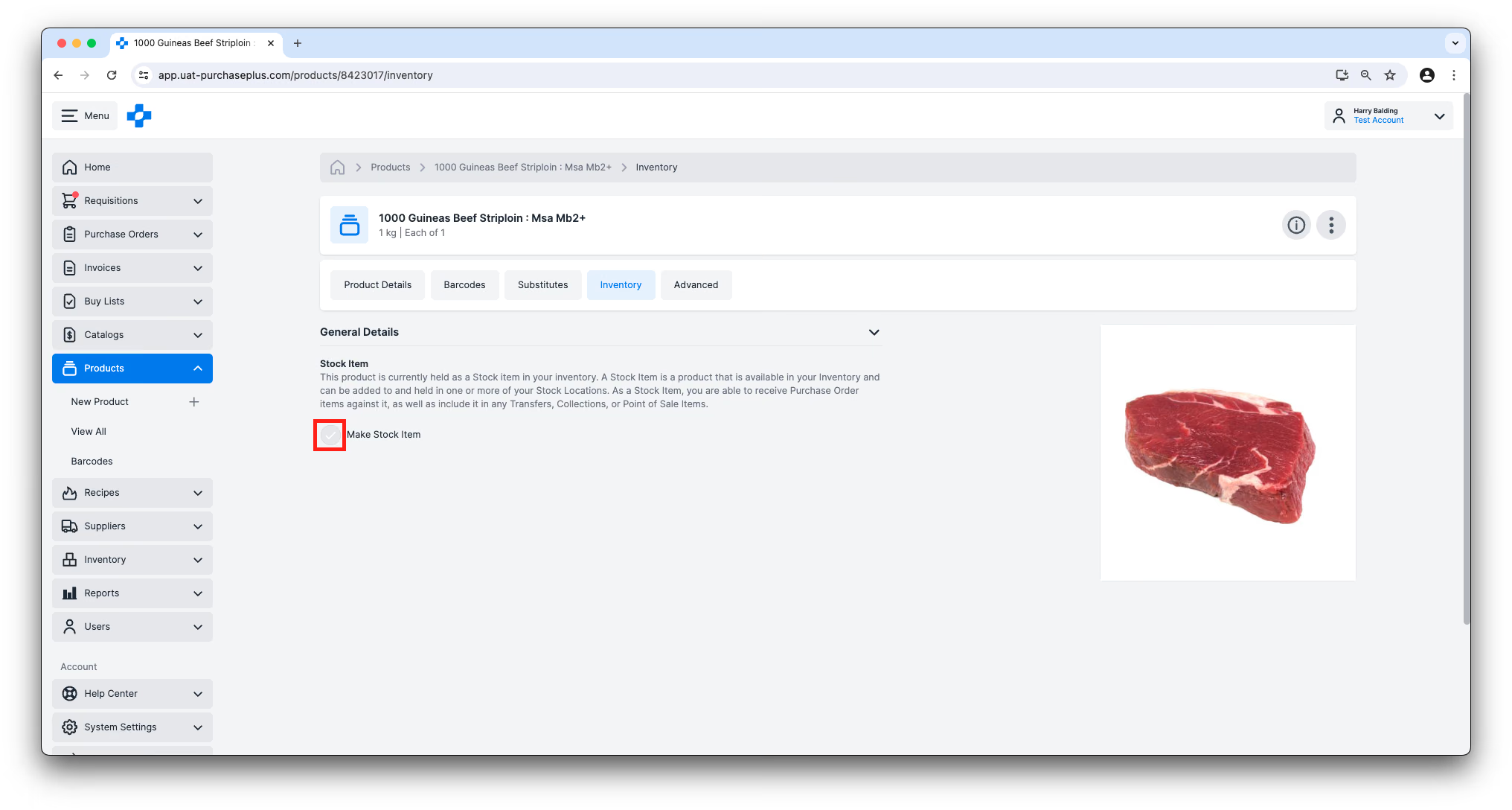
Additionally, any Product that is owned by your Organization can be made into a Stock Item by visiting the [Product Name] → [Inventory] tab and selecting ‘Make Stock Item’. To be eligible as a Stock Item, the Product must be an individual item, meaning that it must have a Sell Pack of ‘Each of 1’.
This is Part 2 of our Introduction to Inventory series.
- Read Introduction to Inventory
- Read Introduction to Inventory, Part 3: Stock Locations
- Read Introduction to Inventory, Part 4: Transfers
- Read Introduction to Inventory, Part 5: Stocktakes
How do I start using the Inventory Module?
If your Organization would like to begin using the PurchasePlus Inventory module, please contact your Account Manager or our friendly Customer Success Team for assistance with enabling the module, and to organize training for your users (if required).
Note for Purchasers using Legacy PurchasePlus
The Inventory module in PurchasePlus has been redesigned, and is materially different to the Legacy PurchasePlus Inventory module. Organizations migrating from Legacy PurchasePlus to PurchasePlus will be given additional migration support.