

POS Batch Sales
POS Batch Sales
POS Batch Sales
A Batch Sale is a collection of Sale Lines (i.e. sales) that were made at your physical POS terminals. Our system processes these Sale Lines in bulk (usually grouped by date, in a CSV format), in order to decrement the Stock Items from the correct Stock Locations in PurchasePlus.
Occasionally, a Batch Sale can't be processed successfully due to one or more errors - usually to do with POS Items. In this scenario, the Sale Line will be easily identifiable with an Error icon:
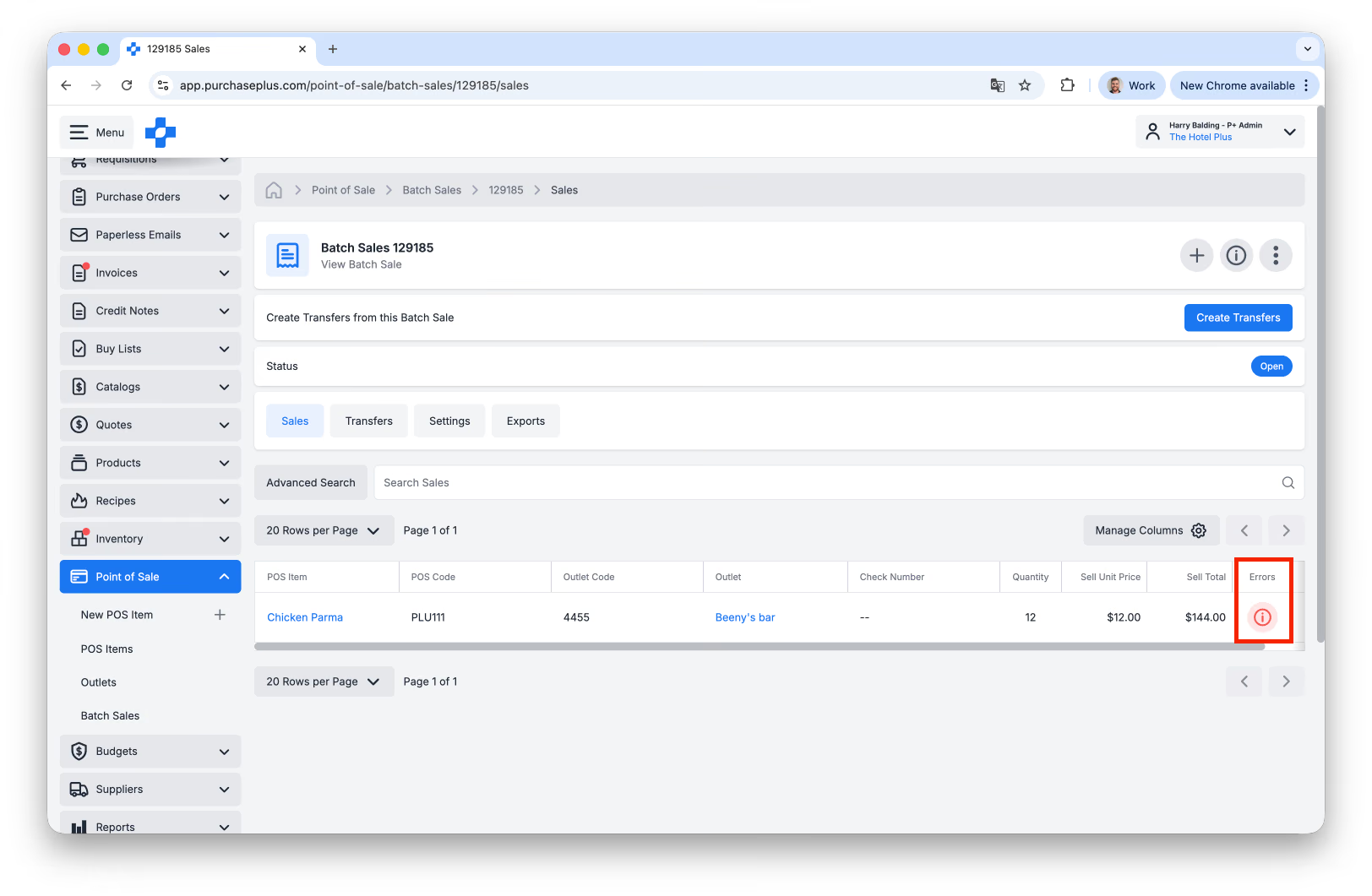
Clicking on this Error icon with reveal more information about the error. You can find troubleshooting steps in the Error Index below.
Error Index
Sale has one or more ingredients on recipe [Recipe Name] that are not in the outlet location
This is a common issue that arises when one or more Ingredients in the Recipe (that is a POS Item) is not present in the Outlet Location.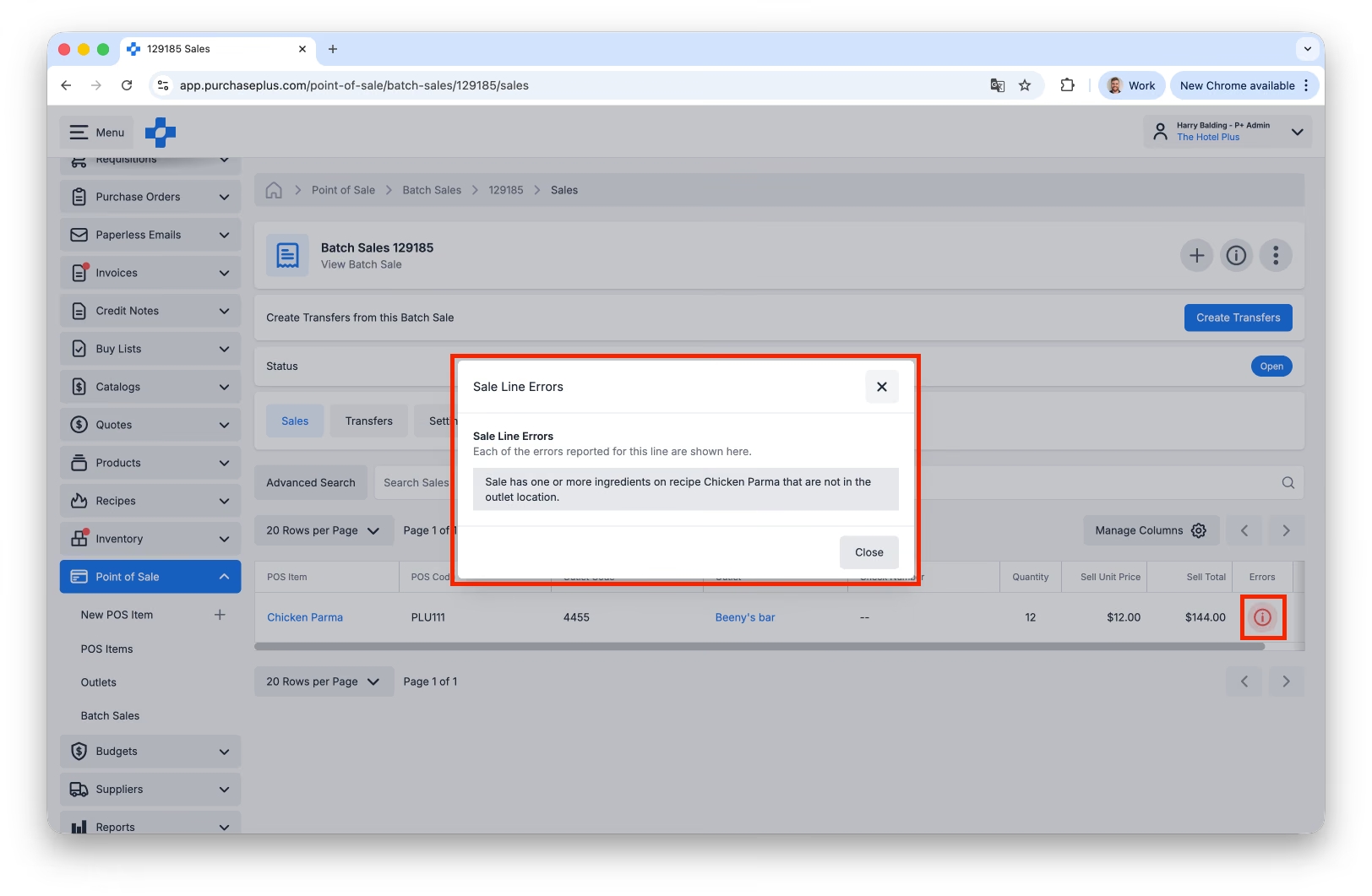
To fix this issue, follow the steps below:
- Identify the Stock Location that is linked to the Outlet in question. First, click the [Outlet Name] in the Batch Sale view:
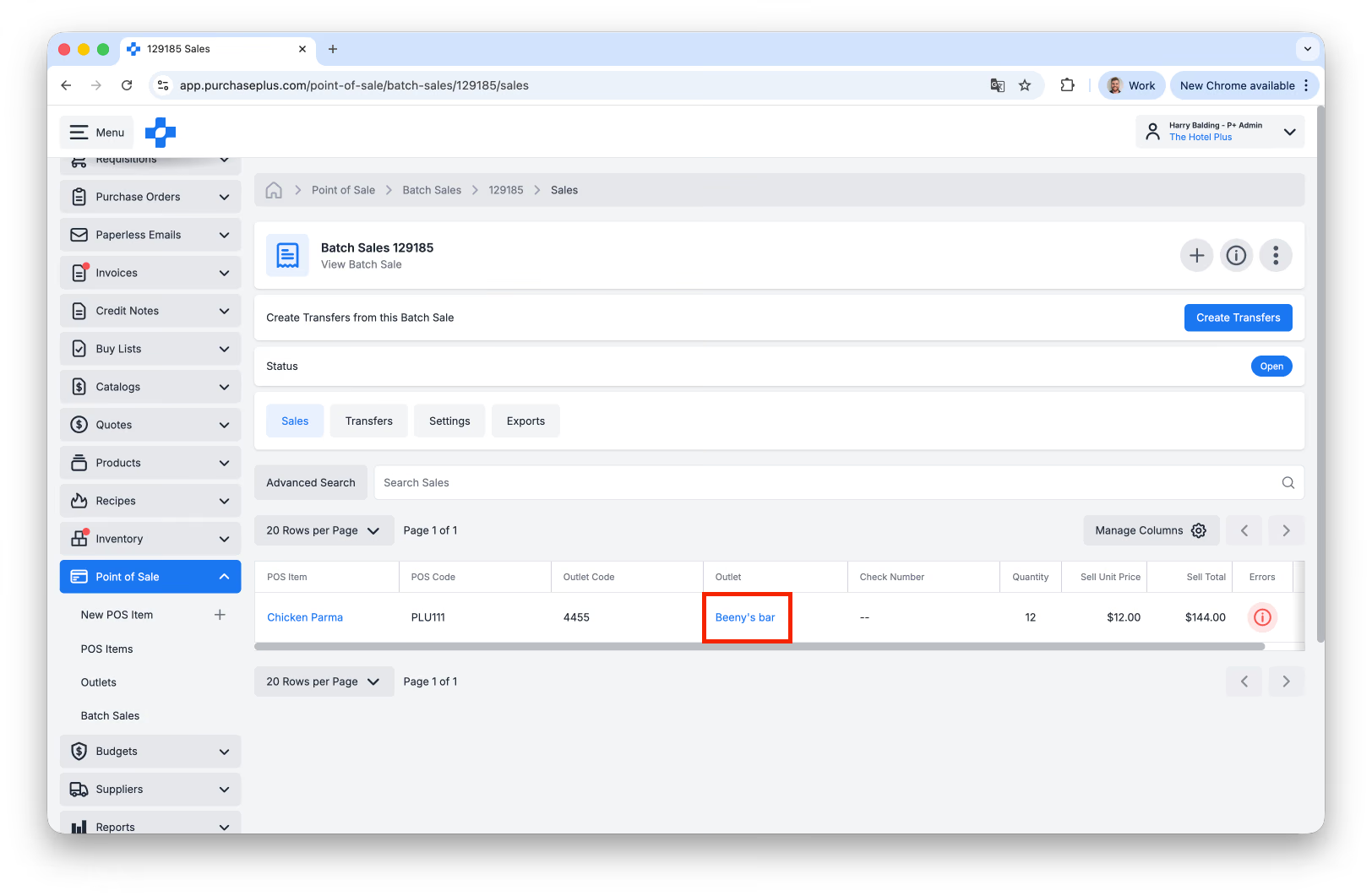
..then, scroll down until you see the [Stock Location] linked to the Outlet: 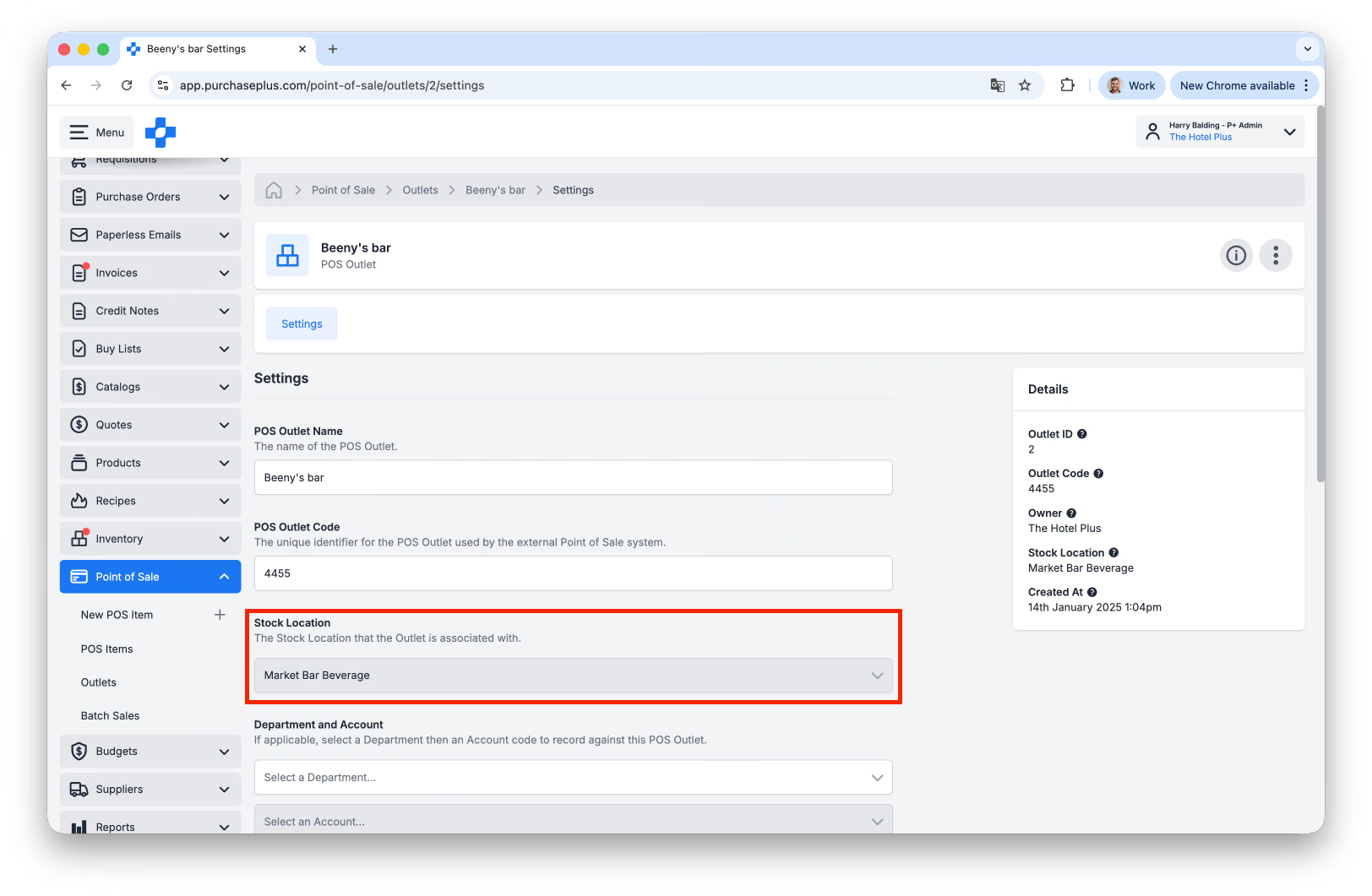 Take note of this Stock Location.
- Return to the Batch Sale and click on the **[POS Item]:
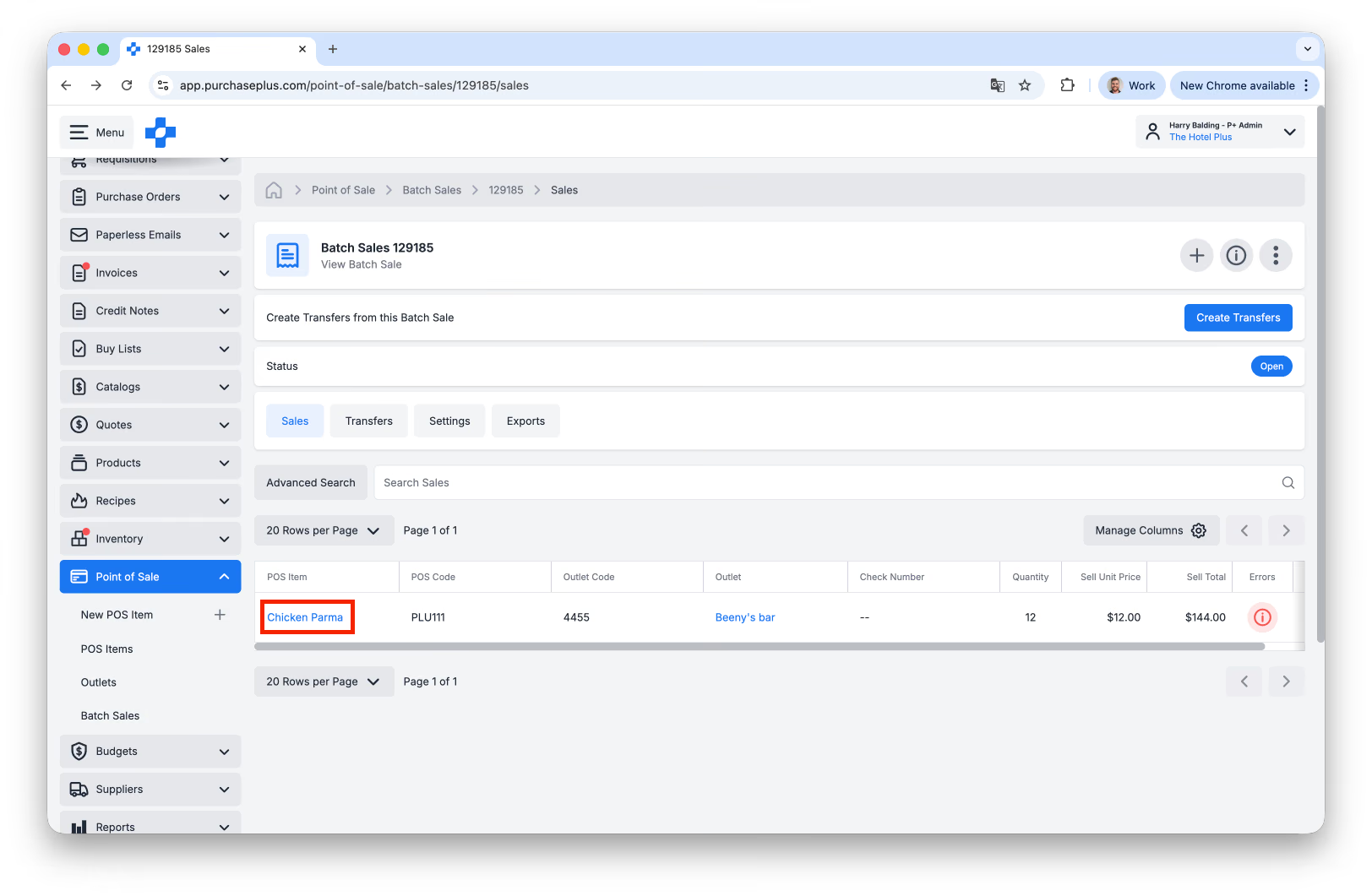
..then, scroll down until you see the [Recipe]** linked to this POS Item: 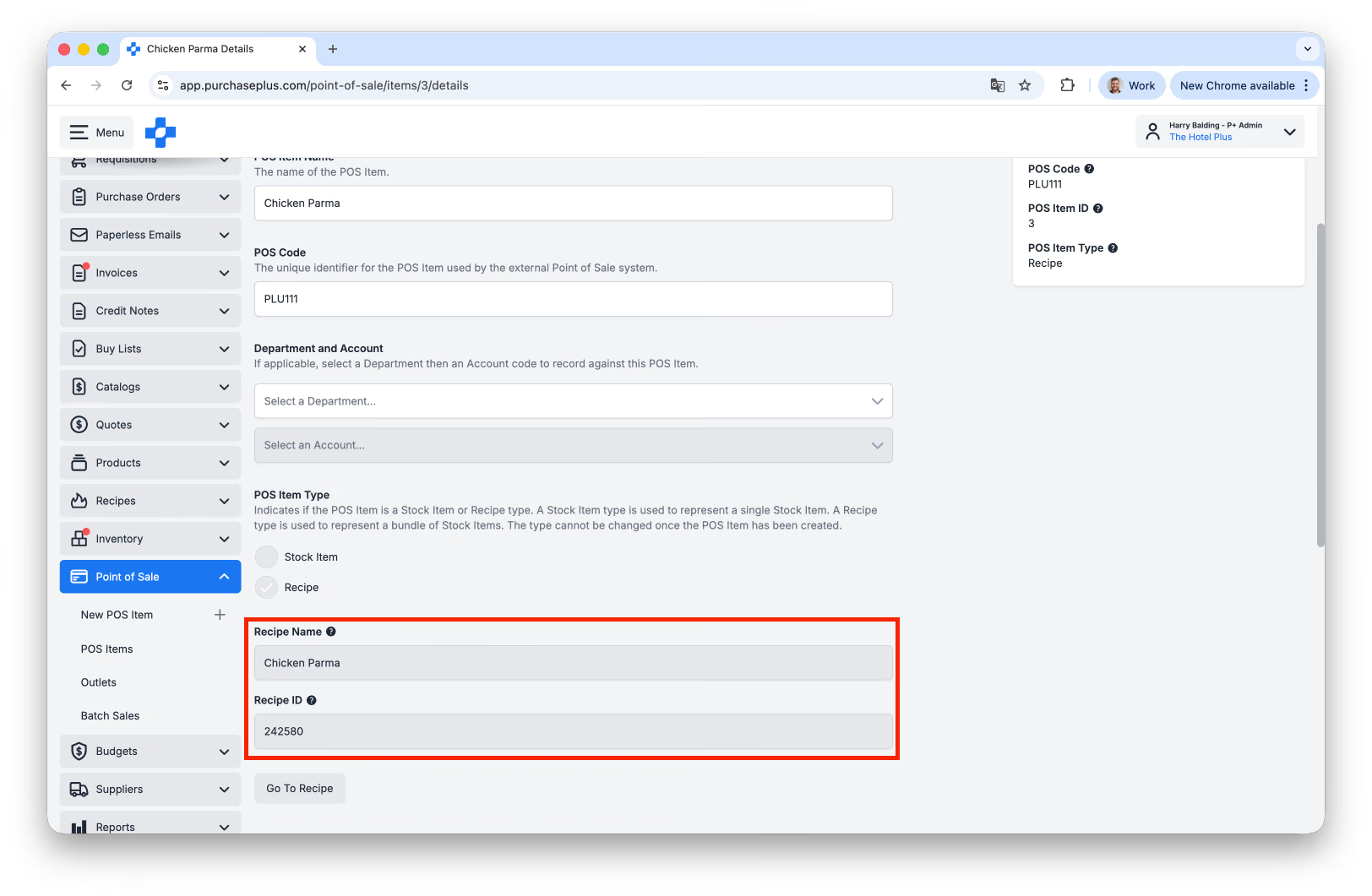
- Click [Go To Recipe]:
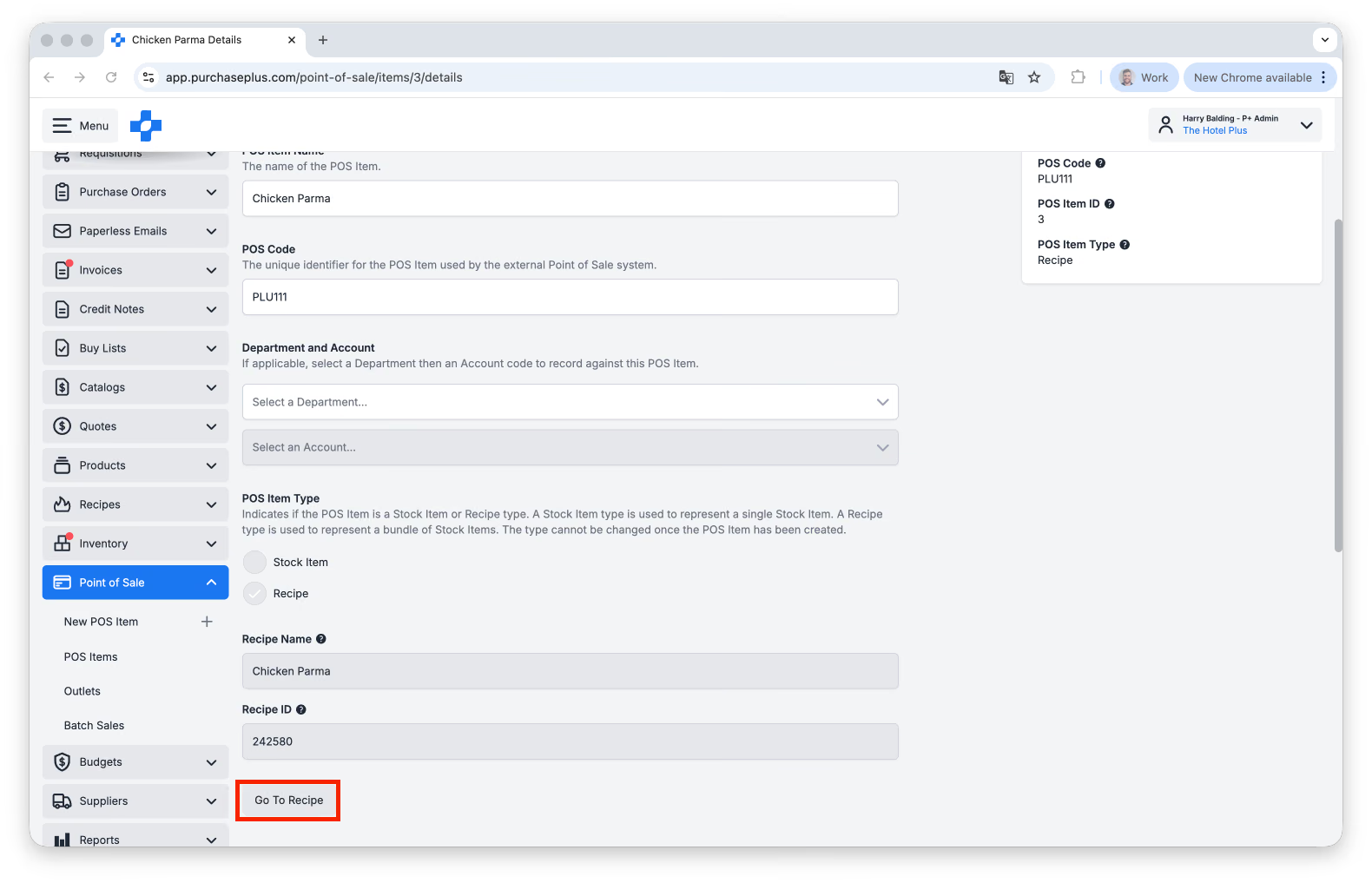
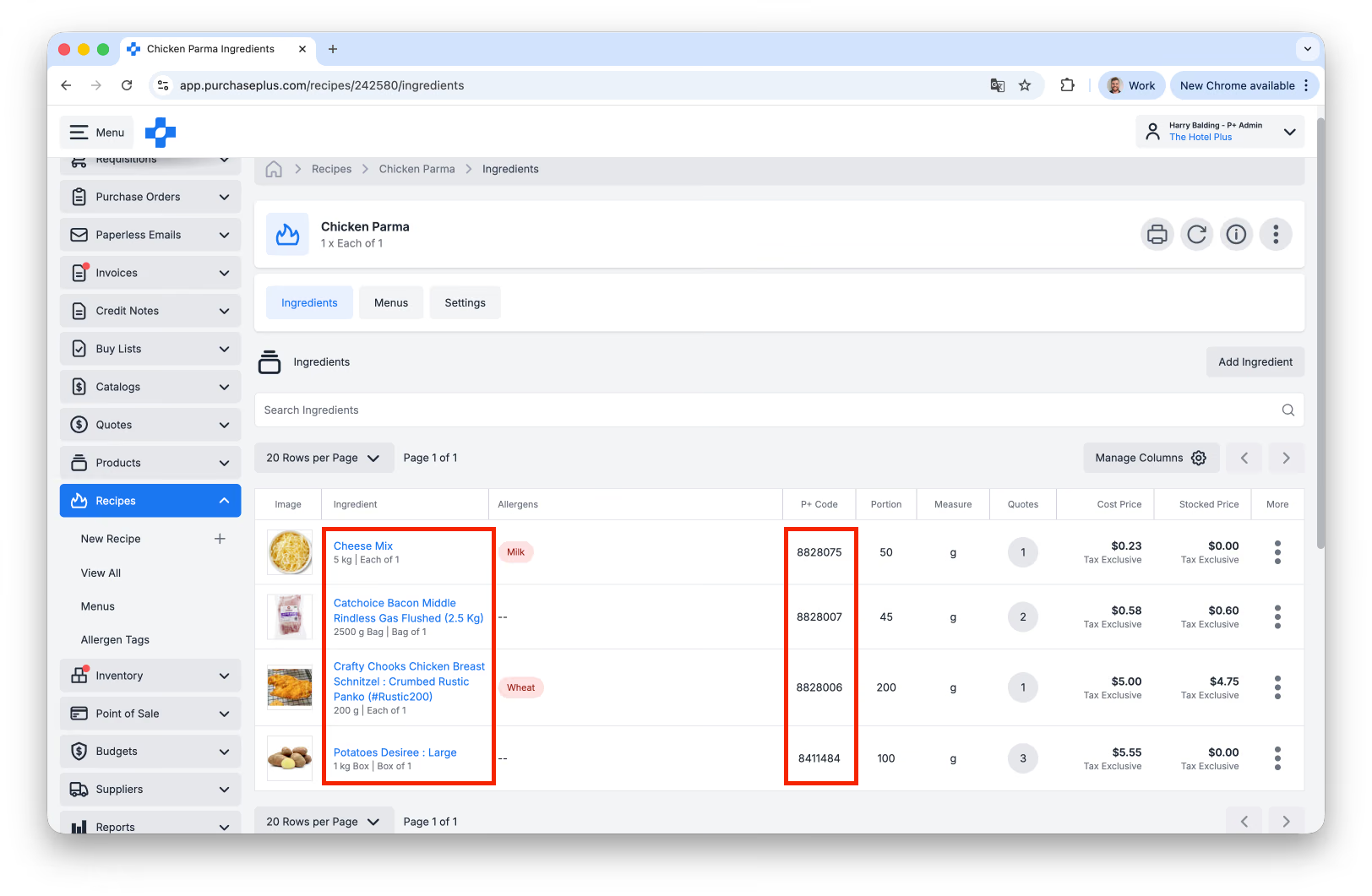
- On the resulting Recipe Ingredients page, take note of the Ingredient Names and P+ codes:
- Navigate to [Inventory] → [Stock Locations] and search for the Stock Location you identified in Step 1 above. Click on the **[Location Name]:
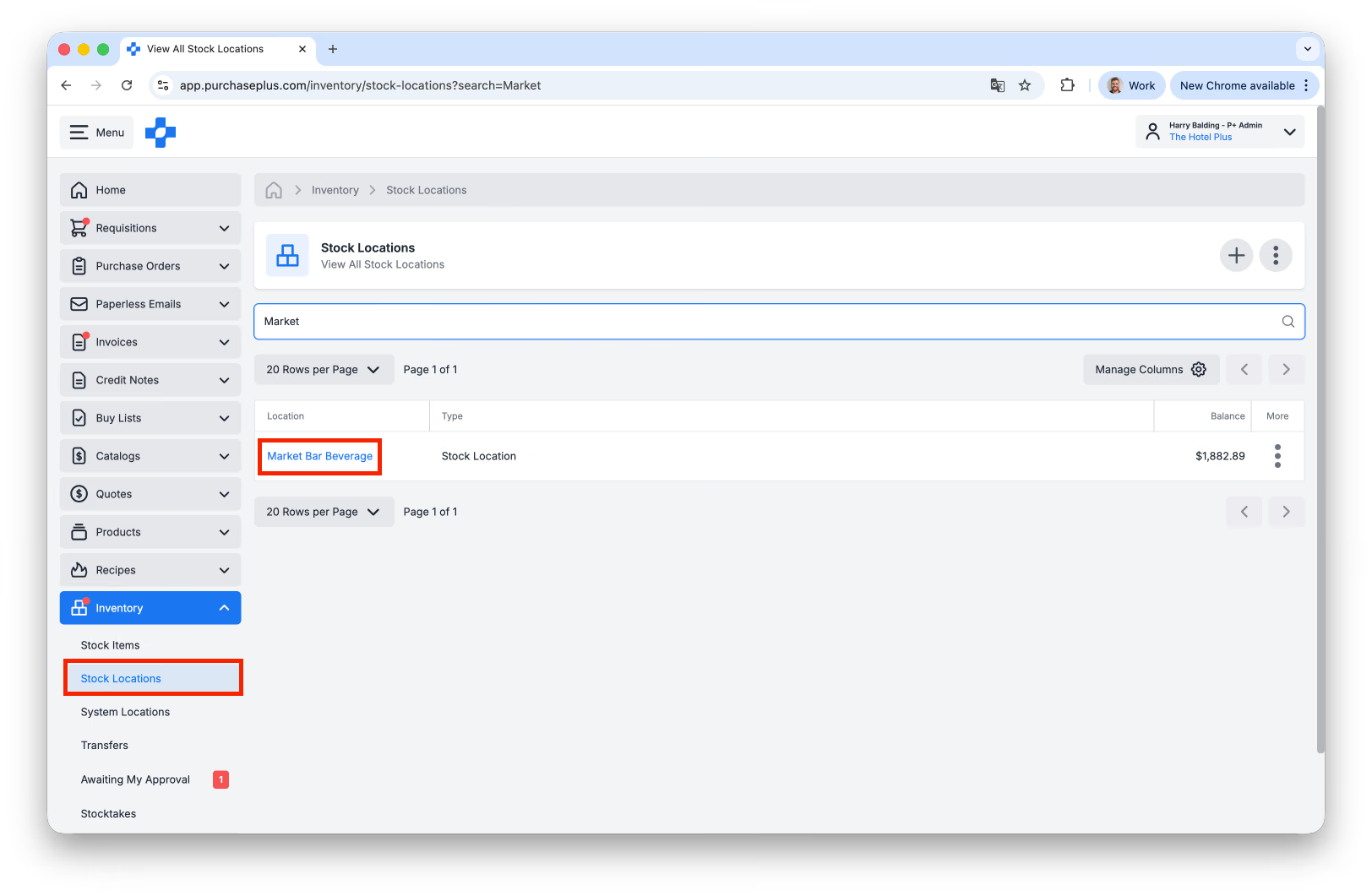 **
** - Systematically search for the Ingredients in the Location by using either the Search Bar (inputting the Product Name), or by using the [Search By Code] Advanced Search filter (and inputting the P+ code):
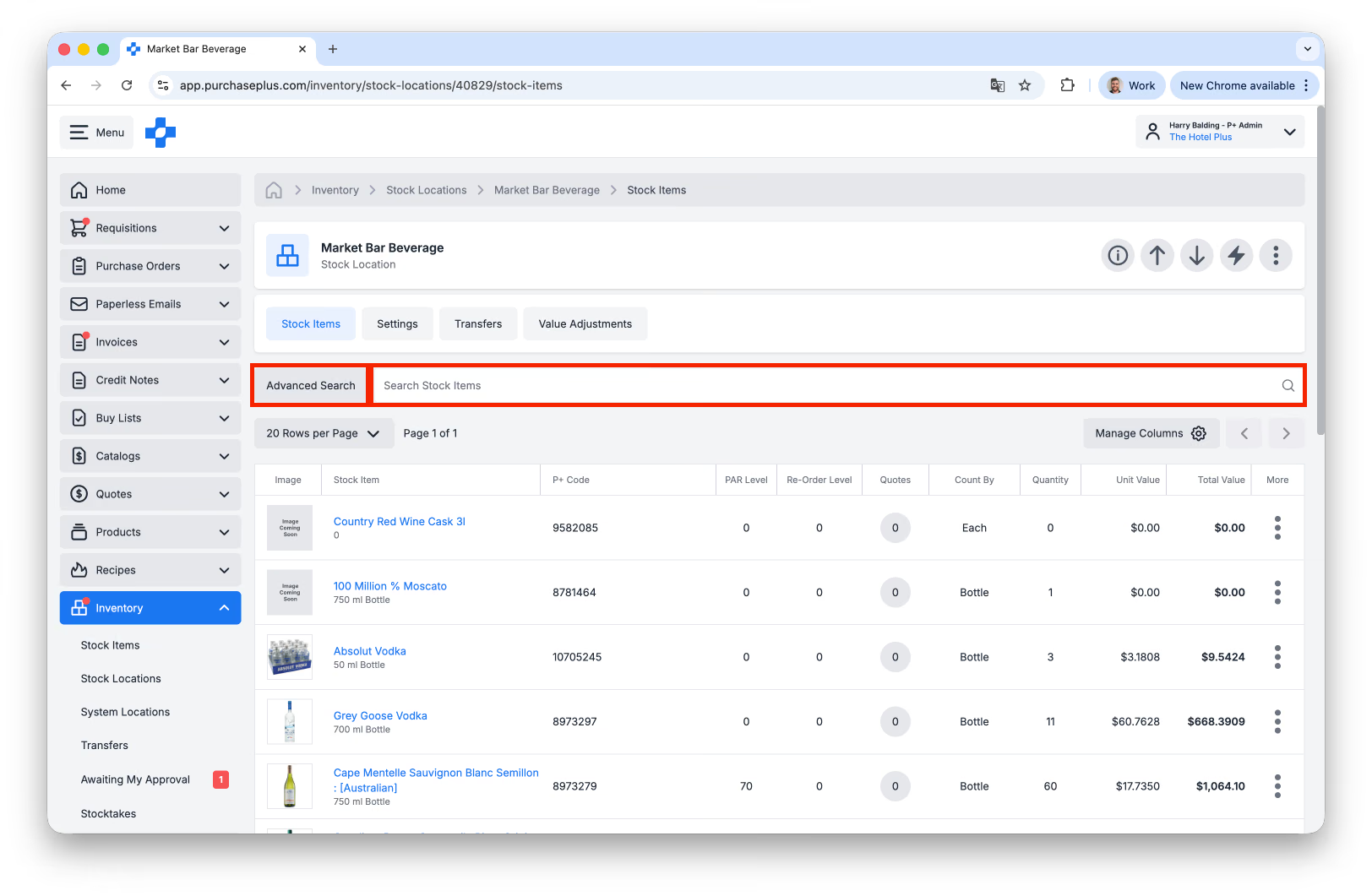
- Any Ingredient in the Recipe that is not present in the Location must either be Transferred into the Location from another Location (as a Stock Transfer), or received from a Purchase Order.
- If the POS item can't be resolved via Transfers currently and you still wish to process the Batch Sale, click the [More] menu and select [Delete] to remove the Sale Line:
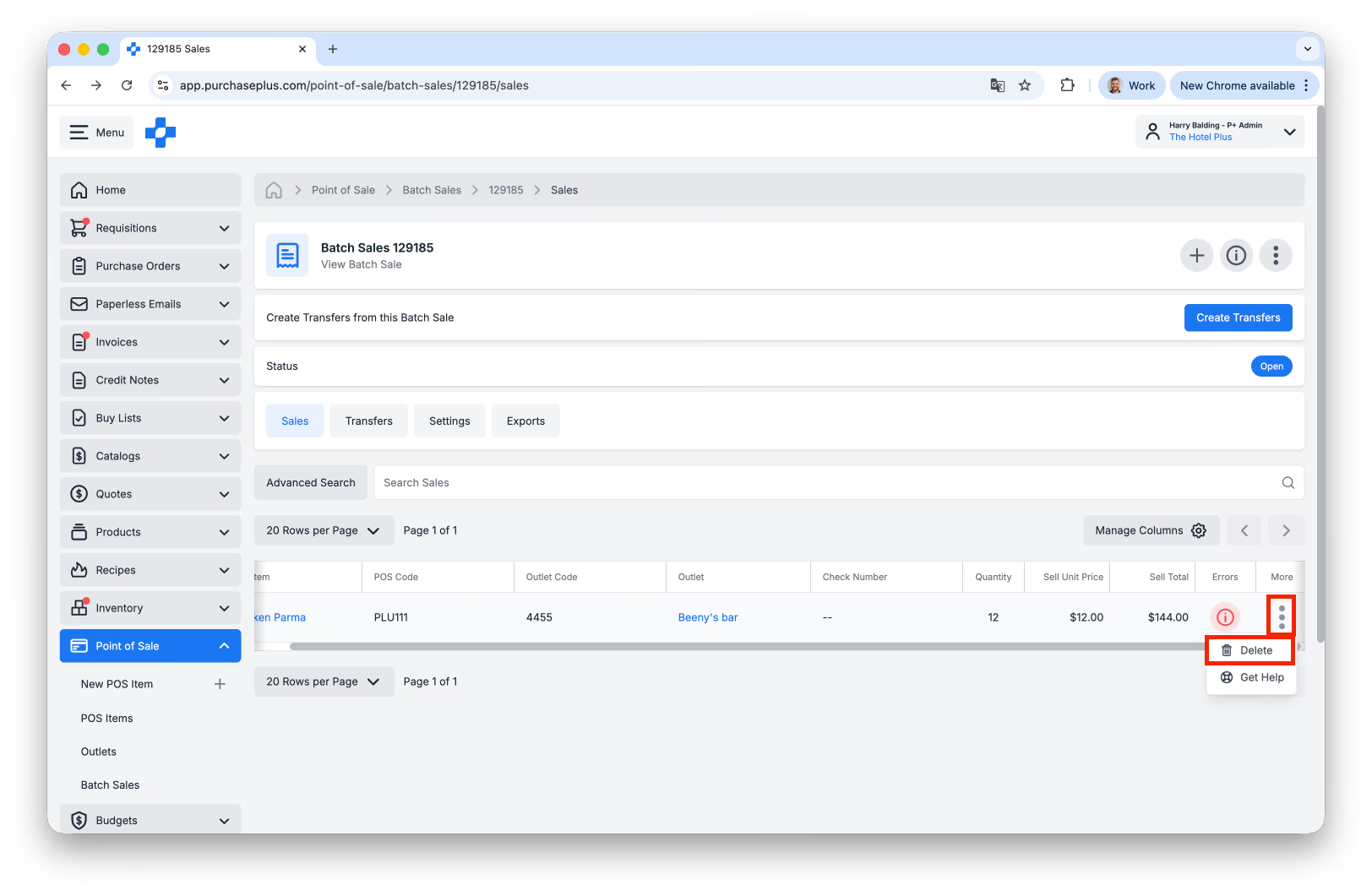
Please note: you can only Delete a Sale Line if the Batch Sale is in an 'Open' State.