

Add Products
Add Products
A Catalog is a collection of Products, with a Price, that Suppliers make available to Purchasers by 'assigning' the Catalog to them. The Products in these Catalogs are then available the assigned Purchasers for inclusion in their Requisitions and Purchase Orders.
This article explains how Supplier Users can manually add a Product (that is owned by your Organisation) to one of your existing Catalogs.
If you are new to PurchasePlus, it is recommended that you first read our Introduction to Catalog Management article, to understand the basic concepts of Catalogs, Products, and Purchasers in PurchasePlus.
Which catalogs have a product
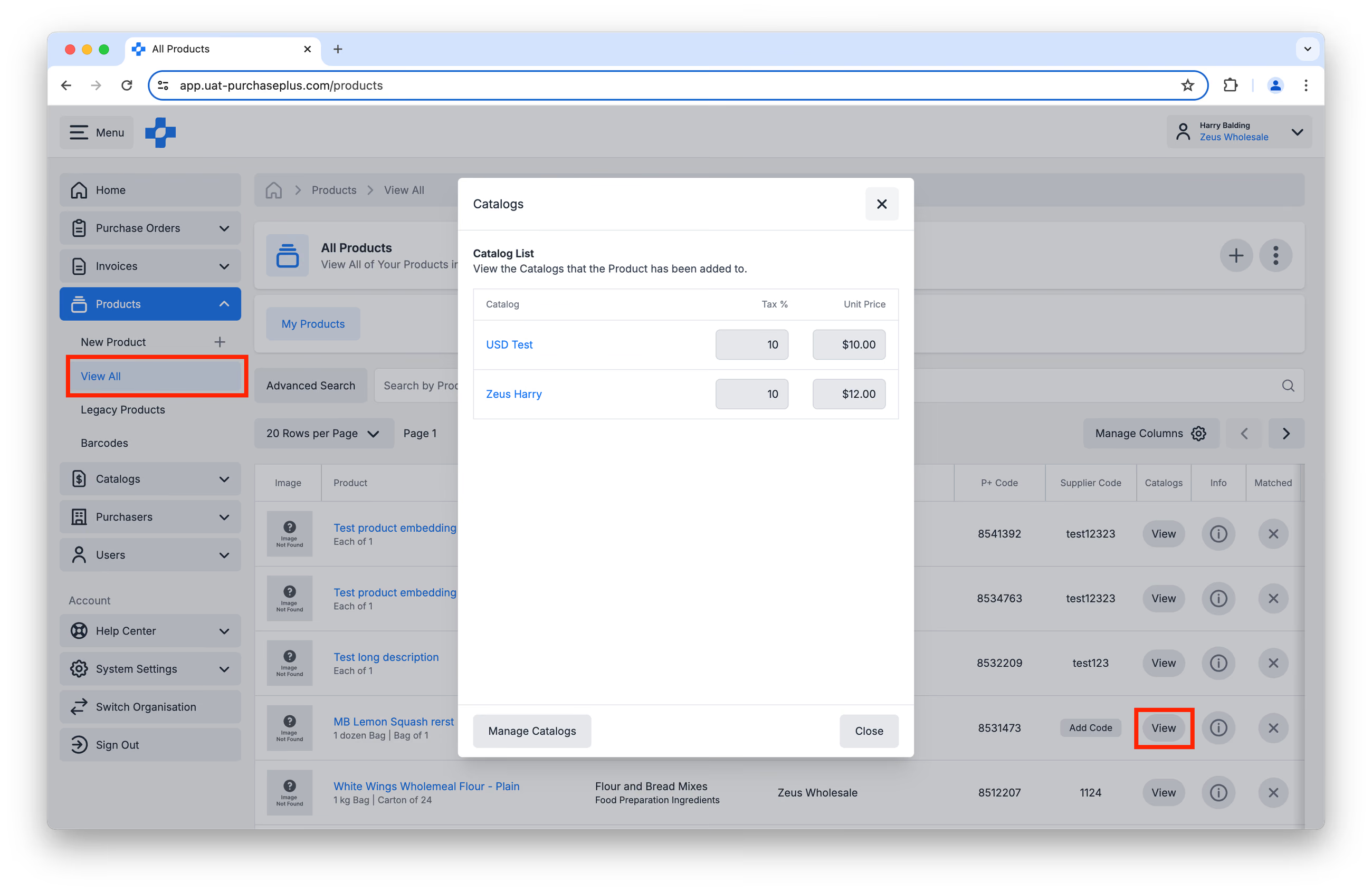
Before you begin adding Products to Catalogs, you can view the Catalogs that already contain a certain Product by navigating to [Products] → [View All], finding the Product in the table, and clicking on the [View] button in the [Catalogs] Column:
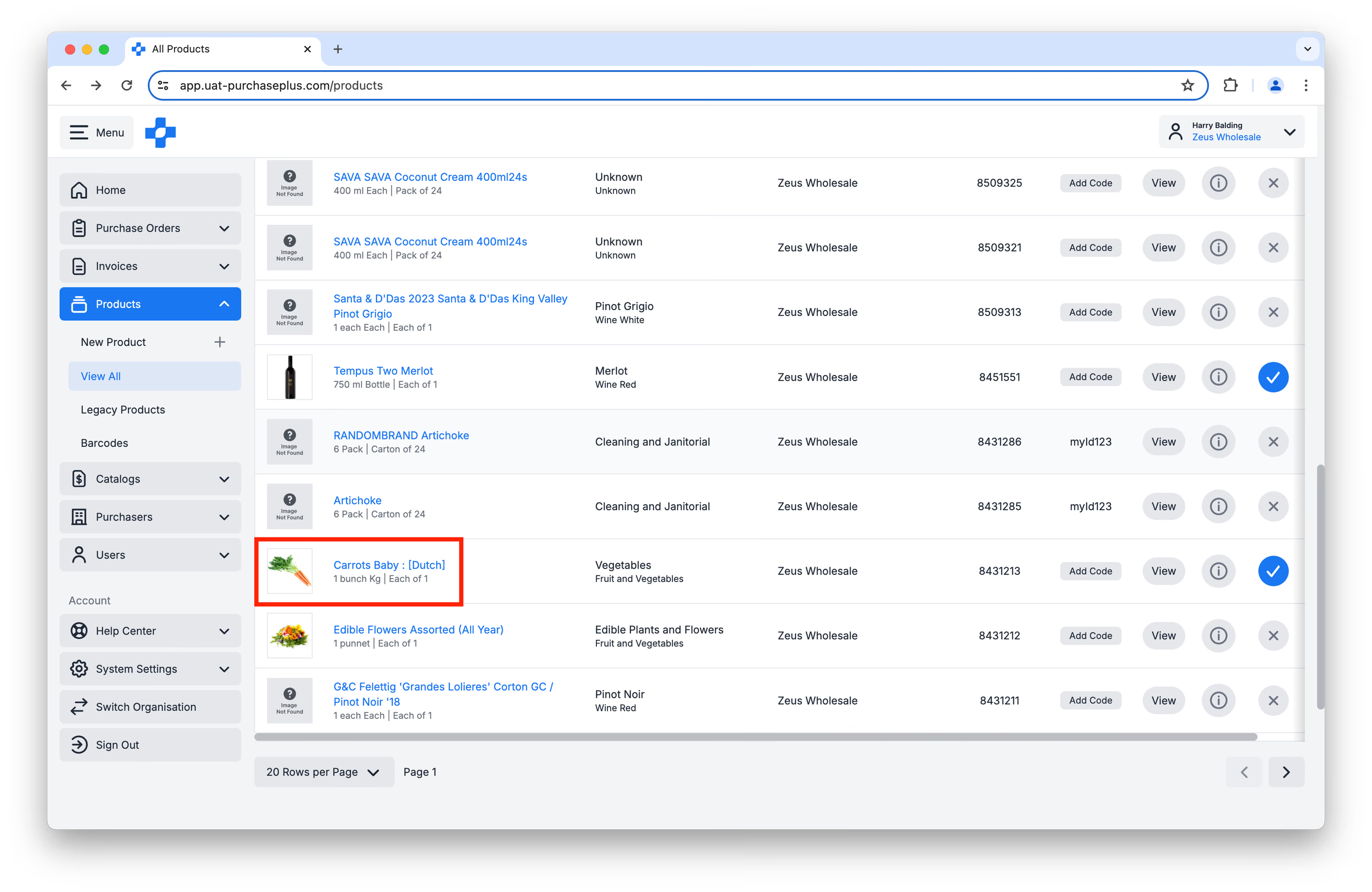
Alternatively, you can navigate to the [Products] → [View All] page, and then selecting the Product:
 Then, click on [Catalogs]:
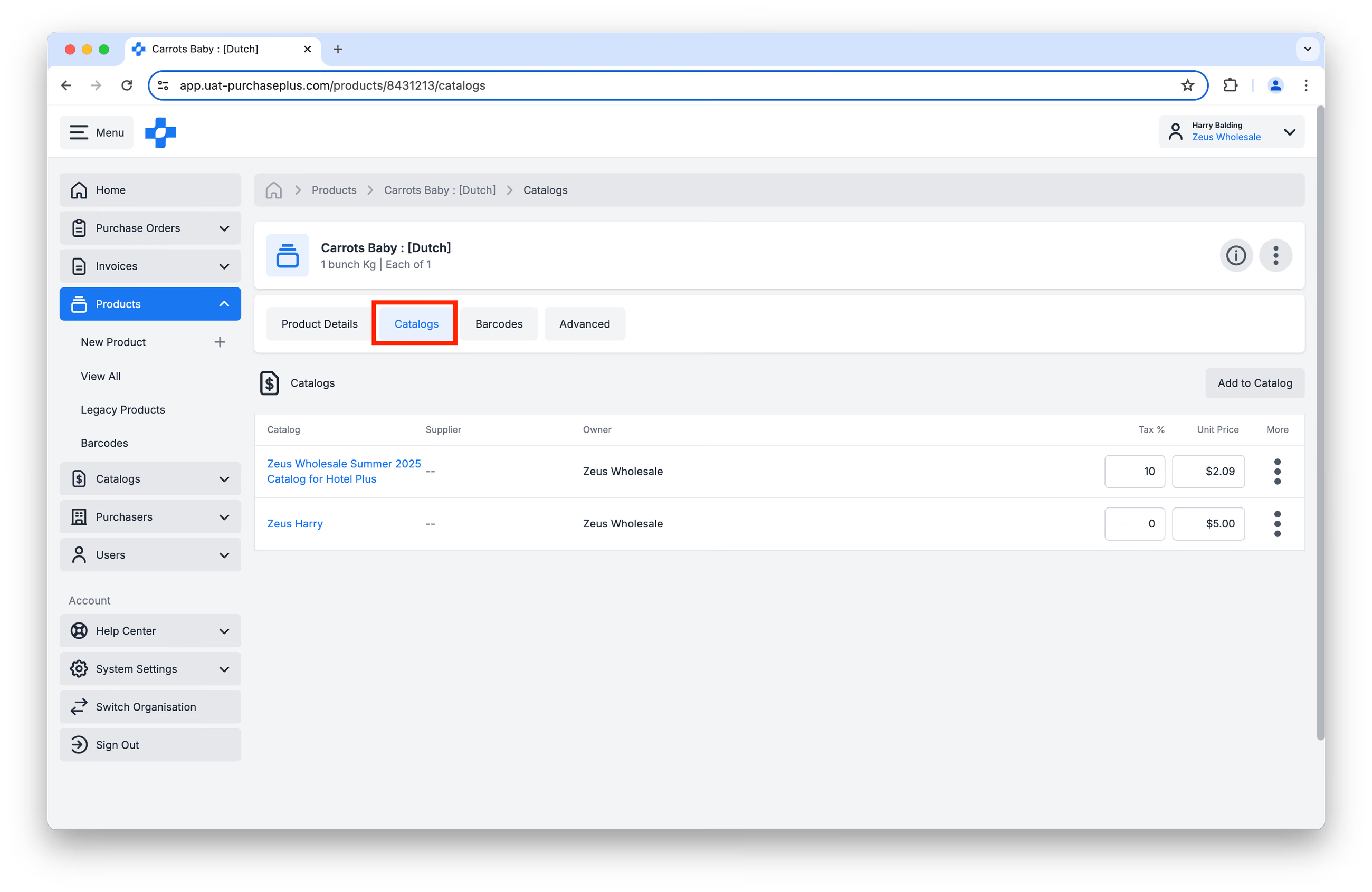 Here you will see the Catalogs where this Product is included, and you'll be able to:
- Update the Product's price in each Catalog,
- Add the Product to a New Catalog,
- Remove the Product from a Catalog (using the [More] menu).
Add products
Option 1: Adding Products to a Catalog
The most-common way to Add Products to a Catalog is by updating the [Catalog] itself.
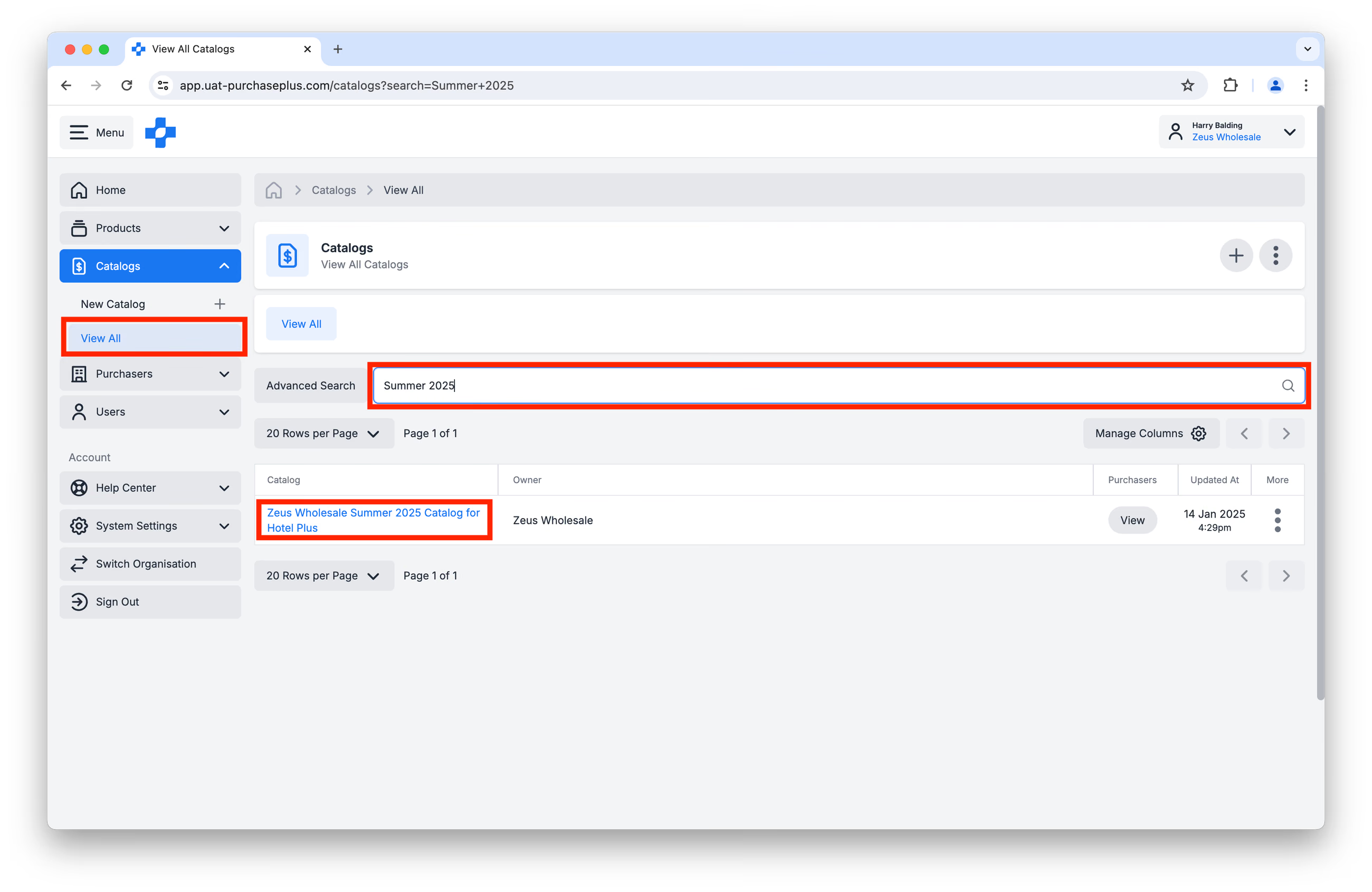
Step 1: Visit [Catalogs]→ [View All] in the Side Navigation bar. Locate the Catalog you wish to update, and click on its name:
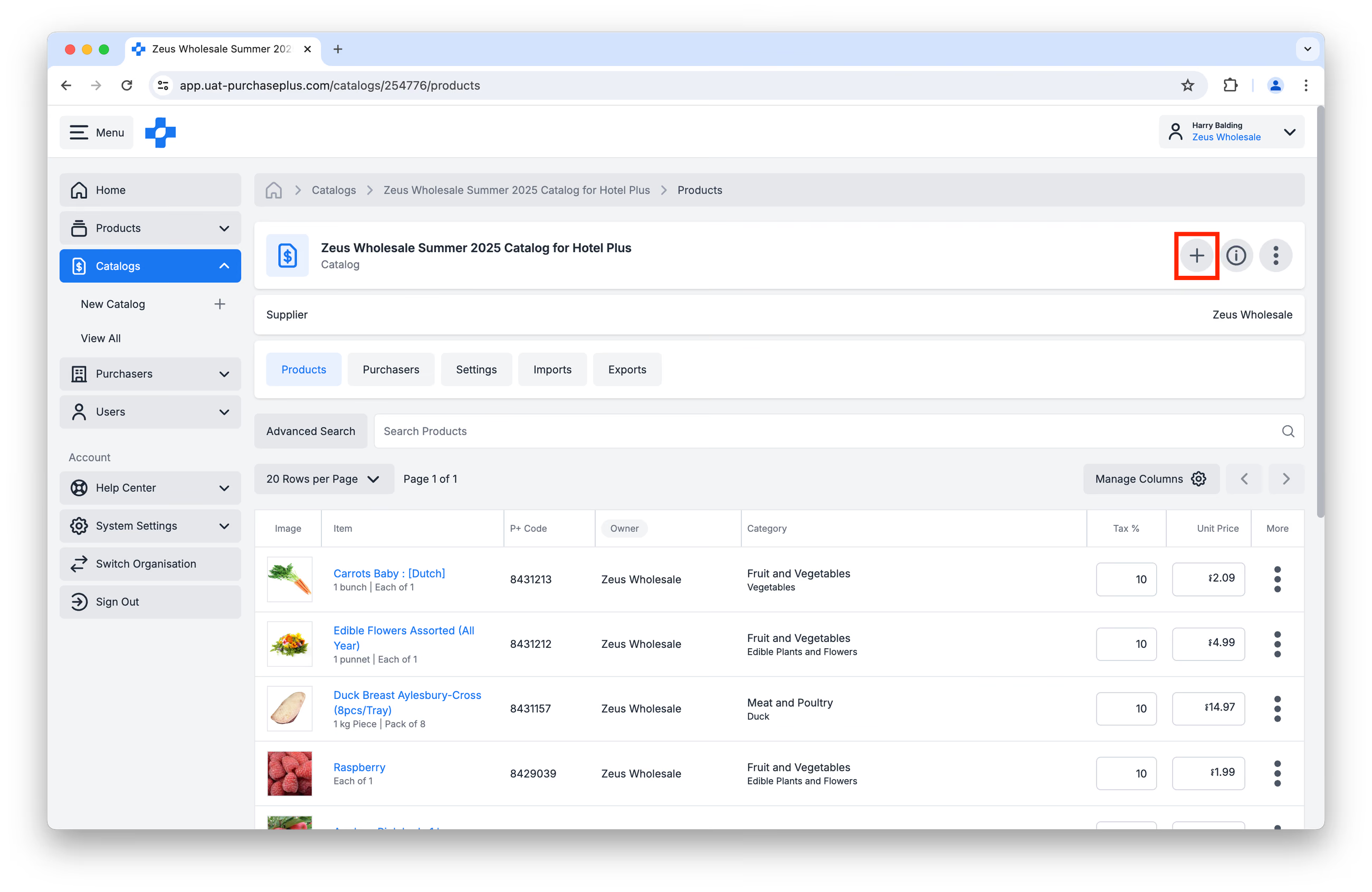
Step 2: Click the [Add a Product] button:
Step 3: Search for the Product you would like to add to your Catalog. Add the Tax % (GST) and Unit Value (ex-Tax). Click [Add Item]:
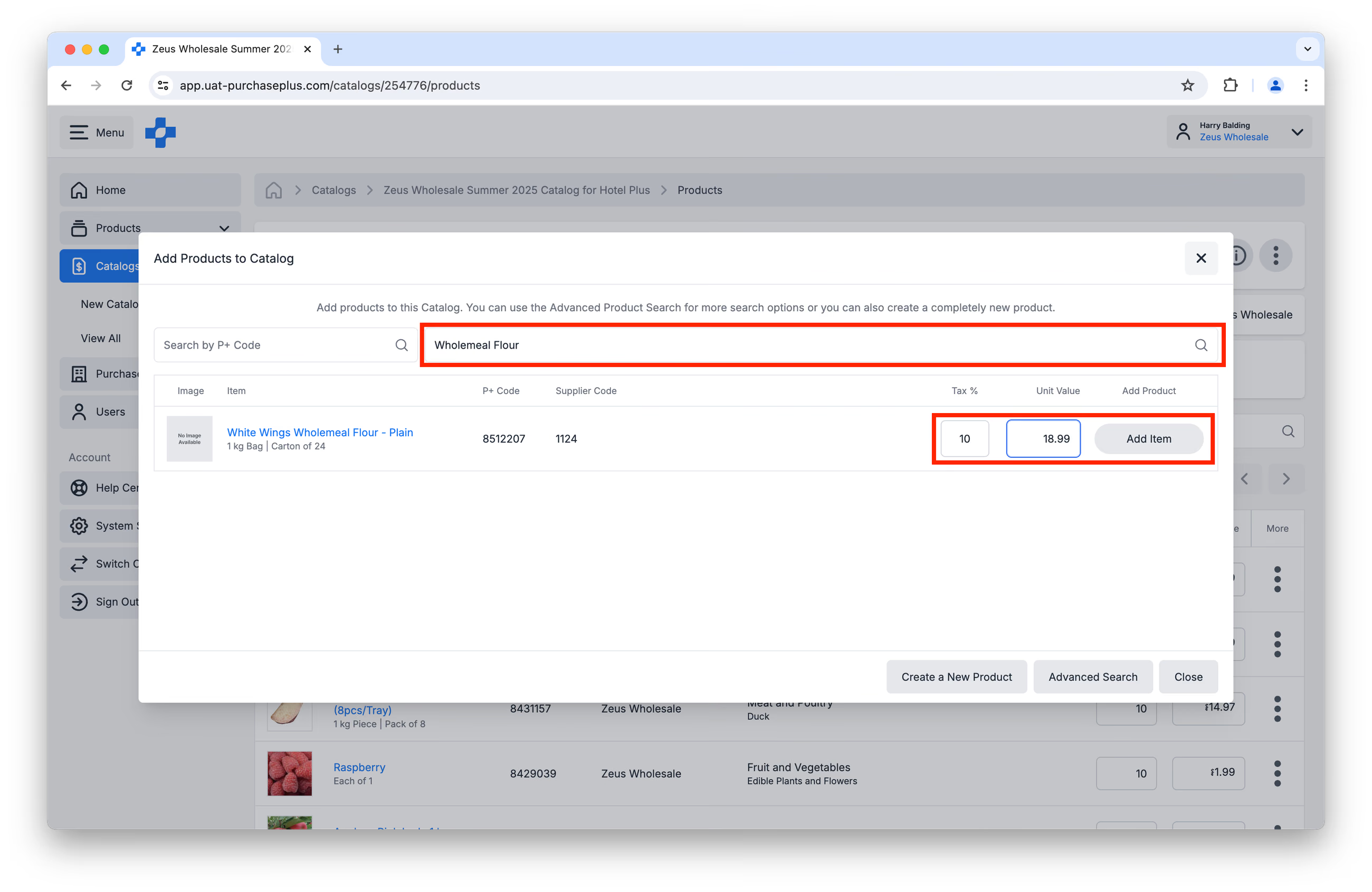
If you cannot find the Product you wish to add to the Catalog, you may need to Create a New Product first.
Option 2: Adding Catalogs to a Product
An alternate method of Adding Products to a Catalog is by visiting the [Product] in question, and then Adding Catalogs.
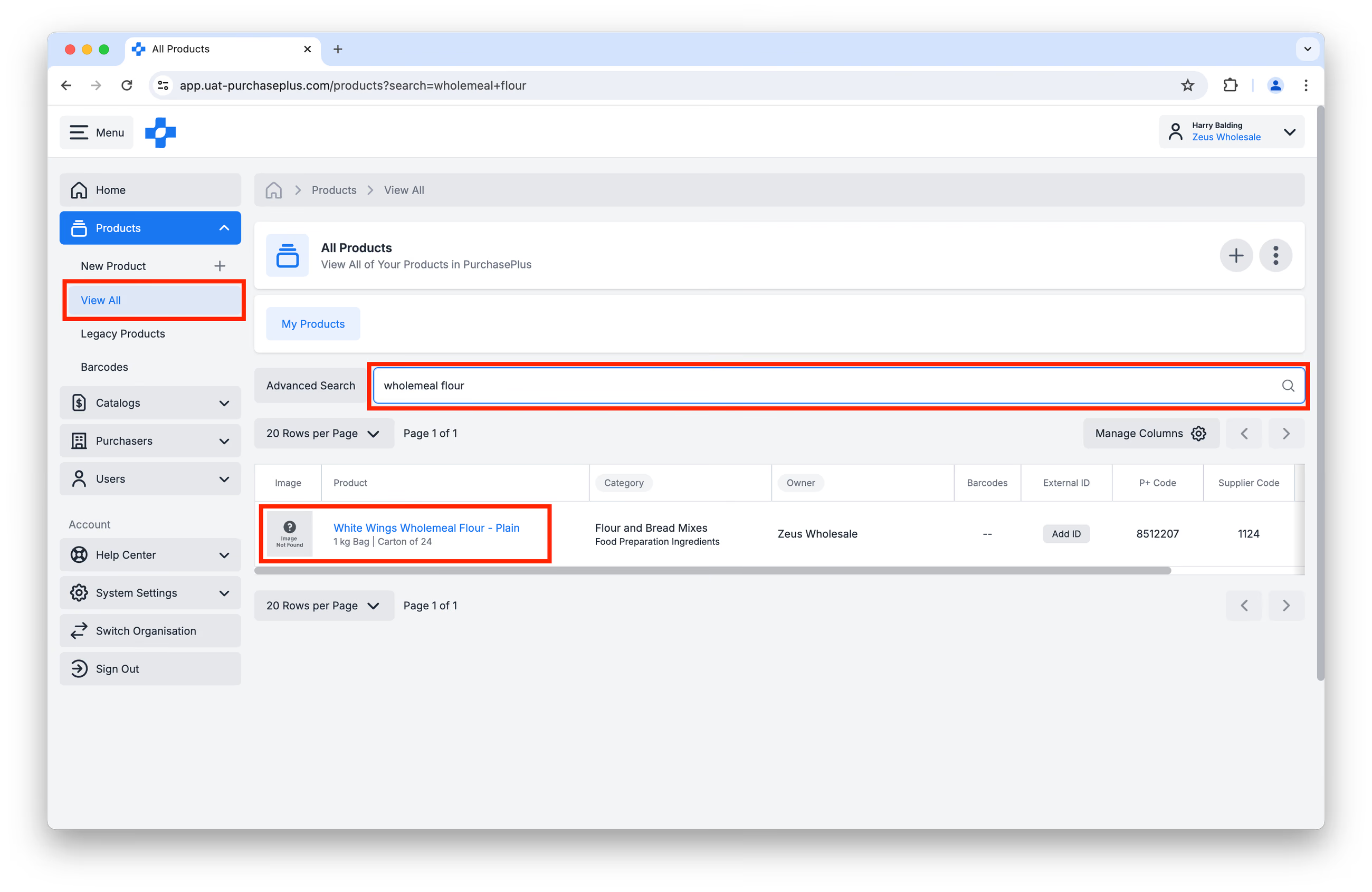
Step 1: Visit [Products] → [View all]. Search for the Product, and click on its name:
Step 2: Click on the [Catalogs] tab, and then click on [Add to Catalog]:
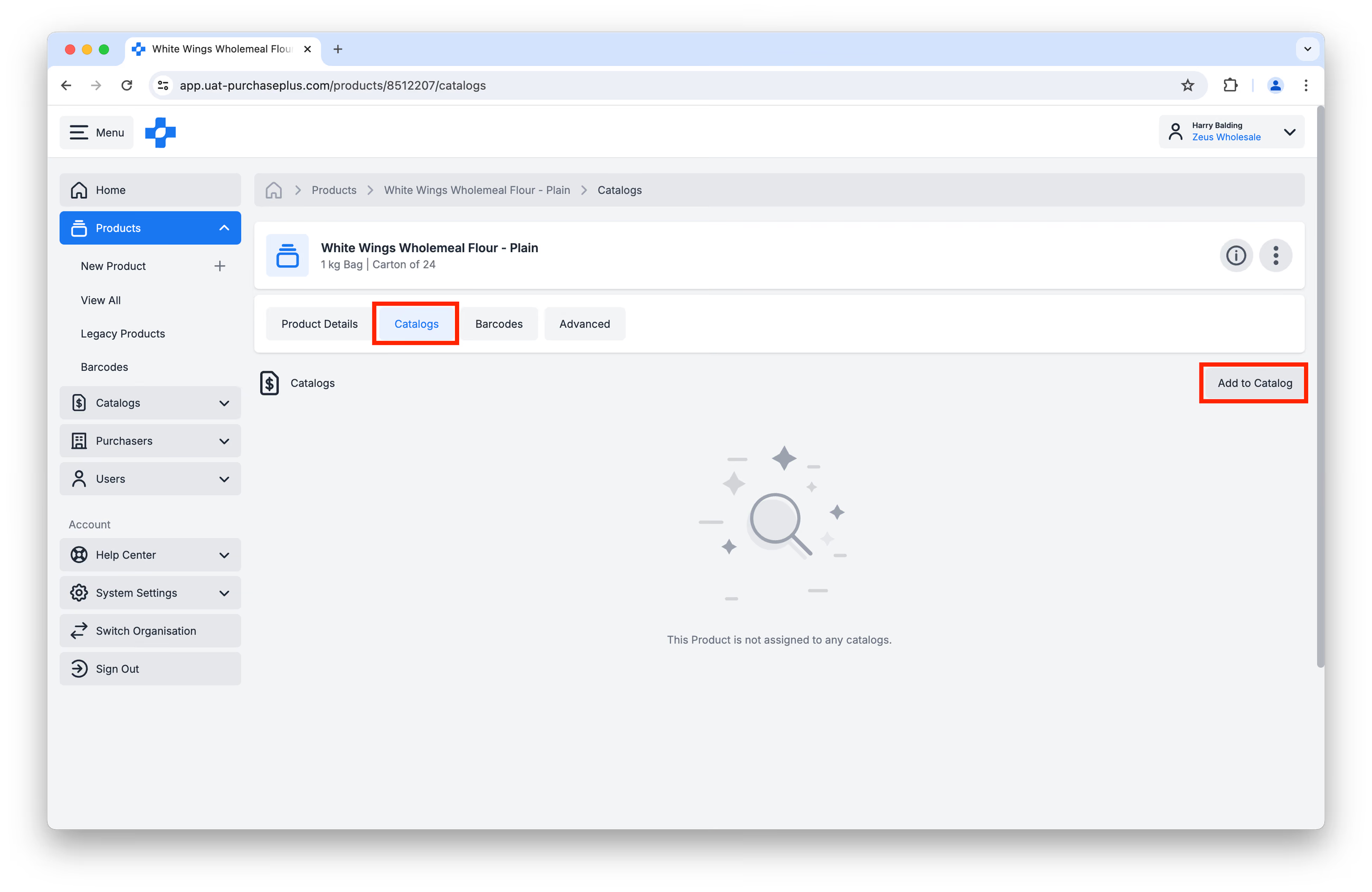
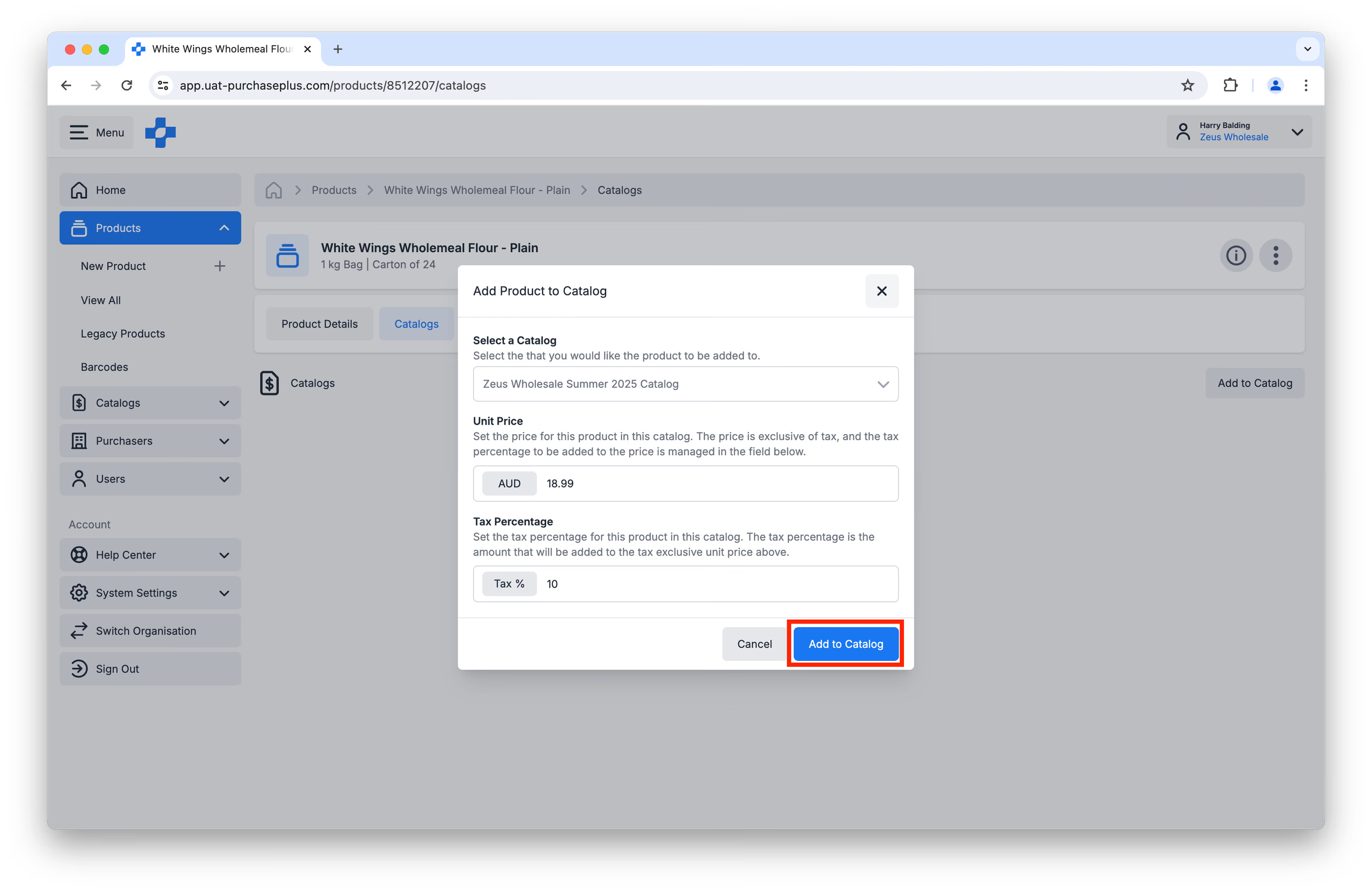
Step 3: Complete the form that pops up, specifying the Catalog Name, Unit Price and Tax %. Once complete, click [Add to Catalog]:
Troubleshooting
For any additional troubleshooting or support requests, please contact prices@purchaseplus.com and we would be delighted to assist.
Video Tutorials
- Adding Supplier-owned Products to a Catalog - skip to 3:37.
- Removing Products from a Catalog - skip to 16:00.