

Reset Password
Reset Password
Security Update: Enhancing Your Purchase Plus Password Policy
At Purchase Plus, we are committed to keeping your procurement data secure. To align with modern cybersecurity "best practices"—which favor longer, more complex passwords over frequent, forced changes—we are rolling out updates to our password policy:
These changes are designed to make your account more resilient against modern "brute-force" attacks while reducing the friction of constant password resets.
The Fine Print: New Requirements
To ensure your account remains a fortress, new passwords must now meet the following criteria:
- Length: Between 12 and 128 characters.
- Complexity: Must include at least one digit, one lowercase letter, and one uppercase letter.
- History: The system will archive your last 5 passwords. You cannot reuse these when setting a new one.
What Happens if I Get Locked Out?
To protect against unauthorized access, we have tightened the locking threshold from 20 attempts to 5 failed attempts. If you find yourself locked out:
- Automatic Reset: The account will automatically unlock after 1 hour.
- Manual Unlock: You can use the standard "Unlock Instructions" flow (via the Devise email link) to regain access immediately.
> Why the change? Security experts (like NIST) now recognize that forcing users to change passwords every 90 days often leads to "password fatigue," where users choose weaker, predictable patterns. By moving to a 12-character minimum and removing forced expiry, we are prioritizing strength over frequency.
If you have forgotten the Email Address associated with your PurchasePlus account, you will need to contact our friendly customer support team for assistance.
Reset Your Password
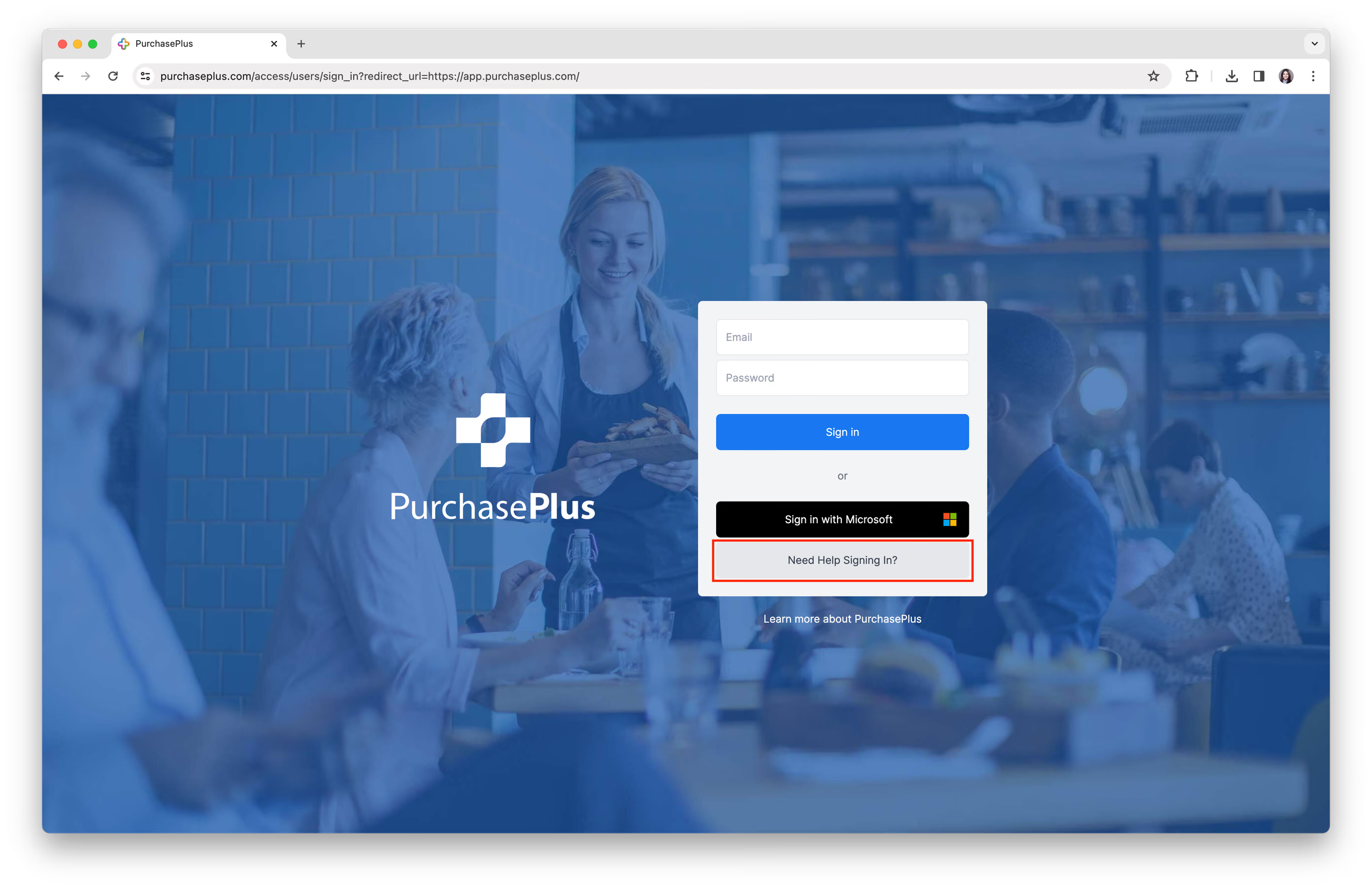
1. Visit the PurchasePlus Sign In page, https://purchaseplus.com and click [Need Help Signing In?].
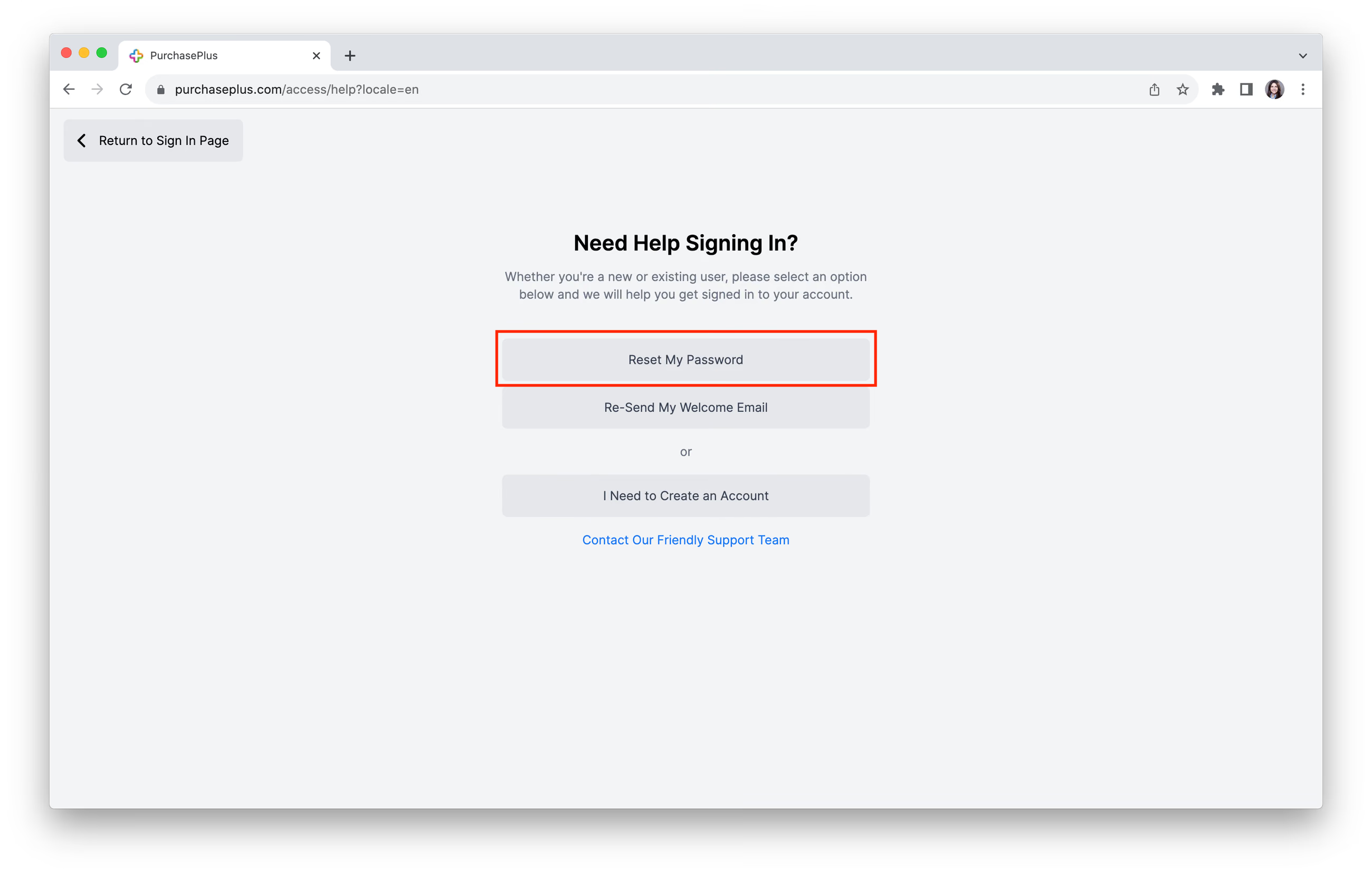
 2. Select [Reset My Password].
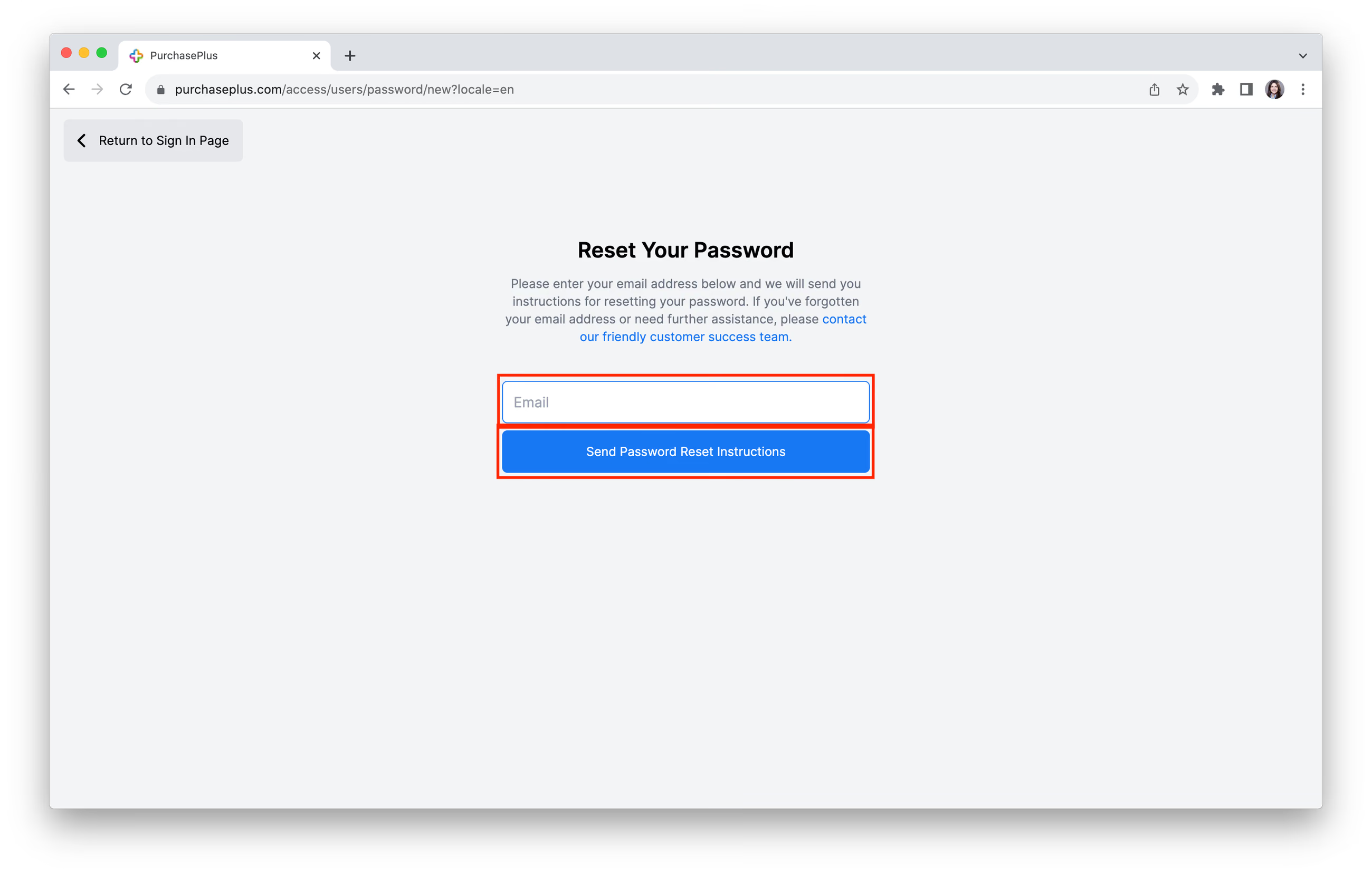
3. Enter your 'Email Address' and click [Send Password Reset Instructions]. An email will be sent to the email address with a link to reset your password.
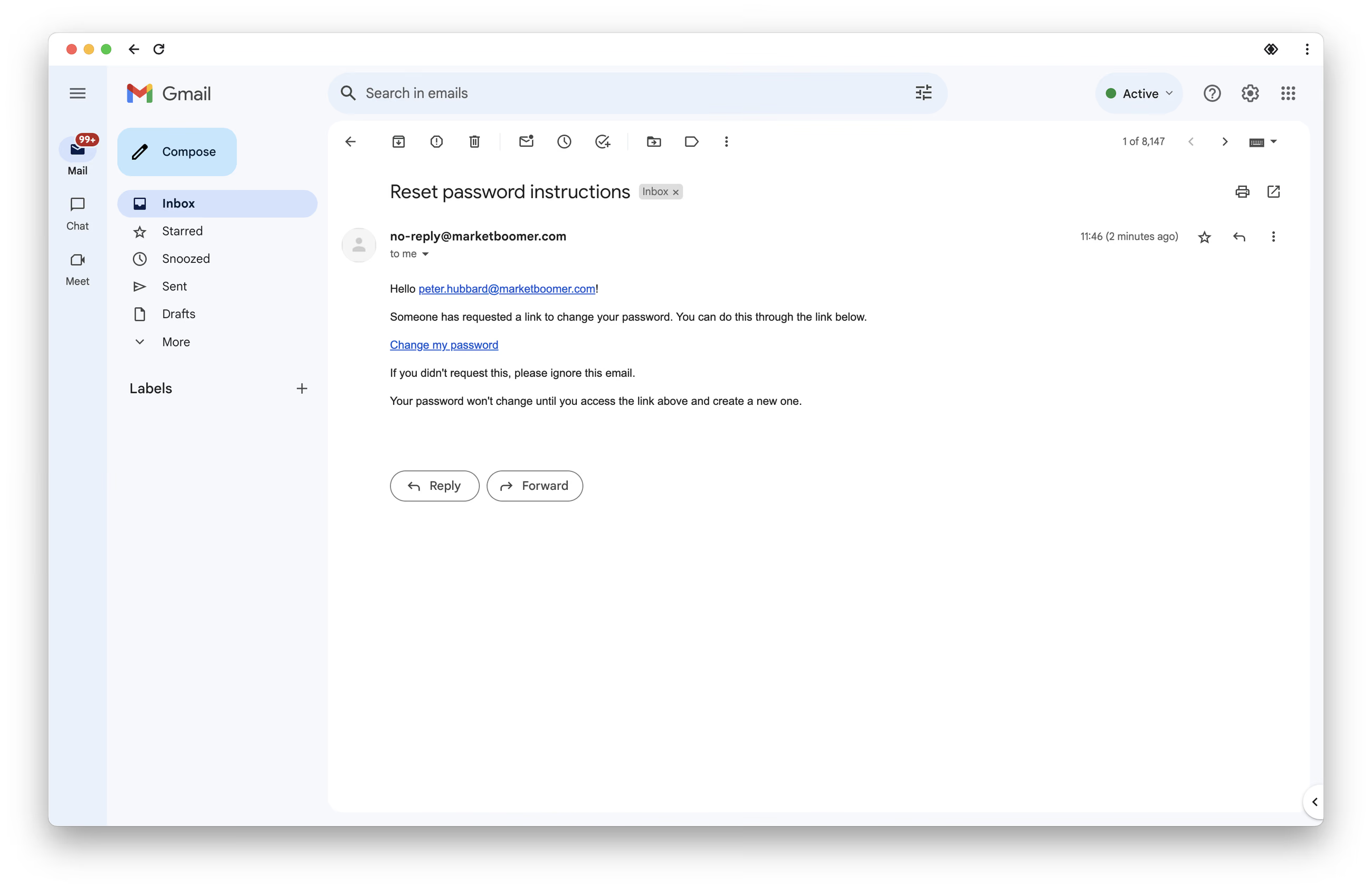
4. If the email address you enter belongs to a user account in PurchasePlus, an email will be sent to the email address with a link to reset your password. Please check your Junk or Spam folder if you do not receive the email.
 5. After clicking the link in the email, you will arrive at the Set New Password page. Please enter a new password that is at least 8 characters in length, and including at least 1 uppercase letter and 1 number.
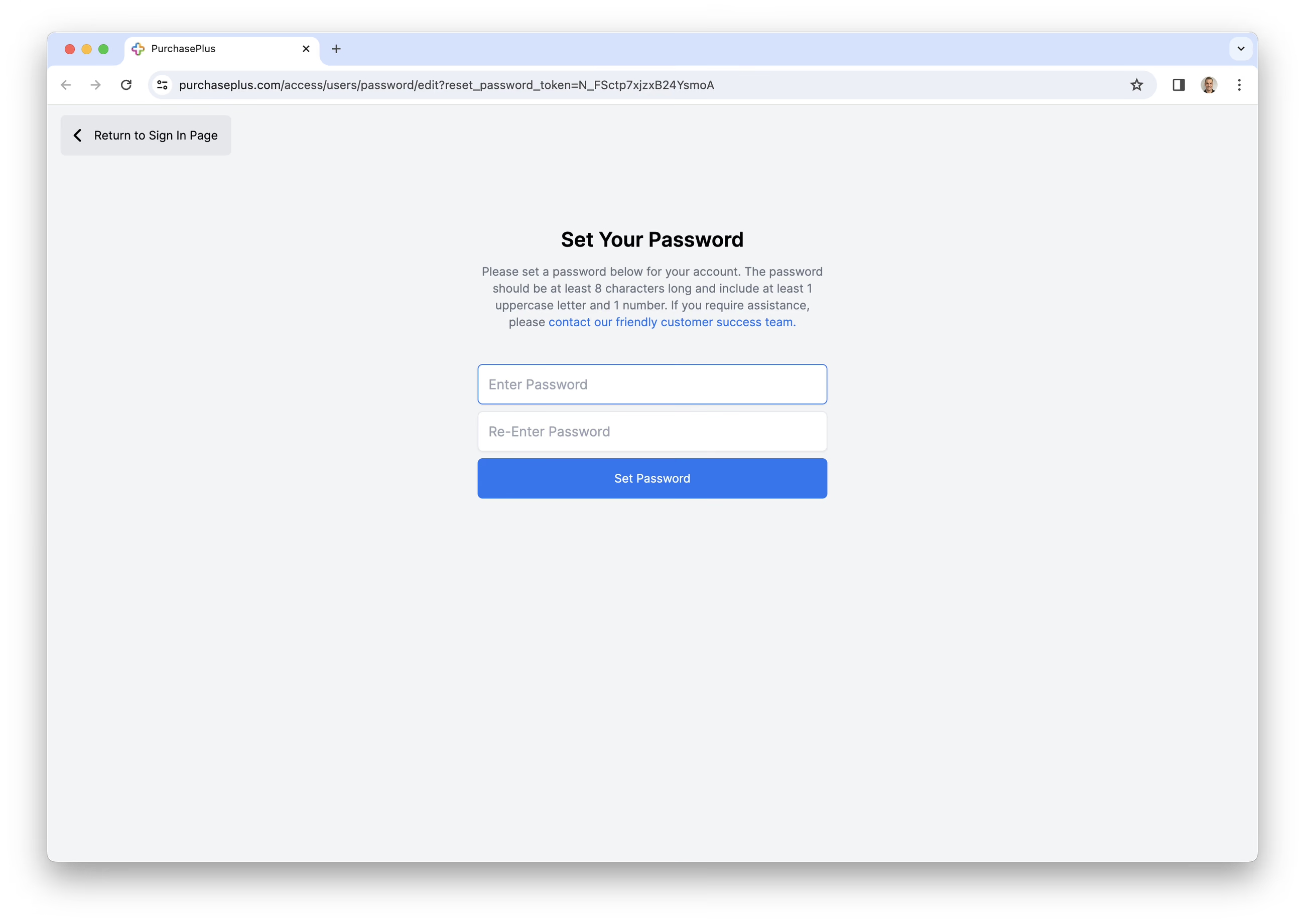
Clicking [Set Password] will update your Password, and you will no longer be able to log in with your old Password.