

Ingredients
Ingredients
Ingredient
Ingredients are the Products that are added to your Recipes. Depending on whether the Recipe is an Inventory or Non-Inventory Recipe, the definition of 'Ingredient' is different.
- For Inventory Recipes: the Ingredient must be a Stock Item.
- For Non-Inventory Recipes: it can be any Product, owned by any Organisation. It could be:
- A Purchaser-owned Product that can be added to a Self Managed Catalog and assigned to a Self Managed Supplier, added to Buy Lists, Requisitions, etc.
- A Supplier-Owned Product that your Registered Supplier has added to one of their Catalogs, or
- A Master Product, which enables Suppliers to match their Products to the Master, and provides you with real-time Quote comparisons.
The Ingredient can also have one or more Substitutes, which can be Products that are owned by your Registered Suppliers. This functionality allows you to keep track of the Supplier Products that you order for use as Ingredients in Recipes.
Ingredients are included in Recipes in ‘Portions’. For example, an Ingredient may be ‘Plain Flour’, and have a Unit Size of ‘1kg’, a Sell Pack of ‘Each of 1’, and be can be included in the Recipe as a Portion value of ‘0.5kg’, ‘2kg’ or ‘200kg’.
Ingredient Permissions
A user’s ability to Manage Ingredients (i.e. create, update, delete) is controlled by the Permission: ‘Manage Recipes.’ Please contact a PurchasePlus administrator at your organisation if you wish to have this permission enabled for your user profile.
Viewing and Managing Your Ingredients
You can find the list of Ingredients that are available to your Organisation in the Side Navigation bar by clicking [Recipes] → [Ingredients]. You can customize the table of Ingredients using the ‘Manage Columns’ button, or dragging the column width borders to suit your preference.
It is important to remember that the Ingredients displayed in the table are all (a) Products that are owned by your Organisation, and (b) have ‘Each of 1’ as the Sell Pack.
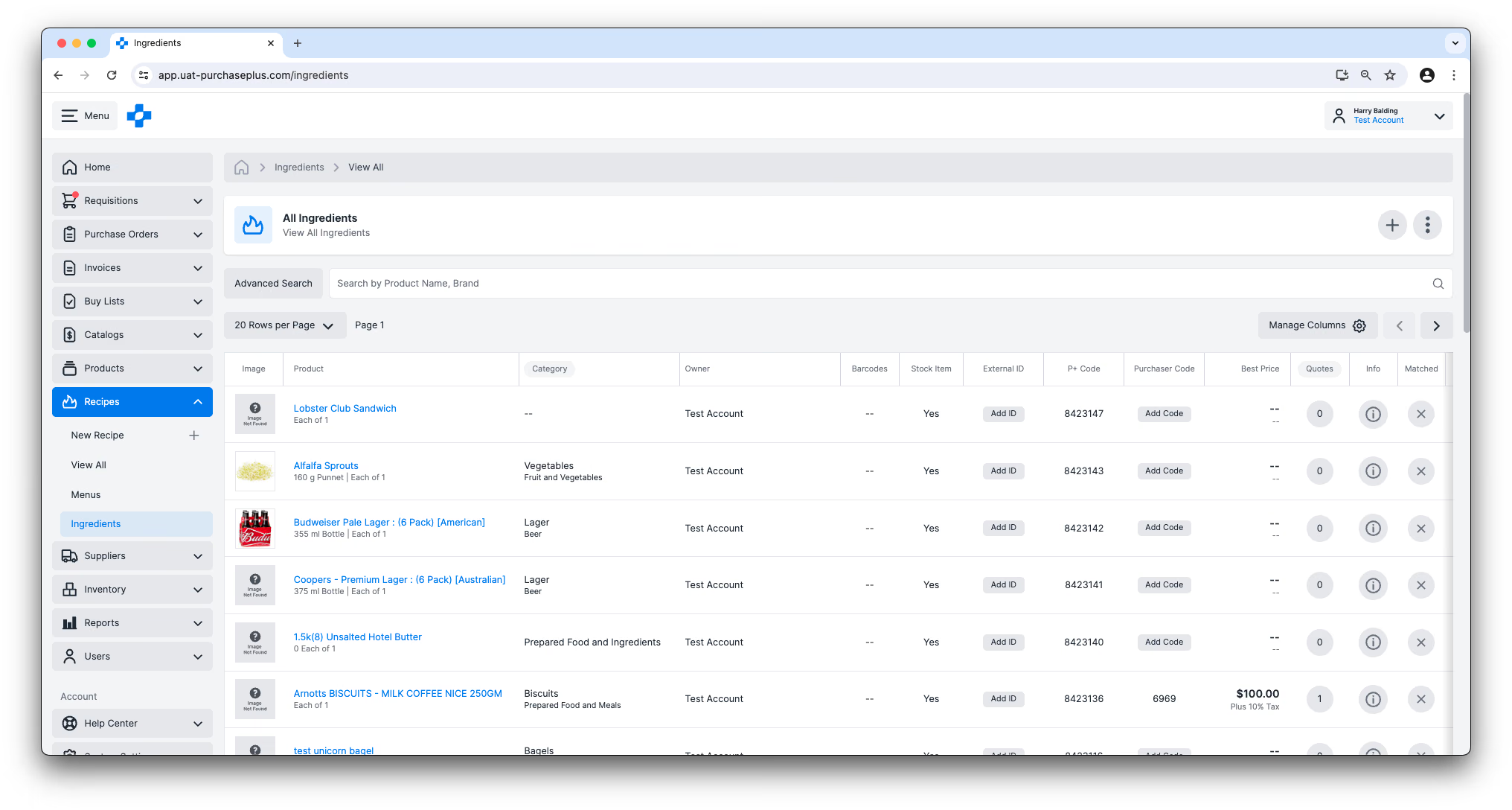
From this table view, you can also take a number of actions using the [More] menu on the right hand side of the table:
- View the Product in more detail (noting that all Ingredients are Products, and can be added to Catalogs, Requisitions, etc),
- Add the Product to a Buy List,
- Add the Product to a Self Managed Catalog,
- Create a Barcode for the Product.
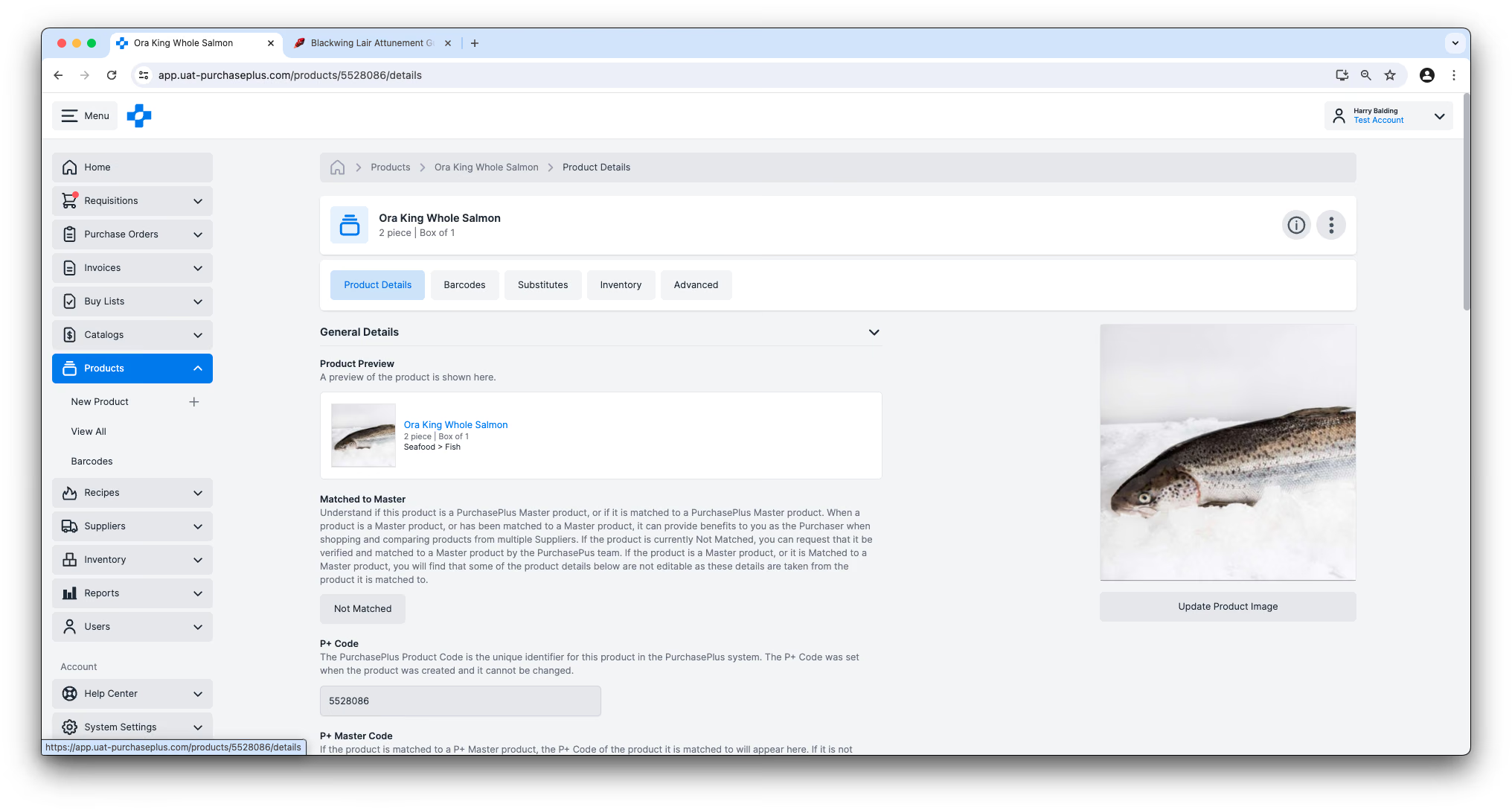
Clicking on the Name of an Ingredient will take you to the page for that Product, where you can manage it accordingly - e.g. add a Barcode, add Substitutes, or change various other Product Settings.
Creating New Ingredients
You can create an entirely new Ingredient by clicking on the [Create an Ingredient] button on the [Ingredients] page:
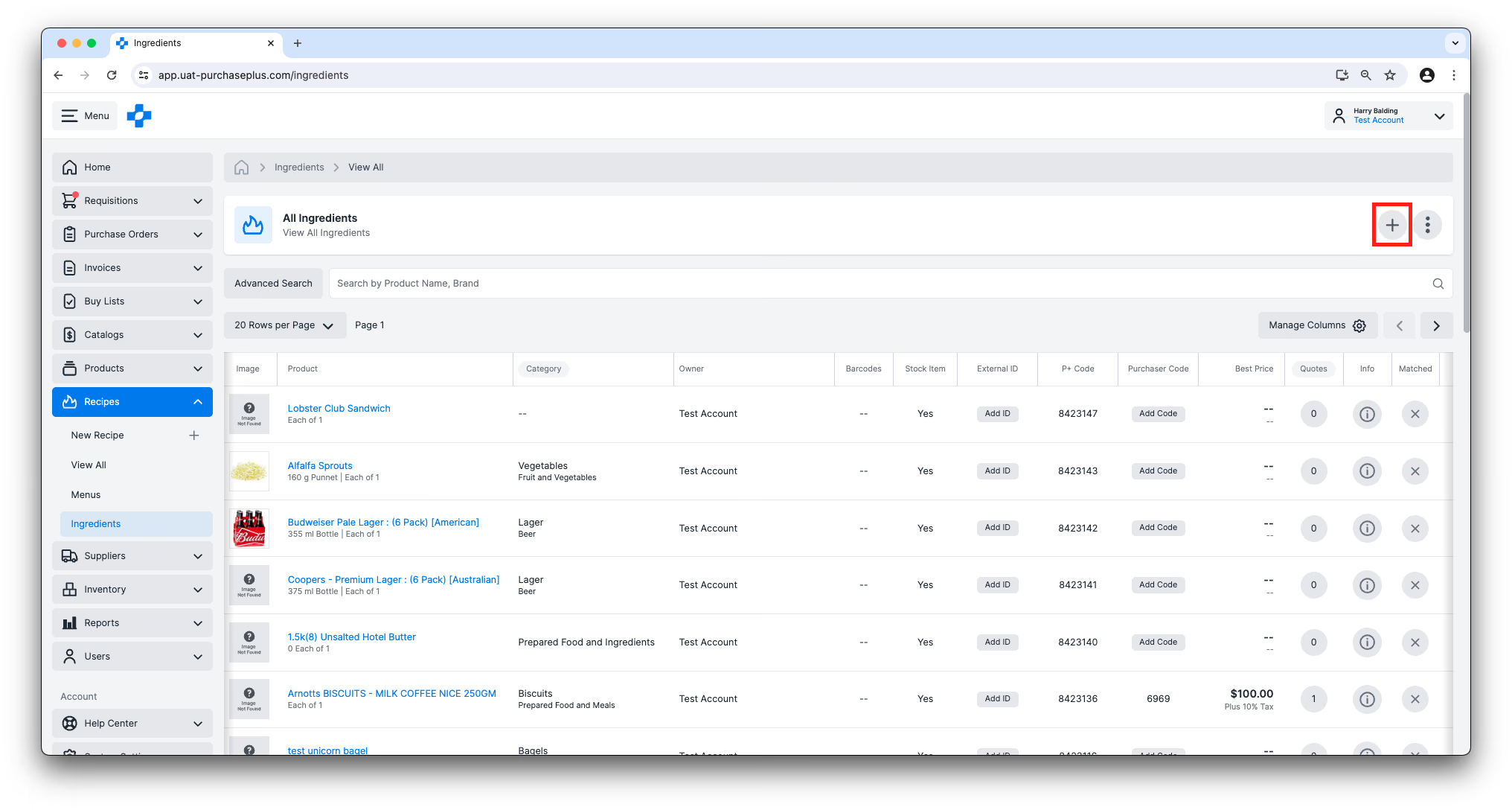
Doing so will create a new Product that is owned by your Organisation, and have a Sell Quantity ‘Each of 1’. The Ingredient will also appear as a product in your All Products area, and your Organisation will be set as the owner of the Product. If your Organisation uses the Inventory Module, the new Ingredient will also be made a Stock Item by default.
Cloning Supplier-Owned Products
If one of your Registered Suppliers owns a Product that you wish to use as an Ingredient (but not use their product directly, for the purpose of controlling the product data), you can Clone that Product (assuming it is an ‘Each of 1’ Sell Pack), and it will be available to your Organisation as an Ingredient.
You can add the original, Supplier-owned Product to your new Ingredient as a Substitute for the Cloned Product if you wish to keep a close eye on the price movements of the original Product.
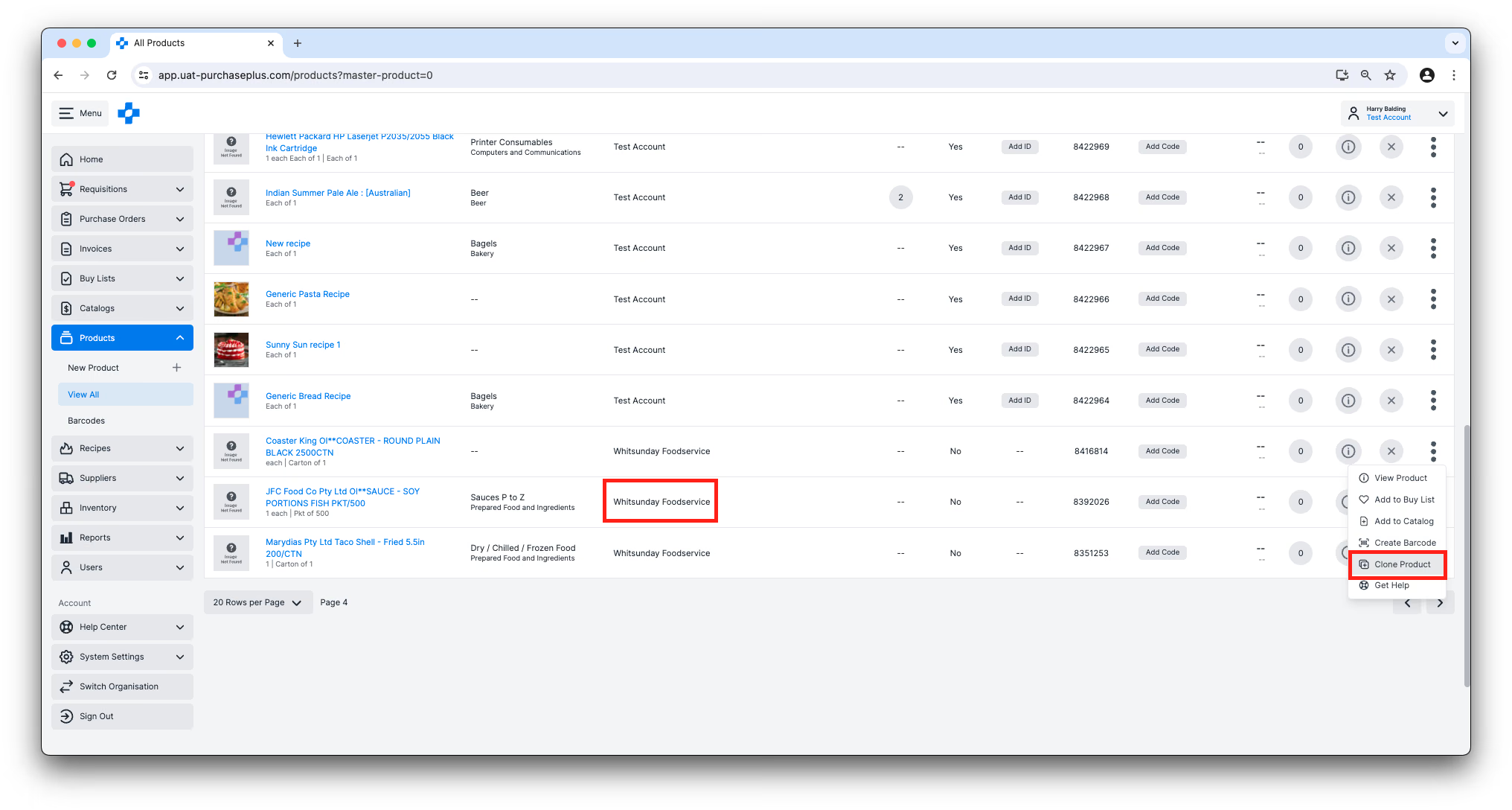
To Clone a Supplier-Owned Product, locate the Product in the list of [Products] → [View All] table, and then select [Clone Product] from the [More] menu:
Ingredient Costs
The cost of an Ingredient is very important, as it filters upwards and allows users to understand the costs (and profitability) of their Recipes and Menus. The ‘cost’ of the Ingredient in this context is determined by either:
- For Inventory Recipes: the Ingredient Cost Price uses the live lowest Catalog quote. The Recipe header Cost Price stays on the Stock Item Average Unit Value, or
- The lowest-available quote for the Ingredient from your Suppliers (for Non-Inventory Recipes):
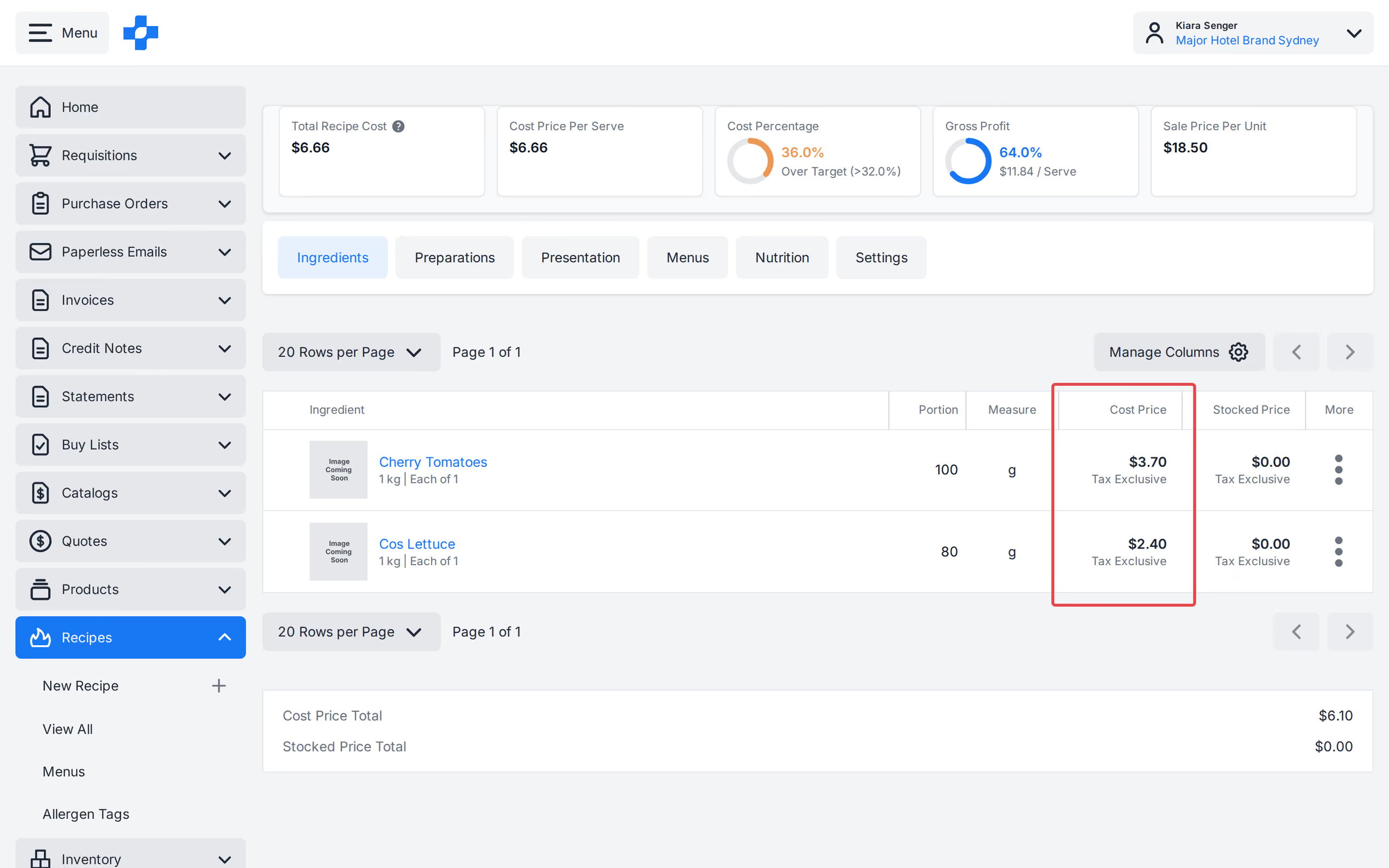
If your Ingredients do not have a Cost value, please follow these steps:
- If your Organisation uses Inventory Recipes, you need to ensure that the underlying Stock Item has a Unit Value.
- If your Organisation does not use Inventory Recipes (and therefore relies on Supplier Quotes for its Ingredient costings), you can take one of the following actions:
- For Self-Managed Products: Add the Ingredient to a Self-Managed Catalog that is assigned to one of your Suppliers and ensure that it has a Unit Price and Tax % specified. You can also ask our Catalogs Team to match a Self-Managed Product to a Master Product, and then get quotes from your Suppliers on that Master Product. Get in touch with our Catalogs Team.
- For Supplier-Managed Products, confirm that the Product you are trying to add to the Recipe is included in a Supplier Catalog.
Ingredient Allergens
Ingredients can have one or more 'Allergens' that are quickly identifiable in our system. In fact, our AI can even detect and suggest some Allergens per Ingredient and per Recipe, to save your team members time when assessing the Ingredients in a Recipe.
This is Part 3 of our Introduction to Recipes series.
- Read Introduction to Recipes, Part 1
- Read Introduction to Recipes, Part 2: Menus
- Read Introduction to Recipes, Part 4: Allergens
Get started with Recipes
If your Organisation would like to begin using the PurchasePlus Recipes module, please contact your Account Manager or our friendly Customer Success Team for assistance with enabling the module, and to organise training for your users (if required).
Note for Purchasers using Legacy PurchasePlus
The Recipes module in PurchasePlus has been redesigned and reengineered, and it is materially different to the Legacy PurchasePlus Recipes Module. Purchasers migrating from Legacy PurchasePlus to PurchasePlus will need additional migration support to begin using Recipes, as Recipe, Menu and Ingredient data in Legacy PurchasePlus is not automatically available in PurchasePlus.