

Run a Report
Run a Report
Run a Report
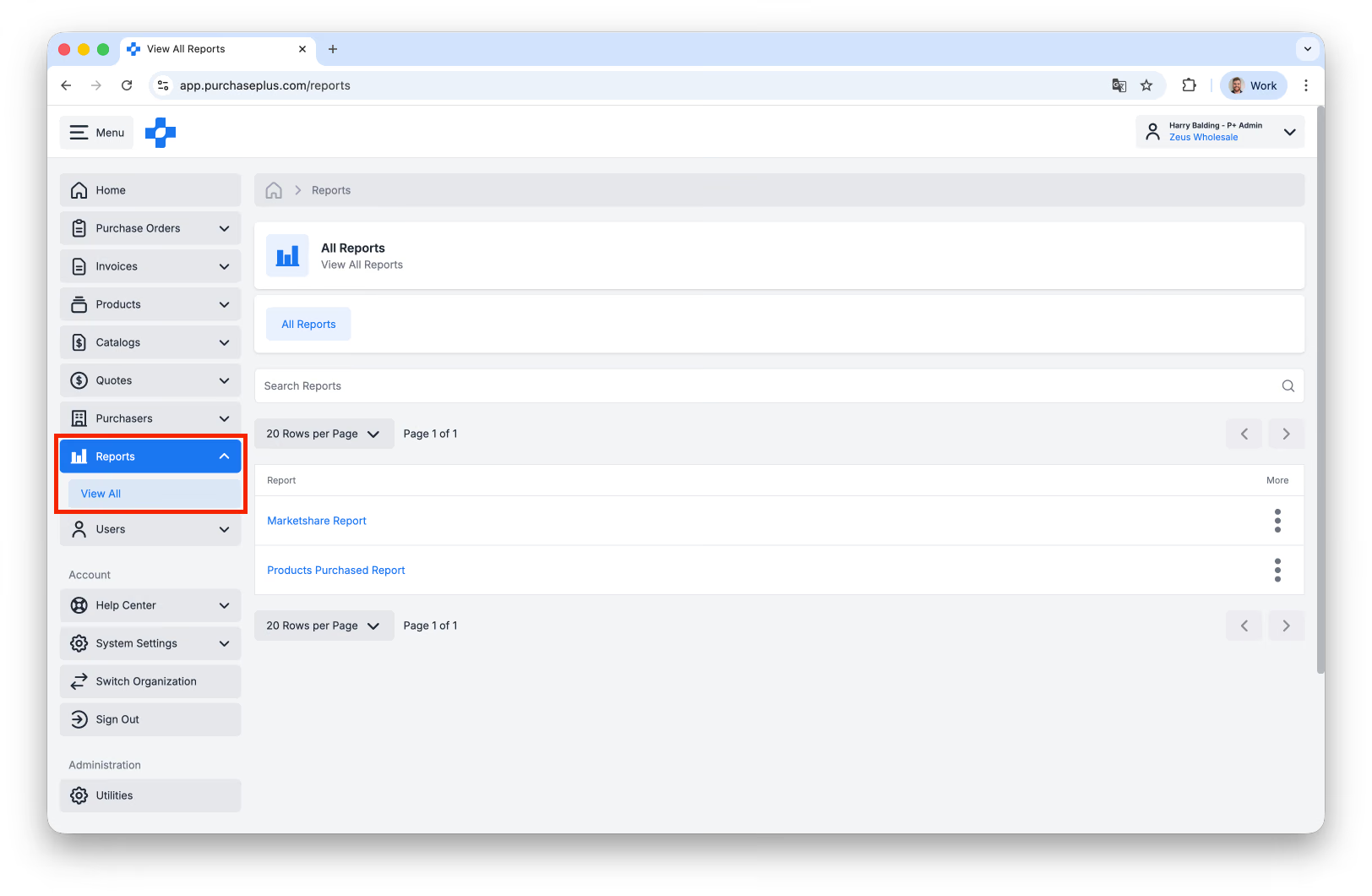
1. Click [Reports] → [View All] from the side navigation bar.
2. Select the [Report] you would like to run:
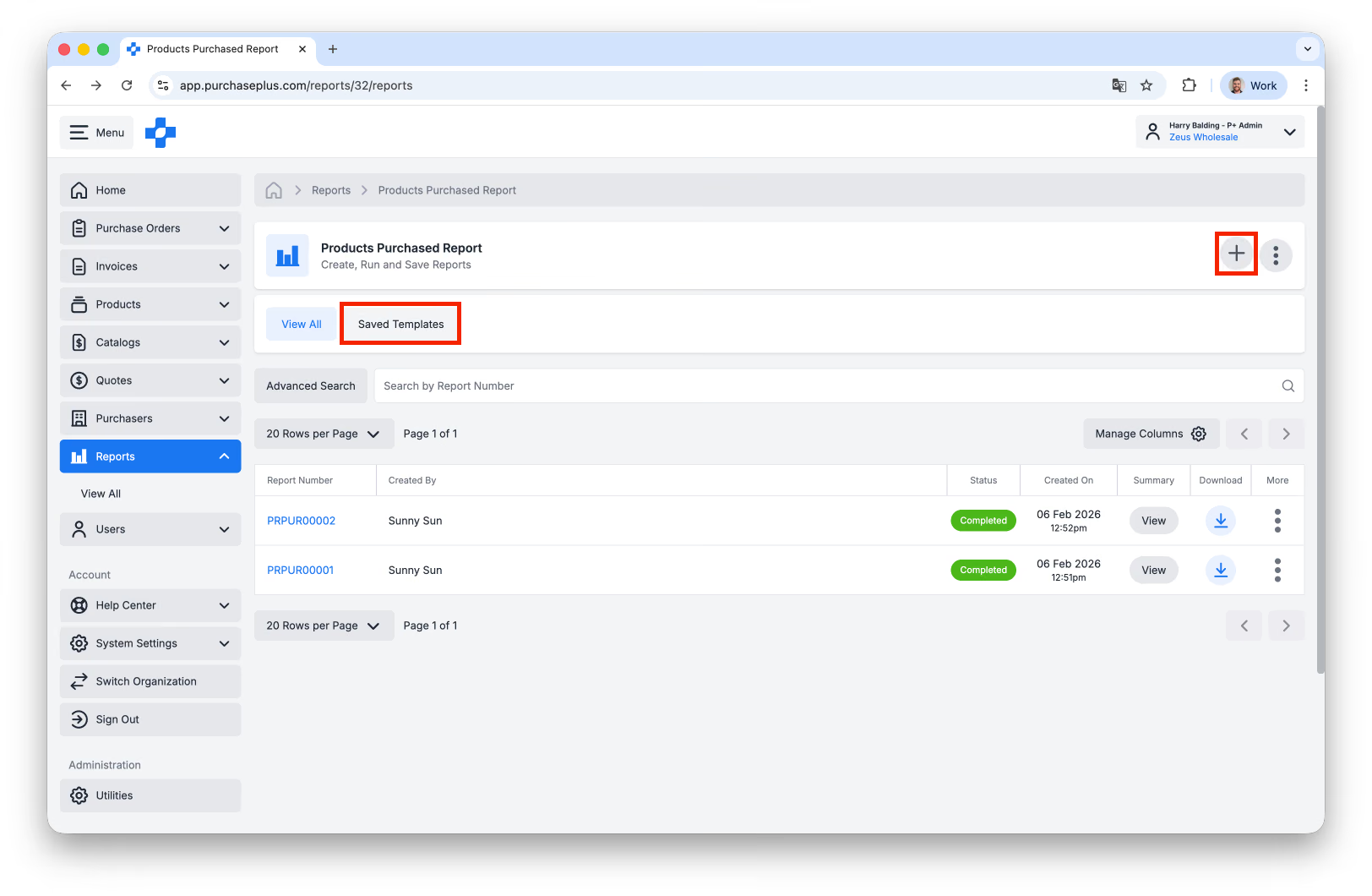
3. You can view previous executions of the Report, as well as its status, creation timestamp, the User that generated it, and a Download Link.
4. Click [Create a New Report] located in the top right corner. You may also choose to Create a Report from a [Saved Template], if one exists (see Steps 5a-d for more information).
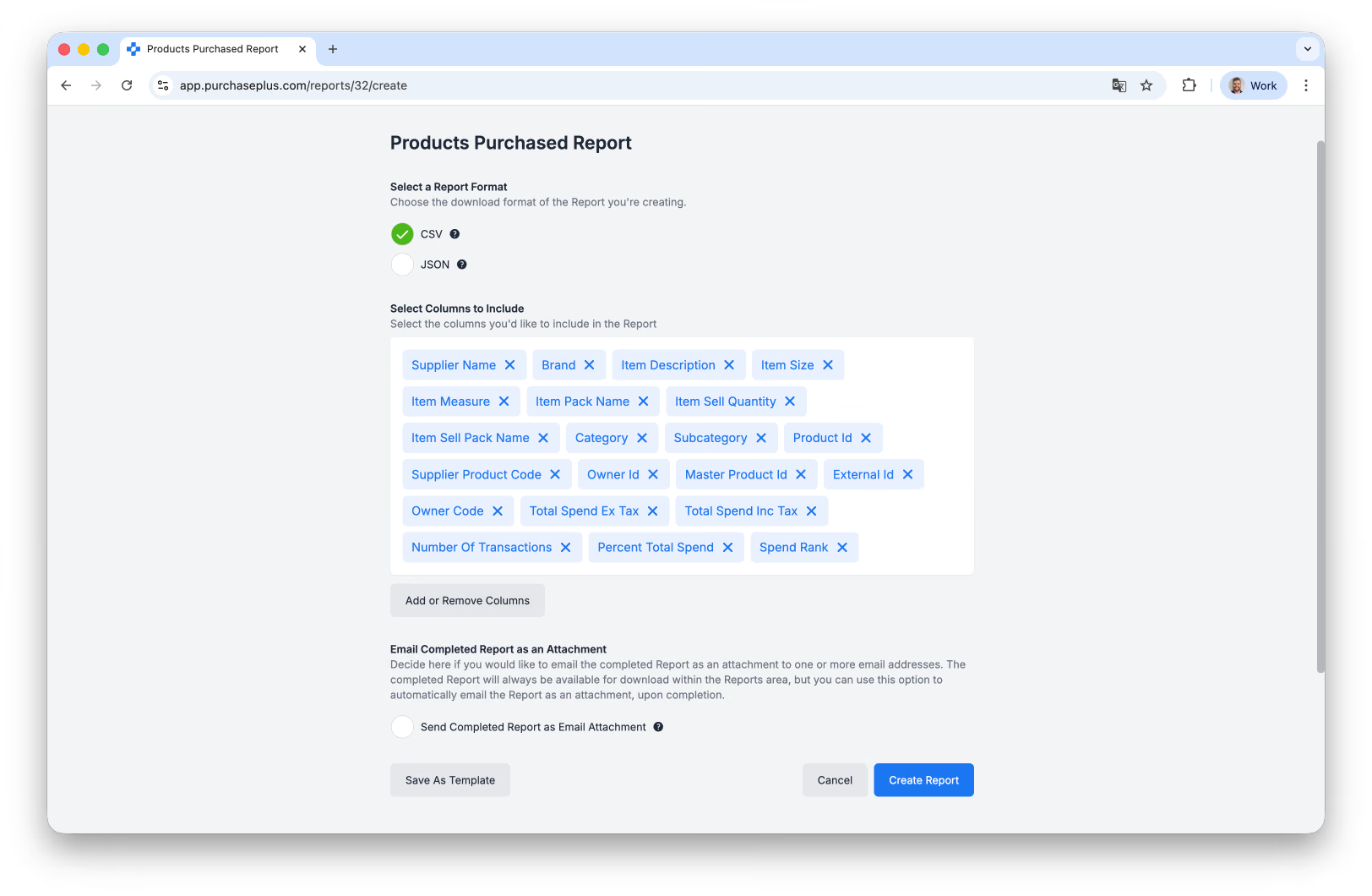
5. Complete the New Report form that specifies the information you would like included in the Report. Every report will have different options to select. For example, the Products Purchased Report Builder Form includes the following options:
- a. Select a Report Format.
- b. Select Columns to Include. You can [Add or Remove Columns].
- c. Select [Send Email Completed Report as an Attachment] → [Add Email Address] if desired.
- d. Choose if you would like to [Save As Template], if you run this report often. Enter a 'Template Name' and click [Save Template]:
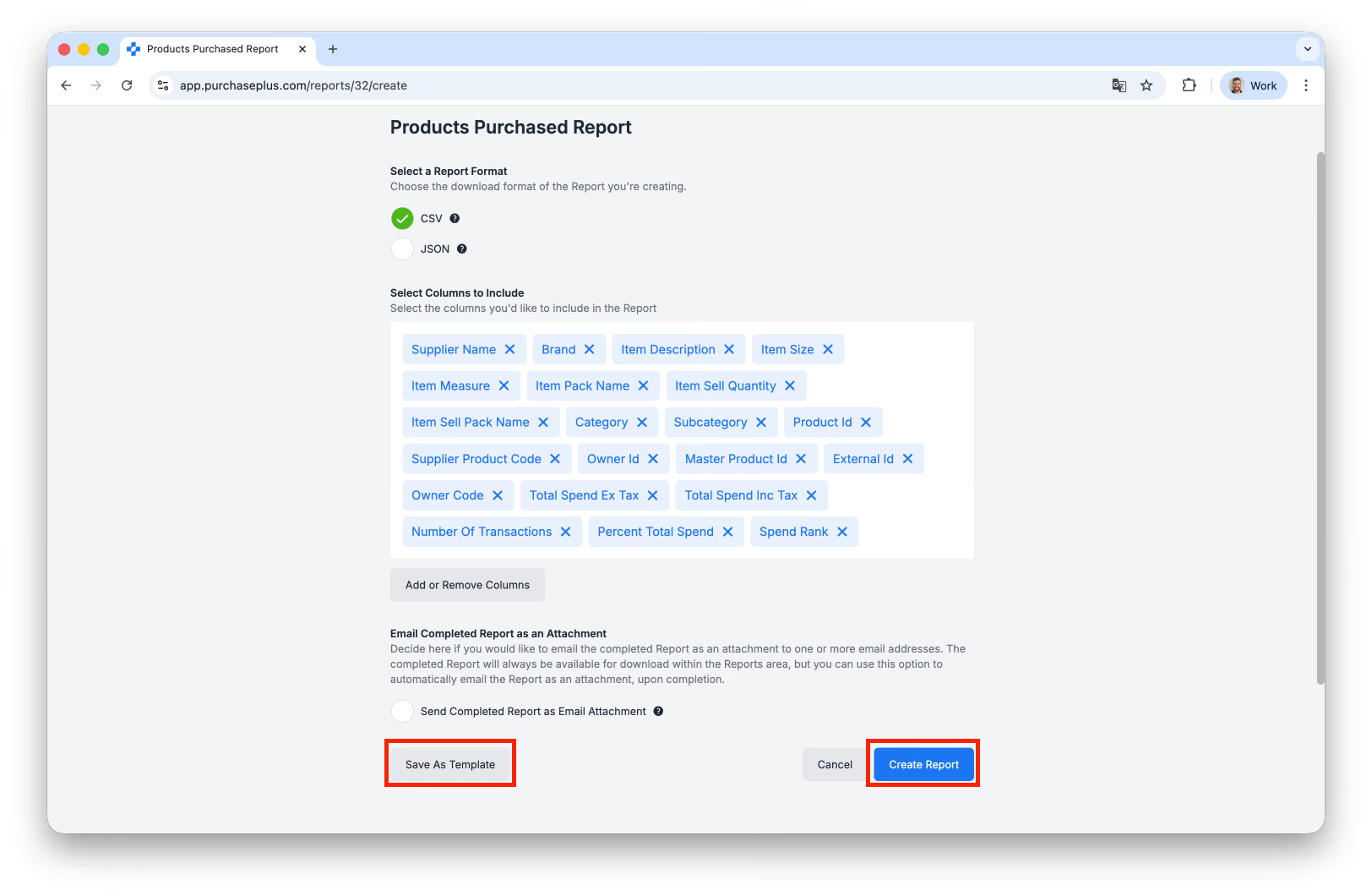
6. Click [Create Report], when you are ready. The Report Status will move from 'Processing' to 'Completed', when the Report is ready to be viewed.
7. Click [Report Number] to view the Report on PurchasePlus.
Download a Report as CSV or PDF
Once the Report has finished processing, you can select [Download] to save the file on your device as CSV.
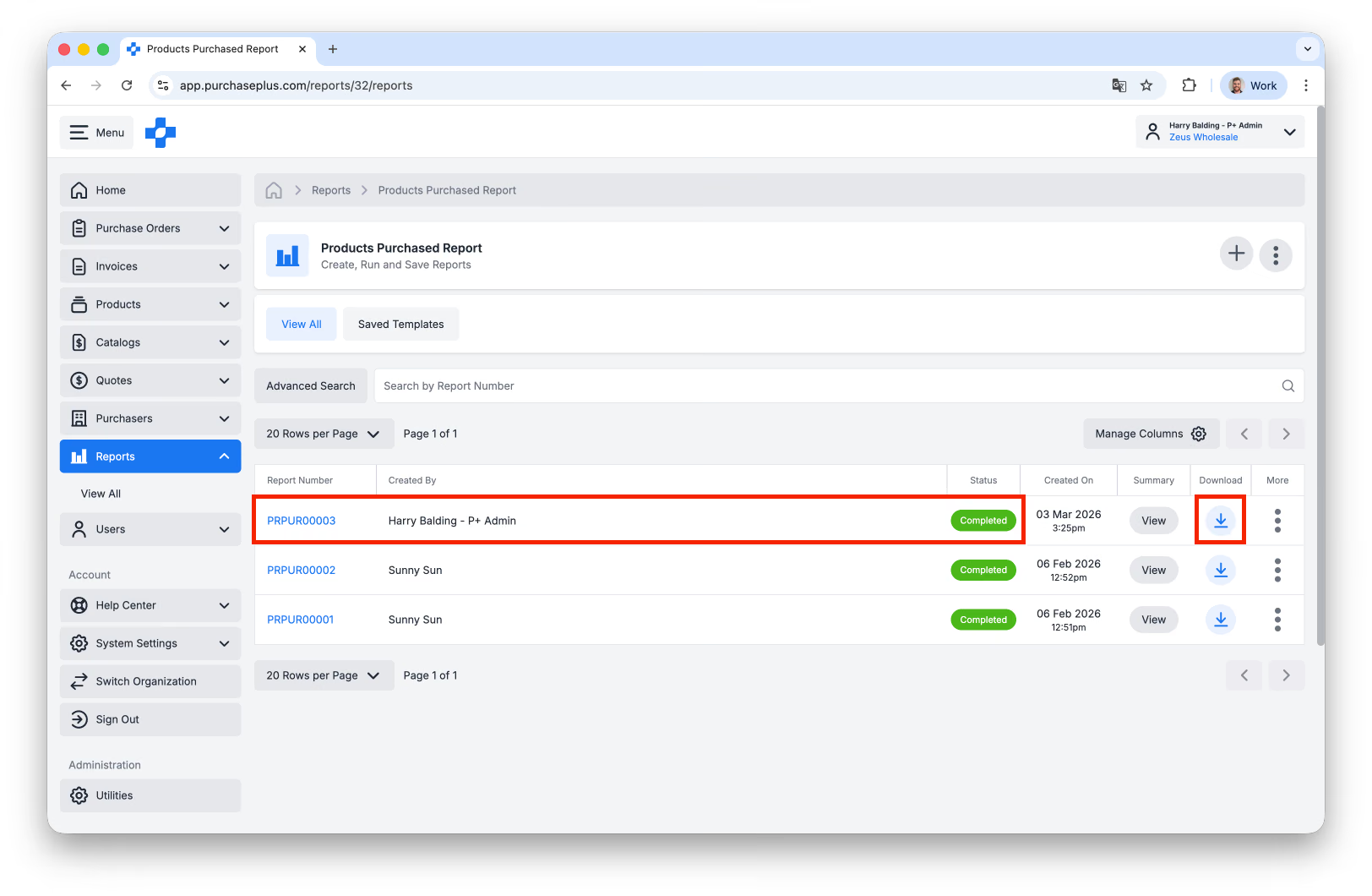
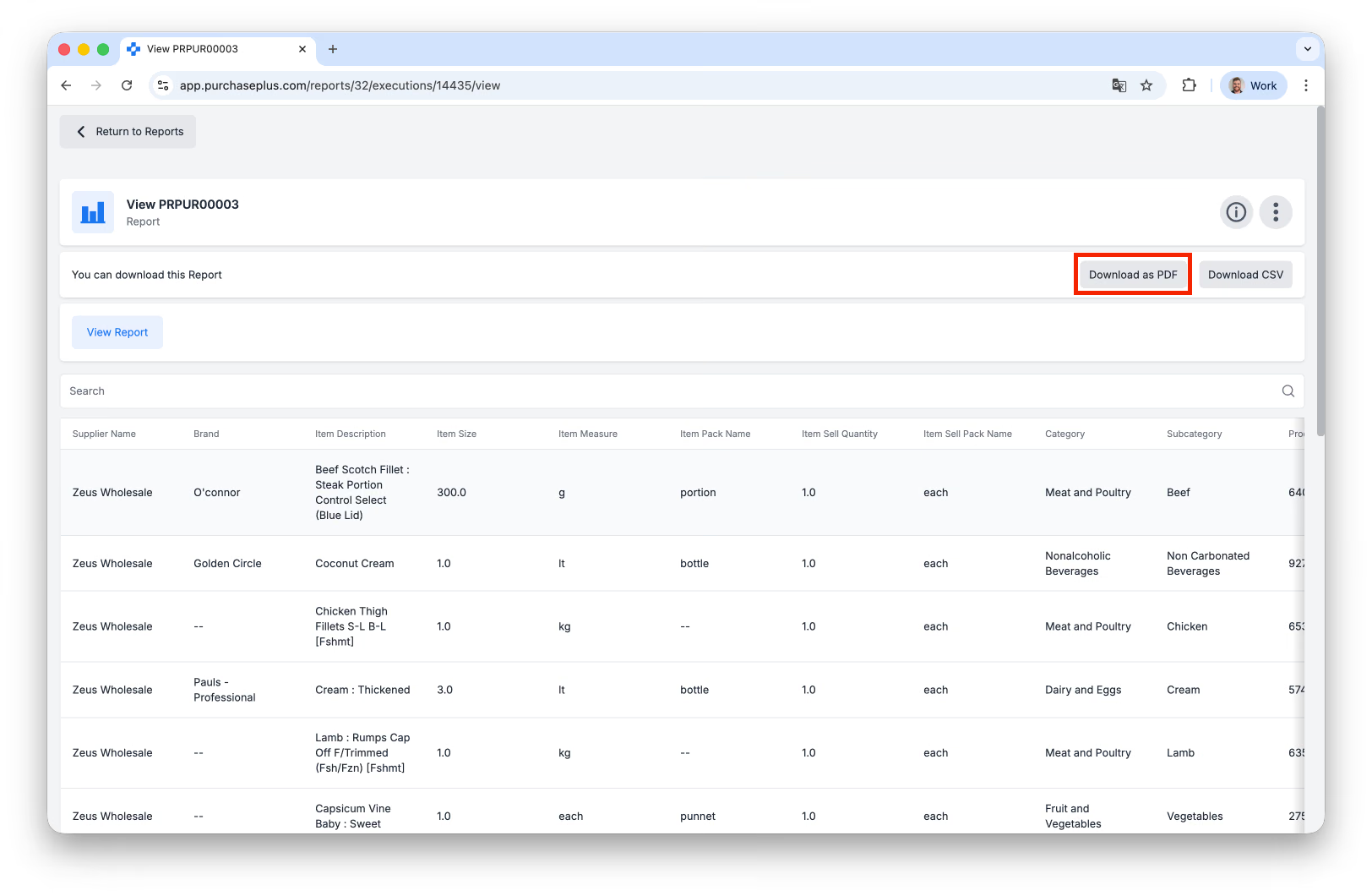
If you prefer, you can download the report as PDF by clicking on the Report Number from the table, and then clicking [Download as PDF]:
Available Reports
- Invoice and Credit Notes Report
- Marketshare Report
- Products Purchased Report
Additional Support
Our Supplier Relations team is available for additional support by contacting help.suppliers@purchaseplus.com