

Purchasing and Receiving
Purchasing and Receiving
Raise a Requisition
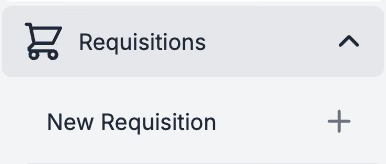
Submit a purchase request (Requisition) for Department spend approval. Requisition types vary, with some offering price comparison and ordering from multiple suppliers at once. Raise a new Requisition under [Requisitions] → [New Requisition] in the left side menu.
Once approved, PurchasePlus generates a Purchase Order for each supplier included in the Requisition.
Requisition Types
For F&B, Kitchen, Front Office, Housekeeping and other Departments that are primarily ordering physical goods proactively, it is best practice to use the 'Buy List' type for the fastest method of purchasing.
Other Departments that are raising ad-hoc orders, you might use the 'Single Supplier' type and for those creating retroactive Purchase Orders from an Invoice, you can use the 'Re-Order' type.
| Multiple Suppliers | Price Comparison | Pre-defined list of products | |
|---|---|---|---|
| Buy List Requisition | ✅ | ✅ | ✅ |
| All Supplier Requisition | ✅ | ✅ | ❌ |
| Single Supplier | ❌ | ❌ | ❌ |
| Re-Order Requisition | ✅ | ❌ | ✅ |
Remember
- Input a Reference to easily identify the Requisition later. e.g. general description, event name etc...
- Select the correct Department and Account Code for your order.
- Add internal Comments for colleagues, or external Comments to the suppliers.
- Decide whether PurchasePlus should send a copy of the Purchase Order to the Supplier.
- Ad-hoc items can be added to any requisition type, but if its something you regularly purchase, you or your organisation’s PurchasePlus Champion can get it added to one of your Catalogs.
- No time to finish creating a Requisition? It’ll be left in a draft state until submitted for approval.
- Retrospective Purchase Order can be created for an Invoice already received, use a Re-Order Requisition against the Invoice number. Make sure to unselect (you do not want the PO to be sent to the Supplier) [Send Copy of PO to the Supplier]
Approve a Requisition
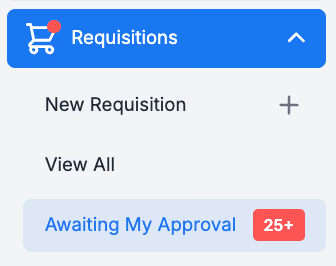
Before any Purchase Orders are generated, Requisitions need to be approved by the designated Approver(s.) If you're an Approver, you’ll see a red number in the [**Requisitions] [Awaiting My Approval**] section.
You can Approve requisitions in bulk or individually. You can also Decline a Requisition.
Remember
Approvers can review and amend details of the Requisition before its approved, including:
- Products, prices and quantities
- Departments and Account Codes on the product lines and entire requisition.
- Order Instructions to the Suppliers
Send Purchase Orders
If your Organisation doesn't have Auto-send Purchase Orders enabled, you’ll need to manually Send your Purchase Orders to the Supplier. Purchase Orders can be viewed in [Purchase Orders] → [View All].
Click the the grey arrow [Send] button in the Send column to send it to the supplier.

A green arrow means the Purchase Order has already been marked as sent. The number here represents how many Emails or other Send Events have been delivered to the Supplier.

Remember
- Purchase Order still needs to be marked as Sent, even if ‘Send a Copy of the PO to the supplier’ was deselected when creating the Requisition. Marking as Sent in PurchasePlus indicates the order was placed and can be Received and Invoiced against.
Receive Goods
Confirm the receipt of goods and services against Purchase Orders using the grey [Truck] button.

Remember
- Accurately tracking the Quantity of Goods Received ensures you only pay for what's been received.