

Advanced Product Search
Advanced Product Search
Many actions in PurchasePlus (e.g. creating a Requisition or adding a Product to a Buy List) will present you with the Advanced Product Search feature.
Advanced Product Search Options
The following Search options are available:
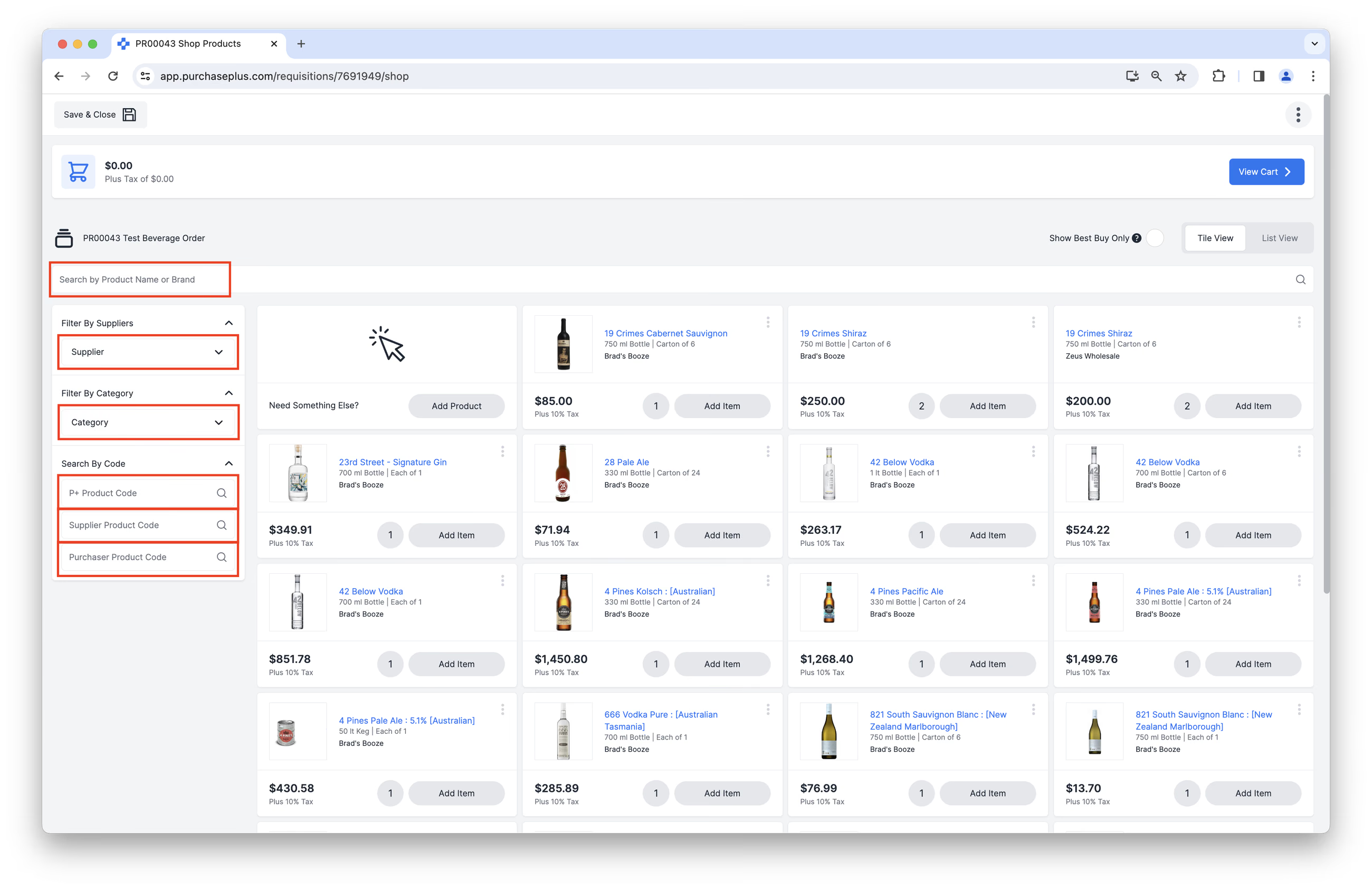
- Search by Product Name or Brand: Search using anything used to describe the Product or the Sell Unit that the Product is contained in, e.g. '19 Crimes Cabernet carton' using the Search Bar.
- Filter By Suppliers: Add or remove Suppliers to your filter. The filter will show only products that contain quotes from your selected Supplier(s).
- Filter By Category: Add or remove Categories and Sub-Categories to your filter. The filter will show only products that are classified with the selected Category or Subcategory/s.
- Search By P+ Product Code: Find products whose unique identifying code in PurchasePlus matches the code that you enter.
- Search By Supplier Product Code: Find products whose Supplier Product Code matches the code that you enter. The Supplier Product Code is the code that a Supplier uses to identify a product.
- Search By Purchaser Product Code: Find products whose Purchaser Code matches the code that you enter. The Purchaser Product Code is the code that your Organization uses to identify a product.
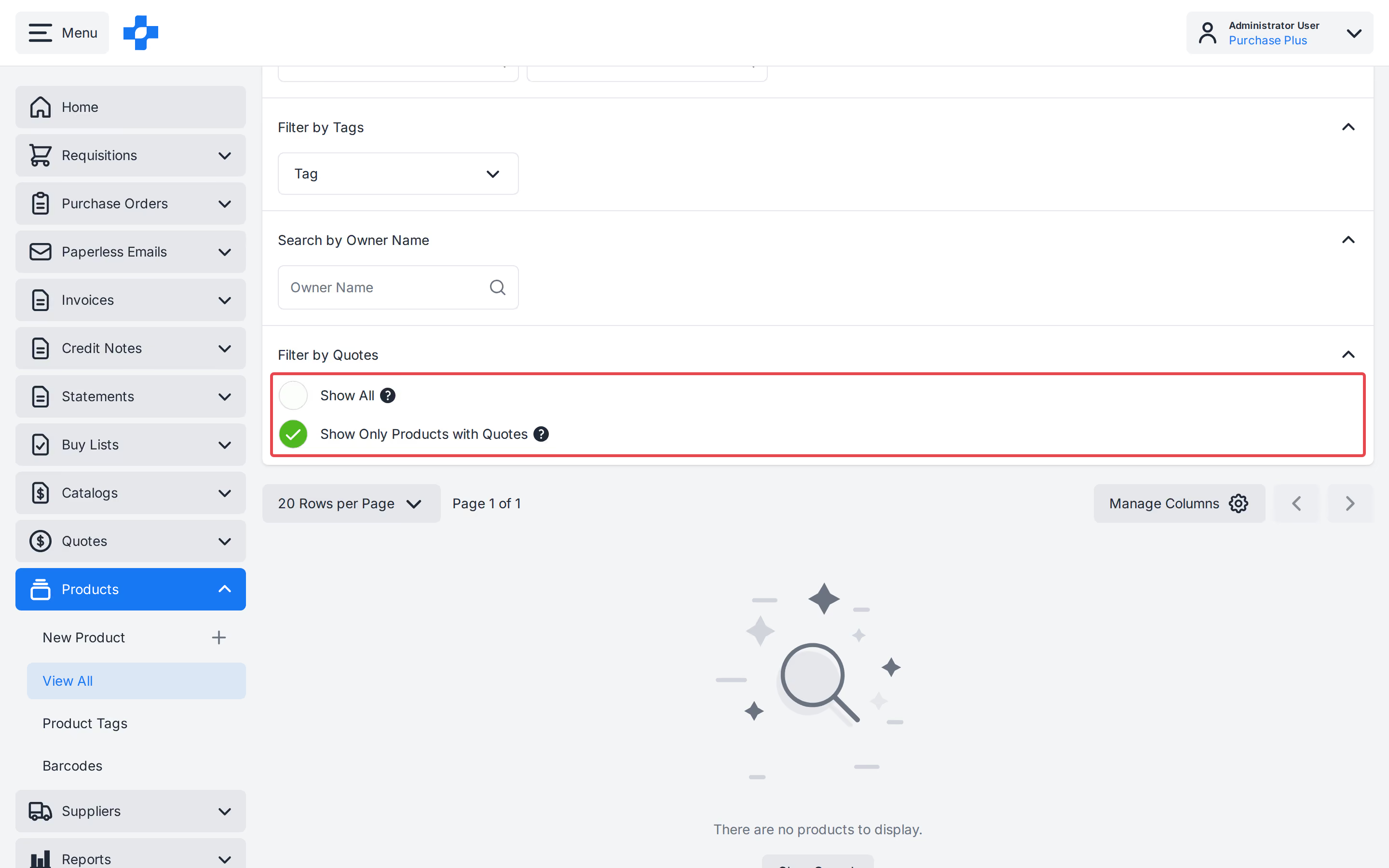
- Show Only Products with Quotes: On [My Products] and [View All], and in Advanced Search, this filter returns only products that have at least one quote. Combine it with other filters when the Products With Quotes tab cannot be used at the same time.
Search Tips
- Enter at least three characters into any search field on our site.
- The search function accepts alphabetic, numeric, and special characters.
- For best results, use specific and relevant keywords. This approach will help you quickly find the exact information or section you're looking for.