

Receive Goods
Receive Goods
Marking Purchase Order line items as Received tells users at your Organisation when a Purchase Order can be closed.
It is also crucial for processing Invoices if your Organisation has opted for 3-Way AP Matching; That is, the Invoice lines are cross-checked against what was ordered (from the Purchase Order) and what was received (on the Goods Receiving Note), before being able to be Reconciled.
Create a Goods Receiving Note
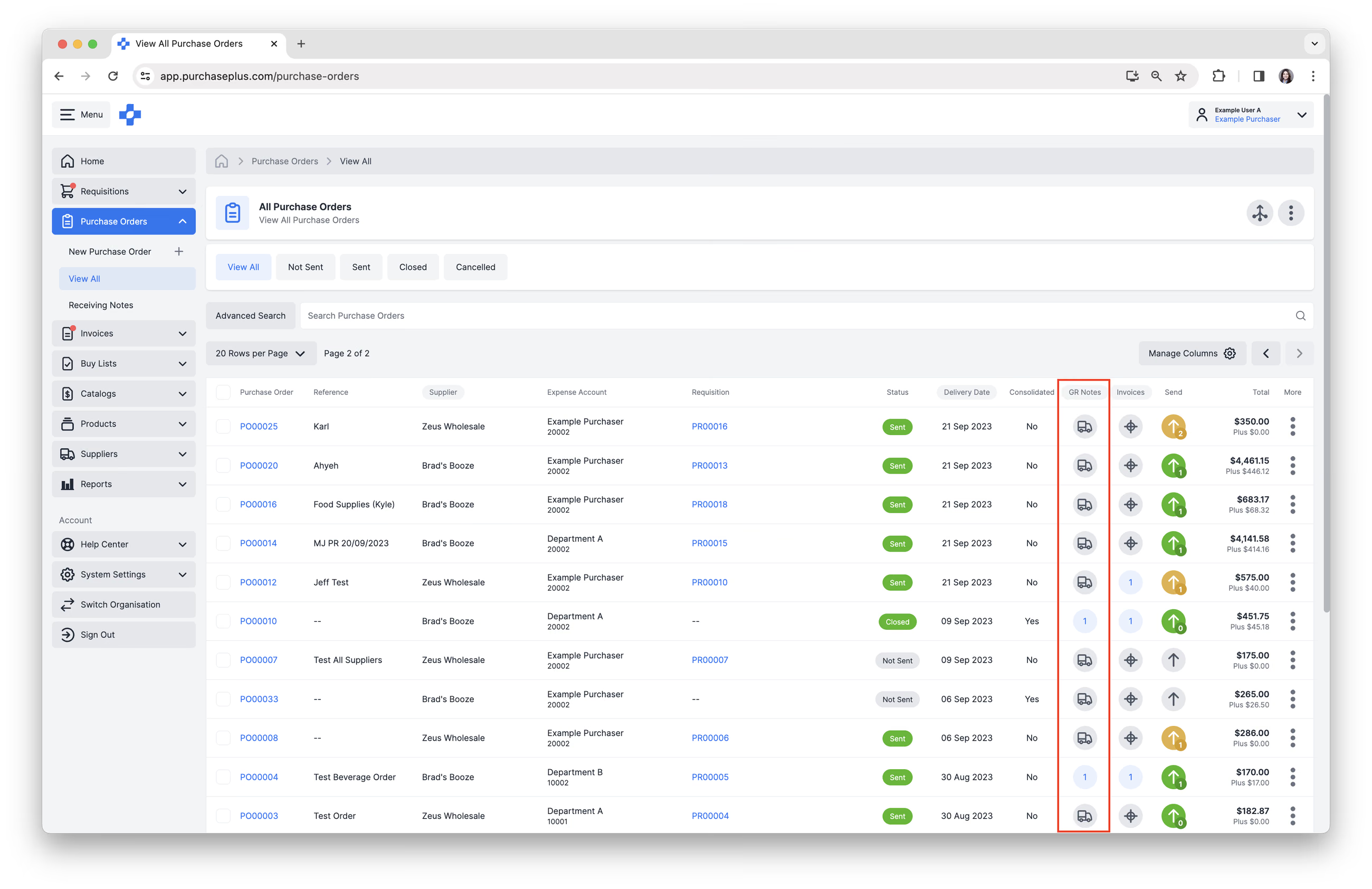
To create a new Goods Receiving Note, navigate to to [Purchase Orders] → [View All], from the side navigation bar. Click the [Truck] icon in the GR Note column, to create a Goods Receiving Note against the Purchase Order.
Alternatively, open a Purchase Order and click [Receive Goods]. This always opens the Create a Receiving Note screen.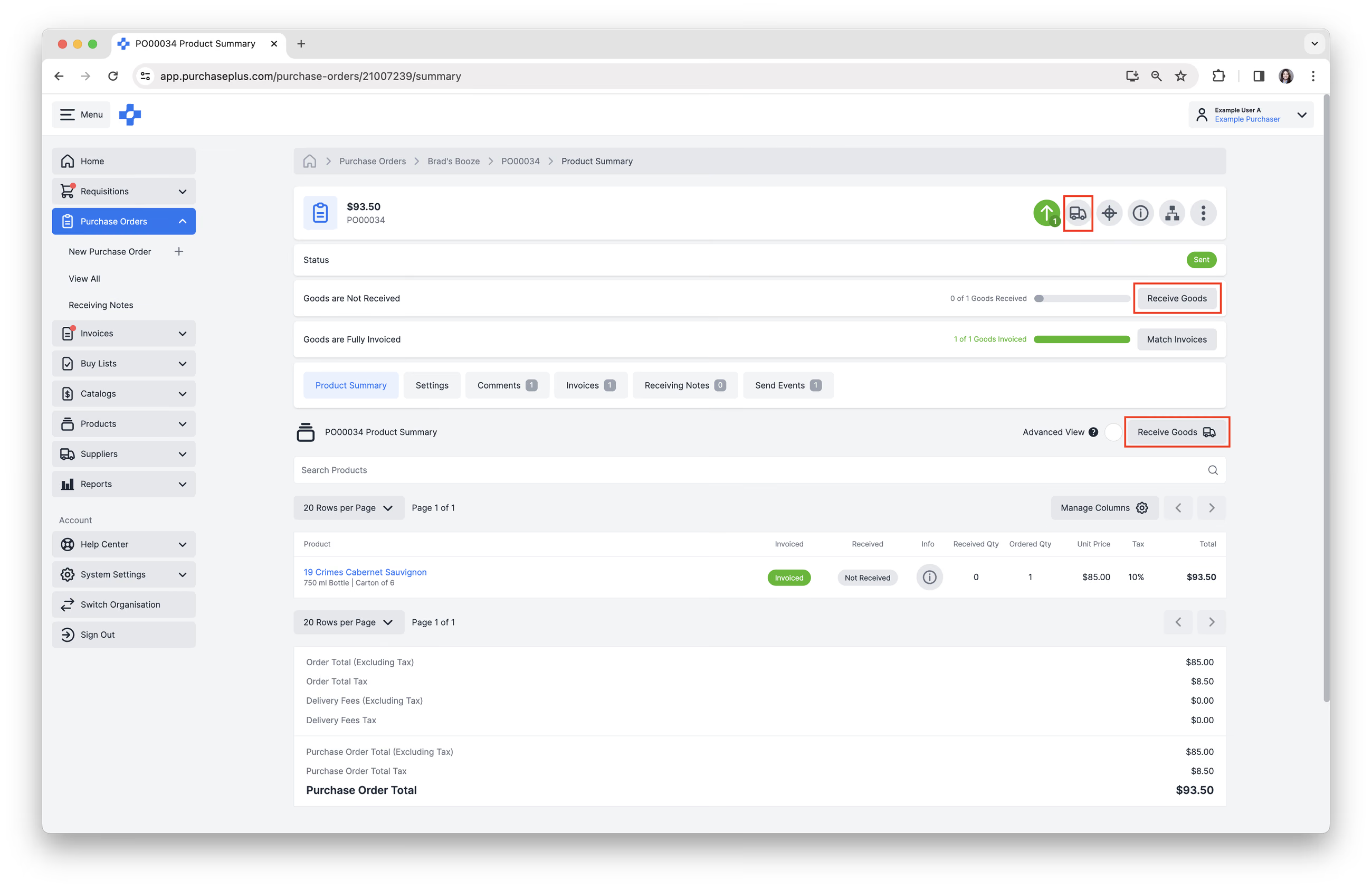
Receive to Inventory
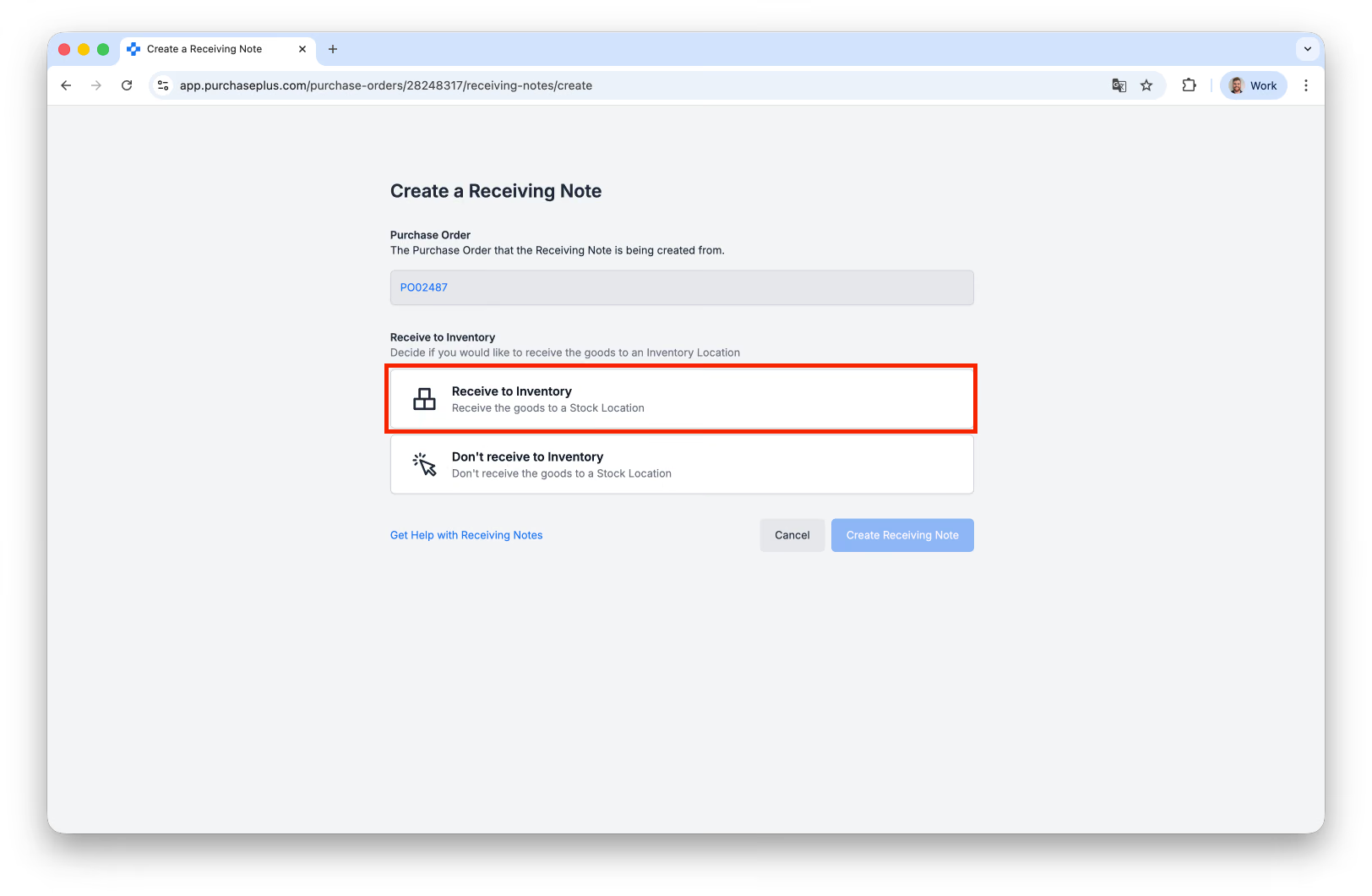
On the Create a Receiving Note screen, choose [Receive to Inventory] or [Don't receive to Inventory]. [Receive to Inventory] updates Stock Levels at the selected Destination Stock Location. The Destination Stock Location list includes Stock Locations and Expense Locations. Stock Locations are listed first (A–Z), then Expense Locations (A–Z).
If Inventory is not enabled for your Organisation, [Receive to Inventory] is disabled and [Don't receive to Inventory] is selected automatically. [Don't receive to Inventory] is available for every Inventory setup, including Organisations without Inventory and Legacy Inventory.
Please read our Receiving Goods to Inventory article for more information.
Receive All Outstanding Items
After you choose [Receive to Inventory] or [Don't receive to Inventory], you can tick [Receive All Outstanding Items]. It is off by default.
Note - On Legacy Inventory, [Receive All Outstanding Items] appears only with [Don't receive to Inventory].
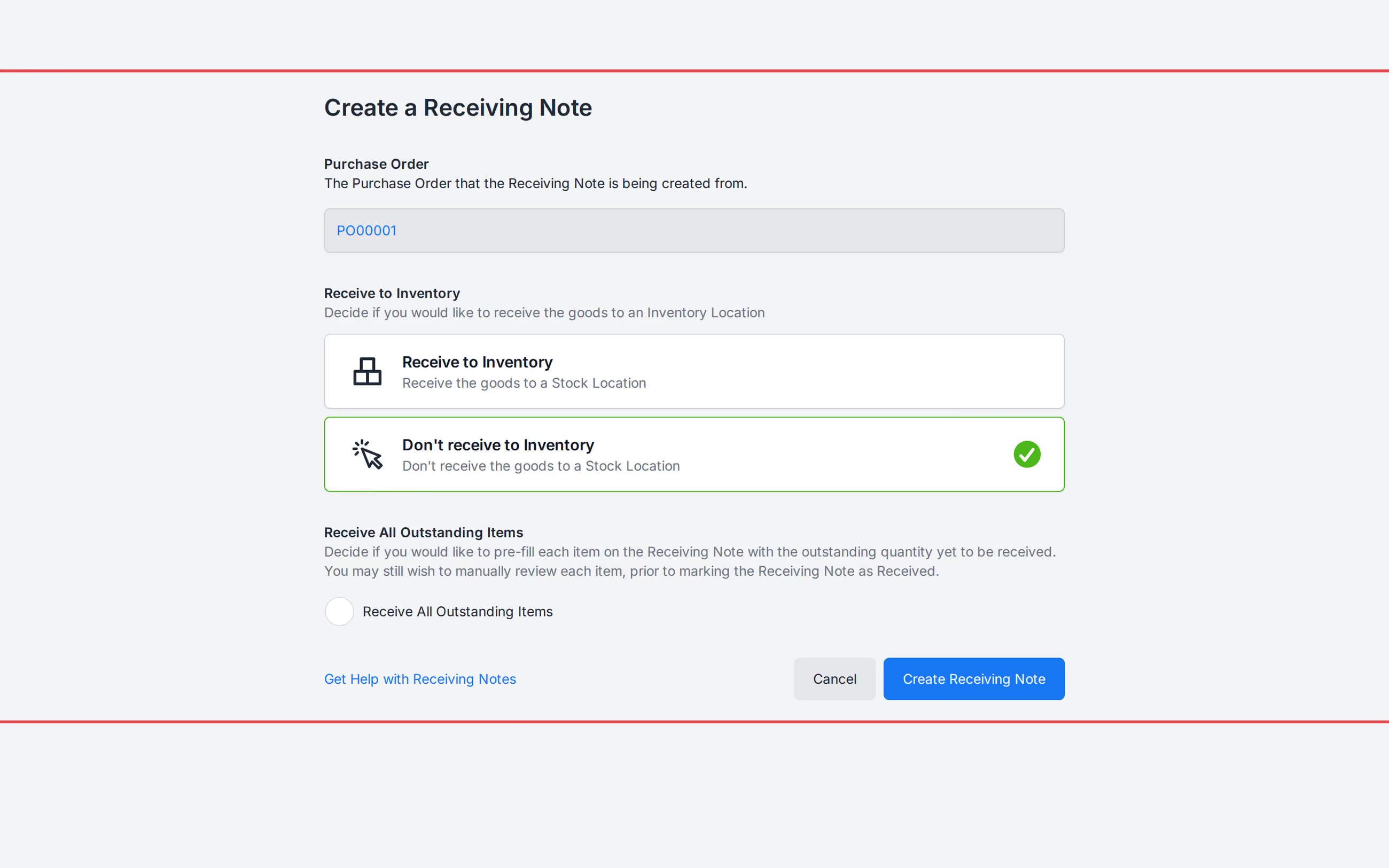
Enabling this option means that every outstanding line item on the Purchase Order, whether is has previously been Partially Received or not, will be pre-filled as a Fully-Received line on the resulting Goods Receiving Note. You then have the opportunity to edit the quantities of the goods being Received, or completing the Goods Receiving Note by clicking [Mark as Received].
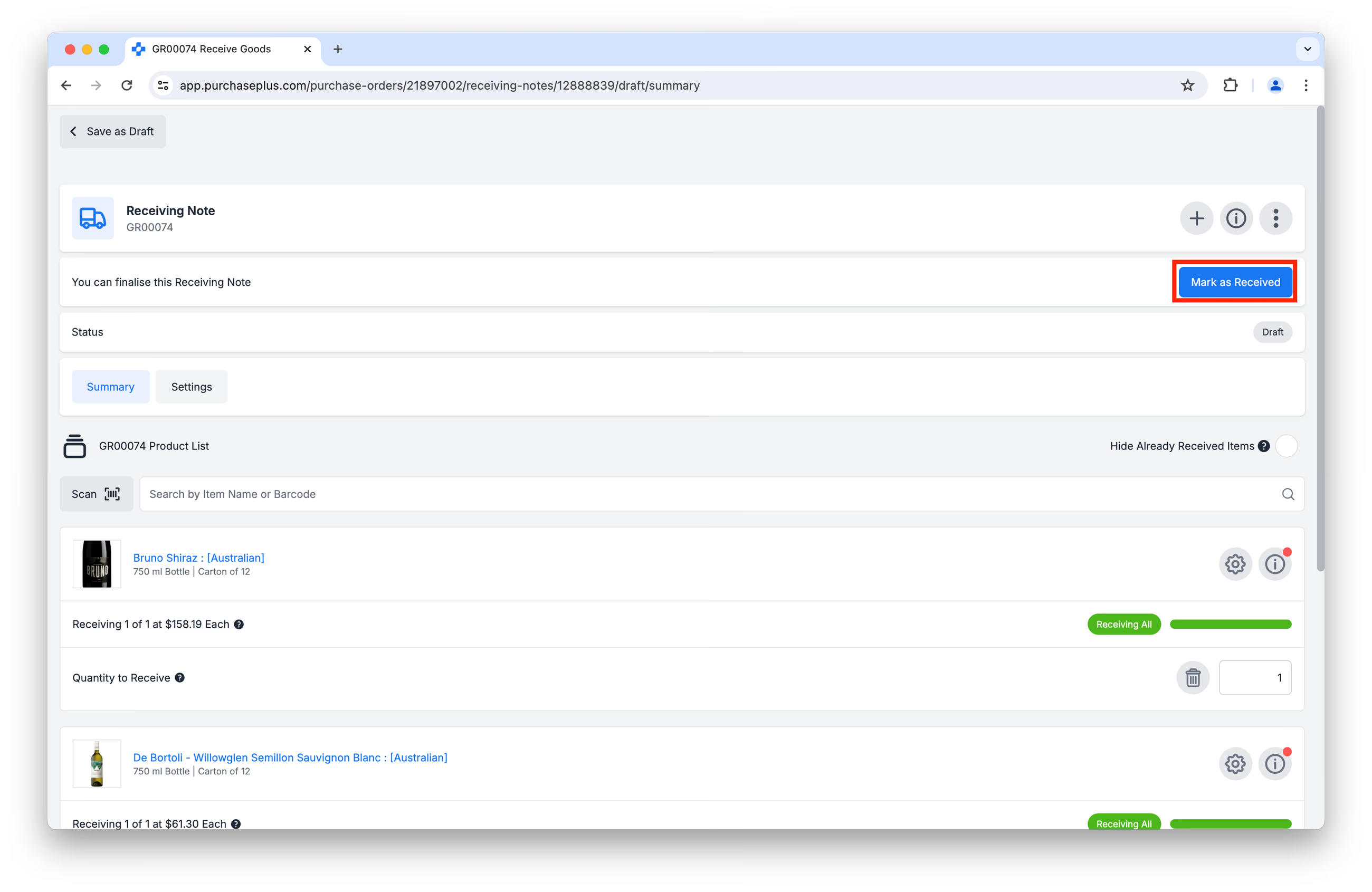
Managing a Draft Goods Receiving Note
As soon as you click [Receive Goods] on a Purchase Order, a Draft Goods Receiving Note is created. You can complete the following actions as required, or you can click [Save as Draft] to return to the previous screen.
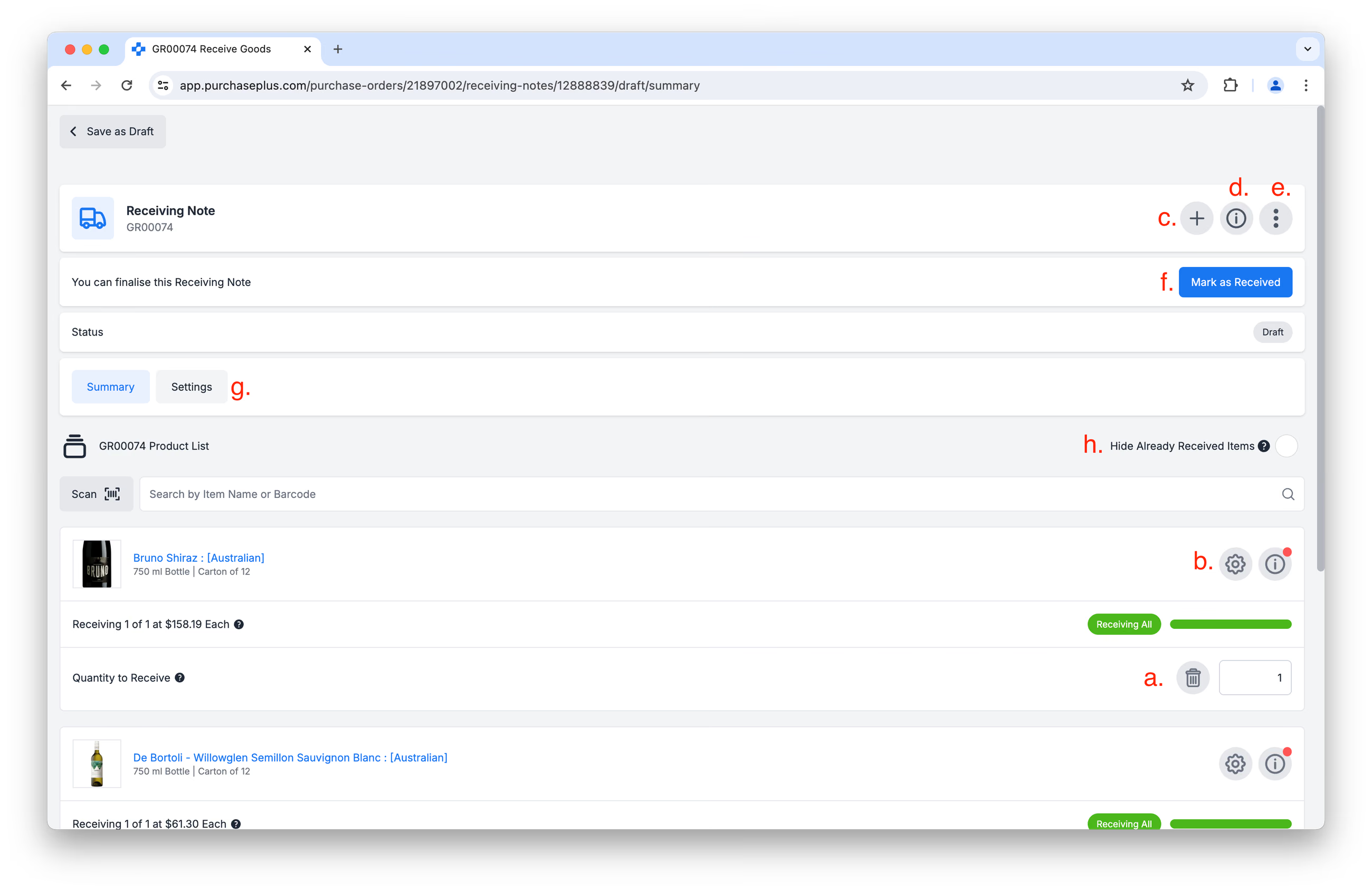
a) Adjust the Receiving Quantity of any item on the Goods Receiving Note.
b) Access Advanced Options to:
- View a summary of Quantities,
- View Linked Invoice Lines,
- Override Receiving Unit Price. This is a fairly-common scenario, arising when the Receiving Price is different to the Purchase Order Line Price (or the Invoice Line, if it is already Linked with an Invoice). Please see our article: Override Unit Price when Receiving for more information.
- Enter line item Comment,
- Record Product Expiry Date,
- Record Vehicle Temperature,
- Record Product Temperature.
c) [Add a Product]. This is helpful when, for example, you need to Receive an ad-hoc product that arrived with the delivery, but was not listed on the Purchase Order.
d) [Show or Hide Details] of Receiving Note.
e) [More Options], allowing you to:
- [View Audit Log]
- [Open in Legacy P+]
- [Cancel Receiving Note]
- [Get Help].
f) [Mark as Received]. Click this button when you have finished editing the Goods Receiving Note and you are satisfied with the data that will be saved.
g) Access the [Settings] tab of the Goods Receiving Note. 'Delivery Date' shows the saved date.
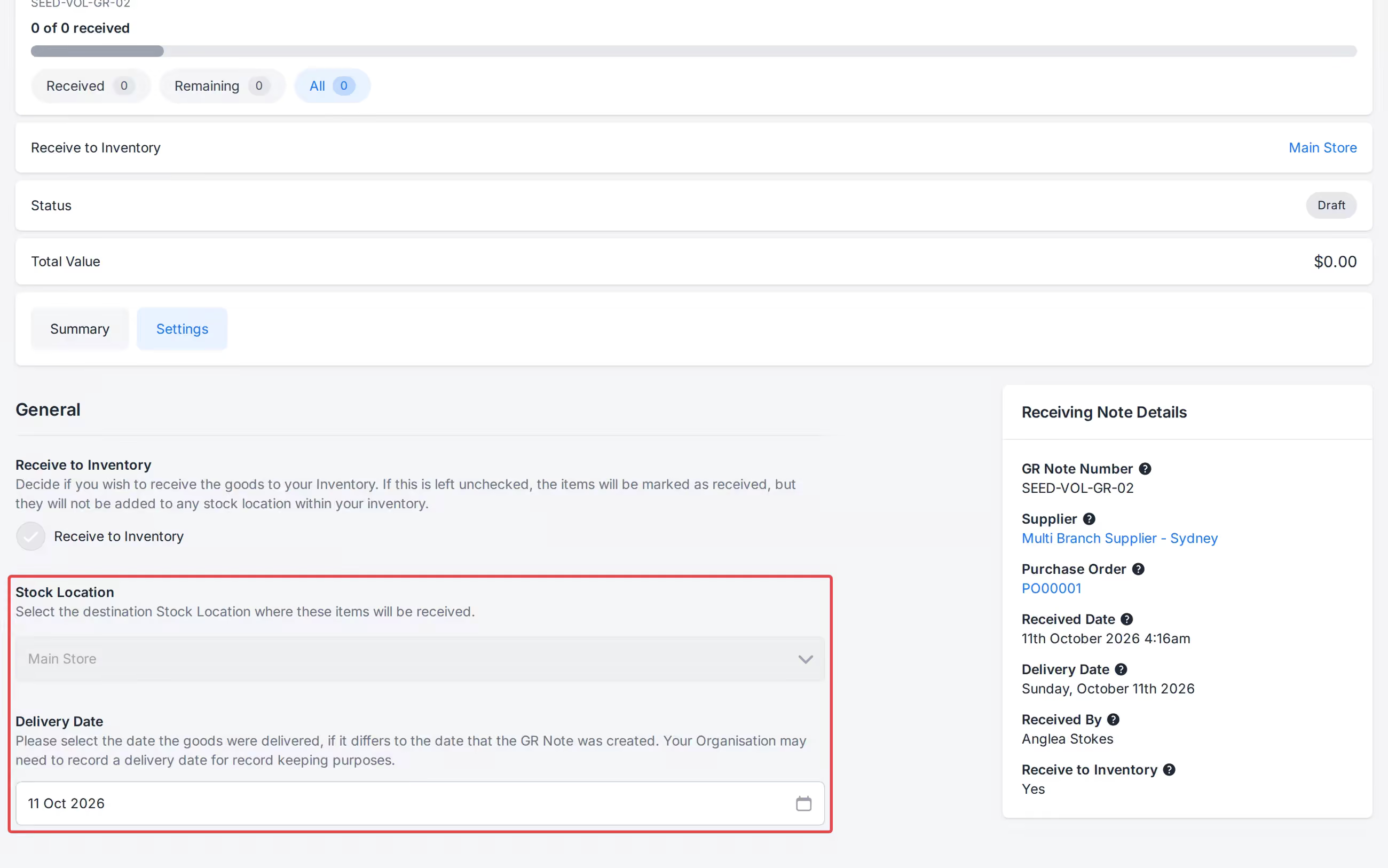
h) You can hide Already Received items by clicking [Hide Already Received Items] towards the top of the page.
Completing a Goods Receiving Note
Clicking [Mark as Received] on a Draft Goods Receiving Note will transition the draft document to a 'RECEIVED' state.
You will first arrive on a confirmation page, where you can click the [View] button to view the completed Receiving Note. If the delivery was Received to Inventory, you will also see a link to any Transfer Notes created.
Additionally, you will see a widget called 'More Purchase Orders', which lists the other Purchase orders that are due for Delivery today or tomorrow (based on the Delivery Date on the Purchase Orders):
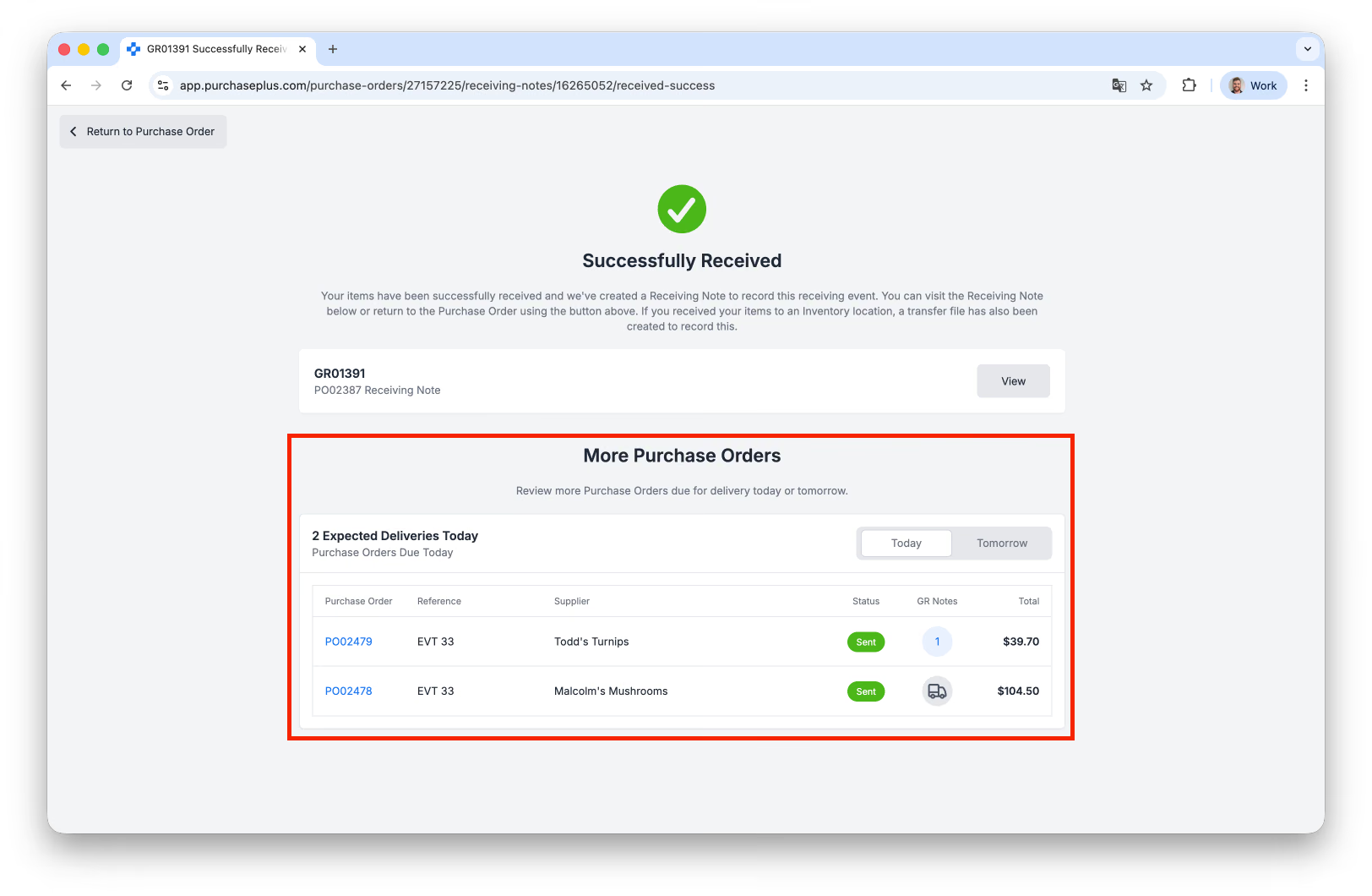
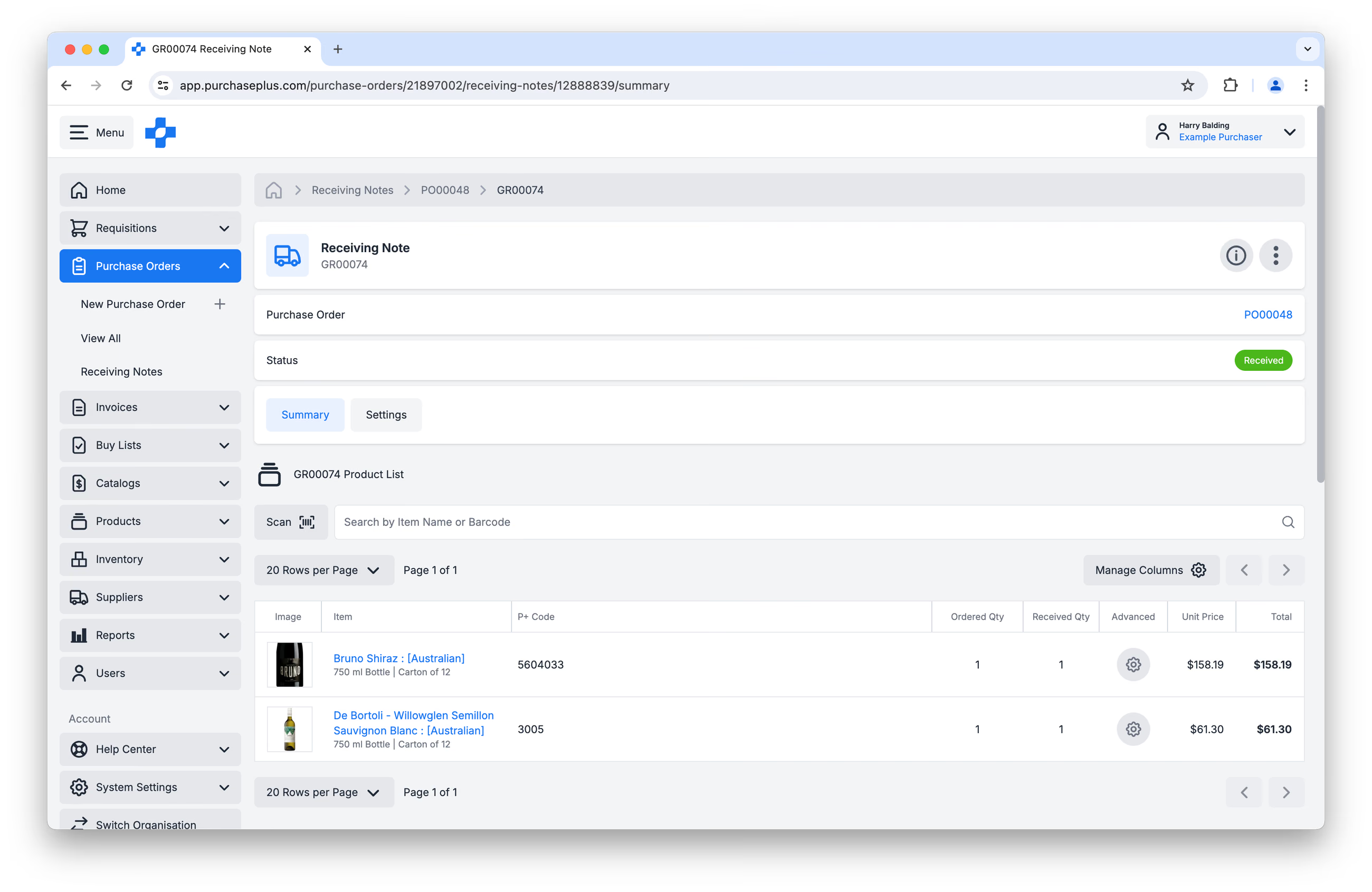
The Receiving Note will be saved permanently in the Receiving Notes tab of the Purchase Order that it belongs to:
Best practices
PurchasePlus currently allows receiving teams to process item quantities that exceed the original Purchase Order (PO) line quantity. There is no hard block, warning, or default tolerance limit restricting over-receipts. Across the system, approximately 5% of all received PO lines (or 1 in 20 items) involve quantities greater than what was originally ordered.
This flex-receiving behavior ensures that inventory counts accurately reflect physical goods on hand immediately upon delivery.
Common Scenarios for Over-Receipts
- Variable Weight Items: Products sold by weight, volume, or dimensions often cannot be delivered in exact round numbers. For example, a PO issued for 10 kg of mince may arrive from the supplier as a 10.66 kg batch. The receiving team should record the actual 10.66 kg delivered to ensure inventory and costing precision.
- Bonus Items, Promotions, & Samples: Suppliers frequently include promotional stock (e.g., "Buy 10, Get 2 Free") or unbilled product samples. To ensure these additional units are legally tracked and available for sale or use, they must be recorded at the point of receipt even if missing from the original PO line.
- Over-Shipments from Vendors: Occasional supplier packing errors or unit-of-measure adjustments may result in extra physical stock.
Best Practices for Receiving Teams
- Always Record Physical Counts: Enter the actual physical quantity delivered rather than forcing the count to match the PO line.
- Do Not Adjust Original POs Pre-Receipt: The receiving module handles the variance natively; adjusting the underlying PO prior to receipt distorts original ordering history.
- Verify Documentation: Ensure any excess stock matches supplier delivery notes or promotional packing slips before completing the receipt note.