

Conectar un proveedor registrado
Conectar un proveedor registrado
Proveedor registrado
Los proveedores registrados son entidades que han creado una cuenta de proveedor en PurchasePlus. Inician sesión para gestionar sus propios productos y catálogos, y asignar dichos catálogos a los compradores.
Como comprador con los permisos adecuados, puede conectarse con cualquier proveedor registrado en la red de PurchasePlus. Una vez que inicie esta conexión, el proveedor estará disponible de inmediato en su área [Mis proveedores], y podrá comenzar a comprar productos de sus catálogos tan pronto como asignen un catálogo a su organización.
Tenga en cuenta que, aunque un proveedor esté registrado en PurchasePlus (y, por lo tanto, pueda asignar sus catálogos a su organización, siempre que exista una relación comercial habilitada), un comprador también puede crear catálogos autogestionados para dicho proveedor.
Proveedores registrados frente a proveedores autogestionados
Los proveedores registrados inician sesión en PurchasePlus y gestionan sus propios productos, precios y catálogos, poniendo estos catálogos a disposición de los compradores directamente.
Los proveedores autogestionados son entidades que no inician sesión en PurchasePlus. Estos proveedores (y sus productos, precios y catálogos) son gestionados exclusivamente por el comprador (o por PurchasePlus en nombre del comprador). Los usuarios compradores pueden crear un proveedor autogestionado en cualquier momento desde el área [Mis proveedores].
Cómo conectarse con un proveedor registrado
1. Seleccione [Proveedores] → [Directorio de proveedores] en la barra de navegación lateral.
2. En [Buscar por nombre de proveedor], busque el proveedor con el que desea conectarse.
3. Haga clic en [Conectar]:
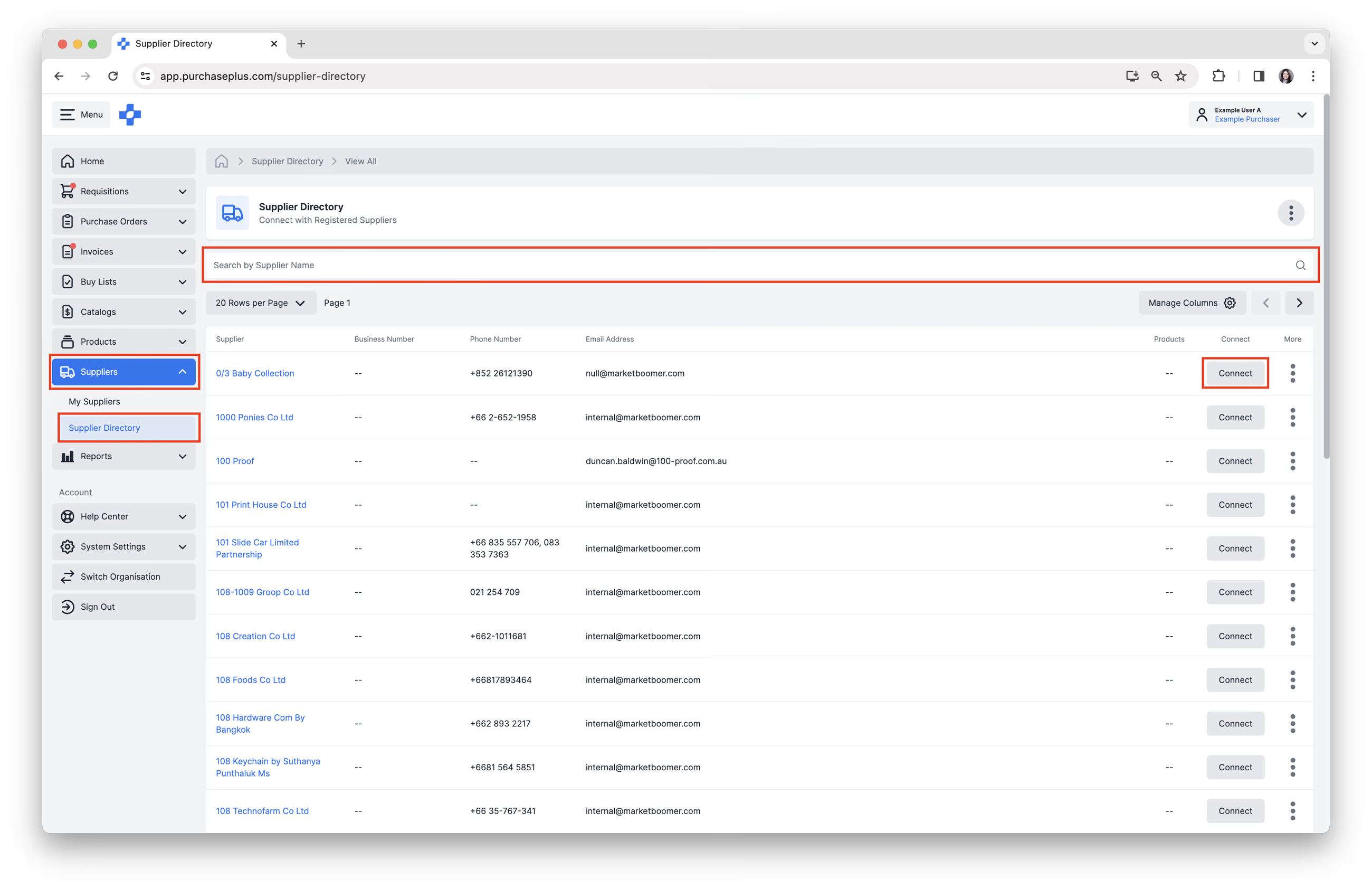
Al hacer clic en [Conectar] en un proveedor, se establecerá como proveedor preferido si su organización matriz directa tiene una relación comercial con este proveedor Y lo ha marcado como preferido.
4. Aparecerá una ventana emergente:
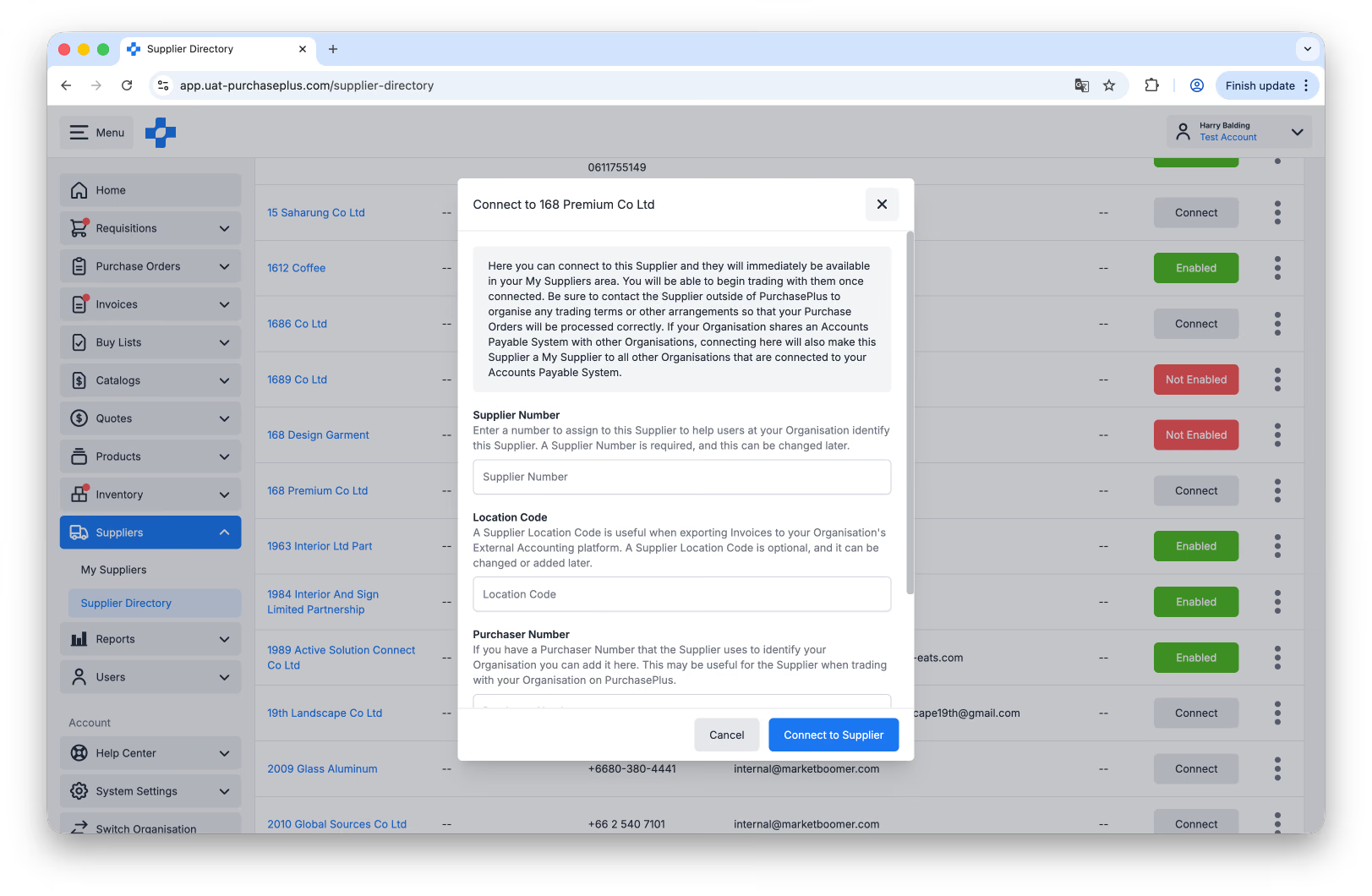
- Debe introducir un [Número de proveedor],
- Introducir un [Código de ubicación] es opcional,
- Introducir un [Número de comprador] es opcional,
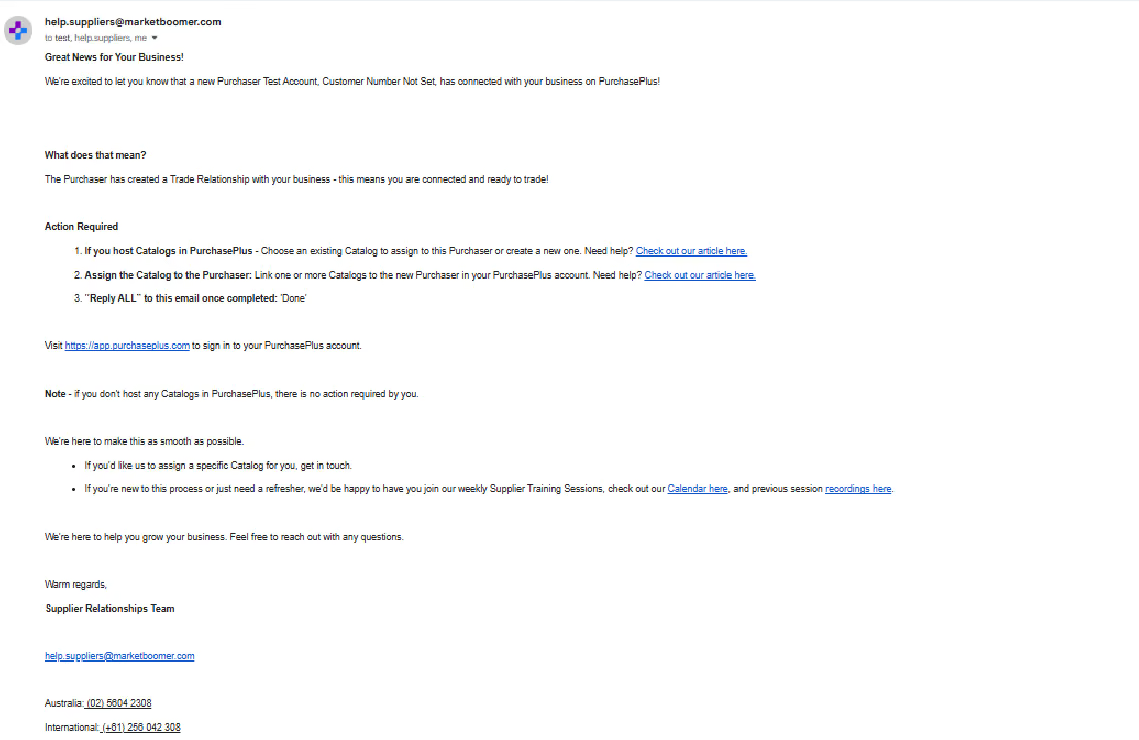
- Enviar un [Correo electrónico de notificación] al proveedor es opcional. Al hacer clic en esta opción, se enviará un correo electrónico de notificación a la dirección de correo electrónico de contacto registrada del proveedor (tal como existe en PurchasePlus), informándole de que su organización ha creado una relación comercial con su empresa y solicitándole que realice algunas acciones:
5. Haga clic en [Conectar con el proveedor] en la esquina inferior derecha de la ventana.
6. Ya se ha conectado con éxito con el proveedor, y este estará disponible en su área [Mis proveedores] apareciendo como 'Habilitado'. Si su organización comparte un sistema de Cuentas por Pagar con otras organizaciones, conectarse a un proveedor también mostrará a este proveedor en sus respectivas áreas de [Mis proveedores].
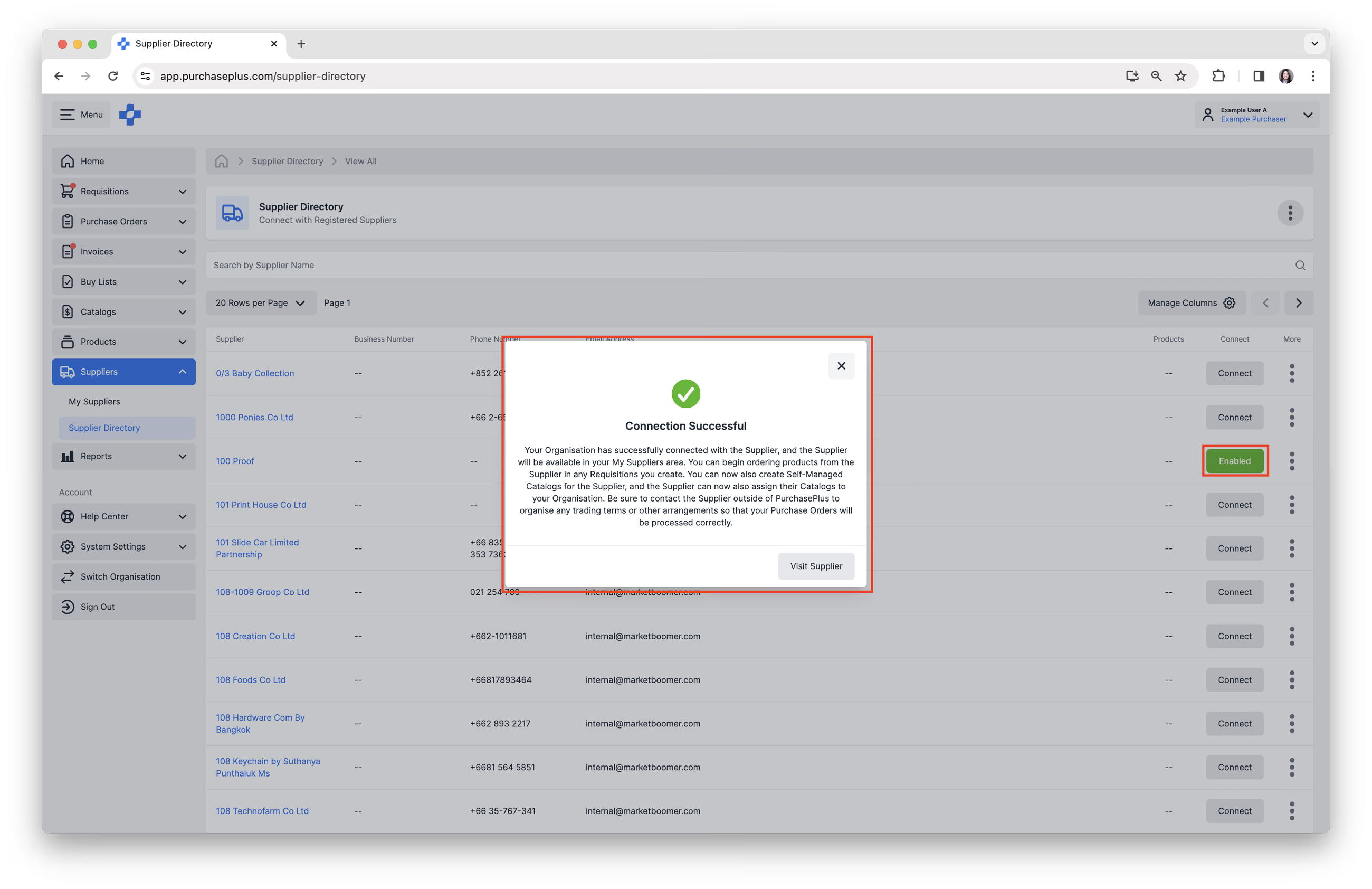
Una vez que el proveedor registrado asigne un catálogo a su organización, podrá comprar productos de este proveedor en sus solicitudes de compra. Sin embargo, recuerde ponerse en contacto con el proveedor fuera de PurchasePlus para acordar condiciones comerciales adecuadas, de modo que sus órdenes de compra sean procesadas correctamente por el proveedor.
Obtenga más información sobre la gestión de proveedores a continuación:
- Visualización y gestión de sus proveedores
- Habilitar o deshabilitar un proveedor
- Visualización de catálogos de proveedores
Si necesita más ayuda para conectarse con proveedores, póngase en contacto con nuestro amable equipo de Atención al Cliente en PurchasePlus.