

Slow Moving Items Report
Slow Moving Items Report
Slow Moving Items shows Stock Items still on hand that have not moved out, and the capital tied up. The Report is available when Inventory is enabled for your Organisation.
See our 'Run a Report' article to learn more about running Reports.
Run Slow Moving Items
- Click [Reports] → [View All] from the side navigation bar.
- Select [Slow Moving Items].
- Click [Create a New Report], or create from a [Saved Template].
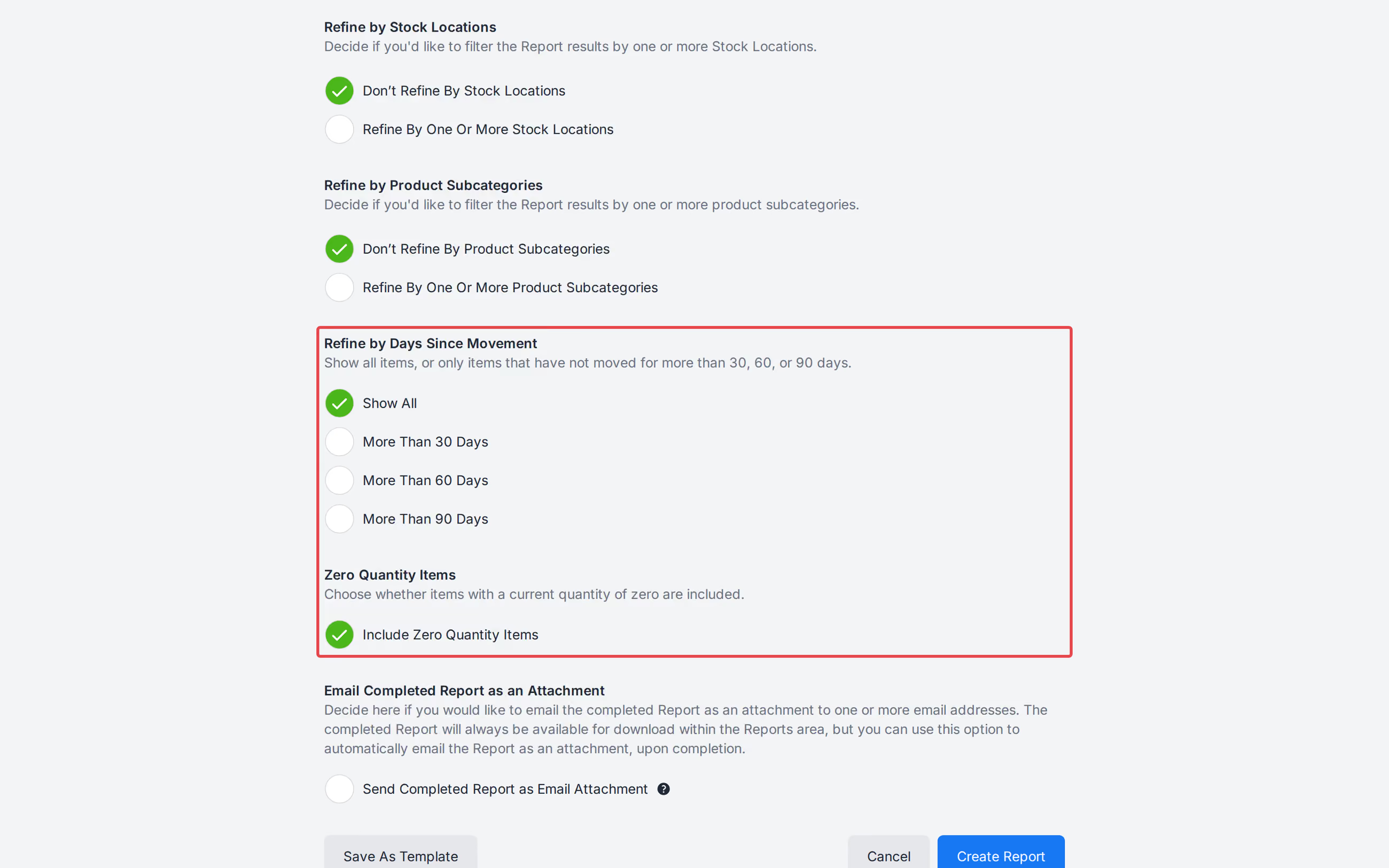
- Complete the filters.
- Under Refine by Stock Locations, click [Add Stock Locations] and select one or more Stock Locations.
- Under Refine by Product Subcategories, click [Add Product Subcategories] and select one or more Categories or Sub-Categories, if required.
- Under Refine by Days Since Movement, select Show All, More Than 30 Days, More Than 60 Days, or More Than 90 Days.
- Tick or untick Include Zero Quantity Items. This checkbox is ticked by default.
- Click [Save As Template] if you run this Report often.
- Click [Create Report].
The result table keeps Total Balance Value as the last row. Search recomputes that total from the matching rows.
Note - Filter choices save on the execution and as a template.