

Two Factor Authentication
How to set up an authenticator app for two-factor sign-in
Get your 6 digit sign-in code from an app on your phone instead of waiting for an email. The code is there the moment you need it, even when email is slow or held by a filter.
Any user can set this up for their own account in My Account. You don't need a special permission, and it takes about 2 minutes.
Before you start
You'll need:
- A phone with an authenticator app, such as Google Authenticator, Microsoft Authenticator or 1Password. They're free from your app store.
- Somewhere safe to keep 10 recovery codes, such as a password manager. You'll use one if you ever lose your phone.
Set up your authenticator app
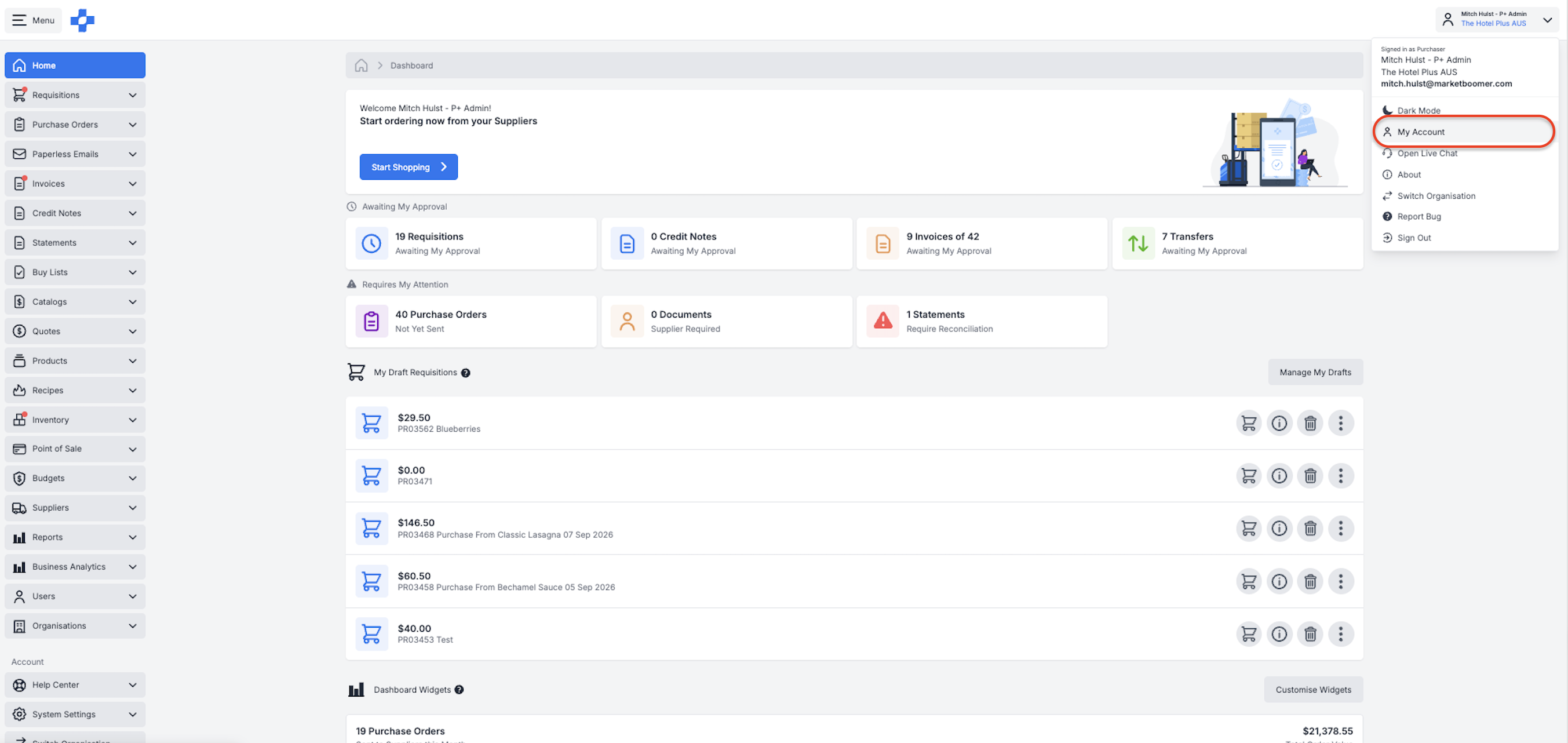
- Sign in to PurchasePlus and click your name in the top right corner.
- Click My Account. The General tab opens.
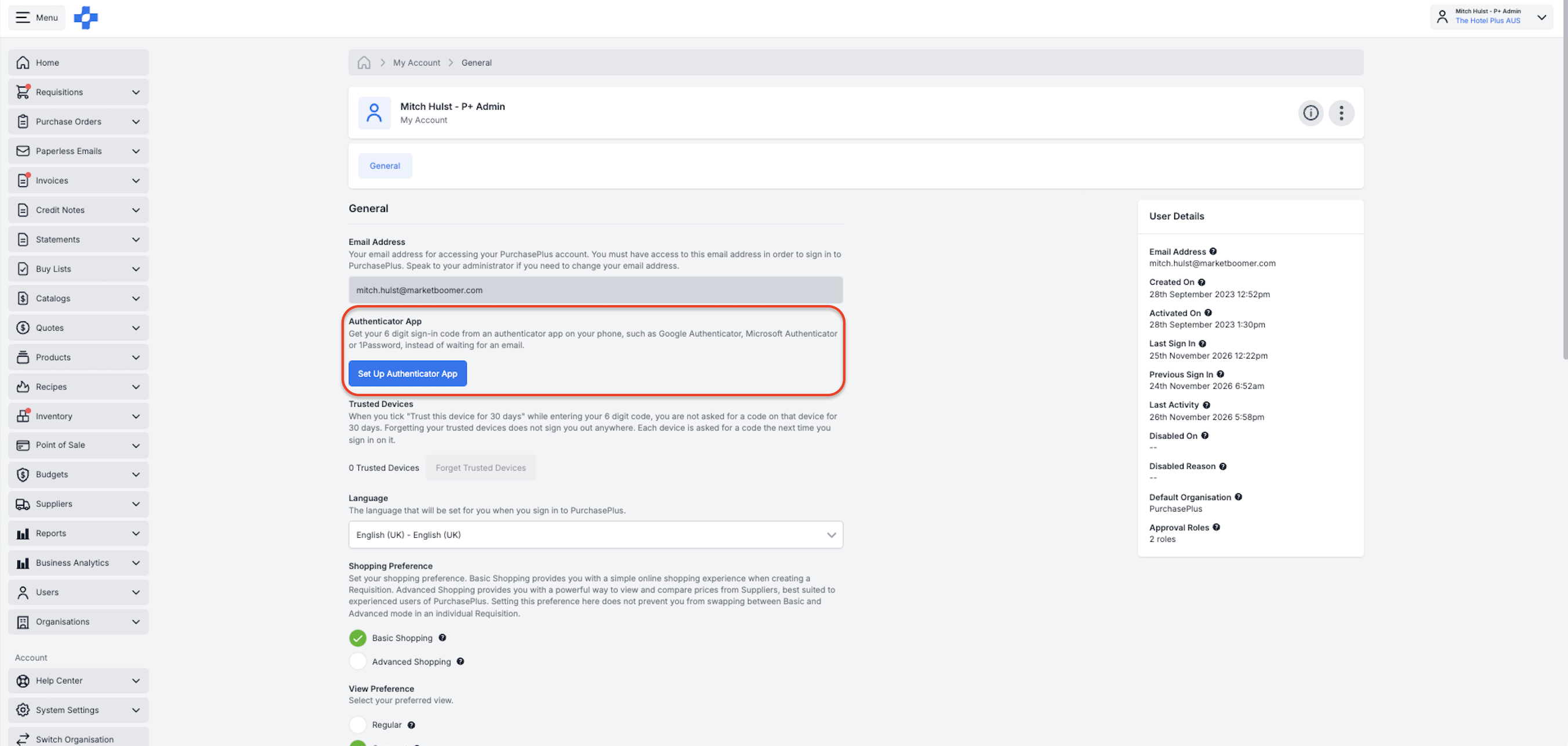
- Under Authenticator App, click Set Up Authenticator App.
- Open your authenticator app, add an account and scan the QR code on screen. If you can't scan it, click Copy next to the setup key and enter the key in your app instead.
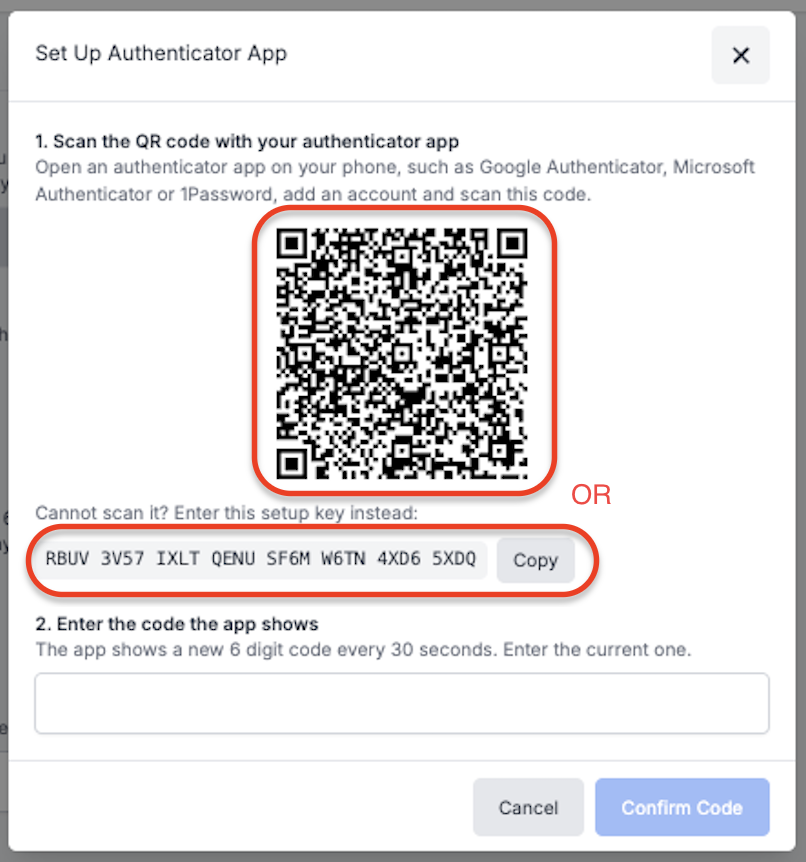
- Enter the 6 digit code your app shows, then click Confirm Code. The code changes every 30 seconds, so use the current one.
- Save your recovery codes with Copy Codes or Download Codes. They're only shown once.
- Tick I have saved my recovery codes, then click Done.
You'll see Authenticator App Set Up, and we'll email you to confirm the change.
Signing in with your app
After your password, open your authenticator app and enter the 6 digit code it shows for PurchasePlus. That's it.
- Skip the code on your own computer. Tick Trust this device for 30 days when you enter your code. You won't be asked again on that browser for 30 days.
- Lost your phone? Click Use a recovery code and enter one of your saved codes. Each code works once, and we'll email you when one is used.
Managing your app
Everything sits under Authenticator App in My Account, on the General tab.
- Running low on recovery codes, or think someone has seen them? Click New Recovery Codes. Your old codes stop working straight away.
- Getting a new phone? Click Remove Authenticator App, then set it up again on the new phone. Until you do, your codes come by email.
- Want to stop skipping the code on old computers? Under Trusted Devices, click Forget Trusted Devices. You won't be signed out, but each device asks for a code next time.
Signing in with Microsoft
If your organisation signs in to PurchasePlus with Microsoft, you don't need an authenticator app. Your Microsoft account handles that step. To set up Microsoft sign-in for your organisation, contact your account manager.
Need help?
Click your name in the top right corner, then Open Live Chat, or email help@purchaseplus.com.