

Using the PurchasePlus AI assistant
Using the PurchasePlus AI assistant
What the AI assistant does
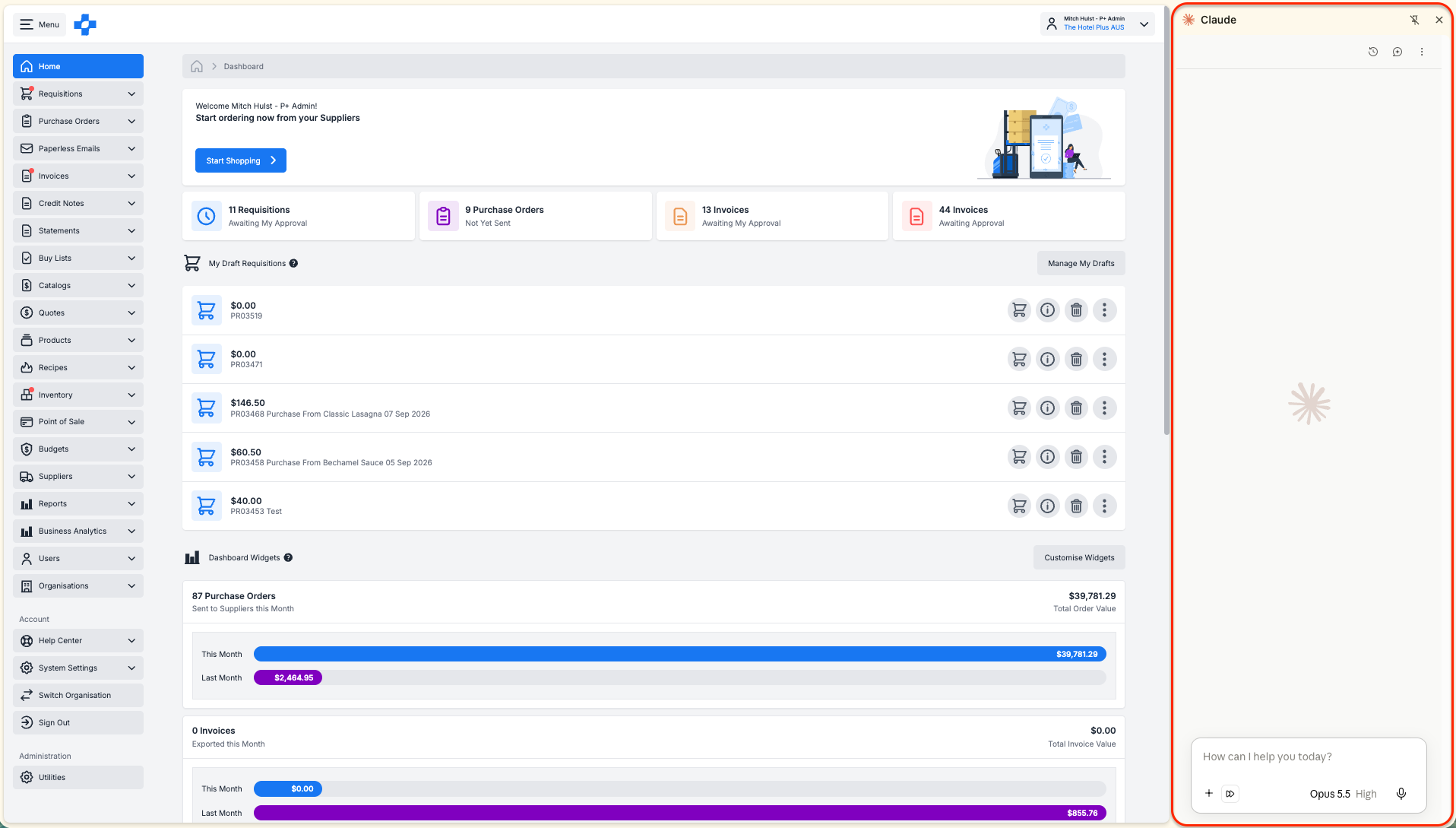
The PurchasePlus AI assistant connects Claude or ChatGPT to your PurchasePlus account. You ask a question in plain language and get the answer from your live PurchasePlus data.
It works through MCP (Model Context Protocol), a standard way for AI assistants to connect to other software. You sign in with your normal PurchasePlus account, so the assistant can only see and do what you can already see and do in PurchasePlus.
Why use the AI assistant?
- Get one answer across Requisitions, Purchase Orders, Receiving Notes and Invoices, instead of exporting and cross-checking reports.
- Follow a single order from Requisition to Invoice without clicking between screens.
- Find price, pack size and quantity errors before an Invoice is paid.
- Turn a Supplier quote or last year's buying into a draft Requisition without re-typing every line.
- Check stock on hand, Stocktakes, Transfers and Recipe costs in a sentence.
What it can do
- Answer questions about Requisitions, Purchase Orders, Receiving Notes, Invoices, Credit Notes and Statements.
- Check stock on hand by Stock Location, plus Stocktakes and Transfers.
- Look up a Recipe, its ingredients and what it costs at current prices.
- Search Supplier Catalogs to see who sells an item and at what price.
- Run the Reports you already have access to and give you the download link.
- Create or update a draft Requisition, re-order from an earlier Requisition, add a Product to a Buy List and add an ingredient to a Recipe.
Approving, sending Purchase Orders, deleting records and deactivating Suppliers always stay with a person. 
Before you start
You need three things. A PurchasePlus user, an AI account your organisation allows you to use, and the PurchasePlus server address.
| You need | Details |
|---|---|
| A PurchasePlus user | The same email and password you use at app.purchaseplus.com. |
| Claude | Any plan works. Free is limited to one custom connector. On Team and Enterprise, an Owner adds PurchasePlus once for the whole organisation. |
| ChatGPT | Business, Enterprise or Edu for full access, including drafts. Plus and Pro can connect in Developer mode, but OpenAI currently limits them to read-only. ChatGPT connectors work on the web only. |
| Server address | https://purchaseplus.com/mcp |
Tips
- Check your organisation's AI policy before you connect. Use a work AI account, not a personal one.
- The assistant follows your PurchasePlus permissions. If you can't see Invoices in PurchasePlus, the assistant can't see them either. Ask your super user if something is missing.
- If you work across several properties, you can switch between the organisations you already have access to in the same chat.
Connect Claude
The quickest way is the Enable PurchasePlus MCP banner on your PurchasePlus Home dashboard. It opens Claude with the PurchasePlus details already filled in.
Free, Pro and Max plans
- Sign in to PurchasePlus and click [Enable MCP] on the Home dashboard banner. Or, in Claude, go to [Customize] → [Connectors], click [+] and select [Add custom connector].
- Check the name is PurchasePlus and the URL is %%DOCSCODE0%%, then click [Add].
- Click [Connect]. Sign in to PurchasePlus in the window that opens and allow access.
- Start a new chat, click [+] → [Connectors] and switch PurchasePlus on.
- Ask a first question, such as "Who am I signed in as in PurchasePlus?"
Team and Enterprise plans
An Owner or Primary Owner adds PurchasePlus once.
- Go to [Organization settings] → [Connectors] and click [Add].
- Hover over [Custom] and select [Web].
- Enter %%DOCSCODE1%% and click [Add].
Each user then connects their own PurchasePlus login.
- Go to [Customize] → [Connectors] and find PurchasePlus.
- Click [Connect] and sign in to PurchasePlus.
- In a chat, click [+] → [Connectors] and switch PurchasePlus on.
Tips
- Once connected, PurchasePlus works in Claude on the web, the desktop app and the mobile apps.
- Claude asks before it uses each tool. Choose [Allow always] for the tools that only read data, such as listing Invoices. Leave the tools that create drafts or add items set to ask, so you see each change before it happens.
- Switch PurchasePlus off in [+] → [Connectors] for chats that have nothing to do with purchasing.
Connect ChatGPT
In ChatGPT Business, Enterprise and Edu, a workspace admin or owner sets up PurchasePlus and publishes it for everyone. Users then sign in with their own PurchasePlus login.
Admin setup (Business, Enterprise, Edu)
- Go to [Workspace settings] → [Permissions & Roles] and turn on Developer mode (Create custom MCP connectors) under Connected Data.
- Go to [Workspace settings] → [Apps] and click [Create].
- Name it PurchasePlus, enter %%DOCSCODE2%% as the server URL and choose OAuth for authentication.
- Click [Scan Tools] and sign in to PurchasePlus when asked. Wait for the scan to finish, then click [Create].
- Test the app from [Apps] → [Drafts], then click [Publish].
- Enterprise and Edu only. Use [Configure Actions] to choose which tools are allowed and [Configure Access] to choose which groups can use it.
Users
- Go to [Settings] → [Apps]. PurchasePlus shows with a custom label.
- Connect it and sign in to PurchasePlus.
- In a chat, pick PurchasePlus from the tools menu or type @PurchasePlus in your question.
Plus and Pro (read-only)
- Go to [Settings] → [Apps] → [Advanced settings] and turn on Developer mode. OpenAI has moved this toggle during 2026, so check [Settings] → [Security and login] if you can't find it.
- Create an app with the name PurchasePlus, the URL %%DOCSCODE3%% and OAuth, then sign in to PurchasePlus.
- In a chat, click [+] → [Developer mode] and select PurchasePlus.
Tips
- ChatGPT connectors work on the web only, not in the mobile apps.
- ChatGPT uses PurchasePlus for one message at a time. @mention PurchasePlus again when a follow-up question needs fresh data.
- ChatGPT asks you to confirm before it creates anything. Read the details it shows before you approve.
- ChatGPT keeps a snapshot of the PurchasePlus tools from when the app was published. When PurchasePlus adds new tools, an admin needs to refresh and republish. In Business workspaces this means creating the app again.
What you can ask about
The assistant reads most areas of PurchasePlus and can make a small number of safe changes. Everything below is limited to your own permissions and the organisation you are working in.
| Area | What you can ask | What it can change |
|---|---|---|
| Requisitions | Status, lines, who raised it, what is awaiting approval | Create or update a draft Requisition and its lines. Re-order from an earlier Requisition |
| Purchase Orders | Status, lines, what has not been delivered yet | Nothing |
| Receiving Notes | What was received, quantities against the order | Nothing |
| Invoices | Status, lines, flagging reasons, the Supplier PDF | Nothing |
| Credit Notes and Statements | Lines, balances, what a Statement includes | Nothing |
| Products and Suppliers | Product details, pack sizes, who you trade with | Nothing |
| Catalogs | Who sells an item and at what price, what a Supplier sells | Nothing |
| Buy Lists | What is on a list and the current quotes for each item | Add a Product (it can't remove one) |
| Inventory | Stock on hand and average cost by Stock Location, Stocktakes, Transfers | Nothing |
| Recipes | Ingredients, cost at current prices | Add an ingredient line |
| Reports | The Reports you can already run | Run a Report and give you the download link |
| Organisations | Which organisations you can work in | Switch to another organisation you have access to |
Adding a Recipe ingredient or a Buy List Product takes effect straight away, the same as adding it in PurchasePlus yourself. Requisitions are always created as drafts for you to review and submit.
For purchasers and chefs
Use the assistant to check before you order, build draft Requisitions faster and keep Buy Lists and Recipes current. Copy these prompts and change the names to suit your property.
Check before you order
- "Have we bought Pepe Saya butter in the last six months? Who from, and at what unit price?"
- "Which Suppliers in our Catalogs sell 10kg basmati rice, and who is cheapest per kg?"
- "What is still on order from Bidfood that hasn't been received?"
- "What is the stock on hand of eggs in the Main Kitchen Stock Location?"
Build a draft Requisition
- "Re-order Requisition 123456 for delivery next Tuesday."
- "Here is a quote from our linen Supplier. Create a draft Requisition with these lines and tell me any line where the Catalog price is different from the quote."
- "Look at what the Gift Shop bought from this Supplier over the last 12 months and create a draft opening order based on it."
- "Compare the Bar Stock Location against par levels and list every item below par with the quantity needed."
Keep Buy Lists and Recipes current
- "Which items on the Housekeeping Buy List have no current quote?"
- "Add Lurpak unsalted butter 250g to the Pastry Buy List."
- "What does the Eggs Benedict Recipe cost at current prices, and which ingredient costs the most?"
- "Add 20g of chives to the Eggs Benedict Recipe."
Submit your draft in PurchasePlus
The assistant never submits a Requisition. To finish:
- Open PurchasePlus and find the Requisition under Draft Requisitions on the Home dashboard.
- Check the Supplier, quantities, prices, Department and Account Code.
- Click [Submit] to send it into the Approval Workflow.
Tips
- Name the Stock Location, Department or Buy List you mean. "The kitchen" may match more than one.
- Give a delivery date as a date, such as "Tuesday 13 October", rather than "next Tuesday".
- If a Product has no quote, the assistant can't add it to a Requisition. Check the Catalog first.
For finance users
Use the assistant to work through Flagged Invoices faster and check a Supplier before payment. It reads the Purchase Order, Receiving Note and Invoice together, so it can explain a 3-way match problem in one answer.
Work through Flagged Invoices
- "List the Flagged Invoices where the goods have already been received."
- "Why is Invoice INV-40211 flagged?"
- "Follow Purchase Order 778812 from the Requisition to the Invoice and tell me where the quantities or prices stop matching."
- "Which Flagged Invoice lines aren't matched to a Purchase Order line?"
Check a Supplier before payment
- "Check this month's Invoices from Fresh Seafood Co against their Purchase Orders. List any line where the unit price is more than 10% above the ordered price."
- "Are there any Invoices from this Supplier with the same Invoice number or the same total on the same day?"
- "Show me the Supplier PDF for Invoice INV-40211."
- "Which Credit Notes from Bidfood this quarter aren't linked to an Invoice?"
Month end
- "What does the September Statement from Bidfood include, and which lines don't have a matching Invoice in PurchasePlus?"
- "Across all our properties, how many Requisitions, undelivered Purchase Orders and Flagged Invoices are open? Split by currency."
- "Run the stock value Report for all Stock Locations and give me the download link."
Fix and approve in PurchasePlus
The assistant finds the problem. You fix it and approve it in PurchasePlus.
- Open the Invoice in PurchasePlus from [Invoices].
- Make the change, for example match it to a Purchase Order, split a line using Advanced Mode or set the Department and Account Code.
- Approve the Invoice from the header, or from [Invoices] → [Awaiting My Approval].
Tips
- Ask for Invoice and Purchase Order numbers in the answer, so you can open each one and check it.
- The assistant groups amounts by currency and doesn't convert between them.
- For large totals and trends, run a Report. The assistant will point you to one rather than estimate a figure.
For super users and admins
You control what the assistant can do through the PurchasePlus permissions you already manage. There is no separate AI permission to set up.
How access works
- Each user signs in with their own PurchasePlus login. The assistant acts as that user, in the organisation they are working in.
- The tools a user is offered match their PurchasePlus permissions. A user without access to Invoices won't be offered the Invoice tools. Organisation admins are offered every purchaser tool.
- To give or remove access to an area, change the user's permissions in PurchasePlus. The assistant follows the change.
- Drafts the assistant creates belong to the user who asked. They go through the same Approval Workflow as any other Requisition.
- PurchasePlus records every assistant request against the user and organisation.
- When someone leaves, disable their PurchasePlus user as usual. The assistant signs in as that user, so it loses access too.
Switch organisations
Users with access to more than one organisation can move between them in the same chat.
- Ask "Which organisations can I switch to?"
- Ask "Switch to The Hotel Plus Sydney."
- The assistant confirms the organisation it is now working in. Every answer after that comes from that organisation until you switch again.
Roll it out
- Agree which AI plan your organisation will use and get sign-off from whoever owns your AI policy.
- Add PurchasePlus once for everyone. On Claude Team or Enterprise, an Owner adds it in [Organization settings] → [Connectors]. On ChatGPT, a workspace admin creates and publishes it.
- On ChatGPT Enterprise, use [Configure Access] to start with a pilot group, such as finance and head chefs.
- Check user permissions in PurchasePlus before you invite people. The assistant can see anything their permissions allow.
- Share this article with your users and ask them to keep the tools that create drafts set to ask.
Tips
- Every user sees the Enable PurchasePlus MCP banner on their Home dashboard until they close it. Closing it only hides it on that browser.
- Start with read-only questions for the first week. Users build trust in the answers before they create drafts.
What stays with a person
The assistant can prepare work, but anything final or irreversible stays in PurchasePlus with your team. This is fixed in PurchasePlus and no AI setting can change it.
| The assistant can | Only a person can |
|---|---|
| Read the documents, stock and Reports your permissions allow | Approve a Requisition, Invoice or Credit Note |
| Create and update draft Requisitions | Submit a Requisition for approval |
| Re-order from an earlier Requisition as a new draft | Send or place a Purchase Order |
| Add a Product to a Buy List | Remove a Product from a Buy List |
| Add an ingredient to a Recipe | Delete any record |
| Run a Report and give you the download link | Deactivate a Supplier |
| Switch to another organisation you already have access to | Give a user access to a new organisation or permission |
AI assistants can misread a question or get an answer wrong. Treat each answer as a starting point and open the document in PurchasePlus before you act on it.
Tips for better answers
The more specific the question, the better the answer. Name the property, Supplier, document number and dates you mean.
| Instead of | Try |
|---|---|
| "Show me invoices." | "Show me Flagged Invoices from Bidfood dated September 2026." |
| "What did we pay for milk?" | "What unit price did we pay for Dairy Farmers 2L full cream milk on each Invoice this month?" |
| "Order the usual." | "Re-order Requisition 123456 as a draft for delivery on Tuesday 13 October." |
| "Is this invoice right?" | "Compare Invoice INV-40211 with its Purchase Order and Receiving Note and list every line that doesn't match." |
| "How much did we spend last year?" | "Which Report shows spend by Supplier? Run it for July 2025 to June 2026." |
Tips
- Ask the assistant to list document numbers with its answer, so you can check them in PurchasePlus.
- Say which organisation you want if you work across more than one property.
- Give dates as dates. "Today" and "next Wednesday" can land on the wrong day if your AI account is set to another time zone.
- Start a new chat for a new task. Long chats can mix up earlier answers.
- If an answer looks wrong, ask "How did you work that out?" The assistant will show which documents it used.
FAQ and troubleshooting
| Problem or question | What to do |
|---|---|
| The assistant doesn't seem to use PurchasePlus | In Claude, click [+] → [Connectors] and check PurchasePlus is switched on. In ChatGPT, @mention PurchasePlus in your question. |
| It says I don't have access to something | The assistant follows your PurchasePlus permissions. Ask your super user to check them. |
| The answers are for the wrong property | Ask "Which organisation am I in?", then ask it to switch. |
| It asks me to sign in again | Your PurchasePlus sign-in has expired. Click [Connect] on PurchasePlus in your connector settings and sign in. |
| There is no [Create] button in ChatGPT | Developer mode is off, your plan doesn't include it, or your workspace admin hasn't turned it on. |
| ChatGPT doesn't have a new PurchasePlus feature | Your workspace admin needs to refresh and republish the PurchasePlus app. |
| Can it approve or send an order for me? | No. Approving, submitting, sending, deleting and deactivating always stay with a person. |
| Can I use it on my phone? | Yes in the Claude mobile apps once connected. ChatGPT connectors are web only. |
| An answer looks wrong | Check the document in PurchasePlus. If PurchasePlus shows something different, contact Customer Success with your question, the answer and the document number. |
Need help?