

Import and Export PAR and Re-order Levels
Import and Export PAR and Re-order Levels
Users with Manage Stock Locations can bulk export and import PAR and Re-order Levels for Stock Items in a Stock Location.
Open a Stock Location from [Inventory] → [Stock Locations], then use the [Imports] and [Exports] tabs.
See our 'Stock Locations' article to learn more about PAR and Re-order Levels.
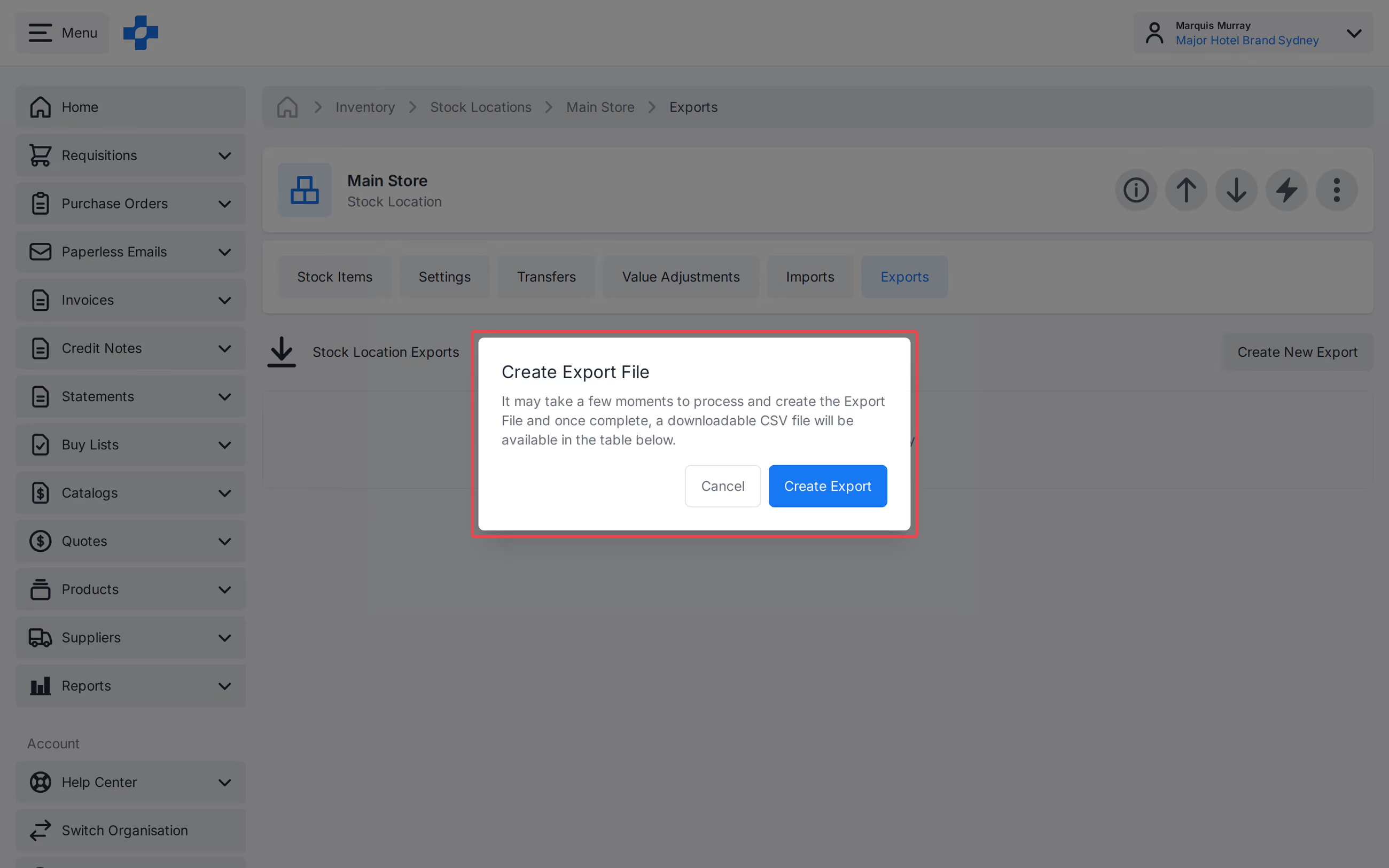
Export PAR and Re-order Levels
- Open the Stock Location.
- Select the [Exports] tab.
- Create an export of PAR and Re-order Levels for the Stock Items in that Location.
- Download the CSV when the export is ready.
Import PAR and Re-order Levels
- Open the Stock Location.
- Select the [Imports] tab.
- Upload a CSV of PAR and Re-order Levels.
Note - Partial files are accepted. Blank cells leave the existing PAR or Re-order Level unchanged. A PAR Level below the Re-order Level is rejected; the import history shows the reason.
Import history
The [Imports] tab shows import history for the Stock Location, including a row-count summary. Download failed rows from the history when an import does not fully succeed.