

Faktur dan Nota Kredit
Faktur dan Nota Kredit
Faktur dan nota kredit tanpa kertas
Faktur yang dikirim ke Alamat Email Penagihan Tanpa Kertas PurchasePlus Anda akan dipindai secara otomatis dan ditambahkan ke platform.
PurchasePlus akan mencoba untuk mencocokkan Faktur dengan Pesanan Pembelian miliknya dan Catatan Penerimaan Barang secara otomatis. Sistem kemudian membandingkan item baris. Jika semuanya cocok, Faktur akan otomatis Direkonsiliasi menggunakan Departemen dan Kode Akun dari Pesanan Pembelian yang dicocokkan.
Ingat
- Faktur yang lolos pencocokan otomatis akan Direkonsiliasi secara otomatis, karena pengeluaran telah disetujui pada tahap Permintaan Pembelian.
- Faktur mungkin perlu dibagi ke beberapa Departemen dan Kode Akun, hal ini dapat dilakukan dalam Mode [Tampilan Lanjutan].
Tinjau Faktur dan Nota Kredit yang Ditandai
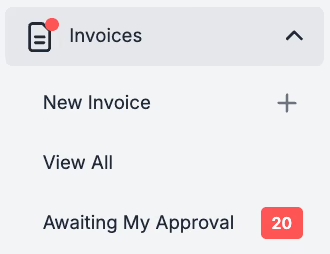
Jika Faktur tidak memenuhi Ambang Batas dan pengaturan Penanda Faktur Anda, Faktur akan ditandai untuk ditinjau. Faktur ini dapat dilihat di [Faktur] --> [Menunggu Persetujuan Saya].
Praktik terbaiknya adalah mencocokkan Faktur Anda dengan Pesanan Pembelian jika ada. Cocokkan ke Pesanan Pembelian yang sudah ada atau, jika sesuai, buat Permintaan Pembelian retroaktif jika belum ada. Di sini Anda dapat menemukan praktik terbaik untuk meninjau Faktur dan Nota Kredit yang Ditandai.
Ingat
- Beberapa Faktur tidak akan pernah memiliki Pesanan Pembelian atau Catatan Penerimaan Barang (misalnya tagihan energi/listrik).
- Jika Anda membuat Permintaan Pembelian retroaktif untuk dicocokkan dengan Faktur, pastikan untuk menghapus centang pada [Kirim ke Pemasok].
Setujui Faktur dan Nota Kredit yang Ditandai
Setelah Anda yakin bahwa masalah apa pun terkait Faktur atau Nota Kredit telah diselesaikan, Anda dapat Menyetujui dokumen tersebut. Aturan Persetujuan Faktur yang Ditandai didasarkan pada Jumlah Total Faktur dan Departemen.
Ingat
- Jika Anda memiliki masalah dengan harga satuan atau Kuantitas item yang Ditagihkan, hubungi pemasok Anda untuk mendapatkan Faktur baru.
- Nomor faktur harus unik, jika tidak maka akan ditolak oleh sistem.