

Masuk ke PurchasePlus
Masuk ke PurchasePlus
Masuk ke PurchasePlus
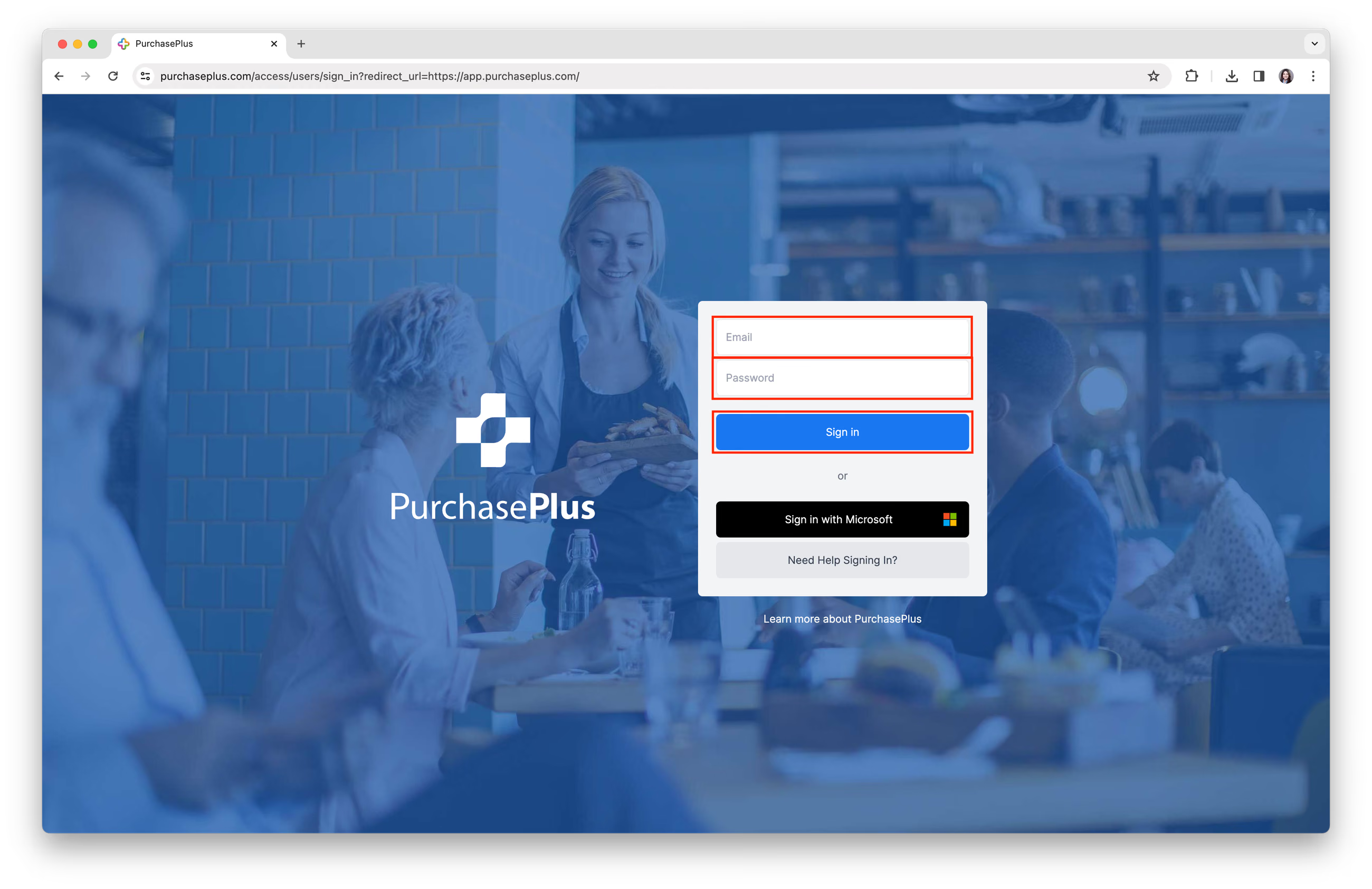
1. Untuk mengakses halaman Masuk PurchasePlus, kunjungi https://app.purchaseplus.com. (Browser yang kami rekomendasikan adalah Google Chrome).
2. Masukkan 'Alamat email' dan 'Kata Sandi' Anda, lalu klik tombol [Masuk].
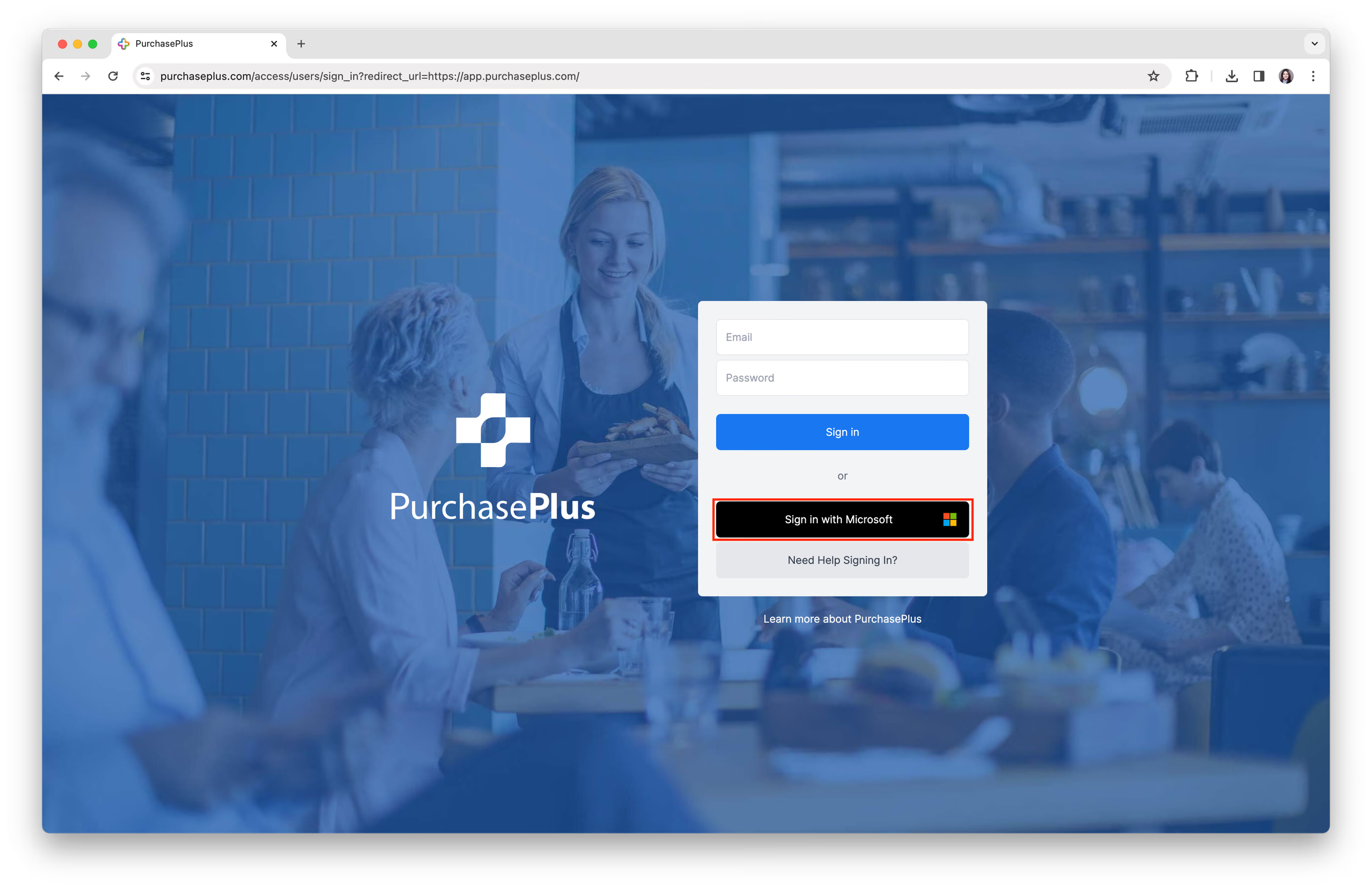
Masuk dengan Microsoft
Catatan: Jika alamat email Anda merupakan akun Microsoft, dan alamat email tersebut juga terdaftar pada akun pengguna Anda di PurchasePlus, Anda dapat masuk menggunakan opsi [Masuk dengan Microsoft].
Langkah 1: Klik [Masuk dengan Microsoft], Anda akan dialihkan ke halaman Masuk Microsoft.
Langkah 2: Masukkan 'Alamat email' dan 'Kata Sandi' akun Microsoft Anda.
Langkah 3: Anda mungkin akan melihat permintaan persetujuan berikut, silakan klik [Terima].
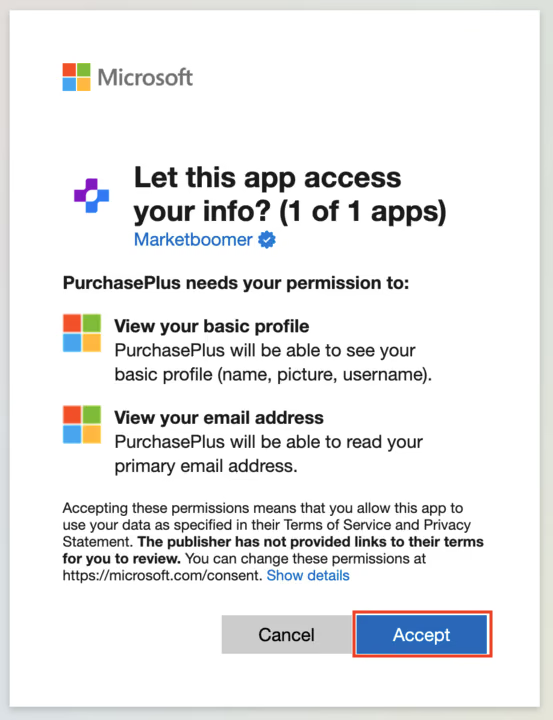
Langkah 4: Anda akan diarahkan kembali ke PurchasePlus dan berhasil masuk ke akun Anda.
Catatan: Jika tidak ada pengguna di PurchasePlus yang cocok dengan Alamat Email Microsoft yang Anda gunakan, Anda akan diarahkan kembali ke halaman Masuk kami dan melihat pemberitahuan "Masuk Tidak Berhasil".
Masuk pertama kali
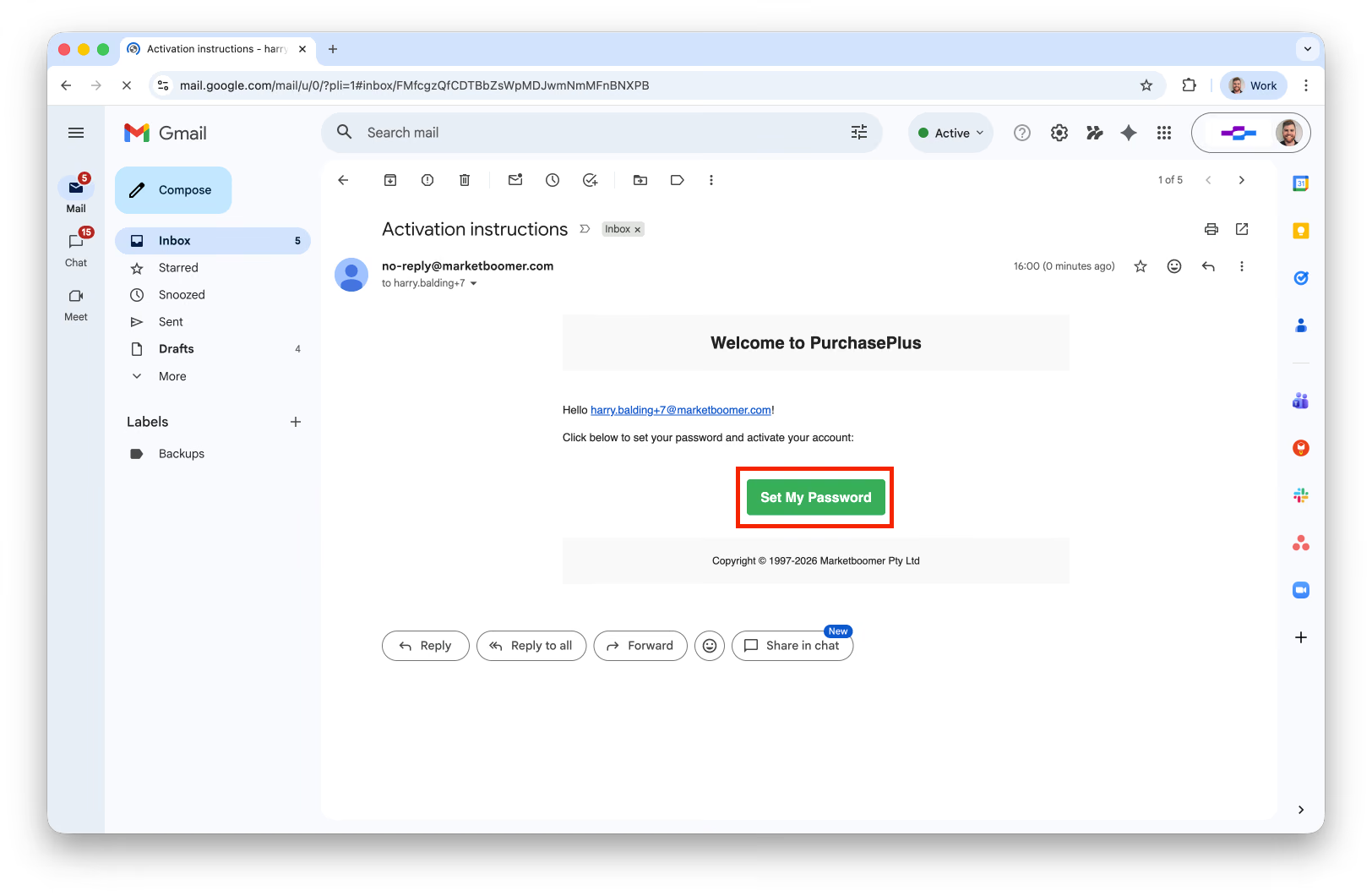
Sebelum dapat Masuk ke akun Anda untuk pertama kalinya, Anda perlu mengonfirmasi akun dan mengatur kata sandi.
Langkah 1: Buka akun email yang diundang untuk bergabung dengan PurchasePlus oleh administrator Anda dan klik 'Atur Kata Sandi Saya':
Langkah 2: Masukkan kata sandi baru Anda dan lakukan konfirmasi. Ini adalah kata sandi yang nantinya Anda gunakan untuk mengakses PurchasePlus.
Pemecahan Masalah: Saya Tidak Menerima Email Aktivasi Akun
Jika Anda tidak menerima Email Konfirmasi Akun (atau email tersebut telah terhapus), ikuti langkah-langkah berikut:
Langkah 1: Klik [Perlu Bantuan untuk Masuk?]:
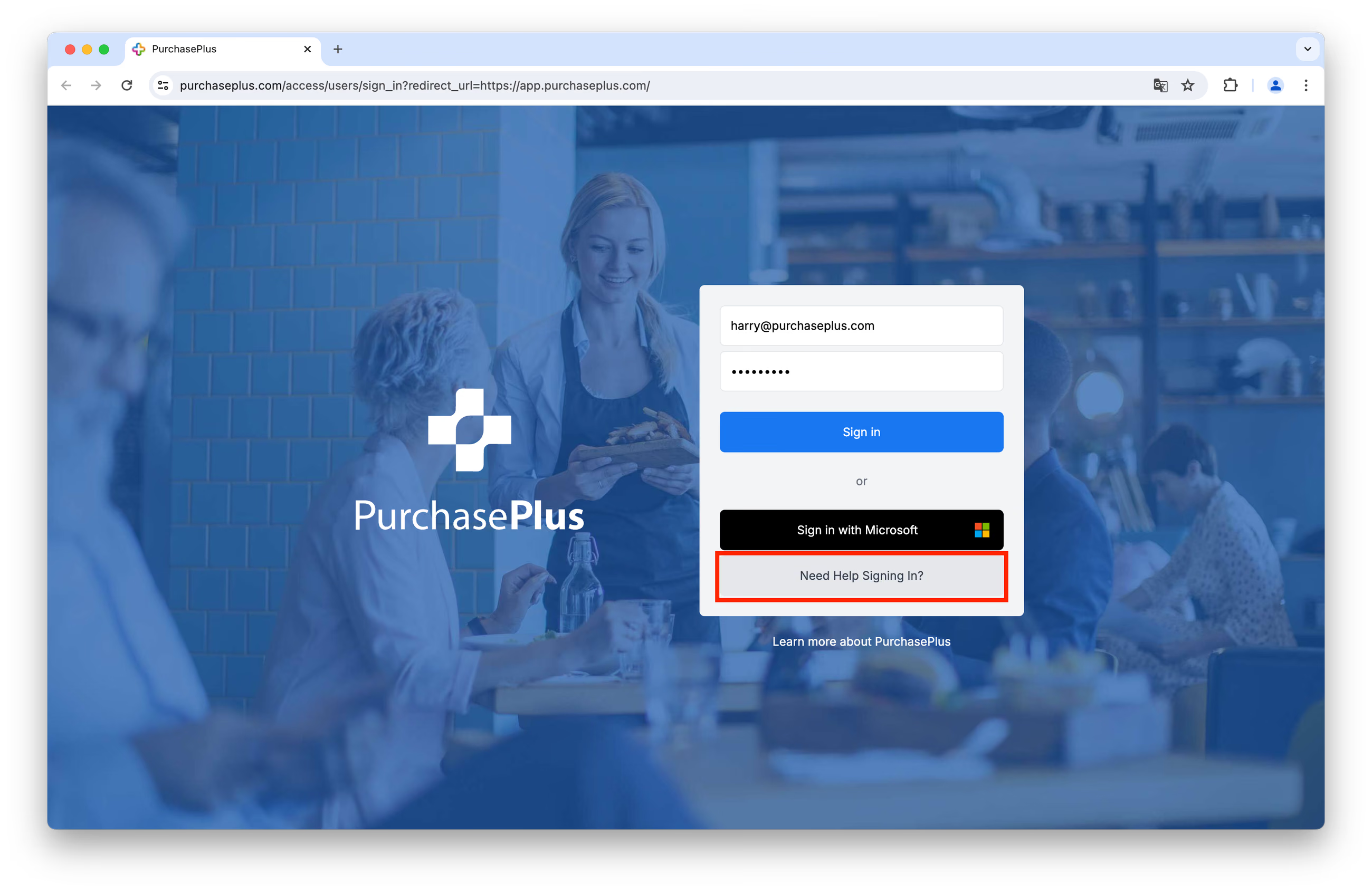
Langkah 2: Klik [Kirim Ulang Email Selamat Datang Saya].
Langkah 3: Masukkan alamat email Anda yang terdaftar, lalu klik [Kirim Ulang Email Selamat Datang].
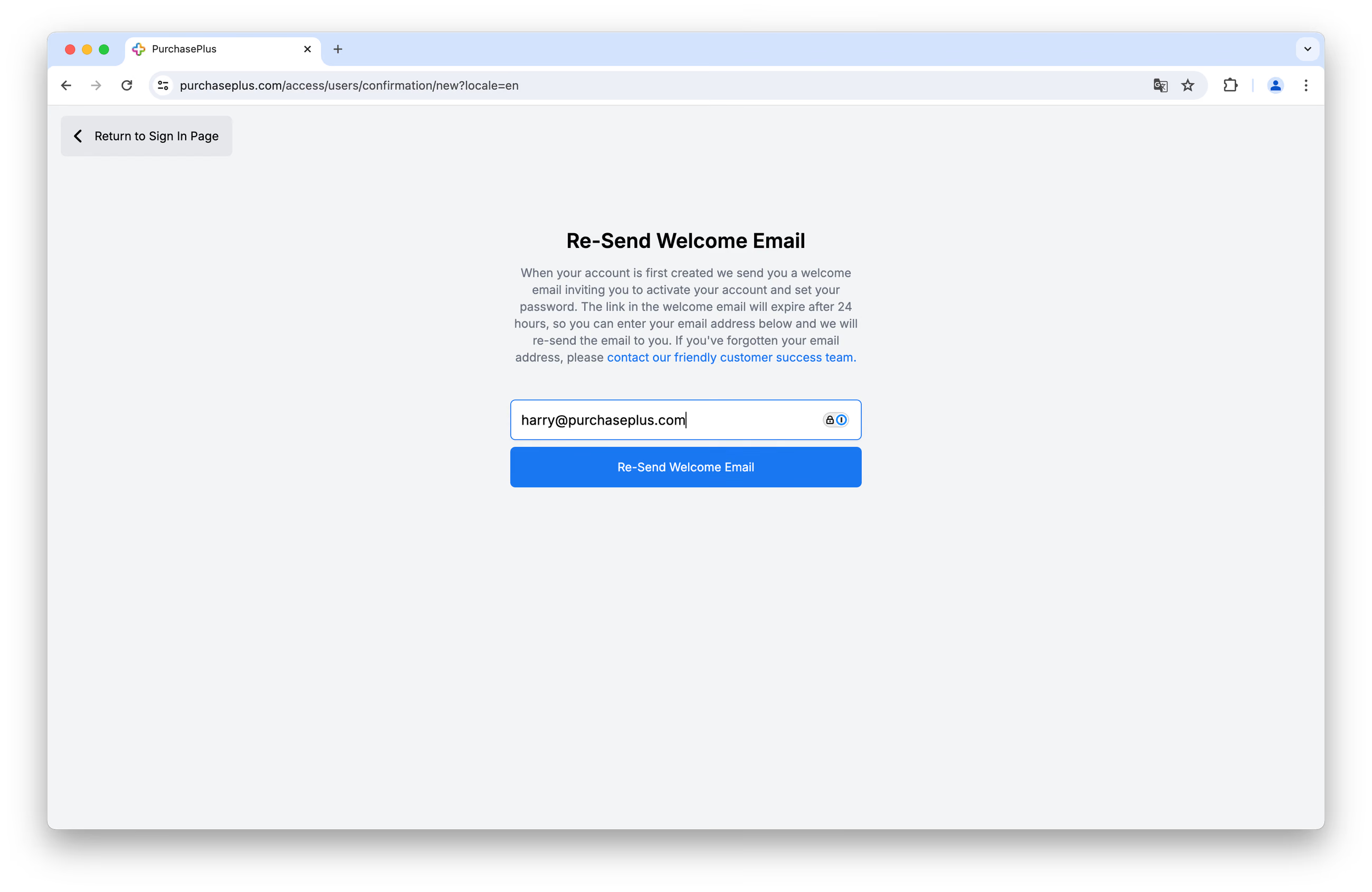
Anda akan segera menerima email selamat datang lainnya dan dapat mengikuti langkah-langkah di dalamnya untuk mengaktifkan Akun Anda.
Mereset Kata Sandi Anda
Jika Anda lupa kata sandi, Anda dapat meresetnya dan masuk dengan mengikuti langkah-langkah berikut:
Langkah 1: Klik [Perlu Bantuan untuk Masuk?]:
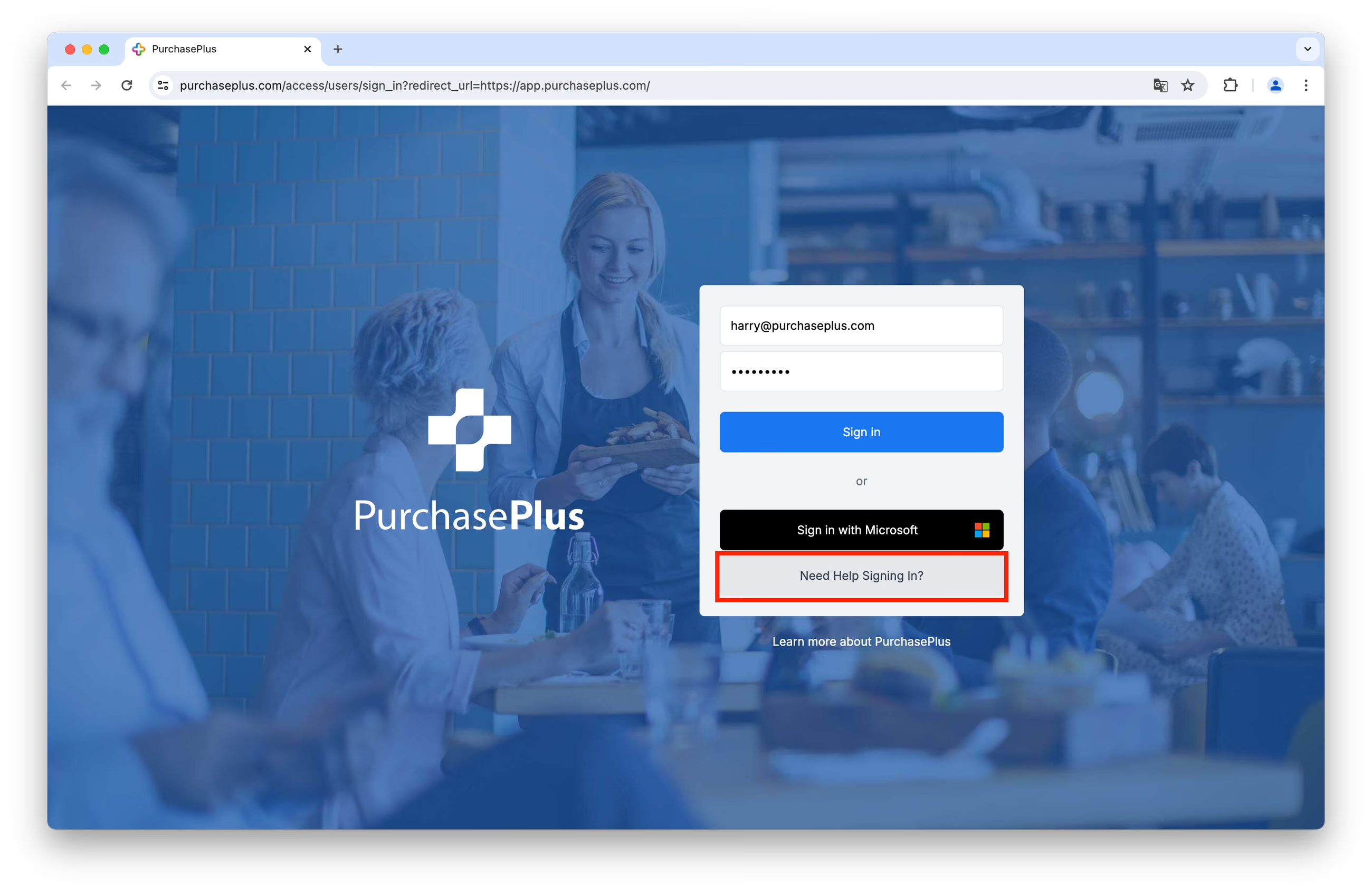
Langkah 2: Klik [Reset Kata Sandi Saya].
Langkah 3: Masukkan alamat email Anda yang terdaftar, lalu klik [Kirim Petunjuk Reset Kata Sandi]:
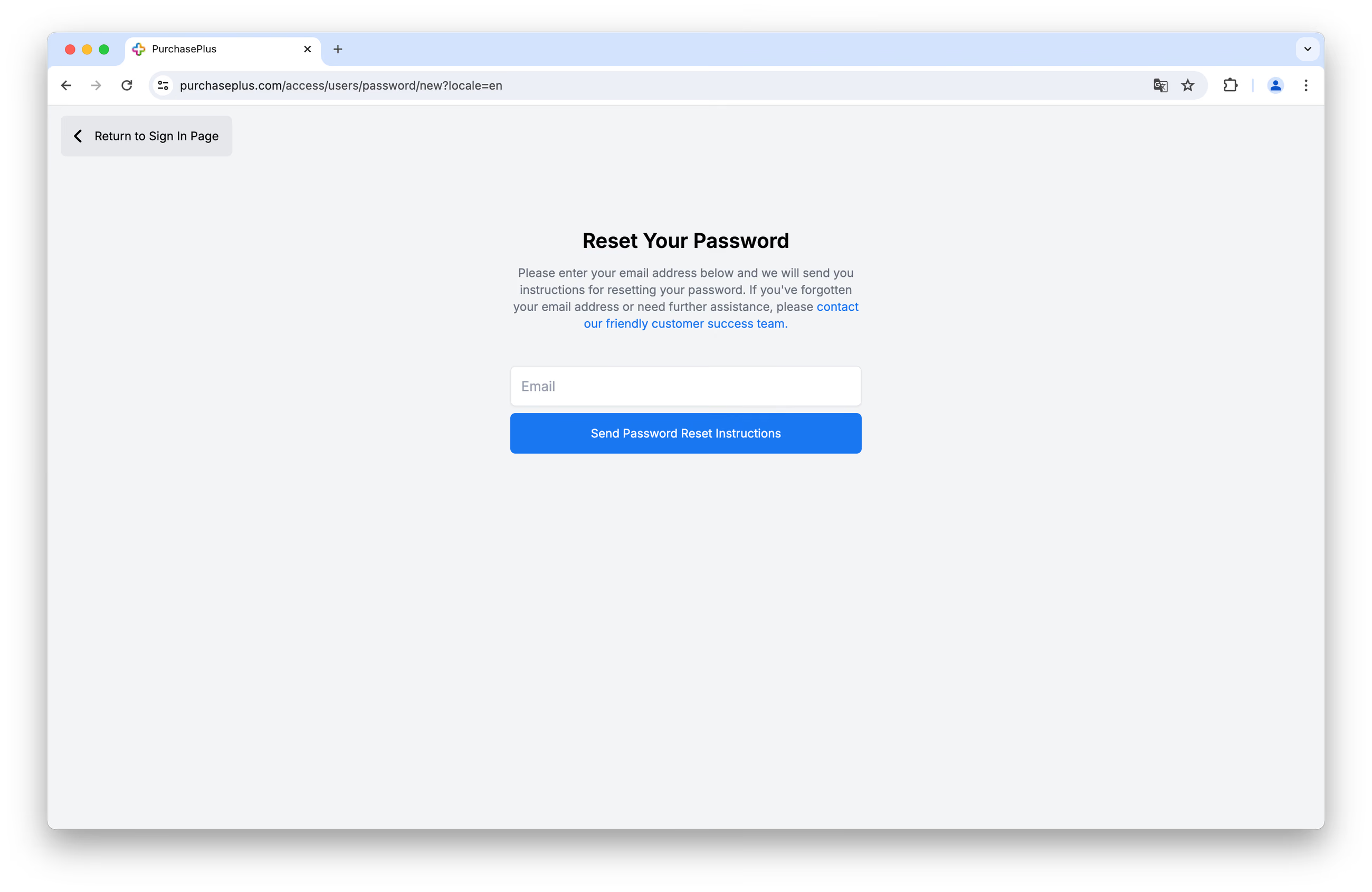
Anda akan segera menerima email dari kami, dan Anda dapat mengikuti langkah-langkah di dalamnya untuk mereset kata sandi Anda.
Kata sandi (panjang antara 12 hingga 128 Karakter, harus mencakup setidaknya satu angka, satu huruf kecil, dan satu huruf besar)
Contoh Kata Sandi Ideal: *mub!qzr0ADF_rzj0duh*#
Jika Anda memerlukan bantuan lebih lanjut untuk masuk ke PurchasePlus, silakan hubungi tim dukungan pelanggan kami yang ramah.